# 9.6. Vendor Bulk Upload

<span lang="EN-US" style="mso-ansi-language: EN-US;">By using this feature, you can onboard the multiple agents in bulk.</span>

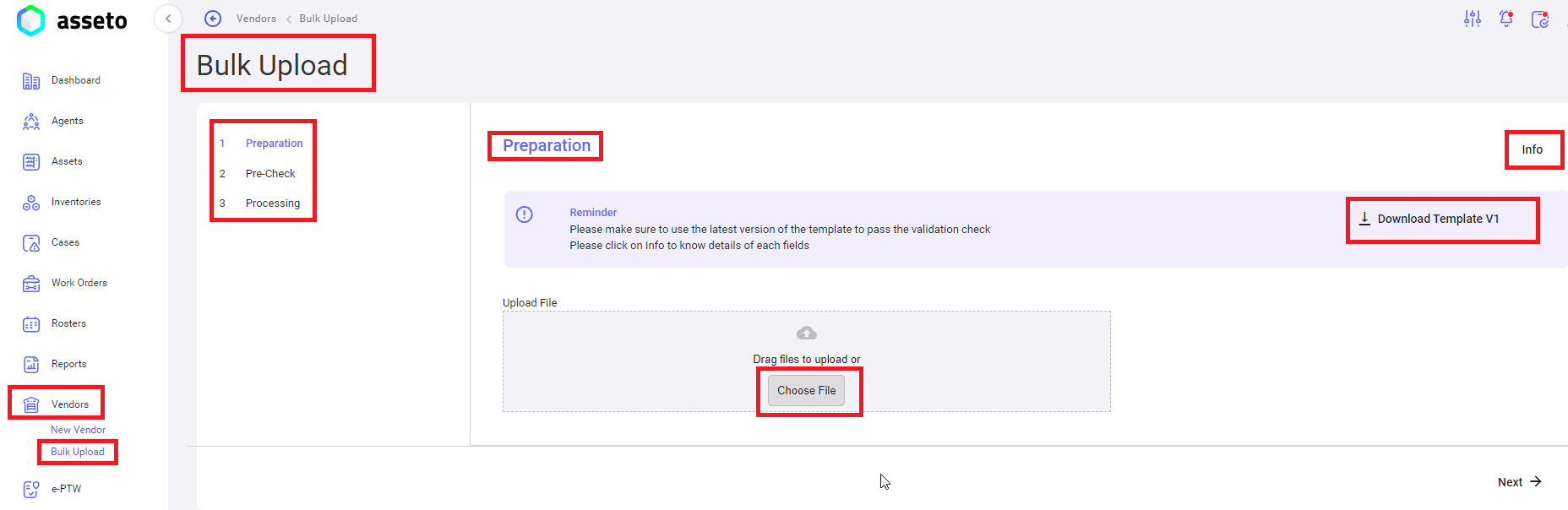
**<span lang="EN-US" style="mso-ansi-language: EN-US;">Left Menu -&gt; Vendor -&gt; Bulk Upload</span>**

<span lang="EN-US" style="mso-ansi-language: EN-US;">It has 3 sections, those are</span>

<span lang="EN-US" style="mso-ansi-language: EN-US;">1. **Preparation**: To download the template.</span>

<span lang="EN-US" style="mso-ansi-language: EN-US;">2. **Precheck**: validation check: To check for any errors in the uploaded sheet.</span>

<span lang="EN-US" style="mso-ansi-language: EN-US;">3. **Processing**: To view the progress on the bulk upload process.</span>

[![vendor-bulk edit1.png](https://kb.asseto.ai/uploads/images/gallery/2024-09/embedded-image-hyehmvzl.png)](http://ec2-3-7-68-25.ap-south-1.compute.amazonaws.com/uploads/images/gallery/2024-08/vendor-bulk-edit1.png)

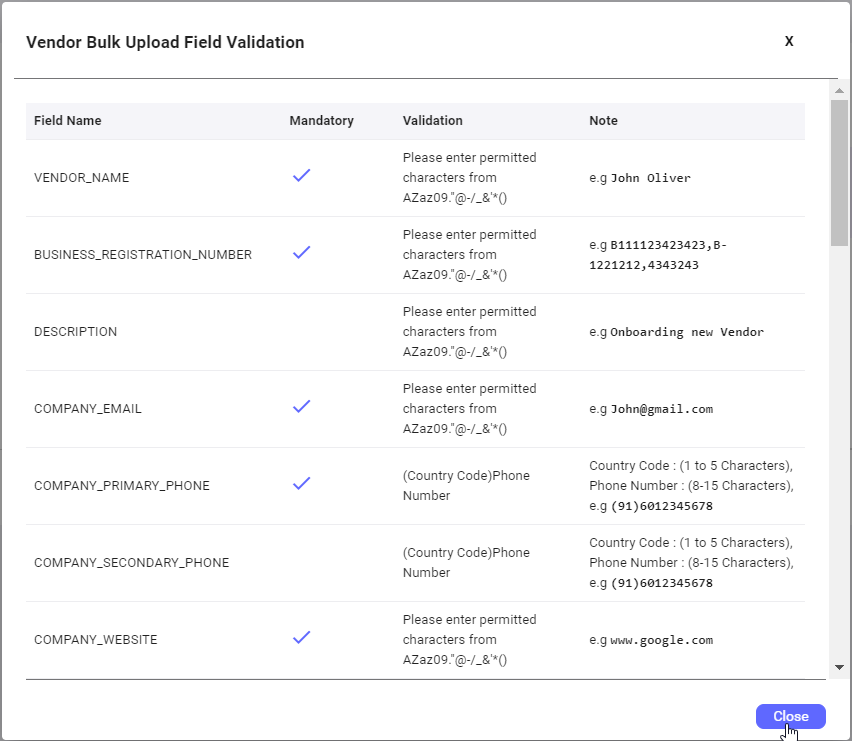
**<u><span lang="EN-US" style="mso-ansi-language: EN-US;">Info button</span></u>**<span lang="EN-US" style="mso-ansi-language: EN-US;">**:** users can view the fields validation rules to fill the values in csv file accordingly.</span>

[![vendor-bulk edit4.png](https://kb.asseto.ai/uploads/images/gallery/2024-09/embedded-image-knexfrnw.png)](http://ec2-3-7-68-25.ap-south-1.compute.amazonaws.com/uploads/images/gallery/2024-08/vendor-bulk-edit4.png)

**<span style="mso-bidi-font-family: Calibri; mso-bidi-theme-font: minor-latin;">1. </span><u><span style="mso-bidi-font-family: Calibri; mso-bidi-theme-font: minor-latin;">Preparation:</span></u>**<span style="mso-bidi-font-family: Calibri; mso-bidi-theme-font: minor-latin;"> click on download template button to download csv file will be available in your local pc downloads folder as shown by following screenshot.</span>

[![vendor-bulk edit2.png](https://kb.asseto.ai/uploads/images/gallery/2024-09/embedded-image-hdybldog.png)](http://ec2-3-7-68-25.ap-south-1.compute.amazonaws.com/uploads/images/gallery/2024-08/vendor-bulk-edit2.png)

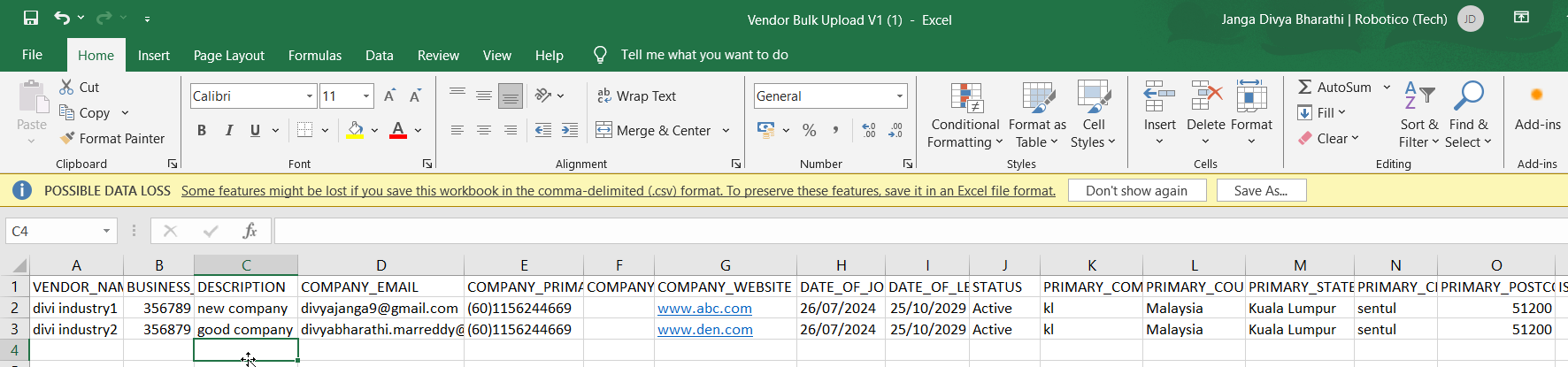
<span style="mso-bidi-font-family: Calibri; mso-bidi-theme-font: minor-latin;">Fill the data on the downloaded csv file for all vendors to be onboarding using bulk upload.</span>

[![vendor-bulk edit3.png](https://kb.asseto.ai/uploads/images/gallery/2024-09/embedded-image-rnagjqmt.png)](http://ec2-3-7-68-25.ap-south-1.compute.amazonaws.com/uploads/images/gallery/2024-08/vendor-bulk-edit3.png)

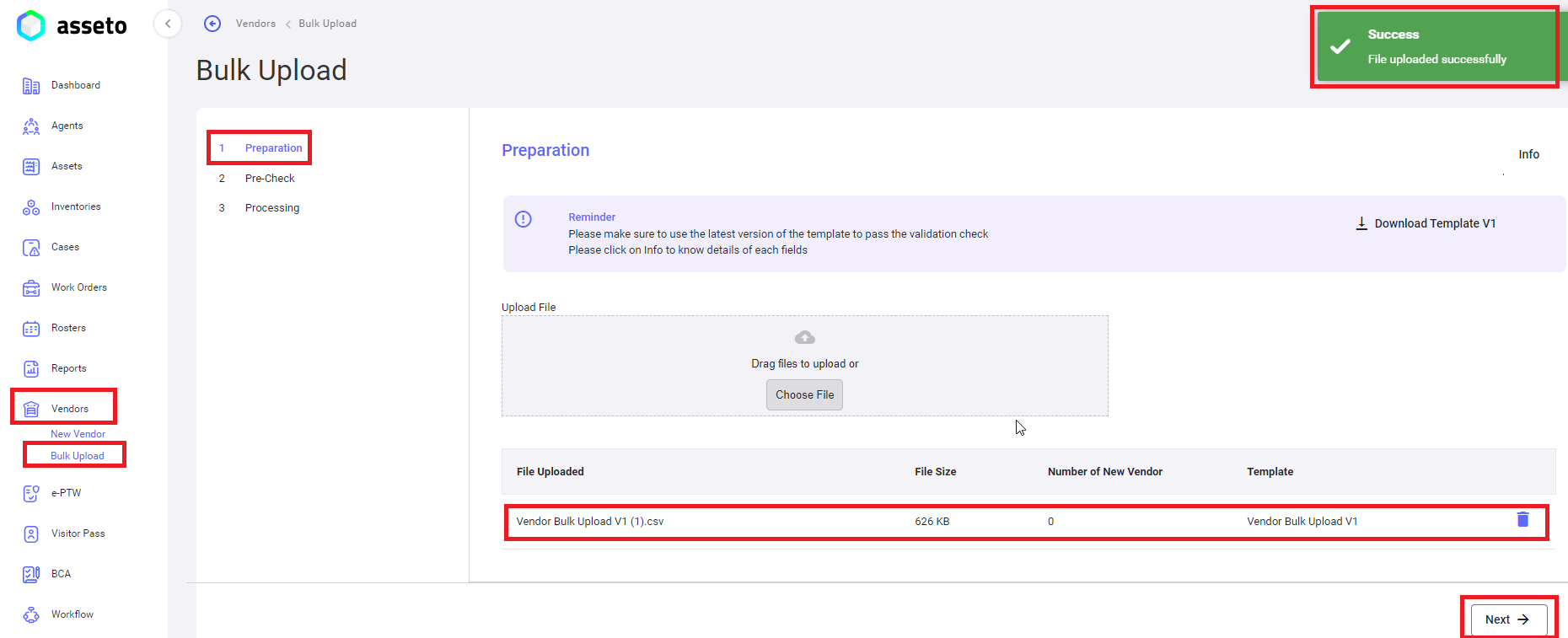
<span style="mso-bidi-font-family: Calibri; mso-bidi-theme-font: minor-latin;">Upload the file by clicking on choose file button on the bulk upload page.</span>

[![vendor-bulk edit5.png](https://kb.asseto.ai/uploads/images/gallery/2024-09/embedded-image-yisj0yr1.png)](http://ec2-3-7-68-25.ap-south-1.compute.amazonaws.com/uploads/images/gallery/2024-08/vendor-bulk-edit5.png)

<span style="mso-bidi-font-family: Calibri; mso-bidi-theme-font: minor-latin;">After uploading the csv file ‘Next’ button will be enabled, you can click on next button the system will navigate to validation check page.</span>

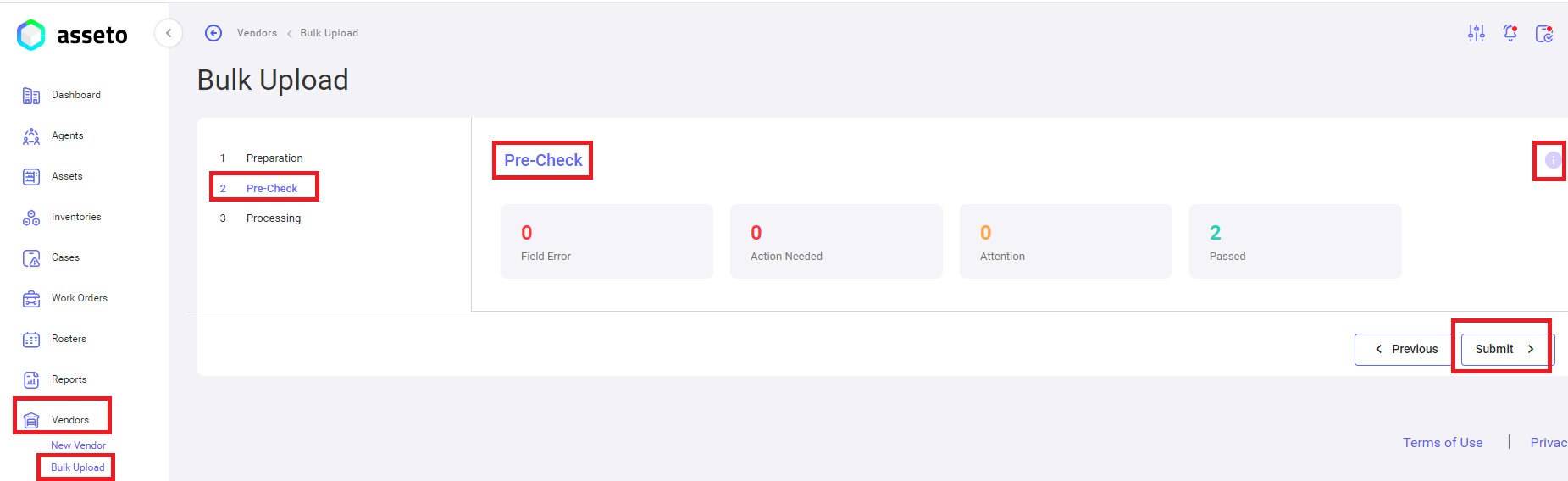
**<span style="mso-bidi-font-family: Calibri; mso-bidi-theme-font: minor-latin;">2. </span><u><span style="mso-bidi-font-family: Calibri; mso-bidi-theme-font: minor-latin;">Precheck/validation check</span></u>**<span style="mso-bidi-font-family: Calibri; mso-bidi-theme-font: minor-latin;">: if your uploaded file having any errors will be display here, user will not be able to move to next stage unless those errors are corrected, submit button enabled (as shown by below screenshot) if no errors in your csv file.</span>

[![vendor-bulk edit6.png](https://kb.asseto.ai/uploads/images/gallery/2024-09/embedded-image-zfrfcsqs.png)](http://ec2-3-7-68-25.ap-south-1.compute.amazonaws.com/uploads/images/gallery/2024-08/vendor-bulk-edit6.png)

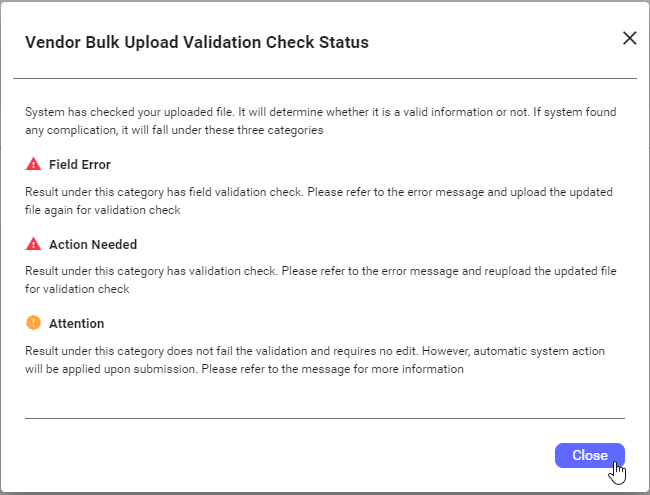
<span style="mso-bidi-font-family: Calibri; mso-bidi-theme-font: minor-latin;">**Note**: Click on the tooltip (icon) to check the validation status on validation/pre-check page.</span>

[![vendor-bulk edit7.png](https://kb.asseto.ai/uploads/images/gallery/2024-09/embedded-image-qkcxzdqu.png)](http://ec2-3-7-68-25.ap-south-1.compute.amazonaws.com/uploads/images/gallery/2024-08/vendor-bulk-edit7.png)

<span style="mso-bidi-font-family: Calibri; mso-bidi-theme-font: minor-latin;">If there are no errors user can view passed count (i.e. number of vendors added) submit button enabled. Click on the submit button system will navigate to next page.</span>

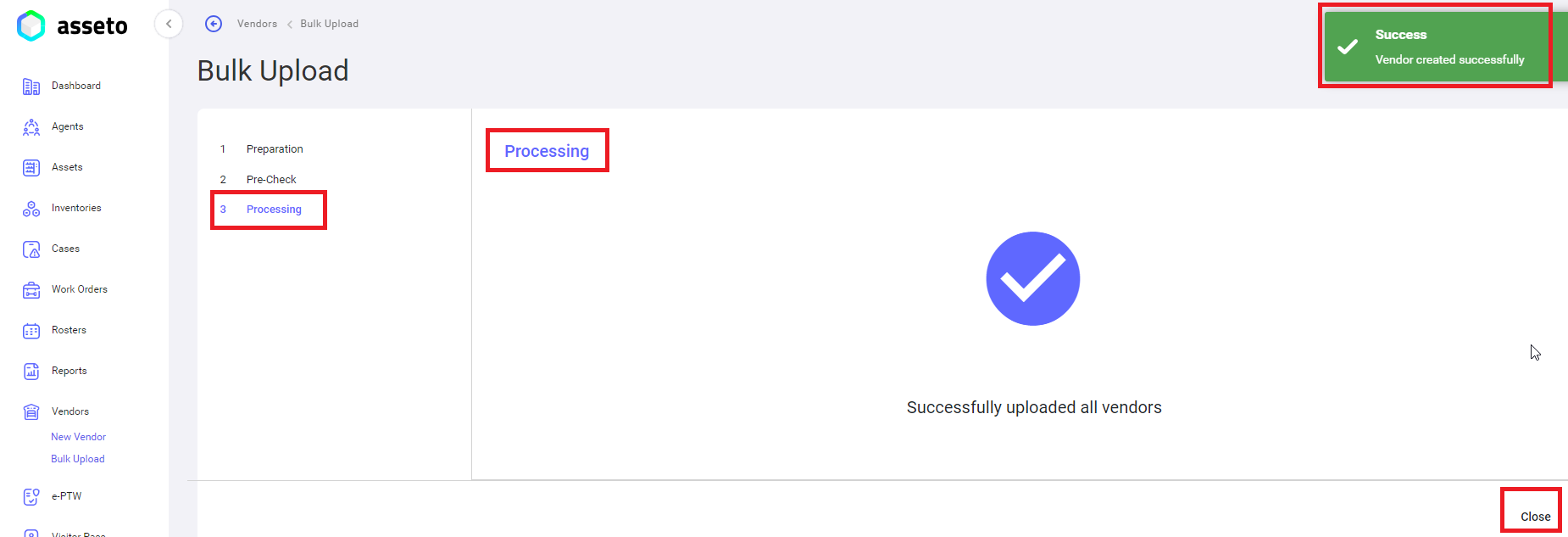
**<span style="mso-bidi-font-family: Calibri; mso-bidi-theme-font: minor-latin;">3. </span><u><span style="mso-bidi-font-family: Calibri; mso-bidi-theme-font: minor-latin;">Processing</span></u>**<span style="mso-bidi-font-family: Calibri; mso-bidi-theme-font: minor-latin;">: you can see the progress of bulk upload to the application. “Vendors created successfully” confirmation message will be displayed.</span>

[![vendor-bulk edit8.png](https://kb.asseto.ai/uploads/images/gallery/2024-09/embedded-image-svcrpxbm.png)](http://ec2-3-7-68-25.ap-south-1.compute.amazonaws.com/uploads/images/gallery/2024-08/vendor-bulk-edit8.png)

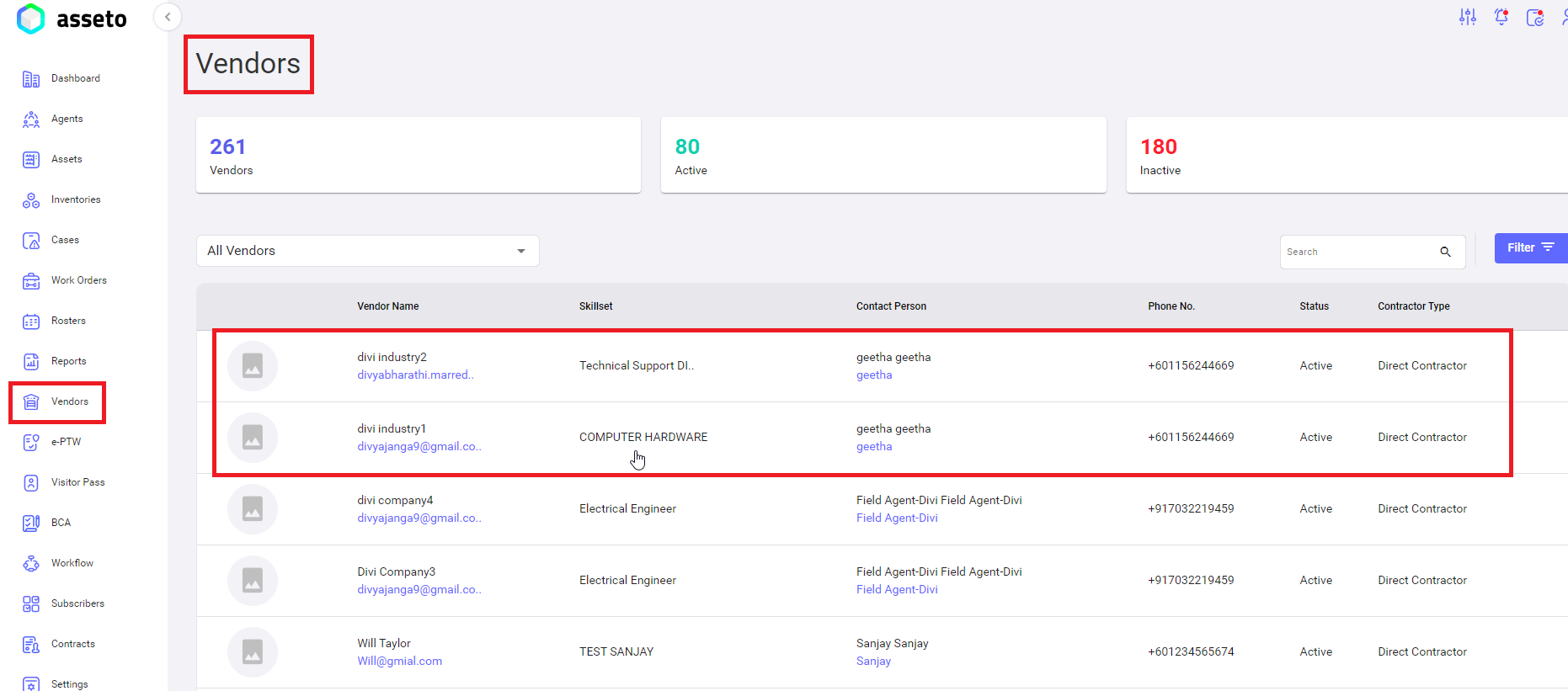
<span style="mso-bidi-font-family: Calibri; mso-bidi-theme-font: minor-latin;">Click on close. added Vendors through bulk upload will be displayed on the Vendors list page as shown by following screenshot.</span>

[![vendor-bulk edit9.png](https://kb.asseto.ai/uploads/images/gallery/2024-09/embedded-image-j65lcijm.png)](http://ec2-3-7-68-25.ap-south-1.compute.amazonaws.com/uploads/images/gallery/2024-08/vendor-bulk-edit9.png)

<div class="page-content" dir="auto" id="bkmrk--9"><div dir="auto">  
</div>---

</div>