# 9.1. Vendors Dashboard

Vendor dashboard has the following features.

[![vendor-dashboard1.png](https://kb.asseto.ai/uploads/images/gallery/2024-09/embedded-image-punccjzx.png)](http://ec2-3-7-68-25.ap-south-1.compute.amazonaws.com/uploads/images/gallery/2024-08/vendor-dashboard1.png)
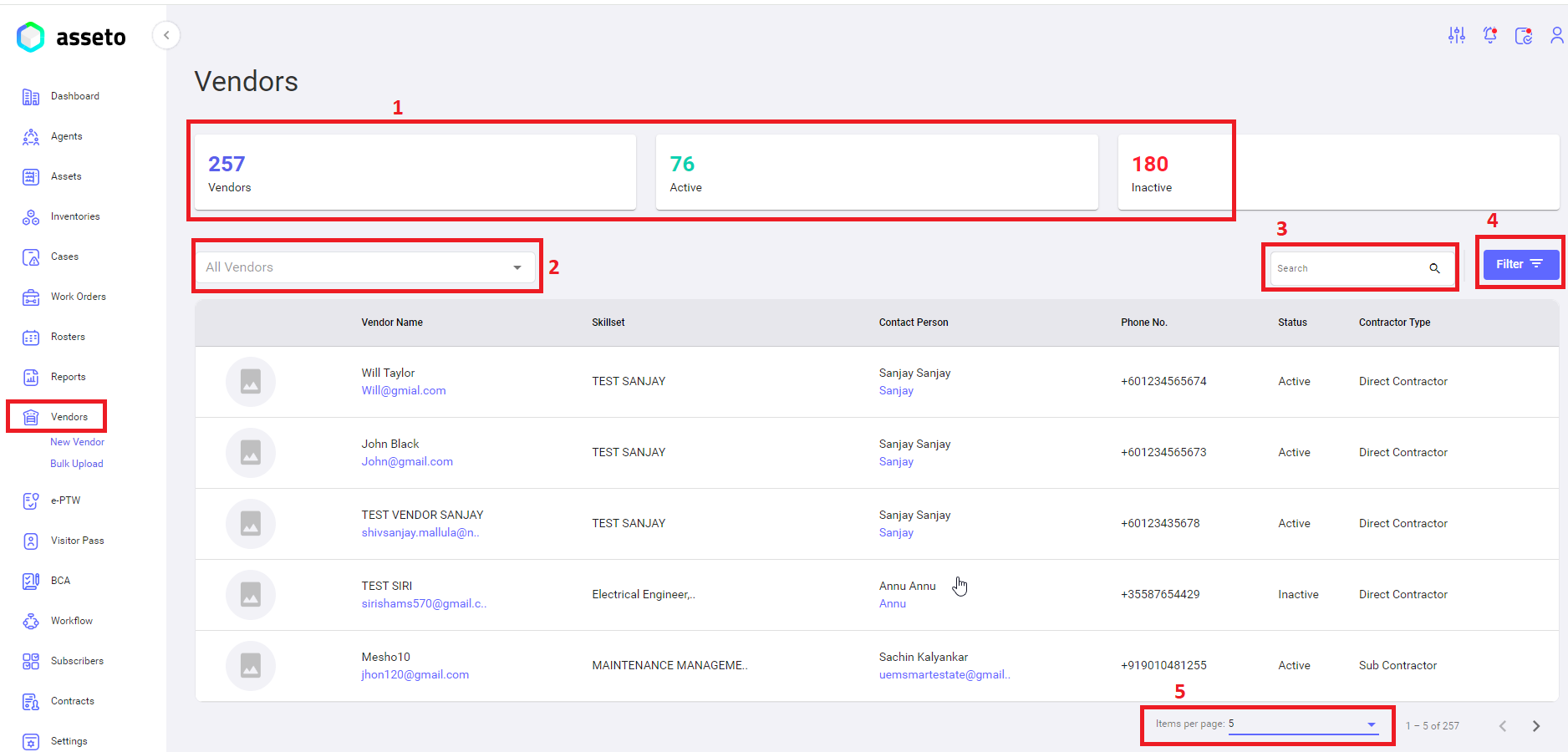
<span style="mso-bidi-font-family: Calibri; mso-bidi-theme-font: minor-latin;"><span style="mso-list: Ignore;">1.<span style="font: 7.0pt 'Times New Roman';"> </span></span></span>**Vendors summary (wedges):** It shows the count of total number of vendors in the system with active and inactive states.

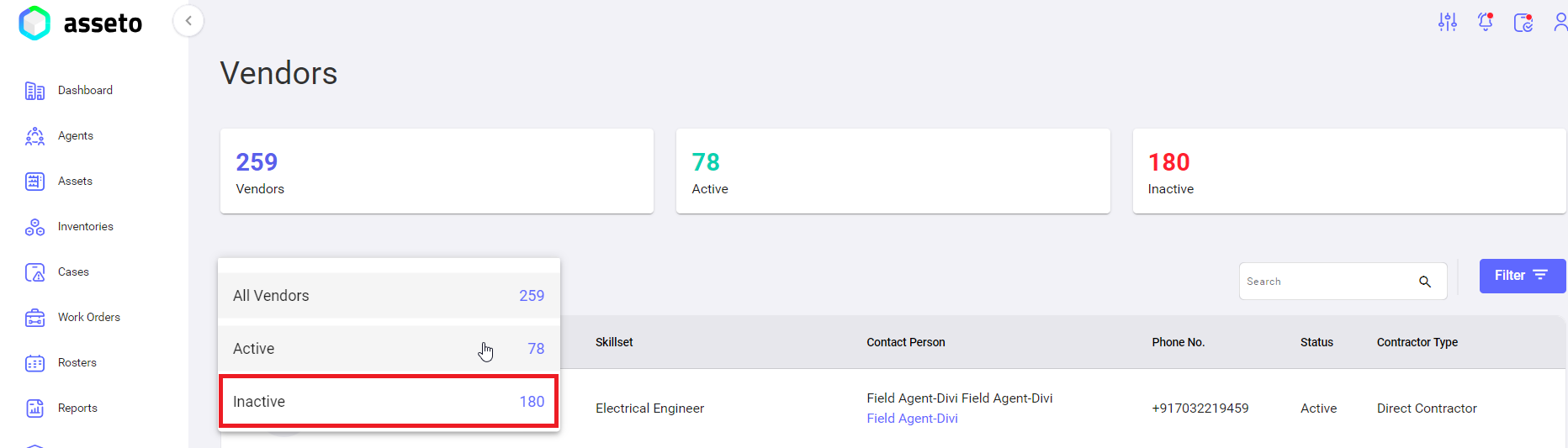
<span style="mso-bidi-font-family: Calibri; mso-bidi-theme-font: minor-latin;"><span style="mso-list: Ignore;"> 2.<span style="font: 7.0pt 'Times New Roman';"> </span></span></span>**Status Dropdown**: To search vendors with status active or inactive. Select one status from the drop down, results will be display in vendor list.

[![vendor-dashboard2.png](https://kb.asseto.ai/uploads/images/gallery/2024-09/embedded-image-vcy20h4r.png)](http://ec2-3-7-68-25.ap-south-1.compute.amazonaws.com/uploads/images/gallery/2024-08/vendor-dashboard2.png)
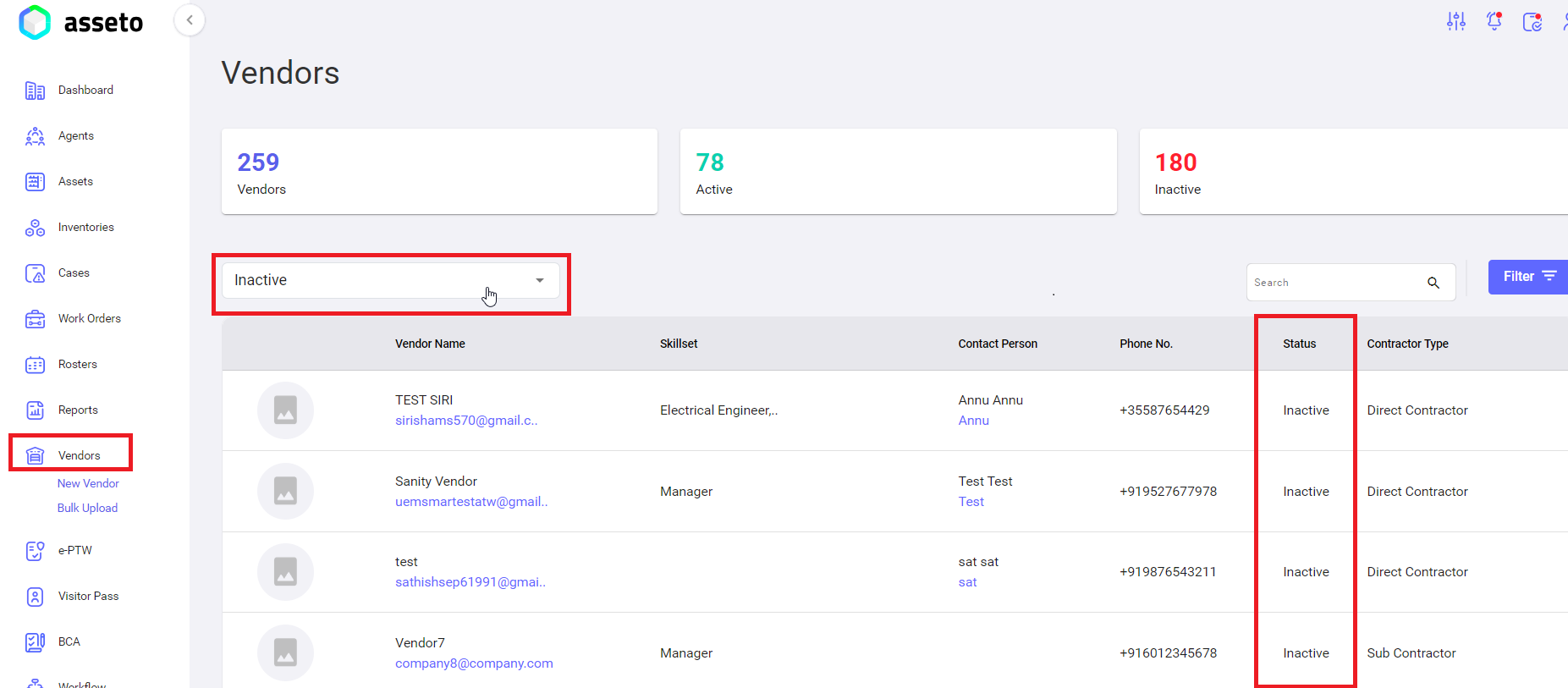
Results will display in vendors list as shown by following screenshot.

[![vendor-dashboard3.png](https://kb.asseto.ai/uploads/images/gallery/2024-09/embedded-image-vqfimzyl.png)](http://ec2-3-7-68-25.ap-south-1.compute.amazonaws.com/uploads/images/gallery/2024-08/vendor-dashboard3.png)
<span style="mso-bidi-font-family: Calibri; mso-bidi-theme-font: minor-latin;"><span style="mso-list: Ignore;">3.<span style="font: 7.0pt 'Times New Roman';"> </span></span></span>**Search**: <span lang="EN-US" style="mso-ansi-language: EN-US;">you can search for any specific vendor details with vendor name.</span>

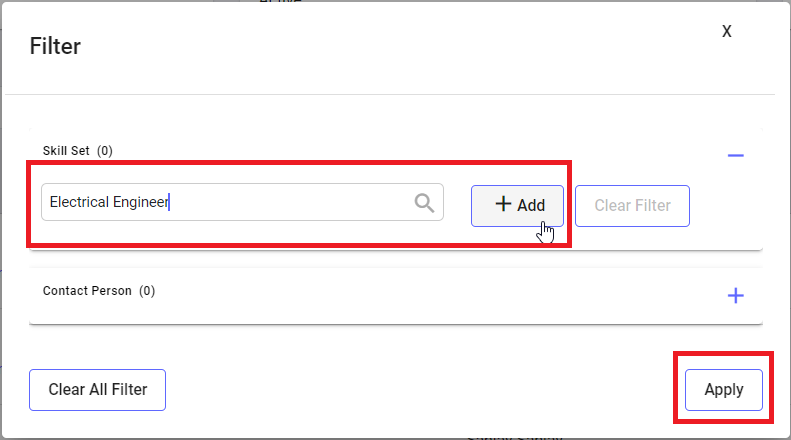
<span style="mso-bidi-font-family: Calibri; mso-bidi-theme-font: minor-latin;"><span style="mso-list: Ignore;"> 4.<span style="font: 7.0pt 'Times New Roman';"> </span></span></span>**Filter**<span lang="EN-US" style="mso-ansi-language: EN-US;">: by using this feature you can refine the search by selecting the choice of filter (skillset and contact person) and selecting the appropriate choice from the displayed list and click on add button then click on apply button shown by below screenshot.</span>

[![vendor-dashboard4.png](https://kb.asseto.ai/uploads/images/gallery/2024-09/embedded-image-ndmylwxr.png)](http://ec2-3-7-68-25.ap-south-1.compute.amazonaws.com/uploads/images/gallery/2024-08/vendor-dashboard4.png)

Filter results will display in vendor dashboard as shown by following screenshot.

[![vendor-dashboard5.png](https://kb.asseto.ai/uploads/images/gallery/2024-09/embedded-image-sazndseh.png)](http://ec2-3-7-68-25.ap-south-1.compute.amazonaws.com/uploads/images/gallery/2024-08/vendor-dashboard5.png)
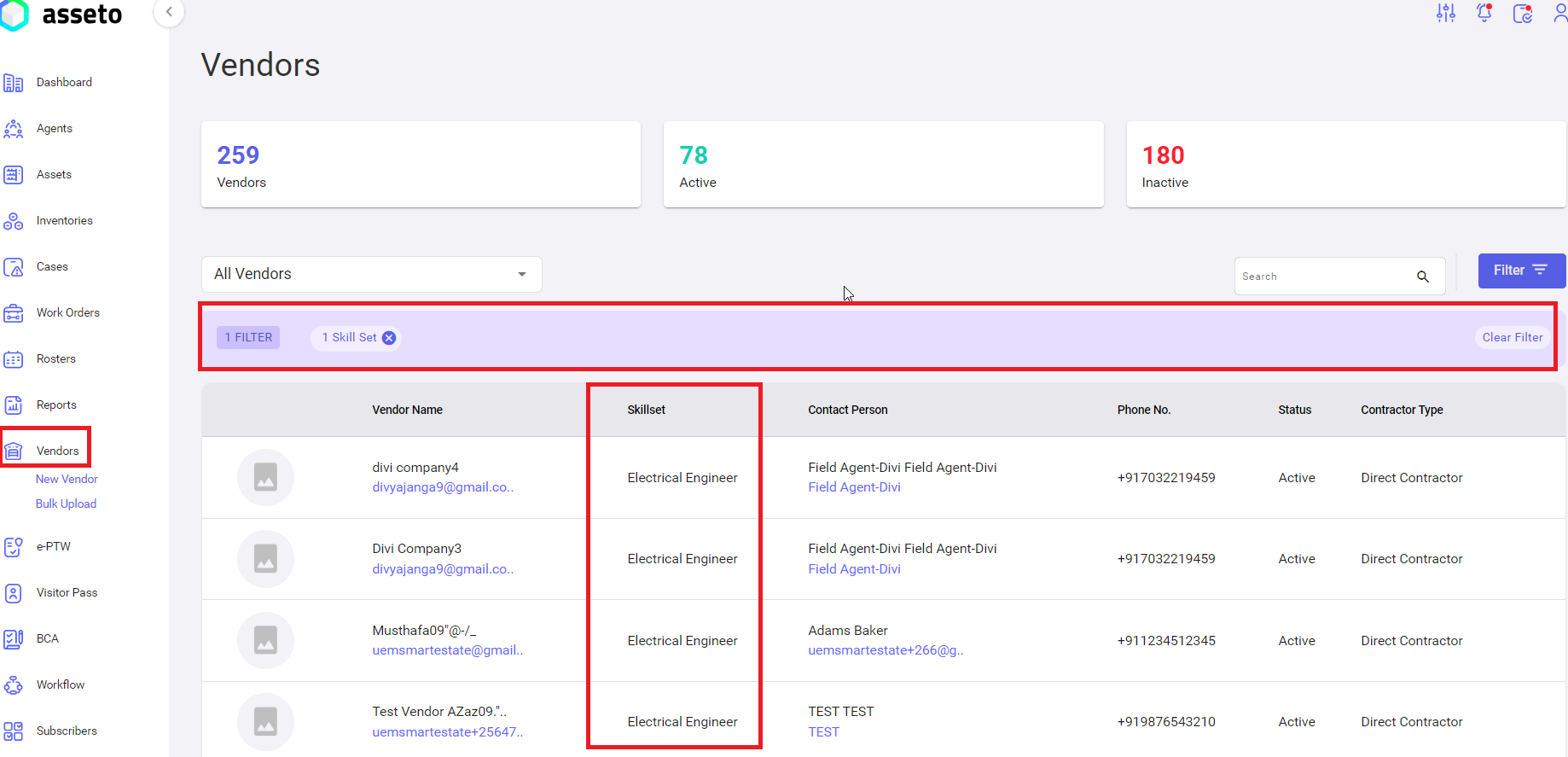
Click on the clear filter button to navigate back to normal list.

<span style="mso-bidi-font-family: Calibri; mso-bidi-theme-font: minor-latin;"><span style="mso-list: Ignore;">5.<span style="font: 7.0pt 'Times New Roman';"> </span></span></span>**Pagination**: pagination view is displayed below the vendor list, you can select the pagination numbers (5,10,25,50,100) to get the desired list.

<div class="page-content" dir="auto" id="bkmrk-revision-%236-created-"><div dir="auto">  
</div>---

<div class="text-muted text-small"><div class="entity-meta">  
</div></div></div>