# 2.1 Agents Dashboard

Here, the user can view the list of agents, as shown in the following screenshot.

[![agents-dashboard.png](https://kb.asseto.ai/uploads/images/gallery/2024-09/scaled-1680-/agents-dashboard.png)](https://kb.asseto.ai/uploads/images/gallery/2024-09/agents-dashboard.png)
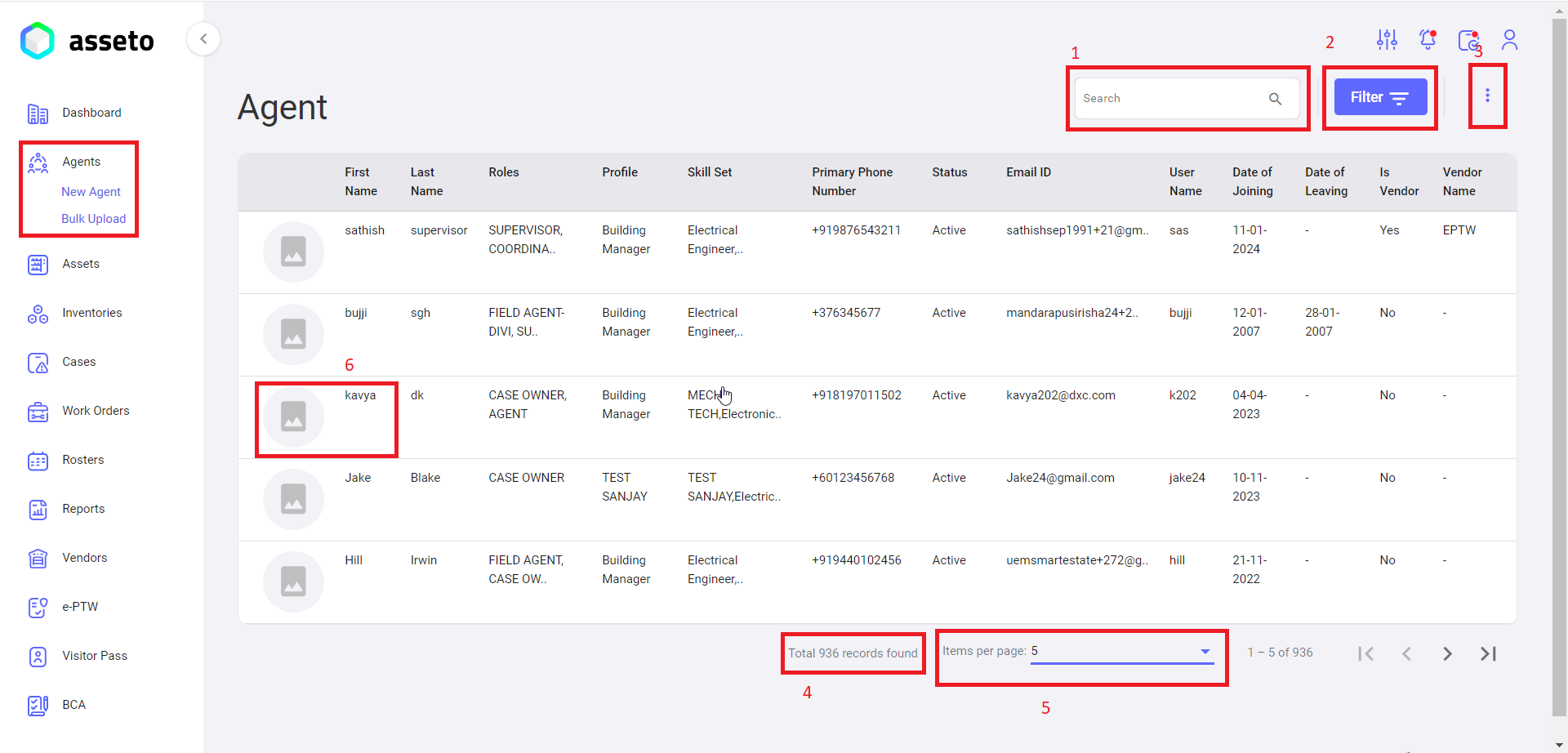
<span lang="EN-US" style="mso-ansi-language: EN-US;">Agents dashboard has the following features.</span>

##### <span lang="EN-US" style="mso-bidi-font-family: Calibri; mso-bidi-theme-font: minor-latin; mso-ansi-language: EN-US;"><span style="mso-list: Ignore;">1. S</span></span><span lang="EN-US" style="mso-ansi-language: EN-US;">earch</span>

<span lang="EN-US" style="mso-ansi-language: EN-US;">User can search for any specific agent with their names.</span>

##### <span lang="EN-US" style="mso-ansi-language: EN-US;">2. Filter</span>

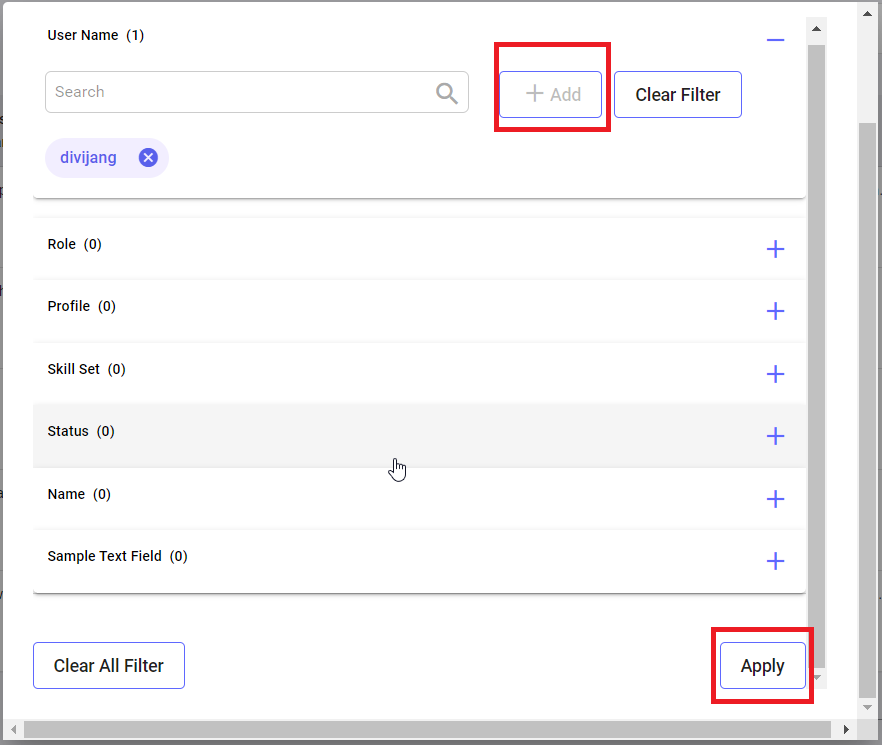
<span lang="EN-US" style="mso-ansi-language: EN-US;">By using this feature, the user can refine the search by selecting a filter option (such as username, role, profile, status, etc.), choosing the appropriate option from the displayed list, and clicking on the 'Add' button. Afterward, click the 'Apply' button, as shown in the screenshot below. The filtered results will then be displayed in the agents list.</span>

![agents-dashboard-filter.png](https://kb.asseto.ai/uploads/images/gallery/2024-09/scaled-1680-/agents-dashboard-filter.png)

##### <span lang="EN-US" style="mso-ansi-language: EN-US;">3. Customize table view</span>

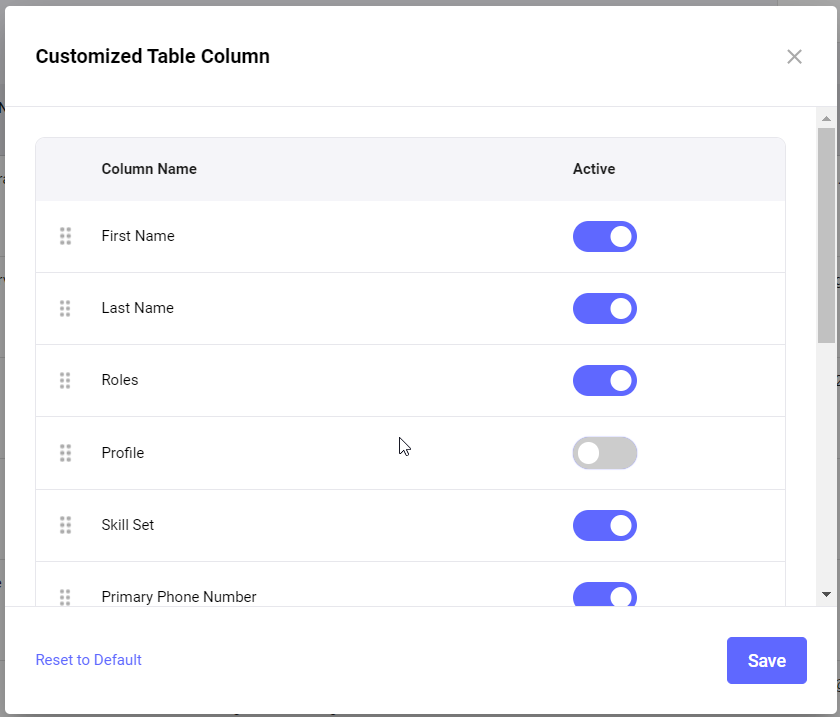
<span lang="EN-US" style="mso-ansi-language: EN-US;">User can customize the table by selecting the various columns and click on save button (shown by below screenshot), then the selected columns populate in agents table with the data. </span>

[![agents-dashboard-tableview..png](https://kb.asseto.ai/uploads/images/gallery/2024-09/scaled-1680-/agents-dashboard-tableview.png)](https://kb.asseto.ai/uploads/images/gallery/2024-09/agents-dashboard-tableview.png)

##### 4. Total Records

Total number of agents present in the system displayed in bottom of the agents table.

##### <span lang="EN-US" style="mso-bidi-font-family: Calibri; mso-bidi-theme-font: minor-latin; mso-ansi-language: EN-US;"><span style="mso-list: Ignore;">5. </span></span><span lang="EN-US" style="mso-ansi-language: EN-US;">Pagination</span>

A pagination view is displayed next to the total number of records, allowing the user to select pagination options (5, 10, 25, 50, 100) to display the desired number of records in the list.

##### <span lang="EN-US" style="mso-ansi-language: EN-US;">6. Agent detail view page</span>

<span lang="EN-US" style="mso-ansi-language: EN-US;">User can view and edit the agent details by clicking on agent from the list.</span>

The Agent module has two features:

<span lang="EN-US" style="font-family: Symbol; mso-fareast-font-family: Symbol; mso-bidi-font-family: Symbol; mso-ansi-language: EN-US;"><span style="mso-list: Ignore;">·<span style="font-style: normal; font-variant: normal; font-size-adjust: none; font-kerning: auto; font-optical-sizing: auto; font-feature-settings: normal; font-variation-settings: normal; font-stretch: normal; font-size: 7pt; line-height: normal; font-family: 'Times New Roman';"> </span></span></span><span lang="EN-US" style="mso-ansi-language: EN-US;">New Agent</span>

<span lang="EN-US" style="font-family: Symbol; mso-fareast-font-family: Symbol; mso-bidi-font-family: Symbol; mso-ansi-language: EN-US;"><span style="mso-list: Ignore;">·<span style="font-style: normal; font-variant: normal; font-size-adjust: none; font-kerning: auto; font-optical-sizing: auto; font-feature-settings: normal; font-variation-settings: normal; font-stretch: normal; font-size: 7pt; line-height: normal; font-family: 'Times New Roman';"> </span></span></span><span lang="EN-US" style="mso-ansi-language: EN-US;">Bulk Upload</span>

---