# 16. Contracts

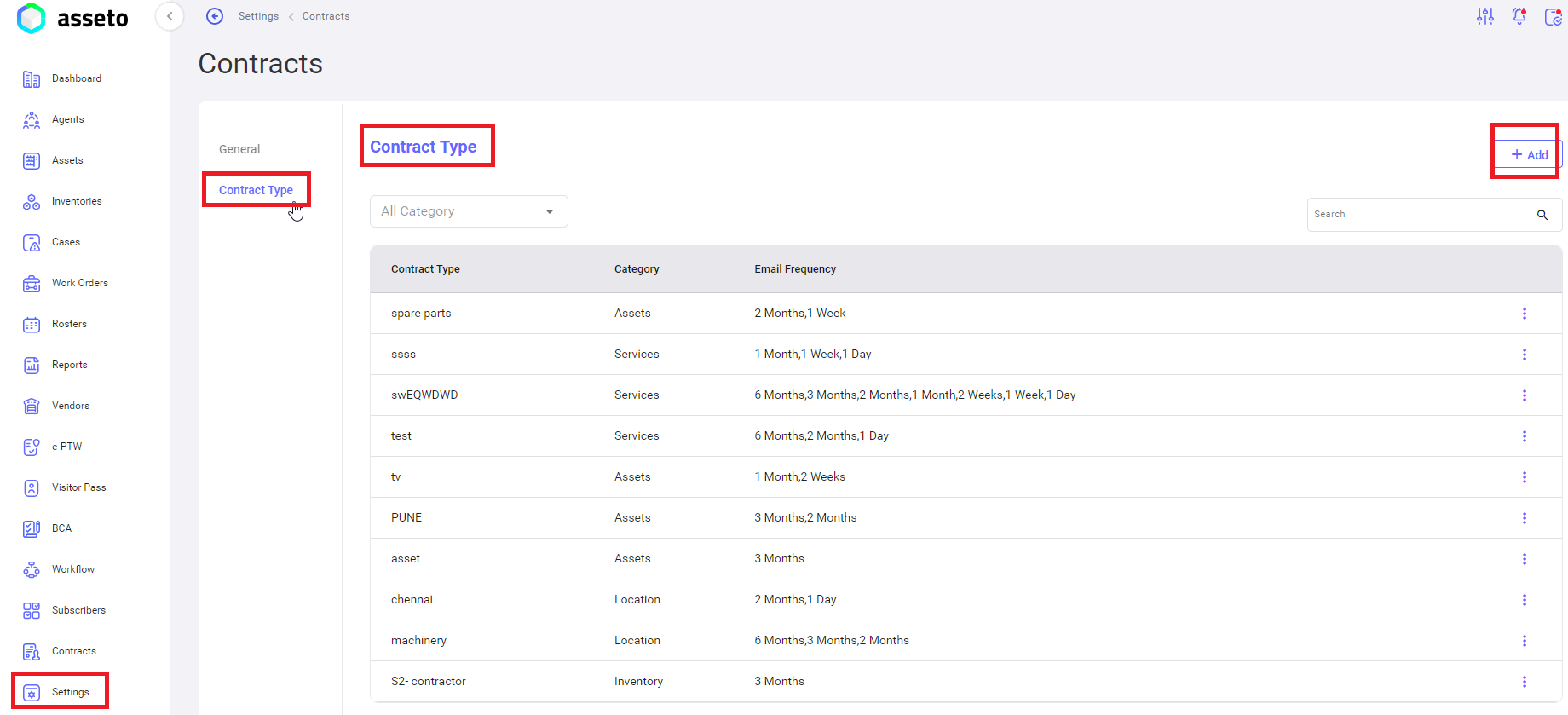
<u><span lang="EN-US" style="mso-ansi-language: EN-US;">Settings -&gt; </span>Contracts:</u>

User can setup the contracts configuration. Options are available as menu on left side, General is highlighted by default.

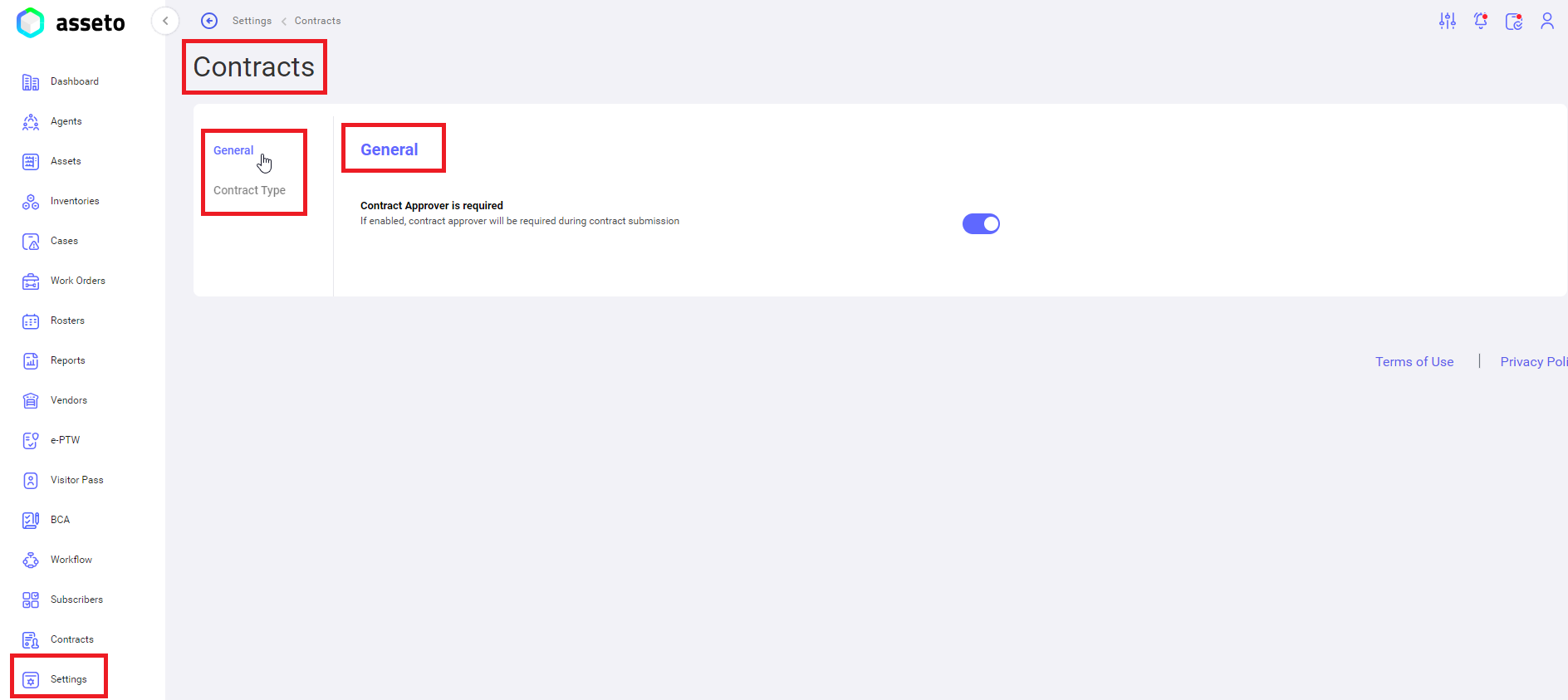
**<span style="mso-bidi-font-family: Calibri; mso-bidi-theme-font: minor-latin;"><span style="mso-list: Ignore;">i.<span style="font: 7.0pt 'Times New Roman';"> </span></span></span>****<u><span lang="EN-US" style="mso-ansi-language: EN-US;">Settings -&gt; </span>Contracts -&gt; General:</u>**

**General**: user can enable or disable. when enabled, contract approver will be required during contract submission.

[![settings-contracts1.png](https://kb.asseto.ai/uploads/images/gallery/2024-09/embedded-image-kp5l2los.png)](http://ec2-3-7-68-25.ap-south-1.compute.amazonaws.com/uploads/images/gallery/2024-08/settings-contracts1.png)
<span style="mso-bidi-font-family: Calibri; mso-bidi-theme-font: minor-latin;"><span style="mso-list: Ignore;">**ii.**<span style="font: 7.0pt 'Times New Roman';">  </span></span></span>**<u><span lang="EN-US" style="mso-ansi-language: EN-US;">Settings -&gt; </span>Contracts -&gt; Contract Type</u>**<u>:</u>

**Contract Type**:

[![settings-contracts2.png](https://kb.asseto.ai/uploads/images/gallery/2024-09/embedded-image-0zcvjzeo.png)](http://ec2-3-7-68-25.ap-south-1.compute.amazonaws.com/uploads/images/gallery/2024-08/settings-contracts2.png)

User can add the new contract type by clicking on “Add” button, following page will be display.

[![settings-contracts3.png](https://kb.asseto.ai/uploads/images/gallery/2024-09/embedded-image-yjttlrhn.png)](http://ec2-3-7-68-25.ap-south-1.compute.amazonaws.com/uploads/images/gallery/2024-08/settings-contracts3.png)
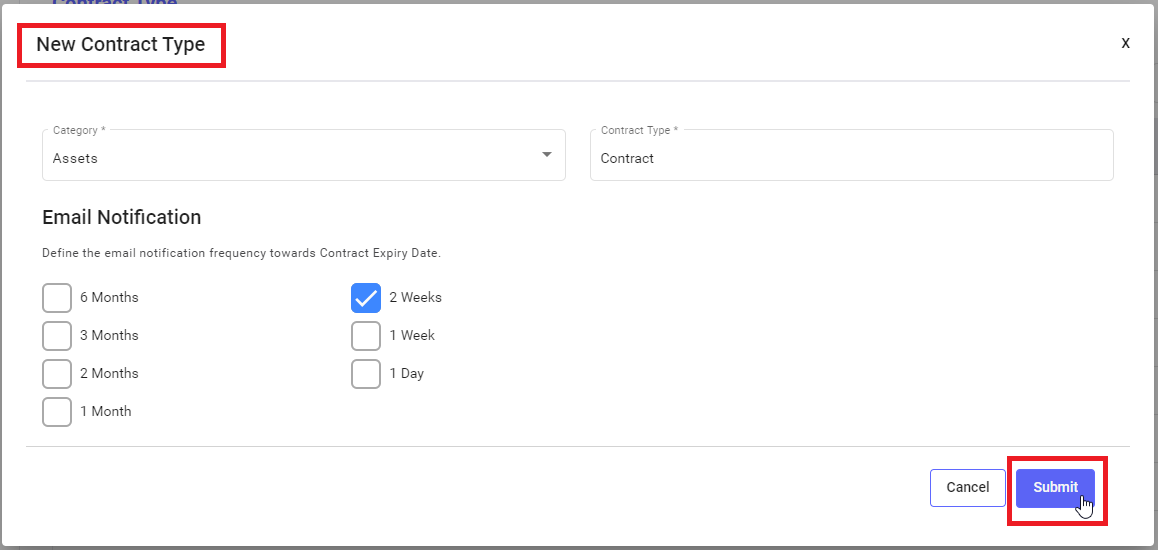
Fill the all-mandatory fields and click on “submit” button, contract type is saved successfully and will display in the first row of table.

[![settings-contracts4.png](https://kb.asseto.ai/uploads/images/gallery/2024-09/embedded-image-7aywsc8q.png)](http://ec2-3-7-68-25.ap-south-1.compute.amazonaws.com/uploads/images/gallery/2024-08/settings-contracts4.png)
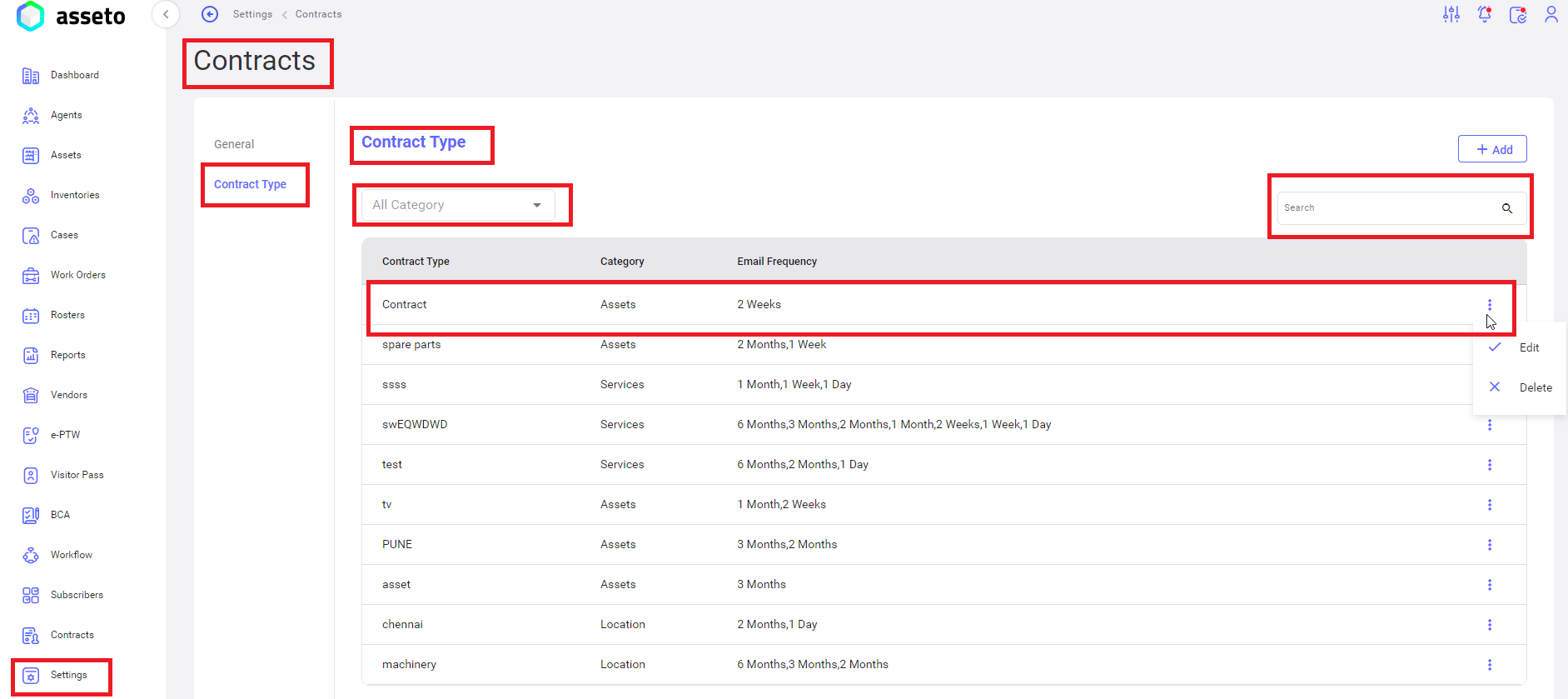
<span style="font-family: Symbol; mso-fareast-font-family: Symbol; mso-bidi-font-family: Symbol;"><span style="mso-list: Ignore;">·<span style="font: 7.0pt 'Times New Roman';"> </span></span></span><u>All Category</u>: search dropdown to filter out the contract type with category (assets, services, inventory, locations).

<span style="font-family: Symbol; mso-fareast-font-family: Symbol; mso-bidi-font-family: Symbol;"><span style="mso-list: Ignore;">·<span style="font: 7.0pt 'Times New Roman';"> </span></span></span><u>Edit/Delete</u>: User can edit or delete the added contract type by clicking on options icon (available at each row of contract type table).

<span style="font-family: Symbol; mso-fareast-font-family: Symbol; mso-bidi-font-family: Symbol;"><span style="mso-list: Ignore;">·<span style="font: 7.0pt 'Times New Roman';"> </span></span></span><u>Search bar</u>: To search the contract type.

<div class="page-content" dir="auto" id="bkmrk--4">---

</div>