# 12.2 Pre requisites to create New BCA Project

<span lang="EN-US" style="mso-ansi-language: EN-US;">Need to configure Location, </span>Components in settings, attach those components to assets while creating BCA project. Create agent with assessor role in agents module and onboard assets in assets module

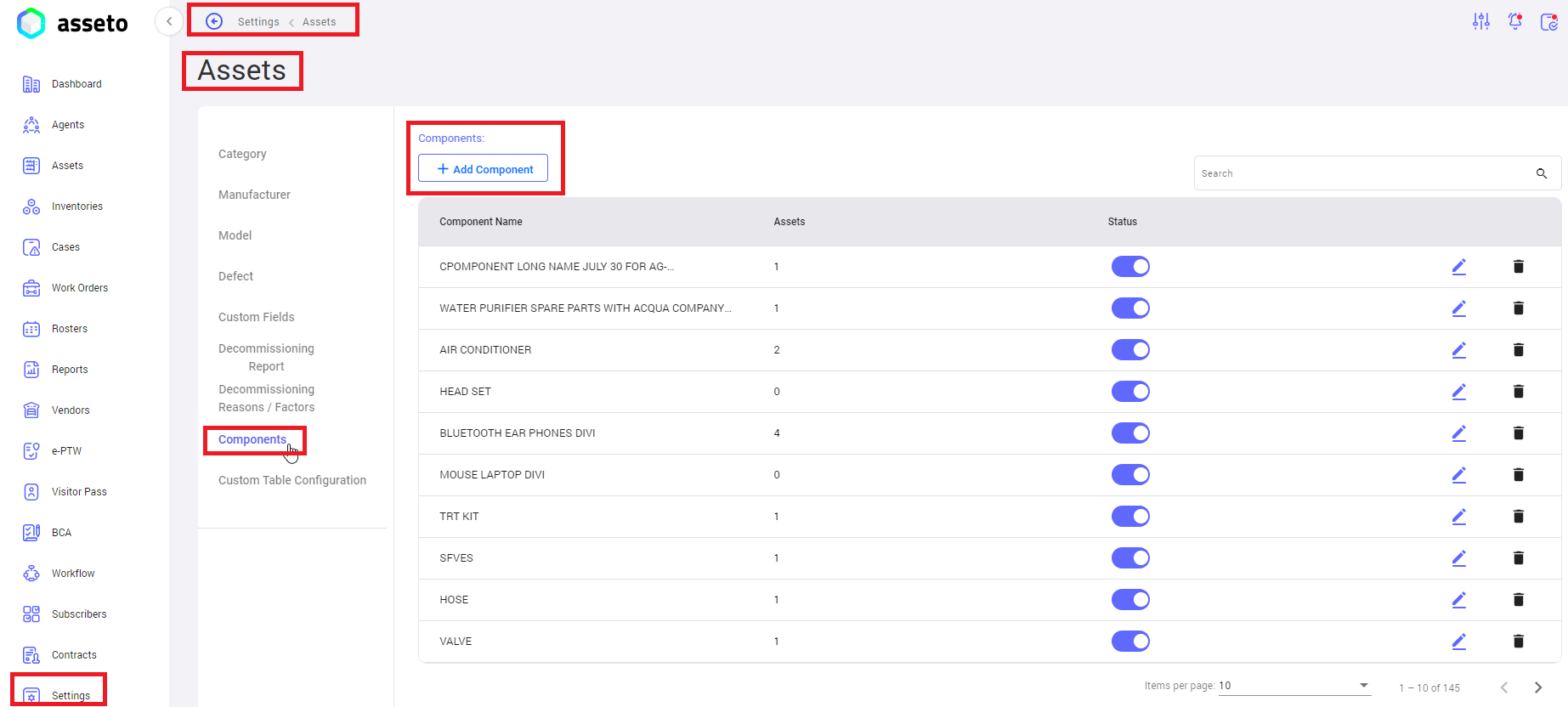
**<span style="mso-bidi-font-family: Calibri; mso-bidi-theme-font: minor-latin;"><span style="mso-list: Ignore;">i.<span style="font-style: normal; font-variant: normal; font-kerning: auto; font-optical-sizing: auto; font-feature-settings: normal; font-variation-settings: normal; font-stretch: normal; font-size: 7pt; line-height: normal; font-family: 'Times New Roman';"> </span></span></span><u>settings -&gt; assets -&gt; components</u>**

[![settings-assets-component1.png](https://kb.asseto.ai/uploads/images/gallery/2024-09/embedded-image-t87ookli.png)](http://ec2-3-7-68-25.ap-south-1.compute.amazonaws.com/uploads/images/gallery/2024-08/fijsettings-assets-component1.png)

Click on the “Add component” button, to create a new component.

[![settings-assets-component2.png](https://kb.asseto.ai/uploads/images/gallery/2024-09/embedded-image-aoyw8ctf.png)](http://ec2-3-7-68-25.ap-south-1.compute.amazonaws.com/uploads/images/gallery/2024-08/7dssettings-assets-component2.png)
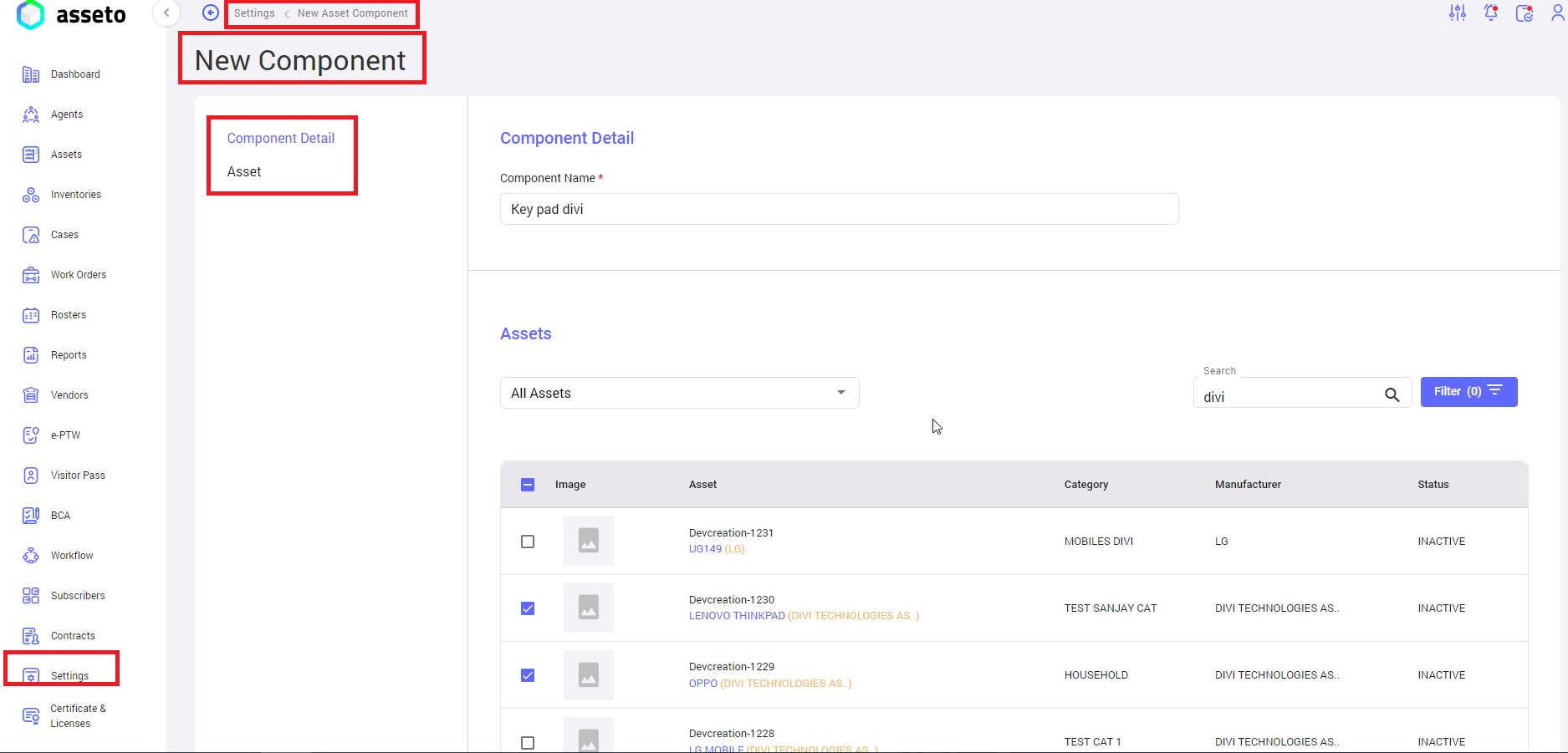
Provide component name and select assets.

[![settings-assets-component3.png](https://kb.asseto.ai/uploads/images/gallery/2024-09/embedded-image-ob5x3foa.png)](http://ec2-3-7-68-25.ap-south-1.compute.amazonaws.com/uploads/images/gallery/2024-08/jKIsettings-assets-component3.png)
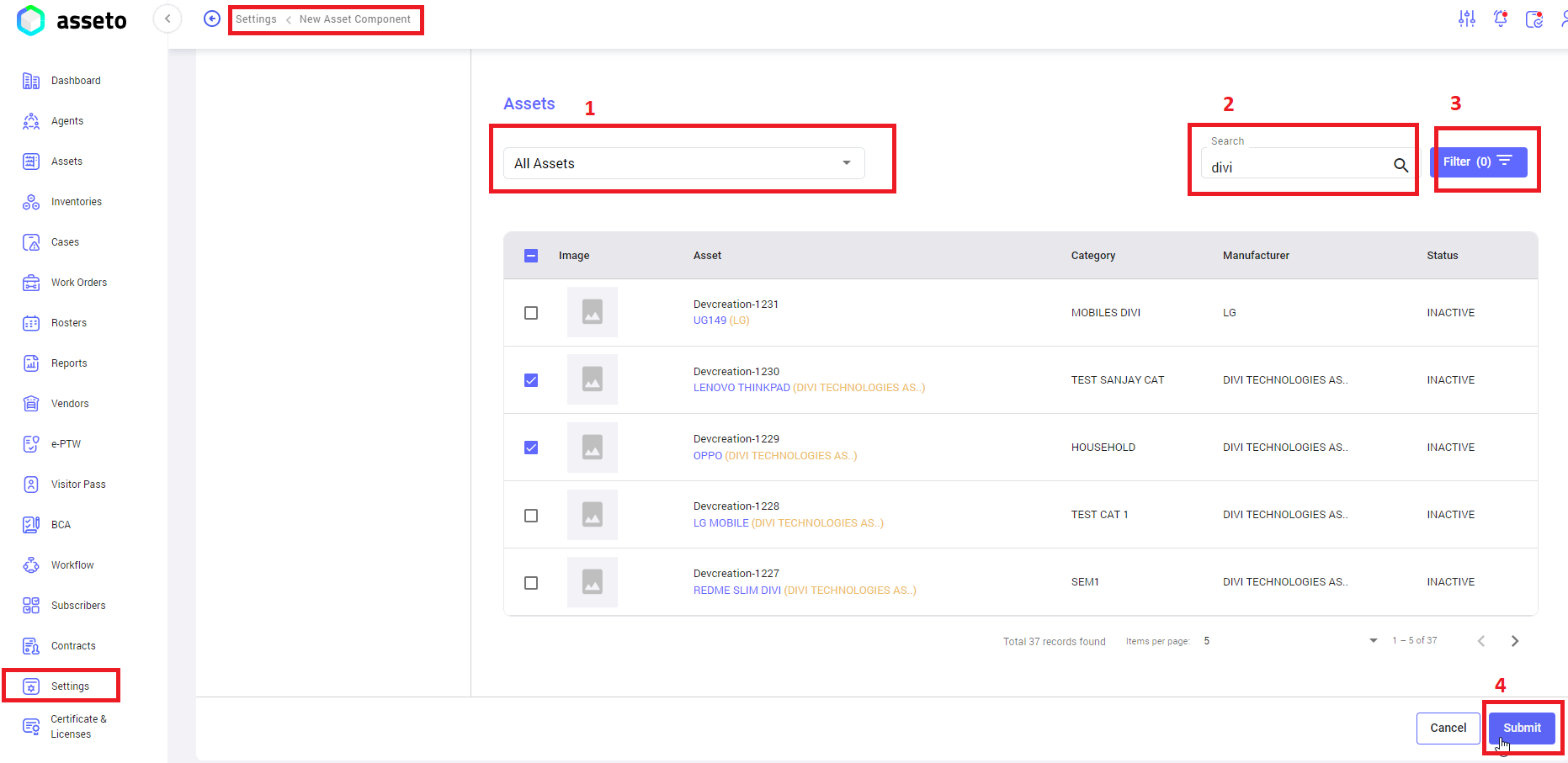
**<span style="mso-bidi-font-family: Calibri; mso-bidi-theme-font: minor-latin;"><span style="mso-list: Ignore;">1.<span style="font-style: normal; font-variant: normal; font-kerning: auto; font-optical-sizing: auto; font-feature-settings: normal; font-variation-settings: normal; font-stretch: normal; font-size: 7pt; line-height: normal; font-family: 'Times New Roman';"> </span></span></span>All assets:** Dropdown to select assets.

**<span style="mso-bidi-font-family: Calibri; mso-bidi-theme-font: minor-latin;"><span style="mso-list: Ignore;">2.<span style="font-style: normal; font-variant: normal; font-kerning: auto; font-optical-sizing: auto; font-feature-settings: normal; font-variation-settings: normal; font-stretch: normal; font-size: 7pt; line-height: normal; font-family: 'Times New Roman';"> </span></span></span>Search:** To search the filter with name.

**<span style="mso-bidi-font-family: Calibri; mso-bidi-theme-font: minor-latin;"><span style="mso-list: Ignore;">3.<span style="font-style: normal; font-variant: normal; font-kerning: auto; font-optical-sizing: auto; font-feature-settings: normal; font-variation-settings: normal; font-stretch: normal; font-size: 7pt; line-height: normal; font-family: 'Times New Roman';"> </span></span></span>Filter:** To filter out the assets by asset category, manufacturer, model.

**<span style="mso-bidi-font-family: Calibri; mso-bidi-theme-font: minor-latin;"><span style="mso-list: Ignore;">4.<span style="font-style: normal; font-variant: normal; font-kerning: auto; font-optical-sizing: auto; font-feature-settings: normal; font-variation-settings: normal; font-stretch: normal; font-size: 7pt; line-height: normal; font-family: 'Times New Roman';"> </span></span></span>Submit:** Click on the “submit” button, confirmation message “component registered successfully” will be display.

[![settings-assets-component4.png](https://kb.asseto.ai/uploads/images/gallery/2024-09/embedded-image-bb0unm91.png)](http://ec2-3-7-68-25.ap-south-1.compute.amazonaws.com/uploads/images/gallery/2024-08/nIWsettings-assets-component4.png)
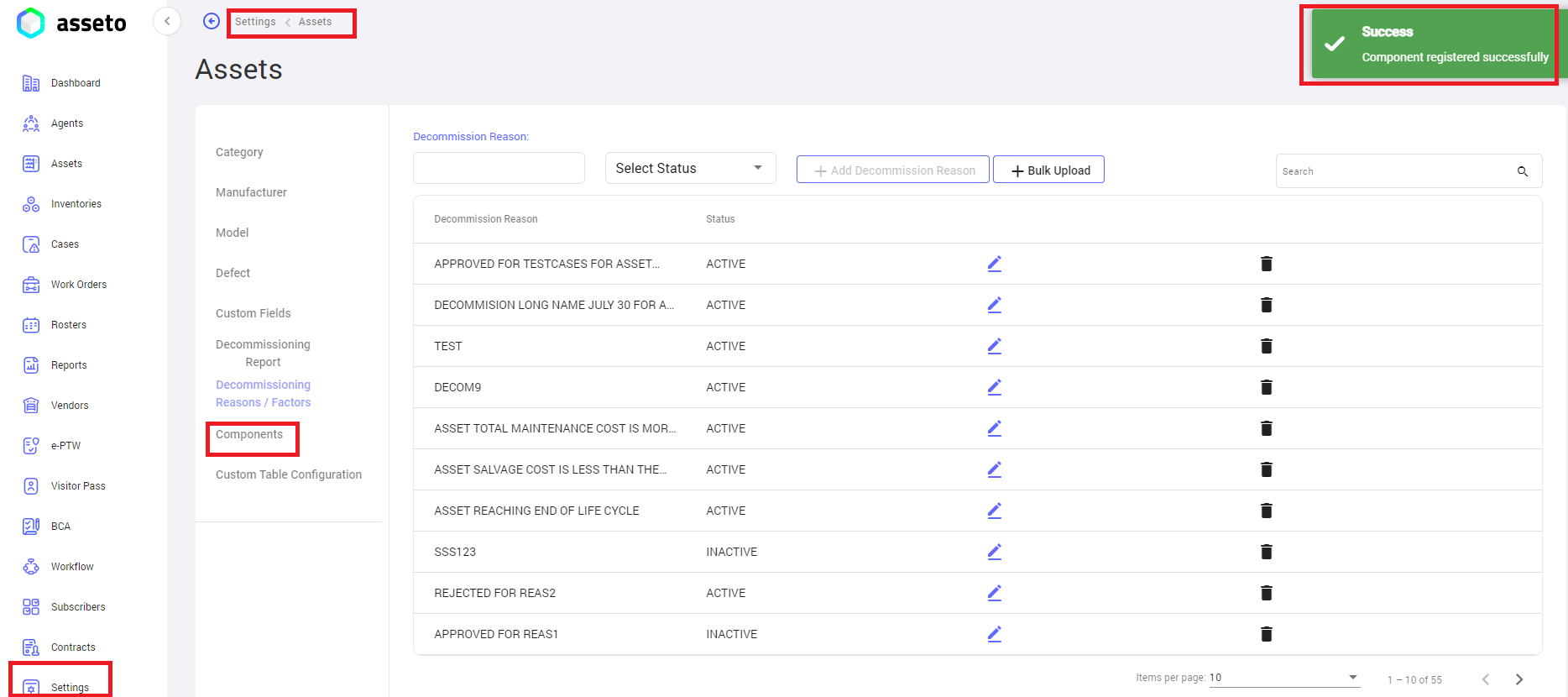
Added component will display in first of component list.

[![settings-assets-component5.png](https://kb.asseto.ai/uploads/images/gallery/2024-09/embedded-image-ba1kzjr2.png)](http://ec2-3-7-68-25.ap-south-1.compute.amazonaws.com/uploads/images/gallery/2024-08/aVusettings-assets-component5.png)
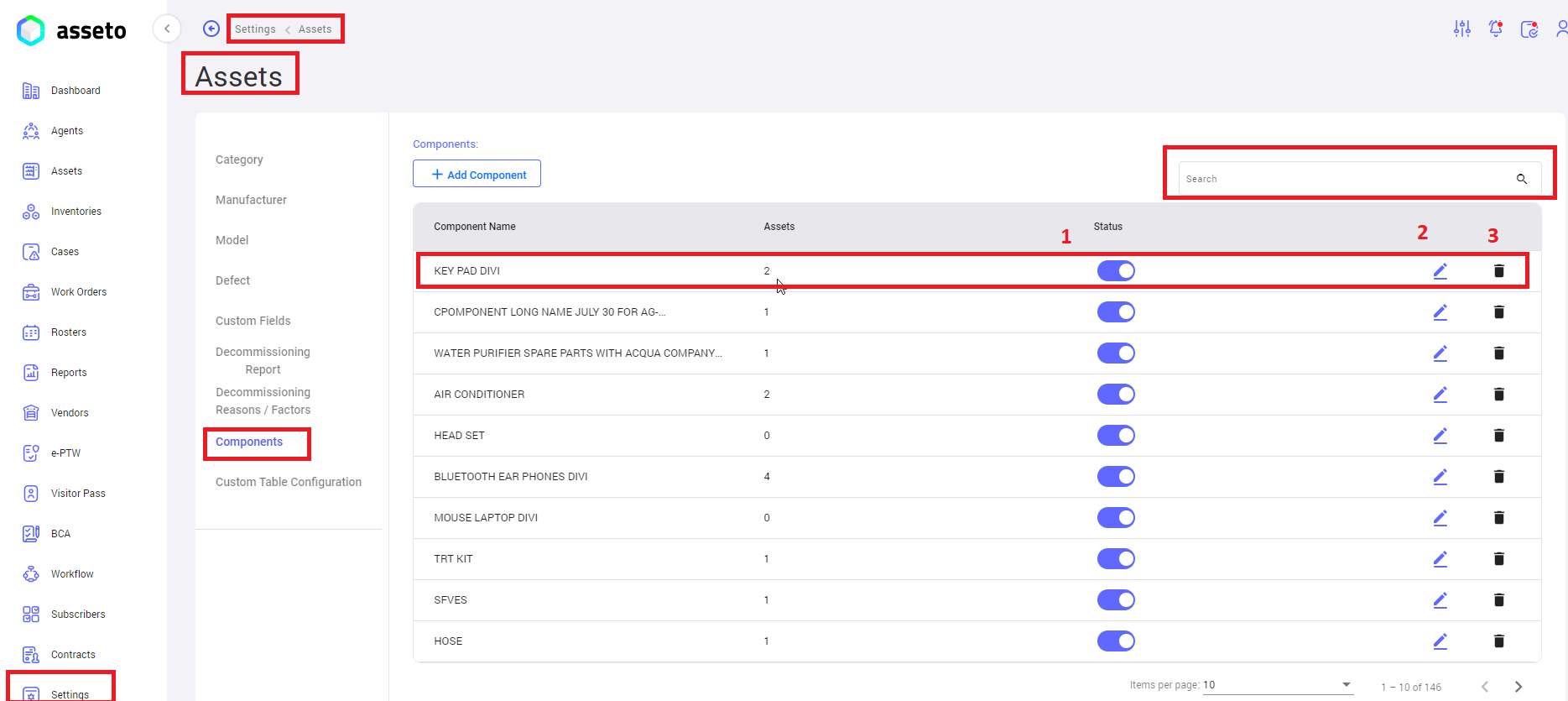
**<span style="mso-bidi-font-family: Calibri; mso-bidi-theme-font: minor-latin;"><span style="mso-list: Ignore;">1.<span style="font-style: normal; font-variant: normal; font-kerning: auto; font-optical-sizing: auto; font-feature-settings: normal; font-variation-settings: normal; font-stretch: normal; font-size: 7pt; line-height: normal; font-family: 'Times New Roman';"> </span></span></span>Status:** By default, component status is active, user can change the status as active or inactive.

**<span style="mso-bidi-font-family: Calibri; mso-bidi-theme-font: minor-latin;"><span style="mso-list: Ignore;">2.<span style="font-style: normal; font-variant: normal; font-kerning: auto; font-optical-sizing: auto; font-feature-settings: normal; font-variation-settings: normal; font-stretch: normal; font-size: 7pt; line-height: normal; font-family: 'Times New Roman';"> </span></span></span>Edit:** To edit/update component details.

**<span style="mso-bidi-font-family: Calibri; mso-bidi-theme-font: minor-latin;"><span style="mso-list: Ignore;">3.<span style="font-style: normal; font-variant: normal; font-kerning: auto; font-optical-sizing: auto; font-feature-settings: normal; font-variation-settings: normal; font-stretch: normal; font-size: 7pt; line-height: normal; font-family: 'Times New Roman';"> </span></span></span>Delete:** To delete the component.

**<span style="mso-bidi-font-family: Calibri; mso-bidi-theme-font: minor-latin;"><span style="mso-list: Ignore;">4.<span style="font-style: normal; font-variant: normal; font-kerning: auto; font-optical-sizing: auto; font-feature-settings: normal; font-variation-settings: normal; font-stretch: normal; font-size: 7pt; line-height: normal; font-family: 'Times New Roman';"> </span></span></span>Search:** To search the components with names.

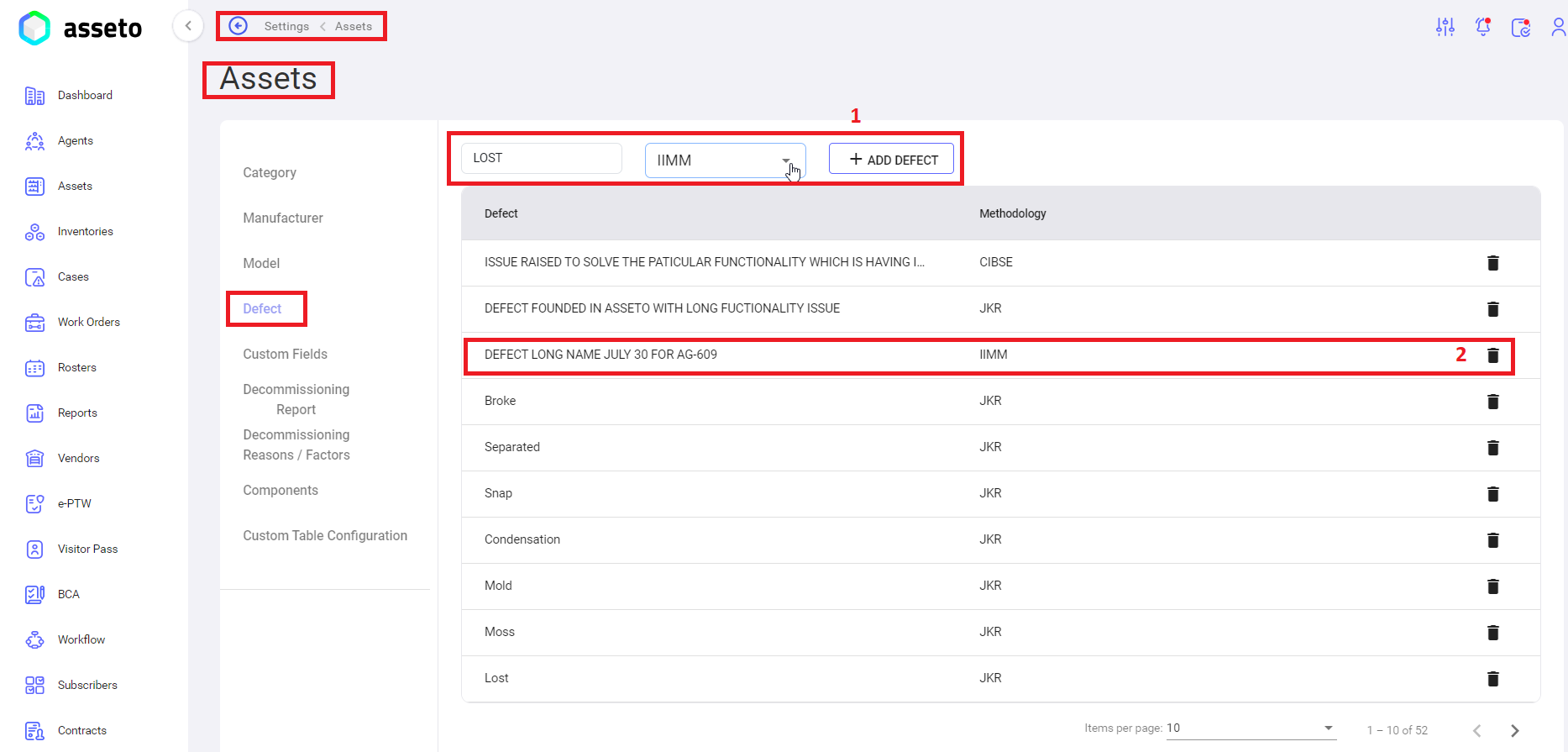
**<span lang="EN-US" style="mso-bidi-font-family: Calibri; mso-bidi-theme-font: minor-latin; mso-ansi-language: EN-US;"><span style="mso-list: Ignore;">ii. </span></span><span lang="EN-US" style="mso-bidi-font-family: Calibri; mso-bidi-theme-font: minor-latin; mso-ansi-language: EN-US;"><span style="mso-list: Ignore;"> S</span></span><u>ettings -&gt; assets -&gt; Defect</u>**

[![settings-asset-defect1.png](https://kb.asseto.ai/uploads/images/gallery/2024-09/embedded-image-qoacepjl.png)](http://ec2-3-7-68-25.ap-south-1.compute.amazonaws.com/uploads/images/gallery/2024-08/1PSsettings-asset-defect1.png)

<span style="mso-bidi-font-family: Calibri; mso-bidi-theme-font: minor-latin;"><span style="mso-list: Ignore;">1.<span style="font: 7.0pt 'Times New Roman';"> </span></span></span>**Add Defect**: fill the defect name in the text box and select one methodology from dropdown then click on “Add Defect” button to save the defect. The saved defect will be displayed in the first row of the table.

<span style="mso-bidi-font-family: Calibri; mso-bidi-theme-font: minor-latin;"><span style="mso-list: Ignore;">2.<span style="font: 7.0pt 'Times New Roman';"> </span></span></span>**Delete Defect**: click on delete icon to delete the selected defect.

**<span lang="EN-US" style="mso-bidi-font-family: Calibri; mso-bidi-theme-font: minor-latin; mso-ansi-language: EN-US;"><span style="mso-list: Ignore;">iii. Go to Settings open My Organization to Configure Location, Building, Room, Floor.</span></span>**

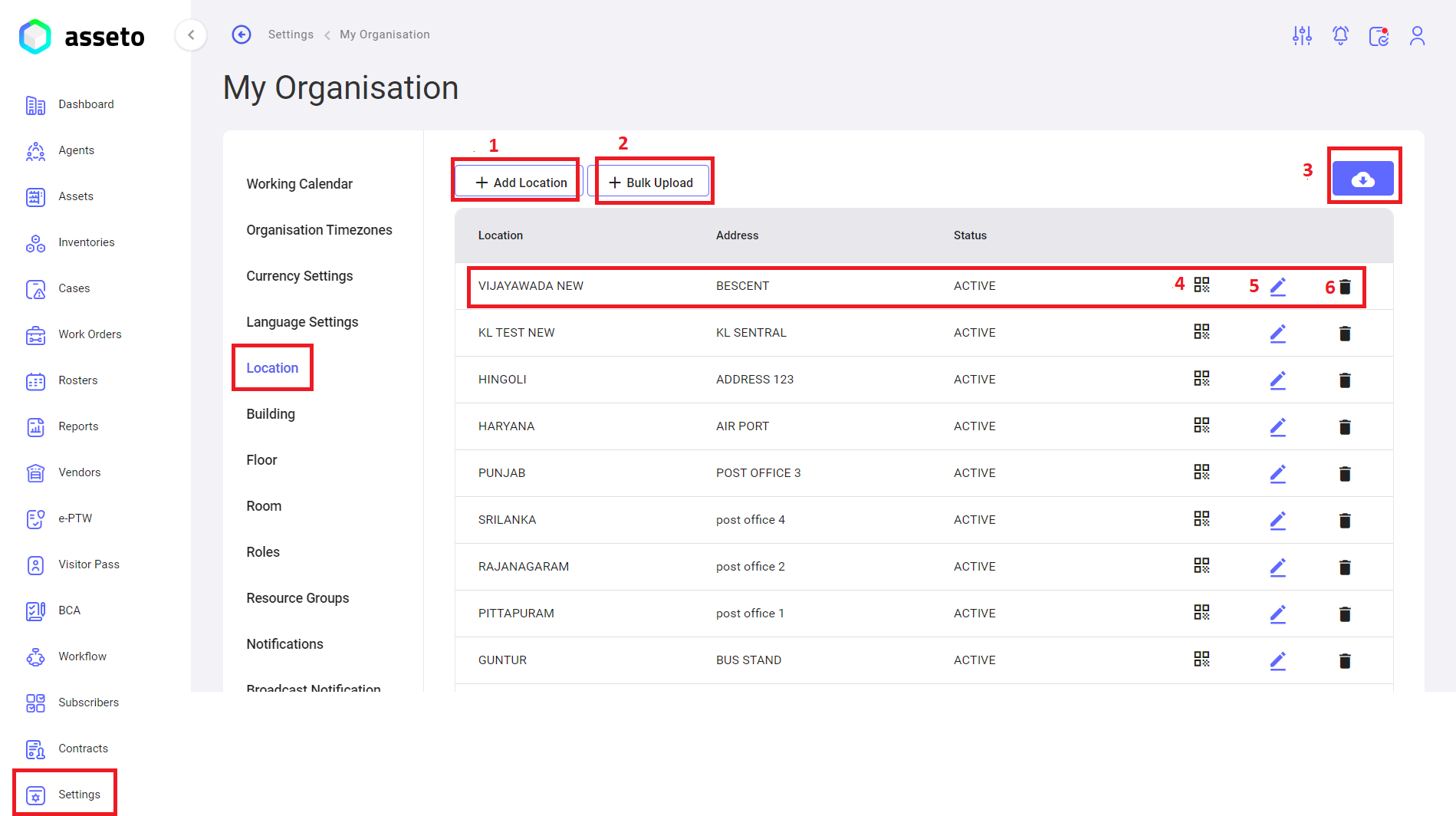
**<u><span lang="EN-US" style="mso-bidi-font-family: Calibri; mso-bidi-theme-font: minor-latin; mso-ansi-language: EN-US;">Settings -&gt; My Organization -&gt; Location: </span></u>**

[![settings-my organization-location1.png](https://kb.asseto.ai/uploads/images/gallery/2024-09/embedded-image-kjnvwer8.png)](http://ec2-3-7-68-25.ap-south-1.compute.amazonaws.com/uploads/images/gallery/2024-08/c00settings-my-organization-location1.png)

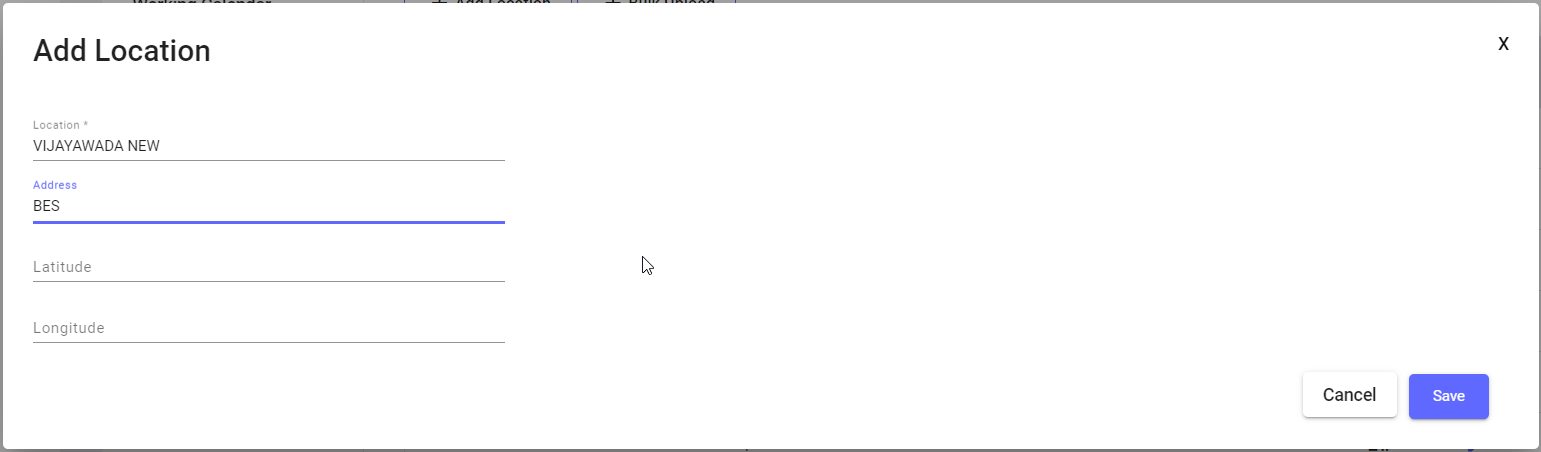
 **<span lang="EN-US" style="mso-bidi-font-family: Calibri; mso-bidi-theme-font: minor-latin; mso-ansi-language: EN-US;"><span style="mso-list: Ignore;">1.<span style="font-style: normal; font-variant: normal; font-kerning: auto; font-optical-sizing: auto; font-feature-settings: normal; font-variation-settings: normal; font-stretch: normal; font-size: 7pt; line-height: normal; font-family: 'Times New Roman';"> </span></span></span><span lang="EN-US" style="mso-bidi-font-family: Calibri; mso-bidi-theme-font: minor-latin; mso-ansi-language: EN-US;">Add Location</span>**<span lang="EN-US" style="mso-bidi-font-family: Calibri; mso-bidi-theme-font: minor-latin; mso-ansi-language: EN-US;">**:** Click on the add location button to create individual location.</span>

<span lang="EN-US" style="mso-bidi-font-family: Calibri; mso-bidi-theme-font: minor-latin; mso-ansi-language: EN-US;">When you click on “add location” button following page will appear, fill the mandatory fields then only save button will be enabled. Click on the save button, your location details will be saved and displayed in the table first row.</span>

[![settings-my organization-location2.png](https://kb.asseto.ai/uploads/images/gallery/2024-09/embedded-image-qfvopouf.png)](http://ec2-3-7-68-25.ap-south-1.compute.amazonaws.com/uploads/images/gallery/2024-08/90Vsettings-my-organization-location2.png)

**<span lang="EN-US" style="mso-bidi-font-family: Calibri; mso-bidi-theme-font: minor-latin; mso-ansi-language: EN-US;"><span style="mso-list: Ignore;">2.<span style="font-style: normal; font-variant: normal; font-kerning: auto; font-optical-sizing: auto; font-feature-settings: normal; font-variation-settings: normal; font-stretch: normal; font-size: 7pt; line-height: normal; font-family: 'Times New Roman';"> </span></span></span>**<span lang="EN-US" style="mso-bidi-font-family: Calibri; mso-bidi-theme-font: minor-latin; mso-ansi-language: EN-US;">**Bulk Upload Location:** Click on bulk upload button to create multiple locations at a time, download csv file and fill the data then upload. </span>

**<span lang="EN-US" style="mso-bidi-font-family: Calibri; mso-bidi-theme-font: minor-latin; mso-ansi-language: EN-US;"><span style="mso-list: Ignore;">3.<span style="font-style: normal; font-variant: normal; font-kerning: auto; font-optical-sizing: auto; font-feature-settings: normal; font-variation-settings: normal; font-stretch: normal; font-size: 7pt; line-height: normal; font-family: 'Times New Roman';"> </span></span></span>**<span lang="EN-US" style="mso-bidi-font-family: Calibri; mso-bidi-theme-font: minor-latin; mso-ansi-language: EN-US;">**Export button:** To download QR list (locations), you can export as with image or without image.</span>

**<span lang="EN-US" style="mso-bidi-font-family: Calibri; mso-bidi-theme-font: minor-latin; mso-ansi-language: EN-US;"><span style="mso-list: Ignore;">4.<span style="font-style: normal; font-variant: normal; font-kerning: auto; font-optical-sizing: auto; font-feature-settings: normal; font-variation-settings: normal; font-stretch: normal; font-size: 7pt; line-height: normal; font-family: 'Times New Roman';"> </span></span></span>**<span lang="EN-US" style="mso-bidi-font-family: Calibri; mso-bidi-theme-font: minor-latin; mso-ansi-language: EN-US;">**QR:** Click on QR icon and Scan QR to view that location</span>

**<span lang="EN-US" style="mso-bidi-font-family: Calibri; mso-bidi-theme-font: minor-latin; mso-ansi-language: EN-US;"><span style="mso-list: Ignore;">5.<span style="font-style: normal; font-variant: normal; font-kerning: auto; font-optical-sizing: auto; font-feature-settings: normal; font-variation-settings: normal; font-stretch: normal; font-size: 7pt; line-height: normal; font-family: 'Times New Roman';"> </span></span></span>**<span lang="EN-US" style="mso-bidi-font-family: Calibri; mso-bidi-theme-font: minor-latin; mso-ansi-language: EN-US;">**Edit Location:** Here you edit already created locations by clicking on edit icon available in each row of Location list.</span>

**<span lang="EN-US" style="mso-bidi-font-family: Calibri; mso-bidi-theme-font: minor-latin; mso-ansi-language: EN-US;"><span style="mso-list: Ignore;">6.<span style="font-style: normal; font-variant: normal; font-kerning: auto; font-optical-sizing: auto; font-feature-settings: normal; font-variation-settings: normal; font-stretch: normal; font-size: 7pt; line-height: normal; font-family: 'Times New Roman';"> </span></span></span>**<span lang="EN-US" style="mso-bidi-font-family: Calibri; mso-bidi-theme-font: minor-latin; mso-ansi-language: EN-US;">**Delete Location:** Here you delete already created locations by clicking on delete icon available in each row of Location list. </span>

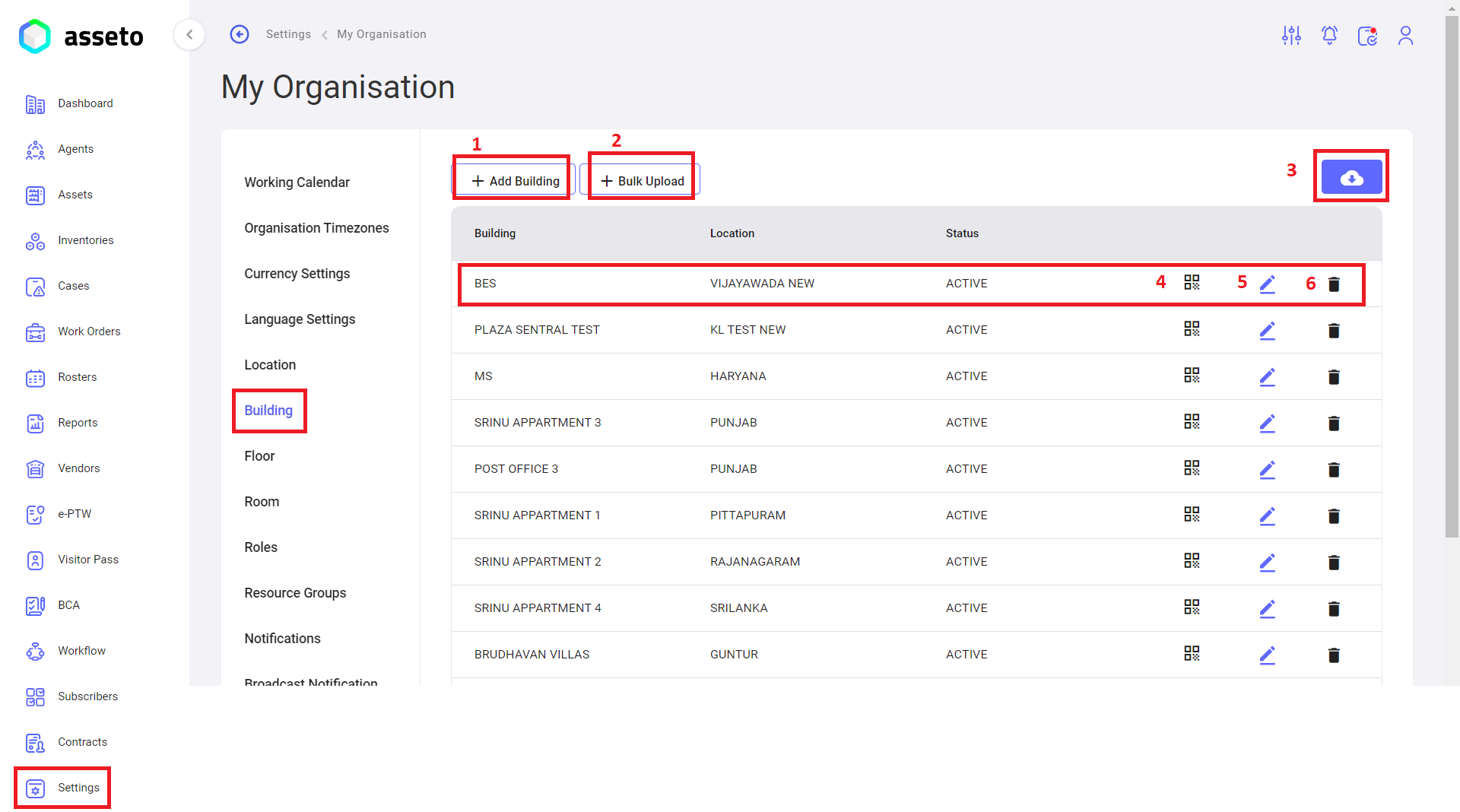
**<u><span lang="EN-US" style="mso-bidi-font-family: Calibri; mso-bidi-theme-font: minor-latin; mso-ansi-language: EN-US;">Settings -&gt; My Organization -&gt; Building:</span></u>**

[![settings-my organization-building1.png](https://kb.asseto.ai/uploads/images/gallery/2024-09/embedded-image-idquibp0.png)](http://ec2-3-7-68-25.ap-south-1.compute.amazonaws.com/uploads/images/gallery/2024-08/2MJsettings-my-organization-building1.png)

**<span lang="EN-US" style="mso-bidi-font-family: Calibri; mso-bidi-theme-font: minor-latin; mso-ansi-language: EN-US;"><span style="mso-list: Ignore;">1.<span style="font-style: normal; font-variant: normal; font-kerning: auto; font-optical-sizing: auto; font-feature-settings: normal; font-variation-settings: normal; font-stretch: normal; font-size: 7pt; line-height: normal; font-family: 'Times New Roman';"> </span></span></span>**<span lang="EN-US" style="mso-bidi-font-family: Calibri; mso-bidi-theme-font: minor-latin; mso-ansi-language: EN-US;">**Add Building:** Click on the add building button to create an individual building name.</span>

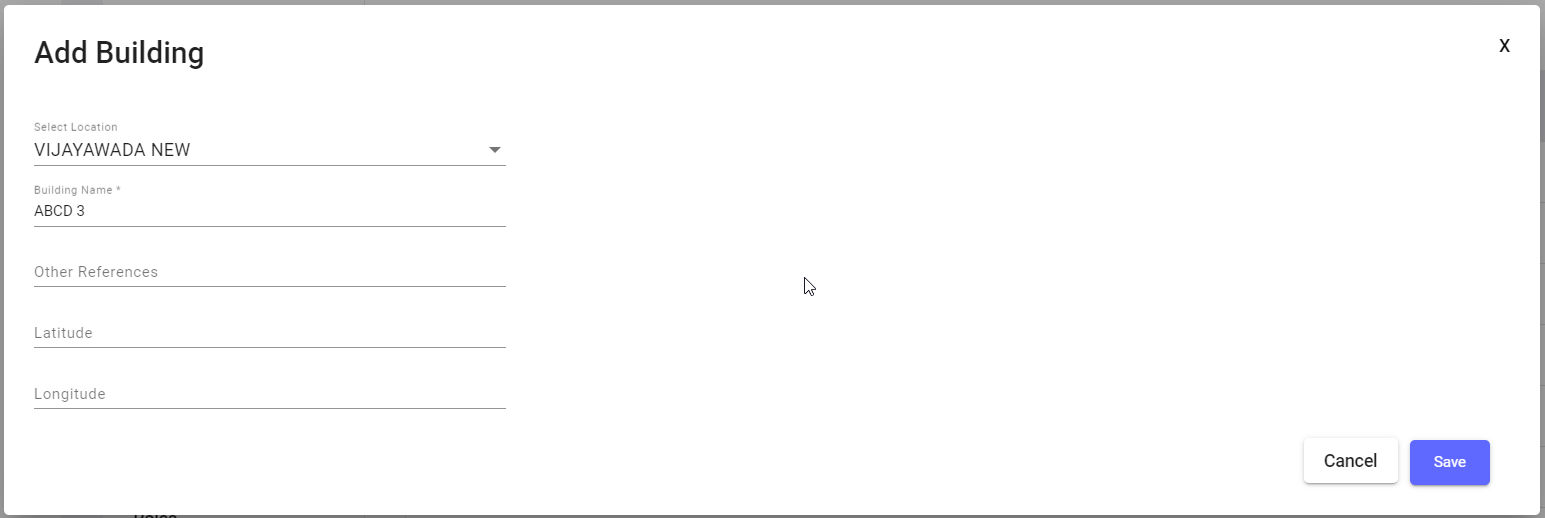
<span lang="EN-US" style="mso-bidi-font-family: Calibri; mso-bidi-theme-font: minor-latin; mso-ansi-language: EN-US;">When clicking on “add building” button following page will appear, fill the mandatory fields then only save button will be enabled. Click on the save button your building details will be saved and displayed in the table first row.</span>

[![settings-my organization-building2.png](https://kb.asseto.ai/uploads/images/gallery/2024-09/embedded-image-kifdqald.png)](http://ec2-3-7-68-25.ap-south-1.compute.amazonaws.com/uploads/images/gallery/2024-08/mQtsettings-my-organization-building2.png)

**<span lang="EN-US" style="mso-bidi-font-family: Calibri; mso-bidi-theme-font: minor-latin; mso-ansi-language: EN-US;"><span style="mso-list: Ignore;">2.<span style="font-style: normal; font-variant: normal; font-kerning: auto; font-optical-sizing: auto; font-feature-settings: normal; font-variation-settings: normal; font-stretch: normal; font-size: 7pt; line-height: normal; font-family: 'Times New Roman';"> </span></span></span>**<span lang="EN-US" style="mso-bidi-font-family: Calibri; mso-bidi-theme-font: minor-latin; mso-ansi-language: EN-US;">**Bulk upload Building:** Click on bulk upload button to create multiple buildings at a time, download csv file and fill the data then upload. </span>

**<span lang="EN-US" style="mso-bidi-font-family: Calibri; mso-bidi-theme-font: minor-latin; mso-ansi-language: EN-US;"><span style="mso-list: Ignore;">3.<span style="font-style: normal; font-variant: normal; font-kerning: auto; font-optical-sizing: auto; font-feature-settings: normal; font-variation-settings: normal; font-stretch: normal; font-size: 7pt; line-height: normal; font-family: 'Times New Roman';"> </span></span></span>**<span lang="EN-US" style="mso-bidi-font-family: Calibri; mso-bidi-theme-font: minor-latin; mso-ansi-language: EN-US;">**Export button:** To download QR list (buildings), you can export as with image or without image.</span>

**<span lang="EN-US" style="mso-bidi-font-family: Calibri; mso-bidi-theme-font: minor-latin; mso-ansi-language: EN-US;"><span style="mso-list: Ignore;">4.<span style="font-style: normal; font-variant: normal; font-kerning: auto; font-optical-sizing: auto; font-feature-settings: normal; font-variation-settings: normal; font-stretch: normal; font-size: 7pt; line-height: normal; font-family: 'Times New Roman';"> </span></span></span>**<span lang="EN-US" style="mso-bidi-font-family: Calibri; mso-bidi-theme-font: minor-latin; mso-ansi-language: EN-US;">**QR:** Click on QR icon and Scan QR to view that building name with location.</span>

**<span lang="EN-US" style="mso-bidi-font-family: Calibri; mso-bidi-theme-font: minor-latin; mso-ansi-language: EN-US;"><span style="mso-list: Ignore;">5.<span style="font-style: normal; font-variant: normal; font-kerning: auto; font-optical-sizing: auto; font-feature-settings: normal; font-variation-settings: normal; font-stretch: normal; font-size: 7pt; line-height: normal; font-family: 'Times New Roman';"> </span></span></span>**<span lang="EN-US" style="mso-bidi-font-family: Calibri; mso-bidi-theme-font: minor-latin; mso-ansi-language: EN-US;">**Edit Building:** Here you can edit already created building names by clicking on edit icon available in each row of building list. </span>

**<span lang="EN-US" style="mso-bidi-font-family: Calibri; mso-bidi-theme-font: minor-latin; mso-ansi-language: EN-US;"><span style="mso-list: Ignore;">6.<span style="font-style: normal; font-variant: normal; font-kerning: auto; font-optical-sizing: auto; font-feature-settings: normal; font-variation-settings: normal; font-stretch: normal; font-size: 7pt; line-height: normal; font-family: 'Times New Roman';"> </span></span></span>**<span lang="EN-US" style="mso-bidi-font-family: Calibri; mso-bidi-theme-font: minor-latin; mso-ansi-language: EN-US;">**Delete Building:** Here you can delete already created building names by clicking on delete icon available in each row of building list.</span>

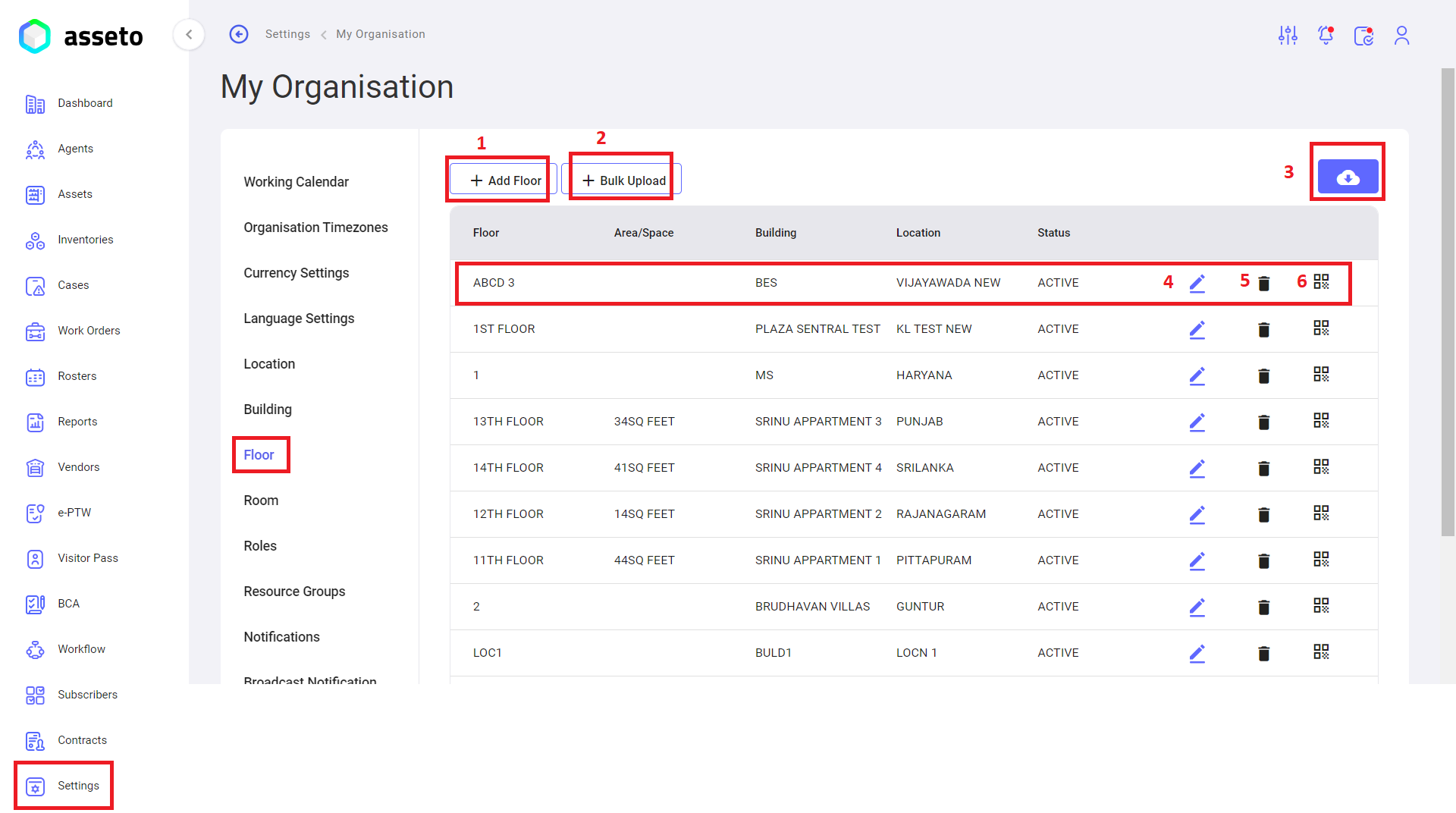
**<u><span lang="EN-US" style="mso-bidi-font-family: Calibri; mso-bidi-theme-font: minor-latin; mso-ansi-language: EN-US;">Settings -&gt; My Organization -&gt; Floor: </span></u>**

[![settings-my organization-floor1.png](https://kb.asseto.ai/uploads/images/gallery/2024-09/embedded-image-wm1oxjeq.png)](http://ec2-3-7-68-25.ap-south-1.compute.amazonaws.com/uploads/images/gallery/2024-08/kLYsettings-my-organization-floor1.png)

<span lang="EN-US" style="mso-bidi-font-family: Calibri; mso-bidi-theme-font: minor-latin; mso-ansi-language: EN-US;"><span style="mso-list: Ignore;"> **1.<span style="font-style: normal; font-variant: normal; font-kerning: auto; font-optical-sizing: auto; font-feature-settings: normal; font-variation-settings: normal; font-stretch: normal; font-size: 7pt; line-height: normal; font-family: 'Times New Roman';"> </span>**</span></span><span lang="EN-US" style="mso-bidi-font-family: Calibri; mso-bidi-theme-font: minor-latin; mso-ansi-language: EN-US;">**Add Floor:** Click on add floor button to create individual floor name.</span>

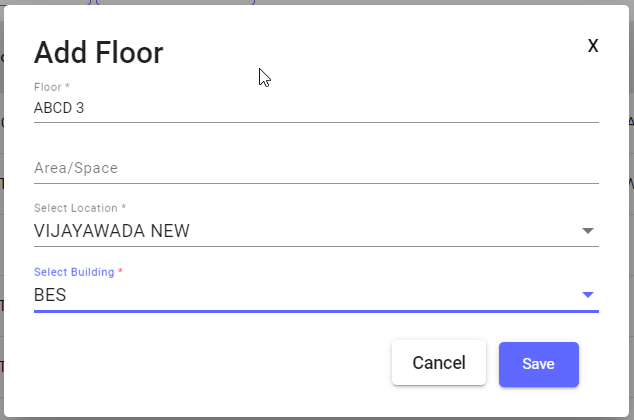
<span lang="EN-US" style="mso-bidi-font-family: Calibri; mso-bidi-theme-font: minor-latin; mso-ansi-language: EN-US;">When click on “add floor” button following page will appear, fill the mandatory fields then only save button will be enabled. Click on the save button, your floor details will be saved and displayed in the table first row.</span>

[![settings-my organization-floor2.png](https://kb.asseto.ai/uploads/images/gallery/2024-09/embedded-image-zuvlp3bb.png)](http://ec2-3-7-68-25.ap-south-1.compute.amazonaws.com/uploads/images/gallery/2024-08/hrUsettings-my-organization-floor2.png)

<span lang="EN-US" style="mso-bidi-font-family: Calibri; mso-bidi-theme-font: minor-latin; mso-ansi-language: EN-US;"><span style="mso-list: Ignore;"> **2.<span style="font-style: normal; font-variant: normal; font-kerning: auto; font-optical-sizing: auto; font-feature-settings: normal; font-variation-settings: normal; font-stretch: normal; font-size: 7pt; line-height: normal; font-family: 'Times New Roman';"> </span>**</span></span><span lang="EN-US" style="mso-bidi-font-family: Calibri; mso-bidi-theme-font: minor-latin; mso-ansi-language: EN-US;">**Bulk Upload Floor:** Click on bulk upload button to create multiple floors at a time, download csv file and fill the data then upload. </span>

<span lang="EN-US" style="mso-bidi-font-family: Calibri; mso-bidi-theme-font: minor-latin; mso-ansi-language: EN-US;"><span style="mso-list: Ignore;"> **3.<span style="font-style: normal; font-variant: normal; font-kerning: auto; font-optical-sizing: auto; font-feature-settings: normal; font-variation-settings: normal; font-stretch: normal; font-size: 7pt; line-height: normal; font-family: 'Times New Roman';"> </span>**</span></span><span lang="EN-US" style="mso-bidi-font-family: Calibri; mso-bidi-theme-font: minor-latin; mso-ansi-language: EN-US;">**Export button:** To download QR list (floors), you can export as with image or without image.</span>

<span lang="EN-US" style="mso-bidi-font-family: Calibri; mso-bidi-theme-font: minor-latin; mso-ansi-language: EN-US;"><span style="mso-list: Ignore;"> **4.<span style="font-style: normal; font-variant: normal; font-kerning: auto; font-optical-sizing: auto; font-feature-settings: normal; font-variation-settings: normal; font-stretch: normal; font-size: 7pt; line-height: normal; font-family: 'Times New Roman';"> </span>**</span></span><span lang="EN-US" style="mso-bidi-font-family: Calibri; mso-bidi-theme-font: minor-latin; mso-ansi-language: EN-US;">**Edit Floor:** Here you edit already created floor names by clicking on edit icon available in each row of floor list.</span>

<span lang="EN-US" style="mso-bidi-font-family: Calibri; mso-bidi-theme-font: minor-latin; mso-ansi-language: EN-US;"><span style="mso-list: Ignore;"> **5.<span style="font-style: normal; font-variant: normal; font-kerning: auto; font-optical-sizing: auto; font-feature-settings: normal; font-variation-settings: normal; font-stretch: normal; font-size: 7pt; line-height: normal; font-family: 'Times New Roman';"> </span>**</span></span><span lang="EN-US" style="mso-bidi-font-family: Calibri; mso-bidi-theme-font: minor-latin; mso-ansi-language: EN-US;">**Delete Floor:** Here you delete already created floor names by clicking on delete icon available in each row of floor list. </span>

<span lang="EN-US" style="mso-bidi-font-family: Calibri; mso-bidi-theme-font: minor-latin; mso-ansi-language: EN-US;"><span style="mso-list: Ignore;"> **6.<span style="font-style: normal; font-variant: normal; font-kerning: auto; font-optical-sizing: auto; font-feature-settings: normal; font-variation-settings: normal; font-stretch: normal; font-size: 7pt; line-height: normal; font-family: 'Times New Roman';"> </span>**</span></span><span lang="EN-US" style="mso-bidi-font-family: Calibri; mso-bidi-theme-font: minor-latin; mso-ansi-language: EN-US;">**QR:** Click on QR icon and Scan QR to view that floor name with location.</span>

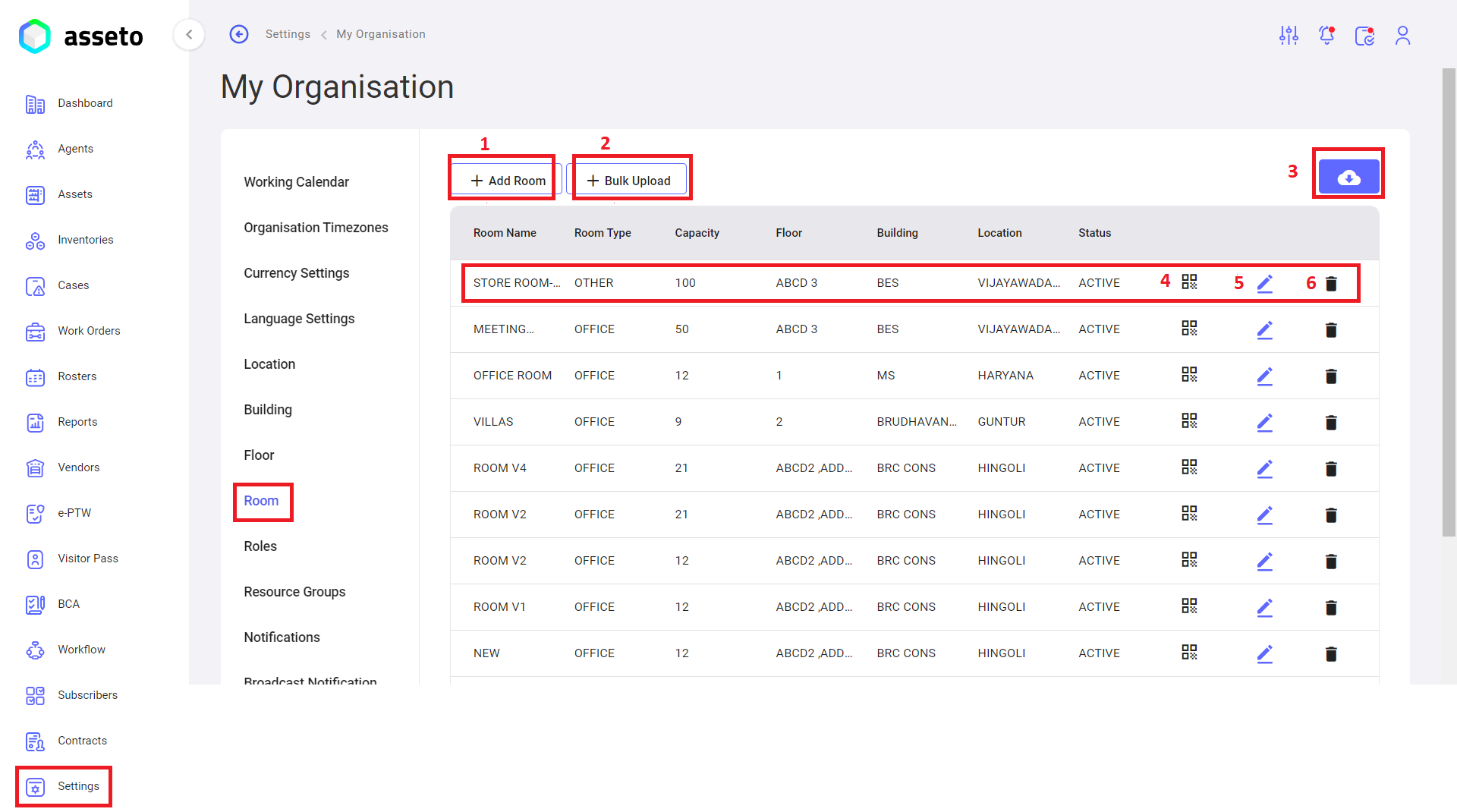
**<u><span lang="EN-US" style="mso-bidi-font-family: Calibri; mso-bidi-theme-font: minor-latin; mso-ansi-language: EN-US;">Settings -&gt; My Organization -&gt; Room: </span></u>**

[![settings-my organization-room1.png](https://kb.asseto.ai/uploads/images/gallery/2024-09/embedded-image-3vyiriux.png)](http://ec2-3-7-68-25.ap-south-1.compute.amazonaws.com/uploads/images/gallery/2024-08/Cb4settings-my-organization-room1.png)

<span lang="EN-US" style="mso-bidi-font-family: Calibri; mso-bidi-theme-font: minor-latin; mso-ansi-language: EN-US;"><span style="mso-list: Ignore;">  **1.<span style="font-style: normal; font-variant: normal; font-kerning: auto; font-optical-sizing: auto; font-feature-settings: normal; font-variation-settings: normal; font-stretch: normal; font-size: 7pt; line-height: normal; font-family: 'Times New Roman';"> </span>**</span></span><span lang="EN-US" style="mso-bidi-font-family: Calibri; mso-bidi-theme-font: minor-latin; mso-ansi-language: EN-US;">**Add Room:** Click on the add room button to create individual room name. </span>

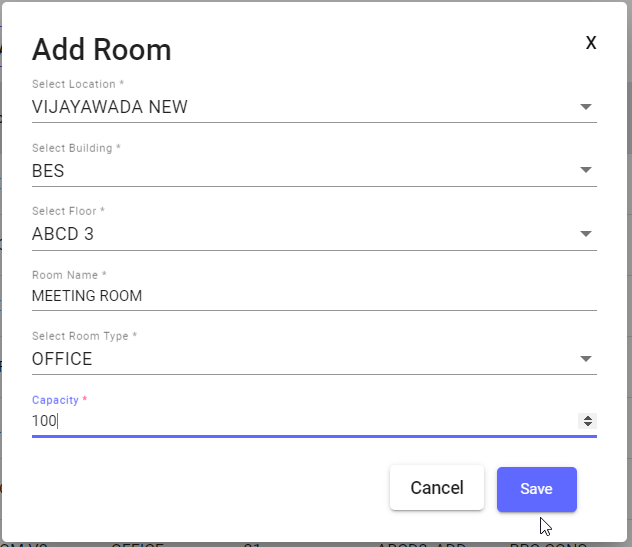
<span lang="EN-US" style="mso-bidi-font-family: Calibri; mso-bidi-theme-font: minor-latin; mso-ansi-language: EN-US;">When click on “add room” button following page will appear, fill the mandatory fields then only save button will be enabled. Click on the save button your room details will be saved and displayed in the table first row.</span>

[![settings-my organization-room2.png](https://kb.asseto.ai/uploads/images/gallery/2024-09/embedded-image-s2e2efzc.png)](http://ec2-3-7-68-25.ap-south-1.compute.amazonaws.com/uploads/images/gallery/2024-08/Sohsettings-my-organization-room2.png)

<span lang="EN-US" style="mso-bidi-font-family: Calibri; mso-bidi-theme-font: minor-latin; mso-ansi-language: EN-US;"><span style="mso-list: Ignore;"> **2**.<span style="font: 7.0pt 'Times New Roman';"> </span></span></span><span lang="EN-US" style="mso-bidi-font-family: Calibri; mso-bidi-theme-font: minor-latin; mso-ansi-language: EN-US;">**Bulk Upload Room:** Click on bulk upload button to create multiple rooms at a time, download csv file and fill the data then upload.</span>

<span lang="EN-US" style="mso-bidi-font-family: Calibri; mso-bidi-theme-font: minor-latin; mso-ansi-language: EN-US;"><span style="mso-list: Ignore;">  **3.<span style="font-style: normal; font-variant: normal; font-kerning: auto; font-optical-sizing: auto; font-feature-settings: normal; font-variation-settings: normal; font-stretch: normal; font-size: 7pt; line-height: normal; font-family: 'Times New Roman';"> </span>**</span></span><span lang="EN-US" style="mso-bidi-font-family: Calibri; mso-bidi-theme-font: minor-latin; mso-ansi-language: EN-US;">**Export button:** To download QR list (rooms), you can export as with image or without image. </span>

<span lang="EN-US" style="mso-bidi-font-family: Calibri; mso-bidi-theme-font: minor-latin; mso-ansi-language: EN-US;"><span style="mso-list: Ignore;"> **4.<span style="font-style: normal; font-variant: normal; font-kerning: auto; font-optical-sizing: auto; font-feature-settings: normal; font-variation-settings: normal; font-stretch: normal; font-size: 7pt; line-height: normal; font-family: 'Times New Roman';"> </span>**</span></span><span lang="EN-US" style="mso-bidi-font-family: Calibri; mso-bidi-theme-font: minor-latin; mso-ansi-language: EN-US;">**QR:** Scan QR to view that room with building and location.</span>

<span lang="EN-US" style="mso-bidi-font-family: Calibri; mso-bidi-theme-font: minor-latin; mso-ansi-language: EN-US;"><span style="mso-list: Ignore;">  **5.<span style="font-style: normal; font-variant: normal; font-kerning: auto; font-optical-sizing: auto; font-feature-settings: normal; font-variation-settings: normal; font-stretch: normal; font-size: 7pt; line-height: normal; font-family: 'Times New Roman';"> </span>**</span></span><span lang="EN-US" style="mso-bidi-font-family: Calibri; mso-bidi-theme-font: minor-latin; mso-ansi-language: EN-US;">**Edit Room:** Here you edit already created room names by clicking on edit icon available in each row of floor list.</span>

<span lang="EN-US" style="mso-bidi-font-family: Calibri; mso-bidi-theme-font: minor-latin; mso-ansi-language: EN-US;"><span style="mso-list: Ignore;"> **6.<span style="font-style: normal; font-variant: normal; font-kerning: auto; font-optical-sizing: auto; font-feature-settings: normal; font-variation-settings: normal; font-stretch: normal; font-size: 7pt; line-height: normal; font-family: 'Times New Roman';"> </span>**</span></span><span lang="EN-US" style="mso-bidi-font-family: Calibri; mso-bidi-theme-font: minor-latin; mso-ansi-language: EN-US;">**Delete Room:** Here you delete already created room names by clicking on delete icons available in each row of floor list.</span>

<span lang="EN-US" style="mso-bidi-font-family: Calibri; mso-bidi-theme-font: minor-latin; mso-ansi-language: EN-US;"> </span>

**<span lang="EN-US" style="mso-bidi-font-family: Calibri; mso-bidi-theme-font: minor-latin; mso-ansi-language: EN-US;"><span style="mso-list: Ignore;">iii.<span style="font-style: normal; font-variant: normal; font-kerning: auto; font-optical-sizing: auto; font-feature-settings: normal; font-variation-settings: normal; font-stretch: normal; font-size: 7pt; line-height: normal; font-family: 'Times New Roman';"> </span></span></span><u><span lang="EN-US" style="mso-ansi-language: EN-US;">Left Menu -&gt; Agent -&gt; New Agent:</span></u>**<span lang="EN-US" style="mso-ansi-language: EN-US;"> </span>

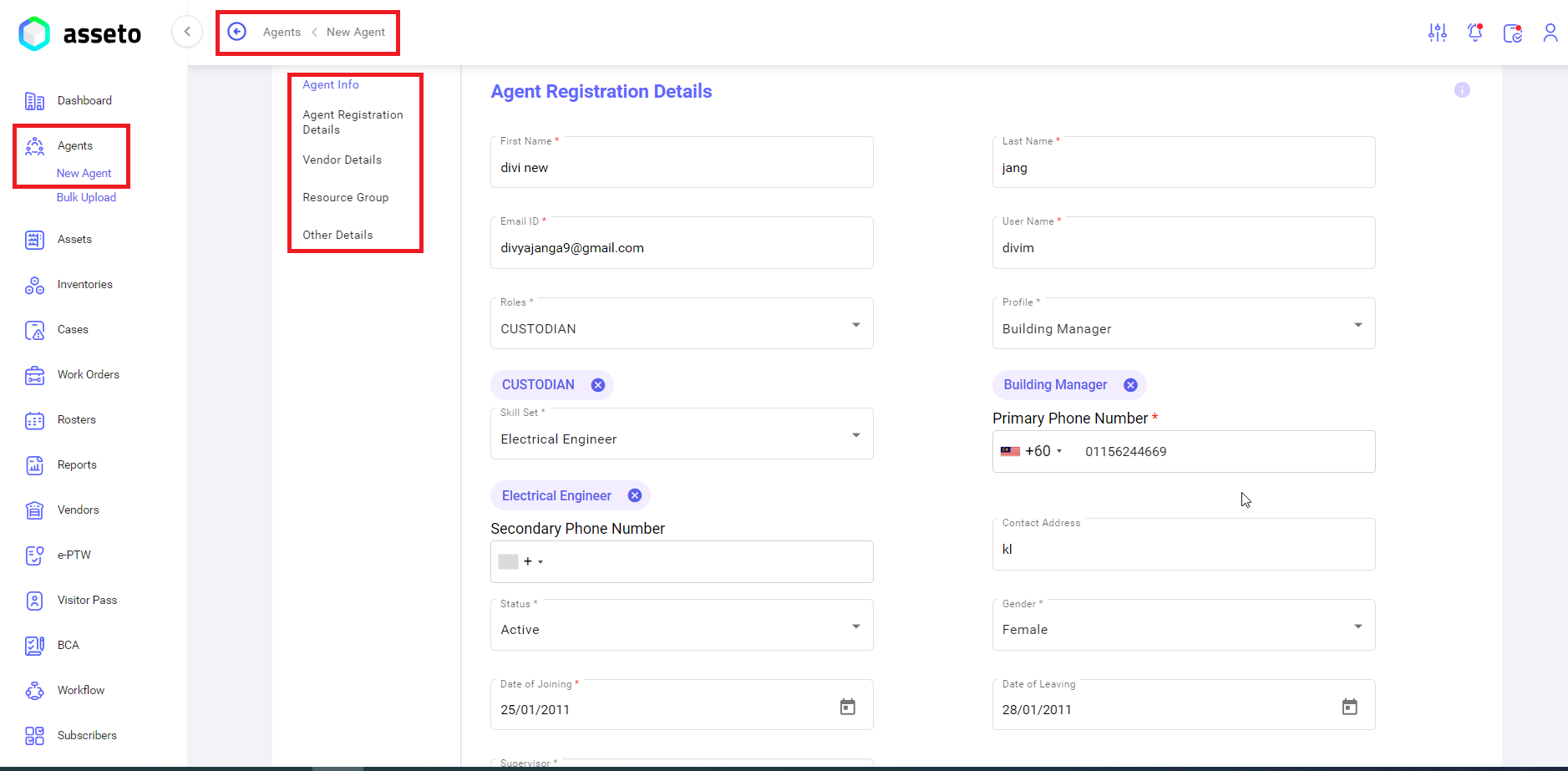
<span lang="EN-US" style="mso-ansi-language: EN-US;">To onboard agent with assessor role. For more details, please review Agents module user guide 2.2 Pre requisites to Onboard New Agent and 2.3 New Agent.</span>

[![agents-new agent1.png](https://kb.asseto.ai/uploads/images/gallery/2024-09/embedded-image-vtget6up.png)](http://ec2-3-7-68-25.ap-south-1.compute.amazonaws.com/uploads/images/gallery/2024-08/0e7agents-new-agent1.png)

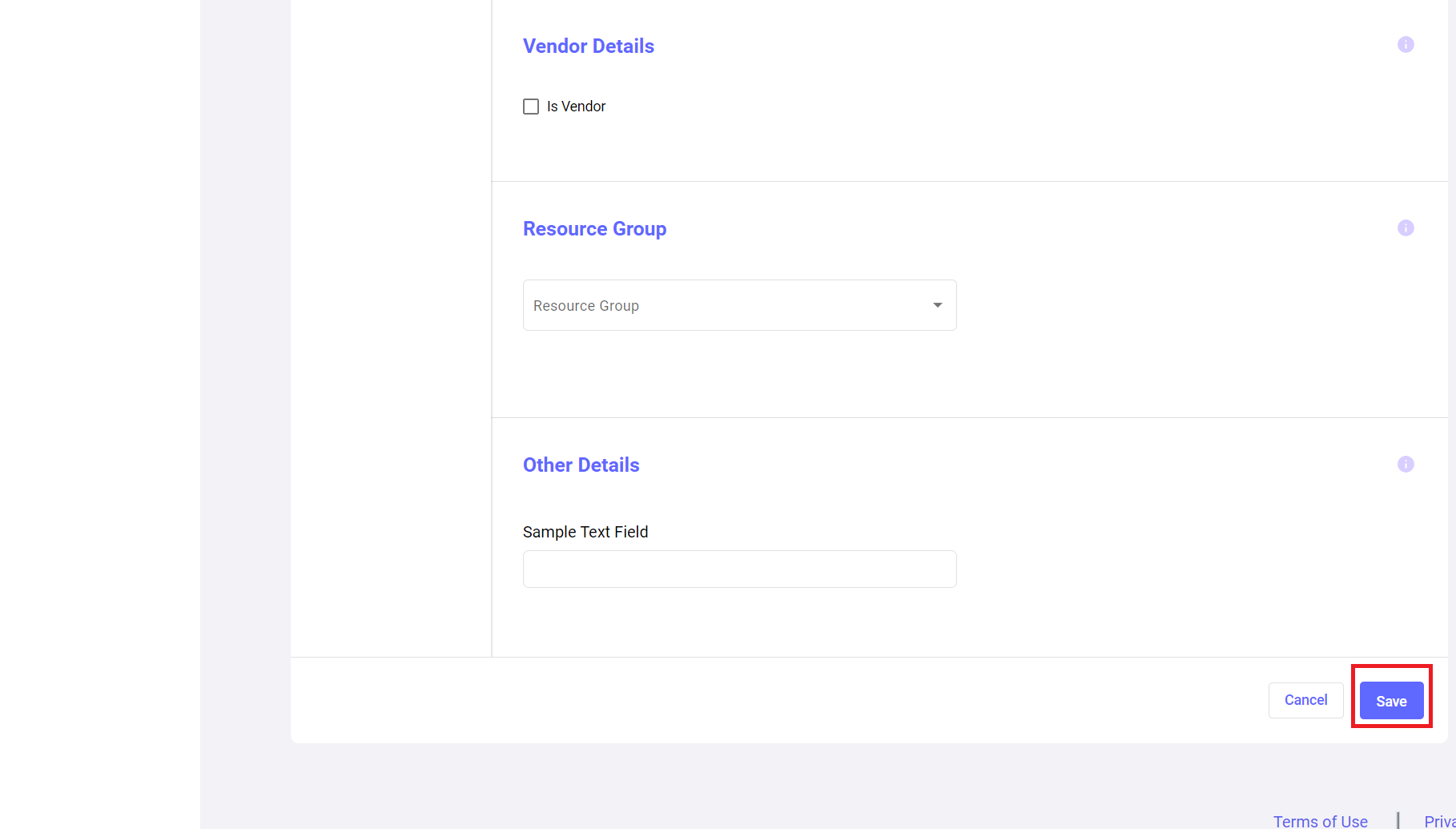
<span lang="EN-US" style="mso-ansi-language: EN-US;">Fill the all-mandatory fields then only the save button will be enabled. Here vendor details and resource group fields are non-mandatory fields.</span>

**<span lang="EN-US" style="mso-ansi-language: EN-US;">Note</span>**<span lang="EN-US" style="mso-ansi-language: EN-US;">: Every agent should provide an individual email id, do not match with other agent’s email id.</span>

[![agent-new agent3.png](https://kb.asseto.ai/uploads/images/gallery/2024-09/embedded-image-qtqyrxf6.png)](http://ec2-3-7-68-25.ap-south-1.compute.amazonaws.com/uploads/images/gallery/2024-08/28Yagent-new-agent3.png)

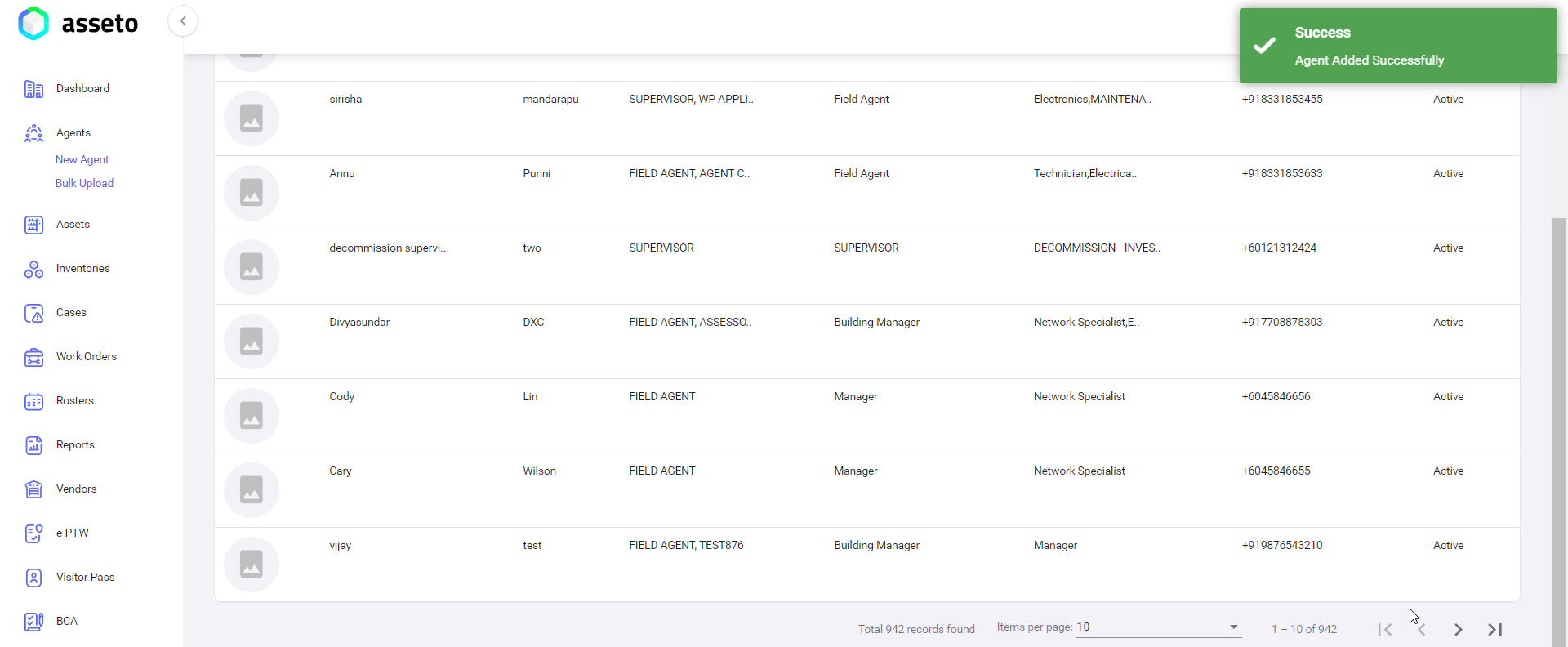
<span lang="EN-US" style="mso-ansi-language: EN-US;">Click on the save button to onboard the new agent. “Agent added successfully” confirmation message will be displayed screen will be navigated to agents dashboard page. </span>

[![agents-new agent3.png](https://kb.asseto.ai/uploads/images/gallery/2024-09/embedded-image-rluulxta.png)](http://ec2-3-7-68-25.ap-south-1.compute.amazonaws.com/uploads/images/gallery/2024-08/agents-new-agent3.png)

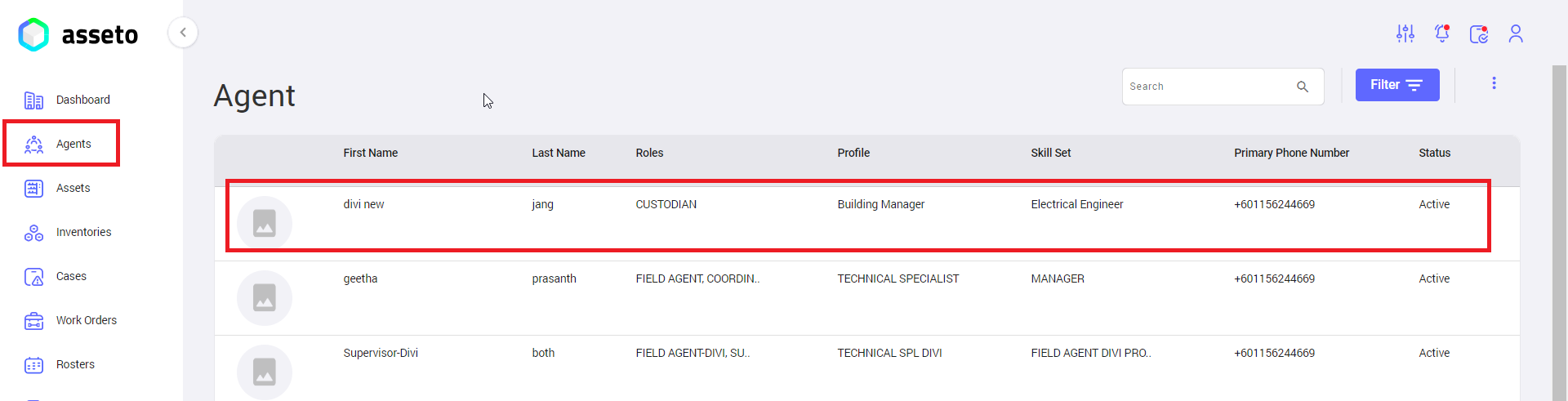
<span lang="EN-US" style="mso-ansi-language: EN-US;">In the agents list we can see newly added agent on the top of the list.</span>

[![agents-new agent4 (2).png](https://kb.asseto.ai/uploads/images/gallery/2024-09/embedded-image-afbcajzd.png)](http://ec2-3-7-68-25.ap-south-1.compute.amazonaws.com/uploads/images/gallery/2024-08/agents-new-agent4-2.png)

<span lang="EN-US" style="mso-ansi-language: EN-US;">  
</span>

**<span lang="EN-US" style="mso-bidi-font-family: Calibri; mso-bidi-theme-font: minor-latin; mso-ansi-language: EN-US;"><span style="mso-list: Ignore;">iv.<span style="font-style: normal; font-variant: normal; font-kerning: auto; font-optical-sizing: auto; font-feature-settings: normal; font-variation-settings: normal; font-stretch: normal; font-size: 7pt; line-height: normal; font-family: 'Times New Roman';"> </span></span></span><u><span lang="EN-US" style="mso-ansi-language: EN-US;">Left Menu -&gt; Assets -&gt; New Asset</span></u>**

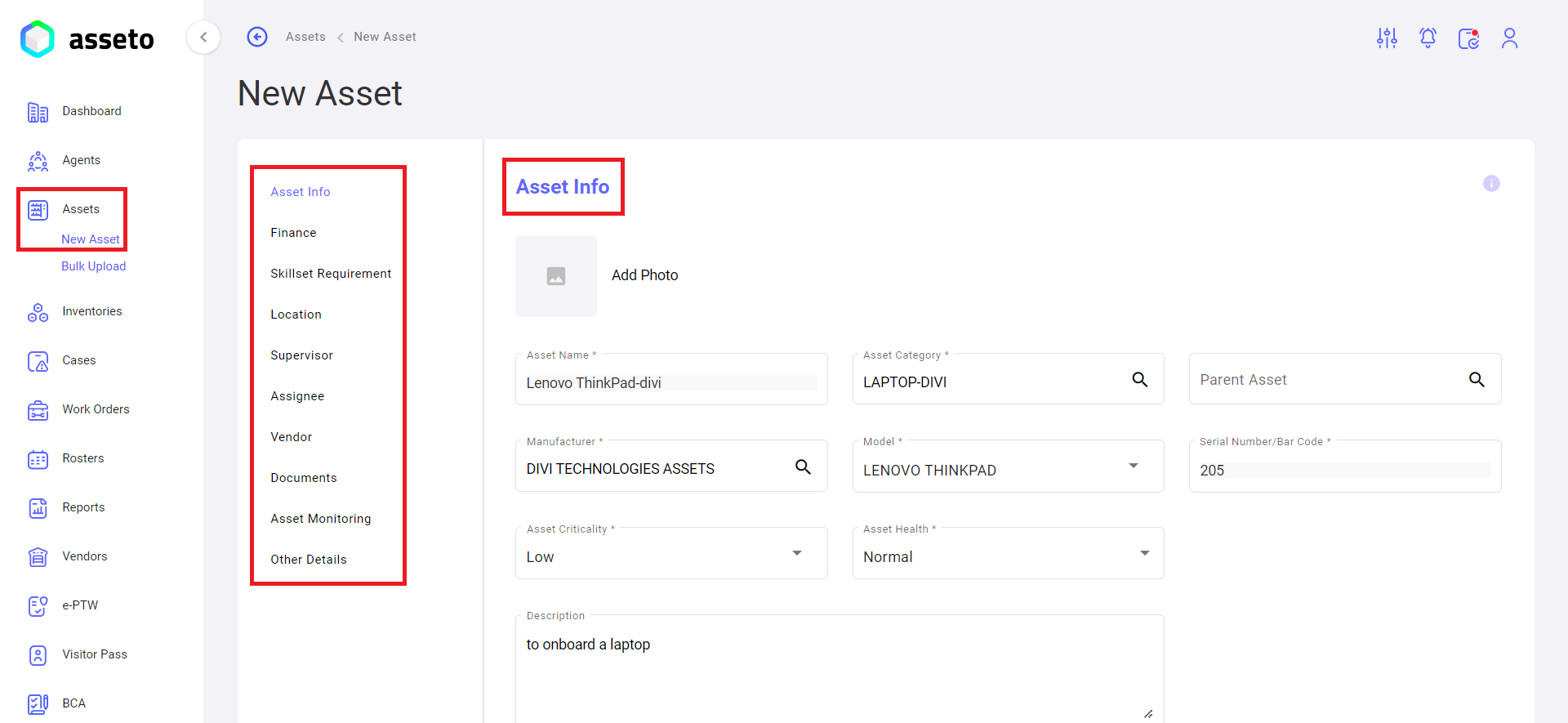
<span lang="EN-US" style="mso-ansi-language: EN-US;">To onboard Assets. For more details, please review Assets module user guide 3.2 Pre requisites to Onboard New Assets and 3.3 New Assets.</span>

[![new asset1.png](https://kb.asseto.ai/uploads/images/gallery/2024-09/embedded-image-q9zpgpne.png)](http://ec2-3-7-68-25.ap-south-1.compute.amazonaws.com/uploads/images/gallery/2024-08/uyQnew-asset1.png)

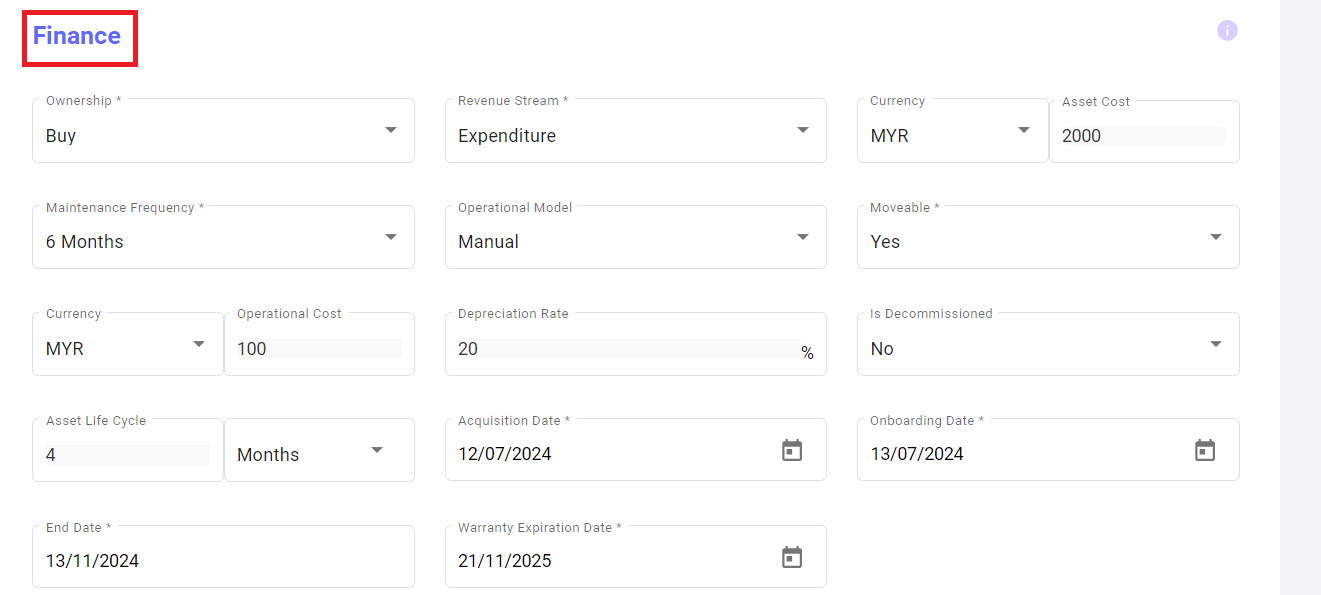
<span lang="EN-US" style="mso-bidi-font-family: Calibri; mso-bidi-theme-font: minor-latin; mso-ansi-language: EN-US;">Next finance section</span>

[![new asset2.png](https://kb.asseto.ai/uploads/images/gallery/2024-09/embedded-image-nxjjavwv.png)](http://ec2-3-7-68-25.ap-south-1.compute.amazonaws.com/uploads/images/gallery/2024-08/Flunew-asset2.png)

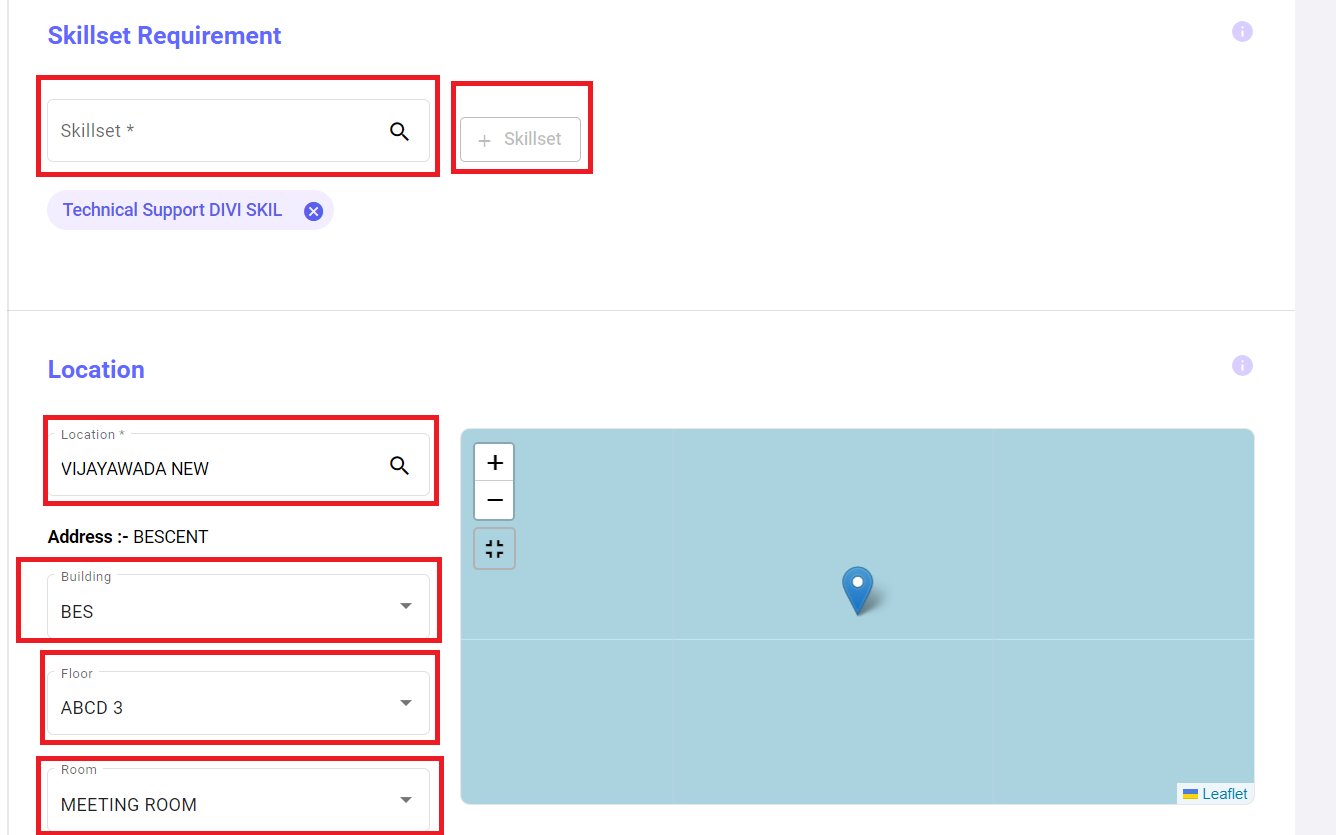
<span lang="EN-US" style="mso-bidi-font-family: Calibri; mso-bidi-theme-font: minor-latin; mso-ansi-language: EN-US;">Next skillset requirement and location section</span>

[![new asset3.png](https://kb.asseto.ai/uploads/images/gallery/2024-09/embedded-image-wnshtxex.png)](http://ec2-3-7-68-25.ap-south-1.compute.amazonaws.com/uploads/images/gallery/2024-08/Lx8new-asset3.png)

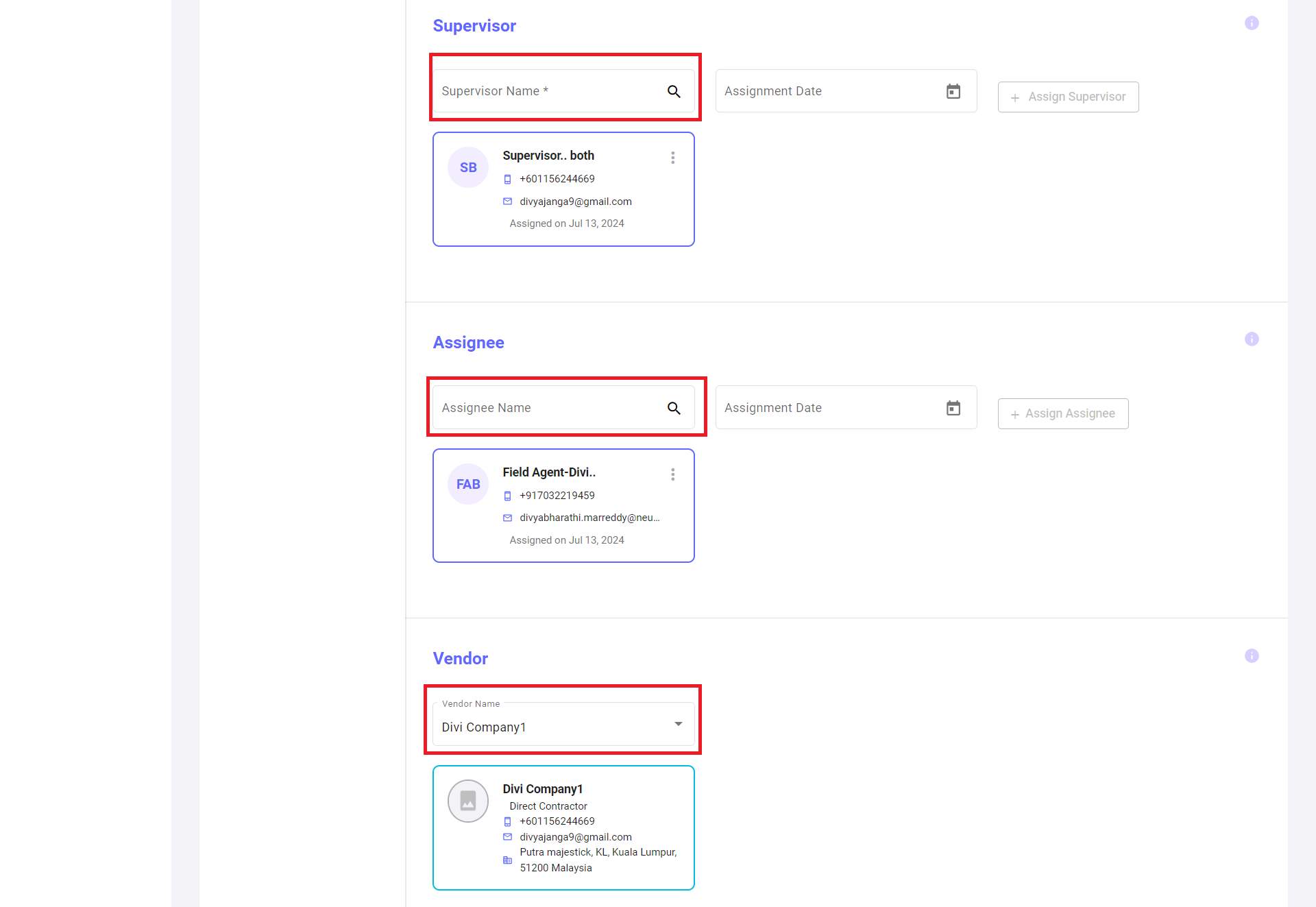
<span lang="EN-US" style="mso-bidi-font-family: Calibri; mso-bidi-theme-font: minor-latin; mso-ansi-language: EN-US;">Next you can select supervisor, assignee and vendor from the list. Here assignee non-mandatory field.</span>

[![new asset4.png](https://kb.asseto.ai/uploads/images/gallery/2024-09/embedded-image-jrarix2c.png)](http://ec2-3-7-68-25.ap-south-1.compute.amazonaws.com/uploads/images/gallery/2024-08/ujMnew-asset4.png)

<span lang="EN-US" style="mso-bidi-font-family: Calibri; mso-bidi-theme-font: minor-latin; mso-ansi-language: EN-US;">Next click on the save button to onboard the new asset.</span>

[![new asset5.png](https://kb.asseto.ai/uploads/images/gallery/2024-09/embedded-image-uvl404ox.png)](http://ec2-3-7-68-25.ap-south-1.compute.amazonaws.com/uploads/images/gallery/2024-08/eY2new-asset5.png)

<span lang="EN-US" style="mso-bidi-font-family: Calibri; mso-bidi-theme-font: minor-latin; mso-ansi-language: EN-US;">Assets will be saved and displayed in the first row of the asset list.</span>

<div class="page-content" dir="auto" id="bkmrk--17">---

</div>