# 1.1 Dashboard Features
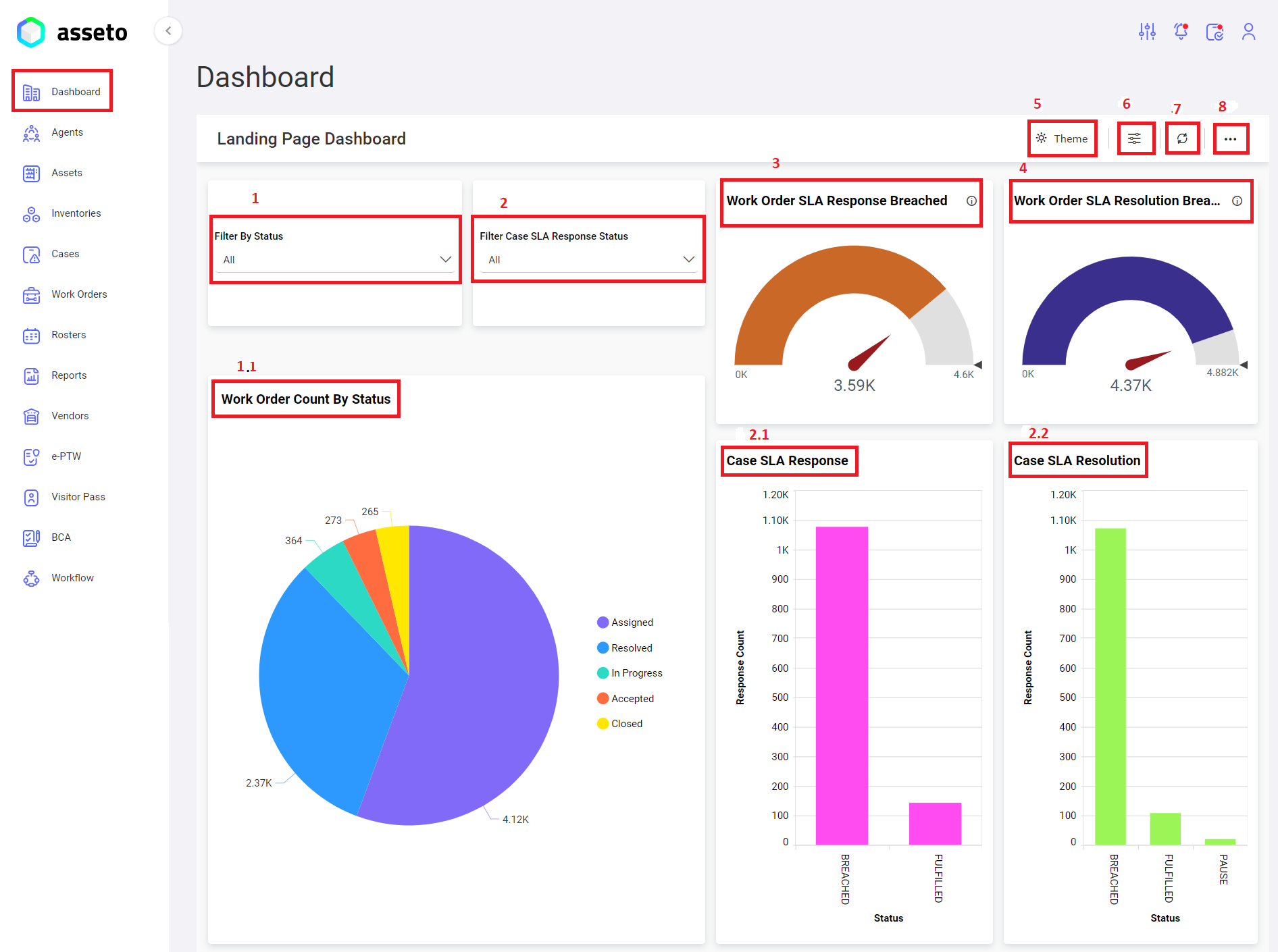
The Dashboard includes the following features:
[](http://ec2-3-7-68-25.ap-south-1.compute.amazonaws.com/uploads/images/gallery/2024-08/asseto-dashoard1.png)
##### 1. Filter By WO Status
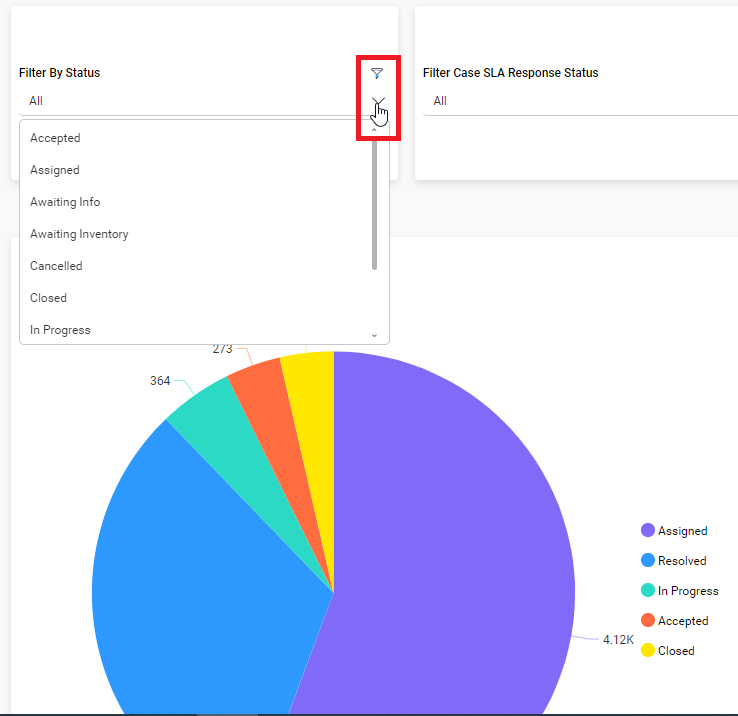
Users can filter work order statuses by selecting one of the following options from a dropdown menu: Assigned, Accepted, In-Progress, Rejected, or Closed. The filtered work order statuses are then displayed in the pie chart below.
Click on filter icon to clear filter.
[](http://ec2-3-7-68-25.ap-south-1.compute.amazonaws.com/uploads/images/gallery/2024-08/asseto-dashboard2.png)
##### 1.1 Work Order Count By Status pie chart
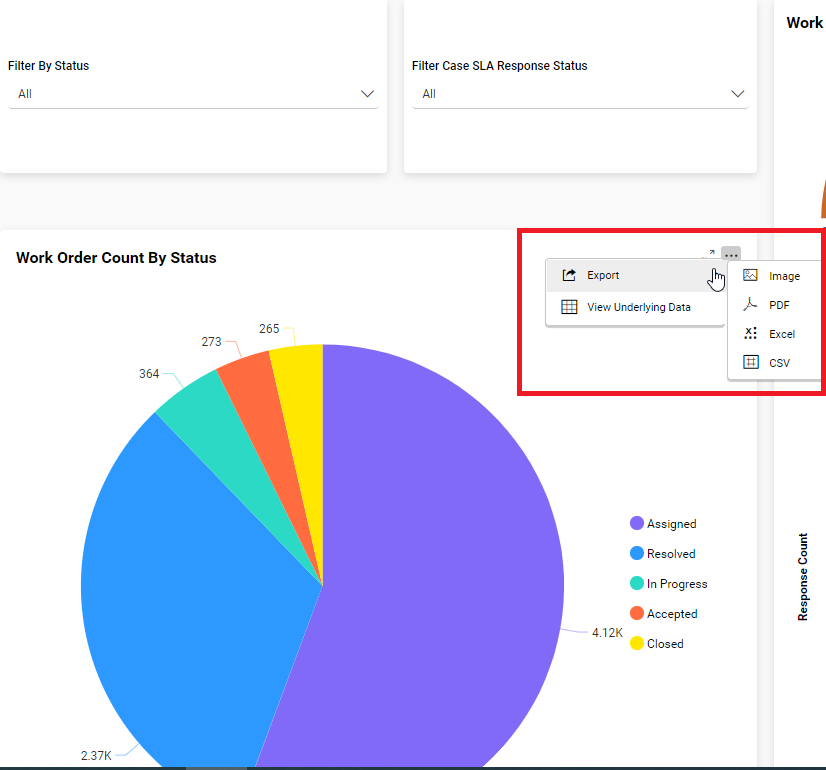
When the user hovers over the pie chart with the mouse, icons for ‘More Options’ and ‘Maximize’ will appear. By clicking on the ‘More Options’ icon, the user can view options for ‘Export’ (to export Work Order Count By Status data in formats such as image, PDF, Excel, or CSV) and ‘View Underlying Data’, as shown in the screenshot below.
[](http://ec2-3-7-68-25.ap-south-1.compute.amazonaws.com/uploads/images/gallery/2024-08/asseto-dashboard3.png)
##### 2. Filter Case SLA Response Status
[](http://ec2-3-7-68-25.ap-south-1.compute.amazonaws.com/uploads/images/gallery/2024-08/asseto-dashboard4.png)
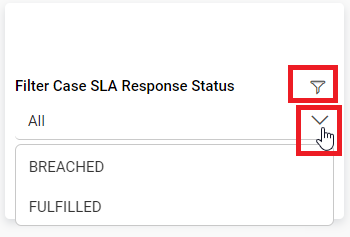
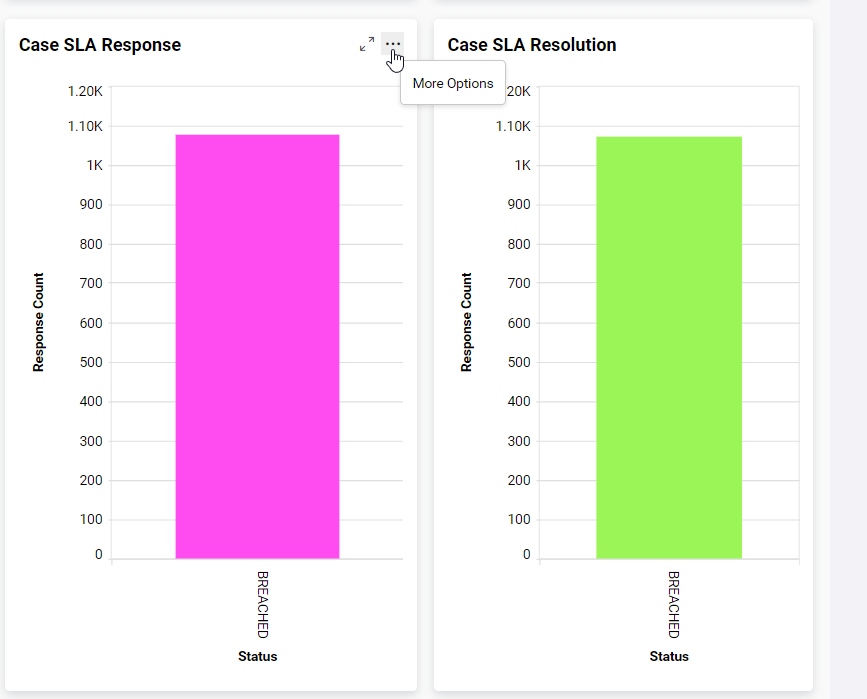
The user can filter the Case SLA Response Status by selecting one of the statuses, such as fulfilled or breached, from the dropdown menu. The filtered status is displayed in the bar chart below.
Click on filter icon to clear filter.
[](http://ec2-3-7-68-25.ap-south-1.compute.amazonaws.com/uploads/images/gallery/2024-08/asseto-dashboard5.png)
##### 2.1. Case SLA Response
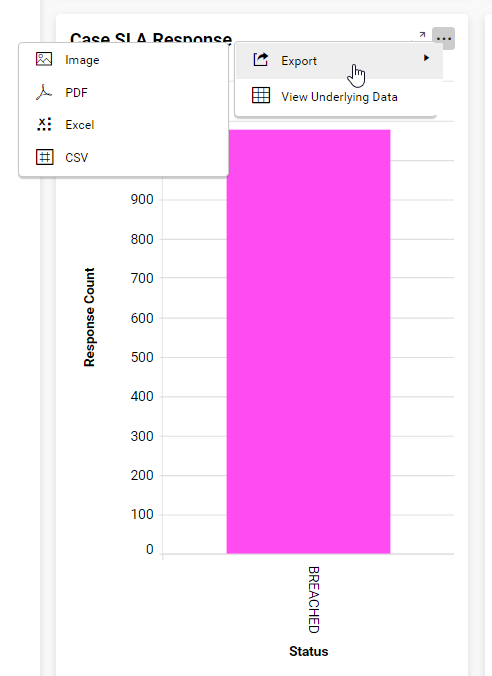
When the user hovers over the bar chart with the mouse, icons for ‘More Options’ and ‘Maximise’ will appear. By clicking on the ‘More Options’ icon, the user can view options for ‘Export’ (to export Case SLA Response data in formats such as image, PDF, Excel, or CSV) and ‘View Underlying Data’, as shown in the screenshot below.
[](http://ec2-3-7-68-25.ap-south-1.compute.amazonaws.com/uploads/images/gallery/2024-08/asseto-dashboard6.png)
##### 2.2. Case SLA Resolution
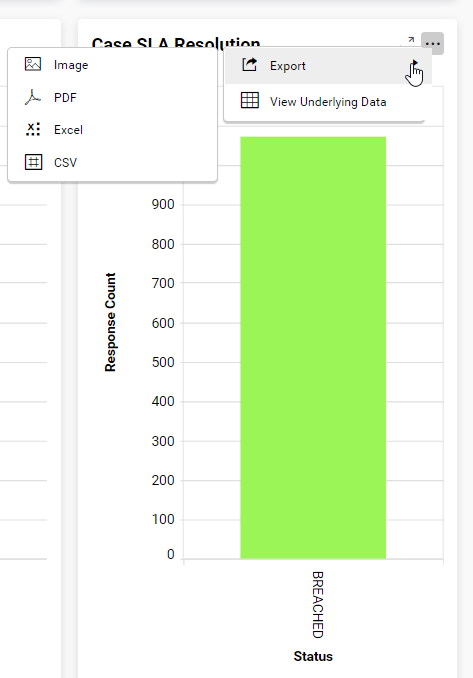
When the user hovers over the bar chart with the mouse, icons for ‘More Options’ and ‘Maximise’ will appear. By clicking on the ‘More Options’ icon, the user can view options for ‘Export’ (to export Case SLA Resolution data in formats such as image, PDF, Excel, or CSV) and ‘View Underlying Data’, as shown in the screenshot below.
[](http://ec2-3-7-68-25.ap-south-1.compute.amazonaws.com/uploads/images/gallery/2024-08/asseto-dashboard7.png)
##### 3. Work Order SLA Response Breached
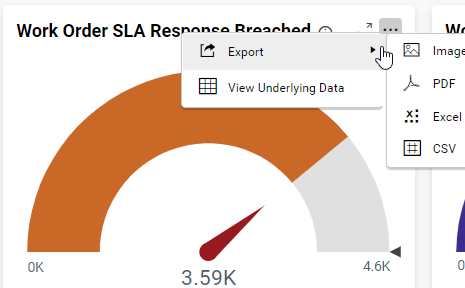
When the user hovers over the chart with the mouse, icons for ‘More Options’ and ‘Maximise’ will appear. By clicking on the ‘More Options’ icon, the user can view options for ‘Export’ (to export Work Order SLA Response Breached data in formats such as image, PDF, Excel, or CSV) and ‘View Underlying Data’, as shown in the screenshot below.
[](http://ec2-3-7-68-25.ap-south-1.compute.amazonaws.com/uploads/images/gallery/2024-08/asseto-dashboard8.png)
##### 4. Work Order SLA Resolution Breached:
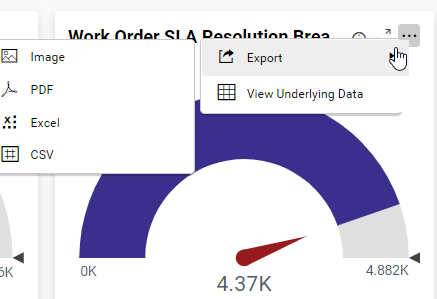
When the user hovers over the chart with the mouse, icons for ‘More Options’ and ‘Maximise’ will appear. By clicking on the ‘More Options’ icon on the bar chart, the user can view options for ‘Export’ (to export Work Order SLA Resolution Breached data in formats such as image, PDF, Excel, or CSV) and ‘View Underlying Data’, as shown in the screenshot below.
[](http://ec2-3-7-68-25.ap-south-1.compute.amazonaws.com/uploads/images/gallery/2024-08/asseto-dashboard9.png)
##### 5. Theme
[](http://ec2-3-7-68-25.ap-south-1.compute.amazonaws.com/uploads/images/gallery/2024-08/asseto-dashboard10.png)
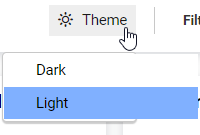
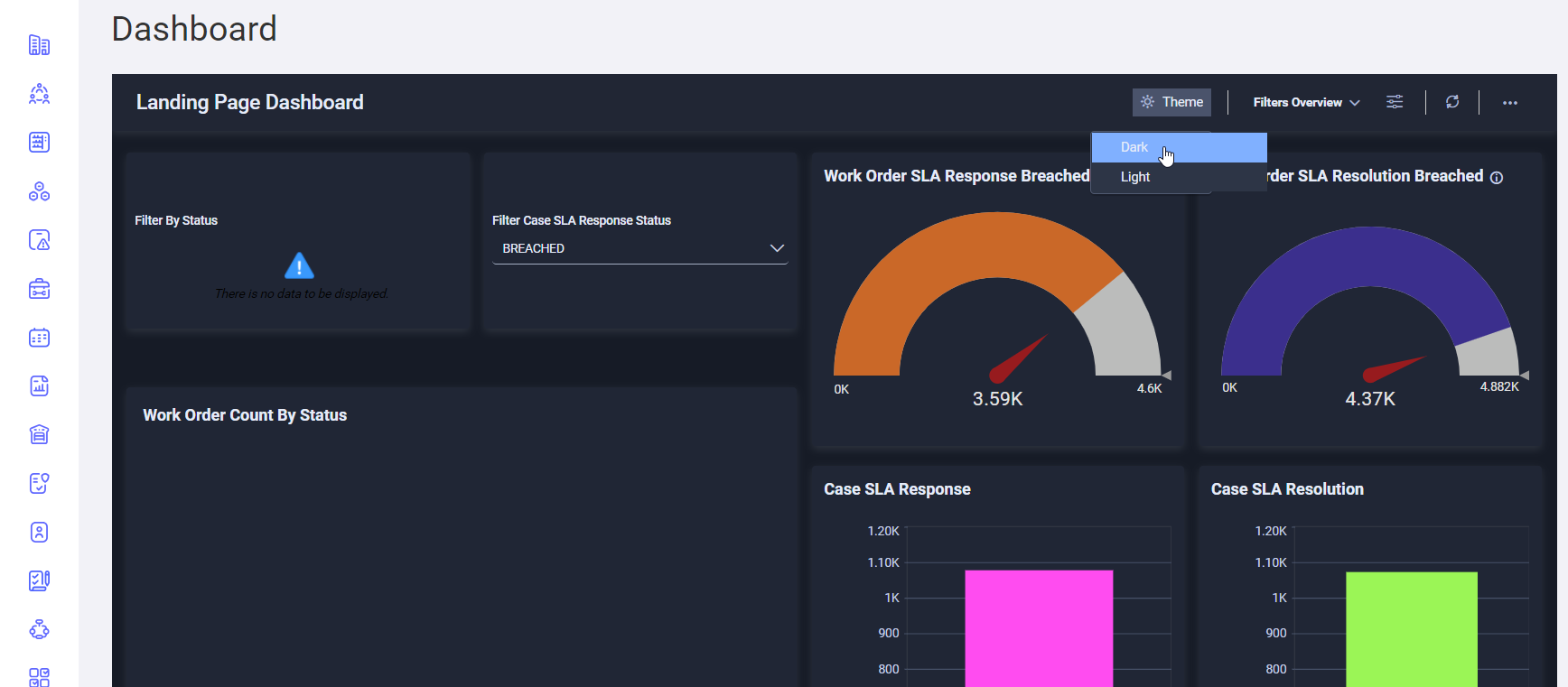
When the user clicks on dark mode, the dashboard will be displayed in dark mode, as shown in the following screenshot.
[](http://ec2-3-7-68-25.ap-south-1.compute.amazonaws.com/uploads/images/gallery/2024-08/asseto-dashboard11.png)
##### 6. Dashboard Parameters
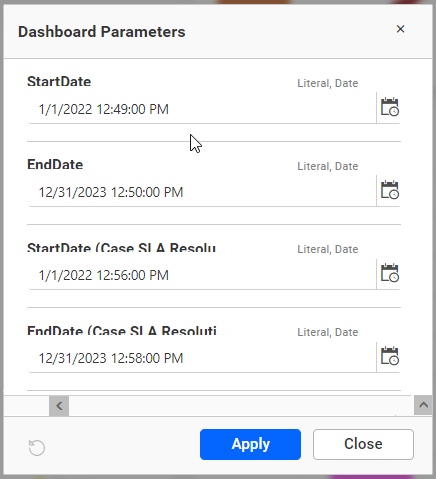
When the user clicks on this icon, the following page will appear. Here, the user can adjust the dates as needed and click on the ‘Apply’ button. The graph data in the dashboard will be updated based on the selected date range.
[](http://ec2-3-7-68-25.ap-south-1.compute.amazonaws.com/uploads/images/gallery/2024-08/asseto-dashboard12.png)
##### 7. Refresh
When the refresh icon (located next to the dashboard parameters icon) is clicked, the dashboard graphs will be updated with the latest data.
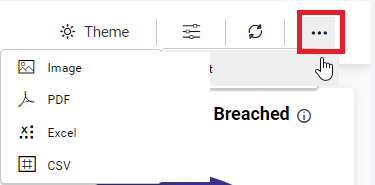
##### 8. List Icon
When the user clicks on the ‘Options’ icon, they will be able to download the dashboard in multiple formats, such as image, PDF, Excel, and CSV, as shown in the following screenshot.
[](http://ec2-3-7-68-25.ap-south-1.compute.amazonaws.com/uploads/images/gallery/2024-08/asseto-dashboard13.png)
---