# User Guide V1.0

# 1. Dashboard

The Dashboard component acts as the landing page for all users logging into the Asseto application. It provides a comprehensive overview of the system’s contents, offering a consolidated view of key information and functionalities.

The Dashboard also provides an overall summary of work order statuses, including any breaches in work order response and resolution times. It also offers a case summary, detailing SLA response and resolution performance.

# 1.1 Dashboard Features

The Dashboard includes the following features:

[![asseto-dashoard1.png](https://kb.asseto.ai/uploads/images/gallery/2024-09/embedded-image-anplk6eo.png)](http://ec2-3-7-68-25.ap-south-1.compute.amazonaws.com/uploads/images/gallery/2024-08/asseto-dashoard1.png)

##### 1. Filter By WO Status

Users can filter work order statuses by selecting one of the following options from a dropdown menu: Assigned, Accepted, In-Progress, Rejected, or Closed. The filtered work order statuses are then displayed in the pie chart below.

<span style="font-size: 11.0pt; line-height: 107%; font-family: 'Calibri',sans-serif; mso-ascii-theme-font: minor-latin; mso-fareast-font-family: Calibri; mso-fareast-theme-font: minor-latin; mso-hansi-theme-font: minor-latin; mso-bidi-font-family: 'Times New Roman'; mso-bidi-theme-font: minor-bidi; mso-ansi-language: EN-MY; mso-fareast-language: EN-US; mso-bidi-language: AR-SA;">Click on filter icon to clear filter.</span>

[![asseto-dashboard2.png](https://kb.asseto.ai/uploads/images/gallery/2024-09/embedded-image-xiwakjqo.png)](http://ec2-3-7-68-25.ap-south-1.compute.amazonaws.com/uploads/images/gallery/2024-08/asseto-dashboard2.png)

<span style="font-size: 11.0pt; line-height: 107%; font-family: 'Calibri',sans-serif; mso-ascii-theme-font: minor-latin; mso-fareast-font-family: Calibri; mso-fareast-theme-font: minor-latin; mso-hansi-theme-font: minor-latin; mso-bidi-font-family: 'Times New Roman'; mso-bidi-theme-font: minor-bidi; mso-ansi-language: EN-MY; mso-fareast-language: EN-US; mso-bidi-language: AR-SA;">  
</span>

##### 1.1 Work Order Count By Status pie chart

When the user hovers over the pie chart with the mouse, icons for ‘More Options’ and ‘Maximize’ will appear. By clicking on the ‘More Options’ icon, the user can view options for ‘Export’ (to export Work Order Count By Status data in formats such as image, PDF, Excel, or CSV) and ‘View Underlying Data’, as shown in the screenshot below.

[![asseto-dashboard3.png](https://kb.asseto.ai/uploads/images/gallery/2024-09/embedded-image-nhsidiit.png)](http://ec2-3-7-68-25.ap-south-1.compute.amazonaws.com/uploads/images/gallery/2024-08/asseto-dashboard3.png)

##### 2. Filter Case SLA Response Status

[![asseto-dashboard4.png](https://kb.asseto.ai/uploads/images/gallery/2024-09/embedded-image-uw0pvghw.png)](http://ec2-3-7-68-25.ap-south-1.compute.amazonaws.com/uploads/images/gallery/2024-08/asseto-dashboard4.png)

The user can filter the Case SLA Response Status by selecting one of the statuses, such as fulfilled or breached, from the dropdown menu. The filtered status is displayed in the bar chart below.

Click on filter icon to clear filter.

[![asseto-dashboard5.png](https://kb.asseto.ai/uploads/images/gallery/2024-09/embedded-image-jargyix7.png)](http://ec2-3-7-68-25.ap-south-1.compute.amazonaws.com/uploads/images/gallery/2024-08/asseto-dashboard5.png)

##### <span style="mso-bidi-font-family: Calibri; mso-bidi-theme-font: minor-latin;"><span style="mso-list: Ignore;">2.1.<span style="font-style: normal; font-variant: normal; font-size-adjust: none; font-kerning: auto; font-optical-sizing: auto; font-feature-settings: normal; font-variation-settings: normal; font-stretch: normal; font-size: 7pt; line-height: normal; font-family: 'Times New Roman';"> </span></span></span>Case SLA Response

When the user hovers over the bar chart with the mouse, icons for ‘More Options’ and ‘Maximise’ will appear. By clicking on the ‘More Options’ icon, the user can view options for ‘Export’ (to export Case SLA Response data in formats such as image, PDF, Excel, or CSV) and ‘View Underlying Data’, as shown in the screenshot below.

[![asseto-dashboard6.png](https://kb.asseto.ai/uploads/images/gallery/2024-09/embedded-image-vzbv0mfk.png)](http://ec2-3-7-68-25.ap-south-1.compute.amazonaws.com/uploads/images/gallery/2024-08/asseto-dashboard6.png)

##### <span style="mso-bidi-font-family: Calibri; mso-bidi-theme-font: minor-latin;"><span style="mso-list: Ignore;">2.2.<span style="font: 7.0pt 'Times New Roman';"> </span></span></span>Case SLA Resolution

When the user hovers over the bar chart with the mouse, icons for ‘More Options’ and ‘Maximise’ will appear. By clicking on the ‘More Options’ icon, the user can view options for ‘Export’ (to export Case SLA Resolution data in formats such as image, PDF, Excel, or CSV) and ‘View Underlying Data’, as shown in the screenshot below.

[![asseto-dashboard7.png](https://kb.asseto.ai/uploads/images/gallery/2024-09/embedded-image-rcz3iamo.png)](http://ec2-3-7-68-25.ap-south-1.compute.amazonaws.com/uploads/images/gallery/2024-08/asseto-dashboard7.png)

##### 3. Work Order SLA Response Breached

When the user hovers over the chart with the mouse, icons for ‘More Options’ and ‘Maximise’ will appear. By clicking on the ‘More Options’ icon, the user can view options for ‘Export’ (to export Work Order SLA Response Breached data in formats such as image, PDF, Excel, or CSV) and ‘View Underlying Data’, as shown in the screenshot below.

[![asseto-dashboard8.png](https://kb.asseto.ai/uploads/images/gallery/2024-09/embedded-image-trjv4rru.png)](http://ec2-3-7-68-25.ap-south-1.compute.amazonaws.com/uploads/images/gallery/2024-08/asseto-dashboard8.png)

##### <span style="mso-bidi-font-family: Calibri; mso-bidi-theme-font: minor-latin;"><span style="mso-list: Ignore;">4. </span></span>Work Order SLA Resolution Breached:

When the user hovers over the chart with the mouse, icons for ‘More Options’ and ‘Maximise’ will appear. By clicking on the ‘More Options’ icon on the bar chart, the user can view options for ‘Export’ (to export Work Order SLA Resolution Breached data in formats such as image, PDF, Excel, or CSV) and ‘View Underlying Data’, as shown in the screenshot below.

[![asseto-dashboard9.png](https://kb.asseto.ai/uploads/images/gallery/2024-09/embedded-image-tswbsx5l.png)](http://ec2-3-7-68-25.ap-south-1.compute.amazonaws.com/uploads/images/gallery/2024-08/asseto-dashboard9.png)

##### 5. Theme

[![asseto-dashboard10.png](https://kb.asseto.ai/uploads/images/gallery/2024-09/embedded-image-okgd77fu.png)](http://ec2-3-7-68-25.ap-south-1.compute.amazonaws.com/uploads/images/gallery/2024-08/asseto-dashboard10.png)

When the user clicks on dark mode, the dashboard will be displayed in dark mode, as shown in the following screenshot.

[![asseto-dashboard11.png](https://kb.asseto.ai/uploads/images/gallery/2024-09/embedded-image-qcqlf60x.png)](http://ec2-3-7-68-25.ap-south-1.compute.amazonaws.com/uploads/images/gallery/2024-08/asseto-dashboard11.png)

##### <span style="mso-bidi-font-family: Calibri; mso-bidi-theme-font: minor-latin;"><span style="mso-list: Ignore;">6. </span></span>Dashboard Parameters

When the user clicks on this icon, the following page will appear. Here, the user can adjust the dates as needed and click on the ‘Apply’ button. The graph data in the dashboard will be updated based on the selected date range.

[![asseto-dashboard12.png](https://kb.asseto.ai/uploads/images/gallery/2024-09/embedded-image-nncw2gm7.png)](http://ec2-3-7-68-25.ap-south-1.compute.amazonaws.com/uploads/images/gallery/2024-08/asseto-dashboard12.png)

##### <span style="mso-bidi-font-family: Calibri; mso-bidi-theme-font: minor-latin;"><span style="mso-list: Ignore;">7. </span></span>Refresh

When the refresh icon (located next to the dashboard parameters icon) is clicked, the dashboard graphs will be updated with the latest data.

##### <span style="mso-bidi-font-family: Calibri; mso-bidi-theme-font: minor-latin;"><span style="mso-list: Ignore;"><span style="font-style: normal; font-variant: normal; font-size-adjust: none; font-kerning: auto; font-optical-sizing: auto; font-feature-settings: normal; font-variation-settings: normal; font-stretch: normal; line-height: normal;">8.<span style="font-family: Times New Roman; font-size: xx-small;"> </span></span></span></span>List Icon

When the user clicks on the ‘Options’ icon, they will be able to download the dashboard in multiple formats, such as image, PDF, Excel, and CSV, as shown in the following screenshot.

[![asseto-dashboard13.png](https://kb.asseto.ai/uploads/images/gallery/2024-09/embedded-image-xlwswcrt.png)](http://ec2-3-7-68-25.ap-south-1.compute.amazonaws.com/uploads/images/gallery/2024-08/asseto-dashboard13.png)

<div dir="auto" id="bkmrk--16">  
</div>---

<div class="text-muted text-small" id="bkmrk--18"><div class="entity-meta">  
</div></div>

# 2. Agents

This module enables users to onboard new agents.

The Agents module includes the following features:

- New Agent
- Bulk Upload

# 2.1 Agents Dashboard

Here, the user can view the list of agents, as shown in the following screenshot.

[![agents-dashboard.png](https://kb.asseto.ai/uploads/images/gallery/2024-09/scaled-1680-/agents-dashboard.png)](https://kb.asseto.ai/uploads/images/gallery/2024-09/agents-dashboard.png)

<span lang="EN-US" style="mso-ansi-language: EN-US;">Agents dashboard has the following features.</span>

##### <span lang="EN-US" style="mso-bidi-font-family: Calibri; mso-bidi-theme-font: minor-latin; mso-ansi-language: EN-US;"><span style="mso-list: Ignore;">1. S</span></span><span lang="EN-US" style="mso-ansi-language: EN-US;">earch</span>

<span lang="EN-US" style="mso-ansi-language: EN-US;">User can search for any specific agent with their names.</span>

##### <span lang="EN-US" style="mso-ansi-language: EN-US;">2. Filter</span>

<span lang="EN-US" style="mso-ansi-language: EN-US;">By using this feature, the user can refine the search by selecting a filter option (such as username, role, profile, status, etc.), choosing the appropriate option from the displayed list, and clicking on the 'Add' button. Afterward, click the 'Apply' button, as shown in the screenshot below. The filtered results will then be displayed in the agents list.</span>

![agents-dashboard-filter.png](https://kb.asseto.ai/uploads/images/gallery/2024-09/scaled-1680-/agents-dashboard-filter.png)

##### <span lang="EN-US" style="mso-ansi-language: EN-US;">3. Customize table view</span>

<span lang="EN-US" style="mso-ansi-language: EN-US;">User can customize the table by selecting the various columns and click on save button (shown by below screenshot), then the selected columns populate in agents table with the data. </span>

[![agents-dashboard-tableview..png](https://kb.asseto.ai/uploads/images/gallery/2024-09/scaled-1680-/agents-dashboard-tableview.png)](https://kb.asseto.ai/uploads/images/gallery/2024-09/agents-dashboard-tableview.png)

##### 4. Total Records

Total number of agents present in the system displayed in bottom of the agents table.

##### <span lang="EN-US" style="mso-bidi-font-family: Calibri; mso-bidi-theme-font: minor-latin; mso-ansi-language: EN-US;"><span style="mso-list: Ignore;">5. </span></span><span lang="EN-US" style="mso-ansi-language: EN-US;">Pagination</span>

A pagination view is displayed next to the total number of records, allowing the user to select pagination options (5, 10, 25, 50, 100) to display the desired number of records in the list.

##### <span lang="EN-US" style="mso-ansi-language: EN-US;">6. Agent detail view page</span>

<span lang="EN-US" style="mso-ansi-language: EN-US;">User can view and edit the agent details by clicking on agent from the list.</span>

The Agent module has two features:

<span lang="EN-US" style="font-family: Symbol; mso-fareast-font-family: Symbol; mso-bidi-font-family: Symbol; mso-ansi-language: EN-US;"><span style="mso-list: Ignore;">·<span style="font-style: normal; font-variant: normal; font-size-adjust: none; font-kerning: auto; font-optical-sizing: auto; font-feature-settings: normal; font-variation-settings: normal; font-stretch: normal; font-size: 7pt; line-height: normal; font-family: 'Times New Roman';"> </span></span></span><span lang="EN-US" style="mso-ansi-language: EN-US;">New Agent</span>

<span lang="EN-US" style="font-family: Symbol; mso-fareast-font-family: Symbol; mso-bidi-font-family: Symbol; mso-ansi-language: EN-US;"><span style="mso-list: Ignore;">·<span style="font-style: normal; font-variant: normal; font-size-adjust: none; font-kerning: auto; font-optical-sizing: auto; font-feature-settings: normal; font-variation-settings: normal; font-stretch: normal; font-size: 7pt; line-height: normal; font-family: 'Times New Roman';"> </span></span></span><span lang="EN-US" style="mso-ansi-language: EN-US;">Bulk Upload</span>

---

# 2.2 Pre-Requisites For Agent Onboarding

To onboard agents, the user must configure roles, skillset, and resource groups in the settings module.

i. Navigate to **Settings** and open the **Agents** section to configure the Profile and Skillset.

ii. Navigate to **Settings** and open the **My Organization** section to configure Roles and Resource Groups.

iii. Go to the **Agents** module and create a new agent with the Supervisor role.

iv. Go to the **Vendor** module and create a new vendor beforehand.<span lang="EN-US" style="mso-ansi-language: EN-US;"> </span>

**<span lang="EN-US" style="mso-bidi-font-family: Calibri; mso-bidi-theme-font: minor-latin; mso-ansi-language: EN-US;"><span style="mso-list: Ignore;">i. </span></span><span lang="EN-US" style="mso-ansi-language: EN-US;">Settings -&gt; Agents -&gt; Profile:</span>**

[![settings-agents-profile.png](https://kb.asseto.ai/uploads/images/gallery/2024-09/scaled-1680-/settings-agents-profile.png)](https://kb.asseto.ai/uploads/images/gallery/2024-09/settings-agents-profile.png)

Add Profile: To create a profile, users can type in the text box and click the "Add Profile" button.

Profiles Bulk Upload: To create multiple profiles simultaneously, users can click the "Bulk Upload" button, download the CSV file, fill in the data, and upload the file to save multiple profiles.

Edit Profile: Users can edit an existing profile by clicking the edit icon in each row of the profile list.

Delete Profile: Users can delete an existing profile by clicking the delete icon in each row of the profile list.

**<span lang="EN-US" style="mso-ansi-language: EN-US;">Settings -&gt; Agents -&gt; Skillset:</span>**

[![settings-agents-skillset.png](https://kb.asseto.ai/uploads/images/gallery/2024-09/scaled-1680-/settings-agents-skillset.png)](https://kb.asseto.ai/uploads/images/gallery/2024-09/settings-agents-skillset.png)

1\. Add Skillset: Users can add a new skillset to use in various modules like agents and assets. To create a skillset, type in the skillset text box and click the "Add Skillset" button.

2\. Skillset Bulk Upload: To create multiple skillsets at once, users can click on the "Bulk Upload" button, download the CSV file, fill in the data, and upload the file to save multiple skillsets.

3\. Edit Skillset: Users can edit an existing skillset by clicking the edit icon available in each row of the skillset list.

4\. Delete Skillset: Users can delete an existing skillset by clicking the delete icon available in each row of the skillset list.

<span lang="EN-US" style="mso-ansi-language: EN-US;"> </span>

**<span lang="EN-US" style="mso-bidi-font-family: Calibri; mso-bidi-theme-font: minor-latin; mso-ansi-language: EN-US;"><span style="mso-list: Ignore;">ii. S</span></span><span lang="EN-US" style="mso-ansi-language: EN-US;">ettings -&gt; My Organization -&gt; Roles</span><span lang="EN-US" style="mso-ansi-language: EN-US;">:</span>**

Here, users can create a new role for onboarding, which can be utilised in various modules like agents and asset creation.

[![settings-my organization-role1.png](https://kb.asseto.ai/uploads/images/gallery/2024-09/scaled-1680-/settings-my-organization-role1.png)](https://kb.asseto.ai/uploads/images/gallery/2024-09/settings-my-organization-role1.png)

1\. Add Role: Click on the "Add New Role" button, provide the role name, and select the role type (mandatory fields), as shown in the screenshot below. Then, click on the "Submit" button to save the role details.

[![settings-my organization-role2.png](https://kb.asseto.ai/uploads/images/gallery/2024-09/scaled-1680-/settings-my-organization-role2.png)](https://kb.asseto.ai/uploads/images/gallery/2024-09/settings-my-organization-role2.png)

2\. Permissions: Users can assign permissions to a role by clicking on the "Edit Permissions" button. Select the checkboxes to grant the appropriate permissions for the selected role, which was created earlier, as shown in the screenshot below.

[![settings-my org-roles3.png](https://kb.asseto.ai/uploads/images/gallery/2024-09/scaled-1680-/settings-my-org-roles3.png)](https://kb.asseto.ai/uploads/images/gallery/2024-09/settings-my-org-roles3.png)

<span lang="EN-US" style="mso-bidi-font-family: Calibri; mso-bidi-theme-font: minor-latin; mso-ansi-language: EN-US;"> </span><span lang="EN-US" style="mso-bidi-font-family: Calibri; mso-bidi-theme-font: minor-latin; mso-ansi-language: EN-US;">Settings -&gt; My Organization -&gt; Resource Groups:</span>

Users can create a new resource group by clicking on the "Add Resource Group" button, which can be used in various modules such as agents and asset creation.

[![settings-my organization-resource group1.png](https://kb.asseto.ai/uploads/images/gallery/2024-09/scaled-1680-/settings-my-organization-resource-group1.png)](https://kb.asseto.ai/uploads/images/gallery/2024-09/settings-my-organization-resource-group1.png)

1\. Create Resource Group: When the user clicks on the "Add Resource Group" button, the following page will be displayed. Fill in all the mandatory fields to enable the "Save" button. Once completed, click on the "Save" button to save the resource group.

[![settings-my organization-resource group2.png](https://kb.asseto.ai/uploads/images/gallery/2024-09/scaled-1680-/settings-my-organization-resource-group2.png)](https://kb.asseto.ai/uploads/images/gallery/2024-09/settings-my-organization-resource-group2.png)

2\. View Resource Group: Users can view the resource group that was created earlier.

3\. Edit Resource Group: Users can edit the selected resource group that was created earlier.

4\. Delete Resource Group: Users can delete the selected resource group that was created earlier

**<span lang="EN-US" style="mso-bidi-font-family: Calibri; mso-bidi-theme-font: minor-latin; mso-ansi-language: EN-US;"><span style="mso-list: Ignore;">iii. </span></span><span lang="EN-US" style="mso-ansi-language: EN-US;">Left menu -&gt; Agents -&gt; Create Agent with Supervisor Role:</span>**

[![agents-new agent1.png](https://kb.asseto.ai/uploads/images/gallery/2024-09/scaled-1680-/agents-new-agent1.png)](https://kb.asseto.ai/uploads/images/gallery/2024-09/agents-new-agent1.png)

**<span lang="EN-US" style="mso-bidi-font-family: Calibri; mso-bidi-theme-font: minor-latin; mso-ansi-language: EN-US;"><span style="mso-list: Ignore;">iv.<span style="font-style: normal; font-variant: normal; font-kerning: auto; font-optical-sizing: auto; font-feature-settings: normal; font-variation-settings: normal; font-stretch: normal; font-size: 7pt; line-height: normal; font-family: 'Times New Roman';"> </span></span></span><span style="mso-bidi-font-family: Calibri; mso-bidi-theme-font: minor-latin; mso-ansi-language: EN-US;"><span lang="EN-US"><span lang="EN-US" style="mso-bidi-font-family: Calibri; mso-bidi-theme-font: minor-latin; mso-ansi-language: EN-US;">Left Menu -&gt; Vendor -&gt; New Vendor:</span></span></span>**

Go to the Vendor module and create a new vendor (to select the vendor from the dropdown while creating a new agent or asset). Fill in the mandatory and non-mandatory fields to save the vendor details.

Note: For more details, please review sections 9.2 "Pre-requisites for Vendor Creation" and 9.3 "New Vendor" in the Vendor module.

[![vendor-new1.png](https://kb.asseto.ai/uploads/images/gallery/2024-09/scaled-1680-/vendor-new1.png)](https://kb.asseto.ai/uploads/images/gallery/2024-09/vendor-new1.png)

---

# 2.3. New Agent

This feature allows users to create individual agents; new agents can be onboarded on this page.

**<span lang="EN-US" style="font-size: 11.0pt; line-height: 107%; font-family: 'Calibri',sans-serif; mso-ascii-theme-font: minor-latin; mso-fareast-font-family: Calibri; mso-fareast-theme-font: minor-latin; mso-hansi-theme-font: minor-latin; mso-bidi-font-family: 'Times New Roman'; mso-bidi-theme-font: minor-bidi; mso-ansi-language: EN-US; mso-fareast-language: EN-US; mso-bidi-language: AR-SA;">Left menu -&gt; Agents -&gt; New Agent:</span>**

[![agents-new agent1..png](https://kb.asseto.ai/uploads/images/gallery/2024-09/scaled-1680-/grhagents-new-agent1.png)](https://kb.asseto.ai/uploads/images/gallery/2024-09/grhagents-new-agent1.png)

The save button will be enabled only after the user fills out all required fields and any optional ones. Vendor details and resource group are optional fields.

**Note:** Each agent should provide a unique email ID that does not match any other agent's email ID.

[![agent-new agent2..png](https://kb.asseto.ai/uploads/images/gallery/2024-09/scaled-1680-/agent-new-agent2.png)](https://kb.asseto.ai/uploads/images/gallery/2024-09/agent-new-agent2.png)

Click the save button to onboard the new agent. An "Agent added successfully" confirmation message will appear, and the screen will navigate to the agent dashboard, where the newly added agent will be displayed at the top of the list.

[![agents-new agent3.png](https://kb.asseto.ai/uploads/images/gallery/2024-09/scaled-1680-/agents-new-agent3.png)](https://kb.asseto.ai/uploads/images/gallery/2024-09/agents-new-agent3.png)

In the agent list, the newly added agent will appear at the top.

[![agents-new agent4 (2).png](https://kb.asseto.ai/uploads/images/gallery/2024-09/scaled-1680-/agents-new-agent4-2.png)](https://kb.asseto.ai/uploads/images/gallery/2024-09/agents-new-agent4-2.png)

<div dir="auto" id="bkmrk--4">  
</div>---

<div class="text-muted text-small" id="bkmrk--6"><div class="entity-meta">  
</div></div>

# 2.4. Agent Login Procedure

Registered users will receive an account confirmation email containing temporary credentials and a login link for the Asseto application. This will be sent to the registered email ID provided on the new agent registration page.

[![agents.login1.png](https://kb.asseto.ai/uploads/images/gallery/2024-09/scaled-1680-/agents-login1.png)](https://kb.asseto.ai/uploads/images/gallery/2024-09/agents-login1.png)

Once the agent clicks on the "Log in to Asseto" button, they will be directed to the Asseto login page, where they can log in using the temporary credentials. This process is illustrated in the screenshot below.

[![agents.login2.png](https://kb.asseto.ai/uploads/images/gallery/2024-09/scaled-1680-/agents-login2.png)](https://kb.asseto.ai/uploads/images/gallery/2024-09/agents-login2.png)

The system will navigate to the password reset page, allowing the user to set a new password. After entering and confirming the new password, the user should click the submit button to complete the process.

[![agents.login3.png](https://kb.asseto.ai/uploads/images/gallery/2024-09/scaled-1680-/agents-login3.png)](https://kb.asseto.ai/uploads/images/gallery/2024-09/agents-login3.png)

A confirmation message will be displayed: "You need to verify your email address to activate your account."

[![agents.login4.png](https://kb.asseto.ai/uploads/images/gallery/2024-09/scaled-1680-/agents-login4.png)](https://kb.asseto.ai/uploads/images/gallery/2024-09/agents-login4.png)

<span lang="EN-US" style="mso-ansi-language: EN-US;">Verification link will be sent to email.</span>

[![agents.login5.png](https://kb.asseto.ai/uploads/images/gallery/2024-09/scaled-1680-/agents-login5.png)](https://kb.asseto.ai/uploads/images/gallery/2024-09/agents-login5.png)

Click on the link provided in the email. The user will be directed to the Asseto user agreement page.

[![agents.login8.png](https://kb.asseto.ai/uploads/images/gallery/2024-09/scaled-1680-/agents-login8.png)](https://kb.asseto.ai/uploads/images/gallery/2024-09/agents-login8.png)

Click the checkbox to enable the accept button. Once clicked, the user will be directed to the Asseto landing page (dashboard).

[![agents.login9.png](https://kb.asseto.ai/uploads/images/gallery/2024-09/scaled-1680-/agents-login9.png)](https://kb.asseto.ai/uploads/images/gallery/2024-09/agents-login9.png)

<span lang="EN-US" style="mso-ansi-language: EN-US;">  
</span>

<div dir="auto" id="bkmrk--8">  
</div>---

<div class="text-muted text-small" id="bkmrk--10"><div class="entity-meta">  
</div></div>

# 2.5. Forgot Password

When a user forgets their password, they may click on the "Forgot Password" option on the login page. This will navigate them to the Forgot Password page.

[![agent-forgot password1.png](https://kb.asseto.ai/uploads/images/gallery/2024-09/scaled-1680-/agent-forgot-password1.png)](https://kb.asseto.ai/uploads/images/gallery/2024-09/agent-forgot-password1.png)

Enter the username and click the "Submit" button. The user will receive an email with a link to reset the password for the Asseto application, sent to the registered email ID provided on the new agent registration page, as shown in the following screenshot.

[![agent-forgot password3.png](https://kb.asseto.ai/uploads/images/gallery/2024-09/scaled-1680-/agent-forgot-password3.png)](https://kb.asseto.ai/uploads/images/gallery/2024-09/agent-forgot-password3.png)

When the link is clicked, the password reset page will be displayed, as shown in the following screenshot.

[![agent-forgot password4.png](https://kb.asseto.ai/uploads/images/gallery/2024-09/scaled-1680-/agent-forgot-password4.png)](https://kb.asseto.ai/uploads/images/gallery/2024-09/agent-forgot-password4.png)

After providing the "New Password" and "Confirm Password," click the "Submit" button. A confirmation message will appear: "Verify your email address to activate your account."

[![agent-forgot password5.png](https://kb.asseto.ai/uploads/images/gallery/2024-09/scaled-1680-/agent-forgot-password5.png)](https://kb.asseto.ai/uploads/images/gallery/2024-09/agent-forgot-password5.png)

Users will receive an email.

[![agent-forgot password6.png](https://kb.asseto.ai/uploads/images/gallery/2024-09/scaled-1680-/agent-forgot-password6.png)](https://kb.asseto.ai/uploads/images/gallery/2024-09/agent-forgot-password6.png)

Clicking the link will navigate the user to the agreement page. The user should check the "I Agree" checkbox and then click the "Accept" button.

[![agent-forgot password7.png](https://kb.asseto.ai/uploads/images/gallery/2024-09/scaled-1680-/agent-forgot-password7.png)](https://kb.asseto.ai/uploads/images/gallery/2024-09/agent-forgot-password7.png)

When the user clicks the "Accept" button, they will be directed to the Asseto landing page (dashboard).

[![agents.login9.png](https://kb.asseto.ai/uploads/images/gallery/2024-09/scaled-1680-/wIBagents-login9.png)](https://kb.asseto.ai/uploads/images/gallery/2024-09/wIBagents-login9.png)

<div dir="auto" id="bkmrk--7">  
</div>---

# 2.6. Bulk Upload

<span lang="EN-US" style="mso-ansi-language: EN-US;">This feature allows the user to onboard multiple agents in bulk.</span>

**<u><span lang="EN-US" style="mso-ansi-language: EN-US;">Agents -&gt; Bulk Upload</span></u><span lang="EN-US" style="mso-ansi-language: EN-US;">: </span>**

[![agents-bulk1.png](https://kb.asseto.ai/uploads/images/gallery/2024-09/scaled-1680-/agents-bulk1.png)](https://kb.asseto.ai/uploads/images/gallery/2024-09/agents-bulk1.png)

  
It has three sections:

1. **Preparation:** Download the template.
2. **Precheck:** Perform a validation check to identify any errors in the uploaded sheet.
3. **Processing:** View the progress of the bulk upload process.

The Info button allows users to view the field validation rules to correctly fill in the values in the CSV file.

[![agents-bulk-info.png](https://kb.asseto.ai/uploads/images/gallery/2024-09/scaled-1680-/agents-bulk-info.png)](https://kb.asseto.ai/uploads/images/gallery/2024-09/agents-bulk-info.png)

**1.** **Preparation**: Click the "Download Template" button to download the CSV file. The file will be saved in the Downloads folder on your local PC, as shown in the following screenshot.

[![agents-bulk2.png](https://kb.asseto.ai/uploads/images/gallery/2024-09/scaled-1680-/agents-bulk2.png)](https://kb.asseto.ai/uploads/images/gallery/2024-09/agents-bulk2.png)

Fill in the data for all agents to be onboarded in the downloaded CSV file, using the bulk upload feature.

[![agents-bulk3.png](https://kb.asseto.ai/uploads/images/gallery/2024-09/scaled-1680-/agents-bulk3.png)](https://kb.asseto.ai/uploads/images/gallery/2024-09/agents-bulk3.png)

Upload the file by clicking the "Choose File" button on the bulk upload page.

[![agents-bulk4.png](https://kb.asseto.ai/uploads/images/gallery/2024-09/scaled-1680-/agents-bulk4.png)](https://kb.asseto.ai/uploads/images/gallery/2024-09/agents-bulk4.png)

After uploading the CSV file, the "Next" button will be enabled. Click the "Next" button to navigate to the validation check page.

**2. Precheck/Validation Check:** If the uploaded file contains any errors, they will be displayed here. The user will not be able to proceed to the next stage until those errors are corrected. The "Submit" button will be enabled (as shown in the screenshot below) if there are no errors in the CSV file.

[![agents-bulk5.png](https://kb.asseto.ai/uploads/images/gallery/2024-09/scaled-1680-/agents-bulk5.png)](https://kb.asseto.ai/uploads/images/gallery/2024-09/agents-bulk5.png)

**Note:** Click on the tooltip (icon) to check the validation status on the validation/pre-check page.

[![agents-bulk6.png](https://kb.asseto.ai/uploads/images/gallery/2024-09/scaled-1680-/agents-bulk6.png)](https://kb.asseto.ai/uploads/images/gallery/2024-09/agents-bulk6.png)

If there are no errors, the user can view the passed count (i.e., the number of agents added) and the "Submit" button will be enabled. Click the "Submit" button to navigate to the next page.

**3.** **Processing**: The user can view the progress of the bulk upload. A confirmation message, "Agents created successfully," will be displayed.

[![agents-bulk7.png](https://kb.asseto.ai/uploads/images/gallery/2024-09/scaled-1680-/agents-bulk7.png)](https://kb.asseto.ai/uploads/images/gallery/2024-09/agents-bulk7.png)

<span style="mso-bidi-font-family: Calibri; mso-bidi-theme-font: minor-latin;">Any issues found within the sheet will notified to user. -</span>

[![agents-bulk8.png](https://kb.asseto.ai/uploads/images/gallery/2024-09/scaled-1680-/agents-bulk8.png)](https://kb.asseto.ai/uploads/images/gallery/2024-09/agents-bulk8.png)

<span style="mso-bidi-font-family: Calibri; mso-bidi-theme-font: minor-latin;">Click on close. added agents through bulk upload will be displayed on the agents list page as shown by following screenshot.</span>

[![agents-bulk9.png](https://kb.asseto.ai/uploads/images/gallery/2024-09/scaled-1680-/agents-bulk9.png)](https://kb.asseto.ai/uploads/images/gallery/2024-09/agents-bulk9.png)

---

# 2.7. Agent Detail View

<span lang="EN-US" style="mso-ansi-language: EN-US;">**Agent detail view page**</span><span lang="EN-US" style="mso-ansi-language: EN-US;">:</span><span lang="EN-US" style="mso-ansi-language: EN-US;"> The user can view and edit agent details by clicking on the agent from the list.</span>

[![agents-view2.png](https://kb.asseto.ai/uploads/images/gallery/2024-09/scaled-1680-/agents-view2.png)](https://kb.asseto.ai/uploads/images/gallery/2024-09/agents-view2.png)

<div dir="auto" id="bkmrk--1">  
</div>---

<div class="text-muted text-small" id="bkmrk--3"><div class="entity-meta">  
</div></div>

# 2.8. Agent Edit

**Agent Edit:** On the agent details view page, the user can edit and update the agent details by clicking on the edit icon located near the agent's name in the top left corner of the page.

[![agent-edit1.png](https://kb.asseto.ai/uploads/images/gallery/2024-09/scaled-1680-/agent-edit1.png)](https://kb.asseto.ai/uploads/images/gallery/2024-09/agent-edit1.png)

<span lang="EN-US" style="mso-ansi-language: EN-US;">**Note**: Greyed-out fields are not editable.</span>

[![agent-edit2.png](https://kb.asseto.ai/uploads/images/gallery/2024-09/scaled-1680-/agent-edit2.png)](https://kb.asseto.ai/uploads/images/gallery/2024-09/agent-edit2.png)

Update the data and click the "Save" button at the bottom of the page. The system will navigate back to the agent's detail view page, and a confirmation message, "Agent successfully updated," will be displayed.

[![agent-edit3.png](https://kb.asseto.ai/uploads/images/gallery/2024-09/scaled-1680-/agent-edit3.png)](https://kb.asseto.ai/uploads/images/gallery/2024-09/agent-edit3.png)

<span lang="EN-US" style="mso-ansi-language: EN-US;">  
</span>

<div class="page-content" dir="auto" id="bkmrk--4"><div dir="auto">  
</div>---

<div class="text-muted text-small"><div class="entity-meta">  
</div></div></div>

# 3. Assets

By using this feature user can onboard new asset, relocate, edit asset details (based on permissions assigned to the user) for already created asset from asset detail view page and asset decommission.

This module has the following features.

- New Asset
- Bulk Upload

# 3.1. Assets Dashboard

**<span lang="EN-US" style="mso-bidi-font-family: Calibri; mso-bidi-theme-font: minor-latin; mso-ansi-language: EN-US;">Assets Dashboard:</span>**

The Assets dashboard page is shown in the following screenshot.

[![assets-dashboard1.png](https://kb.asseto.ai/uploads/images/gallery/2024-09/scaled-1680-/assets-dashboard1.png)](https://kb.asseto.ai/uploads/images/gallery/2024-09/assets-dashboard1.png)

The Assets Dashboard page displays the following information and charts:

1. **Asset Summary**: Shows the total number of assets in the system, including the count of active, inactive, and decommissioned assets to date.
2. **Asset Health**: Displays the number of active assets categorized by health status (Normal, Warning, Critical) and shown in a bar chart for different time periods (e.g., 3 months, 6 months, 1 year).
3. **Maintenance Cost**: Shows maintenance cost data with "Total This Month" and "Target This Month" values. A chart visualizes the total and target maintenance costs.
4. **Assets List**: Users can view the complete list of onboarded assets on the dashboard.
5. **Search Bar**: Allows users to search for specific assets by asset name.
6. **Filter**: Filters assets by various criteria such as asset category, manufacturer, model, etc. Clicking the filter icon will display a screen where the user can select filters, click the "Add" button, and then click "Apply." Filtered results will be displayed on the assets dashboard.[![assets-filter1.png](https://kb.asseto.ai/uploads/images/gallery/2024-09/scaled-1680-/assets-filter1.png)](https://kb.asseto.ai/uploads/images/gallery/2024-09/assets-filter1.png)
7. **Total Records**: The total number of assets in the system is displayed at the bottom of the assets table.
8. **Pagination**: The pagination view is located beside the total number of records, allowing the user to select the number of records to display per page (5, 10, 25, 50, 100) to view the desired list.

**Assets List Page**:

[![assets-dashboard2.png](https://kb.asseto.ai/uploads/images/gallery/2024-09/scaled-1680-/assets-dashboard2.png)](https://kb.asseto.ai/uploads/images/gallery/2024-09/assets-dashboard2.png)

The asset list page has the following features.

**1. Asset Relocation**: Clicking the "Relocation" button will navigate the user to a new work order page with the subject set to "Relocation Request" and some auto-filled data for the selected asset. The user can fill in the remaining fields and click "Save" to apply for asset relocation.

**2. Asset Decommission**: Clicking the "Decommission" button will navigate the user to a new work order page with the subject set to "Decommission Request" and some auto-filled data for the selected asset. The user can fill in the remaining fields and click "Save" to apply for asset decommissioning.

**3. Export Button**: Allows the user to export the asset list with options to download a QR list or export asset history.

[![assets-dashboard-export1.png](https://kb.asseto.ai/uploads/images/gallery/2024-09/scaled-1680-/assets-dashboard-export1.png)](https://kb.asseto.ai/uploads/images/gallery/2024-09/assets-dashboard-export1.png)

<span style="mso-bidi-font-family: Calibri; mso-bidi-theme-font: minor-latin;"><span style="mso-list: Ignore;">**i**. </span></span>**Export Asset List:** To export the list of available assets from the system, please follow the appropriate procedures.

When you click on “Export Asset List” option, all assets list csv file downloaded into your local system.

[![assets-dashboard-export2.png](https://kb.asseto.ai/uploads/images/gallery/2024-09/scaled-1680-/assets-dashboard-export2.png)](https://kb.asseto.ai/uploads/images/gallery/2024-09/assets-dashboard-export2.png)

Asset exported file as shown by following screenshot.

[![assets-dashboard-export3.png](https://kb.asseto.ai/uploads/images/gallery/2024-09/scaled-1680-/assets-dashboard-export3.png)](https://kb.asseto.ai/uploads/images/gallery/2024-09/assets-dashboard-export3.png)

**<span style="mso-bidi-font-family: Calibri; mso-bidi-theme-font: minor-latin;"><span style="mso-list: Ignore;">ii. </span></span>Download QR List:<span style="mso-spacerun: yes;"> </span>**To download the assets list with QR.

[![assets-dashboard-export4.png](https://kb.asseto.ai/uploads/images/gallery/2024-09/scaled-1680-/assets-dashboard-export4.png)](https://kb.asseto.ai/uploads/images/gallery/2024-09/assets-dashboard-export4.png)

When the user selects the "Download QR List" option, the "Export As" feature will present two choices: ‘With Image’ and ‘Without Image’. The user should select one of these options to download the assets list with QR codes.

[![assets-dashboard-export5.png](https://kb.asseto.ai/uploads/images/gallery/2024-09/scaled-1680-/assets-dashboard-export5.png)](https://kb.asseto.ai/uploads/images/gallery/2024-09/assets-dashboard-export5.png)

When the user clicks the "Download" button, a PDF file containing the assets list with QR codes will be downloaded to their local system.

[![assets-dashboard-export6.png](https://kb.asseto.ai/uploads/images/gallery/2024-09/scaled-1680-/assets-dashboard-export6.png)](https://kb.asseto.ai/uploads/images/gallery/2024-09/assets-dashboard-export6.png)

The asset exported PDF file with QR codes is shown in the following screenshot.

[![assets-dashboard-export7.png](https://kb.asseto.ai/uploads/images/gallery/2024-09/scaled-1680-/assets-dashboard-export7.png)](https://kb.asseto.ai/uploads/images/gallery/2024-09/assets-dashboard-export7.png)

**iii. Export Asset History**: This option allows the user to download the asset history for the selected date range.

When the user selects the "Export Asset History" option, the "Calendar" feature will appear, allowing the user to select a start date and end date. Please select the dates to download the asset history within the chosen range.

[![assets-dashboard-export8.png](https://kb.asseto.ai/uploads/images/gallery/2024-09/scaled-1680-/assets-dashboard-export8.png)](https://kb.asseto.ai/uploads/images/gallery/2024-09/assets-dashboard-export8.png)

Click the "Download History" button to download the asset history for the selected date range.

[![assets-dashboard-export9.png](https://kb.asseto.ai/uploads/images/gallery/2024-09/scaled-1680-/assets-dashboard-export9.png)](https://kb.asseto.ai/uploads/images/gallery/2024-09/assets-dashboard-export9.png)

The assets list file will be downloaded to the user's local system.

**4. List Icon: Customize Table View:** The user can customize the table by selecting various columns and clicking the "Save" button. The selected columns will then populate in the assets table with the data.

**5. Asset Detail View:** The user can view the detailed information of an asset by selecting it from the assets list on the assets dashboard page.

<div dir="auto" id="bkmrk--11">  
</div>---

<div class="text-muted text-small" id="bkmrk--13"><div class="entity-meta">  
</div></div>

# 3.2. Pre-Requisites For Asset Creation

To onboard assets, the following configurations must be completed in the settings module(Asset category, Manufacturer, Model, Location, Currency, Roles, Skillset.:

- Go to Settings and open Assets to configure Category, Manufacturer, and Model.
- Go to Settings and open Organization to configure Currency Settings, Location, and Roles.
- Go to Settings and open Agents to configure Skillset.
- Go to the Agents module and create new agents with roles. These agents can then be selected as Supervisor and Assignee from the dropdown when creating a new asset.
- Go to the Vendor module and create a new vendor to select from the dropdown while creating a new asset.

**i. Go to settings and open assets to configure Category, Manufacturer, Model<span style="font-family: Calibri, sans-serif; font-size: 11pt;"> </span>**

<span lang="EN-US" style="font-size: 11.0pt; line-height: 107%; font-family: 'Calibri',sans-serif; mso-ascii-theme-font: minor-latin; mso-fareast-font-family: Calibri; mso-fareast-theme-font: minor-latin; mso-hansi-theme-font: minor-latin; mso-bidi-theme-font: minor-latin; mso-ansi-language: EN-US; mso-fareast-language: EN-US; mso-bidi-language: AR-SA;">Settings </span><span lang="EN-US" style="font-size: 11.0pt; line-height: 107%; font-family: 'Calibri',sans-serif; mso-ascii-theme-font: minor-latin; mso-fareast-font-family: Calibri; mso-fareast-theme-font: minor-latin; mso-hansi-theme-font: minor-latin; mso-bidi-theme-font: minor-latin; mso-ansi-language: EN-US; mso-fareast-language: EN-US; mso-bidi-language: AR-SA;">-&gt; Assets -&gt; Category</span>

[![settings-assets-category.png](https://kb.asseto.ai/uploads/images/gallery/2024-09/scaled-1680-/settings-assets-category.png)](https://kb.asseto.ai/uploads/images/gallery/2024-09/settings-assets-category.png)

1. **Add Asset Category**: Enter the category name in the text box and click the "Add Category" button to create an individual category.
2. **Asset Category Bulk Upload**: Click the bulk upload button to create multiple categories at once. Download the CSV file, fill in the data, and then upload it.
3. **Search**: Search for any category by its name.
4. **Edit Asset Category**: Edit an existing category by clicking the edit icon next to the desired category in the list.
5. **Delete Asset Category**: Delete an existing category by clicking the delete icon next to the desired category in the list.

**<span lang="EN-US" style="mso-bidi-font-family: Calibri; mso-bidi-theme-font: minor-latin; mso-ansi-language: EN-US;">Settings -&gt; Assets -&gt; Manufacturer: </span>**

[![seetings-assets-manufacturer.png](https://kb.asseto.ai/uploads/images/gallery/2024-09/scaled-1680-/seetings-assets-manufacturer.png)](https://kb.asseto.ai/uploads/images/gallery/2024-09/seetings-assets-manufacturer.png)

1. **Add Manufacturer**: Enter the manufacturer name in the text box and click the "Add Manufacturer" button to onboard an individual manufacturer.
2. **Bulk Upload Manufacturer**: Click the bulk upload button to onboard multiple manufacturers at once. Download the CSV file, fill in the data, and upload it.
3. **Search**: Search for any manufacturer by name.
4. **Edit Manufacturer:** Edit an existing manufacturer by clicking the edit icon next to the desired manufacturer in the list.
5. **Delete Manufacturer:** Delete an existing manufacturer by clicking the delete icon next to the desired manufacturer in the list.

**<span lang="EN-US" style="mso-bidi-font-family: Calibri; mso-bidi-theme-font: minor-latin; mso-ansi-language: EN-US;">Settings -&gt; Assets -&gt; Model:</span>**

[![seetings-assets-model.png](https://kb.asseto.ai/uploads/images/gallery/2024-09/scaled-1680-/seetings-assets-model.png)](https://kb.asseto.ai/uploads/images/gallery/2024-09/seetings-assets-model.png)

1. **Add Model**: Enter the asset model name in the text box, select the manufacturer, and click the "Add Model" button to create a new model.
2. **Bulk Upload Model**: Click the bulk upload button to create multiple models at once. Download the CSV file, fill in the data, and upload it.
3. **Search Box**: Search for any model by its name, and the results will be displayed in the table below.
4. **Edit Model**: Edit an existing model by clicking the edit icon in each row of the model list.
5. **Delete Model**: Delete an existing model by clicking the delete icon in each row of the model list.

**ii. Go to Settings -&gt; My Organization to configure Currency Settings, Location, Roles, and Resource Groups.**

- Settings -&gt; My Organization -&gt; Currency Settings
- Select the currency type from the dropdown, as shown in the following screenshot.

[![settings-my organization-currenct setttings1.png](https://kb.asseto.ai/uploads/images/gallery/2024-09/scaled-1680-/settings-my-organization-currenct-setttings1.png)](https://kb.asseto.ai/uploads/images/gallery/2024-09/settings-my-organization-currenct-setttings1.png)

**<span lang="EN-US" style="mso-bidi-font-family: Calibri; mso-bidi-theme-font: minor-latin; mso-ansi-language: EN-US;">Settings -&gt; My Organization -&gt; Location: </span>**

[![settings-my organization-location1.png](https://kb.asseto.ai/uploads/images/gallery/2024-09/scaled-1680-/settings-my-organization-location1.png)](https://kb.asseto.ai/uploads/images/gallery/2024-09/settings-my-organization-location1.png)

1. <span lang="EN-US" style="mso-bidi-font-family: Calibri; mso-bidi-theme-font: minor-latin; mso-ansi-language: EN-US;">**Add Location**: Click on the "Add Location" button to create an individual location. When the "Add Location" button is clicked, the following page will appear. Fill in all the mandatory fields, after which the save button will be enabled. Click the "Save" button to save the location details, which will then be displayed in the first row of the table.</span>[![settings-my-organization-location2.png](https://kb.asseto.ai/uploads/images/gallery/2024-09/scaled-1680-/kbAsettings-my-organization-location2.png)](https://kb.asseto.ai/uploads/images/gallery/2024-09/kbAsettings-my-organization-location2.png)
2. **Bulk Upload Location**: Click the bulk upload button to create multiple locations at once. Download the CSV file, fill in the data, and upload it.
3. **Export Button**: Download the QR list of locations, with options to export either with image or without image.
4. **QR**: Click the QR icon and scan the QR code to view the specific location.
5. **Edit Location**: Edit existing locations by clicking the edit icon in each row of the location list.
6. **Delete Location**: Delete existing locations by clicking the delete icon in each row of the location list.

**<span lang="EN-US" style="mso-bidi-font-family: Calibri; mso-bidi-theme-font: minor-latin; mso-ansi-language: EN-US;">Settings -&gt; My Organization -&gt; Building: </span>**

[![settings-my organization-building1.png](https://kb.asseto.ai/uploads/images/gallery/2024-09/scaled-1680-/settings-my-organization-building1.png)](https://kb.asseto.ai/uploads/images/gallery/2024-09/settings-my-organization-building1.png)

1. <span lang="EN-US" style="mso-bidi-font-family: Calibri; mso-bidi-theme-font: minor-latin; mso-ansi-language: EN-US;">**Add Building**: Click on the "Add Building" button to create individual building names.</span><span lang="EN-US" style="mso-bidi-font-family: Calibri; mso-bidi-theme-font: minor-latin; mso-ansi-language: EN-US;">[![settings-my organization-building2.png](https://kb.asseto.ai/uploads/images/gallery/2024-09/scaled-1680-/settings-my-organization-building2.png)](https://kb.asseto.ai/uploads/images/gallery/2024-09/settings-my-organization-building2.png)When clicking the "Add Building" button, the following page will appear. Fill in the mandatory fields to enable the "Save" button. After clicking the "Save" button, the building details will be saved and displayed in the first row of the table.  
    </span>
2. **Bulk Upload Building**: Click the bulk upload button to create multiple buildings at once. Download the CSV file, fill in the data, and upload it.
3. **Export Button**: Download the QR list of buildings, with options to export either with image or without image.
4. **QR**: Click the QR icon and scan the QR code to view the building name along with its location.
5. **Edit Building**: Edit existing building names by clicking the edit icon in each row of the building list.
6. **Delete Building**: Delete existing building names by clicking the delete icon in each row of the building list.

**<span lang="EN-US" style="mso-bidi-font-family: Calibri; mso-bidi-theme-font: minor-latin; mso-ansi-language: EN-US;">Settings -&gt; My Organization -&gt; Floor:</span>**

[![settings-my organization-floor1.png](https://kb.asseto.ai/uploads/images/gallery/2024-09/scaled-1680-/settings-my-organization-floor1.png)](https://kb.asseto.ai/uploads/images/gallery/2024-09/settings-my-organization-floor1.png)

1. **Add Floor**: Click the "Add Floor" button to create an individual floor name. [![settings-my-organization-floor2.png](https://kb.asseto.ai/uploads/images/gallery/2024-09/scaled-1680-/OVEsettings-my-organization-floor2.png)](https://kb.asseto.ai/uploads/images/gallery/2024-09/OVEsettings-my-organization-floor2.png)
    
    When the "Add Floor" button is clicked, the following page will appear. Fill in all the mandatory fields to enable the "Save" button. After clicking the "Save" button, the floor details will be saved and displayed in the first row of the table.<span style="mso-no-proof: yes;"></span>
2. <span lang="EN-US" style="mso-bidi-font-family: Calibri; mso-bidi-theme-font: minor-latin; mso-ansi-language: EN-US;">**Bulk Upload Floor:** Click on bulk upload button to create multiple floors at a time, download csv file and fill in the data then upload. </span>
3. <span lang="EN-US" style="mso-bidi-font-family: Calibri; mso-bidi-theme-font: minor-latin; mso-ansi-language: EN-US;">**Export button:** to download QR list (floors), you can export as with image or without image.</span>
4. <span lang="EN-US" style="mso-bidi-font-family: Calibri; mso-bidi-theme-font: minor-latin; mso-ansi-language: EN-US;">**Edit Floor:** Here you edit already created floor names by clicking on edit icon available in each row of floor list</span>
5. <span lang="EN-US" style="mso-bidi-font-family: Calibri; mso-bidi-theme-font: minor-latin; mso-ansi-language: EN-US;">**Delete Floor:** Here you delete already created floor names by clicking on delete icon available in each row of floor list.</span>
6. <span lang="EN-US" style="mso-bidi-font-family: Calibri; mso-bidi-theme-font: minor-latin; mso-ansi-language: EN-US;">**QR**: click on QR icon and Scan QR to view that floor name with location.</span>

**<span lang="EN-US" style="mso-bidi-font-family: Calibri; mso-bidi-theme-font: minor-latin; mso-ansi-language: EN-US;">Settings -&gt; My Organization -&gt; Room: </span>**

[![settings-my organization-room1.png](https://kb.asseto.ai/uploads/images/gallery/2024-09/scaled-1680-/settings-my-organization-room1.png)](https://kb.asseto.ai/uploads/images/gallery/2024-09/settings-my-organization-room1.png)

1. <span lang="EN-US" style="mso-bidi-font-family: Calibri; mso-bidi-theme-font: minor-latin; mso-ansi-language: EN-US;">**Add Room:** When the "Add Room" button is clicked, the following page will appear. Fill in all the mandatory fields to enable the "Save" button. After clicking the "Save" button, the room details will be saved and displayed in the first row of the table.</span>[![settings-my-organization-room2.png](https://kb.asseto.ai/uploads/images/gallery/2024-09/scaled-1680-/7k5settings-my-organization-room2.png)](https://kb.asseto.ai/uploads/images/gallery/2024-09/7k5settings-my-organization-room2.png)
2. **Bulk Upload Room**: Click the bulk upload button to create multiple rooms at once. Download the CSV file, fill in the data, and upload it.
3. **Export Button**: Download the QR list of rooms, with options to export either with image or without image.
4. **QR**: Scan the QR code to view the room along with its associated building and location.
5. **Edit Room**: Edit existing room names by clicking the edit icon in each row of the room list.
6. **Delete Room**: Delete existing room names by clicking the delete icon in each row of the room list.

**<span lang="EN-US" style="mso-bidi-font-family: Calibri; mso-bidi-theme-font: minor-latin; mso-ansi-language: EN-US;">Settings -&gt; My Organization -&gt; Roles: </span>**

Here, users can create a new role for onboarding, which can be used across various modules such as agents and asset creation.

[![settings-my organization-role1.png](https://kb.asseto.ai/uploads/images/gallery/2024-09/scaled-1680-/PGIsettings-my-organization-role1.png)](https://kb.asseto.ai/uploads/images/gallery/2024-09/PGIsettings-my-organization-role1.png)

1. <span lang="EN-US" style="mso-ansi-language: EN-US;">**Add Role**: </span>Click on the add “new role” button provide role name and add role type (mandatory fields) as shown by below screenshot then click on submit button to save the role details.[![settings-my organization-role2.png](https://kb.asseto.ai/uploads/images/gallery/2024-09/scaled-1680-/i2gsettings-my-organization-role2.png)](https://kb.asseto.ai/uploads/images/gallery/2024-09/i2gsettings-my-organization-role2.png)
2. **Permissions**: Permissions can be assigned to a role by clicking on the "Edit Permissions" button. Select the checkboxes to grant permissions for the previously created role, as shown in the screenshot below.

![](https://kb.asseto.ai/uploads/images/gallery/2024-09/embedded-image-l25jzxzj.png)

**<span lang="EN-US" style="mso-bidi-font-family: Calibri; mso-bidi-theme-font: minor-latin; mso-ansi-language: EN-US;">Settings -&gt; My Organization -&gt; Resource Groups:</span>**

The user can create a new resource group by clicking the "Add Resource Group" button. This resource group can then be used across various modules, such as agents and asset creation.

[![settings-my organization-resource group1.png](https://kb.asseto.ai/uploads/images/gallery/2024-09/scaled-1680-/PsWsettings-my-organization-resource-group1.png)](https://kb.asseto.ai/uploads/images/gallery/2024-09/PsWsettings-my-organization-resource-group1.png)

1. **Add Resource Group**: When the "Add Resource Group" button is clicked, the following page will be displayed. Fill in all the mandatory fields to enable the "Save" button. Click the "Save" button to save the resource group.[![settings-my organization-resource group2.png](https://kb.asseto.ai/uploads/images/gallery/2024-09/scaled-1680-/Ix1settings-my-organization-resource-group2.png)](https://kb.asseto.ai/uploads/images/gallery/2024-09/Ix1settings-my-organization-resource-group2.png)
2. **View**: View the details of the selected resource group that was created earlier.
3. **Edit**: Edit the details of the selected resource group that was created earlier.
4. **Delete**: Delete the selected resource group that was created earlier.

**<span lang="EN-US" style="mso-bidi-font-family: Calibri; mso-bidi-theme-font: minor-latin; mso-ansi-language: EN-US;"><span style="mso-list: Ignore;">iii. S</span></span><span lang="EN-US" style="mso-bidi-font-family: Calibri; mso-bidi-theme-font: minor-latin; mso-ansi-language: EN-US;">ettings -&gt; Agents -&gt; Skillset:</span>**

[![settings-agents-skillset.png](https://kb.asseto.ai/uploads/images/gallery/2024-09/embedded-image-dzxagrdn.png)](http://ec2-3-7-68-25.ap-south-1.compute.amazonaws.com/uploads/images/gallery/2024-08/f3tsettings-agents-skillset.png)

1. **Add Skillset**: To create a new skillset, type the skillset name in the text box and click the "Add Skillset" button.
2. **Skillset Bulk Upload**: To create multiple skillsets at once, click the bulk upload button. Download the CSV file, fill in the data, and upload the file to save multiple skillsets.
3. **Edit Skillset**: Edit an existing skillset by clicking the edit icon in each row of the skillset list.
4. **Delete Skillset**: Delete an existing skillset by clicking the delete icon in each row of the skillset list.

<span lang="EN-US" style="mso-bidi-font-family: Calibri; mso-bidi-theme-font: minor-latin; mso-ansi-language: EN-US;"> </span>

**<span lang="EN-US" style="mso-bidi-font-family: Calibri; mso-bidi-theme-font: minor-latin; mso-ansi-language: EN-US;"><span style="mso-list: Ignore;">iv. </span></span><span lang="EN-US" style="mso-bidi-font-family: Calibri; mso-bidi-theme-font: minor-latin; mso-ansi-language: EN-US;">Left Menu -&gt; Agents -&gt; New Agent:</span>**

[![agents-new agent1..png](https://kb.asseto.ai/uploads/images/gallery/2024-09/scaled-1680-/fPEagents-new-agent1.png)](https://kb.asseto.ai/uploads/images/gallery/2024-09/fPEagents-new-agent1.png)

Fill in all mandatory and non-mandatory fields to save the agent details.

**Note:** For more details, please review 2. Agents module 2.2. Pre-requisites for agent(s) creation and 2.3. New Agent.

**<span lang="EN-US" style="mso-bidi-font-family: Calibri; mso-bidi-theme-font: minor-latin; mso-ansi-language: EN-US;"><span style="mso-list: Ignore;">v. </span></span><span lang="EN-US" style="mso-bidi-font-family: Calibri; mso-bidi-theme-font: minor-latin; mso-ansi-language: EN-US;">Left Menu -&gt; Vendor -&gt; New Vendor:</span>**

[![vendor-new1.png](https://kb.asseto.ai/uploads/images/gallery/2024-09/scaled-1680-/PBlvendor-new1.png)](https://kb.asseto.ai/uploads/images/gallery/2024-09/PBlvendor-new1.png)

<span lang="EN-US" style="mso-bidi-font-family: Calibri; mso-bidi-theme-font: minor-latin; mso-ansi-language: EN-US;">Fill the mandatory and non-mandatory fields to save the vendor details.</span>

**Note:** For more details, please review 9. Vendor module 9.2. Pre-requisites for vendor creation and 9.3. New Vendor.

---

# 3.3. New Asset

Click on "New Asset" to onboard an individual asset.

**<u><span lang="EN-US" style="mso-bidi-font-family: Calibri; mso-bidi-theme-font: minor-latin; mso-ansi-language: EN-US;">Left panel -&gt; Assets -&gt; New Asset:</span></u>**

The new asset page will display a list of sections with links. To navigate to a particular section, simply click on the corresponding link.

On the new asset page, as shown in the screenshot below, fill in the mandatory fields to enable the "Save" button.

[![new asset1.png](https://kb.asseto.ai/uploads/images/gallery/2024-09/scaled-1680-/new-asset1.png)](https://kb.asseto.ai/uploads/images/gallery/2024-09/new-asset1.png)

<span lang="EN-US" style="mso-bidi-font-family: Calibri; mso-bidi-theme-font: minor-latin; mso-ansi-language: EN-US;">**Next**: Finance Section</span>

[![new asset2.png](https://kb.asseto.ai/uploads/images/gallery/2024-09/scaled-1680-/new-asset2.png)](https://kb.asseto.ai/uploads/images/gallery/2024-09/new-asset2.png)

**Next**: Select Skillset Requirement and Location Section

[![new asset3.png](https://kb.asseto.ai/uploads/images/gallery/2024-09/scaled-1680-/new-asset3.png)](https://kb.asseto.ai/uploads/images/gallery/2024-09/new-asset3.png)

<span lang="EN-US" style="mso-bidi-font-family: Calibri; mso-bidi-theme-font: minor-latin; mso-ansi-language: EN-US;">**Next**: Select the supervisor, assignee, and vendor from the list. The assignee field is non-mandatory.</span>

[![new asset4.png](https://kb.asseto.ai/uploads/images/gallery/2024-09/scaled-1680-/new-asset4.png)](https://kb.asseto.ai/uploads/images/gallery/2024-09/new-asset4.png)

<span style="mso-no-proof: yes;">  
</span>

**Next**: Click on the "Save" button to onboard the new asset.

[![new asset5.png](https://kb.asseto.ai/uploads/images/gallery/2024-09/scaled-1680-/new-asset5.png)](https://kb.asseto.ai/uploads/images/gallery/2024-09/new-asset5.png)

The asset will be saved and displayed in the first row of the asset list.

<div class="text-muted text-small" id="bkmrk--7"><div class="entity-meta"></div></div>

# 3.4. Bulk Upload

To onboard multiple assets in bulk:

**<span lang="EN-US" style="mso-bidi-font-family: Calibri; mso-bidi-theme-font: minor-latin; mso-ansi-language: EN-US;">Left panel -&gt; Assets -&gt; Bulk Upload:</span>**

[![assets-bulk1.png](https://kb.asseto.ai/uploads/images/gallery/2024-09/scaled-1680-/assets-bulk1.png)](https://kb.asseto.ai/uploads/images/gallery/2024-09/assets-bulk1.png)

The Bulk Upload process consists of three sections:

1. Preparation: Download the bulk upload template by clicking the "Download Template" button.
2. Pre-check: Check for any errors in the uploaded sheet.
3. Processing: View the progress of the bulk upload process.

Click on the "Info" button to display field validation rules (as shown in the following screenshot). Follow these rules to fill in the data in the CSV file accordingly.

[![assets-bulk2.png](https://kb.asseto.ai/uploads/images/gallery/2024-09/scaled-1680-/assets-bulk2.png)](https://kb.asseto.ai/uploads/images/gallery/2024-09/assets-bulk2.png)

**1.** **Preparation**: Click the "Download Template" button to download the CSV file, which will be saved in your local PC's Downloads folder, as shown in the following screenshot.

[![assets-bulk3.png](https://kb.asseto.ai/uploads/images/gallery/2024-09/scaled-1680-/assets-bulk3.png)](https://kb.asseto.ai/uploads/images/gallery/2024-09/assets-bulk3.png)

Fill in the data on the downloaded CSV file for all assets to be onboarded using bulk upload.

[![assets-bulk4.png](https://kb.asseto.ai/uploads/images/gallery/2024-09/scaled-1680-/assets-bulk4.png)](https://kb.asseto.ai/uploads/images/gallery/2024-09/assets-bulk4.png)

Upload the file by clicking the "Choose File" button.

[![assets-bulk5.png](https://kb.asseto.ai/uploads/images/gallery/2024-09/scaled-1680-/assets-bulk5.png)](https://kb.asseto.ai/uploads/images/gallery/2024-09/assets-bulk5.png)

After uploading the CSV file, the 'Next' button will be enabled. Click the 'Next' button to navigate to the validation check page.

**2. Precheck/Validation Check:** If the uploaded file contains any errors, they will be displayed here. The user will not be able to proceed to the next stage until these errors are corrected. The "Submit" button will be enabled (as shown in the screenshot below) if there are no errors in the CSV file.

[![assets-bulk6.png](https://kb.asseto.ai/uploads/images/gallery/2024-09/scaled-1680-/assets-bulk6.png)](https://kb.asseto.ai/uploads/images/gallery/2024-09/assets-bulk6.png)

Note: Check the tooltip to view the validation status on the validation/pre-check page.

Clicking the "Submit" button will navigate you to the next page.

**3. Processing:** The user can view the progress of the bulk upload process. A confirmation message will be displayed indicating that the assets have been created successfully.

[![assets-bulk7.png](https://kb.asseto.ai/uploads/images/gallery/2024-09/scaled-1680-/assets-bulk7.png)](https://kb.asseto.ai/uploads/images/gallery/2024-09/assets-bulk7.png)

Click on "Close." The uploaded assets will be displayed on the assets list page, as shown in the following screenshot.

[![assets-bulk8.png](https://kb.asseto.ai/uploads/images/gallery/2024-09/scaled-1680-/assets-bulk8.png)](https://kb.asseto.ai/uploads/images/gallery/2024-09/assets-bulk8.png)

# 3.5. Asset Detail View

**<span lang="EN-US" style="mso-bidi-font-family: Calibri; mso-bidi-theme-font: minor-latin; mso-ansi-language: EN-US;">Asset detail view:</span>**<span lang="EN-US" style="mso-bidi-font-family: Calibri; mso-bidi-theme-font: minor-latin; mso-ansi-language: EN-US;"> </span>

Here, users can view detailed information about the asset (as shown in the following screenshots). Clicking on a specific asset in the asset list will navigate users to the asset detail view.

[![asset view1.png](https://kb.asseto.ai/uploads/images/gallery/2024-09/scaled-1680-/asset-view1.png)](https://kb.asseto.ai/uploads/images/gallery/2024-09/asset-view1.png)

The following features and tabs are displayed. Clicking on a specific section will allow the user to navigate to that respective section.

1. 1. <span lang="EN-US" style="mso-bidi-font-family: Calibri; mso-bidi-theme-font: minor-latin; mso-ansi-language: EN-US;">Asset health (default)</span>
    2. <span lang="EN-US" style="mso-bidi-font-family: Calibri; mso-bidi-theme-font: minor-latin; mso-ansi-language: EN-US;">Work order</span>
    3. <span lang="EN-US" style="mso-bidi-font-family: Calibri; mso-bidi-theme-font: minor-latin; mso-ansi-language: EN-US;">Case</span>
    4. <span lang="EN-US" style="mso-bidi-font-family: Calibri; mso-bidi-theme-font: minor-latin; mso-ansi-language: EN-US;">Finance</span>
    5. <span lang="EN-US" style="mso-bidi-font-family: Calibri; mso-bidi-theme-font: minor-latin; mso-ansi-language: EN-US;">Relocation</span>
    6. <span lang="EN-US" style="mso-bidi-font-family: Calibri; mso-bidi-theme-font: minor-latin; mso-ansi-language: EN-US;">Inventory</span>
    7. <span lang="EN-US" style="mso-bidi-font-family: Calibri; mso-bidi-theme-font: minor-latin; mso-ansi-language: EN-US;">Documents</span>
    8. <span lang="EN-US" style="mso-bidi-font-family: Calibri; mso-bidi-theme-font: minor-latin; mso-ansi-language: EN-US;">E-PTW </span>

**1. Asset Health Section:** Users can view the asset health information, including status categories such as normal, warning, critical, and whether the asset is active or inactive.

**2. Work Order Section:** Users can view the number of work orders and their associated statuses for the asset.

Clicking on the “Work Order” button (as shown in the above screenshot) will navigate the user to the new work order page to create a work order under the asset's name.

To request the Relocation of an asset, follow these steps:

**Note**: Refer to sections 6.2, "Pre-requisites for Work Orders Creation," and 6.3, "New Work Order," in the “6. Work Orders” module for more details.

**Step 1:** In the Work Orders settings module, add a new Category, SLA type (for both resolution and response), Auto Assignment Agent, and Auto Assignment Supervisor. Configure Resource Groups in the My Organisation module settings.

**Step 2**: Navigate to the Assets module, select the relevant asset, and view its details. Go to the Work Order section and click the "Work Order" button to create a work order for the asset.

[![assets-work order-tag1.png](https://kb.asseto.ai/uploads/images/gallery/2024-09/scaled-1680-/assets-work-order-tag1.png)](https://kb.asseto.ai/uploads/images/gallery/2024-09/assets-work-order-tag1.png)

<span lang="EN-US" style="mso-bidi-font-family: Calibri; mso-bidi-theme-font: minor-latin; mso-ansi-language: EN-US;">**Note**: Asset details will be auto-filled by the system</span>

[![assets-work order-tag2.png](https://kb.asseto.ai/uploads/images/gallery/2024-09/scaled-1680-/assets-work-order-tag2.png)](https://kb.asseto.ai/uploads/images/gallery/2024-09/assets-work-order-tag2.png)

Ensure all mandatory fields are filled in to enable the "Save" button.

[![assets-work order-tag3.png](https://kb.asseto.ai/uploads/images/gallery/2024-09/scaled-1680-/assets-work-order-tag3.png)](https://kb.asseto.ai/uploads/images/gallery/2024-09/assets-work-order-tag3.png)

Click on the "Save" button. A confirmation message stating "Work order created successfully" will be displayed, and the system will navigate to the work order detail view page as shown in the following screenshot.

[![assets-work order-tag4.png](https://kb.asseto.ai/uploads/images/gallery/2024-09/scaled-1680-/assets-work-order-tag4.png)](https://kb.asseto.ai/uploads/images/gallery/2024-09/assets-work-order-tag4.png)

The user can view the work order details for an asset on the work order view page, as displayed in the following screenshot.

[![assets-work order-tag5.png](https://kb.asseto.ai/uploads/images/gallery/2024-09/scaled-1680-/assets-work-order-tag5.png)](https://kb.asseto.ai/uploads/images/gallery/2024-09/assets-work-order-tag5.png)

**<span lang="EN-US" style="mso-bidi-font-family: Calibri; mso-bidi-theme-font: minor-latin; mso-ansi-language: EN-US;">Step 3</span>**<span lang="EN-US" style="mso-bidi-font-family: Calibri; mso-bidi-theme-font: minor-latin; mso-ansi-language: EN-US;">: The user can view the work order for an asset in the work orders section of the asset view page, as shown in the following screenshot.</span>

[![assets-work order-tag6.png](https://kb.asseto.ai/uploads/images/gallery/2024-09/scaled-1680-/assets-work-order-tag6.png)](https://kb.asseto.ai/uploads/images/gallery/2024-09/assets-work-order-tag6.png)

<span lang="EN-US" style="mso-bidi-font-family: Calibri; mso-bidi-theme-font: minor-latin; mso-ansi-language: EN-US;"><span style="mso-list: Ignore;">**3**. </span></span>**<span lang="EN-US" style="mso-bidi-font-family: Calibri; mso-bidi-theme-font: minor-latin; mso-ansi-language: EN-US;">Case Section</span>**<span lang="EN-US" style="mso-bidi-font-family: Calibri; mso-bidi-theme-font: minor-latin; mso-ansi-language: EN-US;">: Here user can view all the associated case with the asset. </span>

[![asset view2.png](https://kb.asseto.ai/uploads/images/gallery/2024-09/scaled-1680-/asset-view2.png)](https://kb.asseto.ai/uploads/images/gallery/2024-09/asset-view2.png)

Here, the user has the option to create a new case for an asset by using the “New Case” button (as shown in the above screenshot). Clicking this button will navigate the user to the New Case page, where asset details are displayed, allowing the creation of a new case for the asset.

**Please follow the steps below to request the relocation of an asset:**

**Note:** For more information, please refer to sections "Pre-requisites for Case Creation," and "New Case," in the 5. Case module.

**Step 1**: Add the case type, case subtype, SLA configuration, auto-assignment for case owner and agents, and case association configuration in the Settings -&gt; Case module. Create an agent with the Case Owner role to enable automatic assignment of a case owner when creating a new case. Configure resource groups in the Settings -&gt; My Organisation module.

**Step 2**: Select an asset from the Assets module and click on it to view the asset details. Then, navigate to the Case section and click the “New Case” button to create a case under this asset.

[![assets-case-tag1.png](https://kb.asseto.ai/uploads/images/gallery/2024-09/scaled-1680-/assets-case-tag1.png)](https://kb.asseto.ai/uploads/images/gallery/2024-09/assets-case-tag1.png)

<span lang="EN-US" style="mso-bidi-font-family: Calibri; mso-bidi-theme-font: minor-latin; mso-ansi-language: EN-US;">Asset Details are auto filled by system.</span>

[![assets-case-tag2.png](https://kb.asseto.ai/uploads/images/gallery/2024-09/scaled-1680-/assets-case-tag2.png)](https://kb.asseto.ai/uploads/images/gallery/2024-09/assets-case-tag2.png)

<span lang="EN-US" style="font-size: 11.0pt; line-height: 107%; font-family: 'Calibri',sans-serif; mso-ascii-theme-font: minor-latin; mso-fareast-font-family: Calibri; mso-fareast-theme-font: minor-latin; mso-hansi-theme-font: minor-latin; mso-bidi-theme-font: minor-latin; mso-ansi-language: EN-US; mso-fareast-language: EN-US; mso-bidi-language: AR-SA;">Next steps.</span>

[![assets-case-tag3.png](https://kb.asseto.ai/uploads/images/gallery/2024-09/scaled-1680-/assets-case-tag3.png)](https://kb.asseto.ai/uploads/images/gallery/2024-09/assets-case-tag3.png)

Fill in all mandatory fields. The Save button will only be enabled once all required information has been provided.

[![assets-case-tag4.png](https://kb.asseto.ai/uploads/images/gallery/2024-09/scaled-1680-/assets-case-tag4.png)](https://kb.asseto.ai/uploads/images/gallery/2024-09/assets-case-tag4.png)

Click on the "Save" button. A confirmation message, "Case created successfully," will be displayed, and the system will navigate to the Case detail view page, as shown in the following screenshot.

[![assets-case-tag5.png](https://kb.asseto.ai/uploads/images/gallery/2024-09/scaled-1680-/assets-case-tag5.png)](https://kb.asseto.ai/uploads/images/gallery/2024-09/assets-case-tag5.png)

  
The user can view case details for an asset on the Case details view page, as shown in the following screenshot.

[![assets-case-tag6.png](https://kb.asseto.ai/uploads/images/gallery/2024-09/scaled-1680-/assets-case-tag6.png)](https://kb.asseto.ai/uploads/images/gallery/2024-09/assets-case-tag6.png)

**<span lang="EN-US" style="mso-bidi-font-family: Calibri; mso-bidi-theme-font: minor-latin; mso-ansi-language: EN-US;">Step 3</span>**<span lang="EN-US" style="mso-bidi-font-family: Calibri; mso-bidi-theme-font: minor-latin; mso-ansi-language: EN-US;">: The user can view the case details under the asset in the Case section of the Asset module, as shown in the following screenshot.</span>

[![assets-case-tag7.png](https://kb.asseto.ai/uploads/images/gallery/2024-09/scaled-1680-/assets-case-tag7.png)](https://kb.asseto.ai/uploads/images/gallery/2024-09/assets-case-tag7.png)

<span lang="EN-US" style="mso-bidi-font-family: Calibri; mso-bidi-theme-font: minor-latin; mso-ansi-language: EN-US;"><span style="mso-list: Ignore;">**4**.<span style="font: 7.0pt 'Times New Roman';">  </span></span></span>**<span style="color: rgb(0, 0, 0);"><span lang="EN-US" style="mso-bidi-font-family: Calibri; mso-bidi-theme-font: minor-latin; mso-ansi-language: EN-US;">Finance Section</span></span>**<span lang="EN-US" style="mso-bidi-font-family: Calibri; mso-bidi-theme-font: minor-latin; mso-ansi-language: EN-US;"><span style="color: rgb(0, 0, 0);">**:** Here, users can view the financial information of the asset. Users can refine the data for 3 months, 6 months, 1 year, or customize the date range to view the asset's financial data over the selected period. Based on the selection, the graph will display the relevant financial data. Users can also view the asset's maintenance cost and depreciation rate, as shown in the following screenshot.</span></span>

[![asset view3.png](https://kb.asseto.ai/uploads/images/gallery/2024-09/scaled-1680-/asset-view3.png)](https://kb.asseto.ai/uploads/images/gallery/2024-09/asset-view3.png)

<span lang="EN-US" style="mso-bidi-font-family: Calibri; mso-bidi-theme-font: minor-latin; mso-ansi-language: EN-US;"><span style="mso-list: Ignore;">**5**.<span style="font: 7.0pt 'Times New Roman';">  </span></span></span>**<span lang="EN-US" style="mso-bidi-font-family: Calibri; mso-bidi-theme-font: minor-latin; mso-ansi-language: EN-US;">Relocation Section</span>**<span lang="EN-US" style="mso-bidi-font-family: Calibri; mso-bidi-theme-font: minor-latin; mso-ansi-language: EN-US;">: Here, the user can view already raised relocation requests. By clicking on the "New Request" button, the user can raise a new request, and the system will redirect the user to the Work Orders page.</span>

[![asset view4.png](https://kb.asseto.ai/uploads/images/gallery/2024-09/scaled-1680-/asset-view4.png)](https://kb.asseto.ai/uploads/images/gallery/2024-09/asset-view4.png)

When you click on the (Relocation) “New Request” button the system will navigate to a new work order page with some auto filled data of selected asset. Here you can fill remaining fields and click on save to apply for asset relocation.

**Please follow the steps below to request the Relocation of an asset.**

**Note**: For more information, please refer to sections "Pre-requisites for Work Orders Creation," and "New Work Order," in the “6. Work Orders” module.

**Step 1** : Add a new Category, SLA type both resolution and response, Auto assignment Agent, Auto assignment Supervisor in the settings work orders module. Configure Resource groups in the settings My Organisation module.

**Step 2**: Select an asset from the Assets module and click on it to view the asset details. Then, navigate to the Relocation section and click the “Relocation” button to add the relocation request of work order to asset.

[![assets-relocation- wo-tag1.png](https://kb.asseto.ai/uploads/images/gallery/2024-09/scaled-1680-/assets-relocation-wo-tag1.png)](https://kb.asseto.ai/uploads/images/gallery/2024-09/assets-relocation-wo-tag1.png)

<span lang="EN-US" style="mso-bidi-font-family: Calibri; mso-bidi-theme-font: minor-latin; mso-ansi-language: EN-US;">**Note**: The details in the relocation request form are auto-filled by the system.</span>

[![assets-relocation- wo-tag2.png](https://kb.asseto.ai/uploads/images/gallery/2024-09/scaled-1680-/assets-relocation-wo-tag2.png)](https://kb.asseto.ai/uploads/images/gallery/2024-09/assets-relocation-wo-tag2.png)

Ensure that all mandatory fields are filled in. Only then will the "Save" button be enabled.

[![assets-relocation- wo-tag3.png](https://kb.asseto.ai/uploads/images/gallery/2024-09/scaled-1680-/assets-relocation-wo-tag3.png)](https://kb.asseto.ai/uploads/images/gallery/2024-09/assets-relocation-wo-tag3.png)

Click on the "Save" button. A confirmation message stating "Work order created successfully" will be displayed, and the system will navigate to the Work Order detail view page, as shown in the following screenshot.

[![assets-relocation- wo-tag4.png](https://kb.asseto.ai/uploads/images/gallery/2024-09/scaled-1680-/assets-relocation-wo-tag4.png)](https://kb.asseto.ai/uploads/images/gallery/2024-09/assets-relocation-wo-tag4.png)

  
The work order for relocation details will be displayed on the details view page, as shown in the following screenshot.

[![assets-relocation- wo-tag5.png](https://kb.asseto.ai/uploads/images/gallery/2024-09/scaled-1680-/assets-relocation-wo-tag5.png)](https://kb.asseto.ai/uploads/images/gallery/2024-09/assets-relocation-wo-tag5.png)

**<span lang="EN-US" style="mso-bidi-font-family: Calibri; mso-bidi-theme-font: minor-latin; mso-ansi-language: EN-US;">Step 3</span>**<span lang="EN-US" style="mso-bidi-font-family: Calibri; mso-bidi-theme-font: minor-latin; mso-ansi-language: EN-US;">: The user can view the relocation request under the asset in the Work Orders section, as shown in the following screenshot.</span>

[![assets-relocation- wo-tag5.a.png](https://kb.asseto.ai/uploads/images/gallery/2024-09/scaled-1680-/assets-relocation-wo-tag5-a.png)](https://kb.asseto.ai/uploads/images/gallery/2024-09/assets-relocation-wo-tag5-a.png)

<span lang="EN-US" style="mso-bidi-font-family: Calibri; mso-bidi-theme-font: minor-latin; mso-ansi-language: EN-US;"><span style="mso-list: Ignore;">**6**. </span></span>**<span lang="EN-US" style="mso-bidi-font-family: Calibri; mso-bidi-theme-font: minor-latin; mso-ansi-language: EN-US;">Inventory Section</span>**<span lang="EN-US" style="mso-bidi-font-family: Calibri; mso-bidi-theme-font: minor-latin; mso-ansi-language: EN-US;">: All inventories associated with the selected asset will be displayed in this section.</span>

[![asset view5.png](https://kb.asseto.ai/uploads/images/gallery/2024-09/scaled-1680-/asset-view5.png)](https://kb.asseto.ai/uploads/images/gallery/2024-09/asset-view5.png)

<span lang="EN-US" style="mso-bidi-font-family: Calibri; mso-bidi-theme-font: minor-latin; mso-ansi-language: EN-US;">  
</span>

Users can add new inventories by clicking on the “New Inventory” button, which will redirect the system to the new inventory page.

Please follow the steps below to tag inventory to an asset:

**Note**: For more details, refer to sections **4.2, "Pre-requisites for Inventory Creation,"** and **4.3, "New Inventory,"** in the “4. Inventories” module.

**<span lang="EN-US" style="mso-bidi-font-family: Calibri; mso-bidi-theme-font: minor-latin; mso-ansi-language: EN-US;">Step 1</span>**<span lang="EN-US" style="mso-bidi-font-family: Calibri; mso-bidi-theme-font: minor-latin; mso-ansi-language: EN-US;">: Add a new SKU in the Inventory feature within the Settings module, as shown in the following screenshots.</span>

**<span lang="EN-US" style="mso-bidi-font-family: Calibri; mso-bidi-theme-font: minor-latin; mso-ansi-language: EN-US;"> </span>**

[![assets- inventory tag1.png](https://kb.asseto.ai/uploads/images/gallery/2024-09/scaled-1680-/assets-inventory-tag1.png)](https://kb.asseto.ai/uploads/images/gallery/2024-09/assets-inventory-tag1.png)

Fill in all mandatory fields and click on the “Add SKU” button. A confirmation message, "SKU registered successfully," will appear. The registered SKU will then be displayed at the top of the SKU table.

[![assets- inventory tag2.png](https://kb.asseto.ai/uploads/images/gallery/2024-09/scaled-1680-/assets-inventory-tag2.png)](https://kb.asseto.ai/uploads/images/gallery/2024-09/assets-inventory-tag2.png)

**Step 2**: Select an asset from the Assets module and click on it to view the asset details. Then, navigate to the Inventory section and click the **“**New Inventory**”** button to add the inventory to the asset.

[![assets- inventory tag3.png](https://kb.asseto.ai/uploads/images/gallery/2024-09/scaled-1680-/assets-inventory-tag3.png)](https://kb.asseto.ai/uploads/images/gallery/2024-09/assets-inventory-tag3.png)

**<span lang="EN-US" style="mso-bidi-font-family: Calibri; mso-bidi-theme-font: minor-latin; mso-ansi-language: EN-US;">Note: </span>**<span lang="EN-US" style="mso-bidi-font-family: Calibri; mso-bidi-theme-font: minor-latin; mso-ansi-language: EN-US;">The </span><span lang="EN-US" style="mso-bidi-font-family: Calibri; mso-bidi-theme-font: minor-latin; mso-ansi-language: EN-US;">“Asset Tagging” field is automatically populated by the system. Fill in all the mandatory fields, and once completed, the “Save” button will be enabled.</span>

[![assets- inventory tag4.png](https://kb.asseto.ai/uploads/images/gallery/2024-09/scaled-1680-/assets-inventory-tag4.png)](https://kb.asseto.ai/uploads/images/gallery/2024-09/assets-inventory-tag4.png)

Click on the **“**Save**”** button. A confirmation message, “Inventory registered successfully,” will be displayed, and the system will navigate to the inventory view page.

[![assets- inventory tag5.png](https://kb.asseto.ai/uploads/images/gallery/2024-09/scaled-1680-/assets-inventory-tag5.png)](https://kb.asseto.ai/uploads/images/gallery/2024-09/assets-inventory-tag5.png)

**<span lang="EN-US" style="mso-bidi-font-family: Calibri; mso-bidi-theme-font: minor-latin; mso-ansi-language: EN-US;">Step 3</span>**<span lang="EN-US" style="mso-bidi-font-family: Calibri; mso-bidi-theme-font: minor-latin; mso-ansi-language: EN-US;">: To view the inventory tagged to an asset, navigate to the Assets module, select the desired asset to view its details, and then go to the Inventory section. The tagged inventory details will be displayed there.</span>

[![assets- inventory tag6.png](https://kb.asseto.ai/uploads/images/gallery/2024-09/scaled-1680-/assets-inventory-tag6.png)](https://kb.asseto.ai/uploads/images/gallery/2024-09/assets-inventory-tag6.png)

**<span lang="EN-US" style="mso-bidi-font-family: Calibri; mso-bidi-theme-font: minor-latin; mso-ansi-language: EN-US;"><span style="mso-list: Ignore;">7. </span></span><span lang="EN-US" style="mso-bidi-font-family: Calibri; mso-bidi-theme-font: minor-latin; mso-ansi-language: EN-US;">Documents Section</span>**<span lang="EN-US" style="mso-bidi-font-family: Calibri; mso-bidi-theme-font: minor-latin; mso-ansi-language: EN-US;">**:** </span>In this section, the user can add new documents by clicking the "New Documents" button. The user can also view and manage existing attached documents. To download any of the attached documents, the user can click the download button, as shown in the following screenshot.

[![asset-edit4.png](https://kb.asseto.ai/uploads/images/gallery/2024-09/embedded-image-uaooggdt.png)](http://ec2-3-7-68-25.ap-south-1.compute.amazonaws.com/uploads/images/gallery/2024-08/asset-edit4.png)

<span lang="EN-US" style="mso-bidi-font-family: Calibri; mso-bidi-theme-font: minor-latin; mso-ansi-language: EN-US;"><span style="mso-list: Ignore;">**8**. **e**</span></span><span lang="EN-US" style="mso-bidi-font-family: Calibri; mso-bidi-theme-font: minor-latin; mso-ansi-language: EN-US;">**-PTW Section**<span style="text-decoration: underline;">**:**</span> This section allows users to manage electronic permits to work (ePTW) for the asset.</span>

[![asset view8.png](https://kb.asseto.ai/uploads/images/gallery/2024-09/scaled-1680-/asset-view8.png)](https://kb.asseto.ai/uploads/images/gallery/2024-09/asset-view8.png)

<span lang="EN-US" style="mso-bidi-font-family: Calibri; mso-bidi-theme-font: minor-latin; mso-ansi-language: EN-US;"><span style="mso-list: Ignore;">**9. A**</span></span>**<span lang="EN-US" style="mso-bidi-font-family: Calibri; mso-bidi-theme-font: minor-latin; mso-ansi-language: EN-US;">sset QR Code</span>**<span lang="EN-US" style="mso-bidi-font-family: Calibri; mso-bidi-theme-font: minor-latin; mso-ansi-language: EN-US;">: QR code generated for the asset which can be downloaded.</span>

When the user clicks on the QR code icon, a window displaying the QR code will appear. The window will also feature a "Download QR Code" button, allowing the user to download the QR code for the asset.

[![aaset-edit3..png](https://kb.asseto.ai/uploads/images/gallery/2024-09/embedded-image-d2vekeny.png)](http://ec2-3-7-68-25.ap-south-1.compute.amazonaws.com/uploads/images/gallery/2024-08/aaset-edit3.png)

<span lang="EN-US" style="mso-bidi-font-family: Calibri; mso-bidi-theme-font: minor-latin; mso-ansi-language: EN-US;"><span style="mso-list: Ignore;">**10**. </span>**Asset Edit:** To update asset details, click on the edit icon. The system will navigate to the edit asset page, allowing the user to make and save changes.</span>

**<span lang="EN-US" style="mso-bidi-font-family: Calibri; mso-bidi-theme-font: minor-latin; mso-ansi-language: EN-US;">11. Comments Section</span>**<span lang="EN-US" style="mso-bidi-font-family: Calibri; mso-bidi-theme-font: minor-latin; mso-ansi-language: EN-US;">: Users can add new comments in this section.</span>

[![assets view5.png](https://kb.asseto.ai/uploads/images/gallery/2024-09/scaled-1680-/assets-view5.png)](https://kb.asseto.ai/uploads/images/gallery/2024-09/assets-view5.png)

**<span lang="EN-US" style="mso-bidi-font-family: Calibri; mso-bidi-theme-font: minor-latin; mso-ansi-language: EN-US;">12. Active Log Section:</span>**<span lang="EN-US" style="mso-bidi-font-family: Calibri; mso-bidi-theme-font: minor-latin; mso-ansi-language: EN-US;"> All activities related to the selected asset are recorded in this section.</span>

[![assets view6.png](https://kb.asseto.ai/uploads/images/gallery/2024-09/scaled-1680-/assets-view6.png)](https://kb.asseto.ai/uploads/images/gallery/2024-09/assets-view6.png)

<span lang="EN-US" style="mso-bidi-font-family: Calibri; mso-bidi-theme-font: minor-latin; mso-ansi-language: EN-US;">  
</span>

<div dir="auto" id="bkmrk--37">  
</div>---

# 3.6. Asset Edit/Update

Users will be able to edit the following options using the edit icon:

[![asset-view-edit.png](https://kb.asseto.ai/uploads/images/gallery/2024-09/scaled-1680-/asset-view-edit.png)](https://kb.asseto.ai/uploads/images/gallery/2024-09/asset-view-edit.png)

Clicking on the edit icon will direct users to the "Edit Asset Info" page, where users can update the asset details. This page provides fields to modify the asset's core information, allowing users to make necessary changes.

[![asset-edit.png](https://kb.asseto.ai/uploads/images/gallery/2024-09/scaled-1680-/asset-edit.png)](https://kb.asseto.ai/uploads/images/gallery/2024-09/asset-edit.png)

You can edit the asset information by updating the relevant data and then clicking on the "Save" button.

[![asset-edit2.png](https://kb.asseto.ai/uploads/images/gallery/2024-09/scaled-1680-/asset-edit2.png)](https://kb.asseto.ai/uploads/images/gallery/2024-09/asset-edit2.png)

To edit asset details, users need to click on the edit icon, which will navigate them to the Edit Asset page. Here, users can update the asset information by modifying the relevant fields and then clicking on the "Save" button. After saving, a confirmation message "Asset successfully updated" will be displayed, and the page will redirect to the asset detail view page where the updated fields will be visible with the new data.

Similarly, users can edit other sections such as Description, Finance, Skillset, Location, Supervisor, Assignee, Vendor, and Asset Monitoring by clicking on the respective edit icons.

<div class="page-content" dir="auto" id="bkmrk--3"><div dir="auto">  
</div>---

</div>

# 4. Inventories

By using this feature user can onboard the inventories and edit (based on permissions assigned to user).

This module has the following features.

- New Inventory
- Bulk Upload
- StockTake
- StockUpdate

# 4.1. Inventories Dashboard

In this section, users can view all inventories within the system. They also have the option to edit inventory details through the detailed view page.

[![inventory-dashboard1.png](https://kb.asseto.ai/uploads/images/gallery/2024-09/scaled-1680-/inventory-dashboard1.png)](https://kb.asseto.ai/uploads/images/gallery/2024-09/inventory-dashboard1.png)

Inventories dashboard having following features

<span style="mso-bidi-font-family: Calibri; mso-bidi-theme-font: minor-latin;"><span style="mso-list: Ignore;">**1**. </span></span>**Search:** Users can search for any inventory by entering the inventory name. The relevant information will be displayed in the inventory table, along with the count of the records found.

<span style="mso-bidi-font-family: Calibri; mso-bidi-theme-font: minor-latin;"><span style="mso-list: Ignore;">**2**. </span></span>**Filter**: This feature allows users to refine their search by selecting filters such as Category, Manufacturer, and Model. After selecting the desired options from the displayed list, clicking the "Apply" button will populate the relevant information in the table, showing results that match the selected criteria.

[![inventory-dashboard-filter1.png](https://kb.asseto.ai/uploads/images/gallery/2024-09/scaled-1680-/inventory-dashboard-filter1.png)](https://kb.asseto.ai/uploads/images/gallery/2024-09/inventory-dashboard-filter1.png)

Users can view the filtered results in the inventories table columns, as displayed in the following screenshot. The table will show the relevant inventory details based on the applied filter criteria.

[![inventory-dashboard-filter2.png](https://kb.asseto.ai/uploads/images/gallery/2024-09/scaled-1680-/inventory-dashboard-filter2.png)](https://kb.asseto.ai/uploads/images/gallery/2024-09/inventory-dashboard-filter2.png)

<span style="mso-bidi-font-family: Calibri; mso-bidi-theme-font: minor-latin;"><span style="mso-list: Ignore;">**3**.<span style="font: 7.0pt 'Times New Roman';"> </span></span></span>**Export**: To export the inventory list, inventory history, stocktake template, and stock update template, the user can select the desired option from the export feature available on the page

[![inventory-dashboard4.png](https://kb.asseto.ai/uploads/images/gallery/2024-09/scaled-1680-/inventory-dashboard4.png)](https://kb.asseto.ai/uploads/images/gallery/2024-09/inventory-dashboard4.png)

<span style="mso-bidi-font-family: Calibri; mso-bidi-theme-font: minor-latin;"><span style="mso-list: Ignore;">**4**. **C**</span></span>**ustomize Table View:** The user can customize the table by selecting various columns and then clicking the "Save" button. This will update the displayed table according to the chosen columns, as shown in the following screenshot.

[![inventory-dashboard2.png](https://kb.asseto.ai/uploads/images/gallery/2024-09/scaled-1680-/inventory-dashboard2.png)](https://kb.asseto.ai/uploads/images/gallery/2024-09/inventory-dashboard2.png)

The selected columns will populate in the Inventory list table, displaying the corresponding data, as shown in the following screenshot.

[![inventory-dashboard3.png](https://kb.asseto.ai/uploads/images/gallery/2024-09/scaled-1680-/inventory-dashboard3.png)](https://kb.asseto.ai/uploads/images/gallery/2024-09/inventory-dashboard3.png)

<span lang="EN-US" style="mso-ansi-language: EN-US;">  
</span>

<span style="mso-bidi-font-family: Calibri; mso-bidi-theme-font: minor-latin;"><span style="mso-list: Ignore;">**5**. **T**</span></span>**otal Records**: The total number of inventory records in the system is displayed at the bottom of the inventory list.

<span style="mso-bidi-font-family: Calibri; mso-bidi-theme-font: minor-latin;"><span style="mso-list: Ignore;">**6**. </span></span>**Pagination**: The user can select pagination options (5, 10, 25, 100) to display the desired number of records in the list. The pagination view is available next to the total number of records displayed at the bottom of the inventory list.

<div dir="auto" id="bkmrk--7">  
</div>---

<div class="text-muted text-small" id="bkmrk--9"><div class="entity-meta">  
</div></div>

# 4.2. Pre-requisite for Inventory Creation

Before onboarding inventories, the user must configure the necessary settings such as Inventory Category, Manufacturer, SKU, Stock Room, Location, and Currency within the Settings module.

**Settings -&gt; Inventories -&gt; Inventory category:**

[![settings-inventories-category1.png](https://kb.asseto.ai/uploads/images/gallery/2024-09/scaled-1680-/settings-inventories-category1.png)](https://kb.asseto.ai/uploads/images/gallery/2024-09/settings-inventories-category1.png)

1. **Add Category**: The user can type the category name in the text box and click on the "Add Category" button to add an individual category.
2. **Bulk Upload**: The user can click on the bulk upload button to create multiple categories at a time. Download the CSV file, fill in the data, and upload it.
3. **Edit Category**: The user can edit already created categories by clicking on the edit icon available in each row of the categories list.
4. **Delete Category**: The user can delete already created categories by clicking on the delete icon available in each row of the categories list.

**<u>Settings -&gt; Inventories -&gt; Manufacturer</u>**

[![settings-inventories-maufacturer.png](https://kb.asseto.ai/uploads/images/gallery/2024-09/scaled-1680-/settings-inventories-maufacturer.png)](https://kb.asseto.ai/uploads/images/gallery/2024-09/settings-inventories-maufacturer.png)

1. **Add Manufacturer**: The user can type the manufacturer name in the text box and click on the "Add Manufacturer" button to add an individual manufacturer.
2. **Bulk Upload**: The user can click on the bulk upload button to create multiple manufacturers at once. Download the CSV file, fill in the data, and upload it.
3. **Edit Manufacturer**: The user can edit already created manufacturers by clicking on the edit icon available in each row of the manufacturer list.
4. **Delete Manufacturer**: The user can delete already created manufacturers by clicking on the delete icon available in each row of the manufacturer list.

**Settings -&gt; Inventories -&gt; SKU**

[![settings-inventories-SKU.png](https://kb.asseto.ai/uploads/images/gallery/2024-09/scaled-1680-/settings-inventories-sku.png)](https://kb.asseto.ai/uploads/images/gallery/2024-09/settings-inventories-sku.png)

1. **Add SKU**: The user can type the SKU name, Threshold, Min Threshold, and Max Threshold in the respective text boxes and click on the "Add SKU" button to add an individual SKU. (**Note**: Every inventory has individual SKU, for every inventory type we have to create separate SKU in settings.)
2. **Bulk Upload**: The user can click on the bulk upload button to create multiple SKUs at once. Download the CSV file, fill in the data, and upload it.
3. **Edit SKU**: The user can edit or update already created SKUs by clicking on the edit icon available in each row of the SKU list.
4. **Delete SKU**: The user can delete already created SKUs by clicking on the delete icon available in each row of the SKU list.

**Settings -&gt; Inventories -&gt; Stock Room**

[![settings-inventories-Stockroom1.png](https://kb.asseto.ai/uploads/images/gallery/2024-09/scaled-1680-/settings-inventories-stockroom1.png)](https://kb.asseto.ai/uploads/images/gallery/2024-09/settings-inventories-stockroom1.png)

1. **Add Stock Room**: The user can click on the "Add Stock Room" button to add an individual stock room. A page will be displayed where the user must fill in all mandatory fields for the save button to be enabled. Upon clicking the save button, the stock room will be created. [![settings-inventories-stockroom2.png](https://kb.asseto.ai/uploads/images/gallery/2024-09/scaled-1680-/CN3settings-inventories-stockroom2.png)](https://kb.asseto.ai/uploads/images/gallery/2024-09/CN3settings-inventories-stockroom2.png)**Note**: Every inventory has an individual stock room, and for each inventory type, a separate stock room must be created in the settings.
2. **Bulk Upload**: The user can click on the bulk upload button to create multiple stock rooms at once. Download the CSV file, fill in the required data, and upload it.
3. **Edit Stock Room**: The user can edit or update an already created stock room by clicking on the edit icon available in each row of the stock room list.
4. **Delete Stock Room**: The user can delete an already created stock room by clicking on the delete icon in each row of the stock room list. [![settings-inventories-stockroom.png](https://kb.asseto.ai/uploads/images/gallery/2024-09/scaled-1680-/settings-inventories-stockroom.png)](https://kb.asseto.ai/uploads/images/gallery/2024-09/settings-inventories-stockroom.png)**Note**: If a stock room is linked to an existing inventory, the user cannot edit or update the details, and the system will display a warning message.

<span lang="EN-US" style="mso-bidi-font-family: Calibri; mso-bidi-theme-font: minor-latin; mso-ansi-language: EN-US;">  
</span>

**Settings -&gt; My Organization -&gt; Location**

[![settings-my organization-location1.png](https://kb.asseto.ai/uploads/images/gallery/2024-09/scaled-1680-/0z2settings-my-organization-location1.png)](https://kb.asseto.ai/uploads/images/gallery/2024-09/0z2settings-my-organization-location1.png)

1. Add Location: The user can click on the "Add Location" button to create an individual location. [![BkUsettings-my-organization-location2.png](https://kb.asseto.ai/uploads/images/gallery/2024-09/scaled-1680-/bkusettings-my-organization-location2.png)](https://kb.asseto.ai/uploads/images/gallery/2024-09/bkusettings-my-organization-location2.png)When the button is clicked, a page will appear where the user must fill in the mandatory fields. Once all required fields are completed, the save button will be enabled. Upon clicking the save button, the location details will be saved and displayed in the first row of the table.
2. Bulk Upload Location: The user can click on the bulk upload button to create multiple locations simultaneously. Download the CSV file, fill in the necessary data, and upload it.
3. Export Button: To download the QR list (locations), the user can export the data either with or without images.
4. QR: The user can click on the QR icon and scan the QR code to view the respective location.
5. Edit Location: The user can edit already created locations by clicking on the edit icon available in each row of the location list.
6. Delete Location: The user can delete already created locations by clicking on the delete icon available in each row of the location list.

**<u><span lang="EN-US" style="mso-bidi-font-family: Calibri; mso-bidi-theme-font: minor-latin; mso-ansi-language: EN-US;">Settings -&gt; My Organization -&gt; Building:</span></u>**[![settings-my organization-building1.png](https://kb.asseto.ai/uploads/images/gallery/2024-09/scaled-1680-/axbsettings-my-organization-building1.png)](https://kb.asseto.ai/uploads/images/gallery/2024-09/axbsettings-my-organization-building1.png)

1. **Add Building**: Click on the "Add Building" button to create an individual building name. ![settings-my organization-building2.png](https://kb.asseto.ai/uploads/images/gallery/2024-09/scaled-1680-/QXHsettings-my-organization-building2.png)When clicking on the “Add Building” button, the following page will appear. Fill in the mandatory fields; only then will the save button be enabled. Click on the save button, and your building details will be saved and displayed in the first row of the table.
2. **Bulk Upload Building**: Click on the bulk upload button to create multiple buildings at once. Download the CSV file, fill in the data, and then upload it.
3. **Export button**: To download a QR list (buildings), you can export it with or without an image.
4. **QR**: Click on the QR icon and scan the QR code to view the building name along with the location.
5. **Edit Building**: Edit already created building names by clicking on the edit icon available in each row of the building list.
6. **Delete Building**: Delete already created building names by clicking on the delete icon available in each row of the building list.

**<u><span lang="EN-US" style="mso-bidi-font-family: Calibri; mso-bidi-theme-font: minor-latin; mso-ansi-language: EN-US;">Settings -&gt; My Organization -&gt; Floor:</span></u>**

[![settings-my organization-floor1.png](https://kb.asseto.ai/uploads/images/gallery/2024-09/scaled-1680-/3OSsettings-my-organization-floor1.png)](https://kb.asseto.ai/uploads/images/gallery/2024-09/3OSsettings-my-organization-floor1.png)

1. Add Floor: Click on the "Add Floor" button to create an individual floor name. [![settings-my organization-floor2.png](https://kb.asseto.ai/uploads/images/gallery/2024-09/scaled-1680-/mt3settings-my-organization-floor2.png)](https://kb.asseto.ai/uploads/images/gallery/2024-09/mt3settings-my-organization-floor2.png)When the "Add Floor" button is clicked, the following page will appear. Fill in all mandatory fields, and once complete, the "Save" button will be enabled. Click on "Save" to store the floor details, which will then be displayed in the first row of the table.
2. Bulk Upload Floor: Click on the "Bulk Upload" button to create multiple floors at once. Download the CSV file, fill in the required data, and upload it.
3. Export: Use the "Export" button to download the QR list of floors, with the option to export with or without images.
4. Edit Floor: To modify an existing floor, click on the "Edit" icon available in each row of the floor list.
5. Delete Floor: To remove a floor, click on the "Delete" icon in each row of the floor list.
6. QR: Click on the QR icon to generate and scan the QR code, allowing the user to view the floor name along with its location.

<div dir="auto" id="bkmrk-%C2%A0-%C2%A0add-floor%3A-click-"></div>**<u><span lang="EN-US" style="mso-bidi-font-family: Calibri; mso-bidi-theme-font: minor-latin; mso-ansi-language: EN-US;">Settings -&gt; My Organization -&gt; Room: </span></u>**

[![settings-my organization-room1.png](https://kb.asseto.ai/uploads/images/gallery/2024-09/scaled-1680-/MJ6settings-my-organization-room1.png)](https://kb.asseto.ai/uploads/images/gallery/2024-09/MJ6settings-my-organization-room1.png)

**Add Room**: Click on the "Add Room" button to create an individual room name. [![settings-my organization-room2.png](https://kb.asseto.ai/uploads/images/gallery/2024-09/scaled-1680-/A7Wsettings-my-organization-room2.png)](https://kb.asseto.ai/uploads/images/gallery/2024-09/A7Wsettings-my-organization-room2.png)When the "Add Room" button is clicked, a new page will appear. Fill in all mandatory fields, and the "Save" button will be enabled. Click "Save" to store the room details, which will then be displayed in the first row of the table.

**Bulk Upload Room**: Click on the "Bulk Upload" button to create multiple rooms simultaneously. Download the CSV file, fill in the necessary data, and upload it.

**Export**: Use the "Export" button to download the QR list of rooms, with the option to export with or without images.

**QR**: Scan the QR code to view the room details, including building and location.

**Edit Room**: To modify an existing room, click on the "Edit" icon in each row of the room list.

**Delete Room**: To remove a room, click on the "Delete" icon in each row of the room list.

<div dir="auto" id="bkmrk-%C2%A0-add-room%3A-click-on"></div>**<u>Settings -&gt; My Organization -&gt; Currency settings:</u>**

<span lang="EN-US" style="mso-bidi-font-family: Calibri; mso-bidi-theme-font: minor-latin; mso-ansi-language: EN-US;">Select your currency type from the dropdown as shown by the screenshot below .</span>

[![settings-myorg-currency.png](https://kb.asseto.ai/uploads/images/gallery/2024-09/scaled-1680-/settings-myorg-currency.png)](https://kb.asseto.ai/uploads/images/gallery/2024-09/settings-myorg-currency.png)

<span lang="EN-US" style="mso-bidi-font-family: Calibri; mso-bidi-theme-font: minor-latin; mso-ansi-language: EN-US;">  
</span>

<div dir="auto" id="bkmrk--17">  
</div>---

# 4.3. New Inventory

**New inventory creation process:** Using this feature, the user can onboard or register new inventories into the system.

**Left Menu -&gt; Inventory -&gt; New Inventory**

A list of sections under the new inventory page will be available, by clicking on the specific section will be navigating to the respective section.

[![New Inventory1.png](https://kb.asseto.ai/uploads/images/gallery/2024-09/scaled-1680-/new-inventory1.png)](https://kb.asseto.ai/uploads/images/gallery/2024-09/new-inventory1.png)

Fill the mandatory fields.

**Note**: Every inventory has individual SKU and Stock Room, for every inventory type we must create separate SKU and Stock Room in settings.

[![New Inventory2.png](https://kb.asseto.ai/uploads/images/gallery/2024-09/scaled-1680-/new-inventory2.png)](https://kb.asseto.ai/uploads/images/gallery/2024-09/new-inventory2.png)

Fill all mandatory fields then only “save” button will be enabled.

[![New Inventory3.png](https://kb.asseto.ai/uploads/images/gallery/2024-09/scaled-1680-/new-inventory3.png)](https://kb.asseto.ai/uploads/images/gallery/2024-09/new-inventory3.png)

Click on the save button, “Inventory created successfully” confirmation message will be displayed.

[![New Inventory.4.png](https://kb.asseto.ai/uploads/images/gallery/2024-09/scaled-1680-/new-inventory-4.png)](https://kb.asseto.ai/uploads/images/gallery/2024-09/new-inventory-4.png)

 Registered inventory will be displayed on the inventory list.

[![New Inventory4.png](https://kb.asseto.ai/uploads/images/gallery/2024-09/scaled-1680-/new-inventory4.png)](https://kb.asseto.ai/uploads/images/gallery/2024-09/new-inventory4.png)

<div dir="auto" id="bkmrk--5">  
</div>---

<div class="text-muted text-small" id="bkmrk--7"><div class="entity-meta">  
</div></div>

# 4.4. Bulk Upload

Bulk upload has the following features.

<div class="page-content" dir="auto" id="bkmrk-%C2%A0-%C2%A0-%C2%A0-%C2%A0-new-inventor"><div dir="auto">- <span style="font-family: Symbol; mso-fareast-font-family: Symbol; mso-bidi-font-family: Symbol;"><span style="mso-list: Ignore;"><span style="font: 7.0pt 'Times New Roman';"> </span></span></span>New Inventory Bulk Upload
- <span style="font-family: Symbol; mso-fareast-font-family: Symbol; mso-bidi-font-family: Symbol;"><span style="mso-list: Ignore;"><span style="font: 7.0pt 'Times New Roman';"> </span></span></span>Stocktake Bulk Upload
- <span style="font-family: Symbol; mso-fareast-font-family: Symbol; mso-bidi-font-family: Symbol;"><span style="mso-list: Ignore;"><span style="font: 7.0pt 'Times New Roman';"> </span></span></span>StockUpdate Bulk Upload

</div></div> **4.4.1. <span style="text-decoration: underline;">New Inventory Bulk Upload</span>**

By using this feature, the user can onboard multiple inventories in bulk.

**Left Menu -&gt; Inventory -&gt; Bulk Upload -&gt; New Inventory**

[![inventories-bulk upload1.png](https://kb.asseto.ai/uploads/images/gallery/2024-09/scaled-1680-/inventories-bulk-upload1.png)](https://kb.asseto.ai/uploads/images/gallery/2024-09/inventories-bulk-upload1.png)

Inventory Bulk upload having 3 sections, those are

<div class="page-content" dir="auto" id="bkmrk-%C2%A0-%C2%A0-%C2%A0-%C2%A0-%C2%A0-preparatio"><div dir="auto">1. <span style="mso-bidi-font-family: Calibri; mso-bidi-theme-font: minor-latin;"><span style="mso-list: Ignore;"><span style="font: 7.0pt 'Times New Roman';">  </span></span></span>**Preparation:** To download Bulk upload template.
2. <span style="mso-bidi-font-family: Calibri; mso-bidi-theme-font: minor-latin;"><span style="mso-list: Ignore;"><span style="font: 7.0pt 'Times New Roman';">  </span></span></span>**Pre check:** To check for any errors in the uploaded sheet.
3. <span style="mso-bidi-font-family: Calibri; mso-bidi-theme-font: minor-latin;"><span style="mso-list: Ignore;"><span style="font: 7.0pt 'Times New Roman';">  </span></span></span>**Processing:** To see the progress on the bulk upload process.

</div></div>**<u>Info button</u>:** <span lang="EN-US" style="mso-ansi-language: EN-US;">users can view the fields validation rules to fill the values in csv file accordingly.</span>

[![inventories-bulk upload2.png](https://kb.asseto.ai/uploads/images/gallery/2024-09/scaled-1680-/inventories-bulk-upload2.png)](https://kb.asseto.ai/uploads/images/gallery/2024-09/inventories-bulk-upload2.png)

<span style="mso-bidi-font-family: Calibri; mso-bidi-theme-font: minor-latin;">**1. Preparation**</span><u><span style="mso-bidi-font-family: Calibri; mso-bidi-theme-font: minor-latin;">:</span></u><span style="mso-bidi-font-family: Calibri; mso-bidi-theme-font: minor-latin;"> click on download template button to download csv file will be available in your local pc downloads folder as shown by following screenshot.</span>

[![inventories-bulk upload3.png](https://kb.asseto.ai/uploads/images/gallery/2024-09/scaled-1680-/inventories-bulk-upload3.png)](https://kb.asseto.ai/uploads/images/gallery/2024-09/inventories-bulk-upload3.png)

<span style="mso-bidi-font-family: Calibri; mso-bidi-theme-font: minor-latin;">Fill the data on the downloaded csv file for all inventories to be onboarding using bulk upload.</span>

[![inventories-bulk upload4.png](https://kb.asseto.ai/uploads/images/gallery/2024-09/scaled-1680-/inventories-bulk-upload4.png)](https://kb.asseto.ai/uploads/images/gallery/2024-09/inventories-bulk-upload4.png)

<span style="mso-bidi-font-family: Calibri; mso-bidi-theme-font: minor-latin;">Upload the file by clicking on choose file button on the bulk upload page.</span>

[![inventories-bulk upload5.png](https://kb.asseto.ai/uploads/images/gallery/2024-09/scaled-1680-/inventories-bulk-upload5.png)](https://kb.asseto.ai/uploads/images/gallery/2024-09/inventories-bulk-upload5.png)

<span style="mso-bidi-font-family: Calibri; mso-bidi-theme-font: minor-latin;">After uploading the csv file ‘Next’ button will be enabled, you can click on next button the system will navigate to you validation check page.</span>

**<span style="mso-bidi-font-family: Calibri; mso-bidi-theme-font: minor-latin;">2. </span><span style="mso-bidi-font-family: Calibri; mso-bidi-theme-font: minor-latin;">Precheck/validation check</span>**<span style="mso-bidi-font-family: Calibri; mso-bidi-theme-font: minor-latin;">: If uploaded file having any errors will be display here, user will not be able to move to next stage unless those errors are corrected, submit button enabled (as shown by below screenshot) if no errors in your csv file.</span>

[![inventories-bulk upload6.png](https://kb.asseto.ai/uploads/images/gallery/2024-09/scaled-1680-/inventories-bulk-upload6.png)](https://kb.asseto.ai/uploads/images/gallery/2024-09/inventories-bulk-upload6.png)

<span style="mso-bidi-font-family: Calibri; mso-bidi-theme-font: minor-latin;">**Note**: Click on the tooltip <span class="TextRun SCXW48885706 BCX0" data-contrast="auto" lang="EN-US" xml:lang="EN-US"><span class="NormalTextRun SCXW48885706 BCX0">to check the validation status </span></span>on validation/pre-check page.</span>

[![inventories-bulk upload7.png](https://kb.asseto.ai/uploads/images/gallery/2024-09/scaled-1680-/inventories-bulk-upload7.png)](https://kb.asseto.ai/uploads/images/gallery/2024-09/inventories-bulk-upload7.png)

<span style="mso-bidi-font-family: Calibri; mso-bidi-theme-font: minor-latin;">If there are no errors user can view passed count (i.e. number of inventories added) submit button enabled. Clicking on the submit button system will navigate to you next page.</span>

**<span style="mso-bidi-font-family: Calibri; mso-bidi-theme-font: minor-latin;">3. </span><span style="mso-bidi-font-family: Calibri; mso-bidi-theme-font: minor-latin;">Processing</span>**<span style="mso-bidi-font-family: Calibri; mso-bidi-theme-font: minor-latin;">: User can see the progress of bulk upload to the application. “Inventories added successfully” confirmation message will be displayed.</span>

[![inventories-bulk upload8.png](https://kb.asseto.ai/uploads/images/gallery/2024-09/scaled-1680-/inventories-bulk-upload8.png)](https://kb.asseto.ai/uploads/images/gallery/2024-09/inventories-bulk-upload8.png)

<span style="mso-bidi-font-family: Calibri; mso-bidi-theme-font: minor-latin;">Click on close. added inventories through bulk upload will be displayed on the inventories list page.</span>

[![Inventories bulk9.png](https://kb.asseto.ai/uploads/images/gallery/2024-09/scaled-1680-/inventories-bulk9.png)](https://kb.asseto.ai/uploads/images/gallery/2024-09/inventories-bulk9.png)

 **4.4.2. <span style="text-decoration: underline;">Stocktake Bulk Upload</span>**

By using this feature user (role type custodian and should have “Stock Room” access) can upload stocktake inventories in bulk (for stock assessment).

**Login into Asseto with custodian credentials -&gt;Left Menu -&gt; Inventory -&gt; Bulk Upload -&gt; Stocktake**.

Stocktake Bulk upload having 3 sections, those are

<div class="page-content" dir="auto" id="bkmrk-%C2%A0-%C2%A0-%C2%A0-%C2%A0-%C2%A0-%C2%A0preparati"><div dir="auto">1. <span style="mso-bidi-font-family: Calibri; mso-bidi-theme-font: minor-latin;"><span style="mso-list: Ignore;"><span style="font: 7.0pt 'Times New Roman';"> </span></span></span>**Preparation**: bulk upload template download.
2. **Pre check:** to check for any errors in the uploaded sheet.
3. **Processing**: to see the progress of the bulk upload process.

</div></div><span style="mso-bidi-font-family: Calibri; mso-bidi-theme-font: minor-latin;">**1. Preparation**</span><span style="mso-bidi-font-family: Calibri; mso-bidi-theme-font: minor-latin;">:</span><span style="mso-bidi-font-family: Calibri; mso-bidi-theme-font: minor-latin;"> Download inventory stocktake template from inventory dashboard. </span>

**<span style="mso-bidi-font-family: Calibri; mso-bidi-theme-font: minor-latin;">Note</span>**<span style="mso-bidi-font-family: Calibri; mso-bidi-theme-font: minor-latin;">: A</span><span class="ui-provider">gent having role type custodian </span>and should have “Stock Room” access<span class="ui-provider"> to download the csv file.</span>

<span class="ui-provider">Click on the export button and click on “stocktake” option, here you can view available stock rooms under your custodian account.</span>

[![inventory-stocktake-bulkupload3.png](https://kb.asseto.ai/uploads/images/gallery/2024-09/scaled-1680-/inventory-stocktake-bulkupload3.png)](https://kb.asseto.ai/uploads/images/gallery/2024-09/inventory-stocktake-bulkupload3.png)

<span class="ui-provider">Select one room from the stock room list.</span>

[![inventory-stocktake-bulkupload4.png](https://kb.asseto.ai/uploads/images/gallery/2024-09/scaled-1680-/inventory-stocktake-bulkupload4.png)](https://kb.asseto.ai/uploads/images/gallery/2024-09/inventory-stocktake-bulkupload4.png)

<span style="mso-bidi-font-family: Calibri; mso-bidi-theme-font: minor-latin;">Click on the download button. Downloaded csv file will be available in your local pc downloads folder as shown by following screenshot.</span>

[![inventory-stocktake-bulkupload5.png](https://kb.asseto.ai/uploads/images/gallery/2024-09/scaled-1680-/inventory-stocktake-bulkupload5.png)](https://kb.asseto.ai/uploads/images/gallery/2024-09/inventory-stocktake-bulkupload5.png)

<span style="mso-bidi-font-family: Calibri; mso-bidi-theme-font: minor-latin;">Next: fill the fields in the sheet.</span>

[![inventory-stocktake-bulkupload6.png](https://kb.asseto.ai/uploads/images/gallery/2024-09/scaled-1680-/inventory-stocktake-bulkupload6.png)](https://kb.asseto.ai/uploads/images/gallery/2024-09/inventory-stocktake-bulkupload6.png)

<span style="mso-bidi-font-family: Calibri; mso-bidi-theme-font: minor-latin;">Next: Upload it.</span>

[![inventory-stocktake-bulkupload5..png](https://kb.asseto.ai/uploads/images/gallery/2024-09/scaled-1680-/ZOfinventory-stocktake-bulkupload5.png)](https://kb.asseto.ai/uploads/images/gallery/2024-09/ZOfinventory-stocktake-bulkupload5.png)

**<u>Info button</u>**: <span lang="EN-US" style="mso-ansi-language: EN-US;">Users can view the fields validation rules to fill the values in csv file accordingly.</span>

[![inventory-stocktake-bulkupload5..png](https://kb.asseto.ai/uploads/images/gallery/2024-09/scaled-1680-/9Bzinventory-stocktake-bulkupload5.png)](https://kb.asseto.ai/uploads/images/gallery/2024-09/9Bzinventory-stocktake-bulkupload5.png)

<span style="mso-bidi-font-family: Calibri; mso-bidi-theme-font: minor-latin;">After uploading the csv file ‘Next’ button will be enabled, you can click on next button the system will navigate to you validation check page.</span>

**<span style="mso-bidi-font-family: Calibri; mso-bidi-theme-font: minor-latin;">2. </span><span style="mso-bidi-font-family: Calibri; mso-bidi-theme-font: minor-latin;">Precheck/validation check</span>**<span style="mso-bidi-font-family: Calibri; mso-bidi-theme-font: minor-latin;">**:** If uploaded file having any errors will be display here, user will not be able to move to next stage unless those errors are corrected, submit button enabled (as shown by below screenshot) if no errors in your csv file.</span>

[![inventory-stocktake-bulkupload8.png](https://kb.asseto.ai/uploads/images/gallery/2024-09/scaled-1680-/inventory-stocktake-bulkupload8.png)](https://kb.asseto.ai/uploads/images/gallery/2024-09/inventory-stocktake-bulkupload8.png)

<span style="mso-bidi-font-family: Calibri; mso-bidi-theme-font: minor-latin;">**Note**: Click on the tooltip to check the validation status on validation/pre-check page.</span>

[![inventory-stocktake-bulkupload8..png](https://kb.asseto.ai/uploads/images/gallery/2024-09/scaled-1680-/vUHinventory-stocktake-bulkupload8.png)](https://kb.asseto.ai/uploads/images/gallery/2024-09/vUHinventory-stocktake-bulkupload8.png)

<span style="mso-bidi-font-family: Calibri; mso-bidi-theme-font: minor-latin;">If there are no errors the user can view passed count (i.e. number of records in stocktake csv file) and submit button enabled. Clicking on the submit button system will navigate to you next page.</span>

**<span style="mso-bidi-font-family: Calibri; mso-bidi-theme-font: minor-latin;">3. </span><span style="mso-bidi-font-family: Calibri; mso-bidi-theme-font: minor-latin;">Processing</span>**<span style="mso-bidi-font-family: Calibri; mso-bidi-theme-font: minor-latin;">: user can see the progress of bulk upload to the application. “stocktake request has been registered successfully and sent for approval” confirmation message will be displayed.</span>

[![inventory-stocktake-bulkupload9..png](https://kb.asseto.ai/uploads/images/gallery/2024-09/scaled-1680-/inventory-stocktake-bulkupload9.png)](https://kb.asseto.ai/uploads/images/gallery/2024-09/inventory-stocktake-bulkupload9.png)

<span style="mso-bidi-font-family: Calibri; mso-bidi-theme-font: minor-latin;"><span style="font-size: 11.0pt; line-height: 107%; font-family: 'Calibri',sans-serif; mso-ascii-theme-font: minor-latin; mso-fareast-font-family: Calibri; mso-fareast-theme-font: minor-latin; mso-hansi-theme-font: minor-latin; mso-bidi-theme-font: minor-latin; mso-ansi-language: EN-MY; mso-fareast-language: EN-US; mso-bidi-language: AR-SA;">Next</span></span>

[![inventory-stocktake-bulkupload10..png](https://kb.asseto.ai/uploads/images/gallery/2024-09/scaled-1680-/inventory-stocktake-bulkupload10.png)](https://kb.asseto.ai/uploads/images/gallery/2024-09/inventory-stocktake-bulkupload10.png)

<span style="mso-bidi-font-family: Calibri; mso-bidi-theme-font: minor-latin;">Next: you will navigate to bulk inventories stock take upload page.</span>

<span style="mso-bidi-font-family: Calibri; mso-bidi-theme-font: minor-latin;">Click on close. added stocktake data file through bulk upload will be sent to coordinator for approval and system navigate to stocktake bulk upload page as shown by following screenshot.</span>

[![inventory-stocktake-bulkupload11.png](https://kb.asseto.ai/uploads/images/gallery/2024-09/scaled-1680-/inventory-stocktake-bulkupload11.png)](https://kb.asseto.ai/uploads/images/gallery/2024-09/inventory-stocktake-bulkupload11.png)

**<span style="mso-bidi-font-family: Calibri; mso-bidi-theme-font: minor-latin;">Note</span>**<span style="mso-bidi-font-family: Calibri; mso-bidi-theme-font: minor-latin;">: Agent having role type “</span><span class="ui-provider">Coordinator” can approve or reject the Stocktake file.</span>

 **4.4.3. <span style="text-decoration: underline;">StockUpdate Bulk Upload</span>**

By using this feature user (role type custodian and should have “Stock Room” access) can upload stock update inventories in bulk (for stock replenishment).

**Login into Asseto with custodian credentials -&gt; Left Menu -&gt; Inventory -&gt; Bulk Upload -&gt; Stock Update**.

stock update Bulk upload having 3 sections, those are

<div class="page-content" dir="auto" id="bkmrk-%C2%A0-%C2%A0-%C2%A0-%C2%A0-%C2%A0-preparatio-2"><div dir="auto">1. <span style="mso-bidi-font-family: Calibri; mso-bidi-theme-font: minor-latin;"><span style="mso-list: Ignore;"><span style="font: 7.0pt 'Times New Roman';"> </span></span></span>**Preparation**: bulk upload template download.
2. **Pre check:** to check for any errors in the uploaded sheet.
3. **Processing**: to see the progress of the bulk upload process.

</div></div><span style="mso-bidi-font-family: Calibri; mso-bidi-theme-font: minor-latin;">**1. Preparation**</span><u><span style="mso-bidi-font-family: Calibri; mso-bidi-theme-font: minor-latin;">:</span></u><span style="mso-bidi-font-family: Calibri; mso-bidi-theme-font: minor-latin;"> Download inventory stock update template from inventory dashboard. </span>

**<span style="mso-bidi-font-family: Calibri; mso-bidi-theme-font: minor-latin;">Note</span>**<span style="mso-bidi-font-family: Calibri; mso-bidi-theme-font: minor-latin;">: A</span><span class="ui-provider">gent having role type custodian to download the csv file.</span>

<span class="ui-provider">Click on the export button and click on “</span><span style="mso-bidi-font-family: Calibri; mso-bidi-theme-font: minor-latin;">stock update</span><span class="ui-provider">” option, here you can view available stock rooms under your custodian account.</span>

[![inventory-stockupdate-bulkupload1.png](https://kb.asseto.ai/uploads/images/gallery/2024-09/scaled-1680-/inventory-stockupdate-bulkupload1.png)](https://kb.asseto.ai/uploads/images/gallery/2024-09/inventory-stockupdate-bulkupload1.png)

Next: <span style="font-size: 11.0pt; line-height: 107%; font-family: 'Calibri',sans-serif; mso-ascii-theme-font: minor-latin; mso-fareast-font-family: Calibri; mso-fareast-theme-font: minor-latin; mso-hansi-theme-font: minor-latin; mso-bidi-font-family: 'Times New Roman'; mso-bidi-theme-font: minor-bidi; mso-ansi-language: EN-MY; mso-fareast-language: EN-US; mso-bidi-language: AR-SA;">Select stockupdate template.</span>

[![inventory-stockupdate-bulkupload2.png](https://kb.asseto.ai/uploads/images/gallery/2024-09/scaled-1680-/inventory-stockupdate-bulkupload2.png)](https://kb.asseto.ai/uploads/images/gallery/2024-09/inventory-stockupdate-bulkupload2.png)

<span class="ui-provider">Next: Select one room from the stock room list.</span>

[![inventory-stockupdate-bulkupload3.png](https://kb.asseto.ai/uploads/images/gallery/2024-09/scaled-1680-/inventory-stockupdate-bulkupload3.png)](https://kb.asseto.ai/uploads/images/gallery/2024-09/inventory-stockupdate-bulkupload3.png)

<span style="mso-bidi-font-family: Calibri; mso-bidi-theme-font: minor-latin;">Click on the download button. Downloaded csv file will be available in your local pc downloads folder as shown by following screenshot.</span>

[![inventory-stockupdate-bulkupload5.png](https://kb.asseto.ai/uploads/images/gallery/2024-09/scaled-1680-/inventory-stockupdate-bulkupload5.png)](https://kb.asseto.ai/uploads/images/gallery/2024-09/inventory-stockupdate-bulkupload5.png)

<span style="mso-bidi-font-family: Calibri; mso-bidi-theme-font: minor-latin;">Fill the data on the downloaded csv file for stock count and upload the using “stock </span>update<span style="mso-bidi-font-family: Calibri; mso-bidi-theme-font: minor-latin;">” bulk upload.</span>

[![inventory-stockupdate-bulkupload6.png](https://kb.asseto.ai/uploads/images/gallery/2024-09/scaled-1680-/inventory-stockupdate-bulkupload6.png)](https://kb.asseto.ai/uploads/images/gallery/2024-09/inventory-stockupdate-bulkupload6.png)

<span style="mso-bidi-font-family: Calibri; mso-bidi-theme-font: minor-latin;"><span style="font-size: 11.0pt; line-height: 107%; font-family: 'Calibri',sans-serif; mso-ascii-theme-font: minor-latin; mso-fareast-font-family: Calibri; mso-fareast-theme-font: minor-latin; mso-hansi-theme-font: minor-latin; mso-bidi-font-family: 'Times New Roman'; mso-bidi-theme-font: minor-bidi; mso-ansi-language: EN-MY; mso-fareast-language: EN-US; mso-bidi-language: AR-SA;">Next: Upload this csv file </span><span style="font-size: 11.0pt; line-height: 107%; font-family: 'Calibri',sans-serif; mso-ascii-theme-font: minor-latin; mso-fareast-font-family: Calibri; mso-fareast-theme-font: minor-latin; mso-hansi-theme-font: minor-latin; mso-bidi-theme-font: minor-latin; mso-ansi-language: EN-MY; mso-fareast-language: EN-US; mso-bidi-language: AR-SA;">by clicking on choose file button o</span><span style="font-size: 11.0pt; line-height: 107%; font-family: 'Calibri',sans-serif; mso-ascii-theme-font: minor-latin; mso-fareast-font-family: Calibri; mso-fareast-theme-font: minor-latin; mso-hansi-theme-font: minor-latin; mso-bidi-font-family: 'Times New Roman'; mso-bidi-theme-font: minor-bidi; mso-ansi-language: EN-MY; mso-fareast-language: EN-US; mso-bidi-language: AR-SA;">n inventory stock update bulk upload.</span></span>

[![inventory-stockupdate-bulkupload4.png](https://kb.asseto.ai/uploads/images/gallery/2024-09/scaled-1680-/av9inventory-stockupdate-bulkupload4.png)](https://kb.asseto.ai/uploads/images/gallery/2024-09/av9inventory-stockupdate-bulkupload4.png)

<u>**Info button**:</u> <span lang="EN-US" style="mso-ansi-language: EN-US;">users can view the fields validation rules to fill the values in csv file accordingly.</span>

[![inventory-stock update-bulkupload2.png](https://kb.asseto.ai/uploads/images/gallery/2024-09/scaled-1680-/inventory-stock-update-bulkupload2.png)](https://kb.asseto.ai/uploads/images/gallery/2024-09/inventory-stock-update-bulkupload2.png)

<span style="mso-bidi-font-family: Calibri; mso-bidi-theme-font: minor-latin;">After uploading the csv file ‘Next’ button will be enabled, you can click on next button the system will navigate to you validation check page.</span>

[![inventory-stockupdate-bulkupload7.png](https://kb.asseto.ai/uploads/images/gallery/2024-09/scaled-1680-/inventory-stockupdate-bulkupload7.png)](https://kb.asseto.ai/uploads/images/gallery/2024-09/inventory-stockupdate-bulkupload7.png)

**<span style="mso-bidi-font-family: Calibri; mso-bidi-theme-font: minor-latin;">2. </span><span style="mso-bidi-font-family: Calibri; mso-bidi-theme-font: minor-latin;">Precheck/validation check</span>**<span style="mso-bidi-font-family: Calibri; mso-bidi-theme-font: minor-latin;">: If uploaded file having any errors will be display here, user will not be able to move to next stage unless those errors are corrected, submit button enabled (as shown by below screenshot) if no errors in your csv file.</span>

[![inventory-stockupdate-bulkupload8.png](https://kb.asseto.ai/uploads/images/gallery/2024-09/scaled-1680-/inventory-stockupdate-bulkupload8.png)](https://kb.asseto.ai/uploads/images/gallery/2024-09/inventory-stockupdate-bulkupload8.png)

<span style="mso-bidi-font-family: Calibri; mso-bidi-theme-font: minor-latin;">**Note**: Click on the tooltip to check the validation status on validation/pre-check page.</span>

[![inventories-bulk upload7.png](https://kb.asseto.ai/uploads/images/gallery/2024-09/embedded-image-vw9execa.png)](http://ec2-3-7-68-25.ap-south-1.compute.amazonaws.com/uploads/images/gallery/2024-08/LAdinventories-bulk-upload7.png)

<span style="mso-bidi-font-family: Calibri; mso-bidi-theme-font: minor-latin;">If there are no errors user can view passed count (i.e. number of records in stock update csv file) and submit button enabled. Clicking on the submit button system will navigate to you next page.</span>

**<span style="mso-bidi-font-family: Calibri; mso-bidi-theme-font: minor-latin;">3. </span><span style="mso-bidi-font-family: Calibri; mso-bidi-theme-font: minor-latin;">Processing</span>**<span style="mso-bidi-font-family: Calibri; mso-bidi-theme-font: minor-latin;">: User can see the progress of bulk upload to the application. “Stock update request has been registered successfully and sent for approval” confirmation message will be displayed.</span>

[![inventory-stockupdate-bulkupload9.png](https://kb.asseto.ai/uploads/images/gallery/2024-09/scaled-1680-/inventory-stockupdate-bulkupload9.png)](https://kb.asseto.ai/uploads/images/gallery/2024-09/inventory-stockupdate-bulkupload9.png)

<span style="mso-bidi-font-family: Calibri; mso-bidi-theme-font: minor-latin;"><span style="font-size: 11.0pt; line-height: 107%; font-family: 'Calibri',sans-serif; mso-ascii-theme-font: minor-latin; mso-fareast-font-family: Calibri; mso-fareast-theme-font: minor-latin; mso-hansi-theme-font: minor-latin; mso-bidi-font-family: 'Times New Roman'; mso-bidi-theme-font: minor-bidi; mso-ansi-language: EN-MY; mso-fareast-language: EN-US; mso-bidi-language: AR-SA;">Next</span></span>

[![inventory-stockupdate-bulkupload10.png](https://kb.asseto.ai/uploads/images/gallery/2024-09/scaled-1680-/inventory-stockupdate-bulkupload10.png)](https://kb.asseto.ai/uploads/images/gallery/2024-09/inventory-stockupdate-bulkupload10.png)

<span style="mso-bidi-font-family: Calibri; mso-bidi-theme-font: minor-latin;">Click on close. added stock update data file through bulk upload will be sent to coordinator for approval and system navigate to stock update bulk upload page as shown by following screenshot.</span>

[![inventory-stockupdate-bulkupload11.png](https://kb.asseto.ai/uploads/images/gallery/2024-09/scaled-1680-/inventory-stockupdate-bulkupload11.png)](https://kb.asseto.ai/uploads/images/gallery/2024-09/inventory-stockupdate-bulkupload11.png)

**<span style="mso-bidi-font-family: Calibri; mso-bidi-theme-font: minor-latin;">Note</span>**<span style="mso-bidi-font-family: Calibri; mso-bidi-theme-font: minor-latin;">: Agent having role type </span><span class="ui-provider">coordinator can approve or reject the </span><span style="mso-bidi-font-family: Calibri; mso-bidi-theme-font: minor-latin;">stock update </span><span class="ui-provider">file.</span>

<div class="page-content" dir="auto" id="bkmrk-revision-%2317-created">---

</div>

# 4.5. Inventory Detail View

To view the details of inventory, click on the specific inventory from inventory list system will redirect you to inventory detail view page.

[![inventory-detail view1.png](https://kb.asseto.ai/uploads/images/gallery/2024-09/scaled-1680-/inventory-detail-view1.png)](https://kb.asseto.ai/uploads/images/gallery/2024-09/inventory-detail-view1.png)

<div class="page-content" dir="auto" id="bkmrk--1">---

</div>

# 4.6. Inventory Edit

Click on edit icon to edit/update the inventory details.

[![inventory-edit1.png](https://kb.asseto.ai/uploads/images/gallery/2024-09/scaled-1680-/inventory-edit1.png)](https://kb.asseto.ai/uploads/images/gallery/2024-09/inventory-edit1.png)

Click on edit icon nearby inventory info, page should be redirected to update inventory page. Users can update the inventory info and click on the save button.

[![inventory-edit2.png](https://kb.asseto.ai/uploads/images/gallery/2024-09/scaled-1680-/inventory-edit2.png)](https://kb.asseto.ai/uploads/images/gallery/2024-09/inventory-edit2.png)

Save button will be enabled.

[![inventory-edit3.png](https://kb.asseto.ai/uploads/images/gallery/2024-09/scaled-1680-/inventory-edit3.png)](https://kb.asseto.ai/uploads/images/gallery/2024-09/inventory-edit3.png)

“Inventory details successfully updated” confirmation message will be displayed, updated data will be display on detail view page.

[![inventory-edit4.png](https://kb.asseto.ai/uploads/images/gallery/2024-09/scaled-1680-/inventory-edit4.png)](https://kb.asseto.ai/uploads/images/gallery/2024-09/inventory-edit4.png)

<div class="page-content" dir="auto" id="bkmrk--4"><div dir="auto">  
</div>---

<div class="text-muted text-small"><div class="entity-meta">  
</div></div></div>

# 4.7. Stocktake

Stocktake dashboard has the following features.

[![inventory-stocktake-dashboard.png](https://kb.asseto.ai/uploads/images/gallery/2024-09/scaled-1680-/inventory-stocktake-dashboard.png)](https://kb.asseto.ai/uploads/images/gallery/2024-09/inventory-stocktake-dashboard.png)

<div class="page-content" dir="auto" id="bkmrk-%C2%A0-%C2%A0-%C2%A0-%C2%A0-%C2%A0-%C2%A0search%3A-u"><div dir="auto">1. <span style="mso-bidi-font-family: Calibri; mso-bidi-theme-font: minor-latin;"><span style="mso-list: Ignore;"><span style="font: 7.0pt 'Times New Roman';"> </span></span></span>**Search**: <span lang="EN-US" style="mso-ansi-language: EN-US;">User can search for any specific file with their title. </span>
2. **Stocktake table**: <span lang="EN-US" style="mso-ansi-language: EN-US;">User</span> can view your uploaded csv files with a link to download to your local pc.
3. **Total records**: Total number of csv files present in the system displayed at the bottom of the inventories stocktake table.<span style="mso-bidi-font-family: Calibri; mso-bidi-theme-font: minor-latin;"><span style="mso-list: Ignore;"><span style="font: 7.0pt 'Times New Roman';"> </span></span></span>
4. <span style="mso-bidi-font-family: Calibri; mso-bidi-theme-font: minor-latin;"><span style="mso-list: Ignore;"><span style="font: 7.0pt 'Times New Roman';"> </span></span></span>**Pagination**: Pagination view is displayed beside the total number of records, you can select the pagination numbers (5,10,25,50,100) to get the desired list.

</div>---

</div>

# 4.8. StockUpdate

Stock Update dashboard has the following features.

[![inventory-stock update-dashboard.png](https://kb.asseto.ai/uploads/images/gallery/2024-09/scaled-1680-/inventory-stock-update-dashboard.png)](https://kb.asseto.ai/uploads/images/gallery/2024-09/inventory-stock-update-dashboard.png)

<span style="mso-bidi-font-family: Calibri; mso-bidi-theme-font: minor-latin;"><span style="mso-list: Ignore;">1.<span style="font: 7.0pt 'Times New Roman';"> </span></span></span>**Search**: <span lang="EN-US" style="mso-ansi-language: EN-US;">User</span><span lang="EN-US" style="mso-ansi-language: EN-US;"> can search for any specific file with their title.</span>

<span style="mso-bidi-font-family: Calibri; mso-bidi-theme-font: minor-latin;"><span style="mso-list: Ignore;">2.<span style="font: 7.0pt 'Times New Roman';"> </span></span></span>**Stock Update table**<u>:</u> <span lang="EN-US" style="mso-ansi-language: EN-US;">User</span> can view your uploaded csv files with a link to download to your local pc.

<span style="mso-bidi-font-family: Calibri; mso-bidi-theme-font: minor-latin;"><span style="mso-list: Ignore;">3.<span style="font: 7.0pt 'Times New Roman';"> </span></span></span>**Total records:** Total number of csv files present in the system displayed in bottom of the inventories stock update table.

<span style="mso-bidi-font-family: Calibri; mso-bidi-theme-font: minor-latin;"><span style="mso-list: Ignore;">4.<span style="font: 7.0pt 'Times New Roman';"> </span></span></span>**Pagination**: Pagination view is displayed beside of total number of records, you can select the pagination numbers (5,10,25,50,100) to get the desired list.

<div class="page-content" dir="auto" id="bkmrk--1"><div dir="auto">  
</div>---

<div class="text-muted text-small"><div class="entity-meta">  
</div></div></div>

# 5. Cases

To create cases

# 1. Overview

<span class="TextRun SCXW69471360 BCX0" data-contrast="auto" lang="EN-US" xml:lang="EN-US"><span class="NormalTextRun SCXW69471360 BCX0">Case </span><span class="NormalTextRun SCXW69471360 BCX0">basically means</span><span class="NormalTextRun SCXW69471360 BCX0"> a Complaint, enquiry, </span><span class="NormalTextRun SCXW69471360 BCX0">incident</span><span class="NormalTextRun SCXW69471360 BCX0"> or a service </span><span class="NormalTextRun SCXW69471360 BCX0">request.</span><span class="NormalTextRun SCXW69471360 BCX0"> This module is used in</span> <span class="NormalTextRun SCXW69471360 BCX0">different scenarios l</span><span class="NormalTextRun SCXW69471360 BCX0">ike, r</span></span><span class="TextRun SCXW69471360 BCX0" data-contrast="auto" lang="EN-US" xml:lang="EN-US"><span class="NormalTextRun SCXW69471360 BCX0">aising an issue related to th</span><span class="NormalTextRun SCXW69471360 BCX0">e quality or functionality of</span><span class="NormalTextRun SCXW69471360 BCX0"> an</span><span class="NormalTextRun SCXW69471360 BCX0">y</span><span class="NormalTextRun SCXW69471360 BCX0"> Asset</span><span class="NormalTextRun SCXW69471360 BCX0">s or facilities, asking about the things related to the scope of asset and facilities maintenance services</span><span class="NormalTextRun SCXW69471360 BCX0">, </span><span class="NormalTextRun SCXW69471360 BCX0">raise issues concerning safety, security and service disruptions or requesting services that are under the scope of the contract agreement or service agreement.</span></span><span class="EOP SCXW69471360 BCX0" data-ccp-props="{"201341983":0,"335559739":160,"335559740":279}"></span>

# 2. Case Module Dashboard

<span class="TextRun SCXW154789502 BCX0" data-contrast="auto" lang="EN-US" xml:lang="EN-US"><span class="NormalTextRun SCXW154789502 BCX0">The Case dashboard provides an overview</span><span class="NormalTextRun SCXW154789502 BCX0"> and statistics of</span><span class="NormalTextRun SCXW154789502 BCX0"> all the Cases generated in the module. </span><span class="NormalTextRun SCXW154789502 BCX0">Below are the </span><span class="NormalTextRun SCXW154789502 BCX0">details</span><span class="NormalTextRun SCXW154789502 BCX0"> displayed on the Case dashboard.</span></span>

[![image.png](https://kb.asseto.ai/uploads/images/gallery/2024-09/scaled-1680-/cUTimage.png)](https://kb.asseto.ai/uploads/images/gallery/2024-09/cUTimage.png)

<div class="page-content" dir="auto" id="bkmrk-widget%3A-different-st"><div dir="auto"><div class="SCXW154789502 BCX0" id="bkmrk-widget%3A-different-st-1"><div class="ListContainerWrapper SCXW154789502 BCX0">1. **<span class="TextRun SCXW154789502 BCX0" data-contrast="auto" lang="EN-US" xml:lang="EN-US"><span class="NormalTextRun SCXW154789502 BCX0">Widget:</span></span>**<span class="TextRun SCXW154789502 BCX0" data-contrast="auto" lang="EN-US" xml:lang="EN-US"><span class="NormalTextRun SCXW154789502 BCX0"> Different status and the number of cases against the statuses in the module.</span></span>
2. <span class="NormalTextRun SCXW154789502 BCX0">**Case summary:** </span><span class="TextRun SCXW154789502 BCX0" data-contrast="auto" lang="EN-US" xml:lang="EN-US"><span class="NormalTextRun SCXW154789502 BCX0">It shows the number of cases that are in active status, </span><span class="NormalTextRun SCXW154789502 BCX0">number of cases that are rejected, number of Cases for which the Response / resolution SLA </span><span class="NormalTextRun SCXW154789502 BCX0">are breached.</span></span>
3. <span class="NormalTextRun SCXW154789502 BCX0">**Cases drop down:** </span><span class="TextRun SCXW154789502 BCX0" data-contrast="auto" lang="EN-US" xml:lang="EN-US"><span class="NormalTextRun SCXW154789502 BCX0">It has 2 options. I.e., My Cases and other Cases. User can view the</span><span class="NormalTextRun SCXW154789502 BCX0"> list of Cases based on the type they select.</span></span>
4. **<span class="TextRun SCXW154789502 BCX0" data-contrast="auto" lang="EN-US" xml:lang="EN-US"><span class="NormalTextRun SCXW154789502 BCX0">Search</span><span class="NormalTextRun SCXW154789502 BCX0">: </span></span>**<span class="TextRun SCXW154789502 BCX0" data-contrast="auto" lang="EN-US" xml:lang="EN-US"><span class="NormalTextRun SCXW154789502 BCX0">To</span><span class="NormalTextRun SCXW154789502 BCX0"> provide flexibility to search specific Case with the key word.</span></span>
5. <span class="NormalTextRun SCXW154789502 BCX0">**Filter:** </span><span class="TextRun SCXW154789502 BCX0" data-contrast="auto" lang="EN-US" xml:lang="EN-US"><span class="NormalTextRun SCXW154789502 BCX0">To add filter condition</span><span class="NormalTextRun SCXW154789502 BCX0">. Based on the filter condition that the User defines, Cases will be displayed.</span></span>
6. <span class="NormalTextRun SCXW154789502 BCX0">**Export icon:** </span><span class="TextRun SCXW154789502 BCX0" data-contrast="auto" lang="EN-US" xml:lang="EN-US"><span class="NormalTextRun SCXW154789502 BCX0">To export the list of Cases displayed on the dashboard.</span></span>
7. **<span class="NormalTextRun SCXW154789502 BCX0">3 </span>**<span class="NormalTextRun SCXW154789502 BCX0">**Dots icon:** </span><span class="TextRun SCXW154789502 BCX0" data-contrast="auto" lang="EN-US" xml:lang="EN-US"><span class="NormalTextRun SCXW154789502 BCX0">To customize the table view. </span></span>
8. <span class="NormalTextRun SCXW154789502 BCX0">**List view:** </span><span class="TextRun SCXW154789502 BCX0" data-contrast="auto" lang="EN-US" xml:lang="EN-US"><span class="NormalTextRun SCXW154789502 BCX0">To view the list of Cases created. All Cases are displayed in the dynamic table.</span></span><span class="EOP SCXW154789502 BCX0" data-ccp-props="{"134233117":false,"134233118":false,"201341983":0,"335551550":1,"335551620":1,"335559685":720,"335559737":0,"335559738":0,"335559739":160,"335559740":279,"335559991":360}"> </span>

</div></div></div></div><div class="page-content" dir="auto" id="bkmrk--1">---

</div>

# 3. Pre-Requisite

#### <span style="color: rgb(35, 111, 161);"><span class="TextRun SCXW19712872 BCX0" data-contrast="none" lang="EN-US" xml:lang="EN-US"><span class="NormalTextRun SCXW19712872 BCX0" data-ccp-parastyle="heading 1">Pre-Requisite for Case Creation:</span></span></span>

<span class="TextRun SCXW19712872 BCX0" data-contrast="auto" lang="EN-US" xml:lang="EN-US"><span class="NormalTextRun SCXW19712872 BCX0">Before creating Case below configurations should be done on Case settings. The configuration includes:</span></span><span class="EOP SCXW19712872 BCX0" data-ccp-props="{"201341983":0,"335559739":160,"335559740":279}"> </span>

<div class="page-content" dir="auto" id="bkmrk-case-type-configurat"><div dir="auto"><div class="SCXW19712872 BCX0" id="bkmrk-case-type-configurat-1"><div class="ListContainerWrapper SCXW19712872 BCX0">1. <span class="TextRun SCXW19712872 BCX0" data-contrast="auto" lang="EN-US" xml:lang="EN-US"><span class="NormalTextRun SCXW19712872 BCX0">Case type configuration.</span></span><span class="EOP SCXW19712872 BCX0" data-ccp-props="{"201341983":0,"335559739":160,"335559740":279}"> </span>
2. <span class="TextRun SCXW19712872 BCX0" data-contrast="auto" lang="EN-US" xml:lang="EN-US"><span class="NormalTextRun SCXW19712872 BCX0">Case sub type configuration.</span></span><span class="EOP SCXW19712872 BCX0" data-ccp-props="{"201341983":0,"335559739":160,"335559740":279}"> </span>
3. <span class="TextRun SCXW19712872 BCX0" data-contrast="auto" lang="EN-US" xml:lang="EN-US"><span class="NormalTextRun SCXW19712872 BCX0">SLA configuration.</span></span><span class="EOP SCXW19712872 BCX0" data-ccp-props="{"201341983":0,"335559739":160,"335559740":279}"> </span>
4. <span class="TextRun SCXW19712872 BCX0" data-contrast="auto" lang="EN-US" xml:lang="EN-US"><span class="NormalTextRun SCXW19712872 BCX0">Agent configuration.</span></span><span class="EOP SCXW19712872 BCX0" data-ccp-props="{"134233118":true,"201341983":0,"335559739":160,"335559740":279}"> </span>
5. <span class="TextRun SCXW19712872 BCX0" data-contrast="auto" lang="EN-US" xml:lang="EN-US"><span class="NormalTextRun SCXW19712872 BCX0">Case Owner Auto-Assignment Configuration.</span></span><span class="EOP SCXW19712872 BCX0" data-ccp-props="{"134233118":true,"201341983":0,"335559739":160,"335559740":279}"> </span>
6. <span class="TextRun SCXW19712872 BCX0" data-contrast="auto" lang="EN-US" xml:lang="EN-US"><span class="NormalTextRun SCXW19712872 BCX0">Case Association Configuration.</span></span>

</div></div></div></div>#### <span style="color: rgb(35, 111, 161);"><span class="TextRun SCXW19712872 BCX0" data-contrast="none" lang="EN-US" xml:lang="EN-US"><span class="NormalTextRun SCXW19712872 BCX0" data-ccp-parastyle="heading 2">Case type configuration.</span></span> </span>

<span class="TextRun SCXW19712872 BCX0" data-contrast="auto" lang="EN-US" xml:lang="EN-US"><span class="NormalTextRun SCXW19712872 BCX0">Case type can be configured by navigating to Settings &gt;&gt; Cases &gt;&gt; Type</span><span class="NormalTextRun SCXW19712872 BCX0">. </span> <span class="NormalTextRun SCXW19712872 BCX0">It is mandatory to configure Work order type to configure Case type. </span><span class="NormalTextRun SCXW19712872 BCX0">Below are the parameters involved in Case type configuration.</span></span><span class="EOP SCXW19712872 BCX0" data-ccp-props="{"201341983":0,"335559739":160,"335559740":279}"> </span>

[![image.png](https://kb.asseto.ai/uploads/images/gallery/2024-09/scaled-1680-/Mrvimage.png)](https://kb.asseto.ai/uploads/images/gallery/2024-09/Mrvimage.png)

<div class="page-content" dir="auto" id="bkmrk-add-type-%2F-bulk-uplo"><div dir="auto"><div class="SCXW19712872 BCX0" id="bkmrk-add-type-%2F-bulk-uplo-1"><div class="ListContainerWrapper SCXW19712872 BCX0">1. **<span class="TextRun SCXW19712872 BCX0" data-contrast="auto" lang="EN-US" xml:lang="EN-US"><span class="NormalTextRun SCXW19712872 BCX0">Add type / Bulk upload:</span></span>**<span class="TextRun SCXW19712872 BCX0" data-contrast="auto" lang="EN-US" xml:lang="EN-US"><span class="NormalTextRun SCXW19712872 BCX0"> These are the options used to configure case type. Case type can be configured </span><span class="NormalTextRun SCXW19712872 BCX0">individually</span><span class="NormalTextRun SCXW19712872 BCX0"> or in bulk.</span></span>
2. **<span class="TextRun SCXW19712872 BCX0" data-contrast="auto" lang="EN-US" xml:lang="EN-US"><span class="NormalTextRun SCXW19712872 BCX0">List view:</span></span>**<span class="TextRun SCXW19712872 BCX0" data-contrast="auto" lang="EN-US" xml:lang="EN-US"><span class="NormalTextRun SCXW19712872 BCX0"> Case types configured can be </span><span class="NormalTextRun SCXW19712872 BCX0">viewed</span><span class="NormalTextRun SCXW19712872 BCX0"> in a dynamic table </span><span class="NormalTextRun SCXW19712872 BCX0">w</span><span class="NormalTextRun SCXW19712872 BCX0">ith related information like status, edit and </span><span class="NormalTextRun SCXW19712872 BCX0">delete</span><span class="NormalTextRun SCXW19712872 BCX0"> features.</span></span>
3. **<span class="TextRun SCXW19712872 BCX0" data-contrast="auto" lang="EN-US" xml:lang="EN-US"><span class="NormalTextRun SCXW19712872 BCX0">Status:</span></span>**<span class="TextRun SCXW19712872 BCX0" data-contrast="auto" lang="EN-US" xml:lang="EN-US"> <span class="NormalTextRun SCXW19712872 BCX0">To show the specific Case sub-type status whether active or inactive.</span></span>
4. **<span class="TextRun SCXW19712872 BCX0" data-contrast="auto" lang="EN-US" xml:lang="EN-US"><span class="NormalTextRun SCXW19712872 BCX0">Edit:</span></span>**<span class="TextRun SCXW19712872 BCX0" data-contrast="auto" lang="EN-US" xml:lang="EN-US"><span class="NormalTextRun SCXW19712872 BCX0"> To edit specific case type.</span></span>
5. **<span class="TextRun SCXW19712872 BCX0" data-contrast="auto" lang="EN-US" xml:lang="EN-US"><span class="NormalTextRun SCXW19712872 BCX0">Delete:</span></span>**<span class="TextRun SCXW19712872 BCX0" data-contrast="auto" lang="EN-US" xml:lang="EN-US"><span class="NormalTextRun SCXW19712872 BCX0"> To Delete specific case type.</span></span>
6. **<span class="TextRun SCXW19712872 BCX0" data-contrast="auto" lang="EN-US" xml:lang="EN-US"><span class="NormalTextRun SCXW19712872 BCX0">Search:</span></span>**<span class="TextRun SCXW19712872 BCX0" data-contrast="auto" lang="EN-US" xml:lang="EN-US"><span class="NormalTextRun SCXW19712872 BCX0"> To search specific Case type.</span></span>

</div></div></div></div>##### <span style="color: rgb(53, 152, 219);"><span class="TextRun SCXW19712872 BCX0" data-contrast="none" lang="EN-US" xml:lang="EN-US"><span class="NormalTextRun SCXW19712872 BCX0">Add Case type page view:</span></span><span class="EOP SCXW19712872 BCX0" data-ccp-props="{"201341983":0,"335559739":160,"335559740":279}"> </span></span>

[![image.png](https://kb.asseto.ai/uploads/images/gallery/2024-09/scaled-1680-/4kOimage.png)](https://kb.asseto.ai/uploads/images/gallery/2024-09/4kOimage.png)

<span class="EOP SCXW19712872 BCX0" data-ccp-props="{"201341983":0,"335559739":160,"335559740":279}"> </span>

#### <span style="color: rgb(35, 111, 161);"><span class="TextRun SCXW19712872 BCX0" data-contrast="none" lang="EN-US" xml:lang="EN-US"><span class="NormalTextRun SCXW19712872 BCX0" data-ccp-parastyle="heading 2">Case sub</span><span class="NormalTextRun SCXW19712872 BCX0" data-ccp-parastyle="heading 2">-</span><span class="NormalTextRun SCXW19712872 BCX0" data-ccp-parastyle="heading 2">type configuration.</span></span><span class="EOP SCXW19712872 BCX0" data-ccp-props="{"134245418":true,"134245529":true,"201341983":0,"335559738":160,"335559739":80,"335559740":279}"> </span></span>

<span class="TextRun SCXW19712872 BCX0" data-contrast="auto" lang="EN-US" xml:lang="EN-US"><span class="NormalTextRun SCXW19712872 BCX0">Case sub</span><span class="NormalTextRun SCXW19712872 BCX0">-</span><span class="NormalTextRun SCXW19712872 BCX0">type can be configured by navigating to Settings &gt;&gt; Cases &gt;&gt; </span><span class="NormalTextRun SCXW19712872 BCX0">Sub-Type</span><span class="NormalTextRun SCXW19712872 BCX0">. </span><span class="NormalTextRun SCXW19712872 BCX0">It is mandatory to configure </span><span class="NormalTextRun SCXW19712872 BCX0">Case </span><span class="NormalTextRun SCXW19712872 BCX0">type to configure Case </span><span class="NormalTextRun SCXW19712872 BCX0">sub-</span><span class="NormalTextRun SCXW19712872 BCX0">type. Below are the parameters involved in Case </span><span class="NormalTextRun SCXW19712872 BCX0">sub-type </span><span class="NormalTextRun SCXW19712872 BCX0">configuration.</span></span><span class="EOP SCXW19712872 BCX0" data-ccp-props="{"201341983":0,"335559739":160,"335559740":279}"> </span>

[![image.png](https://kb.asseto.ai/uploads/images/gallery/2024-09/scaled-1680-/DW7image.png)](https://kb.asseto.ai/uploads/images/gallery/2024-09/DW7image.png)

<div class="page-content" dir="auto" id="bkmrk-sub-type%3A-to-key-in-"><div dir="auto"><div class="SCXW19712872 BCX0" id="bkmrk-sub-type%3A-to-key-in--1"><div class="ListContainerWrapper SCXW19712872 BCX0">1. **<span class="TextRun SCXW19712872 BCX0" data-contrast="auto" lang="EN-US" xml:lang="EN-US"><span class="NormalTextRun SCXW19712872 BCX0">Sub-Type:</span></span>**<span class="TextRun SCXW19712872 BCX0" data-contrast="auto" lang="EN-US" xml:lang="EN-US"><span class="NormalTextRun SCXW19712872 BCX0"> To key in manual input the Case sub-type name.</span></span>
2. **<span class="NormalTextRun SCXW19712872 BCX0">Select Case Type:</span>**<span class="TextRun SCXW19712872 BCX0" data-contrast="auto" lang="EN-US" xml:lang="EN-US"><span class="NormalTextRun SCXW19712872 BCX0"> To </span><span class="NormalTextRun SCXW19712872 BCX0">select the case type &amp; associate with case sub-type.</span> <span class="NormalTextRun SCXW19712872 BCX0">It's</span><span class="NormalTextRun SCXW19712872 BCX0"> a mandatory </span><span class="NormalTextRun SCXW19712872 BCX0">option</span><span class="NormalTextRun SCXW19712872 BCX0"> to be selected while creating Case sub-type.</span></span>
3. **<span class="NormalTextRun SCXW19712872 BCX0">Add Sub Type &amp; Bulk Upload</span><span class="NormalTextRun SCXW19712872 BCX0">:</span>**<span class="TextRun SCXW19712872 BCX0" data-contrast="auto" lang="EN-US" xml:lang="EN-US"><span class="NormalTextRun SCXW19712872 BCX0"> These are the 2 options to configure Case sub-type in settings.</span><span class="NormalTextRun SCXW19712872 BCX0"> Add sub-type </span><span class="NormalTextRun SCXW19712872 BCX0">option</span><span class="NormalTextRun SCXW19712872 BCX0"> to create individual Case sub-type gets active only on selecting the Case type</span><span class="NormalTextRun SCXW19712872 BCX0"> to associate with Case sub-type.</span></span>
4. **<span class="TextRun SCXW19712872 BCX0" data-contrast="auto" lang="EN-US" xml:lang="EN-US"><span class="NormalTextRun SCXW19712872 BCX0">List view:</span></span>**<span class="TextRun SCXW19712872 BCX0" data-contrast="auto" lang="EN-US" xml:lang="EN-US"><span class="NormalTextRun SCXW19712872 BCX0"> Case sub-types configured can be viewed in a dynamic table with related information like status, edit and </span><span class="NormalTextRun SCXW19712872 BCX0">delete</span><span class="NormalTextRun SCXW19712872 BCX0"> feature.</span></span>
5. **<span class="TextRun SCXW19712872 BCX0" data-contrast="auto" lang="EN-US" xml:lang="EN-US"><span class="NormalTextRun SCXW19712872 BCX0">Status:</span></span>**<span class="TextRun SCXW19712872 BCX0" data-contrast="auto" lang="EN-US" xml:lang="EN-US"><span class="NormalTextRun SCXW19712872 BCX0"> To show whether the specific Case sub-type status </span><span class="NormalTextRun SCXW19712872 BCX0">whether </span><span class="NormalTextRun SCXW19712872 BCX0">active or inactive.</span></span>
6. **<span class="TextRun SCXW19712872 BCX0" data-contrast="auto" lang="EN-US" xml:lang="EN-US"><span class="NormalTextRun SCXW19712872 BCX0">Edit:</span></span>**<span class="TextRun SCXW19712872 BCX0" data-contrast="auto" lang="EN-US" xml:lang="EN-US"><span class="NormalTextRun SCXW19712872 BCX0"> To edit specific case </span><span class="NormalTextRun SCXW19712872 BCX0">sub-</span><span class="NormalTextRun SCXW19712872 BCX0">type.</span></span>
7. **<span class="TextRun SCXW19712872 BCX0" data-contrast="auto" lang="EN-US" xml:lang="EN-US"><span class="NormalTextRun SCXW19712872 BCX0">Delete:</span></span>**<span class="TextRun SCXW19712872 BCX0" data-contrast="auto" lang="EN-US" xml:lang="EN-US"><span class="NormalTextRun SCXW19712872 BCX0"> To Delete specific case </span><span class="NormalTextRun SCXW19712872 BCX0">sub-</span><span class="NormalTextRun SCXW19712872 BCX0">type.</span></span>
8. **<span class="TextRun SCXW19712872 BCX0" data-contrast="auto" lang="EN-US" xml:lang="EN-US"><span class="NormalTextRun SCXW19712872 BCX0">Search:</span></span>**<span class="TextRun SCXW19712872 BCX0" data-contrast="auto" lang="EN-US" xml:lang="EN-US"><span class="NormalTextRun SCXW19712872 BCX0"> To search specific Case sub-type.</span></span>

</div></div></div></div>#### <span style="color: rgb(35, 111, 161);"><span class="TextRun SCXW19712872 BCX0" data-contrast="none" lang="EN-US" xml:lang="EN-US"><span class="NormalTextRun SCXW19712872 BCX0" data-ccp-parastyle="heading 2">SLA configuration.</span></span><span class="EOP SCXW19712872 BCX0" data-ccp-props="{"134245418":true,"134245529":true,"201341983":0,"335559738":160,"335559739":80,"335559740":279}"> </span></span>

[![image.png](https://kb.asseto.ai/uploads/images/gallery/2024-09/scaled-1680-/gEVimage.png)](https://kb.asseto.ai/uploads/images/gallery/2024-09/gEVimage.png)

<div class="page-content" dir="auto" id="bkmrk-allow-sla-to-be-paus"><div dir="auto"><div class="SCXW19712872 BCX0" id="bkmrk-allow-sla-to-be-paus-1"><div class="ListContainerWrapper SCXW19712872 BCX0">1. <span class="TextRun SCXW19712872 BCX0" data-contrast="auto" lang="EN-US" xml:lang="EN-US"><span class="NormalTextRun SCXW19712872 BCX0">**Allow SLA to be paused outside of working hour:** </span></span><span class="TextRun SCXW19712872 BCX0" data-contrast="auto" lang="EN-US" xml:lang="EN-US"><span class="NormalTextRun SCXW19712872 BCX0">If User enables this feature,</span> <span class="NormalTextRun SCXW19712872 BCX0">SLA of the case will be paused outside of working hour.</span></span>
2. **<span class="TextRun SCXW19712872 BCX0" data-contrast="auto" lang="EN-US" xml:lang="EN-US"><span class="NormalTextRun SCXW19712872 BCX0">Add SLA &amp; Bulk Upload:</span></span>**<span class="TextRun SCXW19712872 BCX0" data-contrast="auto" lang="EN-US" xml:lang="EN-US"><span class="NormalTextRun SCXW19712872 BCX0"> These are the 2 options to configure </span><span class="NormalTextRun SCXW19712872 BCX0">Response and Resolution </span><span class="NormalTextRun SCXW19712872 BCX0">SLA in Case settings.</span></span>
3. **<span class="TextRun SCXW19712872 BCX0" data-contrast="auto" lang="EN-US" xml:lang="EN-US"><span class="NormalTextRun SCXW19712872 BCX0">List view:</span></span>**<span class="TextRun SCXW19712872 BCX0" data-contrast="auto" lang="EN-US" xml:lang="EN-US"> <span class="NormalTextRun SCXW19712872 BCX0">To show the SLA</span><span class="NormalTextRun SCXW19712872 BCX0"> configured in a dynamic table with related information like </span><span class="NormalTextRun SCXW19712872 BCX0">duration, SLA type, case type, case sub-type, asset category</span><span class="NormalTextRun SCXW19712872 BCX0">,</span> <span class="NormalTextRun SCXW19712872 BCX0">urgency, priority </span><span class="NormalTextRun SCXW19712872 BCX0">edit and </span><span class="NormalTextRun SCXW19712872 BCX0">delete</span><span class="NormalTextRun SCXW19712872 BCX0"> feature.</span></span>
4. **<span class="TextRun SCXW19712872 BCX0" data-contrast="auto" lang="EN-US" xml:lang="EN-US"><span class="NormalTextRun SCXW19712872 BCX0">Edit:</span></span>**<span class="TextRun SCXW19712872 BCX0" data-contrast="auto" lang="EN-US" xml:lang="EN-US"><span class="NormalTextRun SCXW19712872 BCX0"> To edit specific </span><span class="NormalTextRun SCXW19712872 BCX0">SLA</span><span class="NormalTextRun SCXW19712872 BCX0">.</span></span>
5. **<span class="TextRun SCXW19712872 BCX0" data-contrast="auto" lang="EN-US" xml:lang="EN-US"><span class="NormalTextRun SCXW19712872 BCX0">Delete:</span></span>**<span class="TextRun SCXW19712872 BCX0" data-contrast="auto" lang="EN-US" xml:lang="EN-US"><span class="NormalTextRun SCXW19712872 BCX0"> To Delete specific </span><span class="NormalTextRun SCXW19712872 BCX0">SLA</span><span class="NormalTextRun SCXW19712872 BCX0">.</span></span>
6. **<span class="TextRun SCXW19712872 BCX0" data-contrast="auto" lang="EN-US" xml:lang="EN-US"><span class="NormalTextRun SCXW19712872 BCX0">Search:</span></span>**<span class="TextRun SCXW19712872 BCX0" data-contrast="auto" lang="EN-US" xml:lang="EN-US"><span class="NormalTextRun SCXW19712872 BCX0"> To search specific </span><span class="NormalTextRun SCXW19712872 BCX0">SLA</span><span class="NormalTextRun SCXW19712872 BCX0">.</span></span><span class="EOP SCXW19712872 BCX0" data-ccp-props="{"201341983":0,"335559739":160,"335559740":279}"> </span>

</div></div></div></div>##### <span style="color: rgb(53, 152, 219);"><span class="TextRun SCXW19712872 BCX0" data-contrast="none" lang="EN-US" xml:lang="EN-US"><span class="NormalTextRun SCXW19712872 BCX0">Add SLA page view:</span></span><span class="EOP SCXW19712872 BCX0" data-ccp-props="{"134233118":false,"201341983":0,"335559739":0,"335559740":279}"> </span></span>

[![image.png](https://kb.asseto.ai/uploads/images/gallery/2024-09/scaled-1680-/8SLimage.png)](https://kb.asseto.ai/uploads/images/gallery/2024-09/8SLimage.png)[![image.png](https://kb.asseto.ai/uploads/images/gallery/2024-09/scaled-1680-/c0Zimage.png)](https://kb.asseto.ai/uploads/images/gallery/2024-09/c0Zimage.png)

#### <span style="color: rgb(35, 111, 161);"><span class="TextRun SCXW19712872 BCX0" data-contrast="none" lang="EN-US" xml:lang="EN-US"><span class="NormalTextRun SCXW19712872 BCX0" data-ccp-charstyle="Heading 2 Char">Agent configuration</span><span class="NormalTextRun SCXW19712872 BCX0" data-ccp-charstyle="Heading 2 Char">.</span></span><span class="EOP SCXW19712872 BCX0" data-ccp-props="{"201341983":0,"335559739":160,"335559740":279}"> </span></span>

<span class="TextRun SCXW19712872 BCX0" data-contrast="auto" lang="EN-US" xml:lang="EN-US"><span class="NormalTextRun SCXW19712872 BCX0">Make sure that the Agent details are available in </span><span class="NormalTextRun SCXW19712872 BCX0">the Agent</span><span class="NormalTextRun SCXW19712872 BCX0"> dashboard. If the Agent name does not exist, add using Add new agent from Agent module.</span></span><span class="EOP SCXW19712872 BCX0" data-ccp-props="{"201341983":0,"335559739":160,"335559740":279}"> </span>

[![image.png](https://kb.asseto.ai/uploads/images/gallery/2024-09/scaled-1680-/ILvimage.png)](https://kb.asseto.ai/uploads/images/gallery/2024-09/ILvimage.png)<span class="EOP SCXW19712872 BCX0" data-ccp-props="{"201341983":0,"335559739":160,"335559740":279}"> </span>

#### <span style="color: rgb(35, 111, 161);"><span class="TextRun SCXW19712872 BCX0" data-contrast="none" lang="EN-US" xml:lang="EN-US"><span class="NormalTextRun SCXW19712872 BCX0" data-ccp-parastyle="heading 2">Case Owner Auto – Assignment Configuration.</span></span><span class="EOP SCXW19712872 BCX0" data-ccp-props="{"134245418":true,"134245529":true,"201341983":0,"335559738":160,"335559739":80,"335559740":279}"> </span></span>

<span class="TextRun SCXW19712872 BCX0" data-contrast="auto" lang="EN-US" xml:lang="EN-US"><span class="NormalTextRun SCXW19712872 BCX0">Define Case Owner auto assignment rule using this configuration. This will </span><span class="NormalTextRun SCXW19712872 BCX0">impact</span><span class="NormalTextRun SCXW19712872 BCX0"> on the Case creation page.</span><span class="NormalTextRun SCXW19712872 BCX0"> The parameters involved in defining the auto assignment rule are, rule name, thresho</span><span class="NormalTextRun SCXW19712872 BCX0">ld, case type, case sub-type, skill sets etc.</span></span><span class="EOP SCXW19712872 BCX0" data-ccp-props="{"201341983":0,"335559739":160,"335559740":279}"> </span>

[![image.png](https://kb.asseto.ai/uploads/images/gallery/2024-09/scaled-1680-/EObimage.png)](https://kb.asseto.ai/uploads/images/gallery/2024-09/EObimage.png)

<div class="page-content" dir="auto" id="bkmrk-add-rule%3A-to-define-"><div dir="auto">1. **<span class="TextRun SCXW19712872 BCX0" data-contrast="auto" lang="EN-US" xml:lang="EN-US"><span class="NormalTextRun SCXW19712872 BCX0">Add Rule:</span></span>**<span class="TextRun SCXW19712872 BCX0" data-contrast="auto" lang="EN-US" xml:lang="EN-US"><span class="NormalTextRun SCXW19712872 BCX0"> To define Case owner auto assignment rule.</span></span>
2. <span class="NormalTextRun SCXW19712872 BCX0">**List view:** </span><span class="TextRun SCXW19712872 BCX0" data-contrast="auto" lang="EN-US" xml:lang="EN-US"><span class="NormalTextRun SCXW19712872 BCX0">To view all the rules configured.</span></span>
3. **<span class="TextRun SCXW19712872 BCX0" data-contrast="auto" lang="EN-US" xml:lang="EN-US"><span class="NormalTextRun SCXW19712872 BCX0">Edit:</span></span>**<span class="TextRun SCXW19712872 BCX0" data-contrast="auto" lang="EN-US" xml:lang="EN-US"><span class="NormalTextRun SCXW19712872 BCX0"> To edit the auto-assignment rule.</span></span>
4. **<span class="TextRun SCXW19712872 BCX0" data-contrast="auto" lang="EN-US" xml:lang="EN-US"><span class="NormalTextRun SCXW19712872 BCX0">View:</span></span>**<span class="TextRun SCXW19712872 BCX0" data-contrast="auto" lang="EN-US" xml:lang="EN-US"><span class="NormalTextRun SCXW19712872 BCX0"> To view the auto-assignment rule.</span></span><span class="EOP SCXW19712872 BCX0" data-ccp-props="{"201341983":0,"335559739":160,"335559740":279}"> </span>

</div></div>#### <span style="color: rgb(35, 111, 161);"><span class="TextRun SCXW19712872 BCX0" data-contrast="none" lang="EN-US" xml:lang="EN-US"><span class="NormalTextRun SCXW19712872 BCX0" data-ccp-parastyle="heading 2">Case Association Configuration:</span></span><span class="EOP SCXW19712872 BCX0" data-ccp-props="{"134245418":true,"134245529":true,"201341983":0,"335559738":160,"335559739":80,"335559740":279}"> </span></span>

<span class="TextRun SCXW19712872 BCX0" data-contrast="auto" lang="EN-US" xml:lang="EN-US"><span class="NormalTextRun SCXW19712872 BCX0">Case Association configuration can be completed by navigating to Case Association from Case settings. </span><span class="NormalTextRun SCXW19712872 BCX0">Case Association will be based on Assets / Location.</span><span class="NormalTextRun SCXW19712872 BCX0"> Based on the issue type the User selects, </span><span class="NormalTextRun SCXW19712872 BCX0">case type, case sub-type, priority, urgency, response SLA, resolution SLA will </span><span class="NormalTextRun SCXW19712872 BCX0">get auto populated on Case creation page.</span></span><span class="EOP SCXW19712872 BCX0" data-ccp-props="{"201341983":0,"335559739":160,"335559740":279}"> </span>

[![image.png](https://kb.asseto.ai/uploads/images/gallery/2024-09/scaled-1680-/ufnimage.png)](https://kb.asseto.ai/uploads/images/gallery/2024-09/ufnimage.png)

<div class="page-content" dir="auto" id="bkmrk-add-association%3A-to-"><div dir="auto"><div class="SCXW19712872 BCX0" id="bkmrk-add-association%3A-to--1"><div class="ListContainerWrapper SCXW19712872 BCX0">1. **<span class="TextRun SCXW19712872 BCX0" data-contrast="auto" lang="EN-US" xml:lang="EN-US"><span class="NormalTextRun SCXW19712872 BCX0">Add Association:</span></span>**<span class="TextRun SCXW19712872 BCX0" data-contrast="auto" lang="EN-US" xml:lang="EN-US"><span class="NormalTextRun SCXW19712872 BCX0"> To create Case Association.</span></span>
2. **<span class="TextRun SCXW19712872 BCX0" data-contrast="auto" lang="EN-US" xml:lang="EN-US"><span class="NormalTextRun SCXW19712872 BCX0">List view:</span></span>**<span class="TextRun SCXW19712872 BCX0" data-contrast="auto" lang="EN-US" xml:lang="EN-US"><span class="NormalTextRun SCXW19712872 BCX0"> List of Associations can be viewed in a dynamic table.</span></span>
3. <span class="NormalTextRun SCXW19712872 BCX0">**Status:** </span><span class="TextRun SCXW19712872 BCX0" data-contrast="auto" lang="EN-US" xml:lang="EN-US"><span class="NormalTextRun SCXW19712872 BCX0">Toggle icon in </span><span class="NormalTextRun SCXW19712872 BCX0">status column </span><span class="NormalTextRun SCXW19712872 BCX0">indicates</span><span class="NormalTextRun SCXW19712872 BCX0"> whether the association is active or inactive.</span></span>
4. <span class="NormalTextRun SCXW19712872 BCX0">**Edit icon:** </span><span class="TextRun SCXW19712872 BCX0" data-contrast="auto" lang="EN-US" xml:lang="EN-US"><span class="NormalTextRun SCXW19712872 BCX0">To edit the Association.</span></span>
5. **<span class="TextRun SCXW19712872 BCX0" data-contrast="auto" lang="EN-US" xml:lang="EN-US"><span class="NormalTextRun SCXW19712872 BCX0">Delete icon:</span></span>**<span class="TextRun SCXW19712872 BCX0" data-contrast="auto" lang="EN-US" xml:lang="EN-US"><span class="NormalTextRun SCXW19712872 BCX0"> To </span><span class="NormalTextRun SCXW19712872 BCX0">delete</span> <span class="NormalTextRun SCXW19712872 BCX0">the association.</span></span><span class="EOP SCXW19712872 BCX0" data-ccp-props="{"201341983":0,"335559739":160,"335559740":279}"> </span>

</div></div></div></div>##### <span style="color: rgb(53, 152, 219);"><span class="TextRun SCXW19712872 BCX0" data-contrast="none" lang="EN-US" xml:lang="EN-US"><span class="NormalTextRun SCXW19712872 BCX0">Case Association creation page view:</span></span><span class="EOP SCXW19712872 BCX0" data-ccp-props="{"134233117":false,"134233118":false,"201341983":0,"335551550":1,"335551620":1,"335559685":0,"335559737":0,"335559738":0,"335559739":0,"335559740":279}"> </span></span>

[![image.png](https://kb.asseto.ai/uploads/images/gallery/2024-09/scaled-1680-/2jyimage.png)](https://kb.asseto.ai/uploads/images/gallery/2024-09/2jyimage.png)

[![image.png](https://kb.asseto.ai/uploads/images/gallery/2024-09/scaled-1680-/ZoFimage.png)](https://kb.asseto.ai/uploads/images/gallery/2024-09/ZoFimage.png)

<div class="page-content" dir="auto" id="bkmrk--9"><div dir="auto">  
</div>---

</div>

# 4. New Case Creation

#### <span class="TextRun SCXW166843037 BCX0" data-contrast="none" lang="EN-US" xml:lang="EN-US"><span class="NormalTextRun SCXW166843037 BCX0" data-ccp-parastyle="heading 1"><span style="color: rgb(35, 111, 161);">New Case Creation.<span class="EOP SCXW166843037 BCX0" data-ccp-props="{"134245418":true,"134245529":true,"201341983":0,"335559738":360,"335559739":80,"335559740":279}"> </span></span></span></span>

<span class="TextRun SCXW166843037 BCX0" data-contrast="auto" lang="EN-US" xml:lang="EN-US"><span class="NormalTextRun SCXW166843037 BCX0">To create </span><span class="NormalTextRun SCXW166843037 BCX0">a new</span><span class="NormalTextRun SCXW166843037 BCX0"> case, navigate to Case </span><span class="NormalTextRun SCXW166843037 BCX0">Menu &gt;&gt; New Case. New Case page will be displayed.</span></span><span class="EOP SCXW166843037 BCX0" data-ccp-props="{"201341983":0,"335559739":160,"335559740":279}"> </span>

[![image.png](https://kb.asseto.ai/uploads/images/gallery/2024-09/scaled-1680-/HYYimage.png)](https://kb.asseto.ai/uploads/images/gallery/2024-09/HYYimage.png)

<span class="EOP SCXW166843037 BCX0" data-ccp-props="{"201341983":0,"335559739":160,"335559740":279}"> </span>

##### <span style="color: rgb(53, 152, 219);"><span class="TextRun SCXW166843037 BCX0" data-contrast="none" lang="EN-US" xml:lang="EN-US"><span class="NormalTextRun SCXW166843037 BCX0" data-ccp-parastyle="heading 2">Create Case by Asset:</span></span><span class="EOP SCXW166843037 BCX0" data-ccp-props="{"134245418":true,"134245529":true,"201341983":0,"335559738":160,"335559739":80,"335559740":279}"> </span></span>

[![image.png](https://kb.asseto.ai/uploads/images/gallery/2024-09/scaled-1680-/OAKimage.png)](https://kb.asseto.ai/uploads/images/gallery/2024-09/OAKimage.png)

<div class="page-content" dir="auto" id="bkmrk-asset-name%3A-to-selec"><div dir="auto"><div class="SCXW166843037 BCX0" id="bkmrk-asset-name%3A-to-selec-1"><div class="ListContainerWrapper SCXW166843037 BCX0">1. **<span class="TextRun SCXW166843037 BCX0" data-contrast="auto" lang="EN-US" xml:lang="EN-US"><span class="NormalTextRun SCXW166843037 BCX0">Asset Name:</span></span>**<span class="TextRun SCXW166843037 BCX0" data-contrast="auto" lang="EN-US" xml:lang="EN-US"><span class="NormalTextRun SCXW166843037 BCX0"> To select Asset name </span><span class="NormalTextRun SCXW166843037 BCX0">to</span><span class="NormalTextRun SCXW166843037 BCX0"> create Case.</span></span>
2. **<span class="TextRun SCXW166843037 BCX0" data-contrast="auto" lang="EN-US" xml:lang="EN-US"><span class="NormalTextRun SCXW166843037 BCX0">Add Asset:</span></span>**<span class="TextRun SCXW166843037 BCX0" data-contrast="auto" lang="EN-US" xml:lang="EN-US"><span class="NormalTextRun SCXW166843037 BCX0"> To add the selected Asset name to create </span><span class="NormalTextRun SCXW166843037 BCX0">Case.</span> <span class="NormalTextRun ContextualSpellingAndGrammarErrorV2Themed SCXW166843037 BCX0">User</span><span class="NormalTextRun SCXW166843037 BCX0"> can select the Asset from the existing list of Assets.</span></span><span class="EOP SCXW166843037 BCX0" data-ccp-props="{"201341983":0,"335559739":160,"335559740":279}"> </span>

</div></div></div></div><span class="EOP SCXW166843037 BCX0" data-ccp-props="{"201341983":0,"335559739":160,"335559740":279}"> </span>

##### <span style="color: rgb(53, 152, 219);"><span class="TextRun SCXW166843037 BCX0" data-contrast="none" lang="EN-US" xml:lang="EN-US"><span class="NormalTextRun SCXW166843037 BCX0" data-ccp-parastyle="heading 2">Create Case by Location:</span></span><span class="EOP SCXW166843037 BCX0" data-ccp-props="{"134245418":true,"134245529":true,"201341983":0,"335559738":160,"335559739":80,"335559740":279}"> </span></span>

[![image.png](https://kb.asseto.ai/uploads/images/gallery/2024-09/scaled-1680-/vULimage.png)](https://kb.asseto.ai/uploads/images/gallery/2024-09/vULimage.png)

<div class="page-content" dir="auto" id="bkmrk-location%3A-to-select-"><div dir="auto"><div class="SCXW166843037 BCX0" id="bkmrk-location%3A-to-select--1"><div class="ListContainerWrapper SCXW166843037 BCX0">1. **<span class="TextRun SCXW166843037 BCX0" data-contrast="auto" lang="EN-US" xml:lang="EN-US"><span class="NormalTextRun SCXW166843037 BCX0">Location:</span></span>**<span class="TextRun SCXW166843037 BCX0" data-contrast="auto" lang="EN-US" xml:lang="EN-US"><span class="NormalTextRun SCXW166843037 BCX0"> To select the specific location, building, floor, room to create Case.</span></span>
2. **<span class="NormalTextRun SCXW166843037 BCX0">Asset Name:</span>**<span class="TextRun SCXW166843037 BCX0" data-contrast="auto" lang="EN-US" xml:lang="EN-US"><span class="NormalTextRun SCXW166843037 BCX0"> To </span><span class="NormalTextRun SCXW166843037 BCX0">select</span><span class="NormalTextRun SCXW166843037 BCX0"> the Asset name of the selected Location to create Case.</span></span><span class="EOP SCXW166843037 BCX0" data-ccp-props="{"201341983":0,"335559739":160,"335559740":279}"> </span>

</div></div></div></div><span class="EOP SCXW166843037 BCX0" data-ccp-props="{"201341983":0,"335559739":160,"335559740":279}"> </span>

##### <span style="color: rgb(53, 152, 219);"><span class="TextRun SCXW166843037 BCX0" data-contrast="none" lang="EN-US" xml:lang="EN-US"><span class="NormalTextRun SCXW166843037 BCX0" data-ccp-parastyle="heading 2">Other </span><span class="NormalTextRun SCXW166843037 BCX0" data-ccp-parastyle="heading 2">Parameters</span><span class="NormalTextRun SCXW166843037 BCX0" data-ccp-parastyle="heading 2"> of Case Creation:</span></span><span class="EOP SCXW166843037 BCX0" data-ccp-props="{"134245418":true,"134245529":true,"201341983":0,"335559738":160,"335559739":80,"335559740":279}"> </span></span>

[![image.png](https://kb.asseto.ai/uploads/images/gallery/2024-09/scaled-1680-/gN5image.png)](https://kb.asseto.ai/uploads/images/gallery/2024-09/gN5image.png)

[![image.png](https://kb.asseto.ai/uploads/images/gallery/2024-09/scaled-1680-/J0wimage.png)](https://kb.asseto.ai/uploads/images/gallery/2024-09/J0wimage.png)

[![image.png](https://kb.asseto.ai/uploads/images/gallery/2024-09/scaled-1680-/aBGimage.png)](https://kb.asseto.ai/uploads/images/gallery/2024-09/aBGimage.png)

<div class="page-content" dir="auto" id="bkmrk-case-subject%3A-this-d"><div dir="auto"><div class="SCXW166843037 BCX0" id="bkmrk-case-subject%3A-this-d-1"><div class="ListContainerWrapper SCXW166843037 BCX0">1. **<span class="TextRun SCXW166843037 BCX0" data-contrast="auto" lang="EN-US" xml:lang="EN-US"><span class="NormalTextRun SCXW166843037 BCX0">Case Subject:</span></span>**<span class="TextRun SCXW166843037 BCX0" data-contrast="auto" lang="EN-US" xml:lang="EN-US"> <span class="NormalTextRun SCXW166843037 BCX0">This drop down is to select Case subject. </span><span class="NormalTextRun SCXW166843037 BCX0">Based on the Asset / Location the User </span><span class="NormalTextRun SCXW166843037 BCX0">selects</span><span class="NormalTextRun SCXW166843037 BCX0">,</span><span class="NormalTextRun SCXW166843037 BCX0"> list of Case subjects will be displayed in the Ca</span><span class="NormalTextRun SCXW166843037 BCX0">se subject drop down.</span></span>
2. <span class="NormalTextRun SCXW166843037 BCX0">**Associated fields:** </span><span class="TextRun SCXW166843037 BCX0" data-contrast="auto" lang="EN-US" xml:lang="EN-US"><span class="NormalTextRun SCXW166843037 BCX0">Based on the </span><span class="NormalTextRun SCXW166843037 BCX0">pre-requisites, the Case type, case sub type, priority, urgency, case source</span><span class="NormalTextRun SCXW166843037 BCX0"> field values will auto populate on selecting the Case subject.</span></span>
3. **<span class="NormalTextRun SCXW166843037 BCX0">Case Description:</span>**<span class="TextRun SCXW166843037 BCX0" data-contrast="auto" lang="EN-US" xml:lang="EN-US"><span class="NormalTextRun SCXW166843037 BCX0"> To key in the Case description.</span></span>
4. **<span class="NormalTextRun SCXW166843037 BCX0">Requester Details:</span>**<span class="TextRun SCXW166843037 BCX0" data-contrast="auto" lang="EN-US" xml:lang="EN-US"><span class="NormalTextRun SCXW166843037 BCX0"> To key in the requester details. I.e., Requester name, email id, contact number and cc email.</span></span>
5. <span class="NormalTextRun SCXW166843037 BCX0">**SLA:**</span><span class="TextRun SCXW166843037 BCX0" data-contrast="auto" lang="EN-US" xml:lang="EN-US"><span class="NormalTextRun SCXW166843037 BCX0"> Response and Resolution SLA will get auto populated based on the SLA configuration on selecting the </span><span class="NormalTextRun SCXW166843037 BCX0">Case type.</span></span>
6. **<span class="NormalTextRun SCXW166843037 BCX0">Case Owner:</span>**<span class="TextRun SCXW166843037 BCX0" data-contrast="auto" lang="EN-US" xml:lang="EN-US"><span class="NormalTextRun SCXW166843037 BCX0"> Case owner auto assignment will work based on the Case owner auto assignment configuration.</span></span>
7. **<span class="NormalTextRun SCXW166843037 BCX0">Case Link: </span>**<span class="TextRun SCXW166843037 BCX0" data-contrast="auto" lang="EN-US" xml:lang="EN-US"><span class="NormalTextRun SCXW166843037 BCX0">To link the Case with other Case.</span></span>
8. **<span class="NormalTextRun SCXW166843037 BCX0">Documents:</span>**<span class="TextRun SCXW166843037 BCX0" data-contrast="auto" lang="EN-US" xml:lang="EN-US"><span class="NormalTextRun SCXW166843037 BCX0"> To </span><span class="NormalTextRun SCXW166843037 BCX0">attach</span><span class="NormalTextRun SCXW166843037 BCX0"> the document related to case creation.</span></span>

</div></div></div></div><div class="page-content" dir="auto" id="bkmrk-revision-%232-created-">---

</div>

# 5. Case Details Page

#### <span style="color: rgb(35, 111, 161);"><span class="TextRun SCXW267191329 BCX0" data-contrast="none" lang="EN-US" xml:lang="EN-US"><span class="NormalTextRun SCXW267191329 BCX0" data-ccp-parastyle="heading 2">Case Details </span><span class="NormalTextRun SCXW267191329 BCX0" data-ccp-parastyle="heading 2">Page View:</span></span><span class="EOP SCXW267191329 BCX0" data-ccp-props="{"134245418":true,"134245529":true,"201341983":0,"335559738":160,"335559739":80,"335559740":279}"> </span></span>

<span class="TextRun SCXW267191329 BCX0" data-contrast="auto" lang="EN-US" xml:lang="EN-US"><span class="NormalTextRun SCXW267191329 BCX0">Case details page </span><span class="NormalTextRun SCXW267191329 BCX0">provides</span><span class="NormalTextRun SCXW267191329 BCX0"> a detailed view of the Case. </span><span class="NormalTextRun SCXW267191329 BCX0">The field valued filled during Case creation can be viewed in the details page. Additionally, it provides </span><span class="NormalTextRun SCXW267191329 BCX0">information</span><span class="NormalTextRun SCXW267191329 BCX0"> on recent acti</span><span class="NormalTextRun SCXW267191329 BCX0">vities of the specific Case </span><span class="NormalTextRun SCXW267191329 BCX0">along with the time stamp</span><span class="NormalTextRun SCXW267191329 BCX0">. It also provides information on</span><span class="NormalTextRun SCXW267191329 BCX0"> Work orders associated with the Case. </span><span class="NormalTextRun SCXW267191329 BCX0">The </span><span class="NormalTextRun SCXW267191329 BCX0">status</span><span class="NormalTextRun SCXW267191329 BCX0"> of the Case will be displayed at the </span><span class="NormalTextRun SCXW267191329 BCX0">top right</span><span class="NormalTextRun SCXW267191329 BCX0">. It also provides </span><span class="NormalTextRun SCXW267191329 BCX0">flexibility</span><span class="NormalTextRun SCXW267191329 BCX0"> to create work order without navigating to Work order Module.</span></span><span class="EOP SCXW267191329 BCX0" data-ccp-props="{"201341983":0,"335559685":0,"335559739":160,"335559740":279}"> </span>

[![image.png](https://kb.asseto.ai/uploads/images/gallery/2024-09/scaled-1680-/pWXimage.png)](https://kb.asseto.ai/uploads/images/gallery/2024-09/pWXimage.png)

[![image.png](https://kb.asseto.ai/uploads/images/gallery/2024-09/scaled-1680-/fOeimage.png)](https://kb.asseto.ai/uploads/images/gallery/2024-09/fOeimage.png)

[![image.png](https://kb.asseto.ai/uploads/images/gallery/2024-09/scaled-1680-/uegimage.png)](https://kb.asseto.ai/uploads/images/gallery/2024-09/uegimage.png)

# 6. Work Orders

# 1. Overview

#### <span class="TextRun Underlined SCXW176897216 BCX0" data-contrast="none" lang="EN-US" xml:lang="EN-US"><span class="NormalTextRun SCXW176897216 BCX0" data-ccp-parastyle="heading 1">Overview:</span></span><span class="EOP SCXW176897216 BCX0" data-ccp-props="{"134245418":true,"134245529":true,"201341983":0,"335559738":360,"335559739":80,"335559740":279}"> </span>

<span class="TextRun SCXW176897216 BCX0" data-contrast="auto" lang="EN-US" xml:lang="EN-US"><span class="NormalTextRun SCXW176897216 BCX0">A Work order serves as a formal document used in various sectors to instruct specific tasks to complete within a specific period. Work Orders provide clarity, </span><span class="NormalTextRun SCXW176897216 BCX0">accountability, and proper execution of work within an organization.</span></span><span class="EOP SCXW176897216 BCX0" data-ccp-props="{"201341983":0,"335559739":160,"335559740":279}"></span>

# 2. Work Order Dashboard

#### <span style="color: rgb(53, 152, 219);"><span class="TextRun Underlined SCXW68582175 BCX0" data-contrast="none" lang="EN-US" xml:lang="EN-US"><span class="NormalTextRun SCXW68582175 BCX0" data-ccp-parastyle="heading 1">Work Order Dashboard:</span></span><span class="EOP SCXW68582175 BCX0" data-ccp-props="{"134245418":true,"134245529":true,"201341983":0,"335559738":360,"335559739":80,"335559740":279}"> </span></span>

<span class="TextRun SCXW68582175 BCX0" data-contrast="auto" lang="EN-US" xml:lang="EN-US"><span class="NormalTextRun SCXW68582175 BCX0">By </span><span class="NormalTextRun SCXW68582175 BCX0">clicking</span> <span class="NormalTextRun SCXW68582175 BCX0">on</span><span class="NormalTextRun SCXW68582175 BCX0"> the </span><span class="NormalTextRun SCXW68582175 BCX0">W</span><span class="NormalTextRun SCXW68582175 BCX0">o</span><span class="NormalTextRun SCXW68582175 BCX0">rk Order module from the platform,</span><span class="NormalTextRun SCXW68582175 BCX0"> the Wor</span><span class="NormalTextRun SCXW68582175 BCX0">k</span><span class="NormalTextRun SCXW68582175 BCX0"> order list </span><span class="NormalTextRun SCXW68582175 BCX0">dashboard </span><span class="NormalTextRun SCXW68582175 BCX0">will appear. </span><span class="NormalTextRun SCXW68582175 BCX0">The</span> <span class="NormalTextRun SCXW68582175 BCX0">dashboard </span><span class="NormalTextRun SCXW68582175 BCX0">contains</span><span class="NormalTextRun SCXW68582175 BCX0"> the following details below:</span></span><span class="EOP SCXW68582175 BCX0" data-ccp-props="{"134233117":false,"134233118":false,"201341983":0,"335551550":1,"335551620":1,"335559685":0,"335559737":0,"335559738":0,"335559739":160,"335559740":279,"335559991":0}"> </span>

<span class="EOP SCXW68582175 BCX0" data-ccp-props="{"134233117":false,"134233118":false,"201341983":0,"335551550":1,"335551620":1,"335559685":0,"335559737":0,"335559738":0,"335559739":160,"335559740":279,"335559991":0}"><span class="SCXW68582175 BCX0"><span class="WACImageContainer NoPadding DragDrop BlobObject SCXW68582175 BCX0" role="presentation">![](https://kb.asseto.ai/uploads/images/gallery/2024-09/embedded-image-6oq4jygx.png)</span></span></span>

<div class="page-content" dir="auto" id="bkmrk-list-of-work-orders-"><div dir="auto"><div class="SCXW68582175 BCX0" id="bkmrk-list-of-work-orders--1"><div class="ListContainerWrapper SCXW68582175 BCX0">1. <span class="TextRun SCXW68582175 BCX0" data-contrast="auto" lang="EN-US" xml:lang="EN-US"><span class="NormalTextRun SCXW68582175 BCX0">L</span><span class="NormalTextRun SCXW68582175 BCX0">ist of Work orders for Today (Current day) / Week / Month / Year based on the user </span><span class="NormalTextRun SCXW68582175 BCX0">selection</span><span class="NormalTextRun SCXW68582175 BCX0">. </span></span>
2. **<span class="NormalTextRun SCXW68582175 BCX0">The Date section with Calendar icon</span>**<span class="NormalTextRun SCXW68582175 BCX0">**:** To</span><span class="NormalTextRun SCXW68582175 BCX0"> show the date based on the frequency that the User selects. The frequencies are Today, Week, Month, Year, Custom.</span>
3. <span class="NormalTextRun SCXW68582175 BCX0">**Different statuses** of Work Orders and count against each status of the Work order is displayed.</span>
4. **<span class="NormalTextRun SCXW68582175 BCX0">4 lines icon</span>**<span class="NormalTextRun SCXW68582175 BCX0">**:** to </span><span class="NormalTextRun SCXW68582175 BCX0">show the dynamic table which displays the list of work orders and related information.</span>
5. <span class="NormalTextRun SCXW68582175 BCX0">**Location icon:** which shows the Location.</span>
6. <span class="NormalTextRun SCXW68582175 BCX0">**User interface icon:** To shows the details of Agents and Work order details of the Agents.</span>
7. <span class="NormalTextRun SCXW68582175 BCX0">**Calendar icon:** To show </span><span class="NormalTextRun SCXW68582175 BCX0">s</span><span class="NormalTextRun SCXW68582175 BCX0">c</span><span class="NormalTextRun SCXW68582175 BCX0">heduled</span><span class="NormalTextRun SCXW68582175 BCX0"> Work order details.</span>
8. <span class="NormalTextRun SCXW68582175 BCX0">**Work Order Type drop down:** Filter parameters based on </span><span class="NormalTextRun SCXW68582175 BCX0">different types</span><span class="NormalTextRun SCXW68582175 BCX0"> of Work orders.</span>
9. <span class="NormalTextRun SCXW68582175 BCX0">**Work Order Status drop down:** To filter the Work order by statuses like Active WO, SLA Breached, Closed WO</span><span class="NormalTextRun SCXW68582175 BCX0">.</span>
10. <span class="NormalTextRun SCXW68582175 BCX0">**Search:** To search specific Work order.</span>
11. <span class="NormalTextRun SCXW68582175 BCX0">**Filter:** To apply filter condition based on different parameters. I.e., Work order, Asset, Locat</span><span class="NormalTextRun SCXW68582175 BCX0">ion and Others.</span>
12. <span class="NormalTextRun SCXW68582175 BCX0">**3 Dots icon:** To</span><span class="NormalTextRun SCXW68582175 BCX0"> show</span> <span class="NormalTextRun SCXW68582175 BCX0">addi</span><span class="NormalTextRun SCXW68582175 BCX0">tional</span><span class="NormalTextRun SCXW68582175 BCX0"> fea</span><span class="NormalTextRun SCXW68582175 BCX0">tures. I.e.</span><span class="NormalTextRun SCXW68582175 BCX0">, New schedule, Generate Work order details report, Generate Work order </span><span class="NormalTextRun SCXW68582175 BCX0">summary </span><span class="NormalTextRun SCXW68582175 BCX0">report</span><span class="NormalTextRun SCXW68582175 BCX0">, customize table view.</span><span class="EOP SCXW68582175 BCX0" data-ccp-props="{"134233117":false,"134233118":false,"201341983":0,"335551550":1,"335551620":1,"335559685":720,"335559737":0,"335559738":0,"335559739":160,"335559740":279,"335559991":360}"> </span>

</div></div></div></div><div class="page-content" dir="auto" id="bkmrk--1">---

</div>

# 3. Prerequisites

### <span style="color: rgb(53, 152, 219);"><span class="TextRun Underlined SCXW82122862 BCX0" data-contrast="none" lang="EN-US" xml:lang="EN-US"><span class="NormalTextRun SCXW82122862 BCX0" data-ccp-parastyle="heading 1">Prerequisites</span></span><span class="EOP SCXW82122862 BCX0" data-ccp-props="{"134245418":true,"134245529":true,"201341983":0,"335559738":360,"335559739":80,"335559740":279}"> </span></span>

##### <span style="color: rgb(53, 152, 219);"><span class="TextRun SCXW82122862 BCX0" data-contrast="none" lang="EN-US" xml:lang="EN-US"><span class="NormalTextRun SCXW82122862 BCX0" data-ccp-parastyle="heading 2">Location Configuration:</span></span><span class="EOP SCXW82122862 BCX0" data-ccp-props="{"134245418":true,"134245529":true,"201341983":0,"335559738":160,"335559739":80,"335559740":279}"> </span></span>

<span style="color: rgb(0, 0, 0);"><span class="EOP SCXW82122862 BCX0" data-ccp-props="{"134245418":true,"134245529":true,"201341983":0,"335559738":160,"335559739":80,"335559740":279}"><span class="NormalTextRun SCXW70064452 BCX0">It's</span><span class="NormalTextRun SCXW70064452 BCX0"> important to configure Location in the Work Order creation process, for </span><span class="NormalTextRun SCXW70064452 BCX0">identifying</span><span class="NormalTextRun SCXW70064452 BCX0"> work location and to </span><span class="NormalTextRun SCXW70064452 BCX0">identify</span><span class="NormalTextRun SCXW70064452 BCX0"> the Agents available to take up the task in the specific location to expediate the task completion.</span></span></span>

[![image.png](https://kb.asseto.ai/uploads/images/gallery/2024-09/scaled-1680-/image.png)](https://kb.asseto.ai/uploads/images/gallery/2024-09/image.png)

<div class="page-content" dir="auto" id="bkmrk-add-location-and-bul"><div dir="auto"><div class="SCXW82122862 BCX0" id="bkmrk-add-location-and-bul-1"><div class="ListContainerWrapper SCXW82122862 BCX0">1. <span class="TextRun SCXW82122862 BCX0" data-contrast="auto" lang="EN-US" xml:lang="EN-US"><span class="NormalTextRun SCXW82122862 BCX0">**Add Location and Bulk Upload:** These are the 2 options to configure </span><span class="NormalTextRun SCXW82122862 BCX0">L</span><span class="NormalTextRun SCXW82122862 BCX0">ocation in an application. Add location is used t</span><span class="NormalTextRun SCXW82122862 BCX0">o configure one location </span><span class="NormalTextRun SCXW82122862 BCX0">whereas</span><span class="NormalTextRun SCXW82122862 BCX0"> Bulk upload is used to configure list of location in bulk.</span></span><span class="EOP SCXW82122862 BCX0" data-ccp-props="{"201341983":0,"335559739":160,"335559740":279}"> </span>
2. <span class="TextRun SCXW82122862 BCX0" data-contrast="auto" lang="EN-US" xml:lang="EN-US"><span class="NormalTextRun SCXW82122862 BCX0">**Edit icon:** To edit the existing Location</span><span class="NormalTextRun SCXW82122862 BCX0">.</span></span><span class="EOP SCXW82122862 BCX0" data-ccp-props="{"201341983":0,"335559739":160,"335559740":279}"> </span>
3. <span class="TextRun SCXW82122862 BCX0" data-contrast="auto" lang="EN-US" xml:lang="EN-US"><span class="NormalTextRun SCXW82122862 BCX0">**Delete:** To </span><span class="NormalTextRun SCXW82122862 BCX0">delete</span><span class="NormalTextRun SCXW82122862 BCX0"> the Location.</span></span><span class="EOP SCXW82122862 BCX0" data-ccp-props="{"201341983":0,"335559739":160,"335559740":279}"> </span>

</div></div></div></div>##### <span style="color: rgb(35, 111, 161);"><span class="TextRun SCXW82122862 BCX0" data-contrast="none" lang="EN-US" xml:lang="EN-US"><span class="NormalTextRun SCXW82122862 BCX0" data-ccp-parastyle="heading 3">Location based configuration:</span></span><span class="EOP SCXW82122862 BCX0" data-ccp-props="{"134245418":true,"134245529":true,"201341983":0,"335559738":160,"335559739":80,"335559740":279}"> </span></span>

<span class="TextRun SCXW82122862 BCX0" data-contrast="auto" lang="EN-US" xml:lang="EN-US"><span class="NormalTextRun SCXW82122862 BCX0">Based on the Location, building, </span><span class="NormalTextRun SCXW82122862 BCX0">floor</span><span class="NormalTextRun SCXW82122862 BCX0"> and room can be configured. Based on the Location t</span><span class="NormalTextRun SCXW82122862 BCX0">hat the User selects, building, floor and room fields get auto populated <span class="TextRun SCXW34089664 BCX0" data-contrast="none" lang="EN-US" xml:lang="EN-US"><span class="NormalTextRun SCXW34089664 BCX0">in Work Order creation page</span><span class="NormalTextRun SCXW34089664 BCX0">.</span></span><span class="EOP SCXW34089664 BCX0" data-ccp-props="{"201341983":0,"335551550":1,"335551620":1,"335559685":0,"335559739":160,"335559740":279}"> </span></span></span>

[![image.png](https://kb.asseto.ai/uploads/images/gallery/2024-09/scaled-1680-/JJfimage.png)](https://kb.asseto.ai/uploads/images/gallery/2024-09/JJfimage.png)

<span class="EOP SCXW82122862 BCX0" data-ccp-props="{"134245418":true,"134245529":true,"201341983":0,"335559738":160,"335559739":80,"335559740":279}"> </span>

##### <span style="color: rgb(35, 111, 161);"><span class="TextRun SCXW82122862 BCX0" data-contrast="none" lang="EN-US" xml:lang="EN-US"><span class="NormalTextRun SCXW82122862 BCX0" data-ccp-parastyle="heading 2">Work Order - Type configuration:</span></span><span class="EOP SCXW82122862 BCX0" data-ccp-props="{"134245418":true,"134245529":true,"201341983":0,"335559738":160,"335559739":80,"335559740":279}"> </span></span>

<span style="color: rgb(0, 0, 0);"><span class="EOP SCXW82122862 BCX0" data-ccp-props="{"134245418":true,"134245529":true,"201341983":0,"335559738":160,"335559739":80,"335559740":279}"><span class="TextRun SCXW41565094 BCX0" data-contrast="auto" lang="EN-US" xml:lang="EN-US"><span class="NormalTextRun SCXW41565094 BCX0">Work Order type configuration is essential to other configurations, such as SLA, Task Template, Auto assignment rule, etc.</span></span><span class="EOP SCXW41565094 BCX0" data-ccp-props="{"134245418":true,"134245529":true,"201341983":0,"335559685":432,"335559739":160,"335559740":279}"> </span></span></span>

[![image.png](https://kb.asseto.ai/uploads/images/gallery/2024-09/scaled-1680-/UEHimage.png)](https://kb.asseto.ai/uploads/images/gallery/2024-09/UEHimage.png)

<div class="page-content" dir="auto" id="bkmrk-add-type%3A-to-add-ind"><div dir="auto"><div class="SCXW82122862 BCX0" id="bkmrk-add-type%3A-to-add-ind-1"><div class="ListContainerWrapper SCXW82122862 BCX0">1. <span class="TextRun SCXW82122862 BCX0" data-contrast="auto" lang="EN-US" xml:lang="EN-US"><span class="NormalTextRun SCXW82122862 BCX0">**Add Type:** To add individual Work order type.</span></span><span class="EOP SCXW82122862 BCX0" data-ccp-props="{"201341983":0,"335559739":160,"335559740":279}"> </span>
2. <span class="TextRun SCXW82122862 BCX0" data-contrast="auto" lang="EN-US" xml:lang="EN-US"><span class="NormalTextRun SCXW82122862 BCX0">**Bulk Upload:** This is used to add Work order types in bulk.</span></span>

</div></div></div></div>##### <span style="color: rgb(35, 111, 161);"><span class="TextRun SCXW82122862 BCX0" data-contrast="none" lang="EN-US" xml:lang="EN-US"><span class="NormalTextRun SCXW82122862 BCX0" data-ccp-parastyle="heading 2">Work Order - Sub type configuration:</span></span></span><span style="color: rgb(35, 111, 161);"><span class="EOP SCXW82122862 BCX0" data-ccp-props="{"134245418":true,"134245529":true,"201341983":0,"335559738":160,"335559739":80,"335559740":279}"> </span></span>

[![image.png](https://kb.asseto.ai/uploads/images/gallery/2024-09/scaled-1680-/DEIimage.png)](https://kb.asseto.ai/uploads/images/gallery/2024-09/DEIimage.png)

<div class="page-content" dir="auto" id="bkmrk-add-sub-type%3A-to-add"><div dir="auto"><div class="SCXW82122862 BCX0" id="bkmrk-add-sub-type%3A-to-add-1"><div class="ListContainerWrapper SCXW82122862 BCX0">1. <span class="TextRun SCXW82122862 BCX0" data-contrast="auto" lang="EN-US" xml:lang="EN-US"><span class="NormalTextRun SCXW82122862 BCX0">**Add Sub Type:** </span><span class="NormalTextRun SCXW82122862 BCX0">To add individual Work order sub type.</span></span><span class="EOP SCXW82122862 BCX0" data-ccp-props="{"201341983":0,"335559739":160,"335559740":279}"> </span>
2. <span class="TextRun SCXW82122862 BCX0" data-contrast="auto" lang="EN-US" xml:lang="EN-US"><span class="NormalTextRun SCXW82122862 BCX0">**Bulk Upload:** This is used to add Work order sub types in bulk.</span></span>

</div></div></div></div>##### <span class="EOP SCXW82122862 BCX0" data-ccp-props="{"201341983":0,"335559739":160,"335559740":279}"> </span><span style="color: rgb(35, 111, 161);"><span class="TextRun SCXW82122862 BCX0" data-contrast="none" lang="EN-US" xml:lang="EN-US"><span class="NormalTextRun SCXW82122862 BCX0" data-ccp-parastyle="heading 2">Resource Group </span><span class="NormalTextRun SCXW82122862 BCX0" data-ccp-parastyle="heading 2">Configuration:</span></span></span><span style="color: rgb(35, 111, 161);"><span class="EOP SCXW82122862 BCX0" data-ccp-props="{"134245418":true,"134245529":true,"201341983":0,"335559738":160,"335559739":80,"335559740":279}"> </span></span>

[![image.png](https://kb.asseto.ai/uploads/images/gallery/2024-09/scaled-1680-/hHaimage.png)](https://kb.asseto.ai/uploads/images/gallery/2024-09/hHaimage.png)

<div class="page-content" dir="auto" id="bkmrk-add-resource-group%3A-"><div dir="auto"><div class="SCXW82122862 BCX0" id="bkmrk-add-resource-group%3A--1"><div class="ListContainerWrapper SCXW82122862 BCX0">1. <span class="TextRun SCXW82122862 BCX0" data-contrast="auto" lang="EN-US" xml:lang="EN-US"><span class="NormalTextRun SCXW82122862 BCX0">**Add Resource Group:** To configure new </span><span class="NormalTextRun SCXW82122862 BCX0">resource</span><span class="NormalTextRun SCXW82122862 BCX0"> group based on different parameters like location, asset, </span><span class="NormalTextRun SCXW82122862 BCX0">inventory, case, work order and agent.</span></span><span class="EOP SCXW82122862 BCX0" data-ccp-props="{"201341983":0,"335559739":160,"335559740":279}"> </span>
2. <span class="TextRun SCXW82122862 BCX0" data-contrast="auto" lang="EN-US" xml:lang="EN-US"><span class="NormalTextRun SCXW82122862 BCX0">**View icon:** To view the specific resource group con</span><span class="NormalTextRun SCXW82122862 BCX0">figuration.</span></span><span class="EOP SCXW82122862 BCX0" data-ccp-props="{"201341983":0,"335559739":160,"335559740":279}"> </span>
3. <span class="TextRun SCXW82122862 BCX0" data-contrast="auto" lang="EN-US" xml:lang="EN-US"><span class="NormalTextRun SCXW82122862 BCX0">**Edit icon:** To edit the specific resource group.</span></span><span class="EOP SCXW82122862 BCX0" data-ccp-props="{"201341983":0,"335559739":160,"335559740":279}"> </span>
4. <span class="TextRun SCXW82122862 BCX0" data-contrast="auto" lang="EN-US" xml:lang="EN-US"><span class="NormalTextRun SCXW82122862 BCX0">**Delete icon:** To </span><span class="NormalTextRun SCXW82122862 BCX0">delete</span><span class="NormalTextRun SCXW82122862 BCX0"> the specific resource group.</span></span> <span class="EOP SCXW82122862 BCX0" data-ccp-props="{"201341983":0,"335559739":160,"335559740":279}"> </span>

</div></div></div></div>##### <span style="color: rgb(35, 111, 161);"><span class="TextRun SCXW82122862 BCX0" data-contrast="none" lang="EN-US" xml:lang="EN-US"><span class="NormalTextRun SCXW82122862 BCX0" data-ccp-parastyle="heading 2">Task Template Configuration:</span></span><span class="EOP SCXW82122862 BCX0" data-ccp-props="{"134245418":true,"134245529":true,"201341983":0,"335559738":160,"335559739":80,"335559740":279}"> </span></span>

<span style="color: rgb(0, 0, 0);"><span class="EOP SCXW82122862 BCX0" data-ccp-props="{"134245418":true,"134245529":true,"201341983":0,"335559738":160,"335559739":80,"335559740":279}"><span class="TextRun SCXW12776223 BCX0" data-contrast="auto" lang="EN-US" xml:lang="EN-US"><span class="NormalTextRun SCXW12776223 BCX0">Task</span><span class="NormalTextRun SCXW12776223 BCX0"> template </span><span class="NormalTextRun SCXW12776223 BCX0">configuration helps a User to view a Task template associated with selected Work Order type in Work Order creation page.</span><span class="NormalTextRun SCXW12776223 BCX0"> This is configured </span><span class="NormalTextRun SCXW12776223 BCX0">m</span><span class="NormalTextRun SCXW12776223 BCX0">ainly for</span> <span class="NormalTextRun SCXW12776223 BCX0">field Agent to specify the task to be completed &amp; update progress /</span><span class="NormalTextRun SCXW12776223 BCX0"> related remarks. This will be displayed both in Web app &amp; mo</span><span class="NormalTextRun SCXW12776223 BCX0">bile app.</span></span><span class="EOP SCXW12776223 BCX0" data-ccp-props="{"134245418":true,"134245529":true,"201341983":0,"335559685":360,"335559739":160,"335559740":279}"> </span></span></span>

[![image.png](https://kb.asseto.ai/uploads/images/gallery/2024-09/scaled-1680-/F5Pimage.png)](https://kb.asseto.ai/uploads/images/gallery/2024-09/F5Pimage.png)

<div class="page-content" dir="auto" id="bkmrk-add-task-template-an"><div dir="auto"><div class="SCXW82122862 BCX0" id="bkmrk-add-task-template-an-1"><div class="ListContainerWrapper SCXW82122862 BCX0">1. <span class="TextRun SCXW82122862 BCX0" data-contrast="auto" lang="EN-US" xml:lang="EN-US"><span class="NormalTextRun SCXW82122862 BCX0">**Add Task Template and Bulk Upload:** To create task template individually or in bulk</span><span class="NormalTextRun SCXW82122862 BCX0">. Work order type and work order sub types are mandatory </span><span class="NormalTextRun SCXW82122862 BCX0">to </span><span class="NormalTextRun SCXW82122862 BCX0">create a Task template. Based on this configuration</span><span class="NormalTextRun SCXW82122862 BCX0"> task</span><span class="NormalTextRun SCXW82122862 BCX0"> template will be displayed on </span><span class="NormalTextRun SCXW82122862 BCX0">the Work</span><span class="NormalTextRun SCXW82122862 BCX0"> order creation page.</span></span>
2. <span class="TextRun SCXW82122862 BCX0" data-contrast="auto" lang="EN-US" xml:lang="EN-US"><span class="NormalTextRun SCXW82122862 BCX0">**Status:** It </span><span class="NormalTextRun SCXW82122862 BCX0">represents</span><span class="NormalTextRun SCXW82122862 BCX0"> the status of the Task template. I.e., </span><span class="NormalTextRun SCXW82122862 BCX0">A</span><span class="NormalTextRun SCXW82122862 BCX0">ctive</span><span class="NormalTextRun SCXW82122862 BCX0"> and Inactive.</span></span><span class="EOP SCXW82122862 BCX0" data-ccp-props="{"201341983":0,"335559739":160,"335559740":279}"> </span>
3. <span class="TextRun SCXW82122862 BCX0" data-contrast="auto" lang="EN-US" xml:lang="EN-US"><span class="NormalTextRun SCXW82122862 BCX0">**Edit icon:** To edit the specific task template.</span></span><span class="EOP SCXW82122862 BCX0" data-ccp-props="{"201341983":0,"335559739":160,"335559740":279}"> </span>
4. <span class="TextRun SCXW82122862 BCX0" data-contrast="auto" lang="EN-US" xml:lang="EN-US"><span class="NormalTextRun SCXW82122862 BCX0">**Delete icon:** To </span><span class="NormalTextRun SCXW82122862 BCX0">delete</span><span class="NormalTextRun SCXW82122862 BCX0"> the specific task template.</span></span> <span class="EOP SCXW82122862 BCX0" data-ccp-props="{"201341983":0,"335559739":160,"335559740":279}"> </span>

</div></div></div></div>##### <span style="color: rgb(35, 111, 161);"><span class="TextRun SCXW82122862 BCX0" data-contrast="none" lang="EN-US" xml:lang="EN-US"><span class="NormalTextRun SCXW82122862 BCX0" data-ccp-parastyle="heading 2">Auto Assignment Agent </span><span class="NormalTextRun SCXW82122862 BCX0" data-ccp-parastyle="heading 2">Configuration:</span></span><span class="EOP SCXW82122862 BCX0" data-ccp-props="{"134245418":true,"134245529":true,"201341983":0,"335559738":160,"335559739":80,"335559740":279}"> </span></span>

<span class="TextRun SCXW647614 BCX0" data-contrast="auto" lang="EN-US" xml:lang="EN-US"><span class="NormalTextRun SCXW647614 BCX0">Based on the </span><span class="NormalTextRun SCXW647614 BCX0">criteria defined in the Auto assignment rule, Work order will be assigned to the field agent is the concept of Auto Assignment Agent Configuration.</span><span class="NormalTextRun SCXW647614 BCX0"> </span></span><span class="EOP SCXW647614 BCX0" data-ccp-props="{"134245418":true,"134245529":true,"201341983":0,"335559685":360,"335559739":160,"335559740":279}"> </span>

<span class="TextRun SCXW647614 BCX0" data-contrast="auto" lang="EN-US" xml:lang="EN-US"><span class="NormalTextRun SCXW647614 BCX0">Ex: Agent with specific skillset, within specific distance</span><span class="NormalTextRun SCXW647614 BCX0">, availability as per the roster, rating (</span><span class="NormalTextRun SCXW647614 BCX0">quality of work</span><span class="NormalTextRun SCXW647614 BCX0">)</span> <span class="NormalTextRun SCXW647614 BCX0">configured on the settings module, Work order will be assigned.</span></span>

[![image.png](https://kb.asseto.ai/uploads/images/gallery/2024-09/scaled-1680-/9oPimage.png)](https://kb.asseto.ai/uploads/images/gallery/2024-09/9oPimage.png)

<div class="page-content" dir="auto" id="bkmrk-add-rule%3A-to-add-the"><div dir="auto"><div class="SCXW82122862 BCX0" id="bkmrk-add-rule%3A-to-add-the-1"><div class="ListContainerWrapper SCXW82122862 BCX0">1. <span class="TextRun SCXW82122862 BCX0" data-contrast="auto" lang="EN-US" xml:lang="EN-US"><span class="NormalTextRun SCXW82122862 BCX0">**Add Rule:** To add the rule </span><span class="NormalTextRun SCXW82122862 BCX0">for Auto </span><span class="NormalTextRun SCXW82122862 BCX0">assignment</span><span class="NormalTextRun SCXW82122862 BCX0"> of an Agent </span><span class="NormalTextRun SCXW82122862 BCX0">with </span><span class="NormalTextRun SCXW82122862 BCX0">certain parameters like </span><span class="NormalTextRun SCXW82122862 BCX0">Threshold, </span><span class="NormalTextRun SCXW82122862 BCX0">w</span><span class="NormalTextRun SCXW82122862 BCX0">ork order type</span><span class="NormalTextRun SCXW82122862 BCX0">, work order sub type,</span> <span class="NormalTextRun SCXW82122862 BCX0">skill set etc.</span></span><span class="EOP SCXW82122862 BCX0" data-ccp-props="{"201341983":0,"335559739":160,"335559740":279}"> </span>
2. <span class="TextRun SCXW82122862 BCX0" data-contrast="auto" lang="EN-US" xml:lang="EN-US"><span class="NormalTextRun SCXW82122862 BCX0">**Edit icon:** To edit the specific auto assignment rule.</span></span>
3. <span class="TextRun SCXW82122862 BCX0" data-contrast="auto" lang="EN-US" xml:lang="EN-US"><span class="NormalTextRun SCXW82122862 BCX0">**View icon:** To view the specific auto assignment rule.</span></span>

</div></div></div></div>##### <span style="color: rgb(35, 111, 161);"><span class="TextRun SCXW82122862 BCX0" data-contrast="none" lang="EN-US" xml:lang="EN-US"><span class="NormalTextRun SCXW82122862 BCX0" data-ccp-parastyle="heading 2">A</span><span class="NormalTextRun SCXW82122862 BCX0" data-ccp-parastyle="heading 2">uto Assignment Supervisor </span><span class="NormalTextRun SCXW82122862 BCX0" data-ccp-parastyle="heading 2">Configuration:</span></span><span class="EOP SCXW82122862 BCX0" data-ccp-props="{"134245418":true,"134245529":true,"201341983":0,"335559738":160,"335559739":80,"335559740":279}"> </span></span>

<span class="TextRun SCXW74050556 BCX0" data-contrast="auto" lang="EN-US" xml:lang="EN-US"><span class="NormalTextRun SCXW74050556 BCX0">Based on the criteria defined in the Auto assignment rule, Work order will be assigned to the supervisor is the concept of Auto Assignment Supervisor Configuration. </span></span><span class="TextRun SCXW74050556 BCX0" data-contrast="auto" lang="EN-US" xml:lang="EN-US"><span class="NormalTextRun SCXW74050556 BCX0">Ex: </span><span class="NormalTextRun SCXW74050556 BCX0">Supervisor</span><span class="NormalTextRun SCXW74050556 BCX0"> with specific skillset, within specific distance, availability as per the roster, rating (quality of work) configured on the settings module, Work order will be assigned.</span></span>

[![image.png](https://kb.asseto.ai/uploads/images/gallery/2024-09/scaled-1680-/qelimage.png)](https://kb.asseto.ai/uploads/images/gallery/2024-09/qelimage.png)

<div class="page-content" dir="auto" id="bkmrk-add-rule%3A-to-add-the-2"><div dir="auto"><div class="SCXW82122862 BCX0" id="bkmrk-add-rule%3A-to-add-the-3"><div class="ListContainerWrapper SCXW82122862 BCX0">1. <span class="TextRun SCXW82122862 BCX0" data-contrast="auto" lang="EN-US" xml:lang="EN-US"><span class="NormalTextRun SCXW82122862 BCX0">**Add Rule:** To add the rule for Auto assignment of Supervisor with certain parameters like Threshold, work order type, work order sub type, skill set etc.</span></span><span class="EOP SCXW82122862 BCX0" data-ccp-props="{"201341983":0,"335559739":160,"335559740":279}"> </span>
2. <span class="TextRun SCXW82122862 BCX0" data-contrast="auto" lang="EN-US" xml:lang="EN-US"><span class="NormalTextRun SCXW82122862 BCX0">**Edit icon:** To edit the specific auto assignment rule.</span></span>
3. <span class="NormalTextRun SCXW82122862 BCX0">**View icon:** To view the specific auto assignment rule.</span>

</div></div></div></div>##### <span style="color: rgb(35, 111, 161);"><span class="TextRun SCXW82122862 BCX0" data-contrast="none" lang="EN-US" xml:lang="EN-US"><span class="NormalTextRun SCXW82122862 BCX0" data-ccp-parastyle="heading 2">Response &amp; Resolution SLA Configuration:</span></span></span>

[![image.png](https://kb.asseto.ai/uploads/images/gallery/2024-09/scaled-1680-/Zxoimage.png)](https://kb.asseto.ai/uploads/images/gallery/2024-09/Zxoimage.png)

<div class="page-content" dir="auto" id="bkmrk-allow-sla-to-be-paus"><div dir="auto"><div class="SCXW82122862 BCX0" id="bkmrk-allow-sla-to-be-paus-1"><div class="ListContainerWrapper SCXW82122862 BCX0">1. <span class="TextRun SCXW82122862 BCX0" data-contrast="auto" lang="EN-US" xml:lang="EN-US"><span class="NormalTextRun SCXW82122862 BCX0">**Allow SLA to be paused outside of working days:** It </span><span class="NormalTextRun SCXW82122862 BCX0">represents</span><span class="NormalTextRun SCXW82122862 BCX0"> whether to </span><span class="NormalTextRun SCXW82122862 BCX0">pause the SLA of the work order outside of working days.</span><span class="NormalTextRun SCXW82122862 BCX0"> This also </span><span class="NormalTextRun SCXW82122862 BCX0">impact</span><span class="NormalTextRun SCXW82122862 BCX0"> on pausing SLA </span><span class="NormalTextRun SCXW82122862 BCX0">of the work order when is goes beyond the working hours.</span></span>
2. **<span class="NormalTextRun SCXW82122862 BCX0">SLA Countdown Trigger Point</span>**<span class="NormalTextRun SCXW82122862 BCX0">**:**  To update the SLA Countdown Trigger Point.</span>
3. **<span class="NormalTextRun SCXW82122862 BCX0">Allow extension of Resolution SLA</span>**<span class="NormalTextRun SCXW82122862 BCX0">**:** By enabling this </span><span class="NormalTextRun SCXW82122862 BCX0">option</span><span class="NormalTextRun SCXW82122862 BCX0">, agent will be given a flexibility to request time </span><span class="NormalTextRun SCXW82122862 BCX0">extension</span><span class="NormalTextRun SCXW82122862 BCX0"> for resolving </span><span class="NormalTextRun SCXW82122862 BCX0">the work order.</span><span class="EOP SCXW82122862 BCX0" data-ccp-props="{"201341983":0,"335559739":160,"335559740":279}"> </span>
4. <span class="TextRun SCXW82122862 BCX0" data-contrast="auto" lang="EN-US" xml:lang="EN-US">**<span class="NormalTextRun SCXW82122862 BCX0">Number of Request</span>**<span class="NormalTextRun SCXW82122862 BCX0">**:** To define the time </span><span class="NormalTextRun SCXW82122862 BCX0">extension</span><span class="NormalTextRun SCXW82122862 BCX0"> count </span><span class="NormalTextRun SCXW82122862 BCX0">for agent in resolving the work order.</span></span>

</div></div></div></div>##### <span style="color: rgb(35, 111, 161);"><span class="TextRun SCXW82122862 BCX0" data-contrast="none" lang="EN-US" xml:lang="EN-US"><span class="NormalTextRun SCXW82122862 BCX0" data-ccp-parastyle="heading 2">SLA Configuration:</span></span></span>

[![image.png](https://kb.asseto.ai/uploads/images/gallery/2024-09/scaled-1680-/JKtimage.png)](https://kb.asseto.ai/uploads/images/gallery/2024-09/JKtimage.png)

<div class="page-content" dir="auto" id="bkmrk-add-sla-and-bulk-upl"><div dir="auto"><div class="SCXW82122862 BCX0" id="bkmrk-add-sla-and-bulk-upl-1"><div class="ListContainerWrapper SCXW82122862 BCX0">1. <span class="TextRun SCXW82122862 BCX0" data-contrast="auto" lang="EN-US" xml:lang="EN-US">**<span class="NormalTextRun SCXW82122862 BCX0">Add SLA and Bulk Upload:</span>** <span class="NormalTextRun SCXW82122862 BCX0">To add Response SLA and Resolution </span><span class="NormalTextRun SCXW82122862 BCX0">SLA individually or in bulk.</span></span>
2. **<span class="NormalTextRun SCXW82122862 BCX0">Edit:</span>**<span class="NormalTextRun SCXW82122862 BCX0"> To </span><span class="NormalTextRun SCXW82122862 BCX0">e</span><span class="NormalTextRun SCXW82122862 BCX0">dit</span><span class="NormalTextRun SCXW82122862 BCX0"> the specific Response SLA / Resolution SLA</span>
3. <span class="NormalTextRun SCXW82122862 BCX0">**Delete:** </span><span class="NormalTextRun SCXW82122862 BCX0">To </span><span class="NormalTextRun SCXW82122862 BCX0">delete</span><span class="NormalTextRun SCXW82122862 BCX0"> the specific Response SLA / Resolution SLA.</span>

</div></div></div></div>##### <span class="TextRun SCXW209194042 BCX0" data-contrast="none" lang="EN-US" style="color: rgb(35, 111, 161);" xml:lang="EN-US"><span class="NormalTextRun SCXW209194042 BCX0">SLA Creation Page:</span></span>

##### <span class="WACImageContainer NoPadding DragDrop BlobObject SCXW209194042 BCX0" role="presentation">![](https://kb.asseto.ai/uploads/images/gallery/2024-09/embedded-image-8rilx2ym.png)</span><span class="EOP SCXW209194042 BCX0" data-ccp-props="{"201341983":0,"335551550":1,"335551620":1,"335559739":160,"335559740":279}"> </span>

<div class="page-content" dir="auto" id="bkmrk-users-can-define-the"><div dir="auto"><div class="ListContainerWrapper SCXW209194042 BCX0" id="bkmrk-users-can-define-the-1">1. <span class="TextRun SCXW209194042 BCX0" data-contrast="auto" lang="EN-US" xml:lang="EN-US"><span class="NormalTextRun SCXW209194042 BCX0">Users</span><span class="NormalTextRun SCXW209194042 BCX0"> can define the SLA name as</span> <span class="NormalTextRun SCXW209194042 BCX0">require</span><span class="NormalTextRun SCXW209194042 BCX0">d</span><span class="NormalTextRun SCXW209194042 BCX0">.</span></span>
2. <span class="TextRun SCXW209194042 BCX0" data-contrast="auto" lang="EN-US" xml:lang="EN-US"><span class="NormalTextRun SCXW209194042 BCX0">User can select the Work Order type &amp; sub-type to associate the SLA with.</span></span>
3. <span class="TextRun SCXW209194042 BCX0" data-contrast="auto" lang="EN-US" xml:lang="EN-US"><span class="NormalTextRun SCXW209194042 BCX0">Users</span><span class="NormalTextRun SCXW209194042 BCX0"> can select Work Order category which will be displayed on selecting </span><span class="NormalTextRun SCXW209194042 BCX0">Work Order type.</span></span><span class="EOP SCXW209194042 BCX0" data-ccp-props="{"201341983":0,"335551550":1,"335551620":1,"335559739":160,"335559740":279}"> </span>
4. <span class="TextRun SCXW209194042 BCX0" data-contrast="auto" lang="EN-US" xml:lang="EN-US"><span class="NormalTextRun SCXW209194042 BCX0">Priority drop down </span><span class="NormalTextRun SCXW209194042 BCX0">contains</span><span class="NormalTextRun SCXW209194042 BCX0">: High, Medium, Low. </span><span class="NormalTextRun SCXW209194042 BCX0">Users</span><span class="NormalTextRun SCXW209194042 BCX0"> can select one among these.</span></span><span class="EOP SCXW209194042 BCX0" data-ccp-props="{"201341983":0,"335551550":1,"335551620":1,"335559739":160,"335559740":279}"> </span>
5. <span class="TextRun SCXW209194042 BCX0" data-contrast="auto" lang="EN-US" xml:lang="EN-US"><span class="NormalTextRun SCXW209194042 BCX0">Users</span><span class="NormalTextRun SCXW209194042 BCX0"> must select the SLA type. Whether </span><span class="NormalTextRun SCXW209194042 BCX0">it's</span><span class="NormalTextRun SCXW209194042 BCX0"> a Response or Resolution SLA.</span></span>
6. <span class="NormalTextRun SCXW209194042 BCX0">Users can select the duration format. Hour &amp; Time / </span><span class="NormalTextRun SCXW209194042 BCX0">Calendar</span><span class="NormalTextRun SCXW209194042 BCX0"> Terms.</span>
    1. **<span class="NormalTextRun SCXW209194042 BCX0">Hour &amp; Time:</span>**<span class="TextRun SCXW209194042 BCX0" data-contrast="auto" lang="EN-US" xml:lang="EN-US"><span class="NormalTextRun SCXW209194042 BCX0"> User can define the </span><span class="NormalTextRun SCXW209194042 BCX0">number of </span><span class="NormalTextRun SCXW209194042 BCX0">days (</span><span class="NormalTextRun SCXW209194042 BCX0">Out of 30days</span><span class="NormalTextRun SCXW209194042 BCX0">),</span><span class="NormalTextRun SCXW209194042 BCX0"> Hours &amp; Minute.</span></span>
    2. **<span class="NormalTextRun SCXW209194042 BCX0">Calendar Terms:</span>**<span class="TextRun SCXW209194042 BCX0" data-contrast="auto" lang="EN-US" xml:lang="EN-US"><span class="NormalTextRun SCXW209194042 BCX0"> User can choose this option to count the SLA</span><span class="NormalTextRun SCXW209194042 BCX0"> using different frequencies. Ex: End of the day (</span><span class="NormalTextRun SCXW209194042 BCX0">11:59pm</span><span class="NormalTextRun SCXW209194042 BCX0">)</span><span class="NormalTextRun SCXW209194042 BCX0">, End of Week (</span><span class="NormalTextRun SCXW209194042 BCX0">Sunday 11:59pm</span><span class="NormalTextRun SCXW209194042 BCX0">), End of 2</span></span><span class="TextRun SCXW209194042 BCX0" data-contrast="auto" lang="EN-US" xml:lang="EN-US"><span class="NormalTextRun Superscript SCXW209194042 BCX0" data-fontsize="12">nd</span></span><span class="TextRun SCXW209194042 BCX0" data-contrast="auto" lang="EN-US" xml:lang="EN-US"><span class="NormalTextRun SCXW209194042 BCX0"> Week, End of the Month etc. The system </span><span class="NormalTextRun SCXW209194042 BCX0">calculates</span><span class="NormalTextRun SCXW209194042 BCX0"> au</span><span class="NormalTextRun SCXW209194042 BCX0">tomatically </span><span class="NormalTextRun SCXW209194042 BCX0">based</span><span class="NormalTextRun SCXW209194042 BCX0"> on the frequency configured</span><span class="NormalTextRun SCXW209194042 BCX0"> based on the start date the User selects in the Work order creation page</span><span class="NormalTextRun SCXW209194042 BCX0">.</span></span><span class="EOP SCXW209194042 BCX0" data-ccp-props="{"201341983":0,"335551550":1,"335551620":1,"335559739":160,"335559740":279}"> </span>

</div></div></div>##### <span style="color: rgb(35, 111, 161);"><span class="TextRun SCXW209194042 BCX0" data-contrast="none" lang="EN-US" xml:lang="EN-US"><span class="NormalTextRun SCXW209194042 BCX0" data-ccp-charstyle="Heading 3 Char">Work Order Template Configuration:</span></span><span class="EOP SCXW209194042 BCX0" data-ccp-props="{"134245418":true,"134245529":true,"201341983":0,"335559739":160,"335559740":279}"> </span></span>

<span class="TextRun SCXW209194042 BCX0" data-contrast="none" lang="EN-US" xml:lang="EN-US"><span class="NormalTextRun SCXW209194042 BCX0">Configure Work order templates </span><span class="NormalTextRun SCXW209194042 BCX0">required</span><span class="NormalTextRun SCXW209194042 BCX0"> for Association configuration. This template is used in the Auto Work order creation process from Case</span></span><span class="TextRun SCXW209194042 BCX0" data-contrast="none" lang="EN-US" xml:lang="EN-US"><span class="NormalTextRun SCXW209194042 BCX0" data-ccp-charstyle="Heading 3 Char">.</span></span><span class="WACImageContainer NoPadding DragDrop BlobObject SCXW209194042 BCX0" role="presentation">![](https://kb.asseto.ai/uploads/images/gallery/2024-09/embedded-image-7oz4qjft.png)</span><span class="EOP SCXW209194042 BCX0" data-ccp-props="{"134245418":true,"134245529":true,"201341983":0,"335559685":0,"335559739":160,"335559740":279}"> </span>

##### <span class="TextRun SCXW209194042 BCX0" data-contrast="none" lang="EN-US" style="color: rgb(35, 111, 161);" xml:lang="EN-US"><span class="NormalTextRun SCXW209194042 BCX0" data-ccp-charstyle="Heading 3 Char">Association Configuration:</span></span>

<span class="WACImageContainer NoPadding DragDrop BlobObject SCXW209194042 BCX0" role="presentation">![](https://kb.asseto.ai/uploads/images/gallery/2024-09/embedded-image-4ndnehuv.png)</span><span class="EOP SCXW209194042 BCX0" data-ccp-props="{"134245418":true,"134245529":true,"201341983":0,"335559739":160,"335559740":279}"> </span>

<div class="page-content" dir="auto" id="bkmrk-case-%26-work-order-cu"><div dir="auto"><div class="ListContainerWrapper SCXW209194042 BCX0" id="bkmrk-case-%26-work-order-cu-1">1. <span class="TextRun SCXW209194042 BCX0" data-contrast="none" lang="EN-US" xml:lang="EN-US">**<span class="NormalTextRun SCXW209194042 BCX0">C</span><span class="NormalTextRun SCXW209194042 BCX0">ase</span><span class="NormalTextRun SCXW209194042 BCX0"> &amp; Work Order Custom Association:</span>** </span><span class="TextRun SCXW209194042 BCX0" data-contrast="none" lang="EN-US" xml:lang="EN-US"><span class="NormalTextRun SCXW209194042 BCX0">To assign </span><span class="NormalTextRun SCXW209194042 BCX0">certain case types and sub-types with a specific work order template. This configuration assists for efficiency in case-related work order creation.</span></span>
2. **<span class="TextRun SCXW209194042 BCX0" data-contrast="none" lang="EN-US" xml:lang="EN-US"><span class="NormalTextRun SCXW209194042 BCX0">Auto-Generate Work Order:</span> </span>**<span class="TextRun SCXW209194042 BCX0" data-contrast="none" lang="EN-US" xml:lang="EN-US"><span class="NormalTextRun SCXW209194042 BCX0">This </span><span class="NormalTextRun SCXW209194042 BCX0">toggle is </span><span class="NormalTextRun SCXW209194042 BCX0">providing</span><span class="NormalTextRun SCXW209194042 BCX0"> flexibility </span><span class="NormalTextRun SCXW209194042 BCX0">to automate the Work order creation process for the Case types &amp; sub-types specified in the association's configuration.</span></span>
3. <span class="TextRun SCXW209194042 BCX0" data-contrast="none" lang="EN-US" xml:lang="EN-US">**<span class="NormalTextRun SCXW209194042 BCX0">Add Association:</span>** </span><span class="TextRun SCXW209194042 BCX0" data-contrast="none" lang="EN-US" xml:lang="EN-US"><span class="NormalTextRun SCXW209194042 BCX0">To add associations.</span> <span class="NormalTextRun SCXW209194042 BCX0">The user</span><span class="NormalTextRun SCXW209194042 BCX0"> must select the Case type, sub-type, severity &amp; priority and then select the Work order template from the pre-configured </span><span class="NormalTextRun SCXW209194042 BCX0">Work order template list to complete the Association configuration.</span></span><span class="EOP SCXW209194042 BCX0" data-ccp-props="{"134245418":true,"134245529":true,"201341983":0,"335559739":160,"335559740":279}"> </span>

</div><div class="ListContainerWrapper SCXW209194042 BCX0" id="bkmrk--10"></div></div>---

<div class="text-muted text-small"><div class="entity-meta"><svg class="svg-icon" data-icon="history" role="presentation" viewbox="0 0 24 24" xmlns="http://www.w3.org/2000/svg"><path d="M0 0h24v24H0z" fill="none"></path><path d="M13 3a9 9 0 0 0-9 9H1l3.89 3.89.07.14L9 12H6c0-3.87 3.13-7 7-7s7 3.13 7 7-3.13 7-7 7c-1.93 0-3.68-.79-4.94-2.06l-1.42 1.42A8.95 8.95 0 0 0 13 21a9 9 0 0 0 0-18m-1 5v5l4.28 2.54.72-1.21-3.5-2.08V8z"></path></svg>Revision #3   
<svg class="svg-icon" data-icon="star" role="presentation" viewbox="0 0 24 24" xmlns="http://www.w3.org/2000/svg"><path d="M0 0h24v24H0z" fill="none"></path><path d="M12 17.27 18.18 21l-1.64-7.03L22 9.24l-7.19-.61L12 2 9.19 8.63 2 9.24l5.46 4.73L5.82 21z"></path><path d="M0 0h24v24H0z" fill="none"></path></svg>Created 1 August 2024 10:04:04 by Sushma Palapatta Chandran   
<svg class="svg-icon" data-icon="edit" role="presentation" viewbox="0 0 24 24" xmlns="http://www.w3.org/2000/svg"><path d="M3 17.25V21h3.75L17.81 9.94l-3.75-3.75zM20.71 7.04a.996.996 0 0 0 0-1.41l-2.34-2.34a.996.996 0 0 0-1.41 0l-1.83 1.83 3.75 3.75z"></path><path d="M0 0h24v24H0z" fill="none"></path></svg>Updated 4 September 2024 03:01:41 by Sushma Palapatta Chandran</div></div></div>

# 4. New Work Order.

#### <span style="color: rgb(35, 111, 161);">Work Order Flow:</span>

[![image.png](https://kb.asseto.ai/uploads/images/gallery/2024-09/embedded-image-kw1asb21.png)](http://ec2-3-7-68-25.ap-south-1.compute.amazonaws.com/uploads/images/gallery/2024-09/image.png)

#### <span style="color: rgb(35, 111, 161);"><span class="TextRun Underlined SCXW206979365 BCX0" data-contrast="none" lang="EN-US" xml:lang="EN-US"><span class="NormalTextRun SCXW206979365 BCX0" data-ccp-parastyle="heading 1">New Work Order:</span></span><span class="EOP SCXW206979365 BCX0" data-ccp-props="{"134245418":true,"134245529":true,"201341983":0,"335559738":360,"335559739":80,"335559740":279}"> </span></span>

<span class="TextRun SCXW206979365 BCX0" data-contrast="auto" lang="EN-US" xml:lang="EN-US"><span class="NormalTextRun SCXW206979365 BCX0">Navigate to Work Orders &gt;&gt; New Work Order to create new Work Order.</span></span><span class="EOP SCXW206979365 BCX0" data-ccp-props="{"201341983":0,"335559739":160,"335559740":279}"> </span>

[![image.png](https://kb.asseto.ai/uploads/images/gallery/2024-09/scaled-1680-/IBAimage.png)](https://kb.asseto.ai/uploads/images/gallery/2024-09/IBAimage.png)

<span class="EOP SCXW206979365 BCX0" data-ccp-props="{"201341983":0,"335551550":2,"335551620":2,"335559739":160,"335559740":279}"> </span>

##### <span style="color: rgb(53, 152, 219);"><span class="TextRun SCXW206979365 BCX0" data-contrast="none" lang="EN-US" xml:lang="EN-US"><span class="NormalTextRun SCXW206979365 BCX0" data-ccp-parastyle="heading 2">Create New Work </span><span class="NormalTextRun SCXW206979365 BCX0" data-ccp-parastyle="heading 2">Order:</span></span><span class="EOP SCXW206979365 BCX0" data-ccp-props="{"134245418":true,"134245529":true,"201341983":0,"335559738":160,"335559739":80,"335559740":279}"> </span></span>

[![image.png](https://kb.asseto.ai/uploads/images/gallery/2024-09/scaled-1680-/RE4image.png)](https://kb.asseto.ai/uploads/images/gallery/2024-09/RE4image.png)

[![image.png](https://kb.asseto.ai/uploads/images/gallery/2024-09/scaled-1680-/1yMimage.png)](https://kb.asseto.ai/uploads/images/gallery/2024-09/1yMimage.png)[![image.png](https://kb.asseto.ai/uploads/images/gallery/2024-09/scaled-1680-/Qf3image.png)](https://kb.asseto.ai/uploads/images/gallery/2024-09/Qf3image.png)

[![image.png](https://kb.asseto.ai/uploads/images/gallery/2024-09/scaled-1680-/aUTimage.png)](https://kb.asseto.ai/uploads/images/gallery/2024-09/aUTimage.png)

<div class="page-content" dir="auto" id="bkmrk-ad-hoc-%2F-open%3A-to-cr"><div dir="auto"><div class="SCXW206979365 BCX0" id="bkmrk-ad-hoc-%2F-open%3A-to-cr-1"><div class="ListContainerWrapper SCXW206979365 BCX0">1. <span class="TextRun SCXW206979365 BCX0" data-contrast="auto" lang="EN-US" xml:lang="EN-US"><span class="NormalTextRun SCXW206979365 BCX0">**Ad-hoc / Open**: </span></span><span class="TextRun SCXW206979365 BCX0" data-contrast="auto" lang="EN-US" xml:lang="EN-US"><span class="NormalTextRun SCXW206979365 BCX0">To create an ad-hoc or open work orders.</span></span><span class="EOP SCXW206979365 BCX0" data-ccp-props="{"201341983":0,"335559739":160,"335559740":279}"> </span>
2. **<span class="TextRun SCXW206979365 BCX0" data-contrast="auto" lang="EN-US" xml:lang="EN-US"><span class="NormalTextRun SCXW206979365 BCX0">Parent:</span></span>**<span class="TextRun SCXW206979365 BCX0" data-contrast="auto" lang="EN-US" xml:lang="EN-US"><span class="NormalTextRun SCXW206979365 BCX0"> To create parent work order. One Parent work order can have multiple child work orders.</span></span><span class="EOP SCXW206979365 BCX0" data-ccp-props="{"201341983":0,"335559739":160,"335559740":279}"> </span>
3. **<span class="TextRun SCXW206979365 BCX0" data-contrast="auto" lang="EN-US" xml:lang="EN-US"><span class="NormalTextRun SCXW206979365 BCX0">By Asset:</span></span>**<span class="TextRun SCXW206979365 BCX0" data-contrast="auto" lang="EN-US" xml:lang="EN-US"><span class="NormalTextRun SCXW206979365 BCX0"> To create Asset based Work orders</span><span class="NormalTextRun SCXW206979365 BCX0">. </span></span>
    1. **<span class="NormalTextRun SCXW206979365 BCX0">Asset Name:</span>**<span class="TextRun SCXW206979365 BCX0" data-contrast="auto" lang="EN-US" xml:lang="EN-US"> <span class="NormalTextRun SCXW206979365 BCX0">It's</span><span class="NormalTextRun SCXW206979365 BCX0"> a Mandatory field. List of values configured in the settings can be viewed by typing the 2 letters in the Asset field.</span></span>
    2. <span class="NormalTextRun SCXW206979365 BCX0">**Add Asset:** </span><span class="TextRun SCXW206979365 BCX0" data-contrast="auto" lang="EN-US" xml:lang="EN-US"><span class="NormalTextRun SCXW206979365 BCX0">This option is used to add the Asset. On selecting the Asset from the list, this option will become able to use. Add Asset will result in showing the Asset Image, Asset Name, Serial Number / Bar Code of the Asset, Asset criticality and Location. Cancel symbol is used to remove the added Asset.</span></span><span class="EOP SCXW206979365 BCX0" data-ccp-props="{"201341983":0,"335559739":160,"335559740":279}"> </span>
4. **<span class="TextRun SCXW206979365 BCX0" data-contrast="auto" lang="EN-US" xml:lang="EN-US"><span class="NormalTextRun SCXW206979365 BCX0">By</span><span class="NormalTextRun SCXW206979365 BCX0"> Location:</span></span>**<span class="TextRun SCXW206979365 BCX0" data-contrast="auto" lang="EN-US" xml:lang="EN-US"><span class="NormalTextRun SCXW206979365 BCX0"> To create Work orders based on the Asset Location.</span></span>
5. <span class="TextRun SCXW206979365 BCX0" data-contrast="auto" lang="EN-US" xml:lang="EN-US"><span class="NormalTextRun SCXW206979365 BCX0">**Fill all mandatory and non-mandatory fields**. Based on the configura</span><span class="NormalTextRun SCXW206979365 BCX0">tion the field values will auto populate for the fields like.</span></span>
    1. <span class="NormalTextRun SCXW206979365 BCX0">Work Order Sub-Type &amp; Category </span><span class="NormalTextRun SCXW206979365 BCX0">by</span><span class="NormalTextRun SCXW206979365 BCX0"> selecting the Work Order Type</span><span class="NormalTextRun SCXW206979365 BCX0">.</span>
    2. <span class="NormalTextRun SCXW206979365 BCX0">Task Template by selecting Work Order Type.</span><span class="EOP SCXW206979365 BCX0" data-ccp-props="{"201341983":0,"335559739":160,"335559740":279}"> </span>
    3. <span class="TextRun SCXW206979365 BCX0" data-contrast="auto" lang="EN-US" xml:lang="EN-US"><span class="NormalTextRun SCXW206979365 BCX0">Response SLA &amp; Resolution SLA.</span></span><span class="EOP SCXW206979365 BCX0" data-ccp-props="{"201341983":0,"335559739":160,"335559740":279}"> </span>
    4. <span class="TextRun SCXW206979365 BCX0" data-contrast="auto" lang="EN-US" xml:lang="EN-US"><span class="NormalTextRun SCXW206979365 BCX0">Auto Assignment Agent.</span></span><span class="EOP SCXW206979365 BCX0" data-ccp-props="{"201341983":0,"335559739":160,"335559740":279}"> </span>
    5. <span class="TextRun SCXW206979365 BCX0" data-contrast="auto" lang="EN-US" xml:lang="EN-US"><span class="NormalTextRun SCXW206979365 BCX0">Auto Assignment Agent.</span></span><span class="EOP SCXW206979365 BCX0" data-ccp-props="{"201341983":0,"335559739":160,"335559740":279}"> </span>
    6. <span class="TextRun SCXW206979365 BCX0" data-contrast="auto" lang="EN-US" xml:lang="EN-US"><span class="NormalTextRun SCXW206979365 BCX0">Auto Assignment Agent.</span></span>

</div></div></div></div>##### <span style="color: rgb(53, 152, 219);"><span class="TextRun SCXW206979365 BCX0" data-contrast="none" lang="EN-US" xml:lang="EN-US"><span class="NormalTextRun SCXW206979365 BCX0" data-ccp-parastyle="heading 2">Section Wise Details:</span></span></span>

<div class="page-content" dir="auto" id="bkmrk-work-order-details%3A-"><div dir="auto"><div class="SCXW206979365 BCX0" id="bkmrk-work-order-details%3A--1"><div class="ListContainerWrapper SCXW206979365 BCX0"><div class="ListContainerWrapper SCXW250295127 BCX0">1. **<span class="TextRun SCXW250295127 BCX0" data-contrast="auto" lang="EN-US" xml:lang="EN-US"><span class="NormalTextRun SCXW250295127 BCX0">Work Order Details:</span></span>**<span class="TextRun SCXW250295127 BCX0" data-contrast="auto" lang="EN-US" xml:lang="EN-US"><span class="NormalTextRun SCXW250295127 BCX0"> This section </span><span class="NormalTextRun SCXW250295127 BCX0">contains</span> <span class="NormalTextRun SCXW250295127 BCX0">Work</span><span class="NormalTextRun SCXW250295127 BCX0"> order details </span><span class="NormalTextRun SCXW250295127 BCX0">like, Asset / Location details, Work order subject, type, sub-type, category &amp; description.</span></span>
2. <span class="NormalTextRun SCXW250295127 BCX0">**Task Template:** </span><span class="NormalTextRun SCXW250295127 BCX0">Task template is a mandatory field used to assign a task to the Agents. <span class="TextRun SCXW73130094 BCX0" data-contrast="auto" lang="EN-US" xml:lang="EN-US"><span class="NormalTextRun SCXW73130094 BCX0">It </span><span class="NormalTextRun SCXW73130094 BCX0">contains</span><span class="NormalTextRun SCXW73130094 BCX0"> task details &amp; fields</span><span class="NormalTextRun SCXW73130094 BCX0"> required to be updated by the field agent over task completion.</span></span><span class="EOP SCXW73130094 BCX0" data-ccp-props="{"201341983":0,"335559739":160,"335559740":279}"> </span></span>
3. <span class="NormalTextRun SCXW250295127 BCX0"><span class="EOP SCXW73130094 BCX0" data-ccp-props="{"201341983":0,"335559739":160,"335559740":279}">**<span class="TextRun SCXW211002885 BCX0" data-contrast="auto" lang="EN-US" xml:lang="EN-US"><span class="NormalTextRun SCXW211002885 BCX0">Schedule</span><span class="NormalTextRun SCXW211002885 BCX0">:</span> </span>**<span class="TextRun SCXW211002885 BCX0" data-contrast="auto" lang="EN-US" xml:lang="EN-US"><span class="NormalTextRun SCXW211002885 BCX0">It displays the Resolution &amp; Response SLA details as configured in the settings. Based on the Start date t</span><span class="NormalTextRun SCXW211002885 BCX0">hat the User selects, the SLA calculation gets calculated automatically based on the configuration.</span></span><span class="EOP SCXW211002885 BCX0" data-ccp-props="{"201341983":0,"335559739":160,"335559740":279}"> </span></span></span>
4. <span class="NormalTextRun SCXW250295127 BCX0"><span class="EOP SCXW73130094 BCX0" data-ccp-props="{"201341983":0,"335559739":160,"335559740":279}"><span class="EOP SCXW211002885 BCX0" data-ccp-props="{"201341983":0,"335559739":160,"335559740":279}"><span class="TextRun SCXW156131569 BCX0" data-contrast="auto" lang="EN-US" xml:lang="EN-US">**<span class="NormalTextRun SCXW156131569 BCX0">Agent:</span>** </span><span class="TextRun SCXW156131569 BCX0" data-contrast="auto" lang="EN-US" xml:lang="EN-US"><span class="NormalTextRun SCXW156131569 BCX0">We have 2 options in the Agent section. I.e., Auto assign &amp; Open request</span><span class="NormalTextRun SCXW156131569 BCX0">. Auto assignment will work based on the Auto assignment agent configuration. Open request </span><span class="NormalTextRun SCXW156131569 BCX0">option</span><span class="NormalTextRun SCXW156131569 BCX0"> provides a flexibility to Agents to accept. Notification of Work order </span><span class="NormalTextRun SCXW156131569 BCX0">creation will be triggered to all the Agents &amp; Agents can </span><span class="NormalTextRun SCXW156131569 BCX0">decide whether to pick or not.</span></span><span class="EOP SCXW156131569 BCX0" data-ccp-props="{"134233117":false,"134233118":false,"201341983":0,"335551550":1,"335551620":1,"335559685":720,"335559737":0,"335559738":0,"335559739":160,"335559740":279,"335559991":360}"> </span></span></span></span>
5. <span class="NormalTextRun SCXW250295127 BCX0"><span class="EOP SCXW73130094 BCX0" data-ccp-props="{"201341983":0,"335559739":160,"335559740":279}"><span class="EOP SCXW211002885 BCX0" data-ccp-props="{"201341983":0,"335559739":160,"335559740":279}"><span class="EOP SCXW156131569 BCX0" data-ccp-props="{"134233117":false,"134233118":false,"201341983":0,"335551550":1,"335551620":1,"335559685":720,"335559737":0,"335559738":0,"335559739":160,"335559740":279,"335559991":360}">**<span class="TextRun SCXW73667177 BCX0" data-contrast="auto" lang="EN-US" xml:lang="EN-US"><span class="NormalTextRun SCXW73667177 BCX0">Child Work Order Group:</span> </span>**<span class="TextRun SCXW73667177 BCX0" data-contrast="auto" lang="EN-US" xml:lang="EN-US"><span class="NormalTextRun SCXW73667177 BCX0">This section will populate only for Work Orders on Parent – child hierarchy</span><span class="NormalTextRun SCXW73667177 BCX0">. </span><span class="NormalTextRun SCXW73667177 BCX0">Work orders can be gro</span><span class="NormalTextRun SCXW73667177 BCX0">uped either based on Assets or Locations. Multiple </span><span class="NormalTextRun SCXW73667177 BCX0">assets / locations are to be selected for creating </span><span class="NormalTextRun SCXW73667177 BCX0">child</span><span class="NormalTextRun SCXW73667177 BCX0"> Work orders</span><span class="NormalTextRun SCXW73667177 BCX0">.</span></span><span class="EOP SCXW73667177 BCX0" data-ccp-props="{"201341983":0,"335559739":160,"335559740":279}"> </span></span></span></span></span>
6. **<span class="TextRun SCXW87212170 BCX0" data-contrast="auto" lang="EN-US" xml:lang="EN-US"><span class="NormalTextRun SCXW87212170 BCX0">Supervisor:</span> </span>**<span class="TextRun SCXW87212170 BCX0" data-contrast="auto" lang="EN-US" xml:lang="EN-US"><span class="NormalTextRun SCXW87212170 BCX0">Work Orders will be assigned to the </span><span class="NormalTextRun SCXW87212170 BCX0">Supervisor who fulfils the Auto assignment </span><span class="NormalTextRun SCXW87212170 BCX0">rules criteria.</span></span>
7. **<span class="TextRun SCXW87212170 BCX0" data-contrast="auto" lang="EN-US" xml:lang="EN-US"><span class="NormalTextRun SCXW87212170 BCX0">Documents:</span> </span>**<span class="TextRun SCXW87212170 BCX0" data-contrast="auto" lang="EN-US" xml:lang="EN-US"><span class="NormalTextRun SCXW87212170 BCX0">This section is used to upload </span><span class="NormalTextRun SCXW87212170 BCX0">related</span><span class="NormalTextRun SCXW87212170 BCX0"> documents.</span></span><span class="EOP SCXW87212170 BCX0" data-ccp-props="{"134233117":false,"134233118":false,"201341983":0,"335551550":1,"335551620":1,"335559685":720,"335559737":0,"335559738":0,"335559739":160,"335559740":279,"335559991":360}"> </span>
8. <span class="TextRun SCXW87212170 BCX0" data-contrast="auto" lang="EN-US" xml:lang="EN-US">**<span class="NormalTextRun SCXW87212170 BCX0">e-PTW</span><span class="NormalTextRun SCXW87212170 BCX0">:</span>** </span><span class="TextRun SCXW87212170 BCX0" data-contrast="auto" lang="EN-US" xml:lang="EN-US"><span class="NormalTextRun SCXW87212170 BCX0">Used</span><span class="NormalTextRun SCXW87212170 BCX0"> to apply e-PTW for </span><span class="NormalTextRun SCXW87212170 BCX0">specific Work Order.</span></span><span class="EOP SCXW87212170 BCX0" data-ccp-props="{"134233117":false,"134233118":false,"201341983":0,"335551550":1,"335551620":1,"335559685":720,"335559737":0,"335559738":0,"335559739":160,"335559740":279,"335559991":360}"> </span>

</div></div></div></div></div>##### <span style="color: rgb(53, 152, 219);"><span class="TextRun SCXW60337682 BCX0" data-contrast="none" lang="EN-US" xml:lang="EN-US"><span class="NormalTextRun SCXW60337682 BCX0" data-ccp-parastyle="heading 3">Mobile App View: Field Agent</span><span class="NormalTextRun SCXW60337682 BCX0" data-ccp-parastyle="heading 3">:</span></span><span class="EOP SCXW60337682 BCX0" data-ccp-props="{"134245418":true,"134245529":true,"201341983":0,"335559738":160,"335559739":80,"335559740":279}"> </span></span>

[![image.png](https://kb.asseto.ai/uploads/images/gallery/2024-09/scaled-1680-/wvdimage.png)](https://kb.asseto.ai/uploads/images/gallery/2024-09/wvdimage.png)

<span class="EOP SCXW60337682 BCX0" data-ccp-props="{"201341983":0,"335559739":160,"335559740":279}"> </span>

<span class="TextRun SCXW60337682 BCX0" data-contrast="auto" lang="EN-US" xml:lang="EN-US"><span class="NormalTextRun SCXW60337682 BCX0">Ad-hoc work order displayed in the Mobile app. </span><span class="NormalTextRun SCXW60337682 BCX0">Field Agent </span><span class="NormalTextRun SCXW60337682 BCX0">can </span><span class="NormalTextRun SCXW60337682 BCX0">Accept or Decline the request.</span> </span><span class="EOP SCXW60337682 BCX0" data-ccp-props="{"201341983":0,"335559739":160,"335559740":279}"> </span>

[![image.png](https://kb.asseto.ai/uploads/images/gallery/2024-09/scaled-1680-/MICimage.png)](https://kb.asseto.ai/uploads/images/gallery/2024-09/MICimage.png)

[![image.png](https://kb.asseto.ai/uploads/images/gallery/2024-09/scaled-1680-/yrNimage.png)](https://kb.asseto.ai/uploads/images/gallery/2024-09/yrNimage.png)

<span class="EOP SCXW60337682 BCX0" data-ccp-props="{"201341983":0,"335559739":160,"335559740":279}"> </span>

##### <span style="color: rgb(53, 152, 219);"><span class="TextRun SCXW206979365 BCX0" data-contrast="none" lang="EN-US" xml:lang="EN-US"><span class="NormalTextRun SCXW206979365 BCX0" data-ccp-parastyle="heading 2">Create Recurring Work Order:</span></span><span class="EOP SCXW206979365 BCX0" data-ccp-props="{"134245418":true,"134245529":true,"201341983":0,"335559738":160,"335559739":80,"335559740":279}"> </span></span>

<span class="TextRun SCXW206979365 BCX0" data-contrast="auto" lang="EN-US" xml:lang="EN-US"><span class="NormalTextRun SCXW206979365 BCX0">To create recurring work orders, select the Recurring Work Order check box from </span><span class="NormalTextRun SCXW206979365 BCX0">the new</span><span class="NormalTextRun SCXW206979365 BCX0"> work order creation page.</span></span><span class="EOP SCXW206979365 BCX0" data-ccp-props="{"201341983":0,"335559739":160,"335559740":279}"> </span>

[![image.png](https://kb.asseto.ai/uploads/images/gallery/2024-09/scaled-1680-/v3Gimage.png)](https://kb.asseto.ai/uploads/images/gallery/2024-09/v3Gimage.png)

<span class="EOP SCXW206979365 BCX0" data-ccp-props="{"201341983":0,"335559739":160,"335559740":279}"> </span>

<span class="TextRun SCXW206979365 BCX0" data-contrast="auto" lang="EN-US" xml:lang="EN-US"><span class="NormalTextRun SCXW206979365 BCX0">Selecting Recurring Work Order check box displays the recurring work order parameters. It</span><span class="NormalTextRun SCXW206979365 BCX0"> provides the flexibility to </span><span class="NormalTextRun SCXW206979365 BCX0">the User to schedule work orders for future </span><span class="NormalTextRun SCXW206979365 BCX0">periods</span><span class="NormalTextRun SCXW206979365 BCX0">.</span></span><span class="EOP SCXW206979365 BCX0" data-ccp-props="{"201341983":0,"335559685":0,"335559739":160,"335559740":279}"> </span>

[![image.png](https://kb.asseto.ai/uploads/images/gallery/2024-09/scaled-1680-/3j3image.png)](https://kb.asseto.ai/uploads/images/gallery/2024-09/3j3image.png)

<span class="EOP SCXW206979365 BCX0" data-ccp-props="{"201341983":0,"335559685":0,"335559739":160,"335559740":279}"> </span>

<div class="page-content" dir="auto" id="bkmrk--10"><div dir="auto">  
</div>---

</div>

# 5. Bulk Upload

#### <span style="color: rgb(35, 111, 161);"><span class="TextRun Underlined SCXW91628577 BCX0" data-contrast="none" lang="EN-US" xml:lang="EN-US"><span class="NormalTextRun SCXW91628577 BCX0" data-ccp-parastyle="heading 1">Bulk Upload</span><span class="NormalTextRun SCXW91628577 BCX0" data-ccp-parastyle="heading 1">:</span></span><span class="EOP SCXW91628577 BCX0" data-ccp-props="{"134245418":true,"134245529":true,"201341983":0,"335559738":360,"335559739":80,"335559740":279}"> </span></span>

<span class="TextRun SCXW91628577 BCX0" data-contrast="auto" lang="EN-US" xml:lang="EN-US"><span class="NormalTextRun SCXW91628577 BCX0">This feature is to create work orders in bulk</span><span class="NormalTextRun SCXW91628577 BCX0">. </span><span class="NormalTextRun SCXW91628577 BCX0">Bulk upload is a 3-step process. The following are the steps followed in Work order bulk upload.</span></span><span class="EOP SCXW91628577 BCX0" data-ccp-props="{"201341983":0,"335559685":0,"335559739":160,"335559740":279}"> </span>

<div class="page-content" dir="auto" id="bkmrk-preparation%3A-bulk-up"><div dir="auto"><div class="SCXW91628577 BCX0" id="bkmrk-preparation%3A-bulk-up-1"><div class="ListContainerWrapper SCXW91628577 BCX0">1. **<span class="TextRun SCXW91628577 BCX0" data-contrast="auto" lang="EN-US" xml:lang="EN-US"><span class="NormalTextRun SCXW91628577 BCX0">Preparation</span><span class="NormalTextRun SCXW91628577 BCX0">:</span></span>**<span class="TextRun SCXW91628577 BCX0" data-contrast="auto" lang="EN-US" xml:lang="EN-US"> <span class="NormalTextRun SCXW91628577 BCX0">Bulk Upload template can be downloaded.</span></span>
2. **<span class="NormalTextRun SCXW91628577 BCX0">Pre-Check</span>**<span class="NormalTextRun SCXW91628577 BCX0">**:** </span><span class="NormalTextRun SCXW91628577 BCX0">To check for any errors in the uploaded sheet.</span>
3. **<span class="NormalTextRun SCXW91628577 BCX0">Processing</span>**<span class="NormalTextRun SCXW91628577 BCX0">**:** </span><span class="NormalTextRun SCXW91628577 BCX0">To see the progress on the bulk upload process.</span><span class="EOP SCXW91628577 BCX0" data-ccp-props="{"201341983":0,"335559739":160,"335559740":279}"> </span>

</div></div></div></div><span class="TextRun SCXW91628577 BCX0" data-contrast="auto" lang="EN-US" xml:lang="EN-US"><span class="NormalTextRun SCXW91628577 BCX0">Below are the steps to </span><span class="NormalTextRun SCXW91628577 BCX0">create</span><span class="NormalTextRun SCXW91628577 BCX0"> work orders</span><span class="NormalTextRun SCXW91628577 BCX0"> in bulk.</span></span><span class="EOP SCXW91628577 BCX0" data-ccp-props="{"201341983":0,"335559739":160,"335559740":279}"> </span>

[![image.png](https://kb.asseto.ai/uploads/images/gallery/2024-09/scaled-1680-/Ra6image.png)](https://kb.asseto.ai/uploads/images/gallery/2024-09/Ra6image.png)

<div class="page-content" dir="auto" id="bkmrk-info%3A-provides-the-v"><div dir="auto"><div class="SCXW91628577 BCX0" id="bkmrk-info%3A-provides-the-v-1"><div class="ListContainerWrapper SCXW91628577 BCX0">1. <span class="TextRun SCXW91628577 BCX0" data-contrast="auto" lang="EN-US" xml:lang="EN-US"><span class="NormalTextRun SCXW91628577 BCX0">**Info:** Provides the validation information </span><span class="NormalTextRun SCXW91628577 BCX0">required</span><span class="NormalTextRun SCXW91628577 BCX0"> to fill the template.</span></span><span class="EOP SCXW91628577 BCX0" data-ccp-props="{"201341983":0,"335559739":160,"335559740":279}"> </span>
2. <span class="TextRun SCXW91628577 BCX0" data-contrast="auto" lang="EN-US" xml:lang="EN-US"><span class="NormalTextRun SCXW91628577 BCX0">**Download Template:** </span><span class="NormalTextRun SCXW91628577 BCX0">It's</span><span class="NormalTextRun SCXW91628577 BCX0"> a predefined </span><span class="NormalTextRun SCXW91628577 BCX0">template</span><span class="NormalTextRun SCXW91628577 BCX0"> used to key in data. Date update should match the </span><span class="NormalTextRun SCXW91628577 BCX0">validation</span> <span class="NormalTextRun SCXW91628577 BCX0">provided</span><span class="NormalTextRun SCXW91628577 BCX0"> in the Info. </span></span><span class="EOP SCXW91628577 BCX0" data-ccp-props="{"201341983":0,"335559739":160,"335559740":279}"> </span>
3. <span class="TextRun SCXW91628577 BCX0" data-contrast="auto" lang="EN-US" xml:lang="EN-US"><span class="NormalTextRun SCXW91628577 BCX0">**Upload File:** To upload updated template. The file can </span><span class="NormalTextRun SCXW91628577 BCX0">drag</span><span class="NormalTextRun SCXW91628577 BCX0"> or </span><span class="NormalTextRun SCXW91628577 BCX0">upload</span><span class="NormalTextRun SCXW91628577 BCX0"> using </span><span class="NormalTextRun SCXW91628577 BCX0">the choose file </span><span class="NormalTextRun SCXW91628577 BCX0">option</span><span class="NormalTextRun SCXW91628577 BCX0">.</span></span><span class="EOP SCXW91628577 BCX0" data-ccp-props="{"201341983":0,"335559739":160,"335559740":279}"> </span>
4. <span class="TextRun SCXW91628577 BCX0" data-contrast="auto" lang="EN-US" xml:lang="EN-US"><span class="NormalTextRun SCXW91628577 BCX0">**Next:** To move the upload file process to pre-check step.</span></span><span class="EOP SCXW91628577 BCX0" data-ccp-props="{"201341983":0,"335559685":0,"335559739":160,"335559740":279}"> </span>

</div></div></div></div>##### <span style="color: rgb(35, 111, 161);"><span class="TextRun SCXW91628577 BCX0" data-contrast="none" lang="EN-US" xml:lang="EN-US"><span class="NormalTextRun SCXW91628577 BCX0" data-ccp-parastyle="heading 2">List View:</span></span><span class="EOP SCXW91628577 BCX0" data-ccp-props="{"134245418":true,"134245529":true,"201341983":0,"335559738":160,"335559739":80,"335559740":279}"> </span></span>

<span class="TextRun SCXW91628577 BCX0" data-contrast="auto" lang="EN-US" xml:lang="EN-US"><span class="NormalTextRun SCXW91628577 BCX0">Work orders created newly </span><span class="NormalTextRun SCXW91628577 BCX0">from new work order or bulk upload features </span><span class="NormalTextRun SCXW91628577 BCX0">will be displayed on the Work order dashboard in the List view.</span></span><span class="EOP SCXW91628577 BCX0" data-ccp-props="{"201341983":0,"335559739":160,"335559740":279}"> </span>

[![image.png](https://kb.asseto.ai/uploads/images/gallery/2024-09/scaled-1680-/3Q1image.png)](https://kb.asseto.ai/uploads/images/gallery/2024-09/3Q1image.png)

<span class="EOP SCXW91628577 BCX0" data-ccp-props="{"201341983":0,"335559739":160,"335559740":279}"> </span>

<div class="page-content" dir="auto" id="bkmrk--2">---

</div>

# 7. Rosters

By using this feature user can create a roster for all agents registered in asseto application, which will allow us to assign them to shifts. This roster will provide details on who is available (working) today and who is on leave, among other relevant information.

This module has the following features.

- New Roster
- Schedule Leave
- Bulk Upload

# 7.1. Rosters Dashboard

The timeline page will display previously created roster/shifts. It <span lang="EN-US" style="mso-ansi-language: EN-US;">will include views for daily, monthly and weekly schedules, allowing us to track all types of agents and shifts. The roster will be utilized to manage and display information on agent availability and leave status within this time management system.</span>

[![roaster.png](https://kb.asseto.ai/uploads/images/gallery/2024-09/embedded-image-rv2nkfws.png)](http://ec2-3-7-68-25.ap-south-1.compute.amazonaws.com/uploads/images/gallery/2024-08/roaster.png)

<span lang="EN-US" style="mso-ansi-language: EN-US;">Rosters dashboard has the following features.</span>

<div class="page-content" dir="auto" id="bkmrk-%C2%A0-%C2%A0-%C2%A0-%C2%A0-%C2%A0-timeline-d"><div dir="auto">1. <span lang="EN-US" style="mso-bidi-font-family: Calibri; mso-bidi-theme-font: minor-latin; mso-ansi-language: EN-US;"><span style="mso-list: Ignore;"><span style="font: 7.0pt 'Times New Roman';">  </span></span></span>**<u><span lang="EN-US" style="mso-ansi-language: EN-US;">Timeline Day</span></u>**<span lang="EN-US" style="mso-ansi-language: EN-US;">**:** by default, “Timeline Day” tab is highlighted and today schedules </span>will be displayed in the roster dashboard<span lang="EN-US" style="mso-ansi-language: EN-US;">.</span>

</div></div>[![roaster-today1.png](https://kb.asseto.ai/uploads/images/gallery/2024-09/embedded-image-shp7ol9w.png)](http://ec2-3-7-68-25.ap-south-1.compute.amazonaws.com/uploads/images/gallery/2024-08/roaster-today1.png)

<span lang="EN-US" style="mso-bidi-font-family: Calibri; mso-bidi-theme-font: minor-latin; mso-ansi-language: EN-US;"><span style="mso-list: Ignore;">**1.1.<span style="font-style: normal; font-variant: normal; font-kerning: auto; font-optical-sizing: auto; font-feature-settings: normal; font-variation-settings: normal; font-stretch: normal; font-size: 7pt; line-height: normal; font-family: 'Times New Roman';"> </span>**</span></span><span lang="EN-US" style="mso-ansi-language: EN-US;">**Previous and Next arrow marks:** </span>This feature is useful for navigating to previous and next dates, with the schedules for the selected dates displayed on the rosters dashboard.

<span lang="EN-US" style="mso-bidi-font-family: Calibri; mso-bidi-theme-font: minor-latin; mso-ansi-language: EN-US;"><span style="mso-list: Ignore;"> **1.2.<span style="font-style: normal; font-variant: normal; font-kerning: auto; font-optical-sizing: auto; font-feature-settings: normal; font-variation-settings: normal; font-stretch: normal; font-size: 7pt; line-height: normal; font-family: 'Times New Roman';"> </span>**</span></span><span lang="EN-US" style="mso-ansi-language: EN-US;">**Calendar:** when you click on dropdown, a calendar will be displayed as shown by following screenshot.</span>

<span lang="EN-US" style="mso-ansi-language: EN-US;"> </span>[![roaster-today2.png](https://kb.asseto.ai/uploads/images/gallery/2024-09/embedded-image-vj5fwzf9.png)](http://ec2-3-7-68-25.ap-south-1.compute.amazonaws.com/uploads/images/gallery/2024-08/roaster-today2.png)

 Here, users can select a date as needed, and the schedules will be displayed based on the selected date<span lang="EN-US" style="mso-ansi-language: EN-US;"> as shown by the screenshot below .</span>

<span lang="EN-US" style="mso-ansi-language: EN-US;"> </span>[![roaster-today3.png](https://kb.asseto.ai/uploads/images/gallery/2024-09/embedded-image-s3pj75b4.png)](http://ec2-3-7-68-25.ap-south-1.compute.amazonaws.com/uploads/images/gallery/2024-08/roaster-today3.png)

 **<span lang="EN-US" style="mso-bidi-font-family: Calibri; mso-bidi-theme-font: minor-latin; mso-ansi-language: EN-US;"><span style="mso-list: Ignore;">2.<span style="font-style: normal; font-variant: normal; font-kerning: auto; font-optical-sizing: auto; font-feature-settings: normal; font-variation-settings: normal; font-stretch: normal; font-size: 7pt; line-height: normal; font-family: 'Times New Roman';"> </span></span></span><u><span lang="EN-US" style="mso-ansi-language: EN-US;">Time Line Week</span></u>**<span lang="EN-US" style="mso-ansi-language: EN-US;">**:** By clicking on the "Timeline Week" tab, the schedules for the current week will be displayed on the rosters dashboard as shown by below screenshot.</span>

[![roaster-week1.png](https://kb.asseto.ai/uploads/images/gallery/2024-09/embedded-image-ojywwp7x.png)](http://ec2-3-7-68-25.ap-south-1.compute.amazonaws.com/uploads/images/gallery/2024-08/roaster-week1.png)

<span style="mso-bidi-font-family: Calibri; mso-bidi-theme-font: minor-latin;"><span style="mso-list: Ignore;"> **2.1.<span style="font-style: normal; font-variant: normal; font-kerning: auto; font-optical-sizing: auto; font-feature-settings: normal; font-variation-settings: normal; font-stretch: normal; font-size: 7pt; line-height: normal; font-family: 'Times New Roman';"> </span>**</span></span><span lang="EN-US" style="mso-ansi-language: EN-US;">**Previous and Next arrow marks:** </span>This feature is useful for navigating to previous and next weeks, with the schedules for the selected week displayed on the rosters dashboard.

<span style="mso-bidi-font-family: Calibri; mso-bidi-theme-font: minor-latin;"><span style="mso-list: Ignore;"> **2.2.<span style="font-style: normal; font-variant: normal; font-kerning: auto; font-optical-sizing: auto; font-feature-settings: normal; font-variation-settings: normal; font-stretch: normal; font-size: 7pt; line-height: normal; font-family: 'Times New Roman';"> </span>**</span></span><span lang="EN-US" style="mso-ansi-language: EN-US;">**Calendar:** when you click on dropdown, a calendar will be display. </span>Here, users can select a date as needed, and the schedules will be displayed based on the selected date<span lang="EN-US" style="mso-ansi-language: EN-US;">.</span><span lang="EN-US" style="mso-ansi-language: EN-US;"> </span>

<span lang="EN-US" style="mso-bidi-font-family: Calibri; mso-bidi-theme-font: minor-latin; mso-ansi-language: EN-US;"><span style="mso-list: Ignore;">**3**.<span style="font: 7.0pt 'Times New Roman';"> </span></span></span>**<u><span lang="EN-US" style="mso-ansi-language: EN-US;">TimeLine Month</span></u>**<span lang="EN-US" style="mso-ansi-language: EN-US;">: By clicking on the "Timeline Month " tab, the schedules for the current Month will be displayed on the rosters dashboard as shown by below screenshot.</span>

[![roaster-month1.png](https://kb.asseto.ai/uploads/images/gallery/2024-09/embedded-image-exe7er7f.png)](http://ec2-3-7-68-25.ap-south-1.compute.amazonaws.com/uploads/images/gallery/2024-08/roaster-month1.png)

<span style="mso-bidi-font-family: Calibri; mso-bidi-theme-font: minor-latin;"><span style="mso-list: Ignore;"> **3.1.<span style="font-style: normal; font-variant: normal; font-kerning: auto; font-optical-sizing: auto; font-feature-settings: normal; font-variation-settings: normal; font-stretch: normal; font-size: 7pt; line-height: normal; font-family: 'Times New Roman';"> </span>**</span></span><span lang="EN-US" style="mso-ansi-language: EN-US;">**Previous and Next arrow marks:** </span>This feature is useful for navigating to previous and next month, with the schedules for the selected month displayed on the rosters dashboard.

<span style="mso-bidi-font-family: Calibri; mso-bidi-theme-font: minor-latin;"><span style="mso-list: Ignore;"> **3.2.<span style="font-style: normal; font-variant: normal; font-kerning: auto; font-optical-sizing: auto; font-feature-settings: normal; font-variation-settings: normal; font-stretch: normal; font-size: 7pt; line-height: normal; font-family: 'Times New Roman';"> </span>**</span></span><span lang="EN-US" style="mso-ansi-language: EN-US;">**Calendar:** when you click on dropdown, a calendar will be display highlighted by current month. </span>Here, users can select a month as needed <span lang="EN-US" style="mso-ansi-language: EN-US;">as shown by below screenshot</span>.

 [![roaster-month2.png](https://kb.asseto.ai/uploads/images/gallery/2024-09/embedded-image-mdve9zzo.png)](http://ec2-3-7-68-25.ap-south-1.compute.amazonaws.com/uploads/images/gallery/2024-08/roaster-month2.png)

 The schedules will be displayed based on the selected month <span lang="EN-US" style="mso-ansi-language: EN-US;">as shown by below screenshot.</span>

[![roaster-month3.png](https://kb.asseto.ai/uploads/images/gallery/2024-09/embedded-image-zb5utoql.png)](http://ec2-3-7-68-25.ap-south-1.compute.amazonaws.com/uploads/images/gallery/2024-08/roaster-month3.png)

<div class="page-content" dir="auto" id="bkmrk--1">---

</div>

# 7.2. Pre-Requisites for Roster Creation

<span lang="EN-US" style="mso-ansi-language: EN-US;">To create a new roaster, we must configure shift name and their corresponding timings in the settings and then onboard agent in agents module.</span>

**<span lang="EN-US" style="mso-ansi-language: EN-US;">7.2.1. Create Shift </span>**

**<span lang="EN-US" style="mso-ansi-language: EN-US;">Settings -&gt; Shift Roster -&gt; Add (New Shift)</span>**

<span lang="EN-US" style="mso-ansi-language: EN-US;">Users can configure the shifts, which will be utilized in the roster creation.</span>

[![roaster-setting1.png](https://kb.asseto.ai/uploads/images/gallery/2024-09/embedded-image-yc1xuzzt.png)](http://ec2-3-7-68-25.ap-south-1.compute.amazonaws.com/uploads/images/gallery/2024-08/eBtroaster-setting1.png)

<span lang="EN-US" style="mso-ansi-language: EN-US;">Click on “add” button to create a new shift following page will be display.</span>

[![roaster-setting2.png](https://kb.asseto.ai/uploads/images/gallery/2024-09/embedded-image-ns8ydvs2.png)](http://ec2-3-7-68-25.ap-south-1.compute.amazonaws.com/uploads/images/gallery/2024-08/WMjroaster-setting2.png)

<span lang="EN-US" style="mso-bidi-font-family: Calibri; mso-bidi-theme-font: minor-latin; mso-ansi-language: EN-US;"><span style="mso-list: Ignore;"> 1.<span style="font: 7.0pt 'Times New Roman';"> </span></span></span><span lang="EN-US" style="mso-ansi-language: EN-US;">Provide shift name.</span>

<span lang="EN-US" style="mso-bidi-font-family: Calibri; mso-bidi-theme-font: minor-latin; mso-ansi-language: EN-US;"><span style="mso-list: Ignore;"> 2.<span style="font: 7.0pt 'Times New Roman';"> </span></span></span><span lang="EN-US" style="mso-ansi-language: EN-US;">Here, “General working hours” are predefined. </span>

<span lang="EN-US" style="mso-bidi-font-family: Calibri; mso-bidi-theme-font: minor-latin; mso-ansi-language: EN-US;"><span style="mso-list: Ignore;"> 3.<span style="font: 7.0pt 'Times New Roman';"> </span></span></span><span lang="EN-US" style="mso-ansi-language: EN-US;">User should specify the “Shift Start Time” and “Shift Duration”, then the “Shift End Time” will be automatically displayed based on these parameters as shown by the below screenshots.</span>

<span lang="EN-US" style="mso-ansi-language: EN-US;"> </span>

[![roaster-setting3.png](https://kb.asseto.ai/uploads/images/gallery/2024-09/embedded-image-ku8k2zyf.png)](http://ec2-3-7-68-25.ap-south-1.compute.amazonaws.com/uploads/images/gallery/2024-08/1LEroaster-setting3.png)

[![roaster-setting4.png](https://kb.asseto.ai/uploads/images/gallery/2024-09/embedded-image-ogflbihy.png)](http://ec2-3-7-68-25.ap-south-1.compute.amazonaws.com/uploads/images/gallery/2024-08/q9Mroaster-setting4.png)

<span lang="EN-US" style="mso-ansi-language: EN-US;"> </span>

<span lang="EN-US" style="mso-ansi-language: EN-US;"> The “save” button will only be enabled once all mandatory fields have been completed.</span>

<span lang="EN-US" style="mso-ansi-language: EN-US;">Click on “save”, a confirmation message “Shift successfully created” will be displayed and the newly created shift will be display in the first row of shift list.</span>

[![roaster-setting5.png](https://kb.asseto.ai/uploads/images/gallery/2024-09/embedded-image-hefdgrzm.png)](http://ec2-3-7-68-25.ap-south-1.compute.amazonaws.com/uploads/images/gallery/2024-08/PrTroaster-setting5.png)

<span lang="EN-US" style="mso-bidi-font-family: Calibri; mso-bidi-theme-font: minor-latin; mso-ansi-language: EN-US;"><span style="mso-list: Ignore;"> 1.<span style="font: 7.0pt 'Times New Roman';"> **<span style="text-decoration: underline;"> </span>**</span></span></span>**<span style="text-decoration: underline;"></span>**<span lang="EN-US" style="mso-ansi-language: EN-US;">**Search bar**: To search for a shift by its name.</span>

<span lang="EN-US" style="mso-bidi-font-family: Calibri; mso-bidi-theme-font: minor-latin; mso-ansi-language: EN-US;"><span style="mso-list: Ignore;"> 2.<span style="font: 7.0pt 'Times New Roman';"> </span></span></span><span lang="EN-US" style="mso-ansi-language: EN-US;">**Status**: By default, shift status is enabled. User have the option to enable or disable the status as needed.</span>

<span lang="EN-US" style="mso-bidi-font-family: Calibri; mso-bidi-theme-font: minor-latin; mso-ansi-language: EN-US;"><span style="mso-list: Ignore;"> 3.<span style="font: 7.0pt 'Times New Roman';"> </span></span></span><span lang="EN-US" style="mso-ansi-language: EN-US;">**Edit**: To edit the shift. </span>

<span lang="EN-US" style="mso-ansi-language: EN-US;"> **Note**: We can’t edit shift, if the shift is already assigned to an agent.</span>

<span lang="EN-US" style="mso-bidi-font-family: Calibri; mso-bidi-theme-font: minor-latin; mso-ansi-language: EN-US;"><span style="mso-list: Ignore;"> 4.<span style="font: 7.0pt 'Times New Roman';"> </span></span></span><span lang="EN-US" style="mso-ansi-language: EN-US;">**Delete**: To delete the shift.</span>

<span lang="EN-US" style="mso-ansi-language: EN-US;">  **7.2.2. Create Agent**</span>

**<span lang="EN-US" style="mso-ansi-language: EN-US;">Left Menu -&gt; Agents -&gt; New Agent</span>**

[![agents-new agent1.png](https://kb.asseto.ai/uploads/images/gallery/2024-09/embedded-image-ak2kl4tp.png)](http://ec2-3-7-68-25.ap-south-1.compute.amazonaws.com/uploads/images/gallery/2024-08/JuCagents-new-agent1.png)

<span lang="EN-US" style="mso-ansi-language: EN-US;">Fill the all-mandatory fields then only the save button will be enabled. Here vendor details and resource group fields are non-mandatory fields.</span>

**<span lang="EN-US" style="mso-ansi-language: EN-US;">Note</span>**<span lang="EN-US" style="mso-ansi-language: EN-US;">: Every agent should provide an individual email id, do not match with other agent’s email id.</span>

[![agent-new agent3.png](https://kb.asseto.ai/uploads/images/gallery/2024-09/embedded-image-2xtk6nva.png)](http://ec2-3-7-68-25.ap-south-1.compute.amazonaws.com/uploads/images/gallery/2024-08/gMbagent-new-agent3.png)

<span lang="EN-US" style="mso-ansi-language: EN-US;">Click on the save button to onboard the new agent. “Agent added successfully” confirmation message will be displayed screen will be navigated to agents dashboard page. </span>

**<span lang="EN-US" style="mso-ansi-language: EN-US;">Note</span>**<span lang="EN-US" style="mso-ansi-language: EN-US;">: For more details, review “2. Agents” module 2.2. Pre-Requisites for Agents Onboarding and 2.3. New Agent.</span>

<div class="page-content" dir="auto" id="bkmrk--9">---

</div>

# 7.3. New Roster

**<u><span lang="EN-US" style="mso-ansi-language: EN-US;">Left Menu -&gt; Rosters -&gt; New Roster:</span></u>**

By using this feature, we can create a new roster and assign a single shift to one or more users/agent.

[![New-Roaster1.png](https://kb.asseto.ai/uploads/images/gallery/2024-09/embedded-image-7ozmavyt.png)](http://ec2-3-7-68-25.ap-south-1.compute.amazonaws.com/uploads/images/gallery/2024-08/new-roaster1.png)

<span lang="EN-US" style="mso-ansi-language: EN-US;">The “save” button will only be enabled once all mandatory fields have been completed.</span>

[![New-Roaster2.png](https://kb.asseto.ai/uploads/images/gallery/2024-09/embedded-image-nnrwry5b.png)](http://ec2-3-7-68-25.ap-south-1.compute.amazonaws.com/uploads/images/gallery/2024-08/new-roaster2.png)

<span lang="EN-US" style="mso-ansi-language: EN-US;">Click on “save”, a confirmation message “Shift Roster created successfully” will be displayed and the system navigates to dashboard page. </span>

[![New-Roaster3.png](https://kb.asseto.ai/uploads/images/gallery/2024-09/embedded-image-9h5ypov4.png)](http://ec2-3-7-68-25.ap-south-1.compute.amazonaws.com/uploads/images/gallery/2024-08/new-roaster3.png)

<span lang="EN-US" style="mso-ansi-language: EN-US;">The newly created shift roaster will be displayed on the roster dashboard.</span>

[![New-Roaster4.png](https://kb.asseto.ai/uploads/images/gallery/2024-09/embedded-image-pdixvqys.png)](http://ec2-3-7-68-25.ap-south-1.compute.amazonaws.com/uploads/images/gallery/2024-08/new-roaster4.png)

<div class="page-content" dir="auto" id="bkmrk-revision-%235-created-"><div dir="auto"></div>---

<div class="text-muted text-small"><div class="entity-meta">  
</div></div></div>

# 7.4. Edit Shift

<span lang="EN-US" style="mso-ansi-language: EN-US;">By using this feature user can edit/update the shift details.</span>

[![Edit-Roaster1.png](https://kb.asseto.ai/uploads/images/gallery/2024-09/embedded-image-uhvm2bz8.png)](http://ec2-3-7-68-25.ap-south-1.compute.amazonaws.com/uploads/images/gallery/2024-08/edit-roaster1.png)

<span lang="EN-US" style="mso-ansi-language: EN-US;">Click on the shift name and then tap edit icon, system will navigate to edit roster/shift page.</span>

[![Edit-Roaster2.png](https://kb.asseto.ai/uploads/images/gallery/2024-09/embedded-image-3os2oswk.png)](http://ec2-3-7-68-25.ap-south-1.compute.amazonaws.com/uploads/images/gallery/2024-08/edit-roaster2.png)

<span lang="EN-US" style="mso-ansi-language: EN-US;">Update field data as per your need.</span>

[![Edit-Roaster3.png](https://kb.asseto.ai/uploads/images/gallery/2024-09/embedded-image-cekmmo09.png)](http://ec2-3-7-68-25.ap-south-1.compute.amazonaws.com/uploads/images/gallery/2024-08/edit-roaster3.png)

<span lang="EN-US" style="mso-ansi-language: EN-US;">Click on the save button.</span>

[![Edit-Roaster4.png](https://kb.asseto.ai/uploads/images/gallery/2024-09/embedded-image-iga9y1tt.png)](http://ec2-3-7-68-25.ap-south-1.compute.amazonaws.com/uploads/images/gallery/2024-08/edit-roaster4.png)

<span lang="EN-US" style="mso-ansi-language: EN-US;">A confirmation message “Shift Roster updated successfully” will be displayed and the system navigates to dashboard page.</span>

<div class="page-content" dir="auto" id="bkmrk--4"><div dir="auto">  
</div>---

<div class="text-muted text-small"><div class="entity-meta">  
</div></div></div>

# 7.5. Schedule Leave

<span lang="EN-US" style="mso-ansi-language: EN-US;">This feature is helpful for supervisors, as it allows them to apply for leave both for themselves and for their agents with this asseto application.</span>

<span lang="EN-US" style="mso-ansi-language: EN-US;">This module has 2 features.</span>

<span lang="EN-US" style="mso-bidi-font-family: Calibri; mso-bidi-theme-font: minor-latin; mso-ansi-language: EN-US;"><span style="mso-list: Ignore;"> 1.<span style="font: 7.0pt 'Times New Roman';"> </span></span></span><span lang="EN-US" style="mso-ansi-language: EN-US;">Apply agents leave</span>

<span lang="EN-US" style="mso-bidi-font-family: Calibri; mso-bidi-theme-font: minor-latin; mso-ansi-language: EN-US;"><span style="mso-list: Ignore;"> 2.<span style="font: 7.0pt 'Times New Roman';"> </span></span></span><span lang="EN-US" style="mso-ansi-language: EN-US;">Apply Self-Leave</span>

<span lang="EN-US" style="mso-ansi-language: EN-US;"> </span><u><span lang="EN-US" style="mso-ansi-language: EN-US;">Left Menu -&gt; Rosters -&gt; Schedule Leave:</span></u>

<span lang="EN-US" style="mso-ansi-language: EN-US;"> **7.5.1. Apply Agents Leave**</span>

<span lang="EN-US" style="mso-ansi-language: EN-US;"> </span><span lang="EN-US" style="mso-ansi-language: EN-US;">By default, “apply agents leave” option is highlighted.</span>

<u><span lang="EN-US" style="mso-ansi-language: EN-US;">Left Menu -&gt; Rosters -&gt; Schedule Leave -&gt; Apply Agents Leave:</span></u>

[![Roaster-scheduleleave1.png](https://kb.asseto.ai/uploads/images/gallery/2024-09/embedded-image-nbxnuc7g.png)](http://ec2-3-7-68-25.ap-south-1.compute.amazonaws.com/uploads/images/gallery/2024-08/roaster-scheduleleave1.png)

<span lang="EN-US" style="mso-ansi-language: EN-US;">Select assignee form your agents list and fill in the leave details and all mandatory fields then submit button will be enabled.</span>

[![Roaster-scheduleleave2.png](https://kb.asseto.ai/uploads/images/gallery/2024-09/embedded-image-gpq2e032.png)](http://ec2-3-7-68-25.ap-south-1.compute.amazonaws.com/uploads/images/gallery/2024-08/roaster-scheduleleave2.png)

<span lang="EN-US" style="mso-ansi-language: EN-US;">Click on submit, a confirmation message “Successfully Applied a Leave” will be displayed, and the system navigates to dashboard page.</span>

[![Roaster-scheduleleave3.png](https://kb.asseto.ai/uploads/images/gallery/2024-09/embedded-image-5ecno415.png)](http://ec2-3-7-68-25.ap-south-1.compute.amazonaws.com/uploads/images/gallery/2024-08/roaster-scheduleleave3.png)

<span lang="EN-US" style="mso-ansi-language: EN-US;">When you click on agent timeline (medical leave) system navigate to leave details page. Here you (supervisor) can have options for ‘update leave’ and ‘cancel leave’. </span>

[![Roaster-scheduleleave4.png](https://kb.asseto.ai/uploads/images/gallery/2024-09/embedded-image-hdvcufxc.png)](http://ec2-3-7-68-25.ap-south-1.compute.amazonaws.com/uploads/images/gallery/2024-08/roaster-scheduleleave4.png)

**<u><span lang="EN-US" style="mso-ansi-language: EN-US;">Update Leave</span></u>**<span lang="EN-US" style="mso-ansi-language: EN-US;">: To edit/update the agent leave details.</span>

[![Roaster-update leave1.png](https://kb.asseto.ai/uploads/images/gallery/2024-09/embedded-image-mm7oeos8.png)](http://ec2-3-7-68-25.ap-south-1.compute.amazonaws.com/uploads/images/gallery/2024-08/roaster-update-leave1.png)

<span lang="EN-US" style="mso-ansi-language: EN-US;">Click on ‘update leave’ from options. Agent leave application will be appear.</span>

[![Roaster-update leave2.png](https://kb.asseto.ai/uploads/images/gallery/2024-09/embedded-image-wgfcwpl0.png)](http://ec2-3-7-68-25.ap-south-1.compute.amazonaws.com/uploads/images/gallery/2024-08/roaster-update-leave2.png)

<span lang="EN-US" style="mso-ansi-language: EN-US;">Update the data in the agent leave application.</span>

[![Roaster-update leave3.png](https://kb.asseto.ai/uploads/images/gallery/2024-09/embedded-image-hpxpzjzk.png)](http://ec2-3-7-68-25.ap-south-1.compute.amazonaws.com/uploads/images/gallery/2024-08/roaster-update-leave3.png)

<span lang="EN-US" style="mso-ansi-language: EN-US;">Click on “submit” button, confirmation message “successfully updated leave” will be appear.</span>

[![Roaster-update leave4.png](https://kb.asseto.ai/uploads/images/gallery/2024-09/embedded-image-pb0qfsee.png)](http://ec2-3-7-68-25.ap-south-1.compute.amazonaws.com/uploads/images/gallery/2024-08/roaster-update-leave4.png)

**<u><span lang="EN-US" style="mso-ansi-language: EN-US;">Cancel Leave</span></u>**<span lang="EN-US" style="mso-ansi-language: EN-US;">: To cancel the agent leave request.</span>

[![Roaster-delete leave1.png](https://kb.asseto.ai/uploads/images/gallery/2024-09/embedded-image-7pzwtmoz.png)](http://ec2-3-7-68-25.ap-south-1.compute.amazonaws.com/uploads/images/gallery/2024-08/roaster-delete-leave1.png)

When the user clicks on the "Cancel Leave" option, a popup will appear. Please click "Yes" to proceed with cancelling the leave.

[![Roaster-delete leave2.png](https://kb.asseto.ai/uploads/images/gallery/2024-09/embedded-image-az8oozim.png)](http://ec2-3-7-68-25.ap-south-1.compute.amazonaws.com/uploads/images/gallery/2024-08/roaster-delete-leave2.png)

<span lang="EN-US" style="mso-ansi-language: EN-US;">Confirmation message “successfully cancelled leave” message will be appeared.</span>

[![Roaster-delete leave3.png](https://kb.asseto.ai/uploads/images/gallery/2024-09/embedded-image-q9jlxspz.png)](http://ec2-3-7-68-25.ap-south-1.compute.amazonaws.com/uploads/images/gallery/2024-08/roaster-delete-leave3.png)

<span lang="EN-US" style="mso-ansi-language: EN-US;">  
</span>

**<span lang="EN-US" style="mso-ansi-language: EN-US;">7.5.2. Apply Self-leave</span>**

<span lang="EN-US" style="mso-ansi-language: EN-US;">To apply leave for supervisor.</span>

<u><span lang="EN-US" style="mso-ansi-language: EN-US;">Left Menu -&gt; Rosters -&gt; Schedule Leave -&gt; Apply Self -Leave:</span></u>

[![Roaster-scheduleleave5.png](https://kb.asseto.ai/uploads/images/gallery/2024-09/embedded-image-u40blljz.png)](http://ec2-3-7-68-25.ap-south-1.compute.amazonaws.com/uploads/images/gallery/2024-08/roaster-scheduleleave5.png)

<span lang="EN-US" style="mso-ansi-language: EN-US;">Fill in the leave details and mandatory fields then the save button will be enabled.</span>

[![Roaster-scheduleleave6.png](https://kb.asseto.ai/uploads/images/gallery/2024-09/embedded-image-kcdnqjwm.png)](http://ec2-3-7-68-25.ap-south-1.compute.amazonaws.com/uploads/images/gallery/2024-08/roaster-scheduleleave6.png)

<span lang="EN-US" style="mso-ansi-language: EN-US;">Click on submit, a confirmation message “Successfully Applied a Leave” will be displayed, and the system navigates to dashboard page.</span>

[![Roaster-scheduleleave7.png](https://kb.asseto.ai/uploads/images/gallery/2024-09/embedded-image-knmes1m6.png)](http://ec2-3-7-68-25.ap-south-1.compute.amazonaws.com/uploads/images/gallery/2024-08/roaster-scheduleleave7.png)

<span lang="EN-US" style="mso-ansi-language: EN-US;">When you click on your timeline (medical leave) system navigate to leave details page. Here you (supervisor) can have options for ‘update leave’ and ‘cancel leave’. </span>

[![Roaster-scheduleleave8.png](https://kb.asseto.ai/uploads/images/gallery/2024-09/embedded-image-fi3nr3ml.png)](http://ec2-3-7-68-25.ap-south-1.compute.amazonaws.com/uploads/images/gallery/2024-08/roaster-scheduleleave8.png)

**<span lang="EN-US" style="mso-ansi-language: EN-US;">Note</span>**<span lang="EN-US" style="mso-ansi-language: EN-US;">: To update or cancel a supervisor's leave, please follow the procedure outlined for updating or canceling agent leave.</span>

<div class="page-content" dir="auto" id="bkmrk-revision-%237-created-"><div dir="auto">  
</div>---

</div>

# 7.6. Bulk Upload

Download the CSV file, complete the required fields and upload it to assign multiple shifts to multiple users simultaneously.

**<span lang="EN-US" style="mso-ansi-language: EN-US;">Left Menu -&gt; Rosters -&gt; Bulk Upload</span>**

[![Roasters-bulk1.png](https://kb.asseto.ai/uploads/images/gallery/2024-09/embedded-image-d5ddigsn.png)](http://ec2-3-7-68-25.ap-south-1.compute.amazonaws.com/uploads/images/gallery/2024-08/roasters-bulk1.png)

<span lang="EN-US" style="mso-ansi-language: EN-US;">It has 3 sections, those are</span>

**<span lang="EN-US" style="mso-ansi-language: EN-US;">1. Preparation</span>**<span lang="EN-US" style="mso-ansi-language: EN-US;">: To download the bulk upload template.</span>

**<span lang="EN-US" style="mso-ansi-language: EN-US;">2. Precheck</span>**<span lang="EN-US" style="mso-ansi-language: EN-US;">: validation check: To check for any errors in the uploaded sheet.</span>

**<span lang="EN-US" style="mso-ansi-language: EN-US;">3. Processing</span>**<span lang="EN-US" style="mso-ansi-language: EN-US;">: To view the progress on the bulk upload process.</span>

**<u><span lang="EN-US" style="mso-ansi-language: EN-US;">Info button</span></u>**<span lang="EN-US" style="mso-ansi-language: EN-US;">: users can view the fields validation rules to fill the values in csv file accordingly.</span>

[![Roasters-bulk2.png](https://kb.asseto.ai/uploads/images/gallery/2024-09/embedded-image-iedgkvaa.png)](http://ec2-3-7-68-25.ap-south-1.compute.amazonaws.com/uploads/images/gallery/2024-08/roasters-bulk2.png)

<span style="mso-bidi-font-family: Calibri; mso-bidi-theme-font: minor-latin;">**1. Preparation**</span><span style="mso-bidi-font-family: Calibri; mso-bidi-theme-font: minor-latin;">:</span><span style="mso-bidi-font-family: Calibri; mso-bidi-theme-font: minor-latin;"> click on download template button to download csv file will be available in your local pc downloads folder as shown by following screenshot.</span>

[![Roasters-bulk3.png](https://kb.asseto.ai/uploads/images/gallery/2024-09/embedded-image-7h7htzid.png)](http://ec2-3-7-68-25.ap-south-1.compute.amazonaws.com/uploads/images/gallery/2024-08/roasters-bulk3.png)

<span style="mso-bidi-font-family: Calibri; mso-bidi-theme-font: minor-latin;">Fill the data on the downloaded csv file for all shifts to be assigned to agents using bulk upload.</span>

[![Roasters-bulk4.png](https://kb.asseto.ai/uploads/images/gallery/2024-09/embedded-image-dfvdyld2.png)](http://ec2-3-7-68-25.ap-south-1.compute.amazonaws.com/uploads/images/gallery/2024-08/roasters-bulk4.png)

<span style="mso-bidi-font-family: Calibri; mso-bidi-theme-font: minor-latin;">Upload the file by clicking on choose file button on the bulk upload page.</span>

[![Roasters-bulk5.png](https://kb.asseto.ai/uploads/images/gallery/2024-09/embedded-image-rld1swie.png)](http://ec2-3-7-68-25.ap-south-1.compute.amazonaws.com/uploads/images/gallery/2024-08/roasters-bulk5.png)

<span style="mso-bidi-font-family: Calibri; mso-bidi-theme-font: minor-latin;">After uploading the csv file ‘Next’ button will be enabled, you can click on next button the system will navigate to validation check page.</span>

**<span style="mso-bidi-font-family: Calibri; mso-bidi-theme-font: minor-latin;">2. </span><span style="mso-bidi-font-family: Calibri; mso-bidi-theme-font: minor-latin;">Precheck/validation check</span>**<span style="mso-bidi-font-family: Calibri; mso-bidi-theme-font: minor-latin;">: If uploaded file having any errors will be display here, user will not be able to move to next stage unless those errors are corrected, submit button enabled (as shown by below screenshot) if no errors in your csv file.</span>

[![Roasters-bulk6.png](https://kb.asseto.ai/uploads/images/gallery/2024-09/embedded-image-tfkap9jf.png)](http://ec2-3-7-68-25.ap-south-1.compute.amazonaws.com/uploads/images/gallery/2024-08/roasters-bulk6.png)

<span style="mso-bidi-font-family: Calibri; mso-bidi-theme-font: minor-latin;">If there are no errors user can view passed count (i.e. number of scheduled shifts) submit button enabled. Click on the submit button system will navigate to next page.</span>

<span style="mso-bidi-font-family: Calibri; mso-bidi-theme-font: minor-latin;">**Note**: Click on the tooltip (icon) to check the validation status on validation/pre-check page.</span>

[![Roasters-bulk7.png](https://kb.asseto.ai/uploads/images/gallery/2024-09/embedded-image-excn3o7a.png)](http://ec2-3-7-68-25.ap-south-1.compute.amazonaws.com/uploads/images/gallery/2024-08/roasters-bulk7.png)

**<span style="mso-bidi-font-family: Calibri; mso-bidi-theme-font: minor-latin;">3. </span><span style="mso-bidi-font-family: Calibri; mso-bidi-theme-font: minor-latin;">Processing</span>**<span style="mso-bidi-font-family: Calibri; mso-bidi-theme-font: minor-latin;">: User can view the progress of bulk upload to the application. “Scheduled shifts created successfully” confirmation message will be displayed.</span>

[![Roasters-bulk8.png](https://kb.asseto.ai/uploads/images/gallery/2024-09/embedded-image-gtgbslq5.png)](http://ec2-3-7-68-25.ap-south-1.compute.amazonaws.com/uploads/images/gallery/2024-08/roasters-bulk8.png)

<span style="mso-bidi-font-family: Calibri; mso-bidi-theme-font: minor-latin;"><span style="font-size: 11.0pt; line-height: 107%; font-family: 'Calibri',sans-serif; mso-ascii-theme-font: minor-latin; mso-fareast-font-family: Calibri; mso-fareast-theme-font: minor-latin; mso-hansi-theme-font: minor-latin; mso-bidi-theme-font: minor-latin; mso-ansi-language: EN-MY; mso-fareast-language: EN-US; mso-bidi-language: AR-SA;">Next</span></span>

[![Roasters-bulk9.png](https://kb.asseto.ai/uploads/images/gallery/2024-09/embedded-image-wtjx3btb.png)](http://ec2-3-7-68-25.ap-south-1.compute.amazonaws.com/uploads/images/gallery/2024-08/roasters-bulk9.png)

<span style="mso-bidi-font-family: Calibri; mso-bidi-theme-font: minor-latin;">Click on close. added scheduled shifts through bulk upload will be displayed on the rosters page timeline list as shown by following screenshot.</span>

[![Roasters-bulk10.png](https://kb.asseto.ai/uploads/images/gallery/2024-09/embedded-image-ttmicg40.png)](http://ec2-3-7-68-25.ap-south-1.compute.amazonaws.com/uploads/images/gallery/2024-08/roasters-bulk10.png)

<div class="page-content" dir="auto" id="bkmrk--10">---

<div class="text-muted text-small"><div class="entity-meta">  
</div></div></div>

# 8. Reports

# 1. Overview

#### <span class="TextRun SCXW158357990 BCX0" data-contrast="none" lang="EN-US" xml:lang="EN-US"><span class="NormalTextRun SCXW158357990 BCX0" data-ccp-parastyle="heading 1">Overview:</span></span><span class="EOP SCXW158357990 BCX0" data-ccp-props="{"134245418":true,"134245529":true,"201341983":0,"335559738":360,"335559739":80,"335559740":279}"> </span>

<span class="TextRun SCXW158357990 BCX0" data-contrast="auto" lang="EN-US" xml:lang="EN-US"><span class="NormalTextRun SCXW158357990 BCX0">Reports are a form of an official </span><span class="NormalTextRun SCXW158357990 BCX0">documents,</span> <span class="NormalTextRun SCXW158357990 BCX0">or a statement </span><span class="NormalTextRun SCXW158357990 BCX0">consists of </span><span class="NormalTextRun SCXW158357990 BCX0">information's based on User requirements. </span><span class="NormalTextRun SCXW158357990 BCX0">Users</span><span class="NormalTextRun SCXW158357990 BCX0"> can </span><span class="NormalTextRun SCXW158357990 BCX0">extract the data </span><span class="NormalTextRun SCXW158357990 BCX0">us</span><span class="NormalTextRun SCXW158357990 BCX0">ing</span> <span class="NormalTextRun SCXW158357990 BCX0">a pre</span><span class="NormalTextRun SCXW158357990 BCX0">-built template to extract</span> <span class="NormalTextRun SCXW158357990 BCX0">customize it</span><span class="NormalTextRun SCXW158357990 BCX0">.</span></span><span class="EOP SCXW158357990 BCX0" data-ccp-props="{"201341983":0,"335559739":160,"335559740":279}"></span>

# 2. Reports Dashboard

#### <span style="color: rgb(35, 111, 161);"><span class="TextRun SCXW156861366 BCX0" data-contrast="none" lang="EN-US" xml:lang="EN-US"><span class="NormalTextRun SCXW156861366 BCX0" data-ccp-parastyle="heading 1">Reports Dashboard:</span></span><span class="EOP SCXW156861366 BCX0" data-ccp-props="{"134245418":true,"134245529":true,"201341983":0,"335559738":360,"335559739":80,"335559740":279}"> </span></span>

[![image.png](https://kb.asseto.ai/uploads/images/gallery/2024-09/scaled-1680-/pYbimage.png)](https://kb.asseto.ai/uploads/images/gallery/2024-09/pYbimage.png)

<div class="page-content" dir="auto" id="bkmrk-all-reports%3A-to-view"><div dir="auto"><div class="SCXW156861366 BCX0" id="bkmrk-all-reports%3A-to-view-1"><div class="ListContainerWrapper SCXW156861366 BCX0">1. **<span class="TextRun SCXW156861366 BCX0" data-contrast="auto" lang="EN-US" xml:lang="EN-US"><span class="NormalTextRun SCXW156861366 BCX0">All Reports:</span></span>**<span class="TextRun SCXW156861366 BCX0" data-contrast="auto" lang="EN-US" xml:lang="EN-US"><span class="NormalTextRun SCXW156861366 BCX0"> To view all reports in the dynamic table.</span></span>
2. **<span class="TextRun SCXW156861366 BCX0" data-contrast="auto" lang="EN-US" xml:lang="EN-US"><span class="NormalTextRun SCXW156861366 BCX0">Pinned</span></span>**<span class="TextRun SCXW156861366 BCX0" data-contrast="auto" lang="EN-US" xml:lang="EN-US"><span class="NormalTextRun SCXW156861366 BCX0">**:** </span><span class="NormalTextRun SCXW156861366 BCX0">To view only pinned reports in the dynamic table.</span></span>
3. **<span class="TextRun SCXW156861366 BCX0" data-contrast="auto" lang="EN-US" xml:lang="EN-US"><span class="NormalTextRun SCXW156861366 BCX0">Templates</span></span>**<span class="TextRun SCXW156861366 BCX0" data-contrast="auto" lang="EN-US" xml:lang="EN-US">**<span class="NormalTextRun SCXW156861366 BCX0">:</span>**<span class="NormalTextRun SCXW156861366 BCX0"> To view </span><span class="NormalTextRun SCXW156861366 BCX0">the report templates</span><span class="NormalTextRun SCXW156861366 BCX0">. </span><span class="NormalTextRun SCXW156861366 BCX0">Users can view the report template available in the system and customize it as needed.</span></span>
4. **<span class="TextRun SCXW156861366 BCX0" data-contrast="auto" lang="EN-US" xml:lang="EN-US"><span class="NormalTextRun SCXW156861366 BCX0">Recently Opened:</span></span>**<span class="TextRun SCXW156861366 BCX0" data-contrast="auto" lang="EN-US" xml:lang="EN-US"><span class="NormalTextRun SCXW156861366 BCX0"> To view recently opened reports.</span></span>
5. **<span class="NormalTextRun SCXW156861366 BCX0">All Categories:</span>** <span class="TextRun SCXW156861366 BCX0" data-contrast="auto" lang="EN-US" xml:lang="EN-US"><span class="NormalTextRun SCXW156861366 BCX0">To filter the list </span><span class="NormalTextRun SCXW156861366 BCX0">view based on Categories.</span><span class="NormalTextRun SCXW156861366 BCX0"> List of Categories involves, Agent, Asset, Inventory, Case, e-PTW, Work Order, Visitor Pass.</span></span>
6. **<span class="TextRun SCXW156861366 BCX0" data-contrast="auto" lang="EN-US" xml:lang="EN-US"><span class="NormalTextRun SCXW156861366 BCX0">Search:</span></span>**<span class="TextRun SCXW156861366 BCX0" data-contrast="auto" lang="EN-US" xml:lang="EN-US"><span class="NormalTextRun SCXW156861366 BCX0"> To view specific record.</span></span>
7. **<span class="TextRun SCXW156861366 BCX0" data-contrast="auto" lang="EN-US" xml:lang="EN-US"><span class="NormalTextRun SCXW156861366 BCX0">List View:</span></span>**<span class="TextRun SCXW156861366 BCX0" data-contrast="auto" lang="EN-US" xml:lang="EN-US"><span class="NormalTextRun SCXW156861366 BCX0"> To view the list of reports in a dynamic table.</span></span><span class="EOP SCXW156861366 BCX0" data-ccp-props="{"201341983":0,"335559739":160,"335559740":279}"> </span>

</div></div></div></div>##### <span style="color: rgb(53, 152, 219);"><span class="TextRun SCXW156861366 BCX0" data-contrast="none" lang="EN-US" xml:lang="EN-US"><span class="NormalTextRun SCXW156861366 BCX0" data-ccp-parastyle="heading 2">All Reports View:</span></span><span class="EOP SCXW156861366 BCX0" data-ccp-props="{"134245418":true,"134245529":true,"201341983":0,"335559738":160,"335559739":80,"335559740":279}"> </span></span>

<span class="TextRun SCXW156861366 BCX0" data-contrast="auto" lang="EN-US" xml:lang="EN-US"><span class="NormalTextRun SCXW156861366 BCX0">Users click </span><span class="NormalTextRun SCXW156861366 BCX0">on</span><span class="NormalTextRun SCXW156861366 BCX0"> All </span><span class="NormalTextRun SCXW156861366 BCX0">Reports to view all the reports generated in an application. </span></span><span class="EOP SCXW156861366 BCX0" data-ccp-props="{"201341983":0,"335559739":160,"335559740":279}"> </span>

[![image.png](https://kb.asseto.ai/uploads/images/gallery/2024-09/scaled-1680-/r1Iimage.png)](https://kb.asseto.ai/uploads/images/gallery/2024-09/r1Iimage.png)

<div class="page-content" dir="auto" id="bkmrk-flag-icon%3A-click-on-"><div dir="auto">1. **<span class="TextRun SCXW156861366 BCX0" data-contrast="auto" lang="EN-US" xml:lang="EN-US"><span class="NormalTextRun SCXW156861366 BCX0">Flag Icon:</span></span>**<span class="TextRun SCXW156861366 BCX0" data-contrast="auto" lang="EN-US" xml:lang="EN-US"><span class="NormalTextRun SCXW156861366 BCX0"> Click </span><span class="NormalTextRun SCXW156861366 BCX0">on</span><span class="NormalTextRun SCXW156861366 BCX0"> this flag icon to pin the report.</span></span>
2. **<span class="NormalTextRun SCXW156861366 BCX0">3 Dots Icon:</span>**<span class="TextRun SCXW156861366 BCX0" data-contrast="auto" lang="EN-US" xml:lang="EN-US"><span class="NormalTextRun SCXW156861366 BCX0"> Click on to 3 dots icon to perform edit / </span><span class="NormalTextRun SCXW156861366 BCX0">delete</span><span class="NormalTextRun SCXW156861366 BCX0"> actions or clone the report.</span></span><span class="EOP SCXW156861366 BCX0" data-ccp-props="{"201341983":0,"335559739":160,"335559740":279}"> </span>

</div></div>##### <span style="color: rgb(53, 152, 219);"><span class="TextRun SCXW156861366 BCX0" data-contrast="none" lang="EN-US" xml:lang="EN-US"><span class="NormalTextRun SCXW156861366 BCX0" data-ccp-parastyle="heading 2">Pinned Reports View:</span></span><span class="EOP SCXW156861366 BCX0" data-ccp-props="{"134245418":true,"134245529":true,"201341983":0,"335559738":160,"335559739":80,"335559740":279}"> </span></span>

<span class="TextRun SCXW156861366 BCX0" data-contrast="auto" lang="EN-US" xml:lang="EN-US"><span class="NormalTextRun SCXW156861366 BCX0">This page displays all pinned reports.</span></span><span class="EOP SCXW156861366 BCX0" data-ccp-props="{"201341983":0,"335559739":160,"335559740":279}"> </span>

[![image.png](https://kb.asseto.ai/uploads/images/gallery/2024-09/scaled-1680-/ROJimage.png)](https://kb.asseto.ai/uploads/images/gallery/2024-09/ROJimage.png)

<span class="EOP SCXW156861366 BCX0" data-ccp-props="{"201341983":0,"335559739":160,"335559740":279}"> </span>

<div class="page-content" dir="auto" id="bkmrk-pinned-reports%3A-disp"><div dir="auto"><div class="SCXW156861366 BCX0" id="bkmrk-pinned-reports%3A-disp-1"><div class="ListContainerWrapper SCXW156861366 BCX0">1. **<span class="TextRun SCXW156861366 BCX0" data-contrast="auto" lang="EN-US" xml:lang="EN-US"><span class="NormalTextRun SCXW156861366 BCX0">Pinned Reports:</span></span>**<span class="TextRun SCXW156861366 BCX0" data-contrast="auto" lang="EN-US" xml:lang="EN-US"><span class="NormalTextRun SCXW156861366 BCX0"> Displays all the pinned reports.</span></span>
2. **<span class="NormalTextRun SCXW156861366 BCX0">3 Dots Icon:</span>**<span class="TextRun SCXW156861366 BCX0" data-contrast="auto" lang="EN-US" xml:lang="EN-US"><span class="NormalTextRun SCXW156861366 BCX0"> Users can edit, </span><span class="NormalTextRun SCXW156861366 BCX0">delete</span><span class="NormalTextRun SCXW156861366 BCX0"> or clone the report.</span></span><span class="EOP SCXW156861366 BCX0" data-ccp-props="{"134233117":false,"134233118":false,"201341983":0,"335551550":1,"335551620":1,"335559685":720,"335559737":0,"335559738":0,"335559739":160,"335559740":279,"335559991":360}"> </span>

</div></div></div></div>##### <span style="color: rgb(53, 152, 219);"><span class="TextRun SCXW156861366 BCX0" data-contrast="none" lang="EN-US" xml:lang="EN-US"><span class="NormalTextRun SCXW156861366 BCX0" data-ccp-parastyle="heading 2">Templates Page View:</span></span><span class="EOP SCXW156861366 BCX0" data-ccp-props="{"134245418":true,"134245529":true,"201341983":0,"335559738":160,"335559739":80,"335559740":279}"> </span></span>

<span class="TextRun SCXW156861366 BCX0" data-contrast="auto" lang="EN-US" xml:lang="EN-US"><span class="NormalTextRun SCXW156861366 BCX0">This page displays all the templates for Users.</span></span>

[![image.png](https://kb.asseto.ai/uploads/images/gallery/2024-09/scaled-1680-/P2Oimage.png)](https://kb.asseto.ai/uploads/images/gallery/2024-09/P2Oimage.png)

<div class="page-content" dir="auto" id="bkmrk-customized-templates"><div dir="auto"><div class="SCXW156861366 BCX0" id="bkmrk-customized-templates-1"><div class="ListContainerWrapper SCXW156861366 BCX0">1. **<span class="TextRun SCXW156861366 BCX0" data-contrast="auto" lang="EN-US" xml:lang="EN-US"><span class="NormalTextRun SCXW156861366 BCX0">Customized Templates:</span></span>**<span class="TextRun SCXW156861366 BCX0" data-contrast="auto" lang="EN-US" xml:lang="EN-US"><span class="NormalTextRun SCXW156861366 BCX0"> Displa</span><span class="NormalTextRun SCXW156861366 BCX0">ys the templates customized by Users.</span></span>
2. **<span class="NormalTextRun SpellingErrorV2Themed SCXW156861366 BCX0">Asseto</span><span class="NormalTextRun SCXW156861366 BCX0"> Templates:</span>**<span class="TextRun SCXW156861366 BCX0" data-contrast="auto" lang="EN-US" xml:lang="EN-US"><span class="NormalTextRun SCXW156861366 BCX0"> Displays pre-defined templates.</span></span>
3. **<span class="NormalTextRun SCXW156861366 BCX0">Search:</span>**<span class="TextRun SCXW156861366 BCX0" data-contrast="auto" lang="EN-US" xml:lang="EN-US"><span class="NormalTextRun SCXW156861366 BCX0"> To search specific templates.</span></span><span class="EOP SCXW156861366 BCX0" data-ccp-props="{"201341983":0,"335559739":160,"335559740":279}"> </span>

</div></div></div></div>

# 3. New Reports

#### <span style="color: rgb(35, 111, 161);"><span class="TextRun SCXW118597229 BCX0" data-contrast="none" lang="EN-US" xml:lang="EN-US"><span class="NormalTextRun SCXW118597229 BCX0" data-ccp-parastyle="heading 1">New Reports</span><span class="NormalTextRun SCXW118597229 BCX0" data-ccp-parastyle="heading 1">:</span></span><span class="EOP SCXW118597229 BCX0" data-ccp-props="{"134245418":true,"134245529":true,"201341983":0,"335559738":360,"335559739":80,"335559740":279}"> </span></span>

<span class="TextRun SCXW118597229 BCX0" data-contrast="auto" lang="EN-US" xml:lang="EN-US"><span class="NormalTextRun SCXW118597229 BCX0">Generate new report by navigating to Reports &gt;&gt; New Report</span></span> <span class="EOP SCXW118597229 BCX0" data-ccp-props="{"201341983":0,"335559739":160,"335559740":279}"> </span>

[![image.png](https://kb.asseto.ai/uploads/images/gallery/2024-09/scaled-1680-/8qSimage.png)](https://kb.asseto.ai/uploads/images/gallery/2024-09/8qSimage.png)

<span class="TextRun SCXW118597229 BCX0" data-contrast="auto" lang="EN-US" xml:lang="EN-US"><span class="NormalTextRun SCXW118597229 BCX0"> </span></span><span class="EOP SCXW118597229 BCX0" data-ccp-props="{"201341983":0,"335559739":160,"335559740":279}"> </span>

##### <span style="color: rgb(53, 152, 219);"><span class="TextRun SCXW118597229 BCX0" data-contrast="none" lang="EN-US" xml:lang="EN-US"><span class="NormalTextRun SCXW118597229 BCX0" data-ccp-parastyle="heading 2">New Report Creation Page:</span></span><span class="EOP SCXW118597229 BCX0" data-ccp-props="{"134245418":true,"134245529":true,"201341983":0,"335559738":160,"335559739":80,"335559740":279}"> </span></span>

[![image.png](https://kb.asseto.ai/uploads/images/gallery/2024-09/scaled-1680-/5jUimage.png)](https://kb.asseto.ai/uploads/images/gallery/2024-09/5jUimage.png)

<div class="page-content" dir="auto" id="bkmrk-report-name%3A-to-defi"><div dir="auto"><div class="ListContainerWrapper SCXW118597229 BCX0" id="bkmrk-report-name%3A-to-defi-1">1. **<span class="TextRun SCXW118597229 BCX0" data-contrast="auto" lang="EN-US" xml:lang="EN-US"><span class="NormalTextRun SCXW118597229 BCX0">Report Name</span><span class="NormalTextRun SCXW118597229 BCX0">:</span></span>**<span class="TextRun SCXW118597229 BCX0" data-contrast="auto" lang="EN-US" xml:lang="EN-US"><span class="NormalTextRun SCXW118597229 BCX0"> To define</span><span class="NormalTextRun SCXW118597229 BCX0"> the report name.</span></span>
2. **<span class="TextRun SCXW118597229 BCX0" data-contrast="auto" lang="EN-US" xml:lang="EN-US"><span class="NormalTextRun SCXW118597229 BCX0">Category:</span></span>**<span class="TextRun SCXW118597229 BCX0" data-contrast="auto" lang="EN-US" xml:lang="EN-US"><span class="NormalTextRun SCXW118597229 BCX0"> To select the category for which the report </span><span class="NormalTextRun SCXW118597229 BCX0">needs to be generated. </span></span><span class="EOP SCXW118597229 BCX0" data-ccp-props="{"201341983":0,"335559739":160,"335559740":279}"> </span>
3. **<span class="TextRun SCXW118597229 BCX0" data-contrast="auto" lang="EN-US" xml:lang="EN-US"><span class="NormalTextRun SCXW118597229 BCX0">New:</span></span>**<span class="TextRun SCXW118597229 BCX0" data-contrast="auto" lang="EN-US" xml:lang="EN-US"><span class="NormalTextRun SCXW118597229 BCX0"> To create </span><span class="NormalTextRun SCXW118597229 BCX0">a new</span><span class="NormalTextRun SCXW118597229 BCX0"> report.</span></span>
4. **<span class="TextRun SCXW118597229 BCX0" data-contrast="auto" lang="EN-US" xml:lang="EN-US"><span class="NormalTextRun SCXW118597229 BCX0">Browse Icon:</span></span>**<span class="TextRun SCXW118597229 BCX0" data-contrast="auto" lang="EN-US" xml:lang="EN-US"><span class="NormalTextRun SCXW118597229 BCX0"> To upload a </span><span class="NormalTextRun SCXW118597229 BCX0">file from the device or server.</span></span>
5. **<span class="TextRun SCXW118597229 BCX0" data-contrast="auto" lang="EN-US" xml:lang="EN-US"><span class="NormalTextRun SCXW118597229 BCX0">Save Icon:</span></span>**<span class="TextRun SCXW118597229 BCX0" data-contrast="auto" lang="EN-US" xml:lang="EN-US"><span class="NormalTextRun SCXW118597229 BCX0"> To save file / save as to device or to server.</span></span>
6. <span class="NormalTextRun SCXW118597229 BCX0">**Widgets:** </span><span class="TextRun SCXW118597229 BCX0" data-contrast="auto" lang="EN-US" xml:lang="EN-US"><span class="NormalTextRun SCXW118597229 BCX0">To provide flexibility to </span><span class="NormalTextRun SCXW118597229 BCX0">Users to select the </span><span class="NormalTextRun SCXW118597229 BCX0">Widgets to </span><span class="NormalTextRun SCXW118597229 BCX0">display the data.</span></span>
7. **<span class="TextRun SCXW118597229 BCX0" data-contrast="auto" lang="EN-US" xml:lang="EN-US"><span class="NormalTextRun SCXW118597229 BCX0">View:</span></span>**<span class="TextRun SCXW118597229 BCX0" data-contrast="auto" lang="EN-US" xml:lang="EN-US"> <span class="NormalTextRun SCXW118597229 BCX0">User view opt</span><span class="NormalTextRun SCXW118597229 BCX0">ions are displayed in the list. The o</span><span class="NormalTextRun SCXW118597229 BCX0">ptions are Header, Footer, Grid Lines, </span><span class="NormalTextRun SCXW118597229 BCX0">Snap </span><span class="NormalTextRun SCXW118597229 BCX0">to</span><span class="NormalTextRun SCXW118597229 BCX0"> Shape, Full Screen.</span></span>
8. **<span class="TextRun SCXW118597229 BCX0" data-contrast="auto" lang="EN-US" xml:lang="EN-US"><span class="NormalTextRun SCXW118597229 BCX0">Preview:</span></span>**<span class="TextRun SCXW118597229 BCX0" data-contrast="auto" lang="EN-US" xml:lang="EN-US"><span class="NormalTextRun SCXW118597229 BCX0"> To preview the report.</span></span>
9. **<span class="TextRun SCXW118597229 BCX0" data-contrast="auto" lang="EN-US" xml:lang="EN-US"><span class="NormalTextRun SCXW118597229 BCX0">Settings Icon:</span></span>**<span class="TextRun SCXW118597229 BCX0" data-contrast="auto" lang="EN-US" xml:lang="EN-US"> <span class="NormalTextRun SCXW118597229 BCX0">To do settings</span><span class="NormalTextRun SCXW118597229 BCX0"> as </span><span class="NormalTextRun SCXW118597229 BCX0">required</span><span class="NormalTextRun SCXW118597229 BCX0">. Ex: Basic settings,</span> <span class="NormalTextRun SCXW118597229 BCX0">margin, background image</span><span class="NormalTextRun SCXW118597229 BCX0"> etc.</span></span>
10. **<span class="TextRun SCXW118597229 BCX0" data-contrast="auto" lang="EN-US" xml:lang="EN-US"><span class="NormalTextRun SCXW118597229 BCX0">Data Base Icon:</span></span>**<span class="TextRun SCXW118597229 BCX0" data-contrast="auto" lang="EN-US" xml:lang="EN-US"><span class="NormalTextRun SCXW118597229 BCX0"> To create new data source &amp; new data sets.</span></span>
11. **<span class="TextRun SCXW118597229 BCX0" data-contrast="auto" lang="EN-US" xml:lang="EN-US"><span class="NormalTextRun SCXW118597229 BCX0">Parameters: </span></span>**<span class="TextRun SCXW118597229 BCX0" data-contrast="auto" lang="EN-US" xml:lang="EN-US"><span class="NormalTextRun SCXW118597229 BCX0">To add filter parameters </span><span class="NormalTextRun SCXW118597229 BCX0">required</span><span class="NormalTextRun SCXW118597229 BCX0"> for report extraction.</span></span>
12. **<span class="TextRun SCXW118597229 BCX0" data-contrast="auto" lang="EN-US" xml:lang="EN-US"><span class="NormalTextRun SCXW118597229 BCX0">Image Manager:</span></span>**<span class="TextRun SCXW118597229 BCX0" data-contrast="auto" lang="EN-US" xml:lang="EN-US"><span class="NormalTextRun SCXW118597229 BCX0"> To add images.</span></span>
13. **<span class="TextRun SCXW118597229 BCX0" data-contrast="auto" lang="EN-US" xml:lang="EN-US"><span class="NormalTextRun SCXW118597229 BCX0">Cancel:</span></span>**<span class="TextRun SCXW118597229 BCX0" data-contrast="auto" lang="EN-US" xml:lang="EN-US"><span class="NormalTextRun SCXW118597229 BCX0"> To cancel the report creation process.</span></span>
14. **<span class="TextRun SCXW118597229 BCX0" data-contrast="auto" lang="EN-US" xml:lang="EN-US"><span class="NormalTextRun SCXW118597229 BCX0">Save as Draft:</span></span>**<span class="TextRun SCXW118597229 BCX0" data-contrast="auto" lang="EN-US" xml:lang="EN-US"><span class="NormalTextRun SCXW118597229 BCX0"> To save a report as draft.</span></span>
15. **<span class="TextRun SCXW118597229 BCX0" data-contrast="auto" lang="EN-US" xml:lang="EN-US"><span class="NormalTextRun SCXW118597229 BCX0">Save:</span></span>**<span class="TextRun SCXW118597229 BCX0" data-contrast="auto" lang="EN-US" xml:lang="EN-US"><span class="NormalTextRun SCXW118597229 BCX0"> To save the report.</span></span><span class="EOP SCXW118597229 BCX0" data-ccp-props="{"201341983":0,"335559739":160,"335559740":279}"> </span>

</div></div></div>##### <span class="EOP SCXW118597229 BCX0" data-ccp-props="{"201341983":0,"335559739":160,"335559740":279}"> </span><span style="color: rgb(53, 152, 219);"><span class="TextRun SCXW118597229 BCX0" data-contrast="none" lang="EN-US" xml:lang="EN-US"><span class="NormalTextRun SCXW118597229 BCX0" data-ccp-charstyle="Heading 3 Char">Create New Data Source:</span> </span><span class="EOP SCXW118597229 BCX0" data-ccp-props="{"201341983":0,"335559739":160,"335559740":279}"> </span></span>

<span class="TextRun SCXW118597229 BCX0" data-contrast="auto" lang="EN-US" xml:lang="EN-US"><span class="NormalTextRun SCXW118597229 BCX0">To create new data </span><span class="NormalTextRun SCXW118597229 BCX0">source,</span><span class="NormalTextRun SCXW118597229 BCX0"> navigate to </span><span class="NormalTextRun SCXW118597229 BCX0">D</span><span class="NormalTextRun SCXW118597229 BCX0">atabase icon &gt;&gt; </span><span class="NormalTextRun SCXW118597229 BCX0">D</span><span class="NormalTextRun SCXW118597229 BCX0">ata source&gt;&gt;</span><span class="NormalTextRun SCXW118597229 BCX0"> New data source.</span> </span>

[![image.png](https://kb.asseto.ai/uploads/images/gallery/2024-09/scaled-1680-/REIimage.png)](https://kb.asseto.ai/uploads/images/gallery/2024-09/REIimage.png)<span class="EOP SCXW118597229 BCX0" data-ccp-props="{"201341983":0,"335559739":160,"335559740":279}"> </span>

<span class="TextRun SCXW118597229 BCX0" data-contrast="auto" lang="EN-US" xml:lang="EN-US"><span class="NormalTextRun SCXW118597229 BCX0">Click on the option highlighted in the image.</span></span>

[![image.png](https://kb.asseto.ai/uploads/images/gallery/2024-09/scaled-1680-/sy5image.png)](https://kb.asseto.ai/uploads/images/gallery/2024-09/sy5image.png)

<span class="TextRun SCXW118597229 BCX0" data-contrast="auto" lang="EN-US" xml:lang="EN-US"><span class="NormalTextRun SCXW118597229 BCX0">Define the</span><span class="NormalTextRun SCXW118597229 BCX0"> Data source name</span><span class="NormalTextRun SCXW118597229 BCX0"> in a free text field or</span><span class="NormalTextRun SCXW118597229 BCX0"> select the data source </span><span class="NormalTextRun SCXW118597229 BCX0">from the drop-down menu which </span><span class="NormalTextRun SCXW118597229 BCX0">is</span> <span class="NormalTextRun SCXW118597229 BCX0">created at the backend</span><span class="NormalTextRun SCXW118597229 BCX0"> &amp; displayed.</span><span class="NormalTextRun SCXW118597229 BCX0"> The data sources are created for all the modules.</span><span class="NormalTextRun SCXW118597229 BCX0"> Clicking on the Save icon will save the Date sources &amp; cancel icon discard the creation process.</span></span><span class="EOP SCXW118597229 BCX0" data-ccp-props="{"201341983":0,"335559739":160,"335559740":279}"> </span>

[![image.png](https://kb.asseto.ai/uploads/images/gallery/2024-09/scaled-1680-/4yyimage.png)](https://kb.asseto.ai/uploads/images/gallery/2024-09/4yyimage.png)

##### <span style="color: rgb(53, 152, 219);"><span class="TextRun SCXW118597229 BCX0" data-contrast="none" lang="EN-US" xml:lang="EN-US"><span class="NormalTextRun SCXW118597229 BCX0" data-ccp-charstyle="Heading 3 Char">Create New Data Sets:</span></span><span class="EOP SCXW118597229 BCX0" data-ccp-props="{"201341983":0,"335559739":160,"335559740":279}"> </span></span>

<span class="TextRun SCXW118597229 BCX0" data-contrast="auto" lang="EN-US" xml:lang="EN-US"><span class="NormalTextRun SCXW118597229 BCX0">Click on the new data as shown in the image to add </span><span class="NormalTextRun SCXW118597229 BCX0">a new</span><span class="NormalTextRun SCXW118597229 BCX0"> data set.</span></span><span class="EOP SCXW118597229 BCX0" data-ccp-props="{"201341983":0,"335559739":160,"335559740":279}"> </span>

[![image.png](https://kb.asseto.ai/uploads/images/gallery/2024-09/scaled-1680-/hMOimage.png)](https://kb.asseto.ai/uploads/images/gallery/2024-09/hMOimage.png)

<span class="EOP SCXW118597229 BCX0" data-ccp-props="{"201341983":0,"335559739":160,"335559740":279}"> </span>

<span class="TextRun SCXW118597229 BCX0" data-contrast="auto" lang="EN-US" xml:lang="EN-US"><span class="NormalTextRun SCXW118597229 BCX0">Click on the Shared option shown in the below image.</span></span>

[![image.png](https://kb.asseto.ai/uploads/images/gallery/2024-09/scaled-1680-/905image.png)](https://kb.asseto.ai/uploads/images/gallery/2024-09/905image.png)

<span class="EOP SCXW118597229 BCX0" data-ccp-props="{"201341983":0,"335559739":160,"335559740":279}"> </span>

<span class="TextRun SCXW118597229 BCX0" data-contrast="auto" lang="EN-US" xml:lang="EN-US"><span class="NormalTextRun SCXW118597229 BCX0">Define the Data source name in a free text field or select the </span><span class="NormalTextRun SCXW118597229 BCX0">same </span><span class="NormalTextRun SCXW118597229 BCX0">data source from the drop-down menu which is created at the backend &amp; displayed. </span> <span class="NormalTextRun SCXW118597229 BCX0">Clicking on the </span><span class="NormalTextRun SCXW118597229 BCX0">Connect </span><span class="NormalTextRun SCXW118597229 BCX0">icon will </span><span class="NormalTextRun SCXW118597229 BCX0">connect the Data sets with Data source</span><span class="NormalTextRun SCXW118597229 BCX0"> &amp; cancel icon discard the creation</span> <span class="NormalTextRun SCXW118597229 BCX0">process.</span></span><span class="EOP SCXW118597229 BCX0" data-ccp-props="{"201341983":0,"335559739":160,"335559740":279}"> </span>

[![image.png](https://kb.asseto.ai/uploads/images/gallery/2024-09/scaled-1680-/CzIimage.png)](https://kb.asseto.ai/uploads/images/gallery/2024-09/CzIimage.png)

<span class="EOP SCXW118597229 BCX0" data-ccp-props="{"201341983":0,"335559739":160,"335559740":279}"> </span>

<span class="TextRun SCXW118597229 BCX0" data-contrast="auto" lang="EN-US" xml:lang="EN-US"><span class="NormalTextRun SCXW118597229 BCX0">Date set's view in left side panel.</span><span class="NormalTextRun SCXW118597229 BCX0"> User can drag &amp; drop the required data sets / fields to be shown in the report. </span></span>

[![image.png](https://kb.asseto.ai/uploads/images/gallery/2024-09/scaled-1680-/Qu2image.png)](https://kb.asseto.ai/uploads/images/gallery/2024-09/Qu2image.png)

 <span class="TextRun SCXW118597229 BCX0" data-contrast="auto" lang="EN-US" xml:lang="EN-US"><span class="NormalTextRun SCXW118597229 BCX0">Data source to be added to the right panel. To do that:</span></span>

[![image.png](https://kb.asseto.ai/uploads/images/gallery/2024-09/scaled-1680-/g0ximage.png)](https://kb.asseto.ai/uploads/images/gallery/2024-09/g0ximage.png)

<span class="EOP SCXW118597229 BCX0" data-ccp-props="{"201341983":0,"335559739":160,"335559740":279}"> </span>

<div class="page-content" dir="auto" id="bkmrk-data-source%3A-select-"><div dir="auto"><div class="ListContainerWrapper SCXW118597229 BCX0" id="bkmrk-data-source%3A-select--1">1. **<span class="TextRun SCXW118597229 BCX0" data-contrast="auto" lang="EN-US" xml:lang="EN-US"><span class="NormalTextRun SCXW118597229 BCX0">Data Source:</span></span>**<span class="TextRun SCXW118597229 BCX0" data-contrast="auto" lang="EN-US" xml:lang="EN-US"><span class="NormalTextRun SCXW118597229 BCX0"> Select the Data source that has been added. </span></span><span class="EOP SCXW118597229 BCX0" data-ccp-props="{"201341983":0,"335559739":160,"335559740":279}"> </span>
2. **<span class="TextRun SCXW118597229 BCX0" data-contrast="auto" lang="EN-US" xml:lang="EN-US"><span class="NormalTextRun SCXW118597229 BCX0">Name:</span></span>**<span class="TextRun SCXW118597229 BCX0" data-contrast="auto" lang="EN-US" xml:lang="EN-US"><span class="NormalTextRun SCXW118597229 BCX0"> Define the name.</span></span>
3. **<span class="TextRun SCXW118597229 BCX0" data-contrast="auto" lang="EN-US" xml:lang="EN-US"><span class="NormalTextRun SCXW118597229 BCX0">Finish:</span></span>**<span class="TextRun SCXW118597229 BCX0" data-contrast="auto" lang="EN-US" xml:lang="EN-US"><span class="NormalTextRun SCXW118597229 BCX0"> To complete the process.</span></span>
4. **<span class="TextRun SCXW118597229 BCX0" data-contrast="auto" lang="EN-US" xml:lang="EN-US"><span class="NormalTextRun SCXW118597229 BCX0">Cancel:</span></span>**<span class="TextRun SCXW118597229 BCX0" data-contrast="auto" lang="EN-US" xml:lang="EN-US"><span class="NormalTextRun SCXW118597229 BCX0"> To discard the process.</span></span><span class="EOP SCXW118597229 BCX0" data-ccp-props="{"201341983":0,"335559739":160,"335559740":279}"> </span>

</div></div></div>##### <span style="color: rgb(53, 152, 219);"><span class="TextRun SCXW118597229 BCX0" data-contrast="none" lang="EN-US" xml:lang="EN-US"><span class="NormalTextRun SCXW118597229 BCX0" data-ccp-parastyle="heading 3">Format </span><span class="NormalTextRun SCXW118597229 BCX0" data-ccp-parastyle="heading 3">Drag &amp; drop</span><span class="NormalTextRun SCXW118597229 BCX0" data-ccp-parastyle="heading 3">:</span></span><span class="EOP SCXW118597229 BCX0" data-ccp-props="{"134245418":true,"134245529":true,"201341983":0,"335559738":160,"335559739":80,"335559740":279}"> </span></span>

<span class="TextRun SCXW118597229 BCX0" data-contrast="auto" lang="EN-US" xml:lang="EN-US"><span class="NormalTextRun SCXW118597229 BCX0">Drag &amp; drop the format from the widgets </span><span class="NormalTextRun SCXW118597229 BCX0">required</span><span class="NormalTextRun SCXW118597229 BCX0"> to generate the report. Ex: </span><span class="NormalTextRun SCXW118597229 BCX0">Table. Then select the field / data sets</span><span class="NormalTextRun SCXW118597229 BCX0">. If the User wants more columns / rows, or any </span><span class="NormalTextRun SCXW118597229 BCX0">additional</span><span class="NormalTextRun SCXW118597229 BCX0"> features, they </span><span class="NormalTextRun SCXW118597229 BCX0">are being</span><span class="NormalTextRun SCXW118597229 BCX0"> provided </span><span class="NormalTextRun SCXW118597229 BCX0">with more flexibility to use the features</span><span class="NormalTextRun SCXW118597229 BCX0">.</span></span>

[![image.png](https://kb.asseto.ai/uploads/images/gallery/2024-09/scaled-1680-/v1Fimage.png)](https://kb.asseto.ai/uploads/images/gallery/2024-09/v1Fimage.png)

<span class="EOP SCXW118597229 BCX0" data-ccp-props="{"201341983":0,"335559739":160,"335559740":279}"> </span>

<span class="TextRun SCXW118597229 BCX0" data-contrast="auto" lang="EN-US" xml:lang="EN-US"><span class="NormalTextRun SCXW118597229 BCX0">Change the Header of the column:</span></span>

[![image.png](https://kb.asseto.ai/uploads/images/gallery/2024-09/scaled-1680-/DKximage.png)](https://kb.asseto.ai/uploads/images/gallery/2024-09/DKximage.png)[![image.png](https://kb.asseto.ai/uploads/images/gallery/2024-09/scaled-1680-/IcRimage.png)](https://kb.asseto.ai/uploads/images/gallery/2024-09/IcRimage.png)

<span class="EOP SCXW118597229 BCX0" data-ccp-props="{"201341983":0,"335559739":160,"335559740":279}"> </span>

##### <span style="color: rgb(53, 152, 219);"><span class="TextRun SCXW118597229 BCX0" data-contrast="none" lang="EN-US" xml:lang="EN-US"><span class="NormalTextRun SCXW118597229 BCX0" data-ccp-parastyle="heading 3">Preview:</span></span><span class="EOP SCXW118597229 BCX0" data-ccp-props="{"134245418":true,"134245529":true,"201341983":0,"335559738":160,"335559739":80,"335559740":279}"> </span></span>

<span class="TextRun SCXW118597229 BCX0" data-contrast="auto" lang="EN-US" xml:lang="EN-US"><span class="NormalTextRun SCXW118597229 BCX0">Click on </span><span class="NormalTextRun SCXW118597229 BCX0">the</span><span class="NormalTextRun SCXW118597229 BCX0"> Preview option to view the details.</span></span><span class="EOP SCXW118597229 BCX0" data-ccp-props="{"201341983":0,"335559739":160,"335559740":279}"> </span>

[![image.png](https://kb.asseto.ai/uploads/images/gallery/2024-09/scaled-1680-/HX8image.png)](https://kb.asseto.ai/uploads/images/gallery/2024-09/HX8image.png)

<span class="EOP SCXW118597229 BCX0" data-ccp-props="{"201341983":0,"335559739":160,"335559740":279}"> </span>

##### <span class="TextRun SCXW118597229 BCX0" data-contrast="auto" lang="EN-US" style="color: rgb(53, 152, 219);" xml:lang="EN-US"><span class="NormalTextRun SCXW118597229 BCX0">Details View:</span></span>

[![image.png](https://kb.asseto.ai/uploads/images/gallery/2024-09/scaled-1680-/MXMimage.png)](https://kb.asseto.ai/uploads/images/gallery/2024-09/MXMimage.png)

##### <span class="EOP SCXW118597229 BCX0" data-ccp-props="{"201341983":0,"335559739":160,"335559740":279}"> </span>

##### <span class="TextRun SCXW118597229 BCX0" data-contrast="none" lang="EN-US" style="color: rgb(53, 152, 219);" xml:lang="EN-US"><span class="NormalTextRun SCXW118597229 BCX0" data-ccp-charstyle="Heading 3 Char">Report view on a dashboard:</span></span>

[![image.png](https://kb.asseto.ai/uploads/images/gallery/2024-09/scaled-1680-/Da4image.png)](https://kb.asseto.ai/uploads/images/gallery/2024-09/Da4image.png)

<div class="page-content" dir="auto" id="bkmrk-revision-%231-created-">---

</div>

# 4. New Template

#### <span style="color: rgb(35, 111, 161);"><span class="TextRun SCXW138838860 BCX0" data-contrast="none" lang="EN-US" xml:lang="EN-US"><span class="NormalTextRun SCXW138838860 BCX0" data-ccp-parastyle="heading 1">New Template</span><span class="NormalTextRun SCXW138838860 BCX0" data-ccp-parastyle="heading 1">:</span></span><span class="EOP SCXW138838860 BCX0" data-ccp-props="{"134245418":true,"134245529":true,"201341983":0,"335559738":360,"335559739":80,"335559740":279}"> </span></span>

[![image.png](https://kb.asseto.ai/uploads/images/gallery/2024-09/scaled-1680-/XhJimage.png)](https://kb.asseto.ai/uploads/images/gallery/2024-09/XhJimage.png)

<span class="EOP SCXW138838860 BCX0" data-ccp-props="{"201341983":0,"335559739":160,"335559740":279}"> </span>

<div class="page-content" dir="auto" id="bkmrk-template-name%3A-to-de"><div dir="auto"><div class="ListContainerWrapper SCXW138838860 BCX0" id="bkmrk-template-name%3A-to-de-1">1. **<span class="TextRun SCXW138838860 BCX0" data-contrast="auto" lang="EN-US" xml:lang="EN-US"><span class="NormalTextRun SCXW138838860 BCX0">Template Name:</span></span>**<span class="TextRun SCXW138838860 BCX0" data-contrast="auto" lang="EN-US" xml:lang="EN-US"><span class="NormalTextRun SCXW138838860 BCX0"> To define the template name.</span></span>
2. **<span class="TextRun SCXW138838860 BCX0" data-contrast="auto" lang="EN-US" xml:lang="EN-US"><span class="NormalTextRun SCXW138838860 BCX0">Category:</span></span>**<span class="TextRun SCXW138838860 BCX0" data-contrast="auto" lang="EN-US" xml:lang="EN-US"><span class="NormalTextRun SCXW138838860 BCX0"> To select the category for which the report needs to be generated.</span></span>
3. **<span class="TextRun SCXW138838860 BCX0" data-contrast="auto" lang="EN-US" xml:lang="EN-US"><span class="NormalTextRun SCXW138838860 BCX0">Mapped Action:</span></span>**<span class="TextRun SCXW138838860 BCX0" data-contrast="auto" lang="EN-US" xml:lang="EN-US"><span class="NormalTextRun SCXW138838860 BCX0"> Select the mapped action from the </span><span class="NormalTextRun SCXW138838860 BCX0">drop-down</span><span class="NormalTextRun SCXW138838860 BCX0"> list. </span></span>
4. **<span class="TextRun SCXW138838860 BCX0" data-contrast="auto" lang="EN-US" xml:lang="EN-US"><span class="NormalTextRun SCXW138838860 BCX0">New:</span></span>**<span class="TextRun SCXW138838860 BCX0" data-contrast="auto" lang="EN-US" xml:lang="EN-US"><span class="NormalTextRun SCXW138838860 BCX0"> To create a new template.</span></span>
5. **<span class="TextRun SCXW138838860 BCX0" data-contrast="auto" lang="EN-US" xml:lang="EN-US"><span class="NormalTextRun SCXW138838860 BCX0">Browse Icon:</span></span>**<span class="TextRun SCXW138838860 BCX0" data-contrast="auto" lang="EN-US" xml:lang="EN-US"><span class="NormalTextRun SCXW138838860 BCX0"> To upload a file from the device or server.</span></span>
6. **<span class="TextRun SCXW138838860 BCX0" data-contrast="auto" lang="EN-US" xml:lang="EN-US"><span class="NormalTextRun SCXW138838860 BCX0">Save Icon:</span></span>**<span class="TextRun SCXW138838860 BCX0" data-contrast="auto" lang="EN-US" xml:lang="EN-US"><span class="NormalTextRun SCXW138838860 BCX0"> To save file / save as to device or to server.</span></span>
7. **<span class="TextRun SCXW138838860 BCX0" data-contrast="auto" lang="EN-US" xml:lang="EN-US"><span class="NormalTextRun SCXW138838860 BCX0">Widgets: </span></span>**<span class="TextRun SCXW138838860 BCX0" data-contrast="auto" lang="EN-US" xml:lang="EN-US"><span class="NormalTextRun SCXW138838860 BCX0">To provide flexibility to Users to select the formats to display the data.</span><span class="NormalTextRun SCXW138838860 BCX0"> Ex: Table, Chart </span><span class="NormalTextRun SCXW138838860 BCX0">etc</span><span class="NormalTextRun SCXW138838860 BCX0">.</span></span>
8. **<span class="TextRun SCXW138838860 BCX0" data-contrast="auto" lang="EN-US" xml:lang="EN-US"><span class="NormalTextRun SCXW138838860 BCX0">View:</span></span>**<span class="TextRun SCXW138838860 BCX0" data-contrast="auto" lang="EN-US" xml:lang="EN-US"><span class="NormalTextRun SCXW138838860 BCX0"> User view options are displayed in the list. The options are Header, Footer, Grid Lines, Snap to Shape, Full Screen.</span></span>
9. **<span class="TextRun SCXW138838860 BCX0" data-contrast="auto" lang="EN-US" xml:lang="EN-US"><span class="NormalTextRun SCXW138838860 BCX0">Preview:</span></span>**<span class="TextRun SCXW138838860 BCX0" data-contrast="auto" lang="EN-US" xml:lang="EN-US"><span class="NormalTextRun SCXW138838860 BCX0"> To preview the </span><span class="NormalTextRun SCXW138838860 BCX0">report </span><span class="NormalTextRun SCXW138838860 BCX0">template</span><span class="NormalTextRun SCXW138838860 BCX0">.</span></span>
10. **<span class="TextRun SCXW138838860 BCX0" data-contrast="auto" lang="EN-US" xml:lang="EN-US"><span class="NormalTextRun SCXW138838860 BCX0">Settings Icon:</span></span>**<span class="TextRun SCXW138838860 BCX0" data-contrast="auto" lang="EN-US" xml:lang="EN-US"><span class="NormalTextRun SCXW138838860 BCX0"> To do settings as </span><span class="NormalTextRun SCXW138838860 BCX0">required</span><span class="NormalTextRun SCXW138838860 BCX0">. Ex: Basic settings, margin, background image etc.</span></span>
11. **<span class="TextRun SCXW138838860 BCX0" data-contrast="auto" lang="EN-US" xml:lang="EN-US"><span class="NormalTextRun SCXW138838860 BCX0">Data Base Icon:</span></span>**<span class="TextRun SCXW138838860 BCX0" data-contrast="auto" lang="EN-US" xml:lang="EN-US"><span class="NormalTextRun SCXW138838860 BCX0"> To create new data source &amp; new data sets.</span></span>
12. <span class="NormalTextRun SCXW138838860 BCX0">**Filter Parameters:** </span><span class="TextRun SCXW138838860 BCX0" data-contrast="auto" lang="EN-US" xml:lang="EN-US"><span class="NormalTextRun SCXW138838860 BCX0">To add filter parameters </span><span class="NormalTextRun SCXW138838860 BCX0">required</span><span class="NormalTextRun SCXW138838860 BCX0"> for report extraction.</span></span>
13. **<span class="TextRun SCXW138838860 BCX0" data-contrast="auto" lang="EN-US" xml:lang="EN-US"><span class="NormalTextRun SCXW138838860 BCX0">Image Manager:</span></span>**<span class="TextRun SCXW138838860 BCX0" data-contrast="auto" lang="EN-US" xml:lang="EN-US"><span class="NormalTextRun SCXW138838860 BCX0"> To add images.</span></span>
14. **<span class="TextRun SCXW138838860 BCX0" data-contrast="auto" lang="EN-US" xml:lang="EN-US"><span class="NormalTextRun SCXW138838860 BCX0">Cancel:</span></span>**<span class="TextRun SCXW138838860 BCX0" data-contrast="auto" lang="EN-US" xml:lang="EN-US"><span class="NormalTextRun SCXW138838860 BCX0"> To cancel the report creation process.</span></span>
15. **<span class="TextRun SCXW138838860 BCX0" data-contrast="auto" lang="EN-US" xml:lang="EN-US"><span class="NormalTextRun SCXW138838860 BCX0">Save as Draft:</span></span>**<span class="TextRun SCXW138838860 BCX0" data-contrast="auto" lang="EN-US" xml:lang="EN-US"><span class="NormalTextRun SCXW138838860 BCX0"> To save a </span><span class="NormalTextRun SCXW138838860 BCX0">template </span><span class="NormalTextRun SCXW138838860 BCX0">as draft.</span></span>
16. **<span class="TextRun SCXW138838860 BCX0" data-contrast="auto" lang="EN-US" xml:lang="EN-US"><span class="NormalTextRun SCXW138838860 BCX0">Save:</span></span>**<span class="TextRun SCXW138838860 BCX0" data-contrast="auto" lang="EN-US" xml:lang="EN-US"><span class="NormalTextRun SCXW138838860 BCX0"> To save the </span><span class="NormalTextRun SCXW138838860 BCX0">template</span><span class="NormalTextRun SCXW138838860 BCX0">.</span></span><span class="EOP SCXW138838860 BCX0" data-ccp-props="{"201341983":0,"335559739":160,"335559740":279}"> </span>

</div></div></div>#### <span class="TextRun SCXW138838860 BCX0" data-contrast="none" lang="EN-US" style="color: rgb(35, 111, 161);" xml:lang="EN-US"><span class="NormalTextRun SCXW138838860 BCX0" data-ccp-parastyle="heading 2">Template View:</span></span><span class="EOP SCXW138838860 BCX0" data-ccp-props="{"134245418":true,"134245529":true,"201341983":0,"335559738":160,"335559739":80,"335559740":279}"> </span>

[![image.png](https://kb.asseto.ai/uploads/images/gallery/2024-09/scaled-1680-/Lwwimage.png)](https://kb.asseto.ai/uploads/images/gallery/2024-09/Lwwimage.png)

<div class="page-content" dir="auto" id="bkmrk--2">---

</div>

# 5. Edit Reports

#### <span style="color: rgb(35, 111, 161);"><span class="TextRun SCXW35980324 BCX0" data-contrast="none" lang="EN-US" xml:lang="EN-US"><span class="NormalTextRun SCXW35980324 BCX0" data-ccp-charstyle="Heading 3 Char">Edit Reports</span><span class="NormalTextRun SCXW35980324 BCX0" data-ccp-charstyle="Heading 3 Char">:</span><span class="NormalTextRun SCXW35980324 BCX0" data-ccp-charstyle="Heading 3 Char"> </span></span><span class="EOP SCXW35980324 BCX0" data-ccp-props="{"134245418":true,"134245529":true,"201341983":0,"335551550":1,"335551620":1,"335559685":0,"335559739":160,"335559740":279}"> </span></span>

<span class="TextRun SCXW35980324 BCX0" data-contrast="auto" lang="EN-US" xml:lang="EN-US"><span class="NormalTextRun SCXW35980324 BCX0">Navigate to the 3 dots icon </span><span class="NormalTextRun SCXW35980324 BCX0">&amp; click on the edit option </span><span class="NormalTextRun SCXW35980324 BCX0">shown in front of the report in Reports dashboard to edit the specific report.</span></span><span class="EOP SCXW35980324 BCX0" data-ccp-props="{"201341983":0,"335559739":160,"335559740":279}"> </span>

[![image.png](https://kb.asseto.ai/uploads/images/gallery/2024-09/scaled-1680-/C9Nimage.png)](https://kb.asseto.ai/uploads/images/gallery/2024-09/C9Nimage.png)

<span class="TextRun SCXW35980324 BCX0" data-contrast="auto" lang="EN-US" xml:lang="EN-US"><span class="NormalTextRun SCXW35980324 BCX0">Edit Reports page is </span><span class="NormalTextRun SCXW35980324 BCX0">like</span> <span class="NormalTextRun SCXW35980324 BCX0">a report</span><span class="NormalTextRun SCXW35980324 BCX0"> creation page. </span></span>

[![image.png](https://kb.asseto.ai/uploads/images/gallery/2024-09/scaled-1680-/g1Oimage.png)](https://kb.asseto.ai/uploads/images/gallery/2024-09/g1Oimage.png)

<span class="EOP SCXW35980324 BCX0" data-ccp-props="{"201341983":0,"335559739":160,"335559740":279}"> </span>

<div class="page-content" dir="auto" id="bkmrk-existing-report-temp"><div dir="auto"><div class="ListContainerWrapper SCXW35980324 BCX0" id="bkmrk-existing-report-temp-1">1. **<span class="TextRun SCXW35980324 BCX0" data-contrast="auto" lang="EN-US" xml:lang="EN-US"><span class="NormalTextRun SCXW35980324 BCX0">Existing Report Template view:</span></span>**<span class="TextRun SCXW35980324 BCX0" data-contrast="auto" lang="EN-US" xml:lang="EN-US"><span class="NormalTextRun SCXW35980324 BCX0"> User can view all the</span><span class="NormalTextRun SCXW35980324 BCX0"> fields available in an existing</span><span class="NormalTextRun SCXW35980324 BCX0"> report</span> <span class="NormalTextRun SCXW35980324 BCX0">template</span><span class="NormalTextRun SCXW35980324 BCX0"> &amp; can edit as </span><span class="NormalTextRun SCXW35980324 BCX0">required</span><span class="NormalTextRun SCXW35980324 BCX0">.</span></span>
2. **<span class="NormalTextRun SCXW35980324 BCX0">Update icon:</span>**<span class="TextRun SCXW35980324 BCX0" data-contrast="auto" lang="EN-US" xml:lang="EN-US"><span class="NormalTextRun SCXW35980324 BCX0"> User to click on the update icon displays all the fields related to </span><span class="NormalTextRun SCXW35980324 BCX0">the specific category. </span><span class="NormalTextRun SCXW35980324 BCX0">User can c</span><span class="NormalTextRun SCXW35980324 BCX0">lick on the specific field </span><span class="NormalTextRun SCXW35980324 BCX0">required</span><span class="NormalTextRun SCXW35980324 BCX0"> to update.</span></span>
3. <span class="NormalTextRun SCXW35980324 BCX0">**Cancel:** </span><span class="TextRun SCXW35980324 BCX0" data-contrast="auto" lang="EN-US" xml:lang="EN-US"><span class="NormalTextRun SCXW35980324 BCX0">To cancel the </span><span class="NormalTextRun SCXW35980324 BCX0">editing</span><span class="NormalTextRun SCXW35980324 BCX0"> action.</span></span><span class="EOP SCXW35980324 BCX0" data-ccp-props="{"201341983":0,"335559739":160,"335559740":279}"> </span>
4. **<span class="TextRun SCXW35980324 BCX0" data-contrast="auto" lang="EN-US" xml:lang="EN-US"><span class="NormalTextRun SCXW35980324 BCX0">Save as draft:</span></span>**<span class="TextRun SCXW35980324 BCX0" data-contrast="auto" lang="EN-US" xml:lang="EN-US"><span class="NormalTextRun SCXW35980324 BCX0"> To save the changes as draft.</span></span>
5. **<span class="NormalTextRun SCXW35980324 BCX0">Save:</span>**<span class="TextRun SCXW35980324 BCX0" data-contrast="auto" lang="EN-US" xml:lang="EN-US"><span class="NormalTextRun SCXW35980324 BCX0"> To save the edited changes.</span></span><span class="EOP SCXW35980324 BCX0" data-ccp-props="{"201341983":0,"335559739":160,"335559740":279}"> </span>

</div></div>---

<div class="text-muted text-small"><div class="entity-meta">  
</div></div></div>

# 9. Vendors

A person or company offering items for sale is known as a vendor. Each vendor company may have agents who are not part of their organization but are third-party service providers. These third-party agents are utilized when additional personnel are required.

By using this module, the user can onboard the new vendor.

This module has the following features.

- New Vendor
- Bulk Upload

# 9.1. Vendors Dashboard

Vendor dashboard has the following features.

[![vendor-dashboard1.png](https://kb.asseto.ai/uploads/images/gallery/2024-09/embedded-image-punccjzx.png)](http://ec2-3-7-68-25.ap-south-1.compute.amazonaws.com/uploads/images/gallery/2024-08/vendor-dashboard1.png)

<span style="mso-bidi-font-family: Calibri; mso-bidi-theme-font: minor-latin;"><span style="mso-list: Ignore;">1.<span style="font: 7.0pt 'Times New Roman';"> </span></span></span>**Vendors summary (wedges):** It shows the count of total number of vendors in the system with active and inactive states.

<span style="mso-bidi-font-family: Calibri; mso-bidi-theme-font: minor-latin;"><span style="mso-list: Ignore;"> 2.<span style="font: 7.0pt 'Times New Roman';"> </span></span></span>**Status Dropdown**: To search vendors with status active or inactive. Select one status from the drop down, results will be display in vendor list.

[![vendor-dashboard2.png](https://kb.asseto.ai/uploads/images/gallery/2024-09/embedded-image-vcy20h4r.png)](http://ec2-3-7-68-25.ap-south-1.compute.amazonaws.com/uploads/images/gallery/2024-08/vendor-dashboard2.png)

Results will display in vendors list as shown by following screenshot.

[![vendor-dashboard3.png](https://kb.asseto.ai/uploads/images/gallery/2024-09/embedded-image-vqfimzyl.png)](http://ec2-3-7-68-25.ap-south-1.compute.amazonaws.com/uploads/images/gallery/2024-08/vendor-dashboard3.png)

<span style="mso-bidi-font-family: Calibri; mso-bidi-theme-font: minor-latin;"><span style="mso-list: Ignore;">3.<span style="font: 7.0pt 'Times New Roman';"> </span></span></span>**Search**: <span lang="EN-US" style="mso-ansi-language: EN-US;">you can search for any specific vendor details with vendor name.</span>

<span style="mso-bidi-font-family: Calibri; mso-bidi-theme-font: minor-latin;"><span style="mso-list: Ignore;"> 4.<span style="font: 7.0pt 'Times New Roman';"> </span></span></span>**Filter**<span lang="EN-US" style="mso-ansi-language: EN-US;">: by using this feature you can refine the search by selecting the choice of filter (skillset and contact person) and selecting the appropriate choice from the displayed list and click on add button then click on apply button shown by below screenshot.</span>

[![vendor-dashboard4.png](https://kb.asseto.ai/uploads/images/gallery/2024-09/embedded-image-ndmylwxr.png)](http://ec2-3-7-68-25.ap-south-1.compute.amazonaws.com/uploads/images/gallery/2024-08/vendor-dashboard4.png)

Filter results will display in vendor dashboard as shown by following screenshot.

[![vendor-dashboard5.png](https://kb.asseto.ai/uploads/images/gallery/2024-09/embedded-image-sazndseh.png)](http://ec2-3-7-68-25.ap-south-1.compute.amazonaws.com/uploads/images/gallery/2024-08/vendor-dashboard5.png)

Click on the clear filter button to navigate back to normal list.

<span style="mso-bidi-font-family: Calibri; mso-bidi-theme-font: minor-latin;"><span style="mso-list: Ignore;">5.<span style="font: 7.0pt 'Times New Roman';"> </span></span></span>**Pagination**: pagination view is displayed below the vendor list, you can select the pagination numbers (5,10,25,50,100) to get the desired list.

<div class="page-content" dir="auto" id="bkmrk-revision-%236-created-"><div dir="auto">  
</div>---

<div class="text-muted text-small"><div class="entity-meta">  
</div></div></div>

# 9.2. Pre-requisite for Vendor Creation

To onboard the new vendor, you must create an agent in agent’s module which we select from “contact person” field search dropdown while new vendor creation.

<u><span style="font-size: 11.0pt; line-height: 107%; font-family: 'Calibri',sans-serif; mso-ascii-theme-font: minor-latin; mso-fareast-font-family: Calibri; mso-fareast-theme-font: minor-latin; mso-hansi-theme-font: minor-latin; mso-bidi-font-family: 'Times New Roman'; mso-bidi-theme-font: minor-bidi; mso-ansi-language: EN-MY; mso-fareast-language: EN-US; mso-bidi-language: AR-SA;">Left Menu -&gt; Agent -&gt; New Agent</span></u>

[![agents-new agent1.png](https://kb.asseto.ai/uploads/images/gallery/2024-09/embedded-image-jl73isb9.png)](http://ec2-3-7-68-25.ap-south-1.compute.amazonaws.com/uploads/images/gallery/2024-08/kGOagents-new-agent1.png)

<span style="font-size: 11.0pt; line-height: 107%; font-family: 'Calibri',sans-serif; mso-ascii-theme-font: minor-latin; mso-fareast-font-family: Calibri; mso-fareast-theme-font: minor-latin; mso-hansi-theme-font: minor-latin; mso-bidi-font-family: 'Times New Roman'; mso-bidi-theme-font: minor-bidi; mso-ansi-language: EN-MY; mso-fareast-language: EN-US; mso-bidi-language: AR-SA;">Fill the all-mandatory fields then only the save button will be enabled.</span>

[![agent-new agent3.png](https://kb.asseto.ai/uploads/images/gallery/2024-09/embedded-image-dx8c2fxq.png)](http://ec2-3-7-68-25.ap-south-1.compute.amazonaws.com/uploads/images/gallery/2024-08/2hJagent-new-agent3.png)

Click on save button, confirmation message “agent registered successfully” message will be display and system navigated to agent’s dashboard page.<span style="mso-ansi-language: EN-US;"> <span lang="EN-US">In the agents list we can see newly added agent on the top of the list.</span></span>

<span lang="EN-US" style="mso-ansi-language: EN-US;">For more details, please refer to 2. Agent module -&gt; 2.3. New Agent.</span>

<div class="page-content" dir="auto" id="bkmrk--2">---

</div>

# 9.3. New Vendor

To onboard the new vendor, we can use this module.

[![vendor-new1.png](https://kb.asseto.ai/uploads/images/gallery/2024-09/embedded-image-bcolgoi0.png)](http://ec2-3-7-68-25.ap-south-1.compute.amazonaws.com/uploads/images/gallery/2024-08/kKLvendor-new1.png)

**Contractor Type:** Vendors are classified as either direct contractors or subcontractors (with the parent contractor being the direct contractor). When a user selects a subcontractor, a list of direct contractors will be displayed in the parent contractor dropdown for selection.

<span style="font-size: 11.0pt; line-height: 107%; font-family: 'Calibri',sans-serif; mso-ascii-theme-font: minor-latin; mso-fareast-font-family: Calibri; mso-fareast-theme-font: minor-latin; mso-hansi-theme-font: minor-latin; mso-bidi-font-family: 'Times New Roman'; mso-bidi-theme-font: minor-bidi; mso-ansi-language: EN-MY; mso-fareast-language: EN-US; mso-bidi-language: AR-SA;">Fill the all-mandatory fields.</span>

[![vendor-new2.png](https://kb.asseto.ai/uploads/images/gallery/2024-09/embedded-image-kfj8nej3.png)](http://ec2-3-7-68-25.ap-south-1.compute.amazonaws.com/uploads/images/gallery/2024-08/v3Wvendor-new2.png)

**Contact Details**: User can add contact person by selecting from the (existing agent in this application) list. This person will serve as the contact for the vendor company.

[![vendor-new5.png](https://kb.asseto.ai/uploads/images/gallery/2024-09/embedded-image-35cpzwvb.png)](http://ec2-3-7-68-25.ap-south-1.compute.amazonaws.com/uploads/images/gallery/2024-08/vendor-new5.png)

Fill the agent’s name in the search box and select relevant agent name from dropdown (existing user/agent in this application) then click on assign button.

Your contact person details will be added on contact person filed as shown by following image.

[![vendor-new3.png](https://kb.asseto.ai/uploads/images/gallery/2024-09/embedded-image-zr7amyid.png)](http://ec2-3-7-68-25.ap-south-1.compute.amazonaws.com/uploads/images/gallery/2024-08/vendor-new3.png)

User can add “contact person” manually by clicking on “Add contact person manually” button if that person doesn’t exist in this this asseto application. the following page will be displayed.

[![vendor-new4.png](https://kb.asseto.ai/uploads/images/gallery/2024-09/embedded-image-zc74jqbb.png)](http://ec2-3-7-68-25.ap-south-1.compute.amazonaws.com/uploads/images/gallery/2024-08/vendor-new4.png)

Add contact person details and click on save, details will be added in contact person field as shown by below screenshot.

[![vendor-new6.png](https://kb.asseto.ai/uploads/images/gallery/2024-09/embedded-image-i8l47wbm.png)](http://ec2-3-7-68-25.ap-south-1.compute.amazonaws.com/uploads/images/gallery/2024-08/vendor-new6.png)

**Tenant Supervisor**: The person responsible for managing and overseeing this vendor. Select from the search bar and click on assign button to add.

**Documents field**: Any documents related to this vendor user can add here.

Click on “save” button.

[![vendor-new7.png](https://kb.asseto.ai/uploads/images/gallery/2024-09/embedded-image-4t9n4ngw.png)](http://ec2-3-7-68-25.ap-south-1.compute.amazonaws.com/uploads/images/gallery/2024-08/vendor-new7.png)

Confirmation message will be display “Vendor added successfully” and system navigate to vendor detail view page as shown by following screenshot.

[![vendor-new8.png](https://kb.asseto.ai/uploads/images/gallery/2024-09/embedded-image-blmvh2vm.png)](http://ec2-3-7-68-25.ap-south-1.compute.amazonaws.com/uploads/images/gallery/2024-08/vendor-new8.png)

<div class="page-content" dir="auto" id="bkmrk-revision-%235-created-"><div dir="auto">  
</div>---

</div>

# 9.4. Vendor Detail View

<span lang="EN-US" style="mso-bidi-font-family: Calibri; mso-bidi-theme-font: minor-latin; mso-ansi-language: EN-US;">Here you can view the detailed information of the vendor (as shown by following screenshots). Clicking on the specific vendor on the vendor list will be navigated to the vendor detail’s view page.</span>

On the vendor view page, users can add or remove agents and assets <span style="font-size: 11.0pt; line-height: 107%; font-family: 'Calibri',sans-serif; mso-ascii-theme-font: minor-latin; mso-fareast-font-family: Calibri; mso-fareast-theme-font: minor-latin; mso-hansi-theme-font: minor-latin; mso-bidi-font-family: 'Times New Roman'; mso-bidi-theme-font: minor-bidi; mso-ansi-language: EN-MY; mso-fareast-language: EN-US; mso-bidi-language: AR-SA;">(linking vendor to assets and agents)</span>.

[![vendors-view1.png](https://kb.asseto.ai/uploads/images/gallery/2024-09/embedded-image-aliiq1ww.png)](http://ec2-3-7-68-25.ap-south-1.compute.amazonaws.com/uploads/images/gallery/2024-08/vendors-view1.png)

 Vendors view page having following features

<div class="page-content" dir="auto" id="bkmrk-%C2%A0-%C2%A0-%C2%A0-%C2%A0-%C2%A0-%C2%A0agent-sec"><div dir="auto">1. **<span style="mso-bidi-font-family: Calibri; mso-bidi-theme-font: minor-latin;"><span style="mso-list: Ignore;"><span style="font-style: normal; font-variant: normal; font-kerning: auto; font-optical-sizing: auto; font-feature-settings: normal; font-variation-settings: normal; font-stretch: normal; font-size: 7pt; line-height: normal; font-family: 'Times New Roman';"> </span></span></span><u>Agent Section</u>**: Agents can be selected from a dropdown list of those already created in the agents module within the Asseto application. This functionality allows for the assignment of agents on a contract basis.

</div></div> when you click on the agent tab the system will navigate to agent section. Here you can add an agent under this vendor. Here user can view already associated agents with this vendor.

[![vendors-view2.png](https://kb.asseto.ai/uploads/images/gallery/2024-09/embedded-image-risn2aoa.png)](http://ec2-3-7-68-25.ap-south-1.compute.amazonaws.com/uploads/images/gallery/2024-08/vendors-view2.png)

Select one agent from dropdown and click on save button, “agent added successfully” confirmation message will appear, and selected agent will be added in agent section as shown by the following screenshot.

**Note**: When an agent is tagged to a vendor, it indicates that the agent has been contracted to work for that vendor.

[![vendors-view3.png](https://kb.asseto.ai/uploads/images/gallery/2024-09/embedded-image-z1m7heba.png)](http://ec2-3-7-68-25.ap-south-1.compute.amazonaws.com/uploads/images/gallery/2024-08/vendors-view3.png)

**Delete**: By clicking on the delete icon user can delete association between agent and vendor.

**2. <u>Asset Section</u>**: Assets can be selected from a dropdown list of those already created in the assets module within the Asseto application. This functionality allows the allocation of assets to the vendor.

When you click on the asset tab system will navigate to asset section. Here you can add assets under this vendor. Here user can view already associated assets with this vendor.

[![vendors-view4.png](https://kb.asseto.ai/uploads/images/gallery/2024-09/embedded-image-0cwbsz0n.png)](http://ec2-3-7-68-25.ap-south-1.compute.amazonaws.com/uploads/images/gallery/2024-08/vendors-view4.png)

Select one asset from dropdown and click on save button, “asset added successfully” confirmation message will appear, and selected asset will be added in asset section.

[![vendors-view5.png](https://kb.asseto.ai/uploads/images/gallery/2024-09/embedded-image-8190is98.png)](http://ec2-3-7-68-25.ap-south-1.compute.amazonaws.com/uploads/images/gallery/2024-08/vendors-view5.png)

**Delete**: By clicking on the delete icon user can delete association between asset and vendor.

**3. <u>Documents Section</u>**: when you click on the documents tab the system will navigate to vendor edit page documents section. Here you can add documents under this vendor.

[![vendors-view6.png](https://kb.asseto.ai/uploads/images/gallery/2024-09/embedded-image-vlodluwh.png)](http://ec2-3-7-68-25.ap-south-1.compute.amazonaws.com/uploads/images/gallery/2024-08/vendors-view6.png)

Click on ‘choose file’ button, select your document from local pc.

[![vendors-view7.png](https://kb.asseto.ai/uploads/images/gallery/2024-09/embedded-image-uitxtdcg.png)](http://ec2-3-7-68-25.ap-south-1.compute.amazonaws.com/uploads/images/gallery/2024-08/vendors-view7.png)

“Successfully uploaded” confirmation message will appear. Click on the update button, screen navigate to vendor detail view page.

[![vendors-view8.png](https://kb.asseto.ai/uploads/images/gallery/2024-09/embedded-image-uw5mg7jq.png)](http://ec2-3-7-68-25.ap-south-1.compute.amazonaws.com/uploads/images/gallery/2024-08/vendors-view8.png)

“Vendor successfully updated” confirmation message will appear.

In the documents section, the user can view recently added documents and already existing documents with this vendor.

To delete the document, click on “new document” then you navigate to vendor edit page there you can see already existing document with delete icon.

[![vendors-view9.png](https://kb.asseto.ai/uploads/images/gallery/2024-09/embedded-image-nm6dgclw.png)](http://ec2-3-7-68-25.ap-south-1.compute.amazonaws.com/uploads/images/gallery/2024-08/vendors-view9.png)

<div class="page-content" dir="auto" id="bkmrk--9"><div dir="auto">  
</div>---

<div class="text-muted text-small"><div class="entity-meta">  
</div></div></div>

# 9.5. Vendor Edit

<span lang="EN-US" style="mso-ansi-language: EN-US;">In vendor detail’s view page, we have an option to edit and update the vendor details by clicking on edit icon (available nearby vendor name top left side of vendor view page). </span>

And we can edit individual sections vendor info, contact person, skillset….by clicking on respective edit icons.

[![vendor-edit1.png](https://kb.asseto.ai/uploads/images/gallery/2024-09/embedded-image-jkimoy29.png)](http://ec2-3-7-68-25.ap-south-1.compute.amazonaws.com/uploads/images/gallery/2024-08/vendor-edit1.png)

When you click on the edit icon, the system will navigate to vendor edit page.

[![vendor-edit2.png](https://kb.asseto.ai/uploads/images/gallery/2024-09/embedded-image-gnrf8gbn.png)](http://ec2-3-7-68-25.ap-south-1.compute.amazonaws.com/uploads/images/gallery/2024-08/vendor-edit2.png)

Here users can edit/update the vendor details.

[![vendor-edit3.png](https://kb.asseto.ai/uploads/images/gallery/2024-09/embedded-image-rzlbrpee.png)](http://ec2-3-7-68-25.ap-south-1.compute.amazonaws.com/uploads/images/gallery/2024-08/vendor-edit3.png)

<span lang="EN-US" style="mso-ansi-language: EN-US;">Edit the data and click on ‘</span>update’ <span lang="EN-US" style="mso-ansi-language: EN-US;">button at the bottom of the page. </span>

<span lang="EN-US" style="mso-ansi-language: EN-US;">System will navigate to vendor detail view page and “vendor successfully updated” confirmation message will be displayed.</span>

[![vendor-edit4.png](https://kb.asseto.ai/uploads/images/gallery/2024-09/embedded-image-pokw0wqi.png)](http://ec2-3-7-68-25.ap-south-1.compute.amazonaws.com/uploads/images/gallery/2024-08/vendor-edit4.png)

<div class="page-content" dir="auto" id="bkmrk--4"><div dir="auto">  
</div>---

</div>

# 9.6. Vendor Bulk Upload

<span lang="EN-US" style="mso-ansi-language: EN-US;">By using this feature, you can onboard the multiple agents in bulk.</span>

**<span lang="EN-US" style="mso-ansi-language: EN-US;">Left Menu -&gt; Vendor -&gt; Bulk Upload</span>**

<span lang="EN-US" style="mso-ansi-language: EN-US;">It has 3 sections, those are</span>

<span lang="EN-US" style="mso-ansi-language: EN-US;">1. **Preparation**: To download the template.</span>

<span lang="EN-US" style="mso-ansi-language: EN-US;">2. **Precheck**: validation check: To check for any errors in the uploaded sheet.</span>

<span lang="EN-US" style="mso-ansi-language: EN-US;">3. **Processing**: To view the progress on the bulk upload process.</span>

[![vendor-bulk edit1.png](https://kb.asseto.ai/uploads/images/gallery/2024-09/embedded-image-hyehmvzl.png)](http://ec2-3-7-68-25.ap-south-1.compute.amazonaws.com/uploads/images/gallery/2024-08/vendor-bulk-edit1.png)

**<u><span lang="EN-US" style="mso-ansi-language: EN-US;">Info button</span></u>**<span lang="EN-US" style="mso-ansi-language: EN-US;">**:** users can view the fields validation rules to fill the values in csv file accordingly.</span>

[![vendor-bulk edit4.png](https://kb.asseto.ai/uploads/images/gallery/2024-09/embedded-image-knexfrnw.png)](http://ec2-3-7-68-25.ap-south-1.compute.amazonaws.com/uploads/images/gallery/2024-08/vendor-bulk-edit4.png)

**<span style="mso-bidi-font-family: Calibri; mso-bidi-theme-font: minor-latin;">1. </span><u><span style="mso-bidi-font-family: Calibri; mso-bidi-theme-font: minor-latin;">Preparation:</span></u>**<span style="mso-bidi-font-family: Calibri; mso-bidi-theme-font: minor-latin;"> click on download template button to download csv file will be available in your local pc downloads folder as shown by following screenshot.</span>

[![vendor-bulk edit2.png](https://kb.asseto.ai/uploads/images/gallery/2024-09/embedded-image-hdybldog.png)](http://ec2-3-7-68-25.ap-south-1.compute.amazonaws.com/uploads/images/gallery/2024-08/vendor-bulk-edit2.png)

<span style="mso-bidi-font-family: Calibri; mso-bidi-theme-font: minor-latin;">Fill the data on the downloaded csv file for all vendors to be onboarding using bulk upload.</span>

[![vendor-bulk edit3.png](https://kb.asseto.ai/uploads/images/gallery/2024-09/embedded-image-rnagjqmt.png)](http://ec2-3-7-68-25.ap-south-1.compute.amazonaws.com/uploads/images/gallery/2024-08/vendor-bulk-edit3.png)

<span style="mso-bidi-font-family: Calibri; mso-bidi-theme-font: minor-latin;">Upload the file by clicking on choose file button on the bulk upload page.</span>

[![vendor-bulk edit5.png](https://kb.asseto.ai/uploads/images/gallery/2024-09/embedded-image-yisj0yr1.png)](http://ec2-3-7-68-25.ap-south-1.compute.amazonaws.com/uploads/images/gallery/2024-08/vendor-bulk-edit5.png)

<span style="mso-bidi-font-family: Calibri; mso-bidi-theme-font: minor-latin;">After uploading the csv file ‘Next’ button will be enabled, you can click on next button the system will navigate to validation check page.</span>

**<span style="mso-bidi-font-family: Calibri; mso-bidi-theme-font: minor-latin;">2. </span><u><span style="mso-bidi-font-family: Calibri; mso-bidi-theme-font: minor-latin;">Precheck/validation check</span></u>**<span style="mso-bidi-font-family: Calibri; mso-bidi-theme-font: minor-latin;">: if your uploaded file having any errors will be display here, user will not be able to move to next stage unless those errors are corrected, submit button enabled (as shown by below screenshot) if no errors in your csv file.</span>

[![vendor-bulk edit6.png](https://kb.asseto.ai/uploads/images/gallery/2024-09/embedded-image-zfrfcsqs.png)](http://ec2-3-7-68-25.ap-south-1.compute.amazonaws.com/uploads/images/gallery/2024-08/vendor-bulk-edit6.png)

<span style="mso-bidi-font-family: Calibri; mso-bidi-theme-font: minor-latin;">**Note**: Click on the tooltip (icon) to check the validation status on validation/pre-check page.</span>

[![vendor-bulk edit7.png](https://kb.asseto.ai/uploads/images/gallery/2024-09/embedded-image-qkcxzdqu.png)](http://ec2-3-7-68-25.ap-south-1.compute.amazonaws.com/uploads/images/gallery/2024-08/vendor-bulk-edit7.png)

<span style="mso-bidi-font-family: Calibri; mso-bidi-theme-font: minor-latin;">If there are no errors user can view passed count (i.e. number of vendors added) submit button enabled. Click on the submit button system will navigate to next page.</span>

**<span style="mso-bidi-font-family: Calibri; mso-bidi-theme-font: minor-latin;">3. </span><u><span style="mso-bidi-font-family: Calibri; mso-bidi-theme-font: minor-latin;">Processing</span></u>**<span style="mso-bidi-font-family: Calibri; mso-bidi-theme-font: minor-latin;">: you can see the progress of bulk upload to the application. “Vendors created successfully” confirmation message will be displayed.</span>

[![vendor-bulk edit8.png](https://kb.asseto.ai/uploads/images/gallery/2024-09/embedded-image-svcrpxbm.png)](http://ec2-3-7-68-25.ap-south-1.compute.amazonaws.com/uploads/images/gallery/2024-08/vendor-bulk-edit8.png)

<span style="mso-bidi-font-family: Calibri; mso-bidi-theme-font: minor-latin;">Click on close. added Vendors through bulk upload will be displayed on the Vendors list page as shown by following screenshot.</span>

[![vendor-bulk edit9.png](https://kb.asseto.ai/uploads/images/gallery/2024-09/embedded-image-j65lcijm.png)](http://ec2-3-7-68-25.ap-south-1.compute.amazonaws.com/uploads/images/gallery/2024-08/vendor-bulk-edit9.png)

<div class="page-content" dir="auto" id="bkmrk--9"><div dir="auto">  
</div>---

</div>

# 10. Work Permit

# 1. Overview

#### <span style="color: rgb(35, 111, 161);"><span class="TextRun SCXW91847971 BCX0" data-contrast="none" lang="EN-US" xml:lang="EN-US"><span class="NormalTextRun SCXW91847971 BCX0" data-ccp-parastyle="heading 1">Overview:</span></span><span class="EOP SCXW91847971 BCX0" data-ccp-props="{"134245418":true,"134245529":true,"201341983":0,"335559738":360,"335559739":80,"335559740":279}"> </span></span>

<span class="TextRun SCXW91847971 BCX0" data-contrast="auto" lang="EN-US" xml:lang="EN-US"><span class="NormalTextRun SCXW91847971 BCX0">Work Permit </span><span class="NormalTextRun SCXW91847971 BCX0">basically means</span> <span class="NormalTextRun SCXW91847971 BCX0">a formal process of </span><span class="NormalTextRun SCXW91847971 BCX0">providing</span><span class="NormalTextRun SCXW91847971 BCX0"> permission to the workers to work </span><span class="NormalTextRun SCXW91847971 BCX0">in a specific</span><span class="NormalTextRun SCXW91847971 BCX0"> location in a </span><span class="NormalTextRun SCXW91847971 BCX0">restricted scheduled </span><span class="NormalTextRun SCXW91847971 BCX0">period</span><span class="NormalTextRun SCXW91847971 BCX0">.</span><span class="NormalTextRun SCXW91847971 BCX0"> These are used for coordinating and </span><span class="NormalTextRun SCXW91847971 BCX0">maintaining</span><span class="NormalTextRun SCXW91847971 BCX0"> safe working conditions.</span></span><span class="EOP SCXW91847971 BCX0" data-ccp-props="{"201341983":0,"335559739":160,"335559740":279}"> </span>

<div class="page-content" dir="auto" id="bkmrk-">---

</div>

# 2. Pre-requisites

#### <span style="color: rgb(35, 111, 161);"><span class="TextRun SCXW27814564 BCX0" data-contrast="none" lang="EN-US" xml:lang="EN-US"><span class="NormalTextRun SCXW27814564 BCX0" data-ccp-parastyle="heading 2">Location Config:</span></span><span class="EOP SCXW27814564 BCX0" data-ccp-props="{"134245418":true,"134245529":true,"201341983":0,"335559738":160,"335559739":80,"335559740":279}"> </span></span>

<span class="TextRun SCXW27814564 BCX0" data-contrast="auto" lang="EN-US" xml:lang="EN-US"><span class="NormalTextRun SCXW27814564 BCX0">Configure roles by navigating to Settings &gt;&gt; My Organization.</span><span class="NormalTextRun SCXW27814564 BCX0"> Location configuration includes</span> <span class="NormalTextRun SCXW27814564 BCX0">region, section, </span><span class="NormalTextRun SCXW27814564 BCX0">floor</span><span class="NormalTextRun SCXW27814564 BCX0"> and room.</span> </span>

[![image.png](https://kb.asseto.ai/uploads/images/gallery/2024-09/scaled-1680-/AkLimage.png)](https://kb.asseto.ai/uploads/images/gallery/2024-09/AkLimage.png)<span class="EOP SCXW27814564 BCX0" data-ccp-props="{"201341983":0,"335559739":160,"335559740":279}"> </span>

<div class="page-content" dir="auto" id="bkmrk-add-region-%26-bulk-up"><div dir="auto"><div class="ListContainerWrapper SCXW27814564 BCX0" id="bkmrk-add-region-%26-bulk-up-1">1. **<span class="TextRun SCXW27814564 BCX0" data-contrast="auto" lang="EN-US" xml:lang="EN-US"><span class="NormalTextRun SCXW27814564 BCX0">Add Region &amp; Bulk Upload:</span></span>**<span class="TextRun SCXW27814564 BCX0" data-contrast="auto" lang="EN-US" xml:lang="EN-US"><span class="NormalTextRun SCXW27814564 BCX0"> These options are </span><span class="NormalTextRun SCXW27814564 BCX0">used</span><span class="NormalTextRun SCXW27814564 BCX0"> to add individual </span><span class="NormalTextRun SCXW27814564 BCX0">regions</span><span class="NormalTextRun SCXW27814564 BCX0"> or </span><span class="NormalTextRun SCXW27814564 BCX0">add regions in bulk.</span></span>
2. **<span class="NormalTextRun SCXW27814564 BCX0">List View:</span>**<span class="TextRun SCXW27814564 BCX0" data-contrast="auto" lang="EN-US" xml:lang="EN-US"><span class="NormalTextRun SCXW27814564 BCX0"> To </span><span class="NormalTextRun SCXW27814564 BCX0">display</span><span class="NormalTextRun SCXW27814564 BCX0"> list of regions configured.</span></span>
3. **<span class="TextRun SCXW27814564 BCX0" data-contrast="auto" lang="EN-US" xml:lang="EN-US"><span class="NormalTextRun SCXW27814564 BCX0">Status:</span></span>**<span class="TextRun SCXW27814564 BCX0" data-contrast="auto" lang="EN-US" xml:lang="EN-US"><span class="NormalTextRun SCXW27814564 BCX0"> To describe the status of the region. </span><span class="NormalTextRun SCXW27814564 BCX0">Whether active</span><span class="NormalTextRun SCXW27814564 BCX0"> or inactive.</span></span>
4. **<span class="TextRun SCXW27814564 BCX0" data-contrast="auto" lang="EN-US" xml:lang="EN-US"><span class="NormalTextRun SCXW27814564 BCX0">QR Code Icon:</span></span>**<span class="TextRun SCXW27814564 BCX0" data-contrast="auto" lang="EN-US" xml:lang="EN-US"><span class="NormalTextRun SCXW27814564 BCX0"> To view the QR code.</span></span>
5. <span class="NormalTextRun SCXW27814564 BCX0">**Edit:** </span><span class="TextRun SCXW27814564 BCX0" data-contrast="auto" lang="EN-US" xml:lang="EN-US"><span class="NormalTextRun SCXW27814564 BCX0">To edit specific region.</span></span>
6. **<span class="TextRun SCXW27814564 BCX0" data-contrast="auto" lang="EN-US" xml:lang="EN-US"><span class="NormalTextRun SCXW27814564 BCX0">Delete:</span></span>**<span class="TextRun SCXW27814564 BCX0" data-contrast="auto" lang="EN-US" xml:lang="EN-US"><span class="NormalTextRun SCXW27814564 BCX0"> To </span><span class="NormalTextRun SCXW27814564 BCX0">delete</span><span class="NormalTextRun SCXW27814564 BCX0"> specific region.</span></span>
7. <span class="NormalTextRun SCXW27814564 BCX0">**Download Icon:** </span><span class="TextRun SCXW27814564 BCX0" data-contrast="auto" lang="EN-US" xml:lang="EN-US"><span class="NormalTextRun SCXW27814564 BCX0">To download </span><span class="NormalTextRun SCXW27814564 BCX0">QR code list with or without image:</span></span><span class="EOP SCXW27814564 BCX0" data-ccp-props="{"201341983":0,"335559739":160,"335559740":279}"> </span>

</div></div></div>#### <span class="TextRun SCXW27814564 BCX0" data-contrast="none" lang="EN-US" style="color: rgb(35, 111, 161);" xml:lang="EN-US"><span class="NormalTextRun SCXW27814564 BCX0" data-ccp-parastyle="heading 2">Resource Group Config:</span></span><span class="EOP SCXW27814564 BCX0" data-ccp-props="{"134245418":true,"134245529":true,"201341983":0,"335559738":160,"335559739":80,"335559740":279}"> </span>

<span class="TextRun SCXW27814564 BCX0" data-contrast="auto" lang="EN-US" xml:lang="EN-US"><span class="NormalTextRun SCXW27814564 BCX0">Configure Resource Group by navigating to Settings &gt;&gt; My Organization &gt;&gt; Resource Groups.</span></span>

[![image.png](https://kb.asseto.ai/uploads/images/gallery/2024-09/scaled-1680-/sEsimage.png)](https://kb.asseto.ai/uploads/images/gallery/2024-09/sEsimage.png)

<div class="page-content" dir="auto" id="bkmrk-add-resource-group%3A-"><div dir="auto"><div class="ListContainerWrapper SCXW27814564 BCX0" id="bkmrk-add-resource-group%3A--1">1. **<span class="TextRun SCXW27814564 BCX0" data-contrast="auto" lang="EN-US" xml:lang="EN-US"><span class="NormalTextRun SCXW27814564 BCX0">Add Resource Group:</span></span>**<span class="TextRun SCXW27814564 BCX0" data-contrast="auto" lang="EN-US" xml:lang="EN-US"><span class="NormalTextRun SCXW27814564 BCX0"> Create a Resources group with </span><span class="NormalTextRun SCXW27814564 BCX0">location &amp; Agent skill sets parameters.</span><span class="NormalTextRun SCXW27814564 BCX0"> Tag this Resource groups to Agents, s</span><span class="NormalTextRun SCXW27814564 BCX0">o that based on the location that the </span><span class="NormalTextRun SCXW27814564 BCX0">coordinator</span><span class="NormalTextRun SCXW27814564 BCX0"> sele</span><span class="NormalTextRun SCXW27814564 BCX0">cts during WP </span><span class="NormalTextRun SCXW27814564 BCX0">initiation, </span><span class="NormalTextRun SCXW27814564 BCX0">Agent's</span><span class="NormalTextRun SCXW27814564 BCX0"> list will auto-populate in the drop-down.</span></span>
2. **<span class="TextRun SCXW27814564 BCX0" data-contrast="auto" lang="EN-US" xml:lang="EN-US"><span class="NormalTextRun SCXW27814564 BCX0">List View:</span></span>**<span class="TextRun SCXW27814564 BCX0" data-contrast="auto" lang="EN-US" xml:lang="EN-US"><span class="NormalTextRun SCXW27814564 BCX0"> List </span><span class="NormalTextRun SCXW27814564 BCX0">of Resource groups </span><span class="NormalTextRun SCXW27814564 BCX0">displayed in the</span><span class="NormalTextRun SCXW27814564 BCX0"> dynamic table with </span><span class="NormalTextRun SCXW27814564 BCX0">c</span><span class="NormalTextRun SCXW27814564 BCX0">reation date, view icon (to view the details), edit icon (to edit), </span><span class="NormalTextRun SCXW27814564 BCX0">delete</span><span class="NormalTextRun SCXW27814564 BCX0"> icon (to </span><span class="NormalTextRun SCXW27814564 BCX0">dele</span><span class="NormalTextRun SCXW27814564 BCX0">te</span><span class="NormalTextRun SCXW27814564 BCX0">)</span><span class="NormalTextRun SCXW27814564 BCX0">.</span></span><span class="EOP SCXW27814564 BCX0" data-ccp-props="{"201341983":0,"335559739":160,"335559740":279}"> </span>

</div></div></div>#### <span style="color: rgb(35, 111, 161);"><span class="TextRun SCXW27814564 BCX0" data-contrast="none" lang="EN-US" xml:lang="EN-US"><span class="NormalTextRun SCXW27814564 BCX0" data-ccp-parastyle="heading 2">Role Config:</span></span><span class="EOP SCXW27814564 BCX0" data-ccp-props="{"134245418":true,"134245529":true,"201341983":0,"335559738":160,"335559739":80,"335559740":279}"> </span></span>

<span class="TextRun SCXW27814564 BCX0" data-contrast="auto" lang="EN-US" xml:lang="EN-US"><span class="NormalTextRun SCXW27814564 BCX0">Configure roles by navigating to Settings &gt;&gt; My Organization</span><span class="NormalTextRun SCXW27814564 BCX0">.</span></span>

[![image.png](https://kb.asseto.ai/uploads/images/gallery/2024-09/scaled-1680-/QVgimage.png)](https://kb.asseto.ai/uploads/images/gallery/2024-09/QVgimage.png)

[![image.png](https://kb.asseto.ai/uploads/images/gallery/2024-09/scaled-1680-/9nximage.png)](https://kb.asseto.ai/uploads/images/gallery/2024-09/9nximage.png)

<div class="page-content" dir="auto" id="bkmrk-add-new-role%3A-to-add"><div dir="auto"><div class="ListContainerWrapper SCXW27814564 BCX0" id="bkmrk-add-new-role%3A-to-add-1">1. **<span class="TextRun SCXW27814564 BCX0" data-contrast="auto" lang="EN-US" xml:lang="EN-US"><span class="NormalTextRun SCXW27814564 BCX0">Add New Role:</span></span>**<span class="TextRun SCXW27814564 BCX0" data-contrast="auto" lang="EN-US" xml:lang="EN-US"><span class="NormalTextRun SCXW27814564 BCX0"> To add </span><span class="NormalTextRun SCXW27814564 BCX0">a new</span> <span class="NormalTextRun SCXW27814564 BCX0">role,</span><span class="NormalTextRun SCXW27814564 BCX0"> click on to this option. </span><span class="NormalTextRun SCXW27814564 BCX0">Users</span><span class="NormalTextRun SCXW27814564 BCX0"> can defi</span><span class="NormalTextRun SCXW27814564 BCX0">ne the role name they need &amp; select the role type for that role.</span></span>
2. **<span class="TextRun SCXW27814564 BCX0" data-contrast="auto" lang="EN-US" xml:lang="EN-US"><span class="NormalTextRun SCXW27814564 BCX0">Roles:</span></span>**<span class="TextRun SCXW27814564 BCX0" data-contrast="auto" lang="EN-US" xml:lang="EN-US"><span class="NormalTextRun SCXW27814564 BCX0"> Display the list of roles configured.</span></span>
3. **<span class="TextRun SCXW27814564 BCX0" data-contrast="auto" lang="EN-US" xml:lang="EN-US"><span class="NormalTextRun SCXW27814564 BCX0">Modules</span><span class="NormalTextRun SCXW27814564 BCX0"> Access</span><span class="NormalTextRun SCXW27814564 BCX0">:</span></span>**<span class="TextRun SCXW27814564 BCX0" data-contrast="auto" lang="EN-US" xml:lang="EN-US"><span class="NormalTextRun SCXW27814564 BCX0"> To provide access to specific modules to perform specific actions. </span><span class="NormalTextRun SCXW27814564 BCX0">Here Permissions can be provided for list view, details view, add, update, </span><span class="NormalTextRun SCXW27814564 BCX0">delete</span><span class="NormalTextRun SCXW27814564 BCX0">, </span><span class="NormalTextRun SCXW27814564 BCX0">import</span><span class="NormalTextRun SCXW27814564 BCX0"> and export.</span></span>
4. **<span class="TextRun SCXW27814564 BCX0" data-contrast="auto" lang="EN-US" xml:lang="EN-US"><span class="NormalTextRun SCXW27814564 BCX0">Edit Permissions:</span></span>**<span class="TextRun SCXW27814564 BCX0" data-contrast="auto" lang="EN-US" xml:lang="EN-US"><span class="NormalTextRun SCXW27814564 BCX0"> Edit Permissions enables edit functionality on permission access </span><span class="NormalTextRun SCXW27814564 BCX0">portion</span><span class="NormalTextRun SCXW27814564 BCX0">. It also </span><span class="NormalTextRun SCXW27814564 BCX0">provides save &amp; cancel butt</span><span class="NormalTextRun SCXW27814564 BCX0">ons to save changes or cancel changes.</span></span>
5. **<span class="TextRun SCXW27814564 BCX0" data-contrast="auto" lang="EN-US" xml:lang="EN-US"><span class="NormalTextRun SCXW27814564 BCX0">Settings Access:</span></span>**<span class="TextRun SCXW27814564 BCX0" data-contrast="auto" lang="EN-US" xml:lang="EN-US"><span class="NormalTextRun SCXW27814564 BCX0"> To provide </span><span class="NormalTextRun SCXW27814564 BCX0">settings </span><span class="NormalTextRun SCXW27814564 BCX0">access to </span><span class="NormalTextRun SCXW27814564 BCX0">the </span><span class="NormalTextRun SCXW27814564 BCX0">specific role.</span></span><span class="EOP SCXW27814564 BCX0" data-ccp-props="{"201341983":0,"335559739":160,"335559740":279}"> </span>

</div></div></div>#### <span style="color: rgb(35, 111, 161);"><span class="TextRun SCXW27814564 BCX0" data-contrast="none" lang="EN-US" xml:lang="EN-US"><span class="NormalTextRun SCXW27814564 BCX0" data-ccp-parastyle="heading 2">Scope Config:</span></span><span class="EOP SCXW27814564 BCX0" data-ccp-props="{"134245418":true,"134245529":true,"201341983":0,"335559738":160,"335559739":80,"335559740":279}"> </span></span>

<span class="TextRun SCXW27814564 BCX0" data-contrast="auto" lang="EN-US" xml:lang="EN-US"><span class="NormalTextRun SCXW27814564 BCX0">Configure scope by navigating to Settings &gt;&gt; Work Permit.</span> </span>

[![image.png](https://kb.asseto.ai/uploads/images/gallery/2024-09/scaled-1680-/hycimage.png)](https://kb.asseto.ai/uploads/images/gallery/2024-09/hycimage.png)

<div class="page-content" dir="auto" id="bkmrk-add-scope%3A-scopes-wi"><div dir="auto"><div class="ListContainerWrapper SCXW27814564 BCX0" id="bkmrk-add-scope%3A-scopes-wi-1">1. **<span class="TextRun SCXW27814564 BCX0" data-contrast="auto" lang="EN-US" xml:lang="EN-US"><span class="NormalTextRun SCXW27814564 BCX0">Add Scope:</span></span>**<span class="TextRun SCXW27814564 BCX0" data-contrast="auto" lang="EN-US" xml:lang="EN-US"><span class="NormalTextRun SCXW27814564 BCX0"> Scopes will be listed in the drop-down menu. </span><span class="NormalTextRun SCXW27814564 BCX0">Scope drop-down shows the list of skill sets configured in settings. </span><span class="NormalTextRun SCXW27814564 BCX0">Users can select the scope &amp; click on Add option.</span></span>
2. **<span class="TextRun SCXW27814564 BCX0" data-contrast="auto" lang="EN-US" xml:lang="EN-US"><span class="NormalTextRun SCXW27814564 BCX0">Scopes:</span></span>**<span class="TextRun SCXW27814564 BCX0" data-contrast="auto" lang="EN-US" xml:lang="EN-US"><span class="NormalTextRun SCXW27814564 BCX0"> Scopes added by Users are shown below the Scope field.</span></span>
3. <span class="NormalTextRun SCXW27814564 BCX0">**Cancel Icon:** </span><span class="TextRun SCXW27814564 BCX0" data-contrast="auto" lang="EN-US" xml:lang="EN-US"><span class="NormalTextRun SCXW27814564 BCX0">To remove the specific scope.</span></span><span class="EOP SCXW27814564 BCX0" data-ccp-props="{"201341983":0,"335559739":160,"335559740":279}"> </span>

</div></div></div>#### <span style="color: rgb(35, 111, 161);"><span class="TextRun SCXW27814564 BCX0" data-contrast="none" lang="EN-US" xml:lang="EN-US"><span class="NormalTextRun SCXW27814564 BCX0" data-ccp-parastyle="heading 2">Vendor Config:</span></span><span class="EOP SCXW27814564 BCX0" data-ccp-props="{"134245418":true,"134245529":true,"201341983":0,"335559738":160,"335559739":80,"335559740":279}"> </span></span>

<span class="TextRun SCXW27814564 BCX0" data-contrast="auto" lang="EN-US" xml:lang="EN-US"><span class="NormalTextRun SCXW27814564 BCX0">Configure Vendors from 2 sources. The details are given below.</span></span>

[![image.png](https://kb.asseto.ai/uploads/images/gallery/2024-09/scaled-1680-/RVMimage.png)](https://kb.asseto.ai/uploads/images/gallery/2024-09/RVMimage.png)

[![image.png](https://kb.asseto.ai/uploads/images/gallery/2024-09/scaled-1680-/qT1image.png)](https://kb.asseto.ai/uploads/images/gallery/2024-09/qT1image.png)

<div class="page-content" dir="auto" id="bkmrk-vendor-module%3A-vendo"><div dir="auto"><div class="ListContainerWrapper SCXW27814564 BCX0" id="bkmrk-vendor-module%3A-vendo-1">1. **<span class="TextRun SCXW27814564 BCX0" data-contrast="auto" lang="EN-US" xml:lang="EN-US"><span class="NormalTextRun SCXW27814564 BCX0">Vendor Module:</span></span>**<span class="TextRun SCXW27814564 BCX0" data-contrast="auto" lang="EN-US" xml:lang="EN-US"><span class="NormalTextRun SCXW27814564 BCX0"> Vendor can be configured by navigating to the module, Vendors &gt;&gt; New Vendor. Key in all the </span><span class="NormalTextRun SCXW27814564 BCX0">required inputs &amp; save.</span></span>
2. **<span class="TextRun SCXW27814564 BCX0" data-contrast="auto" lang="EN-US" xml:lang="EN-US"><span class="NormalTextRun SCXW27814564 BCX0">Agents Module:</span></span>**<span class="TextRun SCXW27814564 BCX0" data-contrast="auto" lang="EN-US" xml:lang="EN-US"><span class="NormalTextRun SCXW27814564 BCX0"> Vendor also can be configured from Agent module. Select the “</span></span><span class="TextRun SCXW27814564 BCX0" data-contrast="auto" lang="EN-US" xml:lang="EN-US"><span class="NormalTextRun SCXW27814564 BCX0">Is</span></span> <span class="TextRun SCXW27814564 BCX0" data-contrast="auto" lang="EN-US" xml:lang="EN-US"><span class="NormalTextRun SCXW27814564 BCX0">Vendor</span></span><span class="TextRun SCXW27814564 BCX0" data-contrast="auto" lang="EN-US" xml:lang="EN-US"><span class="NormalTextRun SCXW27814564 BCX0">” check box from </span><span class="NormalTextRun SCXW27814564 BCX0">Agent creation page. The Agent is an application is also considered as a Vendor.</span></span><span class="EOP SCXW27814564 BCX0" data-ccp-props="{"201341983":0,"335559739":160,"335559740":279}"> </span>

</div></div></div>#### <span style="color: rgb(35, 111, 161);"><span class="TextRun SCXW27814564 BCX0" data-contrast="none" lang="EN-US" xml:lang="EN-US"><span class="NormalTextRun SCXW27814564 BCX0" data-ccp-parastyle="heading 2">Workflow Config:</span></span><span class="EOP SCXW27814564 BCX0" data-ccp-props="{"134245418":true,"134245529":true,"201341983":0,"335559738":160,"335559739":80,"335559740":279}"> </span></span>

<span class="TextRun SCXW27814564 BCX0" data-contrast="auto" lang="EN-US" xml:lang="EN-US"><span class="NormalTextRun SCXW27814564 BCX0">Configure Workflows related to WP / PTW triggers by navigating to Workflow &gt;&gt; New Workflow.</span></span>

[![image.png](https://kb.asseto.ai/uploads/images/gallery/2024-09/scaled-1680-/40kimage.png)](https://kb.asseto.ai/uploads/images/gallery/2024-09/40kimage.png)

<div class="page-content" dir="auto" id="bkmrk-new-workflow%3A-to-cre"><div dir="auto"><div class="ListContainerWrapper SCXW27814564 BCX0" id="bkmrk-new-workflow%3A-to-cre-1">1. **<span class="TextRun SCXW27814564 BCX0" data-contrast="auto" lang="EN-US" xml:lang="EN-US"><span class="NormalTextRun SCXW27814564 BCX0">New Workflow:</span></span>**<span class="TextRun SCXW27814564 BCX0" data-contrast="auto" lang="EN-US" xml:lang="EN-US"><span class="NormalTextRun SCXW27814564 BCX0"> To create a new Workflow.</span></span>
2. **<span class="TextRun SCXW27814564 BCX0" data-contrast="auto" lang="EN-US" xml:lang="EN-US"><span class="NormalTextRun SCXW27814564 BCX0">Workflow Name:</span></span>**<span class="TextRun SCXW27814564 BCX0" data-contrast="auto" lang="EN-US" xml:lang="EN-US"><span class="NormalTextRun SCXW27814564 BCX0"> To display the name of the workflow the User defined.</span></span>
3. **<span class="TextRun SCXW27814564 BCX0" data-contrast="auto" lang="EN-US" xml:lang="EN-US"><span class="NormalTextRun SCXW27814564 BCX0">Module Name:</span></span>**<span class="TextRun SCXW27814564 BCX0" data-contrast="auto" lang="EN-US" xml:lang="EN-US"><span class="NormalTextRun SCXW27814564 BCX0"> The module selected by the User to build the Workflow. Select Work Permit to create workflow</span><span class="NormalTextRun SCXW27814564 BCX0">.</span></span>
4. **<span class="TextRun SCXW27814564 BCX0" data-contrast="auto" lang="EN-US" xml:lang="EN-US"><span class="NormalTextRun SCXW27814564 BCX0">Status:</span></span>**<span class="TextRun SCXW27814564 BCX0" data-contrast="auto" lang="EN-US" xml:lang="EN-US"><span class="NormalTextRun SCXW27814564 BCX0"> To describe the status of the Workflow. Whether active or inactive. The Workflow will </span><span class="NormalTextRun SCXW27814564 BCX0">trigger</span><span class="NormalTextRun SCXW27814564 BCX0"> only if it is in an active status.</span></span>
5. **<span class="TextRun SCXW27814564 BCX0" data-contrast="auto" lang="EN-US" xml:lang="EN-US"><span class="NormalTextRun SCXW27814564 BCX0">Latest Version</span><span class="NormalTextRun SCXW27814564 BCX0">:</span></span>**<span class="TextRun SCXW27814564 BCX0" data-contrast="auto" lang="EN-US" xml:lang="EN-US"> <span class="NormalTextRun SCXW27814564 BCX0">To display the Version number of the Workflow. Latest version of the Workflow will trigger on User action.</span></span><span class="EOP SCXW27814564 BCX0" data-ccp-props="{"201341983":0,"335559739":160,"335559740":279}"> </span>

</div></div></div>#### <span style="color: rgb(35, 111, 161);"><span class="TextRun SCXW27814564 BCX0" data-contrast="none" lang="EN-US" xml:lang="EN-US"><span class="NormalTextRun SCXW27814564 BCX0" data-ccp-parastyle="heading 2">PTW Category Config:</span></span><span class="EOP SCXW27814564 BCX0" data-ccp-props="{"134245418":true,"134245529":true,"201341983":0,"335559738":160,"335559739":80,"335559740":279}"> </span></span>

<span class="TextRun SCXW27814564 BCX0" data-contrast="auto" lang="EN-US" xml:lang="EN-US"><span class="NormalTextRun SCXW27814564 BCX0">PTW Category can be configured by navigating to Settings &gt;&gt; </span><span class="NormalTextRun SCXW27814564 BCX0">Work Permit &gt;&gt; Work Permit Op</span><span class="NormalTextRun SCXW27814564 BCX0">tion.</span></span>

[![image.png](https://kb.asseto.ai/uploads/images/gallery/2024-09/scaled-1680-/zB4image.png)](https://kb.asseto.ai/uploads/images/gallery/2024-09/zB4image.png)

[![image.png](https://kb.asseto.ai/uploads/images/gallery/2024-09/scaled-1680-/4C0image.png)](https://kb.asseto.ai/uploads/images/gallery/2024-09/4C0image.png)

<div class="page-content" dir="auto" id="bkmrk-add-new%3A-to-create-a"><div dir="auto"><div class="ListContainerWrapper SCXW27814564 BCX0" id="bkmrk-add-new%3A-to-create-a-1">1. **<span class="TextRun SCXW27814564 BCX0" data-contrast="auto" lang="EN-US" xml:lang="EN-US"><span class="NormalTextRun SCXW27814564 BCX0">Add New:</span></span>**<span class="TextRun SCXW27814564 BCX0" data-contrast="auto" lang="EN-US" xml:lang="EN-US"><span class="NormalTextRun SCXW27814564 BCX0"> To create </span><span class="NormalTextRun SCXW27814564 BCX0">a new</span><span class="NormalTextRun SCXW27814564 BCX0"> category.</span></span>
2. **<span class="TextRun SCXW27814564 BCX0" data-contrast="auto" lang="EN-US" xml:lang="EN-US"><span class="NormalTextRun SCXW27814564 BCX0">Category:</span></span>**<span class="TextRun SCXW27814564 BCX0" data-contrast="auto" lang="EN-US" xml:lang="EN-US"> <span class="NormalTextRun SCXW27814564 BCX0">T</span><span class="NormalTextRun SCXW27814564 BCX0">o</span> <span class="NormalTextRun SCXW27814564 BCX0">view the </span><span class="NormalTextRun SCXW27814564 BCX0">Categories configured</span><span class="NormalTextRun SCXW27814564 BCX0">.</span></span>
3. **<span class="TextRun SCXW27814564 BCX0" data-contrast="auto" lang="EN-US" xml:lang="EN-US"><span class="NormalTextRun SCXW27814564 BCX0">List View:</span> </span>**<span class="TextRun SCXW27814564 BCX0" data-contrast="auto" lang="EN-US" xml:lang="EN-US"><span class="NormalTextRun SCXW27814564 BCX0">To display the list of categories configured </span><span class="NormalTextRun SCXW27814564 BCX0">in settings</span><span class="NormalTextRun SCXW27814564 BCX0"> with related </span><span class="NormalTextRun SCXW27814564 BCX0">information</span><span class="NormalTextRun SCXW27814564 BCX0">.</span></span>
4. **<span class="TextRun SCXW27814564 BCX0" data-contrast="auto" lang="EN-US" xml:lang="EN-US"><span class="NormalTextRun SCXW27814564 BCX0">Status:</span></span>**<span class="TextRun SCXW27814564 BCX0" data-contrast="auto" lang="EN-US" xml:lang="EN-US"><span class="NormalTextRun SCXW27814564 BCX0"> Toggles describe the status of the category. Active &amp; Inactive are the status</span><span class="NormalTextRun SCXW27814564 BCX0">es available.</span></span>
5. **<span class="TextRun SCXW27814564 BCX0" data-contrast="auto" lang="EN-US" xml:lang="EN-US"><span class="NormalTextRun SCXW27814564 BCX0">On Site Declaration:</span></span>**<span class="TextRun SCXW27814564 BCX0" data-contrast="auto" lang="EN-US" xml:lang="EN-US"><span class="NormalTextRun SCXW27814564 BCX0"> To </span><span class="NormalTextRun SCXW27814564 BCX0">describe</span> <span class="NormalTextRun SCXW27814564 BCX0">on</span><span class="NormalTextRun SCXW27814564 BCX0">-</span><span class="NormalTextRun SCXW27814564 BCX0">site declaration for specific PTW category</span><span class="NormalTextRun SCXW27814564 BCX0"> Required or not.</span></span>
6. **<span class="TextRun SCXW27814564 BCX0" data-contrast="auto" lang="EN-US" xml:lang="EN-US"><span class="NormalTextRun SCXW27814564 BCX0">Frequency:</span></span>**<span class="TextRun SCXW27814564 BCX0" data-contrast="auto" lang="EN-US" xml:lang="EN-US"><span class="NormalTextRun SCXW27814564 BCX0"> To view the frequency for specific category type. Once &amp; daily are the current options available.</span></span>
7. **<span class="TextRun SCXW27814564 BCX0" data-contrast="auto" lang="EN-US" xml:lang="EN-US"><span class="NormalTextRun SCXW27814564 BCX0">On</span></span><span class="TextRun SCXW27814564 BCX0" data-contrast="none" lang="EN-US" xml:lang="EN-US"><span class="NormalTextRun SCXW27814564 BCX0">-</span></span><span class="TextRun SCXW27814564 BCX0" data-contrast="auto" lang="EN-US" xml:lang="EN-US"><span class="NormalTextRun SCXW27814564 BCX0">site</span></span> <span class="TextRun SCXW27814564 BCX0" data-contrast="auto" lang="EN-US" xml:lang="EN-US"><span class="NormalTextRun SCXW27814564 BCX0">Verification:</span></span>**<span class="TextRun SCXW27814564 BCX0" data-contrast="auto" lang="EN-US" xml:lang="EN-US"><span class="NormalTextRun SCXW27814564 BCX0"> To describe on-site verification for specific PTW category Required or not.</span></span>
8. **<span class="TextRun SCXW27814564 BCX0" data-contrast="auto" lang="EN-US" xml:lang="EN-US"><span class="NormalTextRun SCXW27814564 BCX0">Edit Icon:</span></span>**<span class="TextRun SCXW27814564 BCX0" data-contrast="auto" lang="EN-US" xml:lang="EN-US"><span class="NormalTextRun SCXW27814564 BCX0"> To edit the specific Category configuration.</span></span><span class="EOP SCXW27814564 BCX0" data-ccp-props="{"201341983":0,"335559739":160,"335559740":279}"> </span>

</div></div></div>#### <span style="color: rgb(35, 111, 161);"><span class="TextRun SCXW27814564 BCX0" data-contrast="none" lang="EN-US" xml:lang="EN-US"><span class="NormalTextRun SCXW27814564 BCX0" data-ccp-parastyle="heading 2">Support Document List Config:</span></span><span class="EOP SCXW27814564 BCX0" data-ccp-props="{"134245418":true,"134245529":true,"201341983":0,"335559738":160,"335559739":80,"335559740":279}"> </span></span>

<span class="TextRun SCXW27814564 BCX0" data-contrast="auto" lang="EN-US" xml:lang="EN-US"><span class="NormalTextRun SCXW27814564 BCX0">Support Document List can be configured by navigating to Settings &gt;&gt; Work Permit &gt;&gt; Work Permit Option.</span></span>

[![image.png](https://kb.asseto.ai/uploads/images/gallery/2024-09/scaled-1680-/9sFimage.png)](https://kb.asseto.ai/uploads/images/gallery/2024-09/9sFimage.png)

<span class="EOP SCXW27814564 BCX0" data-ccp-props="{"201341983":0,"335559739":160,"335559740":279}"> </span>

<div class="page-content" dir="auto" id="bkmrk-add-option%3A-used-to-"><div dir="auto"><div class="ListContainerWrapper SCXW27814564 BCX0" id="bkmrk-add-option%3A-used-to--1">1. **<span class="TextRun SCXW27814564 BCX0" data-contrast="auto" lang="EN-US" xml:lang="EN-US"><span class="NormalTextRun SCXW27814564 BCX0">Add Option:</span></span>**<span class="TextRun SCXW27814564 BCX0" data-contrast="auto" lang="EN-US" xml:lang="EN-US"> <span class="NormalTextRun SCXW27814564 BCX0">Used to add new Support document name.</span></span>
2. **<span class="TextRun SCXW27814564 BCX0" data-contrast="auto" lang="EN-US" xml:lang="EN-US"><span class="NormalTextRun SCXW27814564 BCX0">List View:</span></span>**<span class="TextRun SCXW27814564 BCX0" data-contrast="auto" lang="EN-US" xml:lang="EN-US"><span class="NormalTextRun SCXW27814564 BCX0"> To display all Support documents </span><span class="NormalTextRun SCXW27814564 BCX0">names</span><span class="NormalTextRun SCXW27814564 BCX0"> in a dynamic table.</span></span>
3. **<span class="TextRun SCXW27814564 BCX0" data-contrast="auto" lang="EN-US" xml:lang="EN-US"><span class="NormalTextRun SCXW27814564 BCX0">Mandatory:</span></span>**<span class="TextRun SCXW27814564 BCX0" data-contrast="auto" lang="EN-US" xml:lang="EN-US"><span class="NormalTextRun SCXW27814564 BCX0"> To describe whether the specific support document upload is mandatory or optional.</span></span>
4. **<span class="TextRun SCXW27814564 BCX0" data-contrast="auto" lang="EN-US" xml:lang="EN-US"><span class="NormalTextRun SCXW27814564 BCX0">Status:</span></span>**<span class="TextRun SCXW27814564 BCX0" data-contrast="auto" lang="EN-US" xml:lang="EN-US"><span class="NormalTextRun SCXW27814564 BCX0"> If the toggle is enabled, the support document will be visible on </span><span class="NormalTextRun SCXW27814564 BCX0">Contractor</span><span class="NormalTextRun SCXW27814564 BCX0"> form. If disabled, the specific document will not be displayed.</span></span>
5. **<span class="TextRun SCXW27814564 BCX0" data-contrast="auto" lang="EN-US" xml:lang="EN-US"><span class="NormalTextRun SCXW27814564 BCX0">Edit Icon:</span></span>**<span class="TextRun SCXW27814564 BCX0" data-contrast="auto" lang="EN-US" xml:lang="EN-US"><span class="NormalTextRun SCXW27814564 BCX0"> To edit specific support document </span><span class="NormalTextRun SCXW27814564 BCX0">details.</span></span><span class="EOP SCXW27814564 BCX0" data-ccp-props="{"201341983":0,"335559739":160,"335559740":279}"> </span>

</div></div></div><div class="page-content" dir="auto" id="bkmrk--10">---

</div>

# 3. Work Permit / Applications Dashboard

##### <span style="color: rgb(35, 111, 161);"><span class="TextRun SCXW173652996 BCX0" data-contrast="none" lang="EN-US" xml:lang="EN-US"><span class="NormalTextRun SCXW173652996 BCX0" data-ccp-parastyle="heading 1">Work Permit / Applications </span><span class="NormalTextRun SCXW173652996 BCX0" data-ccp-parastyle="heading 1">Dashboard</span></span><span class="EOP SCXW173652996 BCX0" data-ccp-props="{"134245418":true,"134245529":true,"201341983":0,"335559738":360,"335559739":80,"335559740":279}"> </span></span>

[![image.png](https://kb.asseto.ai/uploads/images/gallery/2024-09/scaled-1680-/6B0image.png)](https://kb.asseto.ai/uploads/images/gallery/2024-09/6B0image.png)

[![image.png](https://kb.asseto.ai/uploads/images/gallery/2024-09/scaled-1680-/sIximage.png)](https://kb.asseto.ai/uploads/images/gallery/2024-09/sIximage.png)

<div class="page-content" dir="auto" id="bkmrk-widgets%3A-to-display-"><div dir="auto"><div class="ListContainerWrapper SCXW173652996 BCX0" id="bkmrk-widgets%3A-to-display--1">1. **<span class="TextRun SCXW173652996 BCX0" data-contrast="auto" lang="EN-US" xml:lang="EN-US"><span class="NormalTextRun SCXW173652996 BCX0">Widgets:</span></span>**<span class="TextRun SCXW173652996 BCX0" data-contrast="auto" lang="EN-US" xml:lang="EN-US"><span class="NormalTextRun SCXW173652996 BCX0"> To display </span><span class="NormalTextRun SCXW173652996 BCX0">the number of records against each status on the page.</span></span>
2. **<span class="TextRun SCXW173652996 BCX0" data-contrast="auto" lang="EN-US" xml:lang="EN-US"><span class="NormalTextRun SCXW173652996 BCX0">Work Permit Applications:</span></span>**<span class="TextRun SCXW173652996 BCX0" data-contrast="auto" lang="EN-US" xml:lang="EN-US"><span class="NormalTextRun SCXW173652996 BCX0"> To view Work Permit Applications in the dynamic table.</span></span>
3. **<span class="TextRun SCXW173652996 BCX0" data-contrast="auto" lang="EN-US" xml:lang="EN-US"><span class="NormalTextRun SCXW173652996 BCX0">PTW Applications:</span></span>**<span class="TextRun SCXW173652996 BCX0" data-contrast="auto" lang="EN-US" xml:lang="EN-US"><span class="NormalTextRun SCXW173652996 BCX0"> To </span><span class="NormalTextRun SCXW173652996 BCX0">view PTW Applications in</span><span class="NormalTextRun SCXW173652996 BCX0"> the dynamic table.</span></span>
4. **<span class="TextRun SCXW173652996 BCX0" data-contrast="auto" lang="EN-US" xml:lang="EN-US"><span class="NormalTextRun SCXW173652996 BCX0">Status Drop-down:</span></span>**<span class="TextRun SCXW173652996 BCX0" data-contrast="auto" lang="EN-US" xml:lang="EN-US"><span class="NormalTextRun SCXW173652996 BCX0"> To filter the list of records by selecting the required status &amp; view</span></span>
5. **<span class="TextRun SCXW173652996 BCX0" data-contrast="auto" lang="EN-US" xml:lang="EN-US"><span class="NormalTextRun SCXW173652996 BCX0">List View:</span></span>**<span class="TextRun SCXW173652996 BCX0" data-contrast="auto" lang="EN-US" xml:lang="EN-US"><span class="NormalTextRun SCXW173652996 BCX0"> Dynamic table displays the </span><span class="NormalTextRun SCXW173652996 BCX0">list of </span><span class="NormalTextRun SCXW173652996 BCX0">Work Permit application / PTW application.</span><span class="NormalTextRun SCXW173652996 BCX0"> It </span><span class="NormalTextRun SCXW173652996 BCX0">displays</span><span class="NormalTextRun SCXW173652996 BCX0"> all related information of Work Permit application / PTW application.</span></span>
6. **<span class="TextRun SCXW173652996 BCX0" data-contrast="auto" lang="EN-US" xml:lang="EN-US"><span class="NormalTextRun SCXW173652996 BCX0">Custom Date:</span></span>**<span class="TextRun SCXW173652996 BCX0" data-contrast="auto" lang="EN-US" xml:lang="EN-US"><span class="NormalTextRun SCXW173652996 BCX0"> To customize the date to view the list of Work Permit application / PTW applications.</span></span>
7. **<span class="TextRun SCXW173652996 BCX0" data-contrast="auto" lang="EN-US" xml:lang="EN-US"><span class="NormalTextRun SCXW173652996 BCX0">Search:</span></span>**<span class="TextRun SCXW173652996 BCX0" data-contrast="auto" lang="EN-US" xml:lang="EN-US"><span class="NormalTextRun SCXW173652996 BCX0"> To </span><span class="NormalTextRun SCXW173652996 BCX0">search for a</span><span class="NormalTextRun SCXW173652996 BCX0"> specific Work Permit application / PTW application.</span></span>

</div></div></div>

# 4. New Work Permit

#### <span style="color: rgb(35, 111, 161);"><span class="TextRun SCXW168469402 BCX0" data-contrast="none" lang="EN-US" xml:lang="EN-US"><span class="NormalTextRun SCXW168469402 BCX0" data-ccp-parastyle="heading 1">New Work Permit</span></span><span class="EOP SCXW168469402 BCX0" data-ccp-props="{"134245418":true,"134245529":true,"201341983":0,"335559738":360,"335559739":80,"335559740":279}"> </span></span>

<span class="TextRun SCXW168469402 BCX0" data-contrast="auto" lang="EN-US" xml:lang="EN-US"><span class="NormalTextRun SCXW168469402 BCX0">Work Permit / PTW can be created by navigating to Work Permit</span><span class="NormalTextRun SCXW168469402 BCX0"> &gt;&gt; New Work Permit</span><span class="NormalTextRun SCXW168469402 BCX0">.</span></span>

##### <span style="color: rgb(53, 152, 219);"><span class="TextRun SCXW168469402 BCX0" data-contrast="none" lang="EN-US" xml:lang="EN-US"><span class="NormalTextRun SCXW168469402 BCX0">There are 3 roles involved in the WP / PTW Application form approval process.</span></span><span class="EOP SCXW168469402 BCX0" data-ccp-props="{"201341983":0,"335559739":160,"335559740":279}"> </span></span>

<div class="page-content" dir="auto" id="bkmrk-coordinator-%E2%80%93-initia"><div dir="auto"><div class="ListContainerWrapper SCXW168469402 BCX0" id="bkmrk-coordinator-%E2%80%93-initia-1">1. **<span class="TextRun SCXW168469402 BCX0" data-contrast="auto" lang="EN-US" xml:lang="EN-US"><span class="NormalTextRun SCXW168469402 BCX0">Coordinator</span></span><span class="TextRun SCXW168469402 BCX0" data-contrast="auto" lang="EN-US" xml:lang="EN-US"><span class="NormalTextRun SCXW168469402 BCX0"> – To Initiate the form.</span></span><span class="EOP SCXW168469402 BCX0" data-ccp-props="{"201341983":0,"335559739":160,"335559740":279}"> </span>**
2. **<span class="TextRun SCXW168469402 BCX0" data-contrast="auto" lang="EN-US" xml:lang="EN-US"><span class="NormalTextRun SCXW168469402 BCX0">Applicant</span></span><span class="TextRun SCXW168469402 BCX0" data-contrast="auto" lang="EN-US" xml:lang="EN-US"><span class="NormalTextRun SCXW168469402 BCX0"> – To s</span><span class="NormalTextRun SCXW168469402 BCX0">ubmit the form.</span></span>**
3. **<span class="TextRun SCXW168469402 BCX0" data-contrast="auto" lang="EN-US" xml:lang="EN-US"><span class="NormalTextRun SCXW168469402 BCX0">Approvers</span></span><span class="TextRun SCXW168469402 BCX0" data-contrast="auto" lang="EN-US" xml:lang="EN-US"><span class="NormalTextRun SCXW168469402 BCX0"> – To Approve / Reject the form.</span></span><span class="EOP SCXW168469402 BCX0" data-ccp-props="{"201341983":0,"335559739":160,"335559740":279}"> </span>**

</div></div></div>[![image.png](https://kb.asseto.ai/uploads/images/gallery/2024-09/scaled-1680-/OuVimage.png)](https://kb.asseto.ai/uploads/images/gallery/2024-09/OuVimage.png)

[![image.png](https://kb.asseto.ai/uploads/images/gallery/2024-09/scaled-1680-/QmQimage.png)](https://kb.asseto.ai/uploads/images/gallery/2024-09/QmQimage.png)

[![image.png](https://kb.asseto.ai/uploads/images/gallery/2024-09/scaled-1680-/yMOimage.png)](https://kb.asseto.ai/uploads/images/gallery/2024-09/yMOimage.png)

[![image.png](https://kb.asseto.ai/uploads/images/gallery/2024-09/scaled-1680-/6ecimage.png)](https://kb.asseto.ai/uploads/images/gallery/2024-09/6ecimage.png)

[![image.png](https://kb.asseto.ai/uploads/images/gallery/2024-09/scaled-1680-/dbMimage.png)](https://kb.asseto.ai/uploads/images/gallery/2024-09/dbMimage.png)

##### <span style="color: rgb(53, 152, 219);"><span class="TextRun SCXW168469402 BCX0" data-contrast="none" lang="EN-US" xml:lang="EN-US"><span class="NormalTextRun SCXW168469402 BCX0">Step 1: Coordinator </span><span class="NormalTextRun SCXW168469402 BCX0">initiates</span><span class="NormalTextRun SCXW168469402 BCX0"> the Work Permit Application / PTW Application.</span></span><span class="EOP SCXW168469402 BCX0" data-ccp-props="{"201341983":0,"335559685":0,"335559739":160,"335559740":279}"> </span></span>

<div class="page-content" dir="auto" id="bkmrk-work-description%3A-co"><div dir="auto"><div class="ListContainerWrapper SCXW168469402 BCX0" id="bkmrk-work-description%3A-co-1">1. **<span class="TextRun SCXW168469402 BCX0" data-contrast="auto" lang="EN-US" xml:lang="EN-US"><span class="NormalTextRun SCXW168469402 BCX0">Work Description:</span></span>**<span class="TextRun SCXW168469402 BCX0" data-contrast="auto" lang="EN-US" xml:lang="EN-US"> <span class="NormalTextRun SCXW168469402 BCX0">C</span><span class="NormalTextRun SCXW168469402 BCX0">oordinator can define the work description in this field.</span></span>
2. **<span class="TextRun SCXW168469402 BCX0" data-contrast="auto" lang="EN-US" xml:lang="EN-US"><span class="NormalTextRun SCXW168469402 BCX0">Issue Date:</span></span>**<span class="TextRun SCXW168469402 BCX0" data-contrast="auto" lang="EN-US" xml:lang="EN-US"> <span class="NormalTextRun SCXW168469402 BCX0">Issue date will auto populate with the current date.</span></span>
3. **<span class="TextRun SCXW168469402 BCX0" data-contrast="auto" lang="EN-US" xml:lang="EN-US"><span class="NormalTextRun SCXW168469402 BCX0">Start Date &amp; Time:</span></span>** <span class="TextRun SCXW168469402 BCX0" data-contrast="auto" lang="EN-US" xml:lang="EN-US"><span class="NormalTextRun SCXW168469402 BCX0">Coordinator can define the work start date and time.</span></span>
4. **<span class="TextRun SCXW168469402 BCX0" data-contrast="auto" lang="EN-US" xml:lang="EN-US"><span class="NormalTextRun SCXW168469402 BCX0">WP Validity:</span></span>**<span class="TextRun SCXW168469402 BCX0" data-contrast="auto" lang="EN-US" xml:lang="EN-US"><span class="NormalTextRun SCXW168469402 BCX0"> Coordinator should input the number &amp; </span><span class="NormalTextRun SCXW168469402 BCX0">s</span><span class="NormalTextRun SCXW168469402 BCX0">e</span><span class="NormalTextRun SCXW168469402 BCX0">lect</span><span class="NormalTextRun SCXW168469402 BCX0"> the frequency from the drop-down</span><span class="NormalTextRun SCXW168469402 BCX0">.</span></span>
5. **<span class="TextRun SCXW168469402 BCX0" data-contrast="auto" lang="EN-US" xml:lang="EN-US"><span class="NormalTextRun SCXW168469402 BCX0">End Date &amp; Time:</span></span>**<span class="TextRun SCXW168469402 BCX0" data-contrast="auto" lang="EN-US" xml:lang="EN-US"><span class="NormalTextRun SCXW168469402 BCX0"> End date will auto populate based on the WP Validity </span><span class="NormalTextRun SCXW168469402 BCX0">selection</span><span class="NormalTextRun SCXW168469402 BCX0">. Coordinator should define the time</span><span class="NormalTextRun SCXW168469402 BCX0">.</span></span>
6. **<span class="TextRun SCXW168469402 BCX0" data-contrast="auto" lang="EN-US" xml:lang="EN-US"><span class="NormalTextRun SCXW168469402 BCX0">Scope:</span></span>**<span class="TextRun SCXW168469402 BCX0" data-contrast="auto" lang="EN-US" xml:lang="EN-US"><span class="NormalTextRun SCXW168469402 BCX0"> Coordinator should be able to select the required scope from the drop-down list.</span></span>
7. **<span class="TextRun SCXW168469402 BCX0" data-contrast="auto" lang="EN-US" xml:lang="EN-US"><span class="NormalTextRun SCXW168469402 BCX0">Location:</span></span>**<span class="TextRun SCXW168469402 BCX0" data-contrast="auto" lang="EN-US" xml:lang="EN-US"><span class="NormalTextRun SCXW168469402 BCX0"> Coordinator should be able to select the required Location from the drop-down list.</span></span>
8. **<span class="TextRun SCXW168469402 BCX0" data-contrast="auto" lang="EN-US" xml:lang="EN-US"><span class="NormalTextRun SCXW168469402 BCX0">Vendor:</span></span>**<span class="TextRun SCXW168469402 BCX0" data-contrast="auto" lang="EN-US" xml:lang="EN-US"><span class="NormalTextRun SCXW168469402 BCX0"> List of Vendors will be displayed in the drop-down. Coordinator should be able to select a specific Vendor from the list.</span></span>
9. **<span class="TextRun SCXW168469402 BCX0" data-contrast="auto" lang="EN-US" xml:lang="EN-US"><span class="NormalTextRun SCXW168469402 BCX0">WP Applicant:</span></span>**<span class="TextRun SCXW168469402 BCX0" data-contrast="auto" lang="EN-US" xml:lang="EN-US"><span class="NormalTextRun SCXW168469402 BCX0"> List of WP Applicant will be displayed in the drop-down. Coordinator should be able to select a specific WP Applicant from the list.</span></span>
10. **<span class="TextRun SCXW168469402 BCX0" data-contrast="auto" lang="EN-US" xml:lang="EN-US"><span class="NormalTextRun SCXW168469402 BCX0">Authorized Personnel:</span></span>**<span class="TextRun SCXW168469402 BCX0" data-contrast="auto" lang="EN-US" xml:lang="EN-US"><span class="NormalTextRun SCXW168469402 BCX0"> To select </span><span class="NormalTextRun SCXW168469402 BCX0">the </span><span class="NormalTextRun SCXW168469402 BCX0">Approvers to approve </span><span class="NormalTextRun SCXW168469402 BCX0">the Application form.</span></span>
11. **<span class="TextRun SCXW168469402 BCX0" data-contrast="auto" lang="EN-US" xml:lang="EN-US"><span class="NormalTextRun SCXW168469402 BCX0">PTW Category:</span></span>**<span class="TextRun SCXW168469402 BCX0" data-contrast="auto" lang="EN-US" xml:lang="EN-US"><span class="NormalTextRun SCXW168469402 BCX0"> To select the PTW Category.</span></span>
12. **<span class="TextRun SCXW168469402 BCX0" data-contrast="auto" lang="EN-US" xml:lang="EN-US"><span class="NormalTextRun SCXW168469402 BCX0">Cancel:</span></span>**<span class="TextRun SCXW168469402 BCX0" data-contrast="auto" lang="EN-US" xml:lang="EN-US"><span class="NormalTextRun SCXW168469402 BCX0"> To cancel the Application draft.</span></span>
13. **<span class="TextRun SCXW168469402 BCX0" data-contrast="auto" lang="EN-US" xml:lang="EN-US"><span class="NormalTextRun SCXW168469402 BCX0">Save:</span></span>**<span class="TextRun SCXW168469402 BCX0" data-contrast="auto" lang="EN-US" xml:lang="EN-US"><span class="NormalTextRun SCXW168469402 BCX0"> To save the Application form.</span></span><span class="EOP SCXW168469402 BCX0" data-ccp-props="{"201341983":0,"335559739":160,"335559740":279}"> </span>

</div></div></div>##### <span class="TextRun SCXW168469402 BCX0" data-contrast="none" lang="EN-US" style="color: rgb(53, 152, 219);" xml:lang="EN-US"><span class="NormalTextRun SCXW168469402 BCX0">Step 2: Applicant will be notified to </span><span class="NormalTextRun SCXW168469402 BCX0">submit</span><span class="NormalTextRun SCXW168469402 BCX0"> the WP Application / PTW Application </span><span class="NormalTextRun SCXW168469402 BCX0">initiated</span><span class="NormalTextRun SCXW168469402 BCX0"> by the </span><span class="NormalTextRun SCXW168469402 BCX0">coordinator</span><span class="NormalTextRun SCXW168469402 BCX0">.</span></span>

[![image.png](https://kb.asseto.ai/uploads/images/gallery/2024-09/scaled-1680-/V9Rimage.png)](https://kb.asseto.ai/uploads/images/gallery/2024-09/V9Rimage.png)

##### <span class="EOP SCXW168469402 BCX0" data-ccp-props="{"201341983":0,"335559685":0,"335559739":160,"335559740":279}"> </span>

<span class="TextRun SCXW168469402 BCX0" data-contrast="auto" lang="EN-US" xml:lang="EN-US"><span class="NormalTextRun SCXW168469402 BCX0">Support documents attached can be viewed </span><span class="NormalTextRun SCXW168469402 BCX0">on</span><span class="NormalTextRun SCXW168469402 BCX0"> the application details page. </span><span class="NormalTextRun SCXW168469402 BCX0">The Application's status will be Pending submission until the Applic</span><span class="NormalTextRun SCXW168469402 BCX0">ant </span><span class="NormalTextRun SCXW168469402 BCX0">sub</span><span class="NormalTextRun SCXW168469402 BCX0">mits</span><span class="NormalTextRun SCXW168469402 BCX0"> the application form.</span></span>

<span class="TextRun SCXW168469402 BCX0" data-contrast="auto" lang="EN-US" xml:lang="EN-US"><span class="NormalTextRun SCXW168469402 BCX0">After the Application submission, the status will change to Pending checking. </span></span><span class="EOP SCXW168469402 BCX0" data-ccp-props="{"201341983":0,"335559685":0,"335559739":160,"335559740":279}"> </span>

##### <span class="TextRun SCXW168469402 BCX0" data-contrast="none" lang="EN-US" style="color: rgb(53, 152, 219);" xml:lang="EN-US"><span class="NormalTextRun SCXW168469402 BCX0">Step 3: Approvers will be notified to </span><span class="NormalTextRun SCXW168469402 BCX0">Check, Authorize, Verify, Recommend &amp; </span><span class="NormalTextRun SCXW168469402 BCX0">Approve the WP Application / PTW Application </span><span class="NormalTextRun SCXW168469402 BCX0">submitted</span><span class="NormalTextRun SCXW168469402 BCX0"> by the Applicant.</span></span>

[![image.png](https://kb.asseto.ai/uploads/images/gallery/2024-09/scaled-1680-/oIaimage.png)](https://kb.asseto.ai/uploads/images/gallery/2024-09/oIaimage.png)

<span class="TextRun SCXW168469402 BCX0" data-contrast="auto" lang="EN-US" xml:lang="EN-US"><span class="NormalTextRun SCXW168469402 BCX0">Approve / Reject button </span><span class="NormalTextRun SCXW168469402 BCX0">displayed</span> <span class="NormalTextRun SCXW168469402 BCX0">in the details page</span><span class="NormalTextRun SCXW168469402 BCX0"> for Approvers. </span><span class="NormalTextRun SCXW168469402 BCX0">Approvers</span><span class="NormalTextRun SCXW168469402 BCX0"> perform the required action. Notifications will be </span><span class="NormalTextRun SCXW168469402 BCX0">triggered to the respective approvers on each step of </span><span class="NormalTextRun SCXW168469402 BCX0">the approval</span><span class="NormalTextRun SCXW168469402 BCX0"> process.</span></span><span class="EOP SCXW168469402 BCX0" data-ccp-props="{"201341983":0,"335559685":0,"335559739":160,"335559740":279}"> </span>

<div class="page-content" dir="auto" id="bkmrk--7">---

</div>

# 5. Visit Log

#### <span style="color: rgb(35, 111, 161);"><span class="TextRun SCXW266713762 BCX0" data-contrast="none" lang="EN-US" xml:lang="EN-US"><span class="NormalTextRun SCXW266713762 BCX0" data-ccp-parastyle="heading 1">Visit Log:</span></span><span class="EOP SCXW266713762 BCX0" data-ccp-props="{"134245418":true,"134245529":true,"201341983":0,"335559738":360,"335559739":80,"335559740":279}"> </span></span>

<span class="TextRun SCXW266713762 BCX0" data-contrast="auto" lang="EN-US" xml:lang="EN-US"><span class="NormalTextRun SCXW266713762 BCX0">Users</span><span class="NormalTextRun SCXW266713762 BCX0"> can view Visit Log details of Visitors by navigating</span><span class="NormalTextRun SCXW266713762 BCX0"> to Work Permit &gt;&gt; Visit Log.</span></span>

[![image.png](https://kb.asseto.ai/uploads/images/gallery/2024-09/scaled-1680-/J2Uimage.png)](https://kb.asseto.ai/uploads/images/gallery/2024-09/J2Uimage.png)

<span class="EOP SCXW266713762 BCX0" data-ccp-props="{"201341983":0,"335559739":160,"335559740":279}"> </span>

<div class="page-content" dir="auto" id="bkmrk-widget%3A-it-displays-"><div dir="auto"><div class="ListContainerWrapper SCXW266713762 BCX0" id="bkmrk-widget%3A-it-displays--1">1. **<span class="TextRun SCXW266713762 BCX0" data-contrast="auto" lang="EN-US" xml:lang="EN-US"><span class="NormalTextRun SCXW266713762 BCX0">Widget:</span></span>**<span class="TextRun SCXW266713762 BCX0" data-contrast="auto" lang="EN-US" xml:lang="EN-US"><span class="NormalTextRun SCXW266713762 BCX0"> It displays the number of records </span><span class="NormalTextRun SCXW266713762 BCX0">against </span><span class="NormalTextRun SCXW266713762 BCX0">the statuses, scheduled, checked in</span><span class="NormalTextRun SCXW266713762 BCX0">, checked out and overstayed.</span></span>
2. **<span class="TextRun SCXW266713762 BCX0" data-contrast="auto" lang="EN-US" xml:lang="EN-US"><span class="NormalTextRun SCXW266713762 BCX0">Date:</span></span>**<span class="TextRun SCXW266713762 BCX0" data-contrast="auto" lang="EN-US" xml:lang="EN-US"><span class="NormalTextRun SCXW266713762 BCX0"> User can select the date to view the record of specific day.</span></span>
3. **<span class="TextRun SCXW266713762 BCX0" data-contrast="auto" lang="EN-US" xml:lang="EN-US"><span class="NormalTextRun SCXW266713762 BCX0">Status Drop-down:</span></span>**<span class="TextRun SCXW266713762 BCX0" data-contrast="auto" lang="EN-US" xml:lang="EN-US"><span class="NormalTextRun SCXW266713762 BCX0"> To filter out the list of records to view specific record with specific status based</span><span class="NormalTextRun SCXW266713762 BCX0"> on the selected status from the drop-down.</span></span>
4. **<span class="TextRun SCXW266713762 BCX0" data-contrast="auto" lang="EN-US" xml:lang="EN-US"><span class="NormalTextRun SCXW266713762 BCX0">List View:</span></span>**<span class="TextRun SCXW266713762 BCX0" data-contrast="auto" lang="EN-US" xml:lang="EN-US"><span class="NormalTextRun SCXW266713762 BCX0"> To </span><span class="NormalTextRun SCXW266713762 BCX0">display</span><span class="NormalTextRun SCXW266713762 BCX0"> the records in a dynamic table with related </span><span class="NormalTextRun SCXW266713762 BCX0">information</span><span class="NormalTextRun SCXW266713762 BCX0"> like, WP No, PTW categories, Check </span><span class="NormalTextRun SCXW266713762 BCX0">in &amp; checkout details, status.</span></span>
5. **<span class="TextRun SCXW266713762 BCX0" data-contrast="auto" lang="EN-US" xml:lang="EN-US"><span class="NormalTextRun SCXW266713762 BCX0">Search:</span></span>**<span class="TextRun SCXW266713762 BCX0" data-contrast="auto" lang="EN-US" xml:lang="EN-US"><span class="NormalTextRun SCXW266713762 BCX0"> To search </span><span class="NormalTextRun SCXW266713762 BCX0">specific</span><span class="NormalTextRun SCXW266713762 BCX0"> records with key words.</span></span><span class="EOP SCXW266713762 BCX0" data-ccp-props="{"201341983":0,"335559739":160,"335559740":279}"> </span>

</div></div></div>

# 11. Visitor Pass

**Overview:**

Visitors Pass is basically an identification card or a document issued to an individual to visit specific location. Ex: Guest pass, Officers temporary pass etc. This basically contains the details like Visiting person name, visit date etc.

We have 4 concepts under Visitor Pass:

1. Visitor Pass Dashboard
2. New Visitor Pass
3. Applications
4. Visit Log

# 1. Visitor Pass Dashboard

#### <span class="TextRun SCXW192011136 BCX0" data-contrast="none" lang="EN-US" style="color: rgb(53, 152, 219);" xml:lang="EN-US"><span class="NormalTextRun SCXW192011136 BCX0">Dashboard:</span></span>

<span class="TextRun SCXW191955530 BCX0" data-contrast="none" lang="EN-US" xml:lang="EN-US"><span class="NormalTextRun SCXW191955530 BCX0">It </span><span class="NormalTextRun SCXW191955530 BCX0">contains</span><span class="NormalTextRun SCXW191955530 BCX0"> widgets of statuses or statistics.</span><span class="NormalTextRun SCXW191955530 BCX0"> It also </span><span class="NormalTextRun SCXW191955530 BCX0">contains</span><span class="NormalTextRun SCXW191955530 BCX0"> the count against each </span><span class="NormalTextRun SCXW191955530 BCX0">status</span><span class="NormalTextRun SCXW191955530 BCX0">.</span></span>

<span class="EOP SCXW191955530 BCX0" data-ccp-props="{"201341983":0,"335559739":160,"335559740":279}"> </span>

[![image.png](https://kb.asseto.ai/uploads/images/gallery/2024-09/scaled-1680-/8zoimage.png)](https://kb.asseto.ai/uploads/images/gallery/2024-09/8zoimage.png)

<div class="page-content" dir="auto" id="bkmrk-widgets%3A-to-show-the"><div dir="auto">1. <span class="TextRun SCXW191955530 BCX0" data-contrast="none" lang="EN-US" xml:lang="EN-US"><span class="NormalTextRun SCXW191955530 BCX0">**Widgets:** To show the different status and count against each status.</span></span>
2. <span class="NormalTextRun SCXW191955530 BCX0">**Visitors Pass Frequency:** To show the statistics based on the frequency. </span>
3. <span class="NormalTextRun SCXW191955530 BCX0">**Visitors Pass by Category:** To show the statistics of Visitor Pass by Category.</span><span class="EOP SCXW191955530 BCX0" data-ccp-props="{"201341983":0,"335559739":160,"335559740":279}"> </span>

</div></div>

# 2. Pre-requisites

### <span style="color: rgb(35, 111, 161);"><span class="TextRun SCXW128675824 BCX0" data-contrast="none" lang="EN-US" xml:lang="EN-US"><span class="NormalTextRun SCXW128675824 BCX0" data-ccp-parastyle="heading 1">Pre-requisites:</span></span><span class="EOP SCXW128675824 BCX0" data-ccp-props="{"134245418":true,"134245529":true,"201341983":0,"335559738":360,"335559739":80,"335559740":279}"> </span></span>

<div class="page-content" dir="auto" id="bkmrk-configure-location-c"><div dir="auto"><div class="ListContainerWrapper SCXW128675824 BCX0" id="bkmrk-configure-location-c-1">1. <span class="TextRun SCXW128675824 BCX0" data-contrast="auto" lang="EN-US" xml:lang="EN-US"><span class="NormalTextRun SCXW128675824 BCX0">Configure Location</span></span>
2. <span class="NormalTextRun SCXW128675824 BCX0">Configure Person in Charge</span>
3. <span class="NormalTextRun SCXW128675824 BCX0">General Configuration</span>
4. <span class="NormalTextRun SCXW128675824 BCX0">Visitor Check List Configuration</span>
5. <span class="NormalTextRun SCXW128675824 BCX0">Template Configuration</span><span class="EOP SCXW128675824 BCX0" data-ccp-props="{"201341983":0,"335559739":160,"335559740":279}"> </span>

</div></div></div>#### <span style="color: rgb(53, 152, 219);"><span class="TextRun SCXW128675824 BCX0" data-contrast="none" lang="EN-US" xml:lang="EN-US"><span class="NormalTextRun SCXW128675824 BCX0" data-ccp-parastyle="heading 2">1. Configure Location:</span></span></span>

<span class="TextRun SCXW128675824 BCX0" data-contrast="auto" lang="EN-US" xml:lang="EN-US"><span class="NormalTextRun SCXW128675824 BCX0">Location should be configured in My Organization settings:</span></span><span class="EOP SCXW128675824 BCX0" data-ccp-props="{"201341983":0,"335559739":160,"335559740":279}"> </span>

[![image.png](https://kb.asseto.ai/uploads/images/gallery/2024-09/scaled-1680-/ZZwimage.png)](https://kb.asseto.ai/uploads/images/gallery/2024-09/ZZwimage.png)

<div class="page-content" dir="auto" id="bkmrk-add-location-%26-bulk-"><div dir="auto"><div class="ListContainerWrapper SCXW128675824 BCX0" id="bkmrk-add-location-%26-bulk--1">1. <span class="TextRun SCXW128675824 BCX0" data-contrast="auto" lang="EN-US" xml:lang="EN-US"><span class="NormalTextRun SCXW128675824 BCX0">**Add Location &amp; Bulk Upload:** </span></span><span class="TextRun SCXW128675824 BCX0" data-contrast="auto" lang="EN-US" xml:lang="EN-US"><span class="NormalTextRun SCXW128675824 BCX0">To add individual location and list of location in bulk. Location related parameters to be updated</span><span class="NormalTextRun SCXW128675824 BCX0"> during location configuration such as location name, address, latitude, longitude. It </span><span class="NormalTextRun SCXW128675824 BCX0">also</span> <span class="NormalTextRun SCXW128675824 BCX0">includes</span> <span class="NormalTextRun SCXW128675824 BCX0">configuration </span><span class="NormalTextRun SCXW128675824 BCX0">like, building, floor, room.</span></span>
2. **<span class="NormalTextRun SCXW128675824 BCX0">List view:</span>**<span class="TextRun SCXW128675824 BCX0" data-contrast="auto" lang="EN-US" xml:lang="EN-US"><span class="NormalTextRun SCXW128675824 BCX0"> To display the list of Location configured.</span></span>
3. **<span class="NormalTextRun SCXW128675824 BCX0">QR Code:</span>**<span class="TextRun SCXW128675824 BCX0" data-contrast="auto" lang="EN-US" xml:lang="EN-US"><span class="NormalTextRun SCXW128675824 BCX0"> To scan.</span></span><span class="EOP SCXW128675824 BCX0" data-ccp-props="{"201341983":0,"335559739":160,"335559740":279}"> </span>
4. <span class="TextRun SCXW128675824 BCX0" data-contrast="auto" lang="EN-US" xml:lang="EN-US"><span class="NormalTextRun SCXW128675824 BCX0">**Edit icon:** </span></span><span class="TextRun SCXW128675824 BCX0" data-contrast="auto" lang="EN-US" xml:lang="EN-US"><span class="NormalTextRun SCXW128675824 BCX0">To edit the location.</span></span>
5. <span class="NormalTextRun SCXW128675824 BCX0">**Delete icon:** </span><span class="TextRun SCXW128675824 BCX0" data-contrast="auto" lang="EN-US" xml:lang="EN-US"><span class="NormalTextRun SCXW128675824 BCX0">To </span><span class="NormalTextRun SCXW128675824 BCX0">delete</span><span class="NormalTextRun SCXW128675824 BCX0"> the location.</span></span>

</div></div></div>#### <span style="color: rgb(53, 152, 219);"><span class="TextRun SCXW128675824 BCX0" data-contrast="none" lang="EN-US" xml:lang="EN-US"><span class="NormalTextRun SCXW128675824 BCX0" data-ccp-parastyle="heading 2">2. Configure Person in Charge:</span></span></span>

<span class="TextRun SCXW128675824 BCX0" data-contrast="auto" lang="EN-US" xml:lang="EN-US"><span class="NormalTextRun SCXW128675824 BCX0">Person in Charge is the person who</span><span class="NormalTextRun SCXW128675824 BCX0"> approves or rejects the visitor pass for specific location based on the configuration.</span><span class="NormalTextRun SCXW128675824 BCX0"> Person in Charge configuration page includes the following.</span></span><span class="EOP SCXW128675824 BCX0" data-ccp-props="{"201341983":0,"335559739":160,"335559740":279}"> </span>

[![image.png](https://kb.asseto.ai/uploads/images/gallery/2024-09/scaled-1680-/BqOimage.png)](https://kb.asseto.ai/uploads/images/gallery/2024-09/BqOimage.png)

<div class="page-content" dir="auto" id="bkmrk-list-view%3A-to-displa"><div dir="auto"><div class="ListContainerWrapper SCXW128675824 BCX0" id="bkmrk-list-view%3A-to-displa-1">1. **<span class="TextRun SCXW128675824 BCX0" data-contrast="auto" lang="EN-US" xml:lang="EN-US"><span class="NormalTextRun SCXW128675824 BCX0">List View</span><span class="NormalTextRun SCXW128675824 BCX0">:</span></span>**<span class="TextRun SCXW128675824 BCX0" data-contrast="auto" lang="EN-US" xml:lang="EN-US"><span class="NormalTextRun SCXW128675824 BCX0"> To display the list of Person in Charge configured.</span></span>
2. **<span class="NormalTextRun SCXW128675824 BCX0">Delete icon:</span>**<span class="TextRun SCXW128675824 BCX0" data-contrast="auto" lang="EN-US" xml:lang="EN-US"><span class="NormalTextRun SCXW128675824 BCX0"> To </span><span class="NormalTextRun SCXW128675824 BCX0">delete</span> <span class="NormalTextRun SCXW128675824 BCX0">the specific Person in Charge.</span></span><span class="EOP SCXW128675824 BCX0" data-ccp-props="{"201341983":0,"335559739":160,"335559740":279}"> </span>

</div></div></div><span class="EOP SCXW128675824 BCX0" data-ccp-props="{"201341983":0,"335559739":160,"335559740":279}"> </span>

#### <span style="color: rgb(53, 152, 219);"><span class="TextRun SCXW128675824 BCX0" data-contrast="none" lang="EN-US" xml:lang="EN-US"><span class="NormalTextRun SCXW128675824 BCX0" data-ccp-parastyle="heading 2">3. General Configuration:</span></span></span>

[![image.png](https://kb.asseto.ai/uploads/images/gallery/2024-09/scaled-1680-/T5simage.png)](https://kb.asseto.ai/uploads/images/gallery/2024-09/T5simage.png)

[![image.png](https://kb.asseto.ai/uploads/images/gallery/2024-09/scaled-1680-/GbZimage.png)](https://kb.asseto.ai/uploads/images/gallery/2024-09/GbZimage.png)

<div class="page-content" dir="auto" id="bkmrk-visitor-web-self-reg"><div dir="auto"><div class="ListContainerWrapper SCXW128675824 BCX0" id="bkmrk-visitor-web-self-reg-1">1. <span class="TextRun SCXW128675824 BCX0" data-contrast="auto" lang="EN-US" xml:lang="EN-US">**<span class="NormalTextRun SCXW128675824 BCX0">Visitor Web Self Registration</span><span class="NormalTextRun SCXW128675824 BCX0">:</span>** </span><span class="TextRun SCXW128675824 BCX0" data-contrast="auto" lang="EN-US" xml:lang="EN-US"><span class="NormalTextRun SCXW128675824 BCX0">Whether to Allow visitor to raise visitor pass request from the web.</span></span>
2. **<span class="NormalTextRun SCXW128675824 BCX0">Visitor Photo Submission is Required</span><span class="NormalTextRun SCXW128675824 BCX0">:</span>** <span class="TextRun SCXW128675824 BCX0" data-contrast="auto" lang="EN-US" xml:lang="EN-US"><span class="NormalTextRun SCXW128675824 BCX0">Whether</span><span class="NormalTextRun SCXW128675824 BCX0"> to allow the visitor </span><span class="NormalTextRun SCXW128675824 BCX0">is required to</span><span class="NormalTextRun SCXW128675824 BCX0"> upload their photo during visitor pass submission.</span></span><span class="EOP SCXW128675824 BCX0" data-ccp-props="{"201341983":0,"335559739":160,"335559740":279}"> </span>
3. **<span class="TextRun SCXW128675824 BCX0" data-contrast="auto" lang="EN-US" xml:lang="EN-US"><span class="NormalTextRun SCXW128675824 BCX0">Guest List</span><span class="NormalTextRun SCXW128675824 BCX0">:</span></span>** <span class="TextRun SCXW128675824 BCX0" data-contrast="auto" lang="EN-US" xml:lang="EN-US"><span class="NormalTextRun SCXW128675824 BCX0">To set the limit for visitors to add guests during submission form.</span></span><span class="EOP SCXW128675824 BCX0" data-ccp-props="{"201341983":0,"335559739":160,"335559740":279}"> </span>
4. <span class="TextRun SCXW128675824 BCX0" data-contrast="auto" lang="EN-US" xml:lang="EN-US">**<span class="NormalTextRun SCXW128675824 BCX0">Default Duration Permitted</span><span class="NormalTextRun SCXW128675824 BCX0">:</span>** </span><span class="TextRun SCXW128675824 BCX0" data-contrast="auto" lang="EN-US" xml:lang="EN-US"><span class="NormalTextRun SCXW128675824 BCX0">To set limit for visitor </span><span class="NormalTextRun SCXW128675824 BCX0">to</span><span class="NormalTextRun SCXW128675824 BCX0"> mark</span><span class="NormalTextRun SCXW128675824 BCX0"> on</span><span class="NormalTextRun SCXW128675824 BCX0"> overstay upon exceeding permitted duration after they enter the premise</span><span class="NormalTextRun SCXW128675824 BCX0">.</span></span><span class="EOP SCXW128675824 BCX0" data-ccp-props="{"201341983":0,"335559739":160,"335559740":279}"> </span>
5. **<span class="TextRun SCXW128675824 BCX0" data-contrast="auto" lang="EN-US" xml:lang="EN-US"><span class="NormalTextRun SCXW128675824 BCX0">Overstay Visitors Notification</span><span class="NormalTextRun SCXW128675824 BCX0">:</span> </span>**<span class="TextRun SCXW128675824 BCX0" data-contrast="auto" lang="EN-US" xml:lang="EN-US"><span class="NormalTextRun SCXW128675824 BCX0">Whether to notify admin and host</span> <span class="NormalTextRun SCXW128675824 BCX0">on overstayed visitors.</span></span><span class="EOP SCXW128675824 BCX0" data-ccp-props="{"201341983":0,"335559739":160,"335559740":279}"> </span>
6. **<span class="TextRun SCXW128675824 BCX0" data-contrast="auto" lang="EN-US" xml:lang="EN-US"><span class="NormalTextRun SCXW128675824 BCX0">Host Notification: </span></span>**<span class="TextRun SCXW128675824 BCX0" data-contrast="auto" lang="EN-US" xml:lang="EN-US"><span class="NormalTextRun SCXW128675824 BCX0">Whether to notify Host on visitor check in and select the notification channel.</span><span class="NormalTextRun SCXW128675824 BCX0"> I.e</span><span class="NormalTextRun SCXW128675824 BCX0">., SMS, Email, </span><span class="NormalTextRun SCXW128675824 BCX0">Asseto</span><span class="NormalTextRun SCXW128675824 BCX0"> Mobile App.</span></span>
7. **<span class="NormalTextRun SCXW128675824 BCX0">Purpose of Visit:</span>** <span class="TextRun SCXW128675824 BCX0" data-contrast="auto" lang="EN-US" xml:lang="EN-US"><span class="NormalTextRun SCXW128675824 BCX0">To show or hide </span><span class="NormalTextRun SCXW128675824 BCX0">the purpose</span><span class="NormalTextRun SCXW128675824 BCX0"> of </span><span class="NormalTextRun SCXW128675824 BCX0">visit</span><span class="NormalTextRun SCXW128675824 BCX0"> drop down on </span><span class="NormalTextRun SCXW128675824 BCX0">Visitor</span><span class="NormalTextRun SCXW128675824 BCX0"> pass creation page and its list of values.</span></span><span class="EOP SCXW128675824 BCX0" data-ccp-props="{"201341983":0,"335559739":160,"335559740":279}"> </span>
8. <span class="TextRun SCXW128675824 BCX0" data-contrast="auto" lang="EN-US" xml:lang="EN-US">**<span class="NormalTextRun SCXW128675824 BCX0">Accepted Identification Type:</span>** </span><span class="TextRun SCXW128675824 BCX0" data-contrast="auto" lang="EN-US" xml:lang="EN-US"><span class="NormalTextRun SCXW128675824 BCX0">To define the identification types to be accepted by an Organization for Visitor pass.</span></span><span class="EOP SCXW128675824 BCX0" data-ccp-props="{"201341983":0,"335559739":160,"335559740":279}"> </span>

</div><div class="ListContainerWrapper SCXW128675824 BCX0" id="bkmrk--4"></div></div></div>#### <span style="color: rgb(53, 152, 219);"><span class="TextRun SCXW128675824 BCX0" data-contrast="none" lang="EN-US" xml:lang="EN-US"><span class="NormalTextRun SCXW128675824 BCX0" data-ccp-parastyle="heading 2">4. Visitor Check List Configuration:</span></span></span>

<span class="TextRun SCXW128675824 BCX0" data-contrast="auto" lang="EN-US" xml:lang="EN-US"><span class="NormalTextRun SCXW128675824 BCX0">This configuration </span><span class="NormalTextRun SCXW128675824 BCX0">defines whether to include checklist in the email or not.</span></span><span class="EOP SCXW128675824 BCX0" data-ccp-props="{"201341983":0,"335559739":160,"335559740":279}"> </span>

[![image.png](https://kb.asseto.ai/uploads/images/gallery/2024-09/scaled-1680-/nnDimage.png)](https://kb.asseto.ai/uploads/images/gallery/2024-09/nnDimage.png)

<span class="EOP SCXW128675824 BCX0" data-ccp-props="{"201341983":0,"335559739":160,"335559740":279}"> </span>

#### <span style="color: rgb(53, 152, 219);"><span class="TextRun SCXW128675824 BCX0" data-contrast="none" lang="EN-US" xml:lang="EN-US"><span class="NormalTextRun SCXW128675824 BCX0" data-ccp-parastyle="heading 2">5. Template Configuration:</span></span></span>

<span class="TextRun SCXW128675824 BCX0" data-contrast="auto" lang="EN-US" xml:lang="EN-US"><span class="NormalTextRun SCXW128675824 BCX0">Once </span><span class="NormalTextRun SCXW128675824 BCX0">a visitor</span> <span class="NormalTextRun SCXW128675824 BCX0">successfully </span><span class="NormalTextRun SCXW128675824 BCX0">submits</span><span class="NormalTextRun SCXW128675824 BCX0"> the visitor pass, the submission receipt should be delivere</span><span class="NormalTextRun SCXW128675824 BCX0">d. Using this feature, </span><span class="NormalTextRun SCXW128675824 BCX0">templates</span><span class="NormalTextRun SCXW128675824 BCX0"> can be configured</span><span class="NormalTextRun SCXW128675824 BCX0"> for submission receipt.</span></span><span class="EOP SCXW128675824 BCX0" data-ccp-props="{"201341983":0,"335559739":160,"335559740":279}"> </span>

[![image.png](https://kb.asseto.ai/uploads/images/gallery/2024-09/scaled-1680-/rYuimage.png)](https://kb.asseto.ai/uploads/images/gallery/2024-09/rYuimage.png)

<span class="EOP SCXW128675824 BCX0" data-ccp-props="{"201341983":0,"335559739":160,"335559740":279}"> </span>

<div class="page-content" dir="auto" id="bkmrk--7">---

</div>

# 3. New Visitor Pass

### <span style="color: rgb(35, 111, 161);"><span class="TextRun SCXW79369783 BCX0" data-contrast="none" lang="EN-US" xml:lang="EN-US"><span class="NormalTextRun SCXW79369783 BCX0" data-ccp-parastyle="heading 1">New Visitor Pass:</span></span><span class="EOP SCXW79369783 BCX0" data-ccp-props="{"134245418":true,"134245529":true,"201341983":0,"335559738":360,"335559739":80,"335559740":279}"> </span></span>

<span class="TextRun SCXW79369783 BCX0" data-contrast="auto" lang="EN-US" xml:lang="EN-US"><span class="NormalTextRun SCXW79369783 BCX0">The new</span><span class="NormalTextRun SCXW79369783 BCX0"> Visitor Pass page is for creating or issuing visitor </span><span class="NormalTextRun SCXW79369783 BCX0">passes. 2 types of Visitors can be </span><span class="NormalTextRun SCXW79369783 BCX0">created,</span><span class="NormalTextRun SCXW79369783 BCX0"> and the details are as follows:</span></span><span class="EOP SCXW79369783 BCX0" data-ccp-props="{"134233117":false,"134233118":false,"201341983":0,"335551550":1,"335551620":1,"335559685":0,"335559737":0,"335559738":0,"335559739":160,"335559740":279}"> </span>

<div class="page-content" dir="auto" id="bkmrk-issue-visitor-pass%3A-"><div dir="auto"><div class="ListContainerWrapper SCXW79369783 BCX0" id="bkmrk-issue-visitor-pass%3A--1">1. **<span class="TextRun SCXW79369783 BCX0" data-contrast="auto" lang="EN-US" xml:lang="EN-US"><span class="NormalTextRun SCXW79369783 BCX0">Issue Visitor Pass</span><span class="NormalTextRun SCXW79369783 BCX0">:</span></span>**<span class="TextRun SCXW79369783 BCX0" data-contrast="auto" lang="EN-US" xml:lang="EN-US"><span class="NormalTextRun SCXW79369783 BCX0"> To the</span><span class="NormalTextRun SCXW79369783 BCX0"> external person.</span></span><span class="EOP SCXW79369783 BCX0" data-ccp-props="{"201341983":0,"335559739":160,"335559740":279}"> </span>
2. **<span class="TextRun SCXW79369783 BCX0" data-contrast="auto" lang="EN-US" xml:lang="EN-US"><span class="NormalTextRun SCXW79369783 BCX0">App</span><span class="NormalTextRun SCXW79369783 BCX0">ly Visit</span><span class="NormalTextRun SCXW79369783 BCX0">or Pass:</span></span>**<span class="TextRun SCXW79369783 BCX0" data-contrast="auto" lang="EN-US" xml:lang="EN-US"><span class="NormalTextRun SCXW79369783 BCX0"> To create Visitor pass for the pers</span><span class="NormalTextRun SCXW79369783 BCX0">on in an</span><span class="NormalTextRun SCXW79369783 BCX0"> organization or who logged in.</span></span><span class="EOP SCXW79369783 BCX0" data-ccp-props="{"201341983":0,"335559739":160,"335559740":279}"> </span>

</div><div class="ListContainerWrapper SCXW79369783 BCX0" id="bkmrk-"></div></div></div>#### <span style="color: rgb(53, 152, 219);"><span class="TextRun SCXW79369783 BCX0" data-contrast="none" lang="EN-US" xml:lang="EN-US"><span class="NormalTextRun SCXW79369783 BCX0" data-ccp-parastyle="heading 2">Issue Visitor Pass:</span></span><span class="EOP SCXW79369783 BCX0" data-ccp-props="{"134245418":true,"134245529":true,"201341983":0,"335559738":160,"335559739":80,"335559740":279}"> </span></span>

<span class="TextRun SCXW79369783 BCX0" data-contrast="auto" lang="EN-US" xml:lang="EN-US"><span class="NormalTextRun SCXW79369783 BCX0">Under Issue Visitor Pass on New Visitor Pass creation page, key in all the information about the external person to whom the </span><span class="NormalTextRun SCXW79369783 BCX0">Visitor pass to be issued.</span><span class="NormalTextRun SCXW79369783 BCX0"> The parameters involved in Visitor Pass creation process are as follows:</span></span><span class="EOP SCXW79369783 BCX0" data-ccp-props="{"201341983":0,"335559739":160,"335559740":279}"> </span>

<div class="page-content" dir="auto" id="bkmrk-asset-id%3A-its-unique"><div dir="auto"><div class="ListContainerWrapper SCXW79369783 BCX0" id="bkmrk-asset-id%3A-its-unique-1">1. **<span class="TextRun SCXW79369783 BCX0" data-contrast="auto" lang="EN-US" xml:lang="EN-US"><span class="NormalTextRun SCXW79369783 BCX0">Asset ID:</span></span>**<span class="TextRun SCXW79369783 BCX0" data-contrast="auto" lang="EN-US" xml:lang="EN-US"><span class="NormalTextRun SCXW79369783 BCX0"> Its unique ID of an Asset.</span></span><span class="EOP SCXW79369783 BCX0" data-ccp-props="{"201341983":0,"335559739":160,"335559740":279}"> </span>
2. **<span class="TextRun SCXW79369783 BCX0" data-contrast="auto" lang="EN-US" xml:lang="EN-US"><span class="NormalTextRun SCXW79369783 BCX0">First Name &amp; Last Name:</span></span>**<span class="TextRun SCXW79369783 BCX0" data-contrast="auto" lang="EN-US" xml:lang="EN-US"><span class="NormalTextRun SCXW79369783 BCX0"> Name of the Visitor.</span></span><span class="EOP SCXW79369783 BCX0" data-ccp-props="{"201341983":0,"335559739":160,"335559740":279}"> </span>
3. **<span class="TextRun SCXW79369783 BCX0" data-contrast="auto" lang="EN-US" xml:lang="EN-US"><span class="NormalTextRun SCXW79369783 BCX0">Email </span><span class="NormalTextRun SCXW79369783 BCX0">Id</span></span>**<span class="TextRun SCXW79369783 BCX0" data-contrast="auto" lang="EN-US" xml:lang="EN-US"><span class="NormalTextRun SCXW79369783 BCX0">**:** Email </span><span class="NormalTextRun SCXW79369783 BCX0">address of</span><span class="NormalTextRun SCXW79369783 BCX0"> the Visitor.</span></span><span class="EOP SCXW79369783 BCX0" data-ccp-props="{"201341983":0,"335559739":160,"335559740":279}"> </span>
4. **<span class="TextRun SCXW79369783 BCX0" data-contrast="auto" lang="EN-US" xml:lang="EN-US"><span class="NormalTextRun SCXW79369783 BCX0">Visit Duration:</span></span>**<span class="TextRun SCXW79369783 BCX0" data-contrast="auto" lang="EN-US" xml:lang="EN-US"><span class="NormalTextRun SCXW79369783 BCX0"> Duration of the visit and the frequency.</span></span>
5. **<span class="TextRun SCXW79369783 BCX0" data-contrast="auto" lang="EN-US" xml:lang="EN-US"><span class="NormalTextRun SCXW79369783 BCX0">Location:</span></span>**<span class="TextRun SCXW79369783 BCX0" data-contrast="auto" lang="EN-US" xml:lang="EN-US"><span class="NormalTextRun SCXW79369783 BCX0"> To define the visiting location.</span></span><span class="EOP SCXW79369783 BCX0" data-ccp-props="{"201341983":0,"335559739":160,"335559740":279}"> </span>
6. **<span class="TextRun SCXW79369783 BCX0" data-contrast="auto" lang="EN-US" xml:lang="EN-US"><span class="NormalTextRun SCXW79369783 BCX0">Asset name:</span></span>**<span class="TextRun SCXW79369783 BCX0" data-contrast="auto" lang="EN-US" xml:lang="EN-US"><span class="NormalTextRun SCXW79369783 BCX0"> To define the name of the Asset.</span></span><span class="EOP SCXW79369783 BCX0" data-ccp-props="{"201341983":0,"335559739":160,"335559740":279}"> </span>
7. **<span class="TextRun SCXW79369783 BCX0" data-contrast="auto" lang="EN-US" xml:lang="EN-US"><span class="NormalTextRun SCXW79369783 BCX0">Host:</span></span>**<span class="TextRun SCXW79369783 BCX0" data-contrast="auto" lang="EN-US" xml:lang="EN-US"><span class="NormalTextRun SCXW79369783 BCX0"> To select the Host name. Select the host from the drop down and click on to assign.</span></span><span class="EOP SCXW79369783 BCX0" data-ccp-props="{"201341983":0,"335559739":160,"335559740":279}"> </span>
8. <span class="TextRun SCXW79369783 BCX0" data-contrast="auto" lang="EN-US" xml:lang="EN-US"><span class="NormalTextRun SCXW79369783 BCX0">**Other details:** </span></span><span class="TextRun SCXW79369783 BCX0" data-contrast="auto" lang="EN-US" xml:lang="EN-US"><span class="NormalTextRun SCXW79369783 BCX0">Custom fields will be displayed on the other details section.</span></span>
    
    [![image.png](https://kb.asseto.ai/uploads/images/gallery/2024-09/scaled-1680-/2GLimage.png)](https://kb.asseto.ai/uploads/images/gallery/2024-09/2GLimage.png)
    
    [![image.png](https://kb.asseto.ai/uploads/images/gallery/2024-09/scaled-1680-/tvwimage.png)](https://kb.asseto.ai/uploads/images/gallery/2024-09/tvwimage.png)
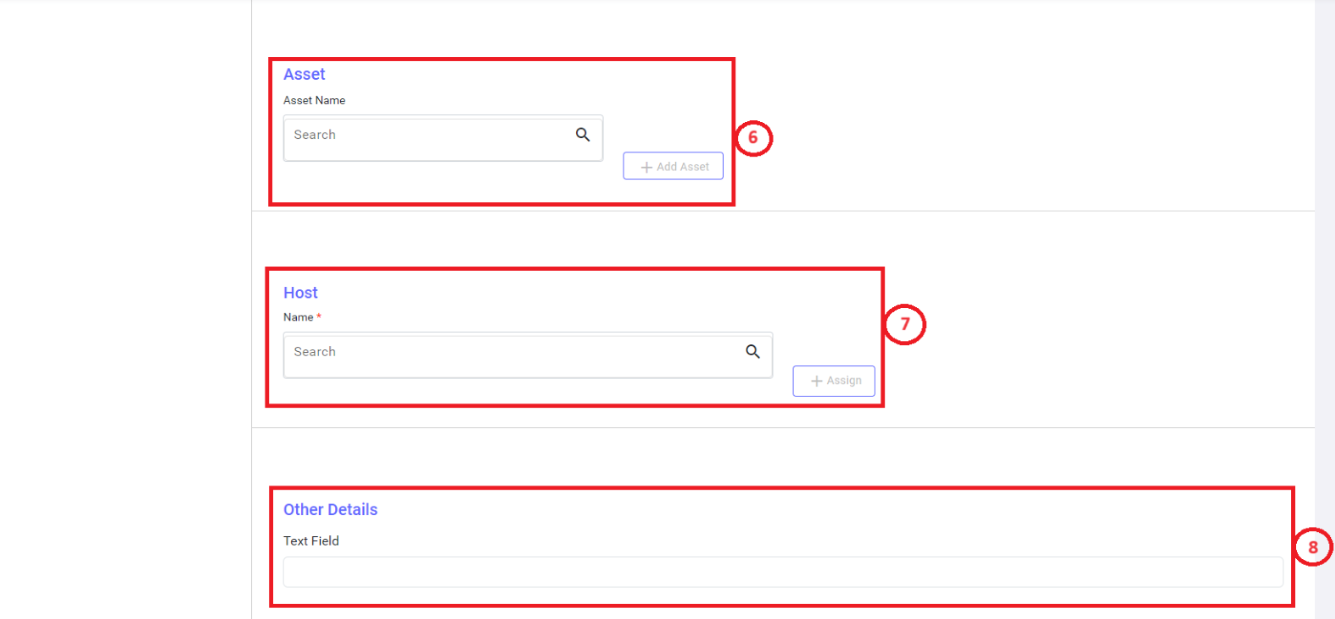
</div><div class="ListContainerWrapper SCXW79369783 BCX0" id="bkmrk--1"></div><div class="ListContainerWrapper SCXW79369783 BCX0" id="bkmrk--2"></div><div class="ListContainerWrapper SCXW79369783 BCX0" id="bkmrk--3"></div><div class="ListContainerWrapper SCXW79369783 BCX0" id="bkmrk--4"></div><div class="ListContainerWrapper SCXW79369783 BCX0" id="bkmrk--5"></div><div class="ListContainerWrapper SCXW79369783 BCX0" id="bkmrk--6"></div></div></div>#### <span style="color: rgb(35, 111, 161);"><span class="TextRun SCXW79369783 BCX0" data-contrast="none" lang="EN-US" xml:lang="EN-US"><span class="NormalTextRun SCXW79369783 BCX0" data-ccp-parastyle="heading 2">Apply Visitor Pass:</span></span><span class="EOP SCXW79369783 BCX0" data-ccp-props="{"134245418":true,"134245529":true,"201341983":0,"335559738":160,"335559739":80,"335559740":279}"> </span></span>

<span class="TextRun SCXW79369783 BCX0" data-contrast="auto" lang="EN-US" xml:lang="EN-US"><span class="NormalTextRun SCXW79369783 BCX0">Apply Visitor Pass on New Visitor Pass creation page is used to create / apply for Visit pass for self or the person in an organization. </span><span class="NormalTextRun SCXW79369783 BCX0">Below are the required details in Visit Pass application submission process.</span></span><span class="EOP SCXW79369783 BCX0" data-ccp-props="{"201341983":0,"335559739":160,"335559740":279}"> </span>

<div class="page-content" dir="auto" id="bkmrk-name%3A-as-the-visit-p"><div dir="auto"><div class="ListContainerWrapper SCXW79369783 BCX0" id="bkmrk-name%3A-as-the-visit-p-1">1. **<span class="TextRun SCXW79369783 BCX0" data-contrast="auto" lang="EN-US" xml:lang="EN-US"><span class="NormalTextRun SCXW79369783 BCX0">Name:</span></span>**<span class="TextRun SCXW79369783 BCX0" data-contrast="auto" lang="EN-US" xml:lang="EN-US"><span class="NormalTextRun SCXW79369783 BCX0"> As the Visit Pass application is created for self, the name of the Visitor gets </span><span class="NormalTextRun SCXW79369783 BCX0">auto populated</span><span class="NormalTextRun SCXW79369783 BCX0">.</span></span><span class="EOP SCXW79369783 BCX0" data-ccp-props="{"201341983":0,"335559739":160,"335559740":279}"> </span>
2. **<span class="TextRun SCXW79369783 BCX0" data-contrast="auto" lang="EN-US" xml:lang="EN-US"><span class="NormalTextRun SCXW79369783 BCX0">Vehicle No:</span></span>**<span class="TextRun SCXW79369783 BCX0" data-contrast="auto" lang="EN-US" xml:lang="EN-US"><span class="NormalTextRun SCXW79369783 BCX0"> To </span><span class="NormalTextRun SCXW79369783 BCX0">define</span><span class="NormalTextRun SCXW79369783 BCX0"> the Vehicle number in which the Visitors are visiting the location.</span></span><span class="EOP SCXW79369783 BCX0" data-ccp-props="{"201341983":0,"335559739":160,"335559740":279}"> </span>
3. <span class="TextRun SCXW79369783 BCX0" data-contrast="auto" lang="EN-US" xml:lang="EN-US"><span class="NormalTextRun SCXW79369783 BCX0">**Vaccination Status:** </span></span><span class="TextRun SCXW79369783 BCX0" data-contrast="auto" lang="EN-US" xml:lang="EN-US"><span class="NormalTextRun SCXW79369783 BCX0">To </span><span class="NormalTextRun SCXW79369783 BCX0">confirm</span><span class="NormalTextRun SCXW79369783 BCX0"> on vaccination status before the visit.</span></span><span class="EOP SCXW79369783 BCX0" data-ccp-props="{"201341983":0,"335559739":160,"335559740":279}"> </span>
4. **<span class="TextRun SCXW79369783 BCX0" data-contrast="auto" lang="EN-US" xml:lang="EN-US"><span class="NormalTextRun SCXW79369783 BCX0">Visit date:</span></span>**<span class="TextRun SCXW79369783 BCX0" data-contrast="auto" lang="EN-US" xml:lang="EN-US"><span class="NormalTextRun SCXW79369783 BCX0"> To define the date of Visit.</span></span><span class="EOP SCXW79369783 BCX0" data-ccp-props="{"201341983":0,"335559739":160,"335559740":279}"> </span>
5. **<span class="TextRun SCXW79369783 BCX0" data-contrast="auto" lang="EN-US" xml:lang="EN-US"><span class="NormalTextRun SCXW79369783 BCX0">Visit time:</span></span>**<span class="TextRun SCXW79369783 BCX0" data-contrast="auto" lang="EN-US" xml:lang="EN-US"><span class="NormalTextRun SCXW79369783 BCX0"> To define the time of Visit.</span></span><span class="EOP SCXW79369783 BCX0" data-ccp-props="{"201341983":0,"335559739":160,"335559740":279}"> </span>
6. **<span class="TextRun SCXW79369783 BCX0" data-contrast="auto" lang="EN-US" xml:lang="EN-US"><span class="NormalTextRun SCXW79369783 BCX0">Purpose of visit</span><span class="NormalTextRun SCXW79369783 BCX0">:</span></span>**<span class="TextRun SCXW79369783 BCX0" data-contrast="auto" lang="EN-US" xml:lang="EN-US"><span class="NormalTextRun SCXW79369783 BCX0"> To define the purpose of visiting the specific location. Applicant can choose the </span><span class="NormalTextRun SCXW79369783 BCX0">option</span><span class="NormalTextRun SCXW79369783 BCX0"> from the pre-configured list of values.</span></span><span class="EOP SCXW79369783 BCX0" data-ccp-props="{"201341983":0,"335559739":160,"335559740":279}"> </span>
7. **<span class="TextRun SCXW79369783 BCX0" data-contrast="auto" lang="EN-US" xml:lang="EN-US"><span class="NormalTextRun SCXW79369783 BCX0">Identification:</span></span>**<span class="TextRun SCXW79369783 BCX0" data-contrast="auto" lang="EN-US" xml:lang="EN-US"><span class="NormalTextRun SCXW79369783 BCX0"> To mention the type of Identification on Visit.</span></span><span class="EOP SCXW79369783 BCX0" data-ccp-props="{"201341983":0,"335559739":160,"335559740":279}"> </span>
8. **<span class="TextRun SCXW79369783 BCX0" data-contrast="auto" lang="EN-US" xml:lang="EN-US"><span class="NormalTextRun SCXW79369783 BCX0">Identification Number:</span></span>**<span class="TextRun SCXW79369783 BCX0" data-contrast="auto" lang="EN-US" xml:lang="EN-US"><span class="NormalTextRun SCXW79369783 BCX0"> To define the Identification number based on the identification type the Applicant </span><span class="NormalTextRun SCXW79369783 BCX0">chooses</span><span class="NormalTextRun SCXW79369783 BCX0">.</span></span><span class="EOP SCXW79369783 BCX0" data-ccp-props="{"201341983":0,"335559739":160,"335559740":279}"> </span>
9. **<span class="TextRun SCXW79369783 BCX0" data-contrast="auto" lang="EN-US" xml:lang="EN-US"><span class="NormalTextRun SCXW79369783 BCX0">Visit Duration:</span></span>**<span class="TextRun SCXW79369783 BCX0" data-contrast="auto" lang="EN-US" xml:lang="EN-US"><span class="NormalTextRun SCXW79369783 BCX0"> To define the visit duration with frequency.</span></span><span class="EOP SCXW79369783 BCX0" data-ccp-props="{"201341983":0,"335559739":160,"335559740":279}"> </span>
10. <span class="TextRun SCXW79369783 BCX0" data-contrast="auto" lang="EN-US" xml:lang="EN-US"><span class="NormalTextRun SCXW79369783 BCX0">**Add Guest:** </span></span><span class="TextRun SCXW79369783 BCX0" data-contrast="auto" lang="EN-US" xml:lang="EN-US"><span class="NormalTextRun SCXW79369783 BCX0">To add </span><span class="NormalTextRun SCXW79369783 BCX0">additional</span><span class="NormalTextRun SCXW79369783 BCX0"> persona for Visiting the location.</span><span class="NormalTextRun SCXW79369783 BCX0"> If the Applicant select the check box, </span><span class="NormalTextRun SCXW79369783 BCX0">additional</span><span class="NormalTextRun SCXW79369783 BCX0"> guest details also should be added.</span></span><span class="EOP SCXW79369783 BCX0" data-ccp-props="{"201341983":0,"335559739":160,"335559740":279}"> </span>
11. **<span class="TextRun SCXW79369783 BCX0" data-contrast="auto" lang="EN-US" xml:lang="EN-US"><span class="NormalTextRun SCXW79369783 BCX0">Location:</span></span>**<span class="TextRun SCXW79369783 BCX0" data-contrast="auto" lang="EN-US" xml:lang="EN-US"><span class="NormalTextRun SCXW79369783 BCX0"> To define the visiting location.</span></span>
12. **<span class="TextRun SCXW79369783 BCX0" data-contrast="auto" lang="EN-US" xml:lang="EN-US"><span class="NormalTextRun SCXW79369783 BCX0">Asset name:</span></span>**<span class="TextRun SCXW79369783 BCX0" data-contrast="auto" lang="EN-US" xml:lang="EN-US"><span class="NormalTextRun SCXW79369783 BCX0"> To define the name of the Asset.</span></span><span class="EOP SCXW79369783 BCX0" data-ccp-props="{"201341983":0,"335559739":160,"335559740":279}"> </span>
13. **<span class="TextRun SCXW79369783 BCX0" data-contrast="auto" lang="EN-US" xml:lang="EN-US"><span class="NormalTextRun SCXW79369783 BCX0">Host:</span></span>**<span class="TextRun SCXW79369783 BCX0" data-contrast="auto" lang="EN-US" xml:lang="EN-US"><span class="NormalTextRun SCXW79369783 BCX0"> To select the Host name. Select the host from the drop down and click on to assign.</span></span>
    
    [![image.png](https://kb.asseto.ai/uploads/images/gallery/2024-09/scaled-1680-/YrBimage.png)](https://kb.asseto.ai/uploads/images/gallery/2024-09/YrBimage.png)
    
    [![image.png](https://kb.asseto.ai/uploads/images/gallery/2024-09/scaled-1680-/fwuimage.png)](https://kb.asseto.ai/uploads/images/gallery/2024-09/fwuimage.png)
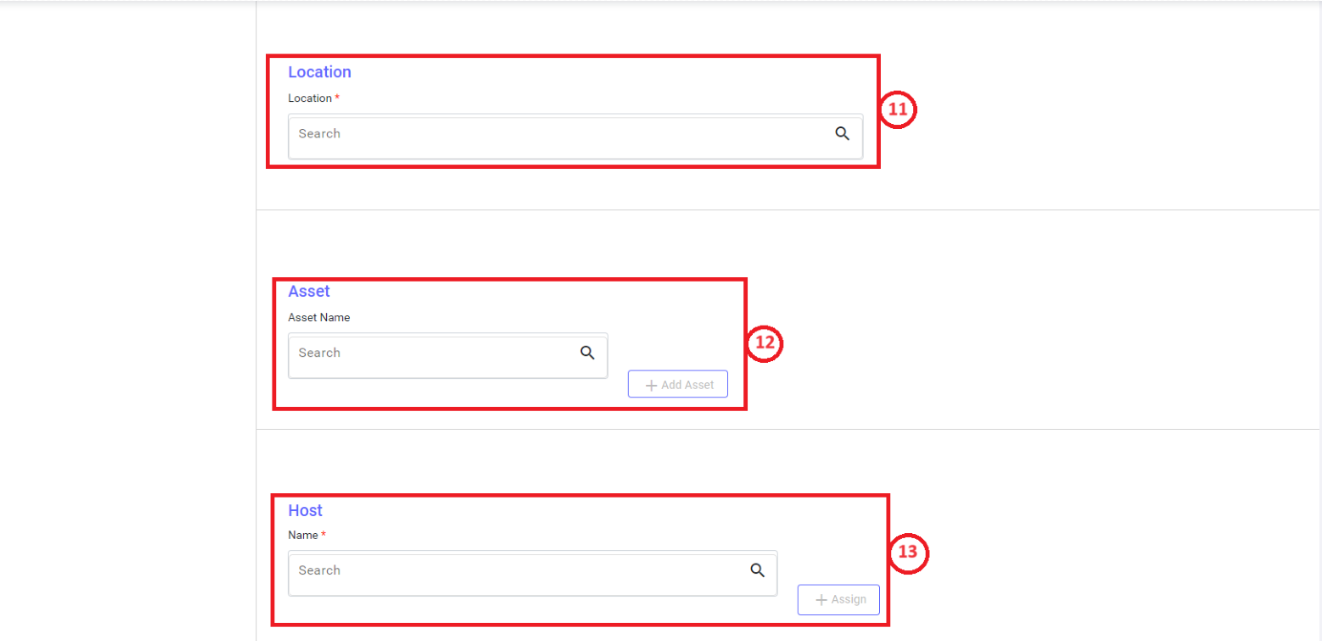
    
    <span class="EOP SCXW79369783 BCX0" data-ccp-props="{"201341983":0,"335559739":160,"335559740":279}"> </span>

</div><div class="ListContainerWrapper SCXW79369783 BCX0" id="bkmrk--7"></div><div class="ListContainerWrapper SCXW79369783 BCX0" id="bkmrk--8"></div><div class="ListContainerWrapper SCXW79369783 BCX0" id="bkmrk--9"></div><div class="ListContainerWrapper SCXW79369783 BCX0" id="bkmrk--10"></div><div class="ListContainerWrapper SCXW79369783 BCX0" id="bkmrk--11"></div><div class="ListContainerWrapper SCXW79369783 BCX0" id="bkmrk--12"></div><div class="ListContainerWrapper SCXW79369783 BCX0" id="bkmrk--13"></div><div class="ListContainerWrapper SCXW79369783 BCX0" id="bkmrk--14"></div><div class="ListContainerWrapper SCXW79369783 BCX0" id="bkmrk--15"></div><div class="ListContainerWrapper SCXW79369783 BCX0" id="bkmrk--16"></div><div class="ListContainerWrapper SCXW79369783 BCX0" id="bkmrk--17"></div></div>---

</div>

# 4. Applications

### <span style="color: rgb(35, 111, 161);"><span class="TextRun SCXW227279058 BCX0" data-contrast="none" lang="EN-US" xml:lang="EN-US"><span class="NormalTextRun SCXW227279058 BCX0" data-ccp-parastyle="heading 1">Applications:</span></span><span class="EOP SCXW227279058 BCX0" data-ccp-props="{"134245418":true,"134245529":true,"201341983":0,"335559738":360,"335559739":80,"335559740":279}"> </span></span>

<span class="TextRun SCXW227279058 BCX0" data-contrast="auto" lang="EN-US" xml:lang="EN-US"><span class="NormalTextRun SCXW227279058 BCX0">The application</span><span class="NormalTextRun SCXW227279058 BCX0"> page displays all the applications created by different users in </span><span class="NormalTextRun ContextualSpellingAndGrammarErrorV2Themed SCXW227279058 BCX0">an</span><span class="NormalTextRun SCXW227279058 BCX0"> dynamic table with the required fields and values</span><span class="NormalTextRun SCXW227279058 BCX0">. Below the </span><span class="NormalTextRun SpellingErrorV2Themed SCXW227279058 BCX0">additional</span><span class="NormalTextRun SCXW227279058 BCX0"> details of Applications dashboard:</span></span>

[![image.png](https://kb.asseto.ai/uploads/images/gallery/2024-09/scaled-1680-/sMeimage.png)](https://kb.asseto.ai/uploads/images/gallery/2024-09/sMeimage.png)

<div class="page-content" dir="auto" id="bkmrk-status-widget%3A-it-pr"><div dir="auto"><div class="ListContainerWrapper SCXW227279058 BCX0" id="bkmrk-status-widget%3A-it-pr-1">1. **<span class="TextRun SCXW227279058 BCX0" data-contrast="auto" lang="EN-US" xml:lang="EN-US"><span class="NormalTextRun SCXW227279058 BCX0">Status Widget:</span></span>**<span class="TextRun SCXW227279058 BCX0" data-contrast="auto" lang="EN-US" xml:lang="EN-US"><span class="NormalTextRun SCXW227279058 BCX0"> It provides </span><span class="NormalTextRun SCXW227279058 BCX0">information</span><span class="NormalTextRun SCXW227279058 BCX0"> on the number of records against each status.</span></span><span class="EOP SCXW227279058 BCX0" data-ccp-props="{"201341983":0,"335559739":160,"335559740":279}"> </span>
2. **<span class="TextRun SCXW227279058 BCX0" data-contrast="auto" lang="EN-US" xml:lang="EN-US"><span class="NormalTextRun SCXW227279058 BCX0">All Application:</span></span>**<span class="TextRun SCXW227279058 BCX0" data-contrast="auto" lang="EN-US" xml:lang="EN-US"><span class="NormalTextRun SCXW227279058 BCX0"> All applications will be displayed on the Application dashboard </span><span class="NormalTextRun ContextualSpellingAndGrammarErrorV2Themed SCXW227279058 BCX0">on</span><span class="NormalTextRun SCXW227279058 BCX0"> clicking on All application option.</span></span><span class="EOP SCXW227279058 BCX0" data-ccp-props="{"201341983":0,"335559739":160,"335559740":279}"> </span>
3. **<span class="TextRun SCXW227279058 BCX0" data-contrast="auto" lang="EN-US" xml:lang="EN-US"><span class="NormalTextRun SCXW227279058 BCX0">My </span><span class="NormalTextRun SCXW227279058 BCX0">application</span><span class="NormalTextRun SCXW227279058 BCX0">:</span></span>**<span class="TextRun SCXW227279058 BCX0" data-contrast="auto" lang="EN-US" xml:lang="EN-US"><span class="NormalTextRun SCXW227279058 BCX0"> Clicking on to this User can view all the application created by self.</span></span><span class="EOP SCXW227279058 BCX0" data-ccp-props="{"201341983":0,"335559739":160,"335559740":279}"> </span>
4. **<span class="TextRun SCXW227279058 BCX0" data-contrast="auto" lang="EN-US" xml:lang="EN-US"><span class="NormalTextRun SCXW227279058 BCX0">Visit Purpose:</span></span>**<span class="TextRun SCXW227279058 BCX0" data-contrast="auto" lang="EN-US" xml:lang="EN-US"><span class="NormalTextRun SCXW227279058 BCX0"> This provides the flexibility to filter the records with specific Visit purpose.</span></span><span class="EOP SCXW227279058 BCX0" data-ccp-props="{"201341983":0,"335559739":160,"335559740":279}"> </span>
5. **<span class="TextRun SCXW227279058 BCX0" data-contrast="auto" lang="EN-US" xml:lang="EN-US"><span class="NormalTextRun SCXW227279058 BCX0">Status:</span></span>**<span class="TextRun SCXW227279058 BCX0" data-contrast="auto" lang="EN-US" xml:lang="EN-US"><span class="NormalTextRun SCXW227279058 BCX0"> This provides the flexibility to filter the records with specific status.</span></span><span class="EOP SCXW227279058 BCX0" data-ccp-props="{"201341983":0,"335559739":160,"335559740":279}"> </span>
6. **<span class="TextRun SCXW227279058 BCX0" data-contrast="auto" lang="EN-US" xml:lang="EN-US"><span class="NormalTextRun SCXW227279058 BCX0">Search:</span></span>**<span class="TextRun SCXW227279058 BCX0" data-contrast="auto" lang="EN-US" xml:lang="EN-US"><span class="NormalTextRun SCXW227279058 BCX0"> This is to </span><span class="NormalTextRun SCXW227279058 BCX0">search for</span><span class="NormalTextRun SCXW227279058 BCX0"> a specific application by typing a key work.</span></span><span class="EOP SCXW227279058 BCX0" data-ccp-props="{"201341983":0,"335559739":160,"335559740":279}"> </span>
7. **<span class="TextRun SCXW227279058 BCX0" data-contrast="auto" lang="EN-US" xml:lang="EN-US"><span class="NormalTextRun SCXW227279058 BCX0">List View:</span></span>**<span class="TextRun SCXW227279058 BCX0" data-contrast="auto" lang="EN-US" xml:lang="EN-US"><span class="NormalTextRun SCXW227279058 BCX0"> List of Applications are set in a dynamic table to show all basic details of an </span><span class="NormalTextRun SCXW227279058 BCX0">application</span><span class="NormalTextRun SCXW227279058 BCX0">.</span></span> <span class="EOP SCXW227279058 BCX0" data-ccp-props="{"201341983":0,"335559739":160,"335559740":279}"> </span>

</div><div class="ListContainerWrapper SCXW227279058 BCX0" id="bkmrk-all-application%3A-all"></div><div class="ListContainerWrapper SCXW227279058 BCX0" id="bkmrk-my-application%3A-clic"></div><div class="ListContainerWrapper SCXW227279058 BCX0" id="bkmrk-visit-purpose%3A-this-"></div><div class="ListContainerWrapper SCXW227279058 BCX0" id="bkmrk-status%3A-this-provide"></div><div class="ListContainerWrapper SCXW227279058 BCX0" id="bkmrk-search%3A-this-is-to-s"></div><div class="ListContainerWrapper SCXW227279058 BCX0" id="bkmrk-list-view%3A-list-of-a"></div></div></div>

# 5. Visit Log

### <span style="color: rgb(35, 111, 161);"><span class="TextRun SCXW231327369 BCX0" data-contrast="none" lang="EN-US" xml:lang="EN-US"><span class="NormalTextRun SCXW231327369 BCX0" data-ccp-parastyle="heading 1">Visit Log:</span></span><span class="EOP SCXW231327369 BCX0" data-ccp-props="{"134245418":true,"134245529":true,"201341983":0,"335559738":360,"335559739":80,"335559740":279}"> </span></span>

<span class="TextRun SCXW231327369 BCX0" data-contrast="auto" lang="EN-US" xml:lang="EN-US"><span class="NormalTextRun SCXW231327369 BCX0">Visit Log records and displays the Visitors details for specific period with </span><span class="NormalTextRun SCXW231327369 BCX0">all the details. It includes </span><span class="NormalTextRun SCXW231327369 BCX0">the name</span><span class="NormalTextRun SCXW231327369 BCX0"> of the visitor, </span><span class="NormalTextRun SCXW231327369 BCX0">check-in</span><span class="NormalTextRun SCXW231327369 BCX0"> date &amp; time, </span><span class="NormalTextRun SCXW231327369 BCX0">check-out</span><span class="NormalTextRun SCXW231327369 BCX0"> date &amp; times, location etc.</span><span class="NormalTextRun SCXW231327369 BCX0"> Below are the details displayed on </span><span class="NormalTextRun SCXW231327369 BCX0">the Visit</span><span class="NormalTextRun SCXW231327369 BCX0"> Log page.</span></span>

[![image.png](https://kb.asseto.ai/uploads/images/gallery/2024-09/scaled-1680-/Jo6image.png)](https://kb.asseto.ai/uploads/images/gallery/2024-09/Jo6image.png)

<div class="page-content" dir="auto" id="bkmrk-status-widget%3A-it-di"><div dir="auto"><div class="ListContainerWrapper SCXW231327369 BCX0" id="bkmrk-status-widget%3A-it-di-1">1. **<span class="TextRun SCXW231327369 BCX0" data-contrast="auto" lang="EN-US" xml:lang="EN-US"><span class="NormalTextRun SCXW231327369 BCX0">Status Widget: </span></span>**<span class="TextRun SCXW231327369 BCX0" data-contrast="auto" lang="EN-US" xml:lang="EN-US"><span class="NormalTextRun SCXW231327369 BCX0">It displays the </span><span class="NormalTextRun SCXW231327369 BCX0">statuses</span><span class="NormalTextRun SCXW231327369 BCX0">, scheduled, check in, check </span><span class="NormalTextRun SCXW231327369 BCX0">ou</span><span class="NormalTextRun SCXW231327369 BCX0">t</span><span class="NormalTextRun SCXW231327369 BCX0"> and overstayed </span><span class="NormalTextRun SCXW231327369 BCX0">with count against </span><span class="NormalTextRun SCXW231327369 BCX0">each</span><span class="NormalTextRun SCXW231327369 BCX0"> status.</span></span><span class="EOP SCXW231327369 BCX0" data-ccp-props="{"134233117":false,"134233118":false,"201341983":0,"335551550":1,"335551620":1,"335559737":0,"335559738":0,"335559739":160,"335559740":279}"> </span>
2. **<span class="TextRun SCXW231327369 BCX0" data-contrast="auto" lang="EN-US" xml:lang="EN-US"><span class="NormalTextRun SCXW231327369 BCX0">Date: </span></span>**<span class="TextRun SCXW231327369 BCX0" data-contrast="auto" lang="EN-US" xml:lang="EN-US"><span class="NormalTextRun SCXW231327369 BCX0">To show the specific date for which the visit log is </span><span class="NormalTextRun SCXW231327369 BCX0">displayed</span><span class="NormalTextRun SCXW231327369 BCX0">.</span></span>
3. **<span class="TextRun SCXW231327369 BCX0" data-contrast="auto" lang="EN-US" xml:lang="EN-US"><span class="NormalTextRun SCXW231327369 BCX0">Status:</span></span>**<span class="TextRun SCXW231327369 BCX0" data-contrast="auto" lang="EN-US" xml:lang="EN-US"><span class="NormalTextRun SCXW231327369 BCX0"> To filter the records with specific status.</span></span><span class="EOP SCXW231327369 BCX0" data-ccp-props="{"134233117":false,"134233118":false,"201341983":0,"335551550":1,"335551620":1,"335559737":0,"335559738":0,"335559739":160,"335559740":279}"> </span>
4. **<span class="TextRun SCXW231327369 BCX0" data-contrast="auto" lang="EN-US" xml:lang="EN-US"><span class="NormalTextRun SCXW231327369 BCX0">Search</span></span>**<span class="TextRun SCXW231327369 BCX0" data-contrast="auto" lang="EN-US" xml:lang="EN-US"><span class="NormalTextRun SCXW231327369 BCX0">**:** To </span><span class="NormalTextRun SCXW231327369 BCX0">search for a</span><span class="NormalTextRun SCXW231327369 BCX0"> specific record with key </span><span class="NormalTextRun SCXW231327369 BCX0">word</span><span class="NormalTextRun SCXW231327369 BCX0">.</span></span><span class="EOP SCXW231327369 BCX0" data-ccp-props="{"134233117":false,"134233118":false,"201341983":0,"335551550":1,"335551620":1,"335559737":0,"335559738":0,"335559739":160,"335559740":279}"> </span>
5. <span class="TextRun SCXW231327369 BCX0" data-contrast="auto" lang="EN-US" xml:lang="EN-US"><span class="NormalTextRun SCXW231327369 BCX0">**List view:** </span></span><span class="TextRun SCXW231327369 BCX0" data-contrast="auto" lang="EN-US" xml:lang="EN-US"><span class="NormalTextRun SCXW231327369 BCX0">It displays the applications </span><span class="NormalTextRun SCXW231327369 BCX0">based on</span><span class="NormalTextRun SCXW231327369 BCX0"> the filter parameters defined by the user with </span><span class="NormalTextRun SCXW231327369 BCX0">basic details of </span><span class="NormalTextRun SCXW231327369 BCX0">application.</span></span><span class="EOP SCXW231327369 BCX0" data-ccp-props="{"134233117":false,"134233118":false,"201341983":0,"335551550":1,"335551620":1,"335559737":0,"335559738":0,"335559739":160,"335559740":279}"> </span>

</div><div class="ListContainerWrapper SCXW231327369 BCX0" id="bkmrk--1"></div><div class="ListContainerWrapper SCXW231327369 BCX0" id="bkmrk--2"></div><div class="ListContainerWrapper SCXW231327369 BCX0" id="bkmrk--3"></div><div class="ListContainerWrapper SCXW231327369 BCX0" id="bkmrk--4"></div></div></div><div class="page-content" dir="auto" id="bkmrk--5">---

</div>

# 6. Visitors Pass Flow

##### <span style="color: rgb(35, 111, 161);"><span class="TextRun SCXW54846684 BCX0" data-contrast="none" lang="EN-US" xml:lang="EN-US"><span class="NormalTextRun SCXW54846684 BCX0">Step 1:</span></span> <span class="TextRun SCXW54846684 BCX0" data-contrast="none" lang="EN-US" xml:lang="EN-US"><span class="NormalTextRun SCXW54846684 BCX0">Initiate Visitors Pass.</span></span><span class="EOP SCXW54846684 BCX0" data-ccp-props="{"134233117":false,"134233118":false,"134245418":true,"134245529":true,"201341983":0,"335551550":1,"335551620":1,"335559685":0,"335559731":0,"335559737":0,"335559738":0,"335559739":160,"335559740":279}"> </span></span>

<div class="ListContainerWrapper SCXW54846684 BCX0" id="bkmrk-list-view%3A-after-the">1. **<span class="TextRun SCXW54846684 BCX0" data-contrast="none" lang="EN-US" xml:lang="EN-US"><span class="NormalTextRun SCXW54846684 BCX0">List View:</span></span>**<span class="TextRun SCXW54846684 BCX0" data-contrast="none" lang="EN-US" xml:lang="EN-US"> <span class="NormalTextRun SCXW54846684 BCX0">After the Visitor Pass initiation, the form will be shown </span><span class="NormalTextRun SCXW54846684 BCX0">in the dynamic table in </span><span class="NormalTextRun SCXW54846684 BCX0">Application dashboard.</span></span><span class="EOP SCXW54846684 BCX0" data-ccp-props="{"134233117":false,"134233118":false,"134245418":true,"134245529":true,"201341983":0,"335551550":1,"335551620":1,"335559737":0,"335559738":0,"335559739":160,"335559740":279}"> </span>
2. **<span class="TextRun SCXW54846684 BCX0" data-contrast="none" lang="EN-US" xml:lang="EN-US"><span class="NormalTextRun SCXW54846684 BCX0">Status:</span></span>**<span class="TextRun SCXW54846684 BCX0" data-contrast="none" lang="EN-US" xml:lang="EN-US"><span class="NormalTextRun SCXW54846684 BCX0"> The status of the Visitor Pass will be </span></span><span class="TextRun SCXW54846684 BCX0" data-contrast="none" lang="EN-US" xml:lang="EN-US"><span class="NormalTextRun SCXW54846684 BCX0">“</span><span class="NormalTextRun SCXW54846684 BCX0">Pending Submission</span><span class="NormalTextRun SCXW54846684 BCX0">”</span></span><span class="EOP SCXW54846684 BCX0" data-ccp-props="{"134233117":false,"134233118":false,"134245418":true,"134245529":true,"201341983":0,"335551550":1,"335551620":1,"335559737":0,"335559738":0,"335559739":160,"335559740":279}"> </span>

</div><div class="ListContainerWrapper SCXW54846684 BCX0" id="bkmrk-"></div>##### <span style="color: rgb(35, 111, 161);"><span class="TextRun SCXW54846684 BCX0" data-contrast="none" lang="EN-US" xml:lang="EN-US"><span class="NormalTextRun SCXW54846684 BCX0">Step 2:</span></span><span class="TextRun SCXW54846684 BCX0" data-contrast="none" lang="EN-US" xml:lang="EN-US"> <span class="NormalTextRun SCXW54846684 BCX0">Submit</span><span class="NormalTextRun SCXW54846684 BCX0"> Application form.</span></span></span>

<span class="WACImageContainer NoPadding DragDrop BlobObject SCXW54846684 BCX0" role="presentation">![](https://kb.asseto.ai/uploads/images/gallery/2024-09/embedded-image-fibutelt.png)</span>

<div class="ListContainerWrapper SCXW54846684 BCX0" id="bkmrk-list-view%3A-after-the-1">1. **<span class="TextRun SCXW54846684 BCX0" data-contrast="none" lang="EN-US" xml:lang="EN-US"><span class="NormalTextRun SCXW54846684 BCX0">List View:</span></span>**<span class="TextRun SCXW54846684 BCX0" data-contrast="none" lang="EN-US" xml:lang="EN-US"><span class="NormalTextRun SCXW54846684 BCX0"> After the Visitor Pass initiation, the form will be shown in the dynamic table in Application dashboard.</span></span><span class="EOP SCXW54846684 BCX0" data-ccp-props="{"134233117":false,"134233118":false,"134245418":true,"134245529":true,"201341983":0,"335551550":1,"335551620":1,"335559737":0,"335559738":0,"335559739":160,"335559740":279}"> </span>
2. **<span class="TextRun SCXW54846684 BCX0" data-contrast="none" lang="EN-US" xml:lang="EN-US"><span class="NormalTextRun SCXW54846684 BCX0">Status:</span></span>**<span class="TextRun SCXW54846684 BCX0" data-contrast="none" lang="EN-US" xml:lang="EN-US"><span class="NormalTextRun SCXW54846684 BCX0"> The status of the Visitor Pass will be </span></span><span class="TextRun SCXW54846684 BCX0" data-contrast="none" lang="EN-US" xml:lang="EN-US"><span class="NormalTextRun SCXW54846684 BCX0">“Pending </span><span class="NormalTextRun SCXW54846684 BCX0">Approval</span><span class="NormalTextRun SCXW54846684 BCX0">”</span></span><span class="EOP SCXW54846684 BCX0" data-ccp-props="{"134233117":false,"134233118":false,"134245418":true,"134245529":true,"201341983":0,"335551550":1,"335551620":1,"335559737":0,"335559738":0,"335559739":160,"335559740":279}"> </span>

</div><div class="ListContainerWrapper SCXW54846684 BCX0" id="bkmrk--2"></div>##### <span style="color: rgb(35, 111, 161);"><span class="TextRun SCXW54846684 BCX0" data-contrast="none" lang="EN-US" xml:lang="EN-US"><span class="NormalTextRun SCXW54846684 BCX0">Step 3</span></span><span class="TextRun SCXW54846684 BCX0" data-contrast="none" lang="EN-US" xml:lang="EN-US"><span class="NormalTextRun SCXW54846684 BCX0">: Approve / Reject</span><span class="NormalTextRun SCXW54846684 BCX0">.</span></span><span class="EOP SCXW54846684 BCX0" data-ccp-props="{"134245418":true,"134245529":true,"201341983":0,"335559731":0,"335559739":160,"335559740":279}"> </span></span>

<span class="TextRun SCXW54846684 BCX0" data-contrast="auto" lang="EN-US" xml:lang="EN-US"><span class="NormalTextRun SCXW54846684 BCX0">Approver receives the notification &amp; will be directed to the Approve / Reject page as shown in the below screen shot.</span></span><span class="WACImageContainer NoPadding DragDrop BlobObject SCXW54846684 BCX0" role="presentation">![](https://kb.asseto.ai/uploads/images/gallery/2024-09/embedded-image-etwjtekt.png)</span><span class="EOP SCXW54846684 BCX0" data-ccp-props="{"134245418":true,"134245529":true,"201341983":0,"335559731":0,"335559739":160,"335559740":279}"> </span>

<span class="SCXW54846684 BCX0"><span class="WACImageContainer NoPadding DragDrop BlobObject SCXW54846684 BCX0" role="presentation">![](https://kb.asseto.ai/uploads/images/gallery/2024-09/embedded-image-jpbqi6yk.png)</span></span><span class="EOP SCXW54846684 BCX0" data-ccp-props="{"134245418":true,"134245529":true,"201341983":0,"335559731":0,"335559739":160,"335559740":279}"> </span>

1. **<span class="TextRun SCXW54846684 BCX0" data-contrast="auto" lang="EN-US" xml:lang="EN-US"><span class="NormalTextRun SCXW54846684 BCX0">Approve:</span></span>**<span class="TextRun SCXW54846684 BCX0" data-contrast="auto" lang="EN-US" xml:lang="EN-US"> <span class="NormalTextRun SCXW54846684 BCX0">To Approve the Visitor pass.</span></span>
2. **<span class="TextRun SCXW54846684 BCX0" data-contrast="auto" lang="EN-US" xml:lang="EN-US"><span class="NormalTextRun SCXW54846684 BCX0">Reject:</span></span>**<span class="TextRun SCXW54846684 BCX0" data-contrast="auto" lang="EN-US" xml:lang="EN-US"><span class="NormalTextRun SCXW54846684 BCX0"> To Reject the Visitor pass.</span></span>
3. **<span class="TextRun SCXW54846684 BCX0" data-contrast="auto" lang="EN-US" xml:lang="EN-US"><span class="NormalTextRun SCXW54846684 BCX0">3 Dots Icon:</span></span>**<span class="TextRun SCXW54846684 BCX0" data-contrast="auto" lang="EN-US" xml:lang="EN-US"><span class="NormalTextRun SCXW54846684 BCX0"> Cancel Visitor pass button will be displayed.</span><span class="NormalTextRun SCXW54846684 BCX0"> Clicking on the Cancel option, Approver must </span><span class="NormalTextRun SCXW54846684 BCX0">select a</span><span class="NormalTextRun SCXW54846684 BCX0"> valid reason for the pass cance</span><span class="NormalTextRun SCXW54846684 BCX0">l</span><span class="NormalTextRun SCXW54846684 BCX0">lation</span><span class="NormalTextRun SCXW54846684 BCX0"> &amp; </span><span class="NormalTextRun SCXW54846684 BCX0">submit</span><span class="NormalTextRun SCXW54846684 BCX0"> to complete </span><span class="NormalTextRun SCXW54846684 BCX0">cancellation process.</span></span><span class="EOP SCXW54846684 BCX0" data-ccp-props="{"134245418":true,"134245529":true,"201341983":0,"335559731":720,"335559739":160,"335559740":279}"> </span>

# 12. BCA

BCA (Building Condition Assessment, assessment for assets and its components)

In a building having various assets, an assessor (agent) will visit the building to inspect the condition of these assets and components. Assessor evaluating the condition of the assets and their components.

The assessor will generate an audit report with detailed condition of the assets and their components, including whether the assets are functioning properly and the condition of each component. This report will be sent to the supervisor, who will review it and either approve or reject the project based on the findings.

BCA has the following features.

- New BCA Project

# 12.1. BCA Dashboard

<span lang="EN-US" style="mso-ansi-language: EN-US;">Dashboard has the following features.</span>

[![BCA1.png](https://kb.asseto.ai/uploads/images/gallery/2024-09/embedded-image-w8dl4yo4.png)](http://ec2-3-7-68-25.ap-south-1.compute.amazonaws.com/uploads/images/gallery/2024-08/bca1.png)

<span lang="EN-US" style="mso-bidi-font-family: Calibri; mso-bidi-theme-font: minor-latin; mso-ansi-language: EN-US;"><span style="mso-list: Ignore;">1.<span style="font: 7.0pt 'Times New Roman';"> </span></span></span><span lang="EN-US" style="mso-ansi-language: EN-US;">**Statuses**: </span><span style="mso-spacerun: yes;"> </span>it shows the count of total number of BCA Projects in the system, total number of scheduled, in progress, pending approval and completed till date.

<span lang="EN-US" style="mso-bidi-font-family: Calibri; mso-bidi-theme-font: minor-latin; mso-ansi-language: EN-US;"><span style="mso-list: Ignore;"> 2.<span style="font: 7.0pt 'Times New Roman';">  </span></span></span>**<span lang="EN-US" style="mso-ansi-language: EN-US;">Dropdown</span>**<span lang="EN-US" style="mso-ansi-language: EN-US;">: </span>To search BCA Projects with <span lang="EN-US" style="mso-ansi-language: EN-US;">locations</span>. Select one <span lang="EN-US" style="mso-ansi-language: EN-US;">location</span> from drop down.

[![BCA4.png](https://kb.asseto.ai/uploads/images/gallery/2024-09/embedded-image-wc8bwgkh.png)](http://ec2-3-7-68-25.ap-south-1.compute.amazonaws.com/uploads/images/gallery/2024-08/bca4.png)

 Results will be displayed in the BCA dashboard Projects list.

[![BCA3.png](https://kb.asseto.ai/uploads/images/gallery/2024-09/embedded-image-ygyx2v8s.png)](http://ec2-3-7-68-25.ap-south-1.compute.amazonaws.com/uploads/images/gallery/2024-08/bca3.png)

<span lang="EN-US" style="mso-bidi-font-family: Calibri; mso-bidi-theme-font: minor-latin; mso-ansi-language: EN-US;"><span style="mso-list: Ignore;"> 3.<span style="font: 7.0pt 'Times New Roman';"> </span></span></span><span lang="EN-US" style="mso-ansi-language: EN-US;">**Search**:</span><span lang="EN-US" style="mso-ansi-language: EN-US;"> User can search for any specific </span>BCA Project <span lang="EN-US" style="mso-ansi-language: EN-US;">with their names.</span>

<span lang="EN-US" style="mso-bidi-font-family: Calibri; mso-bidi-theme-font: minor-latin; mso-ansi-language: EN-US;"><span style="mso-list: Ignore;"> 4.<span style="font: 7.0pt 'Times New Roman';"> </span></span></span><span lang="EN-US" style="mso-ansi-language: EN-US;">**Filter**</span><span lang="EN-US" style="mso-ansi-language: EN-US;">:</span><span lang="EN-US" style="mso-ansi-language: EN-US;"> By using this feature you can refine the search by selecting the choice of filter (Name, Location, status) and selecting the appropriate choice from the displayed list and click on the add button then click on apply button as shown by below screenshot.</span>

<span lang="EN-US" style="mso-ansi-language: EN-US;"> </span>[![BCA4.png](https://kb.asseto.ai/uploads/images/gallery/2024-09/embedded-image-qilvrbtu.png)](http://ec2-3-7-68-25.ap-south-1.compute.amazonaws.com/uploads/images/gallery/2024-08/uNbbca4.png)

 Filter results will be displayed in BCA dashboard as shown by below screenshot.

[![BCA5.png](https://kb.asseto.ai/uploads/images/gallery/2024-09/embedded-image-0ehpuzgm.png)](http://ec2-3-7-68-25.ap-south-1.compute.amazonaws.com/uploads/images/gallery/2024-08/bca5.png)

<span style="mso-bidi-font-family: Calibri; mso-bidi-theme-font: minor-latin;"><span style="mso-list: Ignore;"> 5.<span style="font: 7.0pt 'Times New Roman';"> </span></span></span>**<span lang="EN-US" style="mso-ansi-language: EN-US;">Total Records</span>**<span lang="EN-US" style="mso-ansi-language: EN-US;">**:** </span>total number of BCA Projects present in the system displayed in bottom of the table.

<span lang="EN-US" style="mso-bidi-font-family: Calibri; mso-bidi-theme-font: minor-latin; mso-ansi-language: EN-US;"><span style="mso-list: Ignore;"> 6.<span style="font: 7.0pt 'Times New Roman';"> </span></span></span>**<span lang="EN-US" style="mso-ansi-language: EN-US;">Pagination</span>**: pagination view is displayed beside the total number of records, you can select the pagination numbers (5,10,25,50,100) to get the desired list.

<div class="page-content" dir="auto" id="bkmrk--5">---

</div>

# 12.2 Pre requisites to create New BCA Project

<span lang="EN-US" style="mso-ansi-language: EN-US;">Need to configure Location, </span>Components in settings, attach those components to assets while creating BCA project. Create agent with assessor role in agents module and onboard assets in assets module

**<span style="mso-bidi-font-family: Calibri; mso-bidi-theme-font: minor-latin;"><span style="mso-list: Ignore;">i.<span style="font-style: normal; font-variant: normal; font-kerning: auto; font-optical-sizing: auto; font-feature-settings: normal; font-variation-settings: normal; font-stretch: normal; font-size: 7pt; line-height: normal; font-family: 'Times New Roman';"> </span></span></span><u>settings -&gt; assets -&gt; components</u>**

[![settings-assets-component1.png](https://kb.asseto.ai/uploads/images/gallery/2024-09/embedded-image-t87ookli.png)](http://ec2-3-7-68-25.ap-south-1.compute.amazonaws.com/uploads/images/gallery/2024-08/fijsettings-assets-component1.png)

Click on the “Add component” button, to create a new component.

[![settings-assets-component2.png](https://kb.asseto.ai/uploads/images/gallery/2024-09/embedded-image-aoyw8ctf.png)](http://ec2-3-7-68-25.ap-south-1.compute.amazonaws.com/uploads/images/gallery/2024-08/7dssettings-assets-component2.png)

Provide component name and select assets.

[![settings-assets-component3.png](https://kb.asseto.ai/uploads/images/gallery/2024-09/embedded-image-ob5x3foa.png)](http://ec2-3-7-68-25.ap-south-1.compute.amazonaws.com/uploads/images/gallery/2024-08/jKIsettings-assets-component3.png)

**<span style="mso-bidi-font-family: Calibri; mso-bidi-theme-font: minor-latin;"><span style="mso-list: Ignore;">1.<span style="font-style: normal; font-variant: normal; font-kerning: auto; font-optical-sizing: auto; font-feature-settings: normal; font-variation-settings: normal; font-stretch: normal; font-size: 7pt; line-height: normal; font-family: 'Times New Roman';"> </span></span></span>All assets:** Dropdown to select assets.

**<span style="mso-bidi-font-family: Calibri; mso-bidi-theme-font: minor-latin;"><span style="mso-list: Ignore;">2.<span style="font-style: normal; font-variant: normal; font-kerning: auto; font-optical-sizing: auto; font-feature-settings: normal; font-variation-settings: normal; font-stretch: normal; font-size: 7pt; line-height: normal; font-family: 'Times New Roman';"> </span></span></span>Search:** To search the filter with name.

**<span style="mso-bidi-font-family: Calibri; mso-bidi-theme-font: minor-latin;"><span style="mso-list: Ignore;">3.<span style="font-style: normal; font-variant: normal; font-kerning: auto; font-optical-sizing: auto; font-feature-settings: normal; font-variation-settings: normal; font-stretch: normal; font-size: 7pt; line-height: normal; font-family: 'Times New Roman';"> </span></span></span>Filter:** To filter out the assets by asset category, manufacturer, model.

**<span style="mso-bidi-font-family: Calibri; mso-bidi-theme-font: minor-latin;"><span style="mso-list: Ignore;">4.<span style="font-style: normal; font-variant: normal; font-kerning: auto; font-optical-sizing: auto; font-feature-settings: normal; font-variation-settings: normal; font-stretch: normal; font-size: 7pt; line-height: normal; font-family: 'Times New Roman';"> </span></span></span>Submit:** Click on the “submit” button, confirmation message “component registered successfully” will be display.

[![settings-assets-component4.png](https://kb.asseto.ai/uploads/images/gallery/2024-09/embedded-image-bb0unm91.png)](http://ec2-3-7-68-25.ap-south-1.compute.amazonaws.com/uploads/images/gallery/2024-08/nIWsettings-assets-component4.png)

Added component will display in first of component list.

[![settings-assets-component5.png](https://kb.asseto.ai/uploads/images/gallery/2024-09/embedded-image-ba1kzjr2.png)](http://ec2-3-7-68-25.ap-south-1.compute.amazonaws.com/uploads/images/gallery/2024-08/aVusettings-assets-component5.png)

**<span style="mso-bidi-font-family: Calibri; mso-bidi-theme-font: minor-latin;"><span style="mso-list: Ignore;">1.<span style="font-style: normal; font-variant: normal; font-kerning: auto; font-optical-sizing: auto; font-feature-settings: normal; font-variation-settings: normal; font-stretch: normal; font-size: 7pt; line-height: normal; font-family: 'Times New Roman';"> </span></span></span>Status:** By default, component status is active, user can change the status as active or inactive.

**<span style="mso-bidi-font-family: Calibri; mso-bidi-theme-font: minor-latin;"><span style="mso-list: Ignore;">2.<span style="font-style: normal; font-variant: normal; font-kerning: auto; font-optical-sizing: auto; font-feature-settings: normal; font-variation-settings: normal; font-stretch: normal; font-size: 7pt; line-height: normal; font-family: 'Times New Roman';"> </span></span></span>Edit:** To edit/update component details.

**<span style="mso-bidi-font-family: Calibri; mso-bidi-theme-font: minor-latin;"><span style="mso-list: Ignore;">3.<span style="font-style: normal; font-variant: normal; font-kerning: auto; font-optical-sizing: auto; font-feature-settings: normal; font-variation-settings: normal; font-stretch: normal; font-size: 7pt; line-height: normal; font-family: 'Times New Roman';"> </span></span></span>Delete:** To delete the component.

**<span style="mso-bidi-font-family: Calibri; mso-bidi-theme-font: minor-latin;"><span style="mso-list: Ignore;">4.<span style="font-style: normal; font-variant: normal; font-kerning: auto; font-optical-sizing: auto; font-feature-settings: normal; font-variation-settings: normal; font-stretch: normal; font-size: 7pt; line-height: normal; font-family: 'Times New Roman';"> </span></span></span>Search:** To search the components with names.

**<span lang="EN-US" style="mso-bidi-font-family: Calibri; mso-bidi-theme-font: minor-latin; mso-ansi-language: EN-US;"><span style="mso-list: Ignore;">ii. </span></span><span lang="EN-US" style="mso-bidi-font-family: Calibri; mso-bidi-theme-font: minor-latin; mso-ansi-language: EN-US;"><span style="mso-list: Ignore;"> S</span></span><u>ettings -&gt; assets -&gt; Defect</u>**

[![settings-asset-defect1.png](https://kb.asseto.ai/uploads/images/gallery/2024-09/embedded-image-qoacepjl.png)](http://ec2-3-7-68-25.ap-south-1.compute.amazonaws.com/uploads/images/gallery/2024-08/1PSsettings-asset-defect1.png)

<span style="mso-bidi-font-family: Calibri; mso-bidi-theme-font: minor-latin;"><span style="mso-list: Ignore;">1.<span style="font: 7.0pt 'Times New Roman';"> </span></span></span>**Add Defect**: fill the defect name in the text box and select one methodology from dropdown then click on “Add Defect” button to save the defect. The saved defect will be displayed in the first row of the table.

<span style="mso-bidi-font-family: Calibri; mso-bidi-theme-font: minor-latin;"><span style="mso-list: Ignore;">2.<span style="font: 7.0pt 'Times New Roman';"> </span></span></span>**Delete Defect**: click on delete icon to delete the selected defect.

**<span lang="EN-US" style="mso-bidi-font-family: Calibri; mso-bidi-theme-font: minor-latin; mso-ansi-language: EN-US;"><span style="mso-list: Ignore;">iii. Go to Settings open My Organization to Configure Location, Building, Room, Floor.</span></span>**

**<u><span lang="EN-US" style="mso-bidi-font-family: Calibri; mso-bidi-theme-font: minor-latin; mso-ansi-language: EN-US;">Settings -&gt; My Organization -&gt; Location: </span></u>**

[![settings-my organization-location1.png](https://kb.asseto.ai/uploads/images/gallery/2024-09/embedded-image-kjnvwer8.png)](http://ec2-3-7-68-25.ap-south-1.compute.amazonaws.com/uploads/images/gallery/2024-08/c00settings-my-organization-location1.png)

 **<span lang="EN-US" style="mso-bidi-font-family: Calibri; mso-bidi-theme-font: minor-latin; mso-ansi-language: EN-US;"><span style="mso-list: Ignore;">1.<span style="font-style: normal; font-variant: normal; font-kerning: auto; font-optical-sizing: auto; font-feature-settings: normal; font-variation-settings: normal; font-stretch: normal; font-size: 7pt; line-height: normal; font-family: 'Times New Roman';"> </span></span></span><span lang="EN-US" style="mso-bidi-font-family: Calibri; mso-bidi-theme-font: minor-latin; mso-ansi-language: EN-US;">Add Location</span>**<span lang="EN-US" style="mso-bidi-font-family: Calibri; mso-bidi-theme-font: minor-latin; mso-ansi-language: EN-US;">**:** Click on the add location button to create individual location.</span>

<span lang="EN-US" style="mso-bidi-font-family: Calibri; mso-bidi-theme-font: minor-latin; mso-ansi-language: EN-US;">When you click on “add location” button following page will appear, fill the mandatory fields then only save button will be enabled. Click on the save button, your location details will be saved and displayed in the table first row.</span>

[![settings-my organization-location2.png](https://kb.asseto.ai/uploads/images/gallery/2024-09/embedded-image-qfvopouf.png)](http://ec2-3-7-68-25.ap-south-1.compute.amazonaws.com/uploads/images/gallery/2024-08/90Vsettings-my-organization-location2.png)

**<span lang="EN-US" style="mso-bidi-font-family: Calibri; mso-bidi-theme-font: minor-latin; mso-ansi-language: EN-US;"><span style="mso-list: Ignore;">2.<span style="font-style: normal; font-variant: normal; font-kerning: auto; font-optical-sizing: auto; font-feature-settings: normal; font-variation-settings: normal; font-stretch: normal; font-size: 7pt; line-height: normal; font-family: 'Times New Roman';"> </span></span></span>**<span lang="EN-US" style="mso-bidi-font-family: Calibri; mso-bidi-theme-font: minor-latin; mso-ansi-language: EN-US;">**Bulk Upload Location:** Click on bulk upload button to create multiple locations at a time, download csv file and fill the data then upload. </span>

**<span lang="EN-US" style="mso-bidi-font-family: Calibri; mso-bidi-theme-font: minor-latin; mso-ansi-language: EN-US;"><span style="mso-list: Ignore;">3.<span style="font-style: normal; font-variant: normal; font-kerning: auto; font-optical-sizing: auto; font-feature-settings: normal; font-variation-settings: normal; font-stretch: normal; font-size: 7pt; line-height: normal; font-family: 'Times New Roman';"> </span></span></span>**<span lang="EN-US" style="mso-bidi-font-family: Calibri; mso-bidi-theme-font: minor-latin; mso-ansi-language: EN-US;">**Export button:** To download QR list (locations), you can export as with image or without image.</span>

**<span lang="EN-US" style="mso-bidi-font-family: Calibri; mso-bidi-theme-font: minor-latin; mso-ansi-language: EN-US;"><span style="mso-list: Ignore;">4.<span style="font-style: normal; font-variant: normal; font-kerning: auto; font-optical-sizing: auto; font-feature-settings: normal; font-variation-settings: normal; font-stretch: normal; font-size: 7pt; line-height: normal; font-family: 'Times New Roman';"> </span></span></span>**<span lang="EN-US" style="mso-bidi-font-family: Calibri; mso-bidi-theme-font: minor-latin; mso-ansi-language: EN-US;">**QR:** Click on QR icon and Scan QR to view that location</span>

**<span lang="EN-US" style="mso-bidi-font-family: Calibri; mso-bidi-theme-font: minor-latin; mso-ansi-language: EN-US;"><span style="mso-list: Ignore;">5.<span style="font-style: normal; font-variant: normal; font-kerning: auto; font-optical-sizing: auto; font-feature-settings: normal; font-variation-settings: normal; font-stretch: normal; font-size: 7pt; line-height: normal; font-family: 'Times New Roman';"> </span></span></span>**<span lang="EN-US" style="mso-bidi-font-family: Calibri; mso-bidi-theme-font: minor-latin; mso-ansi-language: EN-US;">**Edit Location:** Here you edit already created locations by clicking on edit icon available in each row of Location list.</span>

**<span lang="EN-US" style="mso-bidi-font-family: Calibri; mso-bidi-theme-font: minor-latin; mso-ansi-language: EN-US;"><span style="mso-list: Ignore;">6.<span style="font-style: normal; font-variant: normal; font-kerning: auto; font-optical-sizing: auto; font-feature-settings: normal; font-variation-settings: normal; font-stretch: normal; font-size: 7pt; line-height: normal; font-family: 'Times New Roman';"> </span></span></span>**<span lang="EN-US" style="mso-bidi-font-family: Calibri; mso-bidi-theme-font: minor-latin; mso-ansi-language: EN-US;">**Delete Location:** Here you delete already created locations by clicking on delete icon available in each row of Location list. </span>

**<u><span lang="EN-US" style="mso-bidi-font-family: Calibri; mso-bidi-theme-font: minor-latin; mso-ansi-language: EN-US;">Settings -&gt; My Organization -&gt; Building:</span></u>**

[![settings-my organization-building1.png](https://kb.asseto.ai/uploads/images/gallery/2024-09/embedded-image-idquibp0.png)](http://ec2-3-7-68-25.ap-south-1.compute.amazonaws.com/uploads/images/gallery/2024-08/2MJsettings-my-organization-building1.png)

**<span lang="EN-US" style="mso-bidi-font-family: Calibri; mso-bidi-theme-font: minor-latin; mso-ansi-language: EN-US;"><span style="mso-list: Ignore;">1.<span style="font-style: normal; font-variant: normal; font-kerning: auto; font-optical-sizing: auto; font-feature-settings: normal; font-variation-settings: normal; font-stretch: normal; font-size: 7pt; line-height: normal; font-family: 'Times New Roman';"> </span></span></span>**<span lang="EN-US" style="mso-bidi-font-family: Calibri; mso-bidi-theme-font: minor-latin; mso-ansi-language: EN-US;">**Add Building:** Click on the add building button to create an individual building name.</span>

<span lang="EN-US" style="mso-bidi-font-family: Calibri; mso-bidi-theme-font: minor-latin; mso-ansi-language: EN-US;">When clicking on “add building” button following page will appear, fill the mandatory fields then only save button will be enabled. Click on the save button your building details will be saved and displayed in the table first row.</span>

[![settings-my organization-building2.png](https://kb.asseto.ai/uploads/images/gallery/2024-09/embedded-image-kifdqald.png)](http://ec2-3-7-68-25.ap-south-1.compute.amazonaws.com/uploads/images/gallery/2024-08/mQtsettings-my-organization-building2.png)

**<span lang="EN-US" style="mso-bidi-font-family: Calibri; mso-bidi-theme-font: minor-latin; mso-ansi-language: EN-US;"><span style="mso-list: Ignore;">2.<span style="font-style: normal; font-variant: normal; font-kerning: auto; font-optical-sizing: auto; font-feature-settings: normal; font-variation-settings: normal; font-stretch: normal; font-size: 7pt; line-height: normal; font-family: 'Times New Roman';"> </span></span></span>**<span lang="EN-US" style="mso-bidi-font-family: Calibri; mso-bidi-theme-font: minor-latin; mso-ansi-language: EN-US;">**Bulk upload Building:** Click on bulk upload button to create multiple buildings at a time, download csv file and fill the data then upload. </span>

**<span lang="EN-US" style="mso-bidi-font-family: Calibri; mso-bidi-theme-font: minor-latin; mso-ansi-language: EN-US;"><span style="mso-list: Ignore;">3.<span style="font-style: normal; font-variant: normal; font-kerning: auto; font-optical-sizing: auto; font-feature-settings: normal; font-variation-settings: normal; font-stretch: normal; font-size: 7pt; line-height: normal; font-family: 'Times New Roman';"> </span></span></span>**<span lang="EN-US" style="mso-bidi-font-family: Calibri; mso-bidi-theme-font: minor-latin; mso-ansi-language: EN-US;">**Export button:** To download QR list (buildings), you can export as with image or without image.</span>

**<span lang="EN-US" style="mso-bidi-font-family: Calibri; mso-bidi-theme-font: minor-latin; mso-ansi-language: EN-US;"><span style="mso-list: Ignore;">4.<span style="font-style: normal; font-variant: normal; font-kerning: auto; font-optical-sizing: auto; font-feature-settings: normal; font-variation-settings: normal; font-stretch: normal; font-size: 7pt; line-height: normal; font-family: 'Times New Roman';"> </span></span></span>**<span lang="EN-US" style="mso-bidi-font-family: Calibri; mso-bidi-theme-font: minor-latin; mso-ansi-language: EN-US;">**QR:** Click on QR icon and Scan QR to view that building name with location.</span>

**<span lang="EN-US" style="mso-bidi-font-family: Calibri; mso-bidi-theme-font: minor-latin; mso-ansi-language: EN-US;"><span style="mso-list: Ignore;">5.<span style="font-style: normal; font-variant: normal; font-kerning: auto; font-optical-sizing: auto; font-feature-settings: normal; font-variation-settings: normal; font-stretch: normal; font-size: 7pt; line-height: normal; font-family: 'Times New Roman';"> </span></span></span>**<span lang="EN-US" style="mso-bidi-font-family: Calibri; mso-bidi-theme-font: minor-latin; mso-ansi-language: EN-US;">**Edit Building:** Here you can edit already created building names by clicking on edit icon available in each row of building list. </span>

**<span lang="EN-US" style="mso-bidi-font-family: Calibri; mso-bidi-theme-font: minor-latin; mso-ansi-language: EN-US;"><span style="mso-list: Ignore;">6.<span style="font-style: normal; font-variant: normal; font-kerning: auto; font-optical-sizing: auto; font-feature-settings: normal; font-variation-settings: normal; font-stretch: normal; font-size: 7pt; line-height: normal; font-family: 'Times New Roman';"> </span></span></span>**<span lang="EN-US" style="mso-bidi-font-family: Calibri; mso-bidi-theme-font: minor-latin; mso-ansi-language: EN-US;">**Delete Building:** Here you can delete already created building names by clicking on delete icon available in each row of building list.</span>

**<u><span lang="EN-US" style="mso-bidi-font-family: Calibri; mso-bidi-theme-font: minor-latin; mso-ansi-language: EN-US;">Settings -&gt; My Organization -&gt; Floor: </span></u>**

[![settings-my organization-floor1.png](https://kb.asseto.ai/uploads/images/gallery/2024-09/embedded-image-wm1oxjeq.png)](http://ec2-3-7-68-25.ap-south-1.compute.amazonaws.com/uploads/images/gallery/2024-08/kLYsettings-my-organization-floor1.png)

<span lang="EN-US" style="mso-bidi-font-family: Calibri; mso-bidi-theme-font: minor-latin; mso-ansi-language: EN-US;"><span style="mso-list: Ignore;"> **1.<span style="font-style: normal; font-variant: normal; font-kerning: auto; font-optical-sizing: auto; font-feature-settings: normal; font-variation-settings: normal; font-stretch: normal; font-size: 7pt; line-height: normal; font-family: 'Times New Roman';"> </span>**</span></span><span lang="EN-US" style="mso-bidi-font-family: Calibri; mso-bidi-theme-font: minor-latin; mso-ansi-language: EN-US;">**Add Floor:** Click on add floor button to create individual floor name.</span>

<span lang="EN-US" style="mso-bidi-font-family: Calibri; mso-bidi-theme-font: minor-latin; mso-ansi-language: EN-US;">When click on “add floor” button following page will appear, fill the mandatory fields then only save button will be enabled. Click on the save button, your floor details will be saved and displayed in the table first row.</span>

[![settings-my organization-floor2.png](https://kb.asseto.ai/uploads/images/gallery/2024-09/embedded-image-zuvlp3bb.png)](http://ec2-3-7-68-25.ap-south-1.compute.amazonaws.com/uploads/images/gallery/2024-08/hrUsettings-my-organization-floor2.png)

<span lang="EN-US" style="mso-bidi-font-family: Calibri; mso-bidi-theme-font: minor-latin; mso-ansi-language: EN-US;"><span style="mso-list: Ignore;"> **2.<span style="font-style: normal; font-variant: normal; font-kerning: auto; font-optical-sizing: auto; font-feature-settings: normal; font-variation-settings: normal; font-stretch: normal; font-size: 7pt; line-height: normal; font-family: 'Times New Roman';"> </span>**</span></span><span lang="EN-US" style="mso-bidi-font-family: Calibri; mso-bidi-theme-font: minor-latin; mso-ansi-language: EN-US;">**Bulk Upload Floor:** Click on bulk upload button to create multiple floors at a time, download csv file and fill the data then upload. </span>

<span lang="EN-US" style="mso-bidi-font-family: Calibri; mso-bidi-theme-font: minor-latin; mso-ansi-language: EN-US;"><span style="mso-list: Ignore;"> **3.<span style="font-style: normal; font-variant: normal; font-kerning: auto; font-optical-sizing: auto; font-feature-settings: normal; font-variation-settings: normal; font-stretch: normal; font-size: 7pt; line-height: normal; font-family: 'Times New Roman';"> </span>**</span></span><span lang="EN-US" style="mso-bidi-font-family: Calibri; mso-bidi-theme-font: minor-latin; mso-ansi-language: EN-US;">**Export button:** To download QR list (floors), you can export as with image or without image.</span>

<span lang="EN-US" style="mso-bidi-font-family: Calibri; mso-bidi-theme-font: minor-latin; mso-ansi-language: EN-US;"><span style="mso-list: Ignore;"> **4.<span style="font-style: normal; font-variant: normal; font-kerning: auto; font-optical-sizing: auto; font-feature-settings: normal; font-variation-settings: normal; font-stretch: normal; font-size: 7pt; line-height: normal; font-family: 'Times New Roman';"> </span>**</span></span><span lang="EN-US" style="mso-bidi-font-family: Calibri; mso-bidi-theme-font: minor-latin; mso-ansi-language: EN-US;">**Edit Floor:** Here you edit already created floor names by clicking on edit icon available in each row of floor list.</span>

<span lang="EN-US" style="mso-bidi-font-family: Calibri; mso-bidi-theme-font: minor-latin; mso-ansi-language: EN-US;"><span style="mso-list: Ignore;"> **5.<span style="font-style: normal; font-variant: normal; font-kerning: auto; font-optical-sizing: auto; font-feature-settings: normal; font-variation-settings: normal; font-stretch: normal; font-size: 7pt; line-height: normal; font-family: 'Times New Roman';"> </span>**</span></span><span lang="EN-US" style="mso-bidi-font-family: Calibri; mso-bidi-theme-font: minor-latin; mso-ansi-language: EN-US;">**Delete Floor:** Here you delete already created floor names by clicking on delete icon available in each row of floor list. </span>

<span lang="EN-US" style="mso-bidi-font-family: Calibri; mso-bidi-theme-font: minor-latin; mso-ansi-language: EN-US;"><span style="mso-list: Ignore;"> **6.<span style="font-style: normal; font-variant: normal; font-kerning: auto; font-optical-sizing: auto; font-feature-settings: normal; font-variation-settings: normal; font-stretch: normal; font-size: 7pt; line-height: normal; font-family: 'Times New Roman';"> </span>**</span></span><span lang="EN-US" style="mso-bidi-font-family: Calibri; mso-bidi-theme-font: minor-latin; mso-ansi-language: EN-US;">**QR:** Click on QR icon and Scan QR to view that floor name with location.</span>

**<u><span lang="EN-US" style="mso-bidi-font-family: Calibri; mso-bidi-theme-font: minor-latin; mso-ansi-language: EN-US;">Settings -&gt; My Organization -&gt; Room: </span></u>**

[![settings-my organization-room1.png](https://kb.asseto.ai/uploads/images/gallery/2024-09/embedded-image-3vyiriux.png)](http://ec2-3-7-68-25.ap-south-1.compute.amazonaws.com/uploads/images/gallery/2024-08/Cb4settings-my-organization-room1.png)

<span lang="EN-US" style="mso-bidi-font-family: Calibri; mso-bidi-theme-font: minor-latin; mso-ansi-language: EN-US;"><span style="mso-list: Ignore;">  **1.<span style="font-style: normal; font-variant: normal; font-kerning: auto; font-optical-sizing: auto; font-feature-settings: normal; font-variation-settings: normal; font-stretch: normal; font-size: 7pt; line-height: normal; font-family: 'Times New Roman';"> </span>**</span></span><span lang="EN-US" style="mso-bidi-font-family: Calibri; mso-bidi-theme-font: minor-latin; mso-ansi-language: EN-US;">**Add Room:** Click on the add room button to create individual room name. </span>

<span lang="EN-US" style="mso-bidi-font-family: Calibri; mso-bidi-theme-font: minor-latin; mso-ansi-language: EN-US;">When click on “add room” button following page will appear, fill the mandatory fields then only save button will be enabled. Click on the save button your room details will be saved and displayed in the table first row.</span>

[![settings-my organization-room2.png](https://kb.asseto.ai/uploads/images/gallery/2024-09/embedded-image-s2e2efzc.png)](http://ec2-3-7-68-25.ap-south-1.compute.amazonaws.com/uploads/images/gallery/2024-08/Sohsettings-my-organization-room2.png)

<span lang="EN-US" style="mso-bidi-font-family: Calibri; mso-bidi-theme-font: minor-latin; mso-ansi-language: EN-US;"><span style="mso-list: Ignore;"> **2**.<span style="font: 7.0pt 'Times New Roman';"> </span></span></span><span lang="EN-US" style="mso-bidi-font-family: Calibri; mso-bidi-theme-font: minor-latin; mso-ansi-language: EN-US;">**Bulk Upload Room:** Click on bulk upload button to create multiple rooms at a time, download csv file and fill the data then upload.</span>

<span lang="EN-US" style="mso-bidi-font-family: Calibri; mso-bidi-theme-font: minor-latin; mso-ansi-language: EN-US;"><span style="mso-list: Ignore;">  **3.<span style="font-style: normal; font-variant: normal; font-kerning: auto; font-optical-sizing: auto; font-feature-settings: normal; font-variation-settings: normal; font-stretch: normal; font-size: 7pt; line-height: normal; font-family: 'Times New Roman';"> </span>**</span></span><span lang="EN-US" style="mso-bidi-font-family: Calibri; mso-bidi-theme-font: minor-latin; mso-ansi-language: EN-US;">**Export button:** To download QR list (rooms), you can export as with image or without image. </span>

<span lang="EN-US" style="mso-bidi-font-family: Calibri; mso-bidi-theme-font: minor-latin; mso-ansi-language: EN-US;"><span style="mso-list: Ignore;"> **4.<span style="font-style: normal; font-variant: normal; font-kerning: auto; font-optical-sizing: auto; font-feature-settings: normal; font-variation-settings: normal; font-stretch: normal; font-size: 7pt; line-height: normal; font-family: 'Times New Roman';"> </span>**</span></span><span lang="EN-US" style="mso-bidi-font-family: Calibri; mso-bidi-theme-font: minor-latin; mso-ansi-language: EN-US;">**QR:** Scan QR to view that room with building and location.</span>

<span lang="EN-US" style="mso-bidi-font-family: Calibri; mso-bidi-theme-font: minor-latin; mso-ansi-language: EN-US;"><span style="mso-list: Ignore;">  **5.<span style="font-style: normal; font-variant: normal; font-kerning: auto; font-optical-sizing: auto; font-feature-settings: normal; font-variation-settings: normal; font-stretch: normal; font-size: 7pt; line-height: normal; font-family: 'Times New Roman';"> </span>**</span></span><span lang="EN-US" style="mso-bidi-font-family: Calibri; mso-bidi-theme-font: minor-latin; mso-ansi-language: EN-US;">**Edit Room:** Here you edit already created room names by clicking on edit icon available in each row of floor list.</span>

<span lang="EN-US" style="mso-bidi-font-family: Calibri; mso-bidi-theme-font: minor-latin; mso-ansi-language: EN-US;"><span style="mso-list: Ignore;"> **6.<span style="font-style: normal; font-variant: normal; font-kerning: auto; font-optical-sizing: auto; font-feature-settings: normal; font-variation-settings: normal; font-stretch: normal; font-size: 7pt; line-height: normal; font-family: 'Times New Roman';"> </span>**</span></span><span lang="EN-US" style="mso-bidi-font-family: Calibri; mso-bidi-theme-font: minor-latin; mso-ansi-language: EN-US;">**Delete Room:** Here you delete already created room names by clicking on delete icons available in each row of floor list.</span>

<span lang="EN-US" style="mso-bidi-font-family: Calibri; mso-bidi-theme-font: minor-latin; mso-ansi-language: EN-US;"> </span>

**<span lang="EN-US" style="mso-bidi-font-family: Calibri; mso-bidi-theme-font: minor-latin; mso-ansi-language: EN-US;"><span style="mso-list: Ignore;">iii.<span style="font-style: normal; font-variant: normal; font-kerning: auto; font-optical-sizing: auto; font-feature-settings: normal; font-variation-settings: normal; font-stretch: normal; font-size: 7pt; line-height: normal; font-family: 'Times New Roman';"> </span></span></span><u><span lang="EN-US" style="mso-ansi-language: EN-US;">Left Menu -&gt; Agent -&gt; New Agent:</span></u>**<span lang="EN-US" style="mso-ansi-language: EN-US;"> </span>

<span lang="EN-US" style="mso-ansi-language: EN-US;">To onboard agent with assessor role. For more details, please review Agents module user guide 2.2 Pre requisites to Onboard New Agent and 2.3 New Agent.</span>

[![agents-new agent1.png](https://kb.asseto.ai/uploads/images/gallery/2024-09/embedded-image-vtget6up.png)](http://ec2-3-7-68-25.ap-south-1.compute.amazonaws.com/uploads/images/gallery/2024-08/0e7agents-new-agent1.png)

<span lang="EN-US" style="mso-ansi-language: EN-US;">Fill the all-mandatory fields then only the save button will be enabled. Here vendor details and resource group fields are non-mandatory fields.</span>

**<span lang="EN-US" style="mso-ansi-language: EN-US;">Note</span>**<span lang="EN-US" style="mso-ansi-language: EN-US;">: Every agent should provide an individual email id, do not match with other agent’s email id.</span>

[![agent-new agent3.png](https://kb.asseto.ai/uploads/images/gallery/2024-09/embedded-image-qtqyrxf6.png)](http://ec2-3-7-68-25.ap-south-1.compute.amazonaws.com/uploads/images/gallery/2024-08/28Yagent-new-agent3.png)

<span lang="EN-US" style="mso-ansi-language: EN-US;">Click on the save button to onboard the new agent. “Agent added successfully” confirmation message will be displayed screen will be navigated to agents dashboard page. </span>

[![agents-new agent3.png](https://kb.asseto.ai/uploads/images/gallery/2024-09/embedded-image-rluulxta.png)](http://ec2-3-7-68-25.ap-south-1.compute.amazonaws.com/uploads/images/gallery/2024-08/agents-new-agent3.png)

<span lang="EN-US" style="mso-ansi-language: EN-US;">In the agents list we can see newly added agent on the top of the list.</span>

[![agents-new agent4 (2).png](https://kb.asseto.ai/uploads/images/gallery/2024-09/embedded-image-afbcajzd.png)](http://ec2-3-7-68-25.ap-south-1.compute.amazonaws.com/uploads/images/gallery/2024-08/agents-new-agent4-2.png)

<span lang="EN-US" style="mso-ansi-language: EN-US;">  
</span>

**<span lang="EN-US" style="mso-bidi-font-family: Calibri; mso-bidi-theme-font: minor-latin; mso-ansi-language: EN-US;"><span style="mso-list: Ignore;">iv.<span style="font-style: normal; font-variant: normal; font-kerning: auto; font-optical-sizing: auto; font-feature-settings: normal; font-variation-settings: normal; font-stretch: normal; font-size: 7pt; line-height: normal; font-family: 'Times New Roman';"> </span></span></span><u><span lang="EN-US" style="mso-ansi-language: EN-US;">Left Menu -&gt; Assets -&gt; New Asset</span></u>**

<span lang="EN-US" style="mso-ansi-language: EN-US;">To onboard Assets. For more details, please review Assets module user guide 3.2 Pre requisites to Onboard New Assets and 3.3 New Assets.</span>

[![new asset1.png](https://kb.asseto.ai/uploads/images/gallery/2024-09/embedded-image-q9zpgpne.png)](http://ec2-3-7-68-25.ap-south-1.compute.amazonaws.com/uploads/images/gallery/2024-08/uyQnew-asset1.png)

<span lang="EN-US" style="mso-bidi-font-family: Calibri; mso-bidi-theme-font: minor-latin; mso-ansi-language: EN-US;">Next finance section</span>

[![new asset2.png](https://kb.asseto.ai/uploads/images/gallery/2024-09/embedded-image-nxjjavwv.png)](http://ec2-3-7-68-25.ap-south-1.compute.amazonaws.com/uploads/images/gallery/2024-08/Flunew-asset2.png)

<span lang="EN-US" style="mso-bidi-font-family: Calibri; mso-bidi-theme-font: minor-latin; mso-ansi-language: EN-US;">Next skillset requirement and location section</span>

[![new asset3.png](https://kb.asseto.ai/uploads/images/gallery/2024-09/embedded-image-wnshtxex.png)](http://ec2-3-7-68-25.ap-south-1.compute.amazonaws.com/uploads/images/gallery/2024-08/Lx8new-asset3.png)

<span lang="EN-US" style="mso-bidi-font-family: Calibri; mso-bidi-theme-font: minor-latin; mso-ansi-language: EN-US;">Next you can select supervisor, assignee and vendor from the list. Here assignee non-mandatory field.</span>

[![new asset4.png](https://kb.asseto.ai/uploads/images/gallery/2024-09/embedded-image-jrarix2c.png)](http://ec2-3-7-68-25.ap-south-1.compute.amazonaws.com/uploads/images/gallery/2024-08/ujMnew-asset4.png)

<span lang="EN-US" style="mso-bidi-font-family: Calibri; mso-bidi-theme-font: minor-latin; mso-ansi-language: EN-US;">Next click on the save button to onboard the new asset.</span>

[![new asset5.png](https://kb.asseto.ai/uploads/images/gallery/2024-09/embedded-image-uvl404ox.png)](http://ec2-3-7-68-25.ap-south-1.compute.amazonaws.com/uploads/images/gallery/2024-08/eY2new-asset5.png)

<span lang="EN-US" style="mso-bidi-font-family: Calibri; mso-bidi-theme-font: minor-latin; mso-ansi-language: EN-US;">Assets will be saved and displayed in the first row of the asset list.</span>

<div class="page-content" dir="auto" id="bkmrk--17">---

</div>

# 12.3. New BCA Project

Using this option, the admin/user who creates the BCA project can choose from three methodologies: IMM, CIBSE, or JKR as shown by below screenshot.

[![BCA-new bca pro1.png](https://kb.asseto.ai/uploads/images/gallery/2024-09/embedded-image-exxajvhh.png)](http://ec2-3-7-68-25.ap-south-1.compute.amazonaws.com/uploads/images/gallery/2024-08/bca-new-bca-pro1.png)

**Methodology**: There are three methodologies: IIMM, CIBSE, and JKR. The BCA project will be created based on one of these methodologies. Currently, we are creating the project under the IIMM methodology.

**Next:** Select the location and assessor.

**Note**: When a user (who is creating the BCA project) selects multiple assessors, and only one assessor accepts the request, the assessor's supervisor will monitor the assessment conducted by the assessor. The supervisor will then have the authority to approve or reject the project based on the audit report.

[![BCA-new bca pro2.png](https://kb.asseto.ai/uploads/images/gallery/2024-09/embedded-image-ttmyd0bh.png)](http://ec2-3-7-68-25.ap-south-1.compute.amazonaws.com/uploads/images/gallery/2024-08/bca-new-bca-pro2.png)

After entering the location, the assets relevant to that location will be displayed in below assets list.

[![BCA-new bca pro3.png](https://kb.asseto.ai/uploads/images/gallery/2024-09/embedded-image-cqnzunpl.png)](http://ec2-3-7-68-25.ap-south-1.compute.amazonaws.com/uploads/images/gallery/2024-08/bca-new-bca-pro3.png)

 <span style="mso-bidi-font-family: Calibri; mso-bidi-theme-font: minor-latin;"><span style="mso-list: Ignore;">1.<span style="font: 7.0pt 'Times New Roman';"> </span></span></span>**All assets**: dropdown to select all assets displaying under selected location.

<span style="mso-bidi-font-family: Calibri; mso-bidi-theme-font: minor-latin;"><span style="mso-list: Ignore;">2.<span style="font: 7.0pt 'Times New Roman';"> </span></span></span>**Search**: to search the assets with name.

<span style="mso-bidi-font-family: Calibri; mso-bidi-theme-font: minor-latin;"><span style="mso-list: Ignore;">3.<span style="font: 7.0pt 'Times New Roman';"> </span></span></span>**Add Asset Manually**: If an asset is not listed and needs to be added, the BCA project creator can use the "Add Asset Manually" button.

<span style="mso-bidi-font-family: Calibri; mso-bidi-theme-font: minor-latin;"><span style="mso-list: Ignore;">4.<span style="font: 7.0pt 'Times New Roman';"> </span></span></span>**Filter**: to filter out the assets.

[![BCA-new bca pro4.png](https://kb.asseto.ai/uploads/images/gallery/2024-09/embedded-image-zbnhsmrf.png)](http://ec2-3-7-68-25.ap-south-1.compute.amazonaws.com/uploads/images/gallery/2024-08/bca-new-bca-pro4.png)

<span style="mso-bidi-font-family: Calibri; mso-bidi-theme-font: minor-latin;"><span style="mso-list: Ignore;">1.<span style="font: 7.0pt 'Times New Roman';"> </span></span></span>**Save as a Draft:** button for not submitting now, means we can edit this BCA project and submit it later.

<span style="mso-bidi-font-family: Calibri; mso-bidi-theme-font: minor-latin;"><span style="mso-list: Ignore;"> 2.<span style="font: 7.0pt 'Times New Roman';"> </span></span></span>**Submit**: Click on the submit button to save the project.

A confirmation message “project registered successfully” will be displayed and the system will navigate to BCA project view page as shown by below screenshot.

[![BCA-new bca pro5.png](https://kb.asseto.ai/uploads/images/gallery/2024-09/embedded-image-syujh2pv.png)](http://ec2-3-7-68-25.ap-south-1.compute.amazonaws.com/uploads/images/gallery/2024-08/f5xbca-new-bca-pro5.png)

<span style="mso-fareast-font-family: 'Times New Roman'; mso-bidi-font-family: Calibri; mso-bidi-theme-font: minor-latin; mso-font-kerning: 0pt; mso-ligatures: none; mso-fareast-language: EN-MY;">Here, the user can view the project details and assets are added by the user during creation of the project in the application.</span>

<div class="page-content" dir="auto" id="bkmrk--5">---

</div>

# 12.4. BCA Project Detail View - Before Assessment

**<span style="font-size: 11.0pt; line-height: 107%; font-family: 'Calibri',sans-serif; mso-ascii-theme-font: minor-latin; mso-fareast-font-family: Calibri; mso-fareast-theme-font: minor-latin; mso-hansi-theme-font: minor-latin; mso-bidi-font-family: 'Times New Roman'; mso-bidi-theme-font: minor-bidi; mso-ansi-language: EN-MY; mso-fareast-language: EN-US; mso-bidi-language: AR-SA;">Note</span>**<span style="font-size: 11.0pt; line-height: 107%; font-family: 'Calibri',sans-serif; mso-ascii-theme-font: minor-latin; mso-fareast-font-family: Calibri; mso-fareast-theme-font: minor-latin; mso-hansi-theme-font: minor-latin; mso-bidi-font-family: 'Times New Roman'; mso-bidi-theme-font: minor-bidi; mso-ansi-language: EN-MY; mso-fareast-language: EN-US; mso-bidi-language: AR-SA;">: This BCA project details view is available after the project has been created and before the completion of the assessment. </span>

[![BCA-bca pro view1.png](https://kb.asseto.ai/uploads/images/gallery/2024-09/embedded-image-ot0sl6in.png)](http://ec2-3-7-68-25.ap-south-1.compute.amazonaws.com/uploads/images/gallery/2024-08/3B6bca-bca-pro-view1.png)

**Note:** Currently, the asset status is set to "Not Started." Once the assessor completes the assessment, the asset status will be updated to "Completed.". After all the assets complete the assessment the project status also changed to “completed”.

 In the project ‘details view page’ right corner user can view the “option icon” having following options.

**<span style="mso-bidi-font-family: Calibri; mso-bidi-theme-font: minor-latin;"><span style="mso-list: Ignore;">1.<span style="font-style: normal; font-variant: normal; font-kerning: auto; font-optical-sizing: auto; font-feature-settings: normal; font-variation-settings: normal; font-stretch: normal; font-size: 7pt; line-height: normal; font-family: 'Times New Roman';"> </span></span></span>Edit Project Details:** To edit/update project details.

**<span style="mso-bidi-font-family: Calibri; mso-bidi-theme-font: minor-latin;"><span style="mso-list: Ignore;">2.<span style="font-style: normal; font-variant: normal; font-kerning: auto; font-optical-sizing: auto; font-feature-settings: normal; font-variation-settings: normal; font-stretch: normal; font-size: 7pt; line-height: normal; font-family: 'Times New Roman';"> </span></span></span><span style="mso-bidi-font-family: Calibri; mso-bidi-theme-font: minor-latin;"><span style="mso-list: Ignore;"><span style="font-style: normal; font-variant: normal; font-kerning: auto; font-optical-sizing: auto; font-feature-settings: normal; font-variation-settings: normal; font-stretch: normal; font-size: 7pt; line-height: normal; font-family: 'Times New Roman';"> </span></span></span>Add New Asset:** To add the asset(s) into this project, when you click on “add new asset” option following screen will be display.

[![BCA-bca pro view4.png](https://kb.asseto.ai/uploads/images/gallery/2024-09/embedded-image-odplfvy9.png) ](http://ec2-3-7-68-25.ap-south-1.compute.amazonaws.com/uploads/images/gallery/2024-08/bca-bca-pro-view4.png)

[![BCA-bca pro view5.png](https://kb.asseto.ai/uploads/images/gallery/2024-09/embedded-image-3uf3grkk.png)](http://ec2-3-7-68-25.ap-south-1.compute.amazonaws.com/uploads/images/gallery/2024-08/bca-bca-pro-view5.png)

Click on “add asset” button, a confirmation message “project updated successfully” will be display and system will navigate to project view page.

[![BCA-bca pro view6.png](https://kb.asseto.ai/uploads/images/gallery/2024-09/embedded-image-huohaye9.png)](http://ec2-3-7-68-25.ap-south-1.compute.amazonaws.com/uploads/images/gallery/2024-08/bca-bca-pro-view6.png)

Added assets will be displayed in the assets section.

[![BCA-bca pro view5..png](https://kb.asseto.ai/uploads/images/gallery/2024-09/embedded-image-xnov8gxd.png)](http://ec2-3-7-68-25.ap-south-1.compute.amazonaws.com/uploads/images/gallery/2024-08/9Ugbca-bca-pro-view5.png)

**<span style="mso-bidi-font-family: Calibri; mso-bidi-theme-font: minor-latin;"><span style="mso-list: Ignore;">3.<span style="font-style: normal; font-variant: normal; font-kerning: auto; font-optical-sizing: auto; font-feature-settings: normal; font-variation-settings: normal; font-stretch: normal; font-size: 7pt; line-height: normal; font-family: 'Times New Roman';"> </span></span></span>Download Asset Report:** to download the asset report, click on this option. The asset report will be downloaded to your local downloads folder as shown by following screenshot.

[![BCA-bca pro view6..png](https://kb.asseto.ai/uploads/images/gallery/2024-09/embedded-image-l4webfaa.png)](http://ec2-3-7-68-25.ap-south-1.compute.amazonaws.com/uploads/images/gallery/2024-08/8JCbca-bca-pro-view6.png)

Click on folder name to view the asset report details as shown by following screenshot.

[![BCA-bca pro view7..png](https://kb.asseto.ai/uploads/images/gallery/2024-09/embedded-image-pdmnejtm.png)](http://ec2-3-7-68-25.ap-south-1.compute.amazonaws.com/uploads/images/gallery/2024-08/bca-bca-pro-view7.png)

<span style="mso-bidi-font-family: Calibri; mso-bidi-theme-font: minor-latin;"><span style="mso-list: Ignore;"><span style="font: 7.0pt 'Times New Roman';"> </span></span></span> **4. Assets:** <span style="text-align: justify;">Assets are added by the user during creation of the project <span class="normaltextrun"><span lang="EN-US" style="font-size: 11.0pt; line-height: 107%; font-family: 'Calibri',sans-serif; mso-ascii-theme-font: minor-latin; mso-fareast-font-family: Calibri; mso-fareast-theme-font: minor-latin; mso-hansi-theme-font: minor-latin; mso-bidi-theme-font: minor-latin; color: black; background: white; mso-ansi-language: EN-US; mso-fareast-language: EN-US; mso-bidi-language: AR-SA;">in the application</span></span>.</span>

**5. Comments Section:** user/admin (project creator) can add the comments under this project as shown by below screenshot.

[![BCA-bca pro view8..png](https://kb.asseto.ai/uploads/images/gallery/2024-09/embedded-image-4igjkzhu.png)](http://ec2-3-7-68-25.ap-south-1.compute.amazonaws.com/uploads/images/gallery/2024-08/MwTbca-bca-pro-view8.png)

**6. Active Log Section:** user can view active logs belonging to this project as shown by below screenshot.

[![BCA-bca pro view9..png](https://kb.asseto.ai/uploads/images/gallery/2024-09/embedded-image-6isico9x.png)](http://ec2-3-7-68-25.ap-south-1.compute.amazonaws.com/uploads/images/gallery/2024-08/Rggbca-bca-pro-view9.png)

<div class="page-content" dir="auto" id="bkmrk--7">---

</div>

# 12.5. BCA Project Workflow

**Step1**: Project created by the user (admin).

**Step2**: Selected assessor will notify in asseto mobile app. Login into asseto app and can view the project location and details, with the option to accept or reject the project.

[![bca-mobile app-assossor1.jpg](https://kb.asseto.ai/uploads/images/gallery/2024-09/embedded-image-rpvmhig9.jpg) ](http://ec2-3-7-68-25.ap-south-1.compute.amazonaws.com/uploads/images/gallery/2024-08/bca-mobile-app-assossor1.jpg)[![bca-mobile app-assossor2.jpg](https://kb.asseto.ai/uploads/images/gallery/2024-09/embedded-image-x7hjhpz8.jpg) ](http://ec2-3-7-68-25.ap-south-1.compute.amazonaws.com/uploads/images/gallery/2024-08/bca-mobile-app-assossor2.jpg)[![bca-mobile app-assossor3.jpg](https://kb.asseto.ai/uploads/images/gallery/2024-09/embedded-image-wpnh52h0.jpg)](http://ec2-3-7-68-25.ap-south-1.compute.amazonaws.com/uploads/images/gallery/2024-08/bca-mobile-app-assossor3.jpg)

**Note**: Only one Assessor will accept the project by clicking the "Accept" button.

**Step3**: Accepted assessor will then visit the specified location, install the mobile app and click on “start work” option, inspect the condition of the assets and components, and upload photos and notes to submit the assessment via the mobile app.

[ ![bca-mobile app-assossor4.jpg](https://kb.asseto.ai/uploads/images/gallery/2024-09/embedded-image-1gaxf5k7.jpg) ](http://ec2-3-7-68-25.ap-south-1.compute.amazonaws.com/uploads/images/gallery/2024-08/bca-mobile-app-assossor4.jpg)[![bca-mobile app-assossor5.jpg](https://kb.asseto.ai/uploads/images/gallery/2024-09/embedded-image-lmawlpez.jpg)](http://ec2-3-7-68-25.ap-south-1.compute.amazonaws.com/uploads/images/gallery/2024-08/bca-mobile-app-assossor5.jpg)[![bca-mobile app-assossor6.jpg](https://kb.asseto.ai/uploads/images/gallery/2024-09/embedded-image-ehbwh1bc.jpg)](http://ec2-3-7-68-25.ap-south-1.compute.amazonaws.com/uploads/images/gallery/2024-08/bca-mobile-app-assossor6.jpg)

**Manually Add Asset From the Mobile App**: If an assessor requires an asset that is not available in the application, they can manually add the asset through the mobile app and conduct the assessment directly there. Now the supervisor can view the project status as "Pending Approval" in the asseto application.

[![bca-mobile app-assossor7.jpg](https://kb.asseto.ai/uploads/images/gallery/2024-09/embedded-image-hjbzkoqa.jpg) ](http://ec2-3-7-68-25.ap-south-1.compute.amazonaws.com/uploads/images/gallery/2024-08/bca-mobile-app-assossor7.jpg)[![bca-mobile app-assossor8.jpg](https://kb.asseto.ai/uploads/images/gallery/2024-09/embedded-image-omy7wp8p.jpg)](http://ec2-3-7-68-25.ap-south-1.compute.amazonaws.com/uploads/images/gallery/2024-08/bca-mobile-app-assossor8.jpg)

**Step4**: The supervisor, who oversees the assessor, will be notified about the project in the Asseto web application. The supervisor will log in to Asseto to review the project details and the assessment provided by the assessor.

[![bca- project assessment-completed1.png](https://kb.asseto.ai/uploads/images/gallery/2024-09/embedded-image-dvjbixpv.png)](http://ec2-3-7-68-25.ap-south-1.compute.amazonaws.com/uploads/images/gallery/2024-08/bca-project-assessment-completed1.png)

**Note**: The assessment for the assets available in the project has been completed; therefore, the asset status is now marked as "Completed" as shown by following screenshot.

[![bca- project assessment-completed2.png](https://kb.asseto.ai/uploads/images/gallery/2024-09/embedded-image-pyy9da2w.png)](http://ec2-3-7-68-25.ap-south-1.compute.amazonaws.com/uploads/images/gallery/2024-08/bca-project-assessment-completed2.png)

The supervisor will then audit the assessment and decide whether to approve or reject the project.

**Step5**: Upon approval, a "Project Completed Successfully" message will be displayed, concluding the project flow.

[![bca- project completed1.png](https://kb.asseto.ai/uploads/images/gallery/2024-09/embedded-image-9sqe25zf.png)](http://ec2-3-7-68-25.ap-south-1.compute.amazonaws.com/uploads/images/gallery/2024-08/bca-project-completed1.png)

<div class="page-content" dir="auto" id="bkmrk--3"><div class="text-muted text-small"><div class="entity-meta"></div></div></div>

# 12.6. BCA Project Detail View Page – After Completion of Project

Once supervisor approved this project, In the project ‘details view page’ right corner user can view the “option icon” as shown by following screenshot and having following options.

[![bca-supervisor options.png](https://kb.asseto.ai/uploads/images/gallery/2024-09/embedded-image-agepfhnz.png)](http://ec2-3-7-68-25.ap-south-1.compute.amazonaws.com/uploads/images/gallery/2024-08/bca-supervisor-options.png)

<div class="page-content" dir="auto" id="bkmrk-%C2%A0-%C2%A0-%C2%A0-%C2%A0-%C2%A0-create-wor"><div dir="auto">1. <span style="mso-bidi-font-family: Calibri; mso-bidi-theme-font: minor-latin;"><span style="mso-list: Ignore;"><span style="font: 7.0pt 'Times New Roman';"> </span></span></span>**Create Work Order**: When a defect occurs with asset, a work order can be created using this feature.

</div></div>[![bca-supervisor-account-wo create1.png](https://kb.asseto.ai/uploads/images/gallery/2024-09/embedded-image-xskwscsa.png)](http://ec2-3-7-68-25.ap-south-1.compute.amazonaws.com/uploads/images/gallery/2024-08/bca-supervisor-account-wo-create1.png)

 Select asset and click on “create” button the screen will be navigated to work order create page.

[![bca-supervisor-account-wo create2.png](https://kb.asseto.ai/uploads/images/gallery/2024-09/embedded-image-qf724q2l.png)](http://ec2-3-7-68-25.ap-south-1.compute.amazonaws.com/uploads/images/gallery/2024-08/bca-supervisor-account-wo-create2.png)

Fill in the all-mandatory fields then click on “save” button; work order will be created for selected asset.

**Note**: For more details, please refer to the work order module.

**2. Edit project details**: <span lang="EN-US" style="mso-ansi-language: EN-US;">To edit the BCA project, click on edit option which is available in project view page system will navigate to edit project page.</span>

[![BCA-bca pro edit1.png](https://kb.asseto.ai/uploads/images/gallery/2024-09/embedded-image-rrnyclgb.png)](http://ec2-3-7-68-25.ap-south-1.compute.amazonaws.com/uploads/images/gallery/2024-08/bca-bca-pro-edit1.png)

<span lang="EN-US" style="mso-ansi-language: EN-US;">Users can edit/update the BCA project details as per needed.</span>

[![BCA-bca pro edit2.png](https://kb.asseto.ai/uploads/images/gallery/2024-09/embedded-image-dq7pmfmr.png)](http://ec2-3-7-68-25.ap-south-1.compute.amazonaws.com/uploads/images/gallery/2024-08/bca-bca-pro-edit2.png)

<span lang="EN-US" style="mso-ansi-language: EN-US;">Click on the submit button to save the updated details, confirmation message “project updated successfully” will be display and the system navigate to project detail’s view page.</span>

[![BCA-bca pro edit3.png](https://kb.asseto.ai/uploads/images/gallery/2024-09/embedded-image-v3gjxycd.png)](http://ec2-3-7-68-25.ap-south-1.compute.amazonaws.com/uploads/images/gallery/2024-08/bca-bca-pro-edit3.png)

**3. Add new asset**: To add the asset(s) into this project, when you click on “add new asset” option following screen will be display.

[![BCA-bca pro view4.png](https://kb.asseto.ai/uploads/images/gallery/2024-09/embedded-image-zjlq2gv8.png)](http://ec2-3-7-68-25.ap-south-1.compute.amazonaws.com/uploads/images/gallery/2024-08/bca-bca-pro-view4.png)

[![BCA-bca pro view5.png](https://kb.asseto.ai/uploads/images/gallery/2024-09/embedded-image-qjfmiiur.png)](http://ec2-3-7-68-25.ap-south-1.compute.amazonaws.com/uploads/images/gallery/2024-08/bca-bca-pro-view5.png)

Click on “add asset” button, a confirmation message “project updated successfully” will be display and system will navigate to project view page.

[![BCA-bca pro view6.png](https://kb.asseto.ai/uploads/images/gallery/2024-09/embedded-image-7xmrel3h.png)](http://ec2-3-7-68-25.ap-south-1.compute.amazonaws.com/uploads/images/gallery/2024-08/bca-bca-pro-view6.png)

Added assets will be displayed in the assets section.

[![BCA-bca pro view5..png](https://kb.asseto.ai/uploads/images/gallery/2024-09/embedded-image-0ac6nqcn.png)](http://ec2-3-7-68-25.ap-south-1.compute.amazonaws.com/uploads/images/gallery/2024-08/9Ugbca-bca-pro-view5.png)

<span style="mso-bidi-font-family: Calibri; mso-bidi-theme-font: minor-latin;"><span style="mso-list: Ignore;"><span style="font: 7.0pt 'Times New Roman';"> </span></span></span>**4. Download Summary Report**: To download the asset summary report, click on this option. The report will be downloaded to your local downloads.

[![bca-download summary report1.png](https://kb.asseto.ai/uploads/images/gallery/2024-09/embedded-image-kxwkcs3n.png)](http://ec2-3-7-68-25.ap-south-1.compute.amazonaws.com/uploads/images/gallery/2024-08/bca-download-summary-report1.png)

Next

[![bca-download summary report2.png](https://kb.asseto.ai/uploads/images/gallery/2024-09/embedded-image-tfg5qneq.png)](http://ec2-3-7-68-25.ap-south-1.compute.amazonaws.com/uploads/images/gallery/2024-08/bca-download-summary-report2.png)

Downloaded Summary report as shown by following screenshot.

[![bca-download summary report3.png](https://kb.asseto.ai/uploads/images/gallery/2024-09/embedded-image-enman2vg.png)](http://ec2-3-7-68-25.ap-south-1.compute.amazonaws.com/uploads/images/gallery/2024-08/bca-download-summary-report3.png)

**<span style="mso-bidi-font-family: Calibri; mso-bidi-theme-font: minor-latin;"><span style="mso-list: Ignore;"><span style="font-style: normal; font-variant: normal; font-kerning: auto; font-optical-sizing: auto; font-feature-settings: normal; font-variation-settings: normal; font-stretch: normal; font-size: 7pt; line-height: normal; font-family: 'Times New Roman';"> </span></span></span>5. Download Asset Report:** to download the asset report, click on this option. The asset report will be downloaded to your local downloads folder as shown by following screenshot.

[![BCA-bca pro view6..png](https://kb.asseto.ai/uploads/images/gallery/2024-09/embedded-image-qstkqk6d.png)](http://ec2-3-7-68-25.ap-south-1.compute.amazonaws.com/uploads/images/gallery/2024-08/8JCbca-bca-pro-view6.png)

Click on folder name to view the asset report details as shown by following screenshot.

[![BCA-bca pro view7..png](https://kb.asseto.ai/uploads/images/gallery/2024-09/embedded-image-wtfqd20z.png)](http://ec2-3-7-68-25.ap-south-1.compute.amazonaws.com/uploads/images/gallery/2024-08/bca-bca-pro-view7.png)

**<span style="mso-bidi-font-family: Calibri; mso-bidi-theme-font: minor-latin;"><span style="mso-list: Ignore;">12.6.1.<span style="font-style: normal; font-variant: normal; font-size-adjust: none; font-kerning: auto; font-optical-sizing: auto; font-feature-settings: normal; font-variation-settings: normal; font-stretch: normal; font-size: 7pt; line-height: normal; font-family: 'Times New Roman';"> </span></span></span><span class="Heading3Char"><span style="font-size: 12.0pt; line-height: 107%;">Work flow for multiple assessors were assigned to one project</span></span>**

**Step1**: After the project is created, all selected assessors will be notified about it. They must have the Asseto mobile app installed and logged in. Once in the app BCA tab, assessors can view the project statuses, including how many are scheduled, in progress, pending approval, or completed.

**Step2**: All assessors can view the project location and details, with the option to accept or reject the project. Only one assessor will accept the project by clicking the "Accept" button.

**Note**: The remaining workflow will follow the same procedure as outlined above (step3 &amp; step4).

<div class="page-content" dir="auto" id="bkmrk--17">---

</div>

# 13. Workflow

# 1. Overview

#### <span style="color: rgb(53, 152, 219);"><span class="TextRun SCXW61993750 BCX0" data-contrast="none" lang="EN-US" xml:lang="EN-US"><span class="NormalTextRun SCXW61993750 BCX0" data-ccp-charstyle="Heading 1 Char">Overview:</span></span><span class="EOP SCXW61993750 BCX0" data-ccp-props="{"134245418":true,"134245529":true,"201341983":0,"335559739":160,"335559740":279}"> </span></span>

<span class="TextRun SCXW61993750 BCX0" data-contrast="auto" lang="EN-US" xml:lang="EN-US"><span class="NormalTextRun SCXW61993750 BCX0">Workflow is a systematic business activity which </span><span class="NormalTextRun SCXW61993750 BCX0">automates</span><span class="NormalTextRun SCXW61993750 BCX0"> different </span><span class="NormalTextRun SCXW61993750 BCX0">processes</span> <span class="NormalTextRun SCXW61993750 BCX0">to</span><span class="NormalTextRun SCXW61993750 BCX0"> complete specific tasks in a </span><span class="NormalTextRun SCXW61993750 BCX0">specific</span><span class="NormalTextRun SCXW61993750 BCX0"> period.</span></span><span class="EOP SCXW61993750 BCX0" data-ccp-props="{"134245418":true,"134245529":true,"201341983":0,"335559739":160,"335559740":279}"> </span>

##### <span style="color: rgb(35, 111, 161);"><span class="TextRun SCXW61993750 BCX0" data-contrast="none" lang="EN-US" xml:lang="EN-US"><span class="NormalTextRun SCXW61993750 BCX0" data-ccp-parastyle="heading 2">Key elements of describing a workflow process in business include:</span></span><span class="EOP SCXW61993750 BCX0" data-ccp-props="{"134245418":true,"134245529":true,"201341983":0,"335559738":160,"335559739":80,"335559740":279}"> </span></span>

<div class="page-content" dir="auto" id="bkmrk-configure-user-roles"><div dir="auto"><div class="SCXW61993750 BCX0" id="bkmrk-configure-user-roles-1"><div class="OutlineElement Ltr SCXW61993750 BCX0">  
</div><div class="ListContainerWrapper SCXW61993750 BCX0">1. <span class="TextRun SCXW61993750 BCX0" data-contrast="auto" lang="EN-US" xml:lang="EN-US"><span class="NormalTextRun SCXW61993750 BCX0">Configure User Roles: To define the Personas involved the flow.</span></span><span class="EOP SCXW61993750 BCX0" data-ccp-props="{"134245418":true,"134245529":true,"201341983":0,"335559739":160,"335559740":279}"> </span>

</div><div class="ListContainerWrapper SCXW61993750 BCX0">2. <span class="TextRun SCXW61993750 BCX0" data-contrast="auto" lang="EN-US" xml:lang="EN-US"><span class="NormalTextRun SCXW61993750 BCX0">Module Settings: Module based configuration also should be completed before creating Workflow.</span></span><span class="EOP SCXW61993750 BCX0" data-ccp-props="{"134245418":true,"134245529":true,"201341983":0,"335559739":160,"335559740":279}"> </span>

</div></div></div></div>

# 2. Workflow Dashboard

#### <span class="TextRun SCXW266704193 BCX0" data-contrast="auto" lang="EN-US" style="color: rgb(53, 152, 219);" xml:lang="EN-US"><span class="NormalTextRun SCXW266704193 BCX0"><span class="TextRun SCXW163280683 BCX0" data-contrast="none" lang="EN-US" xml:lang="EN-US"><span class="NormalTextRun SCXW163280683 BCX0" data-ccp-parastyle="heading 1">Workflow </span><span class="NormalTextRun SCXW163280683 BCX0" data-ccp-parastyle="heading 1">Dashboard</span><span class="NormalTextRun SCXW163280683 BCX0" data-ccp-parastyle="heading 1">:</span></span><span class="EOP SCXW163280683 BCX0" data-ccp-props="{"134245418":true,"134245529":true,"201341983":0,"335559738":360,"335559739":80,"335559740":279}"> </span></span></span>

<span class="TextRun SCXW266704193 BCX0" data-contrast="auto" lang="EN-US" xml:lang="EN-US"><span class="NormalTextRun SCXW266704193 BCX0">Workflow dashboard displays the </span><span class="NormalTextRun SCXW266704193 BCX0">list of Workflows built by the developers. Below are the details displayed in a dynamic table.</span></span><span class="EOP SCXW266704193 BCX0" data-ccp-props="{"134245418":true,"134245529":true,"201341983":0,"335559685":0,"335559739":160,"335559740":279}"> </span>

<span class="SCXW132514254 BCX0"><span class="WACImageContainer NoPadding DragDrop BlobObject SCXW132514254 BCX0" role="presentation">![](https://kb.asseto.ai/uploads/images/gallery/2024-09/embedded-image-h9hssykk.png)</span></span><span class="EOP SCXW132514254 BCX0" data-ccp-props="{"134245418":true,"134245529":true,"201341983":0,"335551550":1,"335551620":1,"335559685":0,"335559739":160,"335559740":279}"> </span>

<div class="page-content" dir="auto" id="bkmrk-workflow-name%3A-name-"><div dir="auto"><div class="ListContainerWrapper SCXW266704193 BCX0" id="bkmrk-workflow-name%3A-name--1">1. **<span class="TextRun SCXW266704193 BCX0" data-contrast="auto" lang="EN-US" xml:lang="EN-US"><span class="NormalTextRun SCXW266704193 BCX0">Workflow Name:</span></span>**<span class="TextRun SCXW266704193 BCX0" data-contrast="auto" lang="EN-US" xml:lang="EN-US"><span class="NormalTextRun SCXW266704193 BCX0"> Name of the Workflow.</span></span>
2. <span class="NormalTextRun SCXW266704193 BCX0">**Module Name:** </span><span class="TextRun SCXW266704193 BCX0" data-contrast="auto" lang="EN-US" xml:lang="EN-US"><span class="NormalTextRun SCXW266704193 BCX0">Name of the module for which the workflow is built. The modules are Asset, Inventory, Work</span><span class="NormalTextRun SCXW266704193 BCX0">order, Case, Agent, Work Permit (e-PTW).</span></span>
3. **<span class="NormalTextRun SCXW266704193 BCX0">Status:</span>**<span class="TextRun SCXW266704193 BCX0" data-contrast="auto" lang="EN-US" xml:lang="EN-US"><span class="NormalTextRun SCXW266704193 BCX0"> To describe the status of the Workflow, whether active or inactive.</span></span>
4. **<span class="NormalTextRun SCXW266704193 BCX0">Latest Version:</span>**<span class="TextRun SCXW266704193 BCX0" data-contrast="auto" lang="EN-US" xml:lang="EN-US"><span class="NormalTextRun SCXW266704193 BCX0"> The Version of the Workflow available in the list.</span></span>
5. **<span class="NormalTextRun SCXW266704193 BCX0">New Workflow:</span>**<span class="TextRun SCXW266704193 BCX0" data-contrast="auto" lang="EN-US" xml:lang="EN-US"><span class="NormalTextRun SCXW266704193 BCX0"> To build a New Workflow.</span></span>
6. **<span class="NormalTextRun SCXW266704193 BCX0">T</span><span class="NormalTextRun SCXW266704193 BCX0">otal records:</span>**<span class="TextRun SCXW266704193 BCX0" data-contrast="auto" lang="EN-US" xml:lang="EN-US"><span class="NormalTextRun SCXW266704193 BCX0"> To show the total records of Workflow.</span></span><span class="EOP SCXW266704193 BCX0" data-ccp-props="{"134245418":true,"134245529":true,"201341983":0,"335559739":160,"335559740":279}"> </span>

</div></div></div>

# 3. Create New Workflow

#### <span style="color: rgb(53, 152, 219);"><span class="TextRun SCXW14291254 BCX0" data-contrast="none" lang="EN-US" xml:lang="EN-US"><span class="NormalTextRun SCXW14291254 BCX0" data-ccp-parastyle="heading 1">Create New Workflow:</span></span><span class="EOP SCXW14291254 BCX0" data-ccp-props="{"134245418":true,"134245529":true,"201341983":0,"335559738":360,"335559739":80,"335559740":279}"> </span></span>

<span class="TextRun SCXW14291254 BCX0" data-contrast="auto" lang="EN-US" xml:lang="EN-US"><span class="NormalTextRun SCXW14291254 BCX0">Create new workflow </span><span class="NormalTextRun SCXW14291254 BCX0">option</span><span class="NormalTextRun SCXW14291254 BCX0"> on a Workflow dashboard will direct to the below page. Below are the different parameters for creating </span><span class="NormalTextRun SCXW14291254 BCX0">the new</span><span class="NormalTextRun SCXW14291254 BCX0"> workflow.</span></span><span class="EOP SCXW14291254 BCX0" data-ccp-props="{"134245418":true,"134245529":true,"201341983":0,"335559739":160,"335559740":279}"> </span>

<span class="SCXW42593316 BCX0"><span class="WACImageContainer NoPadding DragDrop BlobObject SCXW42593316 BCX0" role="presentation">![](https://kb.asseto.ai/uploads/images/gallery/2024-09/embedded-image-yyexw72n.png)</span></span><span class="EOP SCXW42593316 BCX0" data-ccp-props="{"134245418":true,"134245529":true,"201341983":0,"335551550":1,"335551620":1,"335559685":0,"335559739":160,"335559740":279}"> </span>

1. **<span class="TextRun SCXW14291254 BCX0" data-contrast="auto" lang="EN-US" xml:lang="EN-US"><span class="NormalTextRun SCXW14291254 BCX0">Workflow Name:</span></span>**<span class="TextRun SCXW14291254 BCX0" data-contrast="auto" lang="EN-US" xml:lang="EN-US"><span class="NormalTextRun SCXW14291254 BCX0"> User with the right permission ex: Super-admin, who creates the work</span><span class="NormalTextRun SCXW14291254 BCX0">flow can define a unique name.</span></span>
2. **<span class="NormalTextRun SCXW14291254 BCX0">Select Module:</span>**<span class="TextRun SCXW14291254 BCX0" data-contrast="auto" lang="EN-US" xml:lang="EN-US"><span class="NormalTextRun SCXW14291254 BCX0"> User can select the module from the drop-down list for which the Workflow needs to be </span><span class="NormalTextRun SCXW14291254 BCX0">built</span><span class="NormalTextRun SCXW14291254 BCX0">.</span><span class="NormalTextRun SCXW14291254 BCX0"> Modules available in the list are:</span></span>
    1. <span class="TextRun SCXW14291254 BCX0" data-contrast="auto" lang="EN-US" xml:lang="EN-US"><span class="NormalTextRun SCXW14291254 BCX0">Asset</span></span><span class="EOP SCXW14291254 BCX0" data-ccp-props="{"134245418":true,"134245529":true,"201341983":0,"335559739":160,"335559740":279}"> </span>
    2. <span class="TextRun SCXW14291254 BCX0" data-contrast="auto" lang="EN-US" xml:lang="EN-US"><span class="NormalTextRun SCXW14291254 BCX0">Inventory</span></span><span class="EOP SCXW14291254 BCX0" data-ccp-props="{"134245418":true,"134245529":true,"201341983":0,"335559739":160,"335559740":279}"> </span>
    3. <span class="TextRun SCXW14291254 BCX0" data-contrast="auto" lang="EN-US" xml:lang="EN-US"><span class="NormalTextRun SCXW14291254 BCX0">Workorder</span></span><span class="EOP SCXW14291254 BCX0" data-ccp-props="{"134245418":true,"134245529":true,"201341983":0,"335559739":160,"335559740":279}"> </span>
    4. <span class="TextRun SCXW14291254 BCX0" data-contrast="auto" lang="EN-US" xml:lang="EN-US"><span class="NormalTextRun SCXW14291254 BCX0">Case</span></span><span class="EOP SCXW14291254 BCX0" data-ccp-props="{"134245418":true,"134245529":true,"201341983":0,"335559739":160,"335559740":279}"> </span>
    5. <span class="TextRun SCXW14291254 BCX0" data-contrast="auto" lang="EN-US" xml:lang="EN-US"><span class="NormalTextRun SCXW14291254 BCX0">Agent</span></span><span class="EOP SCXW14291254 BCX0" data-ccp-props="{"134245418":true,"134245529":true,"201341983":0,"335559739":160,"335559740":279}"> </span>
    6. <span class="TextRun SCXW14291254 BCX0" data-contrast="auto" lang="EN-US" xml:lang="EN-US"><span class="NormalTextRun SCXW14291254 BCX0">Work Permit.</span></span><span class="EOP SCXW14291254 BCX0" data-ccp-props="{"134245418":true,"134245529":true,"201341983":0,"335559739":160,"335559740":279}"> </span>
3. **<span class="NormalTextRun SCXW14291254 BCX0">Select the Trigger:</span>**<span class="TextRun SCXW14291254 BCX0" data-contrast="auto" lang="EN-US" xml:lang="EN-US"> <span class="NormalTextRun SCXW14291254 BCX0">There are different triggers configured based on each module.</span><span class="NormalTextRun SCXW14291254 BCX0"> Ex: Asset Module: Asset Approval before </span><span class="NormalTextRun ContextualSpellingAndGrammarErrorV2Themed SCXW14291254 BCX0">create</span><span class="NormalTextRun SCXW14291254 BCX0">, Asset health </span><span class="NormalTextRun SCXW14291254 BCX0">status update (IOT), After new asset </span><span class="NormalTextRun ContextualSpellingAndGrammarErrorV2Themed SCXW14291254 BCX0">created</span><span class="NormalTextRun SCXW14291254 BCX0">, Asset decommission initiated.</span></span><span class="EOP SCXW14291254 BCX0" data-ccp-props="{"134245418":true,"134245529":true,"201341983":0,"335559739":160,"335559740":279}"> </span>
4. **<span class="TextRun SCXW14291254 BCX0" data-contrast="auto" lang="EN-US" xml:lang="EN-US"><span class="NormalTextRun SCXW14291254 BCX0">Save:</span></span>**<span class="TextRun SCXW14291254 BCX0" data-contrast="auto" lang="EN-US" xml:lang="EN-US"><span class="NormalTextRun SCXW14291254 BCX0"> To save the Workflow which is built.</span></span><span class="EOP SCXW14291254 BCX0" data-ccp-props="{"134245418":true,"134245529":true,"201341983":0,"335559739":160,"335559740":279}"> </span>
5. **<span class="TextRun SCXW14291254 BCX0" data-contrast="auto" lang="EN-US" xml:lang="EN-US"><span class="NormalTextRun SCXW14291254 BCX0">Enable Toggle:</span></span>**<span class="TextRun SCXW14291254 BCX0" data-contrast="auto" lang="EN-US" xml:lang="EN-US"><span class="NormalTextRun SCXW14291254 BCX0"> To enable or disable the </span><span class="NormalTextRun SCXW14291254 BCX0">Workflow.</span></span><span class="EOP SCXW14291254 BCX0" data-ccp-props="{"134245418":true,"134245529":true,"201341983":0,"335559739":160,"335559740":279}"> </span>
6. **<span class="TextRun SCXW14291254 BCX0" data-contrast="auto" lang="EN-US" xml:lang="EN-US"><span class="NormalTextRun SCXW14291254 BCX0">Search:</span></span>**<span class="TextRun SCXW14291254 BCX0" data-contrast="auto" lang="EN-US" xml:lang="EN-US"> <span class="NormalTextRun SCXW14291254 BCX0">To </span><span class="NormalTextRun SCXW14291254 BCX0">search</span><span class="NormalTextRun SCXW14291254 BCX0"> specific </span><span class="NormalTextRun SCXW14291254 BCX0">tasks</span><span class="NormalTextRun SCXW14291254 BCX0">.</span></span><span class="EOP SCXW14291254 BCX0" data-ccp-props="{"134245418":true,"134245529":true,"201341983":0,"335559739":160,"335559740":279}"> </span>
7. <span class="TextRun SCXW14291254 BCX0" data-contrast="auto" lang="EN-US" xml:lang="EN-US"><span class="NormalTextRun SCXW14291254 BCX0">**Task List:** </span></span><span class="TextRun SCXW14291254 BCX0" data-contrast="auto" lang="EN-US" xml:lang="EN-US"><span class="NormalTextRun SCXW14291254 BCX0">Display pre-configured list</span><span class="NormalTextRun SCXW14291254 BCX0"> of tasks.</span><span class="NormalTextRun SCXW14291254 BCX0"> These can be dragged and dropped to use. </span></span><span class="EOP SCXW14291254 BCX0" data-ccp-props="{"134245418":true,"134245529":true,"201341983":0,"335559739":160,"335559740":279}"> </span>

##### <span style="color: rgb(35, 111, 161);"><span class="TextRun SCXW13964099 BCX0" data-contrast="none" lang="EN-US" xml:lang="EN-US"><span class="NormalTextRun SCXW13964099 BCX0">Workflow Creation Process: </span></span></span>

<span style="color: rgb(0, 0, 0);"><span class="TextRun SCXW13964099 BCX0" data-contrast="none" lang="EN-US" xml:lang="EN-US"><span class="NormalTextRun SCXW13964099 BCX0">To create a Workflow, User is given a flexibility to drag &amp; drop the pre built tasks with certain parameters within that. Click on to the specific task view the parameters involved in it. </span><span class="NormalTextRun SCXW13964099 BCX0">Parameters</span><span class="NormalTextRun SCXW13964099 BCX0"> will </span><span class="NormalTextRun SCXW13964099 BCX0">differ</span><span class="NormalTextRun SCXW13964099 BCX0"> from task to ta</span><span class="NormalTextRun SCXW13964099 BCX0">sk.</span></span><span class="EOP SCXW13964099 BCX0" data-ccp-props="{"134245418":true,"134245529":true,"201341983":0,"335559739":160,"335559740":279}"> Based on the specific tasks, the user can key in the inputs. Start and End are mandatory tasks to be selected. If the User tries to save the Workflow built with Start &amp; End task, the error will be thrown. After building a proper Workflow, User can save by clicking on to the Save icon.</span></span><span class="EOP SCXW39811696 BCX0" data-ccp-props="{"134245418":true,"134245529":true,"201341983":0,"335551550":1,"335551620":1,"335559685":0,"335559739":160,"335559740":279}"> </span>

<span class="SCXW39811696 BCX0"><span class="WACImageContainer NoPadding DragDrop BlobObject SCXW39811696 BCX0" role="presentation">![](https://kb.asseto.ai/uploads/images/gallery/2024-09/embedded-image-m4eghvhu.png)</span></span><span class="EOP SCXW39811696 BCX0" data-ccp-props="{"134245418":true,"134245529":true,"201341983":0,"335551550":1,"335551620":1,"335559685":0,"335559739":160,"335559740":279}"> </span>

<div class="page-content" dir="auto" id="bkmrk--2">---

</div>

# 14. Subscribers

A subscriber here is a person who has opted-in to receive a product or service.

# 1. Pre-requisites:

#### <span style="color: rgb(53, 152, 219);"><span class="TextRun SCXW134125778 BCX0" data-contrast="none" lang="EN-US" xml:lang="EN-US"><span class="NormalTextRun SCXW134125778 BCX0" data-ccp-charstyle="Heading 2 Char">Configure </span><span class="NormalTextRun SCXW134125778 BCX0" data-ccp-charstyle="Heading 2 Char">Asseto</span><span class="NormalTextRun SCXW134125778 BCX0" data-ccp-charstyle="Heading 2 Char"> Plan:</span></span><span class="EOP SCXW134125778 BCX0" data-ccp-props="{"201341983":0,"335559685":0,"335559739":160,"335559740":279}"> </span></span>

<span class="TextRun SCXW42174689 BCX0" data-contrast="none" lang="EN-US" xml:lang="EN-US"><span class="NormalTextRun SCXW42174689 BCX0">List page of the </span><span class="NormalTextRun SCXW42174689 BCX0">Asseto</span><span class="NormalTextRun SCXW42174689 BCX0"> Plan configuration page involves:</span></span><span class="EOP SCXW42174689 BCX0" data-ccp-props="{"201341983":0,"335551550":1,"335551620":1,"335559685":0,"335559739":160,"335559740":279}"> </span>

<span class="SCXW42174689 BCX0"><span class="WACImageContainer NoPadding DragDrop BlobObject SCXW42174689 BCX0" role="presentation">![](https://kb.asseto.ai/uploads/images/gallery/2024-09/embedded-image-5ils6p5e.png)</span></span>

<div class="page-content" dir="auto" id="bkmrk-add-plan%3A-to-add-a-n"><div dir="auto"><div class="ListContainerWrapper SCXW134125778 BCX0" id="bkmrk-add-plan%3A-to-add-a-n-1">1. **<span class="TextRun SCXW134125778 BCX0" data-contrast="auto" lang="EN-US" xml:lang="EN-US"><span class="NormalTextRun SCXW134125778 BCX0">Add Plan:</span></span>**<span class="TextRun SCXW134125778 BCX0" data-contrast="auto" lang="EN-US" xml:lang="EN-US"><span class="NormalTextRun SCXW134125778 BCX0"> To add a new plan.</span></span>
2. **<span class="NormalTextRun SCXW134125778 BCX0">List View:</span>**<span class="TextRun SCXW134125778 BCX0" data-contrast="auto" lang="EN-US" xml:lang="EN-US"><span class="NormalTextRun SCXW134125778 BCX0"> To display the existing plans configured in a dynamic table.</span></span>
3. **<span class="NormalTextRun SCXW134125778 BCX0">Edit Icon:</span>**<span class="TextRun SCXW134125778 BCX0" data-contrast="auto" lang="EN-US" xml:lang="EN-US"><span class="NormalTextRun SCXW134125778 BCX0"> To edit specific plan.</span></span>
4. **<span class="NormalTextRun SCXW134125778 BCX0">Delete:</span>**<span class="TextRun SCXW134125778 BCX0" data-contrast="auto" lang="EN-US" xml:lang="EN-US"><span class="NormalTextRun SCXW134125778 BCX0"> To </span><span class="NormalTextRun SCXW134125778 BCX0">delete</span><span class="NormalTextRun SCXW134125778 BCX0"> specific plan.</span></span>

</div></div></div><span class="TextRun SCXW134125778 BCX0" data-contrast="auto" lang="EN-US" xml:lang="EN-US"><span class="NormalTextRun SCXW134125778 BCX0"> </span></span><span class="EOP SCXW134125778 BCX0" data-ccp-props="{"201341983":0,"335559739":160,"335559740":279}"> </span>

##### <span style="color: rgb(53, 152, 219);"><span class="TextRun SCXW134125778 BCX0" data-contrast="none" lang="EN-US" xml:lang="EN-US"><span class="NormalTextRun SCXW134125778 BCX0" data-ccp-parastyle="heading 3">Add New Plan:</span></span><span class="EOP SCXW134125778 BCX0" data-ccp-props="{"134245418":true,"134245529":true,"201341983":0,"335559738":160,"335559739":80,"335559740":279}"> </span></span>

<span class="TextRun SCXW134125778 BCX0" data-contrast="auto" lang="EN-US" xml:lang="EN-US"><span class="NormalTextRun SCXW134125778 BCX0">User with the right permission can create new plan by navigating to Setting &gt;&gt; </span><span class="NormalTextRun SCXW134125778 BCX0">Asseto</span><span class="NormalTextRun SCXW134125778 BCX0"> Plan &gt;&gt; Add New Plan.</span></span>

<span class="SCXW11614110 BCX0"><span class="WACImageContainer NoPadding DragDrop BlobObject SCXW11614110 BCX0" role="presentation">![](https://kb.asseto.ai/uploads/images/gallery/2024-09/embedded-image-gdiomlm8.png)</span></span><span class="EOP SCXW11614110 BCX0" data-ccp-props="{"201341983":0,"335551550":1,"335551620":1,"335559685":0,"335559739":160,"335559740":279}"> </span>

<div class="page-content" dir="auto" id="bkmrk-plan-name%3A-to-define"><div dir="auto"><div class="ListContainerWrapper SCXW134125778 BCX0" id="bkmrk-plan-name%3A-to-define-1">1. **<span class="TextRun SCXW134125778 BCX0" data-contrast="auto" lang="EN-US" xml:lang="EN-US"><span class="NormalTextRun SCXW134125778 BCX0">Plan Name:</span></span>**<span class="TextRun SCXW134125778 BCX0" data-contrast="auto" lang="EN-US" xml:lang="EN-US"> <span class="NormalTextRun SCXW134125778 BCX0">To </span><span class="NormalTextRun SCXW134125778 BCX0">define</span><span class="NormalTextRun SCXW134125778 BCX0"> the Plan name.</span></span>
2. **<span class="NormalTextRun SCXW134125778 BCX0">Type of Plan:</span>**<span class="TextRun SCXW134125778 BCX0" data-contrast="auto" lang="EN-US" xml:lang="EN-US"> <span class="NormalTextRun SCXW134125778 BCX0">There are</span><span class="NormalTextRun SCXW134125778 BCX0"> 2 types of plans</span><span class="NormalTextRun SCXW134125778 BCX0"> in the drop-down</span><span class="NormalTextRun SCXW134125778 BCX0">. </span><span class="NormalTextRun SCXW134125778 BCX0">Custom &amp; Fixed.</span><span class="NormalTextRun SCXW134125778 BCX0"> Custom plan can be customized and Fixed Plan cannot be </span><span class="NormalTextRun SCXW134125778 BCX0">modified</span><span class="NormalTextRun SCXW134125778 BCX0">.</span></span>
3. **<span class="NormalTextRun SCXW134125778 BCX0">Description:</span>**<span class="TextRun SCXW134125778 BCX0" data-contrast="auto" lang="EN-US" xml:lang="EN-US"> <span class="NormalTextRun SCXW134125778 BCX0">To define the description of the Plan. Ex: Features of the plan.</span></span>
4. **<span class="NormalTextRun SCXW134125778 BCX0">Select Environment:</span>**<span class="TextRun SCXW134125778 BCX0" data-contrast="auto" lang="EN-US" xml:lang="EN-US"> <span class="NormalTextRun SCXW134125778 BCX0">There are 2 environments. Development &amp; Production.</span></span>
5. **<span class="NormalTextRun SCXW134125778 BCX0">Currency:</span>**<span class="TextRun SCXW134125778 BCX0" data-contrast="auto" lang="EN-US" xml:lang="EN-US"> <span class="NormalTextRun SCXW134125778 BCX0">All</span> <span class="NormalTextRun SCXW134125778 BCX0">countries'</span><span class="NormalTextRun SCXW134125778 BCX0"> currencies are available in the drop down. User can select the Currency in </span><span class="NormalTextRun SCXW134125778 BCX0">which the cost of the plan </span><span class="NormalTextRun SCXW134125778 BCX0">to </span><span class="NormalTextRun SCXW134125778 BCX0">be displayed.</span></span>
6. **<span class="NormalTextRun SCXW134125778 BCX0">Billing Cycle:</span>**<span class="TextRun SCXW134125778 BCX0" data-contrast="auto" lang="EN-US" xml:lang="EN-US"> <span class="NormalTextRun SCXW134125778 BCX0">The billing cycle options available </span><span class="NormalTextRun SCXW134125778 BCX0">are:</span> <span class="NormalTextRun SCXW134125778 BCX0">Weekly, Monthly, Quarterly,</span> <span class="NormalTextRun SCXW134125778 BCX0">Half Yearly, </span><span class="NormalTextRun SCXW134125778 BCX0">Yearly</span><span class="NormalTextRun SCXW134125778 BCX0">.</span></span>
7. **<span class="NormalTextRun SCXW134125778 BCX0">Cost:</span>**<span class="TextRun SCXW134125778 BCX0" data-contrast="auto" lang="EN-US" xml:lang="EN-US"> <span class="NormalTextRun SCXW134125778 BCX0">To define the cost of the Plan.</span></span>
8. **<span class="NormalTextRun SCXW134125778 BCX0">Discount:</span>** <span class="TextRun SCXW134125778 BCX0" data-contrast="auto" lang="EN-US" xml:lang="EN-US"><span class="NormalTextRun SCXW134125778 BCX0">To specify the percentage of discount if any.</span></span>
9. **<span class="NormalTextRun SCXW134125778 BCX0">Cancel:</span>**<span class="TextRun SCXW134125778 BCX0" data-contrast="auto" lang="EN-US" xml:lang="EN-US"> <span class="NormalTextRun SCXW134125778 BCX0">To cancel the plan created.</span></span>
10. **<span class="NormalTextRun SCXW134125778 BCX0">Save:</span>**<span class="TextRun SCXW134125778 BCX0" data-contrast="auto" lang="EN-US" xml:lang="EN-US"> <span class="NormalTextRun SCXW134125778 BCX0">To save the plan created.</span></span><span class="EOP SCXW134125778 BCX0" data-ccp-props="{"201341983":0,"335559739":160,"335559740":279}"> </span>

</div></div></div><span class="EOP SCXW134125778 BCX0" data-ccp-props="{"201341983":0,"335559739":160,"335559740":279}"> </span>

#### <span style="color: rgb(35, 111, 161);"><span class="TextRun SCXW134125778 BCX0" data-contrast="none" lang="EN-US" xml:lang="EN-US"><span class="NormalTextRun SCXW134125778 BCX0" data-ccp-charstyle="Heading 2 Char">Configure </span><span class="NormalTextRun SCXW134125778 BCX0" data-ccp-charstyle="Heading 2 Char">Asseto</span><span class="NormalTextRun SCXW134125778 BCX0" data-ccp-charstyle="Heading 2 Char"> Add-On Plan:</span></span><span class="EOP SCXW134125778 BCX0" data-ccp-props="{"201341983":0,"335559739":160,"335559740":279}"> </span></span>

<span class="TextRun SCXW134125778 BCX0" data-contrast="auto" lang="EN-US" xml:lang="EN-US"><span class="NormalTextRun SCXW134125778 BCX0">Add Add-On Module </span><span class="NormalTextRun SCXW134125778 BCX0">Plans </span><span class="NormalTextRun SCXW134125778 BCX0">by navigating to Setting &gt;&gt; </span><span class="NormalTextRun SCXW134125778 BCX0">Asseto</span><span class="NormalTextRun SCXW134125778 BCX0"> Plan &gt;&gt; Add-On Module.</span></span>

<span class="SCXW65780961 BCX0"><span class="WACImageContainer NoPadding DragDrop BlobObject SCXW65780961 BCX0" role="presentation">![](https://kb.asseto.ai/uploads/images/gallery/2024-09/embedded-image-7utm1ysp.png)</span></span><span class="EOP SCXW65780961 BCX0" data-ccp-props="{"201341983":0,"335551550":1,"335551620":1,"335559685":0,"335559739":160,"335559740":279}"> </span>

<div class="page-content" dir="auto" id="bkmrk-add-ad-on-module%3A-to"><div dir="auto"><div class="ListContainerWrapper SCXW134125778 BCX0" id="bkmrk-add-ad-on-module%3A-to-1">1. **<span class="TextRun SCXW134125778 BCX0" data-contrast="auto" lang="EN-US" xml:lang="EN-US"><span class="NormalTextRun SCXW134125778 BCX0">Add Ad-On Module:</span></span>**<span class="TextRun SCXW134125778 BCX0" data-contrast="auto" lang="EN-US" xml:lang="EN-US"><span class="NormalTextRun SCXW134125778 BCX0"> To add new add-on plan.</span></span>
2. **<span class="NormalTextRun SCXW134125778 BCX0">List View:</span>**<span class="TextRun SCXW134125778 BCX0" data-contrast="auto" lang="EN-US" xml:lang="EN-US"><span class="NormalTextRun SCXW134125778 BCX0"> To display existing add-on module pla</span><span class="NormalTextRun SCXW134125778 BCX0">n and related information.</span></span>
3. **<span class="NormalTextRun SCXW134125778 BCX0">Edit Icon:</span>**<span class="TextRun SCXW134125778 BCX0" data-contrast="auto" lang="EN-US" xml:lang="EN-US"><span class="NormalTextRun SCXW134125778 BCX0"> To edit specific add-on plan.</span></span>
4. **<span class="NormalTextRun SCXW134125778 BCX0">Delete Icon:</span>**<span class="TextRun SCXW134125778 BCX0" data-contrast="auto" lang="EN-US" xml:lang="EN-US"><span class="NormalTextRun SCXW134125778 BCX0"> To </span><span class="NormalTextRun SCXW134125778 BCX0">delete</span><span class="NormalTextRun SCXW134125778 BCX0"> specific add-on plan.</span></span><span class="EOP SCXW134125778 BCX0" data-ccp-props="{"201341983":0,"335559739":160,"335559740":279}"> </span>

</div></div></div>##### <span style="color: rgb(53, 152, 219);"><span class="TextRun SCXW134125778 BCX0" data-contrast="none" lang="EN-US" xml:lang="EN-US"><span class="NormalTextRun SCXW134125778 BCX0" data-ccp-parastyle="heading 3">Add Add-On Module:</span></span></span><span style="color: rgb(53, 152, 219);"><span class="EOP SCXW134125778 BCX0" data-ccp-props="{"134245418":true,"134245529":true,"201341983":0,"335559738":160,"335559739":80,"335559740":279}"> </span></span><span class="SCXW165405862 BCX0"><span class="WACImageContainer NoPadding DragDrop BlobObject SCXW165405862 BCX0" role="presentation">![](https://kb.asseto.ai/uploads/images/gallery/2024-09/embedded-image-ksxnlkgp.png)</span></span>

<div class="page-content" dir="auto" id="bkmrk-module-name%3A-to-desc"><div dir="auto"><div class="ListContainerWrapper SCXW134125778 BCX0" id="bkmrk-module-name%3A-to-desc-1">1. **<span class="TextRun SCXW134125778 BCX0" data-contrast="auto" lang="EN-US" xml:lang="EN-US"><span class="NormalTextRun SCXW134125778 BCX0">Module Name:</span></span>**<span class="TextRun SCXW134125778 BCX0" data-contrast="auto" lang="EN-US" xml:lang="EN-US"><span class="NormalTextRun SCXW134125778 BCX0"> To describe the module name.</span></span>
2. **<span class="TextRun SCXW134125778 BCX0" data-contrast="auto" lang="EN-US" xml:lang="EN-US"><span class="NormalTextRun SCXW134125778 BCX0">Description: </span></span>**<span class="TextRun SCXW134125778 BCX0" data-contrast="auto" lang="EN-US" xml:lang="EN-US"><span class="NormalTextRun SCXW134125778 BCX0">To define the description of the Module. Ex: Overview of the Module.</span></span>
3. <span class="TextRun SCXW134125778 BCX0" data-contrast="auto" lang="EN-US" xml:lang="EN-US"><span class="NormalTextRun SCXW134125778 BCX0">**Currency:** </span></span><span class="TextRun SCXW134125778 BCX0" data-contrast="auto" lang="EN-US" xml:lang="EN-US"><span class="NormalTextRun SCXW134125778 BCX0">All countries' currencies are available in the drop down. User can select the Currency in which the cost of the module to be displayed.</span></span>
4. <span class="TextRun SCXW134125778 BCX0" data-contrast="auto" lang="EN-US" xml:lang="EN-US"><span class="NormalTextRun SCXW134125778 BCX0">**Cost:** </span></span><span class="TextRun SCXW134125778 BCX0" data-contrast="auto" lang="EN-US" xml:lang="EN-US"><span class="NormalTextRun SCXW134125778 BCX0">To describe the Cost of the Module.</span></span>
5. **<span class="TextRun SCXW134125778 BCX0" data-contrast="auto" lang="EN-US" xml:lang="EN-US"><span class="NormalTextRun SCXW134125778 BCX0">Storage:</span></span>**<span class="TextRun SCXW134125778 BCX0" data-contrast="auto" lang="EN-US" xml:lang="EN-US"><span class="NormalTextRun SCXW134125778 BCX0"> To describe the Storage limit of the Module.</span></span>
6. **<span class="TextRun SCXW134125778 BCX0" data-contrast="auto" lang="EN-US" xml:lang="EN-US"><span class="NormalTextRun SCXW134125778 BCX0">Cancel:</span></span>**<span class="TextRun SCXW134125778 BCX0" data-contrast="auto" lang="EN-US" xml:lang="EN-US"><span class="NormalTextRun SCXW134125778 BCX0"> To cancel the add-on module.</span></span>
7. **<span class="TextRun SCXW134125778 BCX0" data-contrast="auto" lang="EN-US" xml:lang="EN-US"><span class="NormalTextRun SCXW134125778 BCX0">Save:</span></span>**<span class="TextRun SCXW134125778 BCX0" data-contrast="auto" lang="EN-US" xml:lang="EN-US"><span class="NormalTextRun SCXW134125778 BCX0"> To save the add-on module.</span></span><span class="EOP SCXW134125778 BCX0" data-ccp-props="{"201341983":0,"335559739":160,"335559740":279}"> </span>

</div></div></div>

# 2. Subscriber Module Dashboard

#### <span style="color: rgb(35, 111, 161);"><span class="TextRun SCXW109694893 BCX0" data-contrast="none" lang="EN-US" xml:lang="EN-US"><span class="NormalTextRun SCXW109694893 BCX0" data-ccp-parastyle="heading 1">Subscribers Module Dashboard:</span></span><span class="EOP SCXW109694893 BCX0" data-ccp-props="{"134245418":true,"134245529":true,"201341983":0,"335559738":360,"335559739":80,"335559740":279}"> </span></span>

<span class="TextRun SCXW109694893 BCX0" data-contrast="auto" lang="EN-US" xml:lang="EN-US"><span class="NormalTextRun SCXW109694893 BCX0">The Subscribers</span><span class="NormalTextRun SCXW109694893 BCX0"> Module Dashboard provides the </span><span class="NormalTextRun SCXW109694893 BCX0">information below</span><span class="NormalTextRun SCXW109694893 BCX0">.</span></span><span class="EOP SCXW109694893 BCX0" data-ccp-props="{"201341983":0,"335559739":160,"335559740":279}"> </span>

<div class="page-content" dir="auto" id="bkmrk-widget%3A-to-display-t"><div dir="auto"><div class="ListContainerWrapper SCXW109694893 BCX0" id="bkmrk-widget%3A-to-display-t-1"></div></div></div><span class="SCXW216122790 BCX0"><span class="WACImageContainer NoPadding DragDrop BlobObject SCXW216122790 BCX0" role="presentation">![](https://kb.asseto.ai/uploads/images/gallery/2024-09/embedded-image-ccyxvarx.png)</span></span><span class="SCXW216122790 BCX0"><span class="WACImageContainer NoPadding DragDrop BlobObject SCXW216122790 BCX0" role="presentation">![](https://kb.asseto.ai/uploads/images/gallery/2024-09/embedded-image-xue0xuyr.png)</span></span>

1. **<span class="TextRun SCXW109694893 BCX0" data-contrast="auto" lang="EN-US" xml:lang="EN-US"><span class="NormalTextRun SCXW109694893 BCX0">Widget:</span></span>**<span class="TextRun SCXW109694893 BCX0" data-contrast="auto" lang="EN-US" xml:lang="EN-US"><span class="NormalTextRun SCXW109694893 BCX0"> To display the number of Subscribers against </span><span class="NormalTextRun SCXW109694893 BCX0">different types</span><span class="NormalTextRun SCXW109694893 BCX0"> of plans and total number</span><span class="NormalTextRun SCXW109694893 BCX0"> of subscribers.</span></span>
2. **<span class="TextRun SCXW109694893 BCX0" data-contrast="auto" lang="EN-US" xml:lang="EN-US"><span class="NormalTextRun SCXW109694893 BCX0">All Plan:</span></span>**<span class="TextRun SCXW109694893 BCX0" data-contrast="auto" lang="EN-US" xml:lang="EN-US"><span class="NormalTextRun SCXW109694893 BCX0"> To </span><span class="NormalTextRun SCXW109694893 BCX0">apply </span><span class="NormalTextRun SCXW109694893 BCX0">filter</span><span class="NormalTextRun SCXW109694893 BCX0"> condition based on </span><span class="NormalTextRun SCXW109694893 BCX0">different ty</span><span class="NormalTextRun SCXW109694893 BCX0">pes</span><span class="NormalTextRun SCXW109694893 BCX0"> of plans</span><span class="NormalTextRun SCXW109694893 BCX0"> t</span><span class="NormalTextRun SCXW109694893 BCX0">o</span><span class="NormalTextRun SCXW109694893 BCX0"> display the </span><span class="NormalTextRun SCXW109694893 BCX0">list of </span><span class="NormalTextRun SCXW109694893 BCX0">Subscribers </span><span class="NormalTextRun SCXW109694893 BCX0">in a dynamic table.</span></span>
3. **<span class="TextRun SCXW109694893 BCX0" data-contrast="auto" lang="EN-US" xml:lang="EN-US"><span class="NormalTextRun SCXW109694893 BCX0">All Status:</span></span>**<span class="TextRun SCXW109694893 BCX0" data-contrast="auto" lang="EN-US" xml:lang="EN-US"> <span class="NormalTextRun SCXW109694893 BCX0">To apply filter condition based on different status to display the list of Subscribers in a dynamic table. The different statuses </span><span class="NormalTextRun SCXW109694893 BCX0">are:</span><span class="NormalTextRun SCXW109694893 BCX0"> Active, Inactive and Pending payment</span><span class="NormalTextRun SCXW109694893 BCX0">.</span></span>
4. <span class="TextRun SCXW109694893 BCX0" data-contrast="auto" lang="EN-US" xml:lang="EN-US"><span class="NormalTextRun SCXW109694893 BCX0">**List View:** </span></span><span class="TextRun SCXW109694893 BCX0" data-contrast="auto" lang="EN-US" xml:lang="EN-US"><span class="NormalTextRun SCXW109694893 BCX0">List of Subscribers and related information displayed in a dynamic table.</span></span>
5. <span class="TextRun SCXW109694893 BCX0" data-contrast="auto" lang="EN-US" xml:lang="EN-US"><span class="NormalTextRun SCXW109694893 BCX0">**Search:** </span></span><span class="TextRun SCXW109694893 BCX0" data-contrast="auto" lang="EN-US" xml:lang="EN-US"><span class="NormalTextRun SCXW109694893 BCX0">To search</span><span class="NormalTextRun SCXW109694893 BCX0"> specific Subscriber details.</span></span>
6. **<span class="TextRun SCXW109694893 BCX0" data-contrast="auto" lang="EN-US" xml:lang="EN-US"><span class="NormalTextRun SCXW109694893 BCX0">Filter:</span></span>**<span class="TextRun SCXW109694893 BCX0" data-contrast="auto" lang="EN-US" xml:lang="EN-US"><span class="NormalTextRun SCXW109694893 BCX0"> To apply </span><span class="NormalTextRun SCXW109694893 BCX0">additional</span><span class="NormalTextRun SCXW109694893 BCX0"> filter condition with </span><span class="NormalTextRun SCXW109694893 BCX0">additional</span><span class="NormalTextRun SCXW109694893 BCX0"> parameters to display the list of Subscribers in a dynamic table.</span></span>

<div class="page-content" dir="auto" id="bkmrk--1">---

</div>

# 3. Add New Subscribers

#### <span style="color: rgb(35, 111, 161);"><span class="TextRun SCXW199451366 BCX0" data-contrast="none" lang="EN-US" xml:lang="EN-US"><span class="NormalTextRun SCXW199451366 BCX0" data-ccp-parastyle="heading 1">Add New Subscribers:</span></span><span class="EOP SCXW199451366 BCX0" data-ccp-props="{"134245418":true,"134245529":true,"201341983":0,"335559738":360,"335559739":80,"335559740":279}"> </span></span>

<span class="TextRun SCXW199451366 BCX0" data-contrast="auto" lang="EN-US" xml:lang="EN-US"><span class="NormalTextRun SCXW199451366 BCX0">Add a New Subscriber by navigating to Subscribers &gt;&gt; New Subscriber.</span></span><span class="EOP SCXW199451366 BCX0" data-ccp-props="{"201341983":0,"335559739":160,"335559740":279}"> </span>

<span class="SCXW165785830 BCX0"><span class="WACImageContainer NoPadding DragDrop BlobObject SCXW165785830 BCX0" role="presentation">![](https://kb.asseto.ai/uploads/images/gallery/2024-09/embedded-image-vwm2ddvq.png)</span></span>

#### <span style="color: rgb(35, 111, 161);"><span class="TextRun SCXW199451366 BCX0" data-contrast="none" lang="EN-US" xml:lang="EN-US"><span class="NormalTextRun SCXW199451366 BCX0" data-ccp-parastyle="heading 2">New Subscriber Page View:</span></span><span class="EOP SCXW199451366 BCX0" data-ccp-props="{"134245418":true,"134245529":true,"201341983":0,"335559738":160,"335559739":80,"335559740":279}"> </span></span>

<span class="TextRun SCXW199451366 BCX0" data-contrast="auto" lang="EN-US" xml:lang="EN-US"><span class="NormalTextRun SCXW199451366 BCX0">Creating subscribing is a 5-step process. It includes:</span></span><span class="EOP SCXW199451366 BCX0" data-ccp-props="{"201341983":0,"335559739":160,"335559740":279}"> </span>

<div class="page-content" dir="auto" id="bkmrk-select-plan-subscrib"><div dir="auto"><div class="ListContainerWrapper SCXW199451366 BCX0" id="bkmrk-select-plan-subscrib-1">1. <span class="TextRun SCXW199451366 BCX0" data-contrast="auto" lang="EN-US" xml:lang="EN-US"><span class="NormalTextRun SCXW199451366 BCX0">Select Plan</span></span>
2. <span class="TextRun SCXW199451366 BCX0" data-contrast="auto" lang="EN-US" xml:lang="EN-US"><span class="NormalTextRun SCXW199451366 BCX0">Subscriber Info</span></span>
3. <span class="TextRun SCXW199451366 BCX0" data-contrast="auto" lang="EN-US" xml:lang="EN-US"><span class="NormalTextRun SCXW199451366 BCX0">Add-on Module</span></span>
4. <span class="TextRun SCXW199451366 BCX0" data-contrast="auto" lang="EN-US" xml:lang="EN-US"><span class="NormalTextRun SCXW199451366 BCX0">Quotation</span></span>
5. <span class="TextRun SCXW199451366 BCX0" data-contrast="auto" lang="EN-US" xml:lang="EN-US"><span class="NormalTextRun SCXW199451366 BCX0">Summary</span></span><span class="EOP SCXW199451366 BCX0" data-ccp-props="{"201341983":0,"335559739":160,"335559740":279}"> </span>

</div></div></div>##### <span style="color: rgb(53, 152, 219);"><span class="TextRun SCXW199451366 BCX0" data-contrast="none" lang="EN-US" xml:lang="EN-US"><span class="NormalTextRun SCXW199451366 BCX0" data-ccp-parastyle="heading 3">Select Plan</span><span class="NormalTextRun SCXW199451366 BCX0" data-ccp-parastyle="heading 3">:</span></span><span class="EOP SCXW199451366 BCX0" data-ccp-props="{"134245418":true,"134245529":true,"201341983":0,"335559738":160,"335559739":80,"335559740":279}"> </span></span>

<span class="TextRun SCXW199451366 BCX0" data-contrast="auto" lang="EN-US" xml:lang="EN-US"><span class="NormalTextRun SCXW199451366 BCX0">This page displays all the plans</span><span class="NormalTextRun SCXW199451366 BCX0"> available in the Application. </span><span class="NormalTextRun SCXW199451366 BCX0">Users</span> <span class="NormalTextRun SCXW199451366 BCX0">can</span><span class="NormalTextRun SCXW199451366 BCX0"> select one-plan at a </span><span class="NormalTextRun SCXW199451366 BCX0">time. After selecting the Plan User should select the Next option to move on to next step of Subscriber creation.</span></span><span class="EOP SCXW199451366 BCX0" data-ccp-props="{"201341983":0,"335559739":160,"335559740":279}"> </span>

<span class="SCXW164069738 BCX0"><span class="WACImageContainer NoPadding DragDrop BlobObject SCXW164069738 BCX0" role="presentation">![](https://kb.asseto.ai/uploads/images/gallery/2024-09/embedded-image-7yj1obqg.png)</span></span><span class="SCXW164069738 BCX0"><span class="WACImageContainer NoPadding DragDrop BlobObject SCXW164069738 BCX0" role="presentation">![](https://kb.asseto.ai/uploads/images/gallery/2024-09/embedded-image-mlrtu58a.png)</span></span>

##### <span style="color: rgb(53, 152, 219);"><span class="TextRun SCXW199451366 BCX0" data-contrast="none" lang="EN-US" xml:lang="EN-US"><span class="NormalTextRun SCXW199451366 BCX0" data-ccp-parastyle="heading 3">Subscriber Info</span><span class="NormalTextRun SCXW199451366 BCX0" data-ccp-parastyle="heading 3">:</span></span><span class="EOP SCXW199451366 BCX0" data-ccp-props="{"134245418":true,"134245529":true,"201341983":0,"335559738":160,"335559739":80,"335559740":279}"> </span></span>

<span class="TextRun SCXW199451366 BCX0" data-contrast="auto" lang="EN-US" xml:lang="EN-US"><span class="NormalTextRun SCXW199451366 BCX0">The Subscriber</span><span class="NormalTextRun SCXW199451366 BCX0"> Info page is to key in Subscribers information.</span></span><span class="EOP SCXW199451366 BCX0" data-ccp-props="{"201341983":0,"335559739":160,"335559740":279}"> </span>

<span class="EOP SCXW199451366 BCX0" data-ccp-props="{"201341983":0,"335559739":160,"335559740":279}"> </span>

<span class="SCXW172557342 BCX0"><span class="WACImageContainer NoPadding DragDrop BlobObject SCXW172557342 BCX0" role="presentation">![](https://kb.asseto.ai/uploads/images/gallery/2024-09/embedded-image-h4djlbad.png)</span></span><span class="SCXW172557342 BCX0"><span class="WACImageContainer NoPadding DragDrop BlobObject SCXW172557342 BCX0" role="presentation">![](https://kb.asseto.ai/uploads/images/gallery/2024-09/embedded-image-cwptwnjj.png)</span></span><span class="EOP SCXW172557342 BCX0" data-ccp-props="{"201341983":0,"335551550":1,"335551620":1,"335559685":0,"335559739":160,"335559740":279}"> </span>

<span class="SCXW172557342 BCX0"><span class="WACImageContainer NoPadding DragDrop BlobObject SCXW172557342 BCX0" role="presentation">![](https://kb.asseto.ai/uploads/images/gallery/2024-09/embedded-image-il9fvzj5.png)</span></span><span class="SCXW172557342 BCX0"><span class="WACImageContainer NoPadding DragDrop BlobObject SCXW172557342 BCX0" role="presentation">![](https://kb.asseto.ai/uploads/images/gallery/2024-09/embedded-image-vprareqn.png)</span></span>

<div class="page-content" dir="auto" id="bkmrk-company-information%3A"><div dir="auto"><div class="ListContainerWrapper SCXW199451366 BCX0" id="bkmrk-company-information%3A-1">1. <span class="TextRun SCXW199451366 BCX0" data-contrast="auto" lang="EN-US" xml:lang="EN-US"><span class="NormalTextRun SCXW199451366 BCX0">**Company Information:** </span></span><span class="TextRun SCXW199451366 BCX0" data-contrast="auto" lang="EN-US" xml:lang="EN-US"><span class="NormalTextRun SCXW199451366 BCX0">This section should </span><span class="NormalTextRun SCXW199451366 BCX0">contain</span><span class="NormalTextRun SCXW199451366 BCX0"> the details of the Company</span><span class="NormalTextRun SCXW199451366 BCX0">. It should be company logo/image, company name, company code, company type</span><span class="NormalTextRun SCXW199451366 BCX0"> (private / public), industry, description</span><span class="NormalTextRun SCXW199451366 BCX0"> and contact details.</span></span>
2. **<span class="TextRun SCXW199451366 BCX0" data-contrast="auto" lang="EN-US" xml:lang="EN-US"><span class="NormalTextRun SCXW199451366 BCX0">Registrant Details</span></span>**<span class="TextRun SCXW199451366 BCX0" data-contrast="auto" lang="EN-US" xml:lang="EN-US"><span class="NormalTextRun SCXW199451366 BCX0">**:** To fill up Registrant details.</span></span>
3. **<span class="TextRun SCXW199451366 BCX0" data-contrast="auto" lang="EN-US" xml:lang="EN-US"><span class="NormalTextRun SCXW199451366 BCX0">Previous</span><span class="NormalTextRun SCXW199451366 BCX0">:</span></span>**<span class="TextRun SCXW199451366 BCX0" data-contrast="auto" lang="EN-US" xml:lang="EN-US"> <span class="NormalTextRun SCXW199451366 BCX0">To navigate t</span><span class="NormalTextRun SCXW199451366 BCX0">o </span><span class="NormalTextRun SCXW199451366 BCX0">previo</span><span class="NormalTextRun SCXW199451366 BCX0">us</span><span class="NormalTextRun SCXW199451366 BCX0"> page.</span></span>
4. **<span class="TextRun SCXW199451366 BCX0" data-contrast="auto" lang="EN-US" xml:lang="EN-US"><span class="NormalTextRun SCXW199451366 BCX0">N</span><span class="NormalTextRun SCXW199451366 BCX0">ext:</span></span>**<span class="TextRun SCXW199451366 BCX0" data-contrast="auto" lang="EN-US" xml:lang="EN-US"><span class="NormalTextRun SCXW199451366 BCX0"> To move on to </span><span class="NormalTextRun SCXW199451366 BCX0">the next</span><span class="NormalTextRun SCXW199451366 BCX0"> step of </span><span class="NormalTextRun SCXW199451366 BCX0">the Subscriber</span><span class="NormalTextRun SCXW199451366 BCX0"> creation process.</span></span><span class="EOP SCXW199451366 BCX0" data-ccp-props="{"201341983":0,"335559739":160,"335559740":279}"> </span>

</div></div></div>##### <span style="color: rgb(53, 152, 219);"><span class="TextRun SCXW199451366 BCX0" data-contrast="none" lang="EN-US" xml:lang="EN-US"><span class="NormalTextRun SCXW199451366 BCX0" data-ccp-parastyle="heading 3">Add-on Module</span><span class="NormalTextRun SCXW199451366 BCX0" data-ccp-parastyle="heading 3">:</span></span><span class="EOP SCXW199451366 BCX0" data-ccp-props="{"134245418":true,"134245529":true,"201341983":0,"335559738":160,"335559739":80,"335559740":279}"> </span></span>

<span class="TextRun SCXW199451366 BCX0" data-contrast="auto" lang="EN-US" xml:lang="EN-US"><span class="NormalTextRun SCXW199451366 BCX0">Add-on modules </span><span class="NormalTextRun SCXW199451366 BCX0">adding process can be completed </span><span class="NormalTextRun SCXW199451366 BCX0">on</span><span class="NormalTextRun SCXW199451366 BCX0"> this page.</span></span><span class="EOP SCXW199451366 BCX0" data-ccp-props="{"201341983":0,"335559739":160,"335559740":279}"> </span>

<span class="SCXW259561863 BCX0"><span class="WACImageContainer NoPadding DragDrop BlobObject SCXW259561863 BCX0" role="presentation">![](https://kb.asseto.ai/uploads/images/gallery/2024-09/embedded-image-azabgp0f.png)</span></span>

<div class="page-content" dir="auto" id="bkmrk-add-on-module%27s-view"><div dir="auto"><div class="ListContainerWrapper SCXW199451366 BCX0" id="bkmrk-add-on-module%27s-view-1">1. **<span class="TextRun SCXW199451366 BCX0" data-contrast="auto" lang="EN-US" xml:lang="EN-US"><span class="NormalTextRun SCXW199451366 BCX0">Add-on module's view</span><span class="NormalTextRun SCXW199451366 BCX0">:</span></span>**<span class="TextRun SCXW199451366 BCX0" data-contrast="auto" lang="EN-US" xml:lang="EN-US"> <span class="NormalTextRun SCXW199451366 BCX0">All</span><span class="NormalTextRun SCXW199451366 BCX0"> add-on modules details configured in Settings will be displayed over here. User can select one among those.</span></span>
2. **<span class="TextRun SCXW199451366 BCX0" data-contrast="auto" lang="EN-US" xml:lang="EN-US"><span class="NormalTextRun SCXW199451366 BCX0">Previous</span><span class="NormalTextRun SCXW199451366 BCX0">:</span></span>**<span class="TextRun SCXW199451366 BCX0" data-contrast="auto" lang="EN-US" xml:lang="EN-US"><span class="NormalTextRun SCXW199451366 BCX0"> To naviga</span><span class="NormalTextRun SCXW199451366 BCX0">te to the </span><span class="NormalTextRun SCXW199451366 BCX0">previous</span><span class="NormalTextRun SCXW199451366 BCX0"> page.</span></span>
3. **<span class="TextRun SCXW199451366 BCX0" data-contrast="auto" lang="EN-US" xml:lang="EN-US"><span class="NormalTextRun SCXW199451366 BCX0">Next:</span> </span>**<span class="TextRun SCXW199451366 BCX0" data-contrast="auto" lang="EN-US" xml:lang="EN-US"><span class="NormalTextRun SCXW199451366 BCX0">To move on to the next step of the Subscriber creation process.</span></span> <span class="EOP SCXW199451366 BCX0" data-ccp-props="{"201341983":0,"335559739":160,"335559740":279}"> </span>

</div></div></div>##### <span style="color: rgb(53, 152, 219);"><span class="TextRun SCXW199451366 BCX0" data-contrast="none" lang="EN-US" xml:lang="EN-US"><span class="NormalTextRun SCXW199451366 BCX0" data-ccp-parastyle="heading 3">Quotation</span><span class="NormalTextRun SCXW199451366 BCX0" data-ccp-parastyle="heading 3">:</span></span><span class="EOP SCXW199451366 BCX0" data-ccp-props="{"134245418":true,"134245529":true,"201341983":0,"335559738":160,"335559739":80,"335559740":279}"> </span></span>

<span class="TextRun SCXW199451366 BCX0" data-contrast="auto" lang="EN-US" xml:lang="EN-US"><span class="NormalTextRun SCXW199451366 BCX0">Below details are displayed in the Quotation page.</span></span><span class="EOP SCXW199451366 BCX0" data-ccp-props="{"201341983":0,"335559739":160,"335559740":279}"> <span class="EOP SCXW213540423 BCX0" data-ccp-props="{"201341983":0,"335551550":1,"335551620":1,"335559685":0,"335559739":160,"335559740":279}"> </span><span class="EOP SCXW213540423 BCX0" data-ccp-props="{"201341983":0,"335551550":1,"335551620":1,"335559685":0,"335559739":160,"335559740":279}"> </span></span>

<span class="SCXW107786335 BCX0"><span class="WACImageContainer NoPadding DragDrop BlobObject SCXW107786335 BCX0" role="presentation">![](https://kb.asseto.ai/uploads/images/gallery/2024-09/embedded-image-gjyldbba.png)</span></span><span class="SCXW107786335 BCX0"><span class="WACImageContainer NoPadding DragDrop BlobObject SCXW107786335 BCX0" role="presentation">![](https://kb.asseto.ai/uploads/images/gallery/2024-09/embedded-image-frmnml6s.png)</span></span><span class="EOP SCXW107786335 BCX0" data-ccp-props="{"201341983":0,"335551550":1,"335551620":1,"335559685":0,"335559739":160,"335559740":279}"> </span>

<div class="page-content" dir="auto" id="bkmrk-quotation%3A-to-show-t"><div dir="auto"><div class="ListContainerWrapper SCXW199451366 BCX0" id="bkmrk-quotation%3A-to-show-t-1">1. **<span class="TextRun SCXW199451366 BCX0" data-contrast="auto" lang="EN-US" xml:lang="EN-US"><span class="NormalTextRun SCXW199451366 BCX0">Quotation:</span></span>**<span class="TextRun SCXW199451366 BCX0" data-contrast="auto" lang="EN-US" xml:lang="EN-US"><span class="NormalTextRun SCXW199451366 BCX0"> To show the Plan with pricing and other details</span><span class="NormalTextRun SCXW199451366 BCX0"> filled in Subscriber info page.</span></span>
2. <span class="TextRun SCXW199451366 BCX0" data-contrast="auto" lang="EN-US" xml:lang="EN-US"><span class="NormalTextRun SCXW199451366 BCX0">**Payment Details:** </span></span><span class="TextRun SCXW199451366 BCX0" data-contrast="auto" lang="EN-US" xml:lang="EN-US"><span class="NormalTextRun SCXW199451366 BCX0">To describe the Payment method and Account manager details.</span></span>
3. **<span class="TextRun SCXW199451366 BCX0" data-contrast="auto" lang="EN-US" xml:lang="EN-US"><span class="NormalTextRun SCXW199451366 BCX0">R</span><span class="NormalTextRun SCXW199451366 BCX0">emarks:</span></span>**<span class="TextRun SCXW199451366 BCX0" data-contrast="auto" lang="EN-US" xml:lang="EN-US"><span class="NormalTextRun SCXW199451366 BCX0"> To update remarks if any.</span></span>
4. **<span class="TextRun SCXW199451366 BCX0" data-contrast="auto" lang="EN-US" xml:lang="EN-US"><span class="NormalTextRun SCXW199451366 BCX0">P</span><span class="NormalTextRun SCXW199451366 BCX0">revious</span><span class="NormalTextRun SCXW199451366 BCX0">:</span></span>**<span class="TextRun SCXW199451366 BCX0" data-contrast="auto" lang="EN-US" xml:lang="EN-US"> <span class="NormalTextRun SCXW199451366 BCX0">To navigate to </span><span class="NormalTextRun SCXW199451366 BCX0">previous</span><span class="NormalTextRun SCXW199451366 BCX0"> page.</span></span>
5. **<span class="TextRun SCXW199451366 BCX0" data-contrast="auto" lang="EN-US" xml:lang="EN-US"><span class="NormalTextRun SCXW199451366 BCX0">Next:</span></span>**<span class="TextRun SCXW199451366 BCX0" data-contrast="auto" lang="EN-US" xml:lang="EN-US"> <span class="NormalTextRun SCXW199451366 BCX0">To move on to the next step of the Subscr</span></span><span class="TextRun SCXW199451366 BCX0" data-contrast="auto" lang="EN-US" xml:lang="EN-US"><span class="NormalTextRun SCXW199451366 BCX0">iber creation process.</span></span> <span class="EOP SCXW199451366 BCX0" data-ccp-props="{"201341983":0,"335559739":160,"335559740":279}"> </span>

</div></div></div>##### <span style="color: rgb(53, 152, 219);"><span class="TextRun SCXW199451366 BCX0" data-contrast="none" lang="EN-US" xml:lang="EN-US"><span class="NormalTextRun SCXW199451366 BCX0" data-ccp-parastyle="heading 3">Summary</span><span class="NormalTextRun SCXW199451366 BCX0" data-ccp-parastyle="heading 3">:</span></span><span class="EOP SCXW199451366 BCX0" data-ccp-props="{"134245418":true,"134245529":true,"201341983":0,"335559738":160,"335559739":80,"335559740":279}"> </span></span>

<span class="TextRun SCXW199451366 BCX0" data-contrast="auto" lang="EN-US" xml:lang="EN-US"><span class="NormalTextRun SCXW199451366 BCX0">The summary</span><span class="NormalTextRun SCXW199451366 BCX0"> page displays plan details the</span><span class="NormalTextRun SCXW199451366 BCX0"> Subscriber </span><span class="NormalTextRun SCXW199451366 BCX0">opt</span><span class="NormalTextRun SCXW199451366 BCX0"> for, add-on module details with price breakd</span><span class="NormalTextRun SCXW199451366 BCX0">own details.</span></span><span class="EOP SCXW199451366 BCX0" data-ccp-props="{"201341983":0,"335559685":0,"335559739":160,"335559740":279}"> </span>

<span class="SCXW205325504 BCX0"><span class="WACImageContainer NoPadding DragDrop BlobObject SCXW205325504 BCX0" role="presentation">![](https://kb.asseto.ai/uploads/images/gallery/2024-09/embedded-image-sv5lximj.png)</span></span><span class="SCXW205325504 BCX0"><span class="WACImageContainer NoPadding DragDrop BlobObject SCXW205325504 BCX0" role="presentation">![](https://kb.asseto.ai/uploads/images/gallery/2024-09/embedded-image-6abblhao.png)</span></span><span class="EOP SCXW205325504 BCX0" data-ccp-props="{"201341983":0,"335551550":1,"335551620":1,"335559685":0,"335559739":160,"335559740":279}"> </span>

<div class="page-content" dir="auto" id="bkmrk-previous%3A-to-navigat"><div dir="auto"><div class="ListContainerWrapper SCXW199451366 BCX0" id="bkmrk-previous%3A-to-navigat-1">1. **<span class="TextRun SCXW199451366 BCX0" data-contrast="auto" lang="EN-US" xml:lang="EN-US"><span class="NormalTextRun SCXW199451366 BCX0">Previous</span><span class="NormalTextRun SCXW199451366 BCX0">:</span></span>**<span class="TextRun SCXW199451366 BCX0" data-contrast="auto" lang="EN-US" xml:lang="EN-US"><span class="NormalTextRun SCXW199451366 BCX0"> To </span><span class="NormalTextRun SCXW199451366 BCX0">navigate to </span><span class="NormalTextRun SCXW199451366 BCX0">previous</span><span class="NormalTextRun SCXW199451366 BCX0"> page.</span></span>
2. **<span class="TextRun SCXW199451366 BCX0" data-contrast="auto" lang="EN-US" xml:lang="EN-US"><span class="NormalTextRun SCXW199451366 BCX0">Submit:</span></span>**<span class="TextRun SCXW199451366 BCX0" data-contrast="auto" lang="EN-US" xml:lang="EN-US"><span class="NormalTextRun SCXW199451366 BCX0"> “Plan registered successfully” message will pop-up on clicking on to </span><span class="NormalTextRun SCXW199451366 BCX0">Submit button</span><span class="NormalTextRun SCXW199451366 BCX0">.</span></span><span class="EOP SCXW199451366 BCX0" data-ccp-props="{"201341983":0,"335559739":160,"335559740":279}"> </span>

</div></div></div><span class="TextRun SCXW199451366 BCX0" data-contrast="auto" lang="EN-US" xml:lang="EN-US"><span class="NormalTextRun SCXW199451366 BCX0">After the User successfully registers for a Plan, notification will be triggered to the registered email id. </span><span class="NormalTextRun SCXW199451366 BCX0">Based on the billing cycle the User selected, payment reminder notification also will be triggered to the registered email id.</span></span><span class="EOP SCXW199451366 BCX0" data-ccp-props="{"201341983":0,"335559739":160,"335559740":279}"> </span>

<span class="EOP SCXW199451366 BCX0" data-ccp-props="{"201341983":0,"335559739":160,"335559740":279}"> </span>

<div class="page-content" dir="auto" id="bkmrk--4">---

</div>

# 15. Contracts

# 1. Overview.

<span class="TextRun SCXW130120792 BCX0" data-contrast="auto" lang="EN-US" xml:lang="EN-US"><span class="NormalTextRun SCXW130120792 BCX0">Contractor is engaged under a contract to provide Laboure or services.</span></span><span class="EOP SCXW130120792 BCX0" data-ccp-props="{"201341983":0,"335559739":160,"335559740":279}"> </span>

<div class="page-content" dir="auto" id="bkmrk-">---

</div>

# 2. Pre-requisites

#### <span style="color: rgb(35, 111, 161);"><span class="TextRun SCXW243863017 BCX0" data-contrast="none" lang="EN-US" xml:lang="EN-US"><span class="NormalTextRun SCXW243863017 BCX0" data-ccp-parastyle="heading 2">General Config:</span></span><span class="EOP SCXW243863017 BCX0" data-ccp-props="{"134245418":true,"134245529":true,"201341983":0,"335559738":160,"335559739":80,"335559740":279}"> </span></span>

<span class="TextRun SCXW243863017 BCX0" data-contrast="auto" lang="EN-US" xml:lang="EN-US"><span class="NormalTextRun SCXW243863017 BCX0">To </span><span class="NormalTextRun SCXW243863017 BCX0">describe</span><span class="NormalTextRun SCXW243863017 BCX0"> the Contract approv</span><span class="NormalTextRun SCXW243863017 BCX0">er</span><span class="NormalTextRun SCXW243863017 BCX0"> involvement in Contract submission</span><span class="NormalTextRun SCXW243863017 BCX0"> process. The toggle button</span><span class="NormalTextRun SCXW243863017 BCX0"> is</span> <span class="NormalTextRun SCXW243863017 BCX0">used to enable or disable the feature to decide on contract approver is </span></span><span class="TextRun SCXW243863017 BCX0" data-contrast="auto" lang="EN-US" xml:lang="EN-US"><span class="NormalTextRun SCXW243863017 BCX0">required</span><span class="NormalTextRun SCXW243863017 BCX0"> during contract submission or not</span><span class="NormalTextRun SCXW243863017 BCX0">.</span></span><span class="EOP SCXW243863017 BCX0" data-ccp-props="{"201341983":0,"335559739":160,"335559740":279}"> </span>

<span class="EOP SCXW39856860 BCX0" data-ccp-props="{"134245418":true,"134245529":true,"201341983":0,"335551550":1,"335551620":1,"335559685":0,"335559738":160,"335559739":80,"335559740":279}"> </span>

<span class="SCXW39856860 BCX0"><span class="WACImageContainer NoPadding DragDrop BlobObject SCXW39856860 BCX0" role="presentation">![](https://kb.asseto.ai/uploads/images/gallery/2024-09/embedded-image-yplril60.png)</span></span> <span class="EOP SCXW243863017 BCX0" data-ccp-props="{"201341983":0,"335559739":160,"335559740":279}"> </span><span class="EOP SCXW243863017 BCX0" data-ccp-props="{"201341983":0,"335559739":160,"335559740":279}"> </span>

#### <span style="color: rgb(35, 111, 161);"><span class="TextRun SCXW243863017 BCX0" data-contrast="none" lang="EN-US" xml:lang="EN-US"><span class="NormalTextRun SCXW243863017 BCX0" data-ccp-parastyle="heading 2">C</span><span class="NormalTextRun SCXW243863017 BCX0" data-ccp-parastyle="heading 2">ontract </span><span class="NormalTextRun SCXW243863017 BCX0" data-ccp-parastyle="heading 2">Type</span><span class="NormalTextRun SCXW243863017 BCX0" data-ccp-parastyle="heading 2"> Config</span><span class="NormalTextRun SCXW243863017 BCX0" data-ccp-parastyle="heading 2">:</span></span><span class="EOP SCXW243863017 BCX0" data-ccp-props="{"134245418":true,"134245529":true,"201341983":0,"335559738":160,"335559739":80,"335559740":279}"> </span></span>

<span class="TextRun SCXW243863017 BCX0" data-contrast="auto" lang="EN-US" xml:lang="EN-US"><span class="NormalTextRun SCXW243863017 BCX0">To Configure </span><span class="NormalTextRun SCXW243863017 BCX0">type, navigate to Settings &gt;&gt; Contracts &gt;&gt; Contrac</span><span class="NormalTextRun SCXW243863017 BCX0">t</span><span class="NormalTextRun SCXW243863017 BCX0"> Type.</span> </span><span class="EOP SCXW243863017 BCX0" data-ccp-props="{"201341983":0,"335559739":160,"335559740":279}"> </span>

<span class="SCXW29464660 BCX0"><span class="WACImageContainer NoPadding DragDrop BlobObject SCXW29464660 BCX0" role="presentation">![](https://kb.asseto.ai/uploads/images/gallery/2024-09/embedded-image-nok6a5qj.png)</span></span>

<div class="page-content" dir="auto" id="bkmrk-category%3A-list-of-ca"><div dir="auto"><div class="ListContainerWrapper SCXW243863017 BCX0" id="bkmrk-category%3A-list-of-ca-1">1. **<span class="TextRun SCXW243863017 BCX0" data-contrast="auto" lang="EN-US" xml:lang="EN-US"><span class="NormalTextRun SCXW243863017 BCX0">Category:</span></span>**<span class="TextRun SCXW243863017 BCX0" data-contrast="auto" lang="EN-US" xml:lang="EN-US"><span class="NormalTextRun SCXW243863017 BCX0"> L</span><span class="NormalTextRun SCXW243863017 BCX0">ist of Categories will be displayed in the Category drop-down.</span></span>
2. **<span class="TextRun SCXW243863017 BCX0" data-contrast="auto" lang="EN-US" xml:lang="EN-US"><span class="NormalTextRun SCXW243863017 BCX0">Add Option:</span></span>**<span class="TextRun SCXW243863017 BCX0" data-contrast="auto" lang="EN-US" xml:lang="EN-US"><span class="NormalTextRun SCXW243863017 BCX0"> To add a new contract type.</span></span>
3. **<span class="TextRun SCXW243863017 BCX0" data-contrast="auto" lang="EN-US" xml:lang="EN-US"><span class="NormalTextRun SCXW243863017 BCX0">List view:</span></span>**<span class="TextRun SCXW243863017 BCX0" data-contrast="auto" lang="EN-US" xml:lang="EN-US"><span class="NormalTextRun SCXW243863017 BCX0"> Contract type configured will be displayed in a dynamic table</span> <span class="NormalTextRun SCXW243863017 BCX0">will</span><span class="NormalTextRun SCXW243863017 BCX0"> relation information.</span></span>
4. **<span class="TextRun SCXW243863017 BCX0" data-contrast="auto" lang="EN-US" xml:lang="EN-US"><span class="NormalTextRun SCXW243863017 BCX0">Search</span><span class="NormalTextRun SCXW243863017 BCX0">:</span></span>**<span class="TextRun SCXW243863017 BCX0" data-contrast="auto" lang="EN-US" xml:lang="EN-US"><span class="NormalTextRun SCXW243863017 BCX0"> To search specific contract type line item.</span></span>
5. **<span class="TextRun SCXW243863017 BCX0" data-contrast="auto" lang="EN-US" xml:lang="EN-US"><span class="NormalTextRun SCXW243863017 BCX0">3 dots icon:</span></span>**<span class="TextRun SCXW243863017 BCX0" data-contrast="auto" lang="EN-US" xml:lang="EN-US"><span class="NormalTextRun SCXW243863017 BCX0"> To perform edit</span><span class="NormalTextRun SCXW243863017 BCX0"> &amp; </span><span class="NormalTextRun SCXW243863017 BCX0">delete</span><span class="NormalTextRun SCXW243863017 BCX0"> actions.</span></span><span class="EOP SCXW243863017 BCX0" data-ccp-props="{"201341983":0,"335559739":160,"335559740":279}"> </span>

</div></div></div><span class="TextRun SCXW243863017 BCX0" data-contrast="auto" lang="EN-US" xml:lang="EN-US"><span class="NormalTextRun SCXW243863017 BCX0"> </span></span><span class="EOP SCXW243863017 BCX0" data-ccp-props="{"201341983":0,"335559739":160,"335559740":279}"> </span>

##### <span class="TextRun SCXW243863017 BCX0" data-contrast="none" lang="EN-US" style="color: rgb(53, 152, 219);" xml:lang="EN-US"><span class="NormalTextRun SCXW243863017 BCX0" data-ccp-charstyle="Heading 3 Char">Add Contract Type:</span></span><span class="EOP SCXW243863017 BCX0" data-ccp-props="{"201341983":0,"335559739":160,"335559740":279}"> </span>

<span class="SCXW17181460 BCX0"><span class="WACImageContainer NoPadding DragDrop BlobObject SCXW17181460 BCX0" role="presentation">![](https://kb.asseto.ai/uploads/images/gallery/2024-09/embedded-image-uto1hjg2.png)</span></span>

<div class="page-content" dir="auto" id="bkmrk-category%3A-user-can-s"><div dir="auto"><div class="ListContainerWrapper SCXW243863017 BCX0" id="bkmrk-category%3A-user-can-s-1">1. **<span class="TextRun SCXW243863017 BCX0" data-contrast="auto" lang="EN-US" xml:lang="EN-US"><span class="NormalTextRun SCXW243863017 BCX0">Category:</span></span>**<span class="TextRun SCXW243863017 BCX0" data-contrast="auto" lang="EN-US" xml:lang="EN-US"> <span class="NormalTextRun SCXW243863017 BCX0">User can select the category front the list of categories. Based on the category, </span><span class="NormalTextRun SCXW243863017 BCX0">User can create a Contract type. </span><span class="NormalTextRun SCXW243863017 BCX0">The</span><span class="NormalTextRun SCXW243863017 BCX0"> </span><span class="NormalTextRun SCXW243863017 BCX0">are </span><span class="NormalTextRun SCXW243863017 BCX0">list of </span><span class="NormalTextRun SCXW243863017 BCX0">Categories </span><span class="NormalTextRun SCXW243863017 BCX0">involves</span><span class="NormalTextRun SCXW243863017 BCX0">:</span></span>
    
    
    - <span class="TextRun SCXW243863017 BCX0" data-contrast="auto" lang="EN-US" xml:lang="EN-US"><span class="NormalTextRun SCXW243863017 BCX0">Services</span></span>
    - <span class="TextRun SCXW243863017 BCX0" data-contrast="auto" lang="EN-US" xml:lang="EN-US"><span class="NormalTextRun SCXW243863017 BCX0">Assets</span></span>
    - <span class="TextRun SCXW243863017 BCX0" data-contrast="auto" lang="EN-US" xml:lang="EN-US"><span class="NormalTextRun SCXW243863017 BCX0">Location</span></span>
    - <span class="TextRun SCXW243863017 BCX0" data-contrast="auto" lang="EN-US" xml:lang="EN-US"><span class="NormalTextRun SCXW243863017 BCX0">Inventory</span></span>
2. <span class="TextRun SCXW243863017 BCX0" data-contrast="auto" lang="EN-US" xml:lang="EN-US"><span class="NormalTextRun SCXW243863017 BCX0">**Contract Type:** To define the Contract Type name. The name should be unique.</span></span>
3. <span class="TextRun SCXW243863017 BCX0" data-contrast="auto" lang="EN-US" xml:lang="EN-US"><span class="NormalTextRun SCXW243863017 BCX0">**Email Notification:** To describe the email notification frequency.</span></span>
4. **<span class="TextRun SCXW243863017 BCX0" data-contrast="auto" lang="EN-US" xml:lang="EN-US"><span class="NormalTextRun SCXW243863017 BCX0">C</span><span class="NormalTextRun SCXW243863017 BCX0">ancel</span><span class="NormalTextRun SCXW243863017 BCX0">:</span></span>**<span class="TextRun SCXW243863017 BCX0" data-contrast="auto" lang="EN-US" xml:lang="EN-US"><span class="NormalTextRun SCXW243863017 BCX0"> To cancel the creation process.</span></span>
5. **<span class="TextRun SCXW243863017 BCX0" data-contrast="auto" lang="EN-US" xml:lang="EN-US"><span class="NormalTextRun SCXW243863017 BCX0">Submit:</span></span>**<span class="TextRun SCXW243863017 BCX0" data-contrast="auto" lang="EN-US" xml:lang="EN-US"><span class="NormalTextRun SCXW243863017 BCX0"> To complete the creation process.</span></span>
    
    <span class="EOP SCXW243863017 BCX0" data-ccp-props="{"134233117":false,"134233118":false,"201341983":0,"335551550":1,"335551620":1,"335559685":720,"335559737":0,"335559738":0,"335559739":160,"335559740":279,"335559991":360}"> </span><span class="EOP SCXW243863017 BCX0" data-ccp-props="{"201341983":0,"335559739":160,"335559740":279}"> </span>

</div></div></div>

# 3. Contracts Dashboard

#### <span style="color: rgb(35, 111, 161);"><span class="TextRun SCXW156062780 BCX0" data-contrast="none" lang="EN-US" xml:lang="EN-US"><span class="NormalTextRun SCXW156062780 BCX0" data-ccp-parastyle="heading 1">Contracts </span><span class="NormalTextRun SCXW156062780 BCX0" data-ccp-parastyle="heading 1">Dashboard</span><span class="NormalTextRun SCXW156062780 BCX0" data-ccp-parastyle="heading 1">:</span></span><span class="EOP SCXW156062780 BCX0" data-ccp-props="{"134245418":true,"134245529":true,"201341983":0,"335559738":360,"335559739":80,"335559740":279}"> </span></span>

<span class="TextRun SCXW156062780 BCX0" data-contrast="auto" lang="EN-US" xml:lang="EN-US"><span class="NormalTextRun SCXW156062780 BCX0">Contract Dashboard provides a high-level overview on the Total number of contracts, </span><span class="NormalTextRun SCXW156062780 BCX0">number of </span><span class="NormalTextRun SCXW156062780 BCX0">contracts with </span><span class="NormalTextRun SCXW156062780 BCX0">various</span><span class="NormalTextRun SCXW156062780 BCX0"> statuses, </span><span class="NormalTextRun SCXW156062780 BCX0">categories etc. </span></span>

<span class="WACImageContainer NoPadding DragDrop BlobObject SCXW61586751 BCX0" role="presentation">![](https://kb.asseto.ai/uploads/images/gallery/2024-09/embedded-image-4xyjflab.png)</span><span class="EOP SCXW61586751 BCX0" data-ccp-props="{"201341983":0,"335551550":1,"335551620":1,"335559685":0,"335559739":160,"335559740":279}"> </span>

<span class="TextRun SCXW61586751 BCX0" data-contrast="none" lang="EN-US" xml:lang="EN-US"><span class="NormalTextRun SCXW61586751 BCX0">Below <span class="NormalTextRun SCXW47299226 BCX0">are the </span><span class="NormalTextRun SCXW47299226 BCX0">items that</span><span class="NormalTextRun SCXW47299226 BCX0"> can be viewed on </span><span class="NormalTextRun SCXW47299226 BCX0">the Contracts</span><span class="NormalTextRun SCXW47299226 BCX0"> dashboard.</span></span></span>

<div class="page-content" dir="auto" id="bkmrk-contracts-widgets%3A-t"><div dir="auto"><div class="ListContainerWrapper SCXW156062780 BCX0" id="bkmrk-contracts-widgets%3A-t-1">1. **<span class="TextRun SCXW156062780 BCX0" data-contrast="auto" lang="EN-US" xml:lang="EN-US"><span class="NormalTextRun SCXW156062780 BCX0">Contracts Widgets:</span></span>**<span class="TextRun SCXW156062780 BCX0" data-contrast="auto" lang="EN-US" xml:lang="EN-US"><span class="NormalTextRun SCXW156062780 BCX0"> To display Active &amp; Expired Contracts count.</span></span>
2. **<span class="TextRun SCXW156062780 BCX0" data-contrast="auto" lang="EN-US" xml:lang="EN-US"><span class="NormalTextRun SCXW156062780 BCX0">Pending Contracts</span><span class="NormalTextRun SCXW156062780 BCX0"> Widgets</span><span class="NormalTextRun SCXW156062780 BCX0">:</span></span>**<span class="TextRun SCXW156062780 BCX0" data-contrast="auto" lang="EN-US" xml:lang="EN-US"> <span class="NormalTextRun SCXW156062780 BCX0">To </span><span class="NormalTextRun SCXW156062780 BCX0">display </span><span class="NormalTextRun SCXW156062780 BCX0">Contracts,</span> <span class="NormalTextRun SCXW156062780 BCX0">count </span><span class="NormalTextRun SCXW156062780 BCX0">with pending approval, approved, rejected &amp; draft </span><span class="NormalTextRun SCXW156062780 BCX0">statuses</span><span class="NormalTextRun SCXW156062780 BCX0">.</span></span>
3. **<span class="TextRun SCXW156062780 BCX0" data-contrast="auto" lang="EN-US" xml:lang="EN-US"><span class="NormalTextRun SCXW156062780 BCX0">List View:</span></span>**<span class="TextRun SCXW156062780 BCX0" data-contrast="auto" lang="EN-US" xml:lang="EN-US"><span class="NormalTextRun SCXW156062780 BCX0"> List of contracts displayed in a dynamic table</span><span class="NormalTextRun SCXW156062780 BCX0"> with replated </span><span class="NormalTextRun SCXW156062780 BCX0">information</span><span class="NormalTextRun SCXW156062780 BCX0">.</span></span>
4. **<span class="TextRun SCXW156062780 BCX0" data-contrast="auto" lang="EN-US" xml:lang="EN-US"><span class="NormalTextRun SCXW156062780 BCX0">Categories Drop-down</span><span class="NormalTextRun SCXW156062780 BCX0">:</span></span>**<span class="TextRun SCXW156062780 BCX0" data-contrast="auto" lang="EN-US" xml:lang="EN-US"><span class="NormalTextRun SCXW156062780 BCX0"> To</span><span class="NormalTextRun SCXW156062780 BCX0"> filter the list based on specific category.</span></span>
5. **<span class="TextRun SCXW156062780 BCX0" data-contrast="auto" lang="EN-US" xml:lang="EN-US"><span class="NormalTextRun SCXW156062780 BCX0">Search:</span></span>**<span class="TextRun SCXW156062780 BCX0" data-contrast="auto" lang="EN-US" xml:lang="EN-US"><span class="NormalTextRun SCXW156062780 BCX0"> To search specific Contract from the list.</span></span>
6. <span class="NormalTextRun SCXW156062780 BCX0">**Filter:** </span><span class="TextRun SCXW156062780 BCX0" data-contrast="auto" lang="EN-US" xml:lang="EN-US"><span class="NormalTextRun SCXW156062780 BCX0">To add filter condition for Contracts view.</span></span>

</div></div></div>#### <span style="color: rgb(35, 111, 161);"><span class="TextRun SCXW156062780 BCX0" data-contrast="none" lang="EN-US" xml:lang="EN-US"><span class="NormalTextRun SCXW156062780 BCX0" data-ccp-parastyle="heading 2">Contracts Details Page View:</span></span><span class="EOP SCXW156062780 BCX0" data-ccp-props="{"134245418":true,"134245529":true,"201341983":0,"335559738":160,"335559739":80,"335559740":279}"> </span></span>

<span class="TextRun SCXW156062780 BCX0" data-contrast="auto" lang="EN-US" xml:lang="EN-US"><span class="NormalTextRun SCXW156062780 BCX0">To view the Contract </span><span class="NormalTextRun SCXW156062780 BCX0">details,</span> <span class="NormalTextRun SCXW156062780 BCX0">click </span><span class="NormalTextRun SCXW156062780 BCX0">on</span><span class="NormalTextRun SCXW156062780 BCX0"> the specific Contract from the Contract dashboard.</span><span class="NormalTextRun SCXW156062780 BCX0"> </span></span>

<span class="SCXW72426911 BCX0"><span class="WACImageContainer NoPadding DragDrop BlobObject SCXW72426911 BCX0" role="presentation">![](https://kb.asseto.ai/uploads/images/gallery/2024-09/embedded-image-wxymhf5n.png)</span></span><span class="SCXW72426911 BCX0"><span class="WACImageContainer NoPadding DragDrop BlobObject SCXW72426911 BCX0" role="presentation">![](https://kb.asseto.ai/uploads/images/gallery/2024-09/embedded-image-96qrraxg.png)</span></span><span class="SCXW72426911 BCX0"><span class="WACImageContainer NoPadding DragDrop BlobObject SCXW72426911 BCX0" role="presentation">![](https://kb.asseto.ai/uploads/images/gallery/2024-09/embedded-image-5kjfev0r.png)</span></span>

<span class="EOP SCXW72426911 BCX0" data-ccp-props="{"201341983":0,"335551550":1,"335551620":1,"335559685":0,"335559739":160,"335559740":279}"><span class="TextRun SCXW156062780 BCX0" data-contrast="auto" lang="EN-US" xml:lang="EN-US"><span class="NormalTextRun SCXW156062780 BCX0">Below details are displayed in the Contract details page:</span></span><span class="EOP SCXW156062780 BCX0" data-ccp-props="{"201341983":0,"335559739":160,"335559740":279}"> </span></span>

<div class="page-content" dir="auto" id="bkmrk-contract-name%3A-contr"><div dir="auto"><div class="ListContainerWrapper SCXW156062780 BCX0" id="bkmrk-contract-name%3A-contr-1">1. **<span class="TextRun SCXW156062780 BCX0" data-contrast="auto" lang="EN-US" xml:lang="EN-US"><span class="NormalTextRun SCXW156062780 BCX0">Contract Name:</span></span>**<span class="TextRun SCXW156062780 BCX0" data-contrast="auto" lang="EN-US" xml:lang="EN-US"><span class="NormalTextRun SCXW156062780 BCX0"> Contract name and status displayed at the top left.</span></span>
2. **<span class="TextRun SCXW156062780 BCX0" data-contrast="auto" lang="EN-US" xml:lang="EN-US"><span class="NormalTextRun SCXW156062780 BCX0">Basic Details:</span></span>**<span class="TextRun SCXW156062780 BCX0" data-contrast="auto" lang="EN-US" xml:lang="EN-US"><span class="NormalTextRun SCXW156062780 BCX0"> Basic details like, </span><span class="NormalTextRun SCXW156062780 BCX0">category, contract type, start date expiry date</span><span class="NormalTextRun SCXW156062780 BCX0"> and contract value displayed at left top ne</span><span class="NormalTextRun SCXW156062780 BCX0">xt to Contract name.</span></span>
3. **<span class="TextRun SCXW156062780 BCX0" data-contrast="auto" lang="EN-US" xml:lang="EN-US"><span class="NormalTextRun SCXW156062780 BCX0">Vendor:</span></span>**<span class="TextRun SCXW156062780 BCX0" data-contrast="auto" lang="EN-US" xml:lang="EN-US"><span class="NormalTextRun SCXW156062780 BCX0"> Vendor details </span><span class="NormalTextRun SCXW156062780 BCX0">displayed</span><span class="NormalTextRun SCXW156062780 BCX0"> in Vendor section.</span></span>
4. **<span class="TextRun SCXW156062780 BCX0" data-contrast="auto" lang="EN-US" xml:lang="EN-US"><span class="NormalTextRun SCXW156062780 BCX0">Contact Person:</span></span>**<span class="TextRun SCXW156062780 BCX0" data-contrast="auto" lang="EN-US" xml:lang="EN-US"><span class="NormalTextRun SCXW156062780 BCX0"> Contact Person details displayed in Contact Person section.</span></span>
5. **<span class="TextRun SCXW156062780 BCX0" data-contrast="auto" lang="EN-US" xml:lang="EN-US"><span class="NormalTextRun SCXW156062780 BCX0">Contract Approver:</span></span>**<span class="TextRun SCXW156062780 BCX0" data-contrast="auto" lang="EN-US" xml:lang="EN-US"><span class="NormalTextRun SCXW156062780 BCX0"> Contract Approver details will be displayed in this section.</span></span>
6. <span class="TextRun SCXW156062780 BCX0" data-contrast="auto" lang="EN-US" xml:lang="EN-US"><span class="NormalTextRun SCXW156062780 BCX0">**Assets:** </span></span><span class="TextRun SCXW156062780 BCX0" data-contrast="auto" lang="EN-US" xml:lang="EN-US"><span class="NormalTextRun SCXW156062780 BCX0">To display Asset details associated with the Contract.</span></span>
7. **<span class="TextRun SCXW156062780 BCX0" data-contrast="auto" lang="EN-US" xml:lang="EN-US"><span class="NormalTextRun SCXW156062780 BCX0">Terms &amp; Condition:</span></span>**<span class="TextRun SCXW156062780 BCX0" data-contrast="auto" lang="EN-US" xml:lang="EN-US"><span class="NormalTextRun SCXW156062780 BCX0"> To display the terms &amp; conditions of the Contract.</span></span>
8. **<span class="TextRun SCXW156062780 BCX0" data-contrast="auto" lang="EN-US" xml:lang="EN-US"><span class="NormalTextRun SCXW156062780 BCX0">Comments:</span></span>**<span class="TextRun SCXW156062780 BCX0" data-contrast="auto" lang="EN-US" xml:lang="EN-US"><span class="NormalTextRun SCXW156062780 BCX0"> To add comments.</span></span><span class="EOP SCXW156062780 BCX0" data-ccp-props="{"134233117":false,"134233118":false,"201341983":0,"335551550":1,"335551620":1,"335559685":720,"335559737":0,"335559738":0,"335559739":160,"335559740":279,"335559991":360}"> </span>

</div></div></div>

# 4. New Contract

#### <span style="color: rgb(35, 111, 161);"><span class="TextRun SCXW263778689 BCX0" data-contrast="none" lang="EN-US" xml:lang="EN-US"><span class="NormalTextRun SCXW263778689 BCX0" data-ccp-parastyle="heading 1">New Contract:</span></span><span class="EOP SCXW263778689 BCX0" data-ccp-props="{"134245418":true,"134245529":true,"201341983":0,"335559738":360,"335559739":80,"335559740":279}"> </span></span>

<span class="TextRun SCXW263778689 BCX0" data-contrast="auto" lang="EN-US" xml:lang="EN-US"><span class="NormalTextRun SCXW263778689 BCX0">Create a new contract by navigating to Contracts &gt;&gt; New Contracts from application dashboard.</span></span>

<span class="SCXW188274231 BCX0"><span class="WACImageContainer NoPadding DragDrop BlobObject SCXW188274231 BCX0" role="presentation">![](https://kb.asseto.ai/uploads/images/gallery/2024-09/embedded-image-0wxyenlf.png)</span></span><span class="SCXW188274231 BCX0"><span class="WACImageContainer NoPadding DragDrop BlobObject SCXW188274231 BCX0" role="presentation">![](https://kb.asseto.ai/uploads/images/gallery/2024-09/embedded-image-4qsraq61.png)</span></span><span class="SCXW188274231 BCX0"><span class="WACImageContainer NoPadding DragDrop BlobObject SCXW188274231 BCX0" role="presentation">![](https://kb.asseto.ai/uploads/images/gallery/2024-09/embedded-image-3cijqhes.png)</span></span><span class="SCXW188274231 BCX0"><span class="WACImageContainer NoPadding DragDrop BlobObject SCXW188274231 BCX0" role="presentation">![](https://kb.asseto.ai/uploads/images/gallery/2024-09/embedded-image-crvf2i5c.png)</span></span><span class="SCXW188274231 BCX0"><span class="WACImageContainer NoPadding DragDrop BlobObject SCXW188274231 BCX0" role="presentation">![](https://kb.asseto.ai/uploads/images/gallery/2024-09/embedded-image-qltg2o18.png)</span></span><span class="EOP SCXW188274231 BCX0" data-ccp-props="{"201341983":0,"335551550":1,"335551620":1,"335559685":0,"335559739":160,"335559740":279}"> </span><span class="TextRun SCXW263778689 BCX0" data-contrast="auto" lang="EN-US" xml:lang="EN-US"><span class="NormalTextRun SCXW263778689 BCX0"> Below</span><span class="NormalTextRun SCXW263778689 BCX0"> are the</span><span class="NormalTextRun SCXW263778689 BCX0"> parameters </span><span class="NormalTextRun SCXW263778689 BCX0">involved</span><span class="NormalTextRun SCXW263778689 BCX0"> in </span><span class="NormalTextRun SCXW263778689 BCX0">the New</span><span class="NormalTextRun SCXW263778689 BCX0"> Contract creation process.</span></span><span class="EOP SCXW263778689 BCX0" data-ccp-props="{"201341983":0,"335559739":160,"335559740":279}"> </span>

<div class="page-content" dir="auto" id="bkmrk-contract-details%3A-th"><div dir="auto"><div class="ListContainerWrapper SCXW263778689 BCX0" id="bkmrk-contract-details%3A-th-1">1. **<span class="TextRun SCXW263778689 BCX0" data-contrast="auto" lang="EN-US" xml:lang="EN-US"><span class="NormalTextRun SCXW263778689 BCX0">Contract Details:</span></span>**<span class="TextRun SCXW263778689 BCX0" data-contrast="auto" lang="EN-US" xml:lang="EN-US"><span class="NormalTextRun SCXW263778689 BCX0"> This section is given to describe the basic information of the Contract which </span><span class="NormalTextRun SCXW263778689 BCX0">includes</span><span class="NormalTextRun SCXW263778689 BCX0"> Contract name, Contract number, </span><span class="NormalTextRun SCXW263778689 BCX0">Contract </span><span class="NormalTextRun SCXW263778689 BCX0">Category,</span> <span class="NormalTextRun SCXW263778689 BCX0">Start</span><span class="NormalTextRun SCXW263778689 BCX0"> date, Expiry date &amp; Contract value. </span><span class="NormalTextRun SCXW263778689 BCX0">Contract type list will auto populate on selecting the Contract category based on configuration. </span><span class="NormalTextRun SCXW263778689 BCX0">Users</span><span class="NormalTextRun SCXW263778689 BCX0"> can select the type from the </span><span class="NormalTextRun SCXW263778689 BCX0">list.</span></span>
2. **<span class="TextRun SCXW263778689 BCX0" data-contrast="auto" lang="EN-US" xml:lang="EN-US"><span class="NormalTextRun SCXW263778689 BCX0">Contract Administration:</span></span>**<span class="TextRun SCXW263778689 BCX0" data-contrast="auto" lang="EN-US" xml:lang="EN-US"><span class="NormalTextRun SCXW263778689 BCX0"> To select the Contract administrator from the drop-</span><span class="NormalTextRun SCXW263778689 BCX0">down list</span><span class="NormalTextRun SCXW263778689 BCX0">.</span></span>
3. **<span class="TextRun SCXW263778689 BCX0" data-contrast="auto" lang="EN-US" xml:lang="EN-US"><span class="NormalTextRun SCXW263778689 BCX0">Vendor:</span></span>**<span class="TextRun SCXW263778689 BCX0" data-contrast="auto" lang="EN-US" xml:lang="EN-US"><span class="NormalTextRun SCXW263778689 BCX0"> To select the Vendor from the drop-down list. The list of Vendors available in the </span><span class="NormalTextRun SCXW263778689 BCX0">Vendor</span><span class="NormalTextRun SCXW263778689 BCX0"> module will be displayed in the drop-down.</span></span>
4. **<span class="TextRun SCXW263778689 BCX0" data-contrast="auto" lang="EN-US" xml:lang="EN-US"><span class="NormalTextRun SCXW263778689 BCX0">Working Time:</span></span>**<span class="TextRun SCXW263778689 BCX0" data-contrast="auto" lang="EN-US" xml:lang="EN-US"><span class="NormalTextRun SCXW263778689 BCX0"> To describe the Working time.</span></span>
    
    
    - <span class="TextRun SCXW263778689 BCX0" data-contrast="auto" lang="EN-US" xml:lang="EN-US"><span class="NormalTextRun SCXW263778689 BCX0">If the Custom Work Time is </span><span class="NormalTextRun SCXW263778689 BCX0">enabled:</span><span class="NormalTextRun SCXW263778689 BCX0"> </span><span class="NormalTextRun SCXW263778689 BCX0">work time can be defined for the Vendor’s Contract.</span></span>
    - <span class="TextRun SCXW263778689 BCX0" data-contrast="auto" lang="EN-US" xml:lang="EN-US"><span class="NormalTextRun SCXW263778689 BCX0">If Custom Work Time is enabled disabled: </span><span class="NormalTextRun SCXW263778689 BCX0">It will consider the Organization work time.</span></span><span class="EOP SCXW263778689 BCX0" data-ccp-props="{"201341983":0,"335559739":160,"335559740":279}"> </span>
5. **<span class="TextRun SCXW263778689 BCX0" data-contrast="auto" lang="EN-US" xml:lang="EN-US"><span class="NormalTextRun SCXW263778689 BCX0">Terms &amp; Condition:</span></span>**<span class="TextRun SCXW263778689 BCX0" data-contrast="auto" lang="EN-US" xml:lang="EN-US"><span class="NormalTextRun SCXW263778689 BCX0"> To describe the terms &amp; </span><span class="NormalTextRun SCXW263778689 BCX0">conditions</span><span class="NormalTextRun SCXW263778689 BCX0"> of the contract.</span></span>
6. **<span class="TextRun SCXW263778689 BCX0" data-contrast="auto" lang="EN-US" xml:lang="EN-US"><span class="NormalTextRun SCXW263778689 BCX0">Contract Approver:</span></span>**<span class="TextRun SCXW263778689 BCX0" data-contrast="auto" lang="EN-US" xml:lang="EN-US"><span class="NormalTextRun SCXW263778689 BCX0"> To add Contract Approver for Approving the Contract on submission.</span></span>
7. <span class="TextRun SCXW263778689 BCX0" data-contrast="auto" lang="EN-US" xml:lang="EN-US"><span class="NormalTextRun SCXW263778689 BCX0">**Documents:** </span></span><span class="TextRun SCXW263778689 BCX0" data-contrast="auto" lang="EN-US" xml:lang="EN-US"><span class="NormalTextRun SCXW263778689 BCX0">To upload support document.</span></span>
8. **<span class="TextRun SCXW263778689 BCX0" data-contrast="auto" lang="EN-US" xml:lang="EN-US"><span class="NormalTextRun SCXW263778689 BCX0">Cancel:</span></span>**<span class="TextRun SCXW263778689 BCX0" data-contrast="auto" lang="EN-US" xml:lang="EN-US"><span class="NormalTextRun SCXW263778689 BCX0"> To cancel the Contract submission process.</span></span>
9. <span class="TextRun SCXW263778689 BCX0" data-contrast="auto" lang="EN-US" xml:lang="EN-US"><span class="NormalTextRun SCXW263778689 BCX0">**Save:** </span></span><span class="TextRun SCXW263778689 BCX0" data-contrast="auto" lang="EN-US" xml:lang="EN-US"><span class="NormalTextRun SCXW263778689 BCX0">To complete the Contract submission process.</span></span>
10. **<span class="TextRun SCXW263778689 BCX0" data-contrast="auto" lang="EN-US" xml:lang="EN-US"><span class="NormalTextRun SCXW263778689 BCX0">Save Draft:</span></span>**<span class="TextRun SCXW263778689 BCX0" data-contrast="auto" lang="EN-US" xml:lang="EN-US"><span class="NormalTextRun SCXW263778689 BCX0"> To save the Contract created as draft.</span></span><span class="EOP SCXW263778689 BCX0" data-ccp-props="{"201341983":0,"335559739":160,"335559740":279}"> </span>

</div></div></div><div class="page-content" dir="auto" id="bkmrk-">---

</div>

# 5. Contract Creation Flow

#### <span style="color: rgb(35, 111, 161);"><span class="TextRun SCXW195125344 BCX0" data-contrast="none" lang="EN-US" xml:lang="EN-US"><span class="NormalTextRun SCXW195125344 BCX0">Below is the Contract creation flow.</span></span></span>

##### <span style="color: rgb(53, 152, 219);"><span class="TextRun SCXW195125344 BCX0" data-contrast="none" lang="EN-US" xml:lang="EN-US"><span class="NormalTextRun SCXW195125344 BCX0">Step 1:</span></span><span class="TextRun SCXW195125344 BCX0" data-contrast="none" lang="EN-US" xml:lang="EN-US"><span class="NormalTextRun SCXW195125344 BCX0"> Create Contract</span><span class="NormalTextRun SCXW195125344 BCX0">.</span></span><span class="EOP SCXW195125344 BCX0" data-ccp-props="{"201341983":0,"335551550":1,"335551620":1,"335559739":160,"335559740":279}"> </span></span>

<span class="SCXW240869563 BCX0"><span class="WACImageContainer NoPadding DragDrop BlobObject SCXW240869563 BCX0" role="presentation">![](https://kb.asseto.ai/uploads/images/gallery/2024-09/embedded-image-sllbfxsx.png)</span></span><span class="EOP SCXW240869563 BCX0" data-ccp-props="{"201341983":0,"335551550":1,"335551620":1,"335559739":160,"335559740":279}"> </span>

<span style="color: rgb(53, 152, 219);"><span class="SCXW195125344 BCX0"><span class="WACImageContainer NoPadding DragDrop BlobObject SCXW195125344 BCX0" role="presentation">![](https://kb.asseto.ai/uploads/images/gallery/2024-09/embedded-image-zkfugpyf.png)</span></span><span class="EOP SCXW195125344 BCX0" data-ccp-props="{"201341983":0,"335551550":1,"335551620":1,"335559739":160,"335559740":279}"> </span></span>

##### <span style="color: rgb(53, 152, 219);"><span class="TextRun SCXW195125344 BCX0" data-contrast="none" lang="EN-US" xml:lang="EN-US"><span class="NormalTextRun SCXW195125344 BCX0">Step 2: </span></span><span class="TextRun SCXW195125344 BCX0" data-contrast="none" lang="EN-US" xml:lang="EN-US"><span class="NormalTextRun SCXW195125344 BCX0">Email notification trigger to Approver</span><span class="NormalTextRun SCXW195125344 BCX0">.</span></span></span>

##### <span style="color: rgb(53, 152, 219);"><span class="WACImageContainer NoPadding DragDrop BlobObject SCXW195125344 BCX0" role="presentation">![](https://kb.asseto.ai/uploads/images/gallery/2024-09/embedded-image-tfsb4v64.png)</span><span class="EOP SCXW195125344 BCX0" data-ccp-props="{"201341983":0,"335551550":1,"335551620":1,"335559685":0,"335559739":160,"335559740":279}"> </span></span>

<span class="EOP SCXW195125344 BCX0" data-ccp-props="{"201341983":0,"335551550":1,"335551620":1,"335559685":0,"335559739":160,"335559740":279}" style="color: rgb(53, 152, 219);"> </span>

##### <span style="color: rgb(53, 152, 219);"><span class="TextRun SCXW195125344 BCX0" data-contrast="none" lang="EN-US" xml:lang="EN-US"><span class="NormalTextRun SCXW195125344 BCX0">Step 3:</span></span><span class="TextRun SCXW195125344 BCX0" data-contrast="none" lang="EN-US" xml:lang="EN-US"><span class="NormalTextRun SCXW195125344 BCX0"> Approve / Reject.</span></span></span>

<span class="WACImageContainer NoPadding DragDrop BlobObject SCXW195125344 BCX0" role="presentation">![](https://kb.asseto.ai/uploads/images/gallery/2024-09/embedded-image-cv8buedh.png)</span><span class="EOP SCXW195125344 BCX0" data-ccp-props="{"201341983":0,"335551550":1,"335551620":1,"335559685":0,"335559739":160,"335559740":279}"> </span>

<span class="TextRun SCXW195125344 BCX0" data-contrast="none" lang="EN-US" xml:lang="EN-US"><span class="NormalTextRun SCXW195125344 BCX0">Approve:</span></span><span class="TextRun SCXW195125344 BCX0" data-contrast="none" lang="EN-US" xml:lang="EN-US"><span class="NormalTextRun SCXW195125344 BCX0"> Approver must update the remark</span><span class="NormalTextRun SCXW195125344 BCX0">s.</span></span><span class="EOP SCXW195125344 BCX0" data-ccp-props="{"201341983":0,"335559739":160,"335559740":279}"> </span>

<span class="TextRun SCXW195125344 BCX0" data-contrast="auto" lang="EN-US" xml:lang="EN-US"><span class="NormalTextRun SCXW195125344 BCX0">Note:</span><span class="NormalTextRun SCXW195125344 BCX0"> Remarks </span><span class="NormalTextRun ContextualSpellingAndGrammarErrorV2Themed SCXW195125344 BCX0">is</span><span class="NormalTextRun SCXW195125344 BCX0"> an optional field.</span></span><span class="WACImageContainer NoPadding DragDrop BlobObject SCXW195125344 BCX0" role="presentation">![](https://kb.asseto.ai/uploads/images/gallery/2024-09/embedded-image-znmzxtef.png)</span><span class="SCXW195125344 BCX0"><span class="WACImageContainer NoPadding DragDrop BlobObject SCXW195125344 BCX0" role="presentation">![](https://kb.asseto.ai/uploads/images/gallery/2024-09/embedded-image-0u3llqeq.png)</span></span><span class="EOP SCXW195125344 BCX0" data-ccp-props="{"134233117":false,"134233118":false,"201341983":0,"335551550":1,"335551620":1,"335559685":0,"335559737":0,"335559738":0,"335559739":160,"335559740":279}"> </span>

<span class="TextRun SCXW195125344 BCX0" data-contrast="none" lang="EN-US" xml:lang="EN-US"><span class="NormalTextRun SCXW195125344 BCX0">Reject: </span></span><span class="TextRun SCXW195125344 BCX0" data-contrast="none" lang="EN-US" xml:lang="EN-US"><span class="NormalTextRun SCXW195125344 BCX0">A</span><span class="NormalTextRun SCXW195125344 BCX0">p</span><span class="NormalTextRun SCXW195125344 BCX0">prover must update the remarks</span><span class="NormalTextRun SCXW195125344 BCX0">.</span></span><span class="EOP SCXW195125344 BCX0" data-ccp-props="{"201341983":0,"335559739":160,"335559740":279}"> </span>

<span class="TextRun SCXW195125344 BCX0" data-contrast="auto" lang="EN-US" xml:lang="EN-US"><span class="NormalTextRun SCXW195125344 BCX0">Note: Remarks </span><span class="NormalTextRun ContextualSpellingAndGrammarErrorV2Themed SCXW195125344 BCX0">is</span><span class="NormalTextRun SCXW195125344 BCX0"> an optional field.</span></span><span class="WACImageContainer NoPadding DragDrop BlobObject SCXW195125344 BCX0" role="presentation">![](https://kb.asseto.ai/uploads/images/gallery/2024-09/embedded-image-jl8qtsve.png)</span><span class="EOP SCXW195125344 BCX0" data-ccp-props="{"201341983":0,"335559739":160,"335559740":279}"> </span>

<span class="SCXW195125344 BCX0"><span class="WACImageContainer NoPadding DragDrop BlobObject SCXW195125344 BCX0" role="presentation">![](https://kb.asseto.ai/uploads/images/gallery/2024-09/embedded-image-b06817bj.png)</span></span><span class="EOP SCXW195125344 BCX0" data-ccp-props="{"201341983":0,"335559739":160,"335559740":279}"></span>

# 16. Settings

# Settings Overview

Every module has a separate configuration in settings by respective section.

[![settings1.png](https://kb.asseto.ai/uploads/images/gallery/2024-09/embedded-image-3rdxg22p.png)](http://ec2-3-7-68-25.ap-south-1.compute.amazonaws.com/uploads/images/gallery/2024-08/settings1.png)

# 1. Asseto Plan

User can configure plan and add-on module. Options are available as menu on left side. Plan is highlighted by default.

Here user can Manage plan, check consumption, manage payment and view billing.

[![asseto plan- plan1.png](https://kb.asseto.ai/uploads/images/gallery/2024-09/embedded-image-pwumbd2d.png)](http://ec2-3-7-68-25.ap-south-1.compute.amazonaws.com/uploads/images/gallery/2024-08/asseto-plan-plan1.png)

**<span lang="EN-US" style="mso-bidi-font-family: Calibri; mso-bidi-theme-font: minor-latin; mso-ansi-language: EN-US;"><span style="mso-list: Ignore;">i.<span style="font: 7.0pt 'Times New Roman';"> </span></span></span>****<u><span lang="EN-US" style="mso-bidi-font-family: Calibri; mso-bidi-theme-font: minor-latin; mso-ansi-language: EN-US;">Settings -&gt; Asseto Plan -&gt; Plan: </span></u>**

**Plan**: to add the new plans, click on “add plan” button.

[![asseto plan- plan2.png](https://kb.asseto.ai/uploads/images/gallery/2024-09/embedded-image-lacclwo8.png)](http://ec2-3-7-68-25.ap-south-1.compute.amazonaws.com/uploads/images/gallery/2024-08/asseto-plan-plan2.png)

When user select ‘Type of Plan’ is ‘Custom’, following fields are display.

[![asseto plan- plan3.png](https://kb.asseto.ai/uploads/images/gallery/2024-09/embedded-image-a6g9csxz.png)](http://ec2-3-7-68-25.ap-south-1.compute.amazonaws.com/uploads/images/gallery/2024-08/asseto-plan-plan3.png)

Fill<span lang="EN-US" style="mso-bidi-font-family: Calibri; mso-bidi-theme-font: minor-latin; mso-ansi-language: EN-US;"> the mandatory fields then only save button will be enabled. Click on save button your plan details will be saved and displayed in the table first row.</span>

[![asseto plan- plan4.png](https://kb.asseto.ai/uploads/images/gallery/2024-09/embedded-image-c9ialnhq.png)](http://ec2-3-7-68-25.ap-south-1.compute.amazonaws.com/uploads/images/gallery/2024-08/asseto-plan-plan4.png)

**<span lang="EN-US" style="mso-bidi-font-family: Calibri; mso-bidi-theme-font: minor-latin; mso-ansi-language: EN-US;"><span style="mso-list: Ignore;"> 1.<span style="font: 7.0pt 'Times New Roman';"> </span></span></span>****<span lang="EN-US" style="mso-bidi-font-family: Calibri; mso-bidi-theme-font: minor-latin; mso-ansi-language: EN-US;">Edit plan</span>**<span lang="EN-US" style="mso-bidi-font-family: Calibri; mso-bidi-theme-font: minor-latin; mso-ansi-language: EN-US;">: Here you can edit already created plans by clicking on edit icon available in each row of plans list.</span>

**<span lang="EN-US" style="mso-bidi-font-family: Calibri; mso-bidi-theme-font: minor-latin; mso-ansi-language: EN-US;"><span style="mso-list: Ignore;"> 2.<span style="font: 7.0pt 'Times New Roman';"> </span></span></span>****<span lang="EN-US" style="mso-bidi-font-family: Calibri; mso-bidi-theme-font: minor-latin; mso-ansi-language: EN-US;">Delete plan</span>**<span lang="EN-US" style="mso-bidi-font-family: Calibri; mso-bidi-theme-font: minor-latin; mso-ansi-language: EN-US;">: Here you can delete already created plans by clicking on delete icon available in each row of plans list. </span>

When user select ‘Type of Plan’ is ‘Fixed, following fields are display.

[![asseto plan- plan5.png](https://kb.asseto.ai/uploads/images/gallery/2024-09/embedded-image-90bhqeri.png)](http://ec2-3-7-68-25.ap-south-1.compute.amazonaws.com/uploads/images/gallery/2024-08/asseto-plan-plan5.png)

[![asseto plan- plan6.png](https://kb.asseto.ai/uploads/images/gallery/2024-09/embedded-image-yyapxvus.png)](http://ec2-3-7-68-25.ap-south-1.compute.amazonaws.com/uploads/images/gallery/2024-08/asseto-plan-plan6.png)

Fill<span lang="EN-US" style="mso-bidi-font-family: Calibri; mso-bidi-theme-font: minor-latin; mso-ansi-language: EN-US;"> the mandatory fields then only save button will be enabled. Click on save button your plan details will be saved and displayed in the table first row.</span>

[![asseto plan- plan7.png](https://kb.asseto.ai/uploads/images/gallery/2024-09/embedded-image-nie9issd.png)](http://ec2-3-7-68-25.ap-south-1.compute.amazonaws.com/uploads/images/gallery/2024-08/asseto-plan-plan7.png)

User can ‘Edit’ and ‘Delete’ the already created fixed plan by clicking on edit and delete icons available at each row of the plans table.

 **<span lang="EN-US" style="mso-bidi-font-family: Calibri; mso-bidi-theme-font: minor-latin; mso-ansi-language: EN-US;"><span style="mso-list: Ignore;">ii.<span style="font: 7.0pt 'Times New Roman';"> </span></span></span>****<u><span lang="EN-US" style="mso-bidi-font-family: Calibri; mso-bidi-theme-font: minor-latin; mso-ansi-language: EN-US;">Settings -&gt; Asseto Plan -&gt; Add-On Module:</span></u>**

**<span lang="EN-US" style="mso-bidi-font-family: Calibri; mso-bidi-theme-font: minor-latin; mso-ansi-language: EN-US;">Add-On Module</span>:** to add the new<span lang="EN-US" style="mso-bidi-font-family: Calibri; mso-bidi-theme-font: minor-latin; mso-ansi-language: EN-US;"> Module</span>, click on “<span lang="EN-US" style="mso-bidi-font-family: Calibri; mso-bidi-theme-font: minor-latin; mso-ansi-language: EN-US;">Add-On Module</span>” button.

[![asseto plan- add on module1.png](https://kb.asseto.ai/uploads/images/gallery/2024-09/embedded-image-nls2y6c8.png)](http://ec2-3-7-68-25.ap-south-1.compute.amazonaws.com/uploads/images/gallery/2024-08/asseto-plan-add-on-module1.png)

<span lang="EN-US" style="mso-bidi-font-family: Calibri; mso-bidi-theme-font: minor-latin; mso-ansi-language: EN-US;">Following page will be display.</span>

[![asseto plan- add on module2.png](https://kb.asseto.ai/uploads/images/gallery/2024-09/embedded-image-7vfu5j3l.png)](http://ec2-3-7-68-25.ap-south-1.compute.amazonaws.com/uploads/images/gallery/2024-08/asseto-plan-add-on-module2.png)

Fill<span lang="EN-US" style="mso-bidi-font-family: Calibri; mso-bidi-theme-font: minor-latin; mso-ansi-language: EN-US;"> the mandatory fields then only save button will be enabled. Click on save button your plan details will be saved and displayed in the table first row.</span>

[![asseto plan- add on module3.png](https://kb.asseto.ai/uploads/images/gallery/2024-09/embedded-image-sa2uyay6.png)](http://ec2-3-7-68-25.ap-south-1.compute.amazonaws.com/uploads/images/gallery/2024-08/asseto-plan-add-on-module3.png)

User can ‘Edit’ and ‘Delete’ the already created add-on module by clicking on edit and delete icons available at each row of the plans table.

# 2. My Organisation

#   


User can configure Working calendar, Organisation time zones, currency settings, Language settings, location, building, Floor, Room, Roles, Resource groups, Notifications and Broadcast Notification. Options are available as menu on left side, working calendar is highlighted by default.

<u><span lang="EN-US" style="mso-bidi-font-family: Calibri; mso-bidi-theme-font: minor-latin; mso-ansi-language: EN-US;">Settings -&gt; </span>My Organisation</u><u><span lang="EN-US" style="mso-bidi-font-family: Calibri; mso-bidi-theme-font: minor-latin; mso-ansi-language: EN-US;">:</span></u>

[![settings-myorg1.png](https://kb.asseto.ai/uploads/images/gallery/2024-09/embedded-image-aibqfdv3.png)](http://ec2-3-7-68-25.ap-south-1.compute.amazonaws.com/uploads/images/gallery/2024-08/settings-myorg1.png)

**<span lang="EN-US" style="mso-bidi-font-family: Calibri; mso-bidi-theme-font: minor-latin; mso-ansi-language: EN-US;"><span style="mso-list: Ignore;">i.<span style="font: 7.0pt 'Times New Roman';"> </span></span></span>****<u><span lang="EN-US" style="mso-bidi-font-family: Calibri; mso-bidi-theme-font: minor-latin; mso-ansi-language: EN-US;">Settings -&gt; </span>My Organisation -&gt; working calendar</u><u><span lang="EN-US" style="mso-bidi-font-family: Calibri; mso-bidi-theme-font: minor-latin; mso-ansi-language: EN-US;">:</span></u>**

<span lang="EN-US" style="mso-bidi-font-family: Calibri; mso-bidi-theme-font: minor-latin; mso-ansi-language: EN-US;">This feature is useful to customize your organization working days and working hours.</span>

[![settings-myorg-caldr1.png](https://kb.asseto.ai/uploads/images/gallery/2024-09/embedded-image-kcwkjl9x.png)](http://ec2-3-7-68-25.ap-south-1.compute.amazonaws.com/uploads/images/gallery/2024-08/settings-myorg-caldr1.png)

<div class="page-content" dir="auto" id="bkmrk-%C2%A0-%C2%A0-%C2%A0-%C2%A0-%C2%A0-%C2%A0specify-d"><div dir="auto">1. <span style="mso-bidi-font-family: Calibri; mso-bidi-theme-font: minor-latin;"><span style="mso-list: Ignore;"><span style="font: 7.0pt 'Times New Roman';"> </span></span></span><u>Specify Daily Work Hours:</u> when you click on this link following table will be display to customize your organisation start time and end time in day-day.

</div></div>[![settings-myorg-caldr2.png](https://kb.asseto.ai/uploads/images/gallery/2024-09/embedded-image-uwohf9ca.png)](http://ec2-3-7-68-25.ap-south-1.compute.amazonaws.com/uploads/images/gallery/2024-08/settings-myorg-caldr2.png)

<span style="mso-bidi-font-family: Calibri; mso-bidi-theme-font: minor-latin;"><span style="mso-list: Ignore;">2.<span style="font: 7.0pt 'Times New Roman';"> </span></span></span><u>Add New:</u> when you click on <span style="font-size: 11.0pt; line-height: 107%; font-family: 'Calibri',sans-serif; mso-ascii-theme-font: minor-latin; mso-fareast-font-family: Calibri; mso-fareast-theme-font: minor-latin; mso-hansi-theme-font: minor-latin; mso-bidi-font-family: 'Times New Roman'; mso-bidi-theme-font: minor-bidi; mso-ansi-language: EN-MY; mso-fareast-language: EN-US; mso-bidi-language: AR-SA;">“Add New” </span>button following table will be navigate to “New Working Time” page to customize working days and hours based on location.

[![settings-myorg-caldr3.png](https://kb.asseto.ai/uploads/images/gallery/2024-09/embedded-image-rphbxhsi.png)](http://ec2-3-7-68-25.ap-south-1.compute.amazonaws.com/uploads/images/gallery/2024-08/settings-myorg-caldr3.png)

Add locations and specify working days. When user want to customize working hours click on “specify work hours” button to select working hours for your selected location organization.

[![settings-myorg-caldr4.png](https://kb.asseto.ai/uploads/images/gallery/2024-09/embedded-image-nayvjnxu.png)](http://ec2-3-7-68-25.ap-south-1.compute.amazonaws.com/uploads/images/gallery/2024-08/settings-myorg-caldr4.png)

Added working days and working hours based on location shown by below table.

[![settings-myorg-caldr5.png](https://kb.asseto.ai/uploads/images/gallery/2024-09/embedded-image-c6j08tak.png)](http://ec2-3-7-68-25.ap-south-1.compute.amazonaws.com/uploads/images/gallery/2024-08/settings-myorg-caldr5.png)

<u><span style="font-size: 11.0pt; line-height: 107%; font-family: 'Calibri',sans-serif; mso-ascii-theme-font: minor-latin; mso-fareast-font-family: Calibri; mso-fareast-theme-font: minor-latin; mso-hansi-theme-font: minor-latin; mso-bidi-font-family: 'Times New Roman'; mso-bidi-theme-font: minor-bidi; mso-ansi-language: EN-MY; mso-fareast-language: EN-US; mso-bidi-language: AR-SA;">Edit/Delete</span></u><span style="font-size: 11.0pt; line-height: 107%; font-family: 'Calibri',sans-serif; mso-ascii-theme-font: minor-latin; mso-fareast-font-family: Calibri; mso-fareast-theme-font: minor-latin; mso-hansi-theme-font: minor-latin; mso-bidi-font-family: 'Times New Roman'; mso-bidi-theme-font: minor-bidi; mso-ansi-language: EN-MY; mso-fareast-language: EN-US; mso-bidi-language: AR-SA;">: </span>User can edit and delete the location based working time by clicking on edit and delete icons.

**Public Holiday**: To configure holidays to your organization.

[![settings-myorg-caldr6.png](https://kb.asseto.ai/uploads/images/gallery/2024-09/embedded-image-wwxcgvks.png)](http://ec2-3-7-68-25.ap-south-1.compute.amazonaws.com/uploads/images/gallery/2024-08/settings-myorg-caldr6.png)

Click on “Add Row” button new row will be display to fill the fields, by default status is enabled user can disable or delete when there is no need of particular row (holiday).

 Blackout Day**: To configure blackout days to your organization.

[![settings-myorg-caldr7.png](https://kb.asseto.ai/uploads/images/gallery/2024-09/embedded-image-mjfniuxx.png)](http://ec2-3-7-68-25.ap-south-1.compute.amazonaws.com/uploads/images/gallery/2024-08/settings-myorg-caldr7.png)

Click on “Add Row” button new row will be display to fill the fields, by default status is enabled user can disable or delete when there is no need of particular row (Blackout Day).

**<span lang="EN-US" style="mso-bidi-font-family: Calibri; mso-bidi-theme-font: minor-latin; mso-ansi-language: EN-US;"><span style="mso-list: Ignore;">ii.<span style="font: 7.0pt 'Times New Roman';"> </span></span></span>****<span style="mso-bidi-font-family: Calibri; mso-bidi-theme-font: minor-latin; mso-ansi-language: EN-US;"><span style="mso-spacerun: yes;"> </span><u><span lang="EN-US">Settings -&gt; </span></u></span><u>My Organisation -&gt; Organisation Time Zones</u><u><span lang="EN-US" style="mso-bidi-font-family: Calibri; mso-bidi-theme-font: minor-latin; mso-ansi-language: EN-US;">:</span></u>**

To configure your organization time zone country wise.

[![settings-myorg-timezone.png](https://kb.asseto.ai/uploads/images/gallery/2024-09/embedded-image-jpefyxvy.png)](http://ec2-3-7-68-25.ap-south-1.compute.amazonaws.com/uploads/images/gallery/2024-08/settings-myorg-timezone.png)

**<span style="mso-bidi-font-family: Calibri; mso-bidi-theme-font: minor-latin;"><span style="mso-list: Ignore;">iii.<span style="font: 7.0pt 'Times New Roman';"> </span></span></span>****<u><span lang="EN-US" style="mso-bidi-font-family: Calibri; mso-bidi-theme-font: minor-latin; mso-ansi-language: EN-US;">Settings -&gt; </span>My Organisation -&gt; Currency Settings:</u>**

To configure your organization currency type country wise like, INR, MYR, SGD…etc.

[![settings-myorg-currency.png](https://kb.asseto.ai/uploads/images/gallery/2024-09/embedded-image-ngbnrco9.png)](http://ec2-3-7-68-25.ap-south-1.compute.amazonaws.com/uploads/images/gallery/2024-08/settings-myorg-currency.png)

**<span style="mso-bidi-font-family: Calibri; mso-bidi-theme-font: minor-latin;"><span style="mso-list: Ignore;">iv.<span style="font: 7.0pt 'Times New Roman';"> </span></span></span>****<u><span lang="EN-US" style="mso-bidi-font-family: Calibri; mso-bidi-theme-font: minor-latin; mso-ansi-language: EN-US;">Settings -&gt; </span>My Organisation -&gt; Language Settings:</u>**

<span style="font-size: 11.0pt; line-height: 107%; font-family: 'Calibri',sans-serif; mso-ascii-theme-font: minor-latin; mso-fareast-font-family: Calibri; mso-fareast-theme-font: minor-latin; mso-hansi-theme-font: minor-latin; mso-bidi-font-family: 'Times New Roman'; mso-bidi-theme-font: minor-bidi; mso-ansi-language: EN-MY; mso-fareast-language: EN-US; mso-bidi-language: AR-SA;">To configure your language type.</span>

[![settings-myorg-language.png](https://kb.asseto.ai/uploads/images/gallery/2024-09/embedded-image-7nnkxl7b.png)](http://ec2-3-7-68-25.ap-south-1.compute.amazonaws.com/uploads/images/gallery/2024-08/settings-myorg-language.png)

**<span style="mso-bidi-font-family: Calibri; mso-bidi-theme-font: minor-latin;"><span style="mso-list: Ignore;">v.<span style="font: 7.0pt 'Times New Roman';"> </span></span></span>****<u><span lang="EN-US" style="mso-bidi-font-family: Calibri; mso-bidi-theme-font: minor-latin; mso-ansi-language: EN-US;">Settings -&gt; </span>My Organisation -&gt; Location:</u>**

By using this feature user can add the location.

[![settings-my organization-location1.png](https://kb.asseto.ai/uploads/images/gallery/2024-09/embedded-image-dqpcpyql.png)](http://ec2-3-7-68-25.ap-south-1.compute.amazonaws.com/uploads/images/gallery/2024-08/e2Nsettings-my-organization-location1.png)

<span lang="EN-US" style="mso-bidi-font-family: Calibri; mso-bidi-theme-font: minor-latin; mso-ansi-language: EN-US;"><span style="mso-list: Ignore;">1.<span style="font: 7.0pt 'Times New Roman';"> </span></span></span><u><span lang="EN-US" style="mso-bidi-font-family: Calibri; mso-bidi-theme-font: minor-latin; mso-ansi-language: EN-US;">Add Location</span></u><span lang="EN-US" style="mso-bidi-font-family: Calibri; mso-bidi-theme-font: minor-latin; mso-ansi-language: EN-US;">: click on add location button to create individual location.</span>

<span lang="EN-US" style="mso-bidi-font-family: Calibri; mso-bidi-theme-font: minor-latin; mso-ansi-language: EN-US;">When click on “add location” button following page will appear, fill the mandatory fields then only save button will be enabled. Click on save button your location details will be saved and displayed in the table first row.</span>

[![settings-my organization-location2.png](https://kb.asseto.ai/uploads/images/gallery/2024-09/embedded-image-opozypeg.png)](http://ec2-3-7-68-25.ap-south-1.compute.amazonaws.com/uploads/images/gallery/2024-08/settings-my-organization-location2.png)

<span lang="EN-US" style="mso-bidi-font-family: Calibri; mso-bidi-theme-font: minor-latin; mso-ansi-language: EN-US;"><span style="mso-list: Ignore;">2.<span style="font: 7.0pt 'Times New Roman';"> </span></span></span><u><span lang="EN-US" style="mso-bidi-font-family: Calibri; mso-bidi-theme-font: minor-latin; mso-ansi-language: EN-US;">Bulk Upload Location</span></u><span lang="EN-US" style="mso-bidi-font-family: Calibri; mso-bidi-theme-font: minor-latin; mso-ansi-language: EN-US;">: click on bulk upload button to create multiple locations at a time, download csv file and fill the data then upload. </span>

<span lang="EN-US" style="mso-bidi-font-family: Calibri; mso-bidi-theme-font: minor-latin; mso-ansi-language: EN-US;"><span style="mso-list: Ignore;">3.<span style="font: 7.0pt 'Times New Roman';"> </span></span></span><u><span lang="EN-US" style="mso-bidi-font-family: Calibri; mso-bidi-theme-font: minor-latin; mso-ansi-language: EN-US;">Export button</span></u><span lang="EN-US" style="mso-bidi-font-family: Calibri; mso-bidi-theme-font: minor-latin; mso-ansi-language: EN-US;">: to download QR list (locations), you can export as with image or without image.</span>

<span lang="EN-US" style="mso-bidi-font-family: Calibri; mso-bidi-theme-font: minor-latin; mso-ansi-language: EN-US;"><span style="mso-list: Ignore;">4.<span style="font: 7.0pt 'Times New Roman';"> </span></span></span><u><span lang="EN-US" style="mso-bidi-font-family: Calibri; mso-bidi-theme-font: minor-latin; mso-ansi-language: EN-US;">QR</span></u><span lang="EN-US" style="mso-bidi-font-family: Calibri; mso-bidi-theme-font: minor-latin; mso-ansi-language: EN-US;">: click on QR icon and Scan QR to view that location</span>

<span lang="EN-US" style="mso-bidi-font-family: Calibri; mso-bidi-theme-font: minor-latin; mso-ansi-language: EN-US;"><span style="mso-list: Ignore;">5.<span style="font: 7.0pt 'Times New Roman';"> </span></span></span><u><span lang="EN-US" style="mso-bidi-font-family: Calibri; mso-bidi-theme-font: minor-latin; mso-ansi-language: EN-US;">Edit Location</span></u><span lang="EN-US" style="mso-bidi-font-family: Calibri; mso-bidi-theme-font: minor-latin; mso-ansi-language: EN-US;">: Here you edit already created locations by clicking on edit icon available in each row of Location list.</span>

<span lang="EN-US" style="mso-bidi-font-family: Calibri; mso-bidi-theme-font: minor-latin; mso-ansi-language: EN-US;"><span style="mso-list: Ignore;">6.<span style="font: 7.0pt 'Times New Roman';"> </span></span></span><u><span lang="EN-US" style="mso-bidi-font-family: Calibri; mso-bidi-theme-font: minor-latin; mso-ansi-language: EN-US;">Delete Location</span></u><span lang="EN-US" style="mso-bidi-font-family: Calibri; mso-bidi-theme-font: minor-latin; mso-ansi-language: EN-US;">: Here you delete already created locations by clicking on delete icon available in each row of Location list. </span>

**<span lang="EN-US" style="mso-bidi-font-family: Calibri; mso-bidi-theme-font: minor-latin; mso-ansi-language: EN-US;"><span style="text-decoration: none;"> v</span></span><span style="mso-bidi-font-family: Calibri; mso-bidi-theme-font: minor-latin;"><span style="mso-list: Ignore;">**i**.<span style="font: 7.0pt 'Times New Roman';"> </span></span></span>****<u><span lang="EN-US" style="mso-bidi-font-family: Calibri; mso-bidi-theme-font: minor-latin; mso-ansi-language: EN-US;">Settings -&gt; </span>My Organisation -&gt; Building:</u>**

By using this feature user can add the building.

[![settings-my organization-building1.png](https://kb.asseto.ai/uploads/images/gallery/2024-09/embedded-image-xatstrfg.png)](http://ec2-3-7-68-25.ap-south-1.compute.amazonaws.com/uploads/images/gallery/2024-08/q5lsettings-my-organization-building1.png)

<span lang="EN-US" style="mso-bidi-font-family: Calibri; mso-bidi-theme-font: minor-latin; mso-ansi-language: EN-US;"><span style="mso-list: Ignore;">1.<span style="font: 7.0pt 'Times New Roman';"> </span></span></span><u><span lang="EN-US" style="mso-bidi-font-family: Calibri; mso-bidi-theme-font: minor-latin; mso-ansi-language: EN-US;">Add Building</span></u><span lang="EN-US" style="mso-bidi-font-family: Calibri; mso-bidi-theme-font: minor-latin; mso-ansi-language: EN-US;">: click on add building button to create individual building name.</span>

<span lang="EN-US" style="mso-bidi-font-family: Calibri; mso-bidi-theme-font: minor-latin; mso-ansi-language: EN-US;">When click on “add building” button following page will appear, fill the mandatory fields then only save button will be enabled. Click on save button your building details will be saved and displayed in the table first row.</span>

[![settings-my organization-building2.png](https://kb.asseto.ai/uploads/images/gallery/2024-09/embedded-image-xjwm0awq.png)](http://ec2-3-7-68-25.ap-south-1.compute.amazonaws.com/uploads/images/gallery/2024-08/settings-my-organization-building2.png)

<span lang="EN-US" style="mso-bidi-font-family: Calibri; mso-bidi-theme-font: minor-latin; mso-ansi-language: EN-US;"><span style="mso-list: Ignore;">2.<span style="font: 7.0pt 'Times New Roman';"> </span></span></span><u><span lang="EN-US" style="mso-bidi-font-family: Calibri; mso-bidi-theme-font: minor-latin; mso-ansi-language: EN-US;">Bulk upload Building</span></u><span lang="EN-US" style="mso-bidi-font-family: Calibri; mso-bidi-theme-font: minor-latin; mso-ansi-language: EN-US;">: click on bulk upload button to create multiple buildings at a time, download csv file and fill the data then upload. </span>

<span lang="EN-US" style="mso-bidi-font-family: Calibri; mso-bidi-theme-font: minor-latin; mso-ansi-language: EN-US;"><span style="mso-list: Ignore;">3.<span style="font: 7.0pt 'Times New Roman';"> </span></span></span><u><span lang="EN-US" style="mso-bidi-font-family: Calibri; mso-bidi-theme-font: minor-latin; mso-ansi-language: EN-US;">Export button</span></u><span lang="EN-US" style="mso-bidi-font-family: Calibri; mso-bidi-theme-font: minor-latin; mso-ansi-language: EN-US;">: to download QR list (buildings), you can export as with image or without image.</span>

<span lang="EN-US" style="mso-bidi-font-family: Calibri; mso-bidi-theme-font: minor-latin; mso-ansi-language: EN-US;"><span style="mso-list: Ignore;">4.<span style="font: 7.0pt 'Times New Roman';"> </span></span></span><u><span lang="EN-US" style="mso-bidi-font-family: Calibri; mso-bidi-theme-font: minor-latin; mso-ansi-language: EN-US;">QR</span></u><span lang="EN-US" style="mso-bidi-font-family: Calibri; mso-bidi-theme-font: minor-latin; mso-ansi-language: EN-US;">: click on QR icon and Scan QR to view that building name with location.</span>

<span lang="EN-US" style="mso-bidi-font-family: Calibri; mso-bidi-theme-font: minor-latin; mso-ansi-language: EN-US;"><span style="mso-list: Ignore;">5.<span style="font: 7.0pt 'Times New Roman';"> </span></span></span><u><span lang="EN-US" style="mso-bidi-font-family: Calibri; mso-bidi-theme-font: minor-latin; mso-ansi-language: EN-US;">Edit Building</span></u><span lang="EN-US" style="mso-bidi-font-family: Calibri; mso-bidi-theme-font: minor-latin; mso-ansi-language: EN-US;">: Here you can edit already created building names by clicking on edit icon available in each row of building list. </span>

<span lang="EN-US" style="mso-bidi-font-family: Calibri; mso-bidi-theme-font: minor-latin; mso-ansi-language: EN-US;"><span style="mso-list: Ignore;">6.<span style="font: 7.0pt 'Times New Roman';"> </span></span></span><u><span lang="EN-US" style="mso-bidi-font-family: Calibri; mso-bidi-theme-font: minor-latin; mso-ansi-language: EN-US;">Delete Building</span></u><span lang="EN-US" style="mso-bidi-font-family: Calibri; mso-bidi-theme-font: minor-latin; mso-ansi-language: EN-US;">: Here you can delete already created building names by clicking on delete icon available in each row of building list.</span>

**<span style="mso-bidi-font-family: Calibri; mso-bidi-theme-font: minor-latin;"><span style="mso-list: Ignore;">vii.<span style="font: 7.0pt 'Times New Roman';"> </span></span></span>****<u><span lang="EN-US" style="mso-bidi-font-family: Calibri; mso-bidi-theme-font: minor-latin; mso-ansi-language: EN-US;">Settings -&gt; </span>My Organisation -&gt; Floor:</u>**

By using this feature user can add the floor.

[![settings-my organization-floor1.png](https://kb.asseto.ai/uploads/images/gallery/2024-09/embedded-image-jurasorw.png)](http://ec2-3-7-68-25.ap-south-1.compute.amazonaws.com/uploads/images/gallery/2024-08/HXBsettings-my-organization-floor1.png)

<span lang="EN-US" style="mso-bidi-font-family: Calibri; mso-bidi-theme-font: minor-latin; mso-ansi-language: EN-US;"><span style="mso-list: Ignore;"> 1.<span style="font: 7.0pt 'Times New Roman';"> </span></span></span><u><span lang="EN-US" style="mso-bidi-font-family: Calibri; mso-bidi-theme-font: minor-latin; mso-ansi-language: EN-US;">Add Floor</span></u><span lang="EN-US" style="mso-bidi-font-family: Calibri; mso-bidi-theme-font: minor-latin; mso-ansi-language: EN-US;">: Click on add floor button to create individual floor name.</span>

<span lang="EN-US" style="mso-bidi-font-family: Calibri; mso-bidi-theme-font: minor-latin; mso-ansi-language: EN-US;">When click on “add floor” button following page will appear, fill the mandatory fields then only save button will be enabled. Click on save button your floor details will be saved and displayed in the table first row.</span>

[![settings-my organization-floor2.png](https://kb.asseto.ai/uploads/images/gallery/2024-09/embedded-image-7wddojtr.png)](http://ec2-3-7-68-25.ap-south-1.compute.amazonaws.com/uploads/images/gallery/2024-08/settings-my-organization-floor2.png)

<span lang="EN-US" style="mso-bidi-font-family: Calibri; mso-bidi-theme-font: minor-latin; mso-ansi-language: EN-US;"><span style="mso-list: Ignore;"> 2.<span style="font: 7.0pt 'Times New Roman';"> </span></span></span><u><span lang="EN-US" style="mso-bidi-font-family: Calibri; mso-bidi-theme-font: minor-latin; mso-ansi-language: EN-US;">Bulk Upload Floor</span></u><span lang="EN-US" style="mso-bidi-font-family: Calibri; mso-bidi-theme-font: minor-latin; mso-ansi-language: EN-US;">: Click on bulk upload button to create multiple floors at a time, download csv file and fill the data then upload. </span>

<span lang="EN-US" style="mso-bidi-font-family: Calibri; mso-bidi-theme-font: minor-latin; mso-ansi-language: EN-US;"><span style="mso-list: Ignore;"> 3.<span style="font: 7.0pt 'Times New Roman';"> </span></span></span><u><span lang="EN-US" style="mso-bidi-font-family: Calibri; mso-bidi-theme-font: minor-latin; mso-ansi-language: EN-US;">Export button</span></u><span lang="EN-US" style="mso-bidi-font-family: Calibri; mso-bidi-theme-font: minor-latin; mso-ansi-language: EN-US;">: to download QR list (floors), you can export as with image or without image.</span>

<span lang="EN-US" style="mso-bidi-font-family: Calibri; mso-bidi-theme-font: minor-latin; mso-ansi-language: EN-US;"><span style="mso-list: Ignore;"> 4.<span style="font: 7.0pt 'Times New Roman';"> </span></span></span><u><span lang="EN-US" style="mso-bidi-font-family: Calibri; mso-bidi-theme-font: minor-latin; mso-ansi-language: EN-US;">Edit Floor</span></u><span lang="EN-US" style="mso-bidi-font-family: Calibri; mso-bidi-theme-font: minor-latin; mso-ansi-language: EN-US;">: Here you edit already created floor names by clicking on edit icon available in each row of floor list. </span>

<span lang="EN-US" style="mso-bidi-font-family: Calibri; mso-bidi-theme-font: minor-latin; mso-ansi-language: EN-US;"><span style="mso-list: Ignore;"> 5.<span style="font: 7.0pt 'Times New Roman';"> </span></span></span><u><span lang="EN-US" style="mso-bidi-font-family: Calibri; mso-bidi-theme-font: minor-latin; mso-ansi-language: EN-US;">Delete Floor</span></u><span lang="EN-US" style="mso-bidi-font-family: Calibri; mso-bidi-theme-font: minor-latin; mso-ansi-language: EN-US;">: Here you delete already created floor names by clicking on delete icon available in each row of floor list.</span>

<span lang="EN-US" style="mso-bidi-font-family: Calibri; mso-bidi-theme-font: minor-latin; mso-ansi-language: EN-US;"><span style="mso-list: Ignore;"> 6.<span style="font: 7.0pt 'Times New Roman';"> </span></span></span><u><span lang="EN-US" style="mso-bidi-font-family: Calibri; mso-bidi-theme-font: minor-latin; mso-ansi-language: EN-US;">QR</span></u><span lang="EN-US" style="mso-bidi-font-family: Calibri; mso-bidi-theme-font: minor-latin; mso-ansi-language: EN-US;">: click on QR icon and Scan QR to view that floor name with location.</span>

**<span style="mso-bidi-font-family: Calibri; mso-bidi-theme-font: minor-latin;"><span style="mso-list: Ignore;">viii.<span style="font: 7.0pt 'Times New Roman';"> </span></span></span>****<u><span lang="EN-US" style="mso-bidi-font-family: Calibri; mso-bidi-theme-font: minor-latin; mso-ansi-language: EN-US;">Settings -&gt; </span>My Organisation -&gt; Room:</u>**

By using this feature user can add the room.

[![settings-my organization-room1.png](https://kb.asseto.ai/uploads/images/gallery/2024-09/embedded-image-wwww1lmi.png)](http://ec2-3-7-68-25.ap-south-1.compute.amazonaws.com/uploads/images/gallery/2024-08/oLCsettings-my-organization-room1.png)

<span lang="EN-US" style="mso-bidi-font-family: Calibri; mso-bidi-theme-font: minor-latin; mso-ansi-language: EN-US;"><span style="mso-list: Ignore;"> 1.<span style="font: 7.0pt 'Times New Roman';"> </span></span></span><u><span lang="EN-US" style="mso-bidi-font-family: Calibri; mso-bidi-theme-font: minor-latin; mso-ansi-language: EN-US;">Add Room</span></u><span lang="EN-US" style="mso-bidi-font-family: Calibri; mso-bidi-theme-font: minor-latin; mso-ansi-language: EN-US;">: click on add room button to create individual room name. </span>

<span lang="EN-US" style="mso-bidi-font-family: Calibri; mso-bidi-theme-font: minor-latin; mso-ansi-language: EN-US;">When click on “add room” button following page will appear, fill the mandatory fields then only save button will be enabled. Click on save button your room details will be saved and displayed in the table first row.</span>

[![settings-my organization-room2.png](https://kb.asseto.ai/uploads/images/gallery/2024-09/embedded-image-ich42hjz.png)](http://ec2-3-7-68-25.ap-south-1.compute.amazonaws.com/uploads/images/gallery/2024-08/settings-my-organization-room2.png)

<span lang="EN-US" style="mso-bidi-font-family: Calibri; mso-bidi-theme-font: minor-latin; mso-ansi-language: EN-US;"><span style="mso-list: Ignore;"> 2.<span style="font: 7.0pt 'Times New Roman';"> </span></span></span><u><span lang="EN-US" style="mso-bidi-font-family: Calibri; mso-bidi-theme-font: minor-latin; mso-ansi-language: EN-US;">Bulk Upload Room</span></u><span lang="EN-US" style="mso-bidi-font-family: Calibri; mso-bidi-theme-font: minor-latin; mso-ansi-language: EN-US;">: click on bulk upload button to create multiple rooms at a time, download csv file and fill the data then upload.</span>

<span lang="EN-US" style="mso-bidi-font-family: Calibri; mso-bidi-theme-font: minor-latin; mso-ansi-language: EN-US;"><span style="mso-list: Ignore;"> 3.<span style="font: 7.0pt 'Times New Roman';"> </span></span></span><u><span lang="EN-US" style="mso-bidi-font-family: Calibri; mso-bidi-theme-font: minor-latin; mso-ansi-language: EN-US;">Export button</span></u><span lang="EN-US" style="mso-bidi-font-family: Calibri; mso-bidi-theme-font: minor-latin; mso-ansi-language: EN-US;">: to download QR list (rooms), you can export as with image or without image.</span>

<span lang="EN-US" style="mso-bidi-font-family: Calibri; mso-bidi-theme-font: minor-latin; mso-ansi-language: EN-US;"><span style="mso-list: Ignore;"> 4.<span style="font: 7.0pt 'Times New Roman';"> </span></span></span><u><span lang="EN-US" style="mso-bidi-font-family: Calibri; mso-bidi-theme-font: minor-latin; mso-ansi-language: EN-US;">QR</span></u><span lang="EN-US" style="mso-bidi-font-family: Calibri; mso-bidi-theme-font: minor-latin; mso-ansi-language: EN-US;">: Scan QR to view that room with building and location.</span>

<span lang="EN-US" style="mso-bidi-font-family: Calibri; mso-bidi-theme-font: minor-latin; mso-ansi-language: EN-US;"><span style="mso-list: Ignore;"> 5.<span style="font: 7.0pt 'Times New Roman';"> </span></span></span><u><span lang="EN-US" style="mso-bidi-font-family: Calibri; mso-bidi-theme-font: minor-latin; mso-ansi-language: EN-US;">Edit Room</span></u><span lang="EN-US" style="mso-bidi-font-family: Calibri; mso-bidi-theme-font: minor-latin; mso-ansi-language: EN-US;">: Here you edit already created room names by clicking on edit icon available in each row of floor list.</span>

<span lang="EN-US" style="mso-bidi-font-family: Calibri; mso-bidi-theme-font: minor-latin; mso-ansi-language: EN-US;"><span style="mso-list: Ignore;"> 6.<span style="font: 7.0pt 'Times New Roman';"> </span></span></span><u><span lang="EN-US" style="mso-bidi-font-family: Calibri; mso-bidi-theme-font: minor-latin; mso-ansi-language: EN-US;">Delete Room</span></u><span lang="EN-US" style="mso-bidi-font-family: Calibri; mso-bidi-theme-font: minor-latin; mso-ansi-language: EN-US;">: Here you delete already created room names by clicking on delete icons available in each row of floor list.</span>

**<span style="mso-bidi-font-family: Calibri; mso-bidi-theme-font: minor-latin;"><span style="mso-list: Ignore;">ix.<span style="font: 7.0pt 'Times New Roman';"> </span></span></span>****<u><span lang="EN-US" style="mso-bidi-font-family: Calibri; mso-bidi-theme-font: minor-latin; mso-ansi-language: EN-US;">Settings -&gt; </span>My Organisation -&gt; Roles:</u>**

<span lang="EN-US" style="mso-bidi-font-family: Calibri; mso-bidi-theme-font: minor-latin; mso-ansi-language: EN-US;">Here you can </span>create a new role for users onboarding, which we can we use in various modules like, agents, assets creation.

[![settings-my organization-role1.png](https://kb.asseto.ai/uploads/images/gallery/2024-09/embedded-image-oz0pbkzz.png)](http://ec2-3-7-68-25.ap-south-1.compute.amazonaws.com/uploads/images/gallery/2024-08/settings-my-organization-role1.png)

<div class="page-content" dir="auto" id="bkmrk-%C2%A0-%C2%A0-%C2%A0-%C2%A0add-role%3A-cli"><div dir="auto">1. <span style="mso-bidi-font-family: Calibri; mso-bidi-theme-font: minor-latin;"><span style="mso-list: Ignore;"><span style="font: 7.0pt 'Times New Roman';"> </span></span></span><u><span lang="EN-US" style="mso-ansi-language: EN-US;">Add Role</span></u><span lang="EN-US" style="mso-ansi-language: EN-US;">: </span>Click on add “new role” button provide role name and add role type (mandatory fields) as shown by below screenshot then click on submit button to save the role details.

</div></div>[![settings-my organization-role2.png](https://kb.asseto.ai/uploads/images/gallery/2024-09/embedded-image-xw78lygs.png)](http://ec2-3-7-68-25.ap-south-1.compute.amazonaws.com/uploads/images/gallery/2024-08/settings-my-organization-role2.png)

<span style="mso-bidi-font-family: Calibri; mso-bidi-theme-font: minor-latin;"><span style="mso-list: Ignore;">2.<span style="font: 7.0pt 'Times New Roman';"> </span></span></span><u>Permissions</u>: You can give permissions to role, click on edit permissions button select check boxes to give permissions for selected role which is created earlier as shown by below screenshot.

[![settings-myorg-roles3.png](https://kb.asseto.ai/uploads/images/gallery/2024-09/embedded-image-czdz6lz6.png)](http://ec2-3-7-68-25.ap-south-1.compute.amazonaws.com/uploads/images/gallery/2024-08/settings-myorg-roles3.png)

**<span style="mso-bidi-font-family: Calibri; mso-bidi-theme-font: minor-latin;"><span style="mso-list: Ignore;">x.<span style="font: 7.0pt 'Times New Roman';"> </span></span></span>****<u><span lang="EN-US" style="mso-bidi-font-family: Calibri; mso-bidi-theme-font: minor-latin; mso-ansi-language: EN-US;">Settings -&gt; </span>My Organisation -&gt; Resource Groups:</u>**

<span lang="EN-US" style="mso-bidi-font-family: Calibri; mso-bidi-theme-font: minor-latin; mso-ansi-language: EN-US;">You can create new resource group by clicking on add resource group button, </span>which we can we use in various modules like, agents, assets creation.

[![settings-my organization-resource group1.png](https://kb.asseto.ai/uploads/images/gallery/2024-09/embedded-image-rgntkfju.png)](http://ec2-3-7-68-25.ap-south-1.compute.amazonaws.com/uploads/images/gallery/2024-08/settings-my-organization-resource-group1.png)

<span style="mso-bidi-font-family: Calibri; mso-bidi-theme-font: minor-latin;"><span style="mso-list: Ignore;">1.<span style="font: 7.0pt 'Times New Roman';"> </span></span></span><u><span style="mso-bidi-font-family: Calibri; mso-bidi-theme-font: minor-latin;">Add Resource Group</span></u>**<span style="mso-bidi-font-family: Calibri; mso-bidi-theme-font: minor-latin;">:</span>**<span style="mso-bidi-font-family: Calibri; mso-bidi-theme-font: minor-latin;"> When you click on “add resource group” button following page will be displayed, fill the all-mandatory fields then only save button will be enabled, click on save button to save the resource group.</span>

[![settings-my organization-resource group2.png](https://kb.asseto.ai/uploads/images/gallery/2024-09/embedded-image-rjfwtsv9.png)](http://ec2-3-7-68-25.ap-south-1.compute.amazonaws.com/uploads/images/gallery/2024-08/settings-my-organization-resource-group2.png)

<span lang="EN-US" style="mso-bidi-font-family: Calibri; mso-bidi-theme-font: minor-latin; mso-ansi-language: EN-US;"><span style="mso-list: Ignore;">2.<span style="font: 7.0pt 'Times New Roman';"> </span></span></span>**<u><span lang="EN-US" style="font-family: 'Calibri',sans-serif; mso-ascii-theme-font: minor-latin; mso-hansi-theme-font: minor-latin; mso-bidi-theme-font: minor-latin; mso-ansi-language: EN-US; font-weight: normal;">View Resource Group</span></u><span lang="EN-US" style="font-family: 'Calibri',sans-serif; mso-ascii-theme-font: minor-latin; mso-hansi-theme-font: minor-latin; mso-bidi-theme-font: minor-latin; mso-ansi-language: EN-US;">: </span>**<span lang="EN-US" style="mso-bidi-font-family: Calibri; mso-bidi-theme-font: minor-latin; mso-ansi-language: EN-US;">Here you can view the selected resource group which is created earlier.</span>

<span lang="EN-US" style="mso-bidi-font-family: Calibri; mso-bidi-theme-font: minor-latin; mso-ansi-language: EN-US;"><span style="mso-list: Ignore;">3.<span style="font: 7.0pt 'Times New Roman';"> </span></span></span>**<u><span lang="EN-US" style="font-family: 'Calibri',sans-serif; mso-ascii-theme-font: minor-latin; mso-hansi-theme-font: minor-latin; mso-bidi-theme-font: minor-latin; mso-ansi-language: EN-US; font-weight: normal;">Edit Resource Group</span></u><span lang="EN-US" style="font-family: 'Calibri',sans-serif; mso-ascii-theme-font: minor-latin; mso-hansi-theme-font: minor-latin; mso-bidi-theme-font: minor-latin; mso-ansi-language: EN-US;">:</span>**<span lang="EN-US" style="mso-bidi-font-family: Calibri; mso-bidi-theme-font: minor-latin; mso-ansi-language: EN-US;"> Here you can edit the selected resource group which is created earlier.</span>

<span lang="EN-US" style="mso-bidi-font-family: Calibri; mso-bidi-theme-font: minor-latin; mso-ansi-language: EN-US;"><span style="mso-list: Ignore;">4.<span style="font: 7.0pt 'Times New Roman';"> </span></span></span>**<u><span lang="EN-US" style="font-family: 'Calibri',sans-serif; mso-ascii-theme-font: minor-latin; mso-hansi-theme-font: minor-latin; mso-bidi-theme-font: minor-latin; mso-ansi-language: EN-US; font-weight: normal;">Delete Resource Group</span></u>**<span lang="EN-US" style="mso-bidi-font-family: Calibri; mso-bidi-theme-font: minor-latin; mso-ansi-language: EN-US;">: Here you can delete the selected resource group which is created earlier.</span>

**<span style="mso-bidi-font-family: Calibri; mso-bidi-theme-font: minor-latin;"><span style="mso-list: Ignore;">xi.<span style="font: 7.0pt 'Times New Roman';"> </span></span></span>****<u><span lang="EN-US" style="mso-bidi-font-family: Calibri; mso-bidi-theme-font: minor-latin; mso-ansi-language: EN-US;">Settings -&gt; </span>My Organisation -&gt; Notifications:</u>**

User can customize notifications to send the user groups from this application.

[![settings-myorg-notifications1.png](https://kb.asseto.ai/uploads/images/gallery/2024-09/embedded-image-ozeuhnw1.png)](http://ec2-3-7-68-25.ap-south-1.compute.amazonaws.com/uploads/images/gallery/2024-08/settings-myorg-notifications1.png)

Select your choice and click on save button.

[![settings-myorg-notifications2.png](https://kb.asseto.ai/uploads/images/gallery/2024-09/embedded-image-ku3cnknf.png)](http://ec2-3-7-68-25.ap-south-1.compute.amazonaws.com/uploads/images/gallery/2024-08/settings-myorg-notifications2.png)

**<span style="mso-bidi-font-family: Calibri; mso-bidi-theme-font: minor-latin;"><span style="mso-list: Ignore;">xii.<span style="font: 7.0pt 'Times New Roman';"> </span></span></span>****<u><span lang="EN-US" style="mso-bidi-font-family: Calibri; mso-bidi-theme-font: minor-latin; mso-ansi-language: EN-US;">Settings -&gt; </span>My Organisation -&gt;Broadcast Notification:</u>**

By using this feature user can add the broadcast notifications.

[![settings-myorg-broadcast notifictn.png](https://kb.asseto.ai/uploads/images/gallery/2024-09/embedded-image-oswgz0j5.png)](http://ec2-3-7-68-25.ap-south-1.compute.amazonaws.com/uploads/images/gallery/2024-08/settings-myorg-broadcast-notifictn.png)

<div class="page-content" dir="auto" id="bkmrk--27">---

</div>

# 3. Global Filters

<span lang="EN-US" style="mso-bidi-font-family: Calibri; mso-bidi-theme-font: minor-latin; mso-ansi-language: EN-US;"><span style="mso-spacerun: yes;"> </span><u>Settings -&gt; </u></span><u>Global Filters</u><u><span lang="EN-US" style="mso-bidi-font-family: Calibri; mso-bidi-theme-font: minor-latin; mso-ansi-language: EN-US;">:</span></u>

User can add new filter based on asset, building and location.

<span style="mso-spacerun: yes;"> </span>Options are available as menu on left side, Location is highlighted by default.

[![settings-myorg-Globalfilters.png](https://kb.asseto.ai/uploads/images/gallery/2024-09/embedded-image-qoow2h6k.png)](http://ec2-3-7-68-25.ap-south-1.compute.amazonaws.com/uploads/images/gallery/2024-08/settings-myorg-globalfilters.png)

**<span style="mso-bidi-font-family: Calibri; mso-bidi-theme-font: minor-latin;"><span style="mso-list: Ignore;">i.<span style="font: 7.0pt 'Times New Roman';"> </span></span></span>****<u><span lang="EN-US" style="mso-bidi-font-family: Calibri; mso-bidi-theme-font: minor-latin; mso-ansi-language: EN-US;">Settings -&gt; </span>Global Filters -&gt; Location</u>**:

[![settings-myorg-Globalfilters4.png](https://kb.asseto.ai/uploads/images/gallery/2024-09/embedded-image-kaue86ki.png)](http://ec2-3-7-68-25.ap-south-1.compute.amazonaws.com/uploads/images/gallery/2024-08/settings-myorg-globalfilters4.png)

Click on save button, your filter will be saved in table first row. You can edit and delete the added filter.

[![settings-myorg-Globalfilters5.png](https://kb.asseto.ai/uploads/images/gallery/2024-09/embedded-image-wcc2bcxw.png)](http://ec2-3-7-68-25.ap-south-1.compute.amazonaws.com/uploads/images/gallery/2024-08/settings-myorg-globalfilters5.png)

**<span style="mso-bidi-font-family: Calibri; mso-bidi-theme-font: minor-latin;"><span style="mso-list: Ignore;">ii.<span style="font: 7.0pt 'Times New Roman';"> </span></span></span>****<u><span lang="EN-US" style="mso-bidi-font-family: Calibri; mso-bidi-theme-font: minor-latin; mso-ansi-language: EN-US;">Settings -&gt; </span>Global Filters -&gt; Building</u>**:

[![settings-myorg-Globalfilters6.png](https://kb.asseto.ai/uploads/images/gallery/2024-09/embedded-image-olu7scvu.png)](http://ec2-3-7-68-25.ap-south-1.compute.amazonaws.com/uploads/images/gallery/2024-08/settings-myorg-globalfilters6.png)

Click on save button, your filter will be saved in table first row. You can edit and delete the added filter.

[![settings-myorg-Globalfilters3.png](https://kb.asseto.ai/uploads/images/gallery/2024-09/embedded-image-tq2rzygh.png)](http://ec2-3-7-68-25.ap-south-1.compute.amazonaws.com/uploads/images/gallery/2024-08/j5Usettings-myorg-globalfilters3.png)

**<span style="mso-bidi-font-family: Calibri; mso-bidi-theme-font: minor-latin;"><span style="mso-list: Ignore;">iii.<span style="font: 7.0pt 'Times New Roman';"> </span></span></span>****<u><span lang="EN-US" style="mso-bidi-font-family: Calibri; mso-bidi-theme-font: minor-latin; mso-ansi-language: EN-US;">Settings -&gt; </span>Global Filters -&gt; Asset</u>**:

[![settings-myorg-Globalfilters1.png](https://kb.asseto.ai/uploads/images/gallery/2024-09/embedded-image-7tvuost2.png)](http://ec2-3-7-68-25.ap-south-1.compute.amazonaws.com/uploads/images/gallery/2024-08/settings-myorg-globalfilters1.png)

Click on save button, your filter will be saved in table first row. You can edit and delete the added filter.

[![settings-myorg-Globalfilters2.png](https://kb.asseto.ai/uploads/images/gallery/2024-09/embedded-image-6cjsjmwm.png)](http://ec2-3-7-68-25.ap-south-1.compute.amazonaws.com/uploads/images/gallery/2024-08/4Ocsettings-myorg-globalfilters2.png)

<div class="page-content" dir="auto" id="bkmrk--7"><div class="text-muted text-small"><div class="entity-meta"></div></div></div>

# 4. Assets

<u><span lang="EN-US" style="mso-bidi-font-family: Calibri; mso-bidi-theme-font: minor-latin; mso-ansi-language: EN-US;">Settings -&gt; Assets:</span></u>

User can configure Category, manufacturer, model, Defect, custom fields, decommissioning report, decommissioning reasons/facts, components and custom table configuration. Options are available as menu on left side, Category is highlighted by default.

[![settings-assets1.png](https://kb.asseto.ai/uploads/images/gallery/2024-09/embedded-image-8ihwzpdf.png)](http://ec2-3-7-68-25.ap-south-1.compute.amazonaws.com/uploads/images/gallery/2024-08/settings-assets1.png)

**<span lang="EN-US" style="mso-bidi-font-family: Calibri; mso-bidi-theme-font: minor-latin; mso-ansi-language: EN-US;"><span style="mso-list: Ignore;">i.<span style="font: 7.0pt 'Times New Roman';"> </span></span></span>****<u><span lang="EN-US" style="mso-bidi-font-family: Calibri; mso-bidi-theme-font: minor-latin; mso-ansi-language: EN-US;">Settings -&gt; Assets -&gt; Category</span></u>**

[![settings-assets-category.png](https://kb.asseto.ai/uploads/images/gallery/2024-09/embedded-image-dtlsnndm.png)](http://ec2-3-7-68-25.ap-south-1.compute.amazonaws.com/uploads/images/gallery/2024-08/settings-assets-category.png)

<span lang="EN-US" style="mso-bidi-font-family: Calibri; mso-bidi-theme-font: minor-latin; mso-ansi-language: EN-US;"><span style="mso-list: Ignore;"> 1.<span style="font: 7.0pt 'Times New Roman';"> </span></span></span><u><span lang="EN-US" style="mso-bidi-font-family: Calibri; mso-bidi-theme-font: minor-latin; mso-ansi-language: EN-US;">Add Asset Category</span></u><span lang="EN-US" style="mso-bidi-font-family: Calibri; mso-bidi-theme-font: minor-latin; mso-ansi-language: EN-US;">: Here you can type Category name in the text box and click on “add category” button to create individual Category.</span>

<span lang="EN-US" style="mso-bidi-font-family: Calibri; mso-bidi-theme-font: minor-latin; mso-ansi-language: EN-US;"><span style="mso-list: Ignore;"> 2.<span style="font: 7.0pt 'Times New Roman';"> </span></span></span><u><span lang="EN-US" style="mso-bidi-font-family: Calibri; mso-bidi-theme-font: minor-latin; mso-ansi-language: EN-US;">Asset Category Bulk Upload</span></u><span lang="EN-US" style="mso-bidi-font-family: Calibri; mso-bidi-theme-font: minor-latin; mso-ansi-language: EN-US;">: Click on bulk upload button to create multiple Categories at a time, download csv file and fill the data then upload.</span>

<span lang="EN-US" style="mso-bidi-font-family: Calibri; mso-bidi-theme-font: minor-latin; mso-ansi-language: EN-US;"><span style="mso-list: Ignore;"> 3.<span style="font: 7.0pt 'Times New Roman';"> </span></span></span><u><span lang="EN-US" style="mso-bidi-font-family: Calibri; mso-bidi-theme-font: minor-latin; mso-ansi-language: EN-US;">Search</span></u><span lang="EN-US" style="mso-bidi-font-family: Calibri; mso-bidi-theme-font: minor-latin; mso-ansi-language: EN-US;">: you can search for any category with category name.</span>

<span lang="EN-US" style="mso-bidi-font-family: Calibri; mso-bidi-theme-font: minor-latin; mso-ansi-language: EN-US;"><span style="mso-list: Ignore;"> 4.<span style="font: 7.0pt 'Times New Roman';"> </span></span></span><u><span lang="EN-US" style="mso-bidi-font-family: Calibri; mso-bidi-theme-font: minor-latin; mso-ansi-language: EN-US;">Edit Asset Category</span></u><span lang="EN-US" style="mso-bidi-font-family: Calibri; mso-bidi-theme-font: minor-latin; mso-ansi-language: EN-US;">: Here you can edit category which is created earlier by clicking on edit icon available each row of category list.</span>

<span lang="EN-US" style="mso-bidi-font-family: Calibri; mso-bidi-theme-font: minor-latin; mso-ansi-language: EN-US;"><span style="mso-list: Ignore;"> 5.<span style="font: 7.0pt 'Times New Roman';"> </span></span></span><u><span lang="EN-US" style="mso-bidi-font-family: Calibri; mso-bidi-theme-font: minor-latin; mso-ansi-language: EN-US;">Delete Asset Category</span></u><span lang="EN-US" style="mso-bidi-font-family: Calibri; mso-bidi-theme-font: minor-latin; mso-ansi-language: EN-US;">: Here you can delete the already created category by clicking on delete icon available each row of category list.</span>

<span lang="EN-US" style="mso-bidi-font-family: Calibri; mso-bidi-theme-font: minor-latin; mso-ansi-language: EN-US;"> </span>**<span lang="EN-US" style="mso-bidi-font-family: Calibri; mso-bidi-theme-font: minor-latin; mso-ansi-language: EN-US;"><span style="mso-list: Ignore;">ii.<span style="font: 7.0pt 'Times New Roman';"> </span></span></span>****<u><span lang="EN-US" style="mso-bidi-font-family: Calibri; mso-bidi-theme-font: minor-latin; mso-ansi-language: EN-US;">Settings -&gt; Assets -&gt; Manufacturer:</span></u>**

<span lang="EN-US" style="mso-bidi-font-family: Calibri; mso-bidi-theme-font: minor-latin; mso-ansi-language: EN-US;"> </span>[![seetings-assets-manufacturer.png](https://kb.asseto.ai/uploads/images/gallery/2024-09/embedded-image-9ib3gc93.png)](http://ec2-3-7-68-25.ap-south-1.compute.amazonaws.com/uploads/images/gallery/2024-08/seetings-assets-manufacturer.png)

<span lang="EN-US" style="mso-bidi-font-family: Calibri; mso-bidi-theme-font: minor-latin; mso-ansi-language: EN-US;"><span style="mso-list: Ignore;"> 1.<span style="font: 7.0pt 'Times New Roman';"> </span></span></span><u><span lang="EN-US" style="mso-bidi-font-family: Calibri; mso-bidi-theme-font: minor-latin; mso-ansi-language: EN-US;">Add Manufacturer</span></u><span lang="EN-US" style="mso-bidi-font-family: Calibri; mso-bidi-theme-font: minor-latin; mso-ansi-language: EN-US;">: Here you can type Manufacturer name in the text box and click on “add manufacturer” button to onboard individual manufacturer.</span>

<span lang="EN-US" style="mso-bidi-font-family: Calibri; mso-bidi-theme-font: minor-latin; mso-ansi-language: EN-US;"><span style="mso-list: Ignore;"> 2.<span style="font: 7.0pt 'Times New Roman';"> </span></span></span><u><span lang="EN-US" style="mso-bidi-font-family: Calibri; mso-bidi-theme-font: minor-latin; mso-ansi-language: EN-US;">Bulk Upload Manufacturer</span></u><span lang="EN-US" style="mso-bidi-font-family: Calibri; mso-bidi-theme-font: minor-latin; mso-ansi-language: EN-US;">: Click on bulk upload button to onboard multiple Manufacturer’s at a time, download csv file and fill the data then upload.</span>

<span lang="EN-US" style="mso-bidi-font-family: Calibri; mso-bidi-theme-font: minor-latin; mso-ansi-language: EN-US;"><span style="mso-list: Ignore;"> 3.<span style="font: 7.0pt 'Times New Roman';"> </span></span></span><u><span lang="EN-US" style="mso-bidi-font-family: Calibri; mso-bidi-theme-font: minor-latin; mso-ansi-language: EN-US;">Search</span></u><span lang="EN-US" style="mso-bidi-font-family: Calibri; mso-bidi-theme-font: minor-latin; mso-ansi-language: EN-US;">: you can search any manufacturer with manufacturer name.</span>

<span lang="EN-US" style="mso-bidi-font-family: Calibri; mso-bidi-theme-font: minor-latin; mso-ansi-language: EN-US;"><span style="mso-list: Ignore;"> 4.<span style="font: 7.0pt 'Times New Roman';"> </span></span></span><u><span lang="EN-US" style="mso-bidi-font-family: Calibri; mso-bidi-theme-font: minor-latin; mso-ansi-language: EN-US;">Edit Manufacturer</span></u><span lang="EN-US" style="mso-bidi-font-family: Calibri; mso-bidi-theme-font: minor-latin; mso-ansi-language: EN-US;">: Here you can edit the already created Manufacturer by clicking on edit icon available each row of Manufacturer list. </span>

<span lang="EN-US" style="mso-bidi-font-family: Calibri; mso-bidi-theme-font: minor-latin; mso-ansi-language: EN-US;"><span style="mso-list: Ignore;"> 5.<span style="font: 7.0pt 'Times New Roman';"> </span></span></span><u><span lang="EN-US" style="mso-bidi-font-family: Calibri; mso-bidi-theme-font: minor-latin; mso-ansi-language: EN-US;">Delete Manufacturer</span></u><span lang="EN-US" style="mso-bidi-font-family: Calibri; mso-bidi-theme-font: minor-latin; mso-ansi-language: EN-US;">: Here you can delete the already created Manufacturer by clicking on delete icon available each row of Manufacturer list.</span>

<span lang="EN-US" style="mso-bidi-font-family: Calibri; mso-bidi-theme-font: minor-latin; mso-ansi-language: EN-US;"> **ii**</span>**<span lang="EN-US" style="mso-bidi-font-family: Calibri; mso-bidi-theme-font: minor-latin; mso-ansi-language: EN-US;"><span style="mso-list: Ignore;">i.<span style="font: 7.0pt 'Times New Roman';"> </span></span></span>****<u><span lang="EN-US" style="mso-bidi-font-family: Calibri; mso-bidi-theme-font: minor-latin; mso-ansi-language: EN-US;">Settings -&gt; Assets -&gt; Model: </span></u>**

[![seetings-assets-model.png](https://kb.asseto.ai/uploads/images/gallery/2024-09/embedded-image-9ptmblvy.png)](http://ec2-3-7-68-25.ap-south-1.compute.amazonaws.com/uploads/images/gallery/2024-08/seetings-assets-model.png)

<span lang="EN-US" style="mso-bidi-font-family: Calibri; mso-bidi-theme-font: minor-latin; mso-ansi-language: EN-US;"><span style="mso-list: Ignore;">1.<span style="font: 7.0pt 'Times New Roman';"> </span></span></span><u><span lang="EN-US" style="mso-bidi-font-family: Calibri; mso-bidi-theme-font: minor-latin; mso-ansi-language: EN-US;">Add Model</span></u><span lang="EN-US" style="mso-bidi-font-family: Calibri; mso-bidi-theme-font: minor-latin; mso-ansi-language: EN-US;">: Here you type asset model name in the text box and select manufacturer then click on “add model” button to create a new model. </span>

<span lang="EN-US" style="mso-bidi-font-family: Calibri; mso-bidi-theme-font: minor-latin; mso-ansi-language: EN-US;"><span style="mso-list: Ignore;">2.<span style="font: 7.0pt 'Times New Roman';"> </span></span></span><u><span lang="EN-US" style="mso-bidi-font-family: Calibri; mso-bidi-theme-font: minor-latin; mso-ansi-language: EN-US;">Bulk Upload Model</span></u><span lang="EN-US" style="mso-bidi-font-family: Calibri; mso-bidi-theme-font: minor-latin; mso-ansi-language: EN-US;">: You can create multiple models at a time by clicking on bulk upload button, download csv file and fill the data then upload.</span>

<span lang="EN-US" style="mso-bidi-font-family: Calibri; mso-bidi-theme-font: minor-latin; mso-ansi-language: EN-US;"><span style="mso-list: Ignore;">3.<span style="font: 7.0pt 'Times New Roman';"> </span></span></span><u><span lang="EN-US" style="mso-bidi-font-family: Calibri; mso-bidi-theme-font: minor-latin; mso-ansi-language: EN-US;">Search box</span></u><span lang="EN-US" style="mso-bidi-font-family: Calibri; mso-bidi-theme-font: minor-latin; mso-ansi-language: EN-US;">: You can search any model with model name results will be displayed in below table.</span>

<span lang="EN-US" style="mso-bidi-font-family: Calibri; mso-bidi-theme-font: minor-latin; mso-ansi-language: EN-US;"><span style="mso-list: Ignore;">4.<span style="font: 7.0pt 'Times New Roman';"> </span></span></span><u><span lang="EN-US" style="mso-bidi-font-family: Calibri; mso-bidi-theme-font: minor-latin; mso-ansi-language: EN-US;">Edit Model</span></u><span lang="EN-US" style="mso-bidi-font-family: Calibri; mso-bidi-theme-font: minor-latin; mso-ansi-language: EN-US;">: You can edit the already created model names by clicking on edit icon available in each row of model list.</span>

<span lang="EN-US" style="mso-bidi-font-family: Calibri; mso-bidi-theme-font: minor-latin; mso-ansi-language: EN-US;"><span style="mso-list: Ignore;">5.<span style="font: 7.0pt 'Times New Roman';"> </span></span></span><u><span lang="EN-US" style="mso-bidi-font-family: Calibri; mso-bidi-theme-font: minor-latin; mso-ansi-language: EN-US;">Delete Model</span></u><span lang="EN-US" style="mso-bidi-font-family: Calibri; mso-bidi-theme-font: minor-latin; mso-ansi-language: EN-US;">: You can delete the already created model names by clicking on delete icon available in each row of model list.</span>

<span lang="EN-US" style="mso-bidi-font-family: Calibri; mso-bidi-theme-font: minor-latin; mso-ansi-language: EN-US;"> </span>

**<span style="mso-bidi-font-family: Calibri; mso-bidi-theme-font: minor-latin;"><span style="mso-list: Ignore;">iv.<span style="font: 7.0pt 'Times New Roman';"> </span></span></span>****<u><span lang="EN-US" style="mso-bidi-font-family: Calibri; mso-bidi-theme-font: minor-latin; mso-ansi-language: EN-US;">Settings -&gt; Assets -&gt; </span>Defect:</u>**

[![settings-asset-defect1.png](https://kb.asseto.ai/uploads/images/gallery/2024-09/embedded-image-gctp2jpe.png)](http://ec2-3-7-68-25.ap-south-1.compute.amazonaws.com/uploads/images/gallery/2024-08/settings-asset-defect1.png)

<span style="mso-bidi-font-family: Calibri; mso-bidi-theme-font: minor-latin;"><span style="mso-list: Ignore;">1.<span style="font: 7.0pt 'Times New Roman';"> </span></span></span><u>Add Defect</u>: fill the defect name in the text box and select one methodology from dropdown then click on “Add Defect” button to save the defect. Saved defect will be display in the first row of the table.

<span style="mso-bidi-font-family: Calibri; mso-bidi-theme-font: minor-latin;"><span style="mso-list: Ignore;">2.<span style="font: 7.0pt 'Times New Roman';"> </span></span></span><u>Delete Defect</u>: click on delete icon to delete the selected defect.

**<span style="mso-bidi-font-family: Calibri; mso-bidi-theme-font: minor-latin;"><span style="mso-list: Ignore;">v.<span style="font: 7.0pt 'Times New Roman';"> </span></span></span>****<u><span lang="EN-US" style="mso-bidi-font-family: Calibri; mso-bidi-theme-font: minor-latin; mso-ansi-language: EN-US;">Settings -&gt; Assets -&gt; </span>Custom Fields:</u>**

[![settings-asset-customfields1.png](https://kb.asseto.ai/uploads/images/gallery/2024-09/embedded-image-lg2qurii.png)](http://ec2-3-7-68-25.ap-south-1.compute.amazonaws.com/uploads/images/gallery/2024-08/settings-asset-customfields1.png)

<div class="page-content" dir="auto" id="bkmrk-%C2%A0-%C2%A0-%C2%A0-%C2%A0-%C2%A0-add-asset-"><div dir="auto">1. <span style="mso-bidi-font-family: Calibri; mso-bidi-theme-font: minor-latin;"><span style="mso-list: Ignore;"><span style="font: 7.0pt 'Times New Roman';"> </span></span></span><u>Add Asset Custom Fields:</u> to add custom fields, click on “Add Asset Custom Fields” page will open as shown by following screenshot.

</div></div>[![settings-asset-customfields2.png](https://kb.asseto.ai/uploads/images/gallery/2024-09/embedded-image-3uytqmwk.png)](http://ec2-3-7-68-25.ap-south-1.compute.amazonaws.com/uploads/images/gallery/2024-08/settings-asset-customfields2.png)

Step1: drag and drop the one of the elements from the list following page (highted with ‘Display’ section) will open to select label name.

[![settings-asset-customfields3.png](https://kb.asseto.ai/uploads/images/gallery/2024-09/embedded-image-n4mqd84e.png)](http://ec2-3-7-68-25.ap-south-1.compute.amazonaws.com/uploads/images/gallery/2024-08/settings-asset-customfields3.png)

Step2: click on ‘Data’ section, to set the data into selected label and click on save button.

[![settings-asset-customfields4.png](https://kb.asseto.ai/uploads/images/gallery/2024-09/embedded-image-amwcph28.png)](http://ec2-3-7-68-25.ap-south-1.compute.amazonaws.com/uploads/images/gallery/2024-08/settings-asset-customfields4.png)

Step3: Again, system will navigate to “Add Asset Custom Fields” page, click on “save” button.

[![settings-asset-customfields5.png](https://kb.asseto.ai/uploads/images/gallery/2024-09/embedded-image-bvnsaqqr.png)](http://ec2-3-7-68-25.ap-south-1.compute.amazonaws.com/uploads/images/gallery/2024-08/settings-asset-customfields5.png)

Confirmation message “New Version of the form has been created” will be display and system navigate to dashboard.

[![settings-asset-customfields6.png](https://kb.asseto.ai/uploads/images/gallery/2024-09/embedded-image-kgmwmwwf.png)](http://ec2-3-7-68-25.ap-south-1.compute.amazonaws.com/uploads/images/gallery/2024-08/settings-asset-customfields6.png)

Newly added custom fields will display top of the table as shown by the following screenshot.

[![settings-asset-customfields7.png](https://kb.asseto.ai/uploads/images/gallery/2024-09/embedded-image-1f0kl6er.png)](http://ec2-3-7-68-25.ap-south-1.compute.amazonaws.com/uploads/images/gallery/2024-08/settings-asset-customfields7.png)

<span style="mso-bidi-font-family: Calibri; mso-bidi-theme-font: minor-latin;"><span style="mso-list: Ignore;">2.<span style="font: 7.0pt 'Times New Roman';"> </span></span></span><u>Edit Custom fields</u>: Custom fields are display in the list, click on edit icon to edit/update the custom field.

**<span style="mso-bidi-font-family: Calibri; mso-bidi-theme-font: minor-latin;"><span style="mso-list: Ignore;">vi.<span style="font: 7.0pt 'Times New Roman';"> </span></span></span>****<u><span lang="EN-US" style="mso-bidi-font-family: Calibri; mso-bidi-theme-font: minor-latin; mso-ansi-language: EN-US;">Settings -&gt; Assets -&gt; </span>Decommissioning Report:</u>**

[![settings-asset-decommission report1.png](https://kb.asseto.ai/uploads/images/gallery/2024-09/embedded-image-jdxk8vqo.png)](http://ec2-3-7-68-25.ap-south-1.compute.amazonaws.com/uploads/images/gallery/2024-08/settings-asset-decommission-report1.png)

 <span style="mso-bidi-font-family: Calibri; mso-bidi-theme-font: minor-latin;"><span style="mso-list: Ignore;">1.<span style="font: 7.0pt 'Times New Roman';"> </span></span></span><u>Add Duration</u>: Choose different combination of duration (should not match with existing combination, system will display error message like,” Decommissioning Report combination already exist”).

<span style="mso-bidi-font-family: Calibri; mso-bidi-theme-font: minor-latin;"><span style="mso-list: Ignore;">2.<span style="font: 7.0pt 'Times New Roman';"> </span></span></span>Provide duration and click on “Add Duration” button, confirmation message “Decommissioning Report registered successfully” display and saved duration will be display in the first row of the table.

[![settings-asset-decommission report2.png](https://kb.asseto.ai/uploads/images/gallery/2024-09/embedded-image-hssf7t55.png)](http://ec2-3-7-68-25.ap-south-1.compute.amazonaws.com/uploads/images/gallery/2024-08/settings-asset-decommission-report2.png)

**<span style="mso-bidi-font-family: Calibri; mso-bidi-theme-font: minor-latin;"><span style="mso-list: Ignore;">vii.<span style="font: 7.0pt 'Times New Roman';"> </span></span></span>****<u>Decommissioning Reasons/Factors</u>**

[![settings-asset-decommission1.png](https://kb.asseto.ai/uploads/images/gallery/2024-09/embedded-image-jifbu1vx.png)](http://ec2-3-7-68-25.ap-south-1.compute.amazonaws.com/uploads/images/gallery/2024-08/settings-asset-decommission1.png)

<div class="page-content" dir="auto" id="bkmrk-%C2%A0-%C2%A0-%C2%A0-%C2%A0-%C2%A0-add-decomm"><div dir="auto">1. <span style="mso-bidi-font-family: Calibri; mso-bidi-theme-font: minor-latin;"><span style="mso-list: Ignore;"><span style="font: 7.0pt 'Times New Roman';"> </span></span></span><u>Add Decommission Reason</u>: to add the decommission reason, fill the reason in the text box and select one status from dropdown then click on “Add Decommission Reason” button. Confirmation message “Decommission Reason matrix added successfully” display
2. <span style="font-size: 11.0pt; line-height: 107%; font-family: 'Calibri',sans-serif; mso-ascii-theme-font: minor-latin; mso-fareast-font-family: Calibri; mso-fareast-theme-font: minor-latin; mso-hansi-theme-font: minor-latin; mso-bidi-font-family: 'Times New Roman'; mso-bidi-theme-font: minor-bidi; mso-ansi-language: EN-MY; mso-fareast-language: EN-US; mso-bidi-language: AR-SA;"> </span><u><span style="font-size: 11.0pt; line-height: 107%; font-family: 'Calibri',sans-serif; mso-ascii-theme-font: minor-latin; mso-fareast-font-family: Calibri; mso-fareast-theme-font: minor-latin; mso-hansi-theme-font: minor-latin; mso-bidi-font-family: 'Times New Roman'; mso-bidi-theme-font: minor-bidi; mso-ansi-language: EN-MY; mso-fareast-language: EN-US; mso-bidi-language: AR-SA;">Bulk Upload</span></u><span style="font-size: 11.0pt; line-height: 107%; font-family: 'Calibri',sans-serif; mso-ascii-theme-font: minor-latin; mso-fareast-font-family: Calibri; mso-fareast-theme-font: minor-latin; mso-hansi-theme-font: minor-latin; mso-bidi-font-family: 'Times New Roman'; mso-bidi-theme-font: minor-bidi; mso-ansi-language: EN-MY; mso-fareast-language: EN-US; mso-bidi-language: AR-SA;">: to add multiple Decommission Reason’s in a bulk.</span>

</div></div>[![settings-asset-decommission2.png](https://kb.asseto.ai/uploads/images/gallery/2024-09/embedded-image-rsvkpuyf.png)](http://ec2-3-7-68-25.ap-south-1.compute.amazonaws.com/uploads/images/gallery/2024-08/settings-asset-decommission2.png)

<span style="mso-bidi-font-family: Calibri; mso-bidi-theme-font: minor-latin;"><span style="mso-list: Ignore;">1.<span style="font: 7.0pt 'Times New Roman';"> </span></span></span><u>Search</u>: To search the Decommission Reason.

<span style="mso-bidi-font-family: Calibri; mso-bidi-theme-font: minor-latin;"><span style="mso-list: Ignore;">2.<span style="font: 7.0pt 'Times New Roman';"> </span></span></span><u>Edit</u>: To edit/update the Decommission Reason.

<span style="mso-bidi-font-family: Calibri; mso-bidi-theme-font: minor-latin;"><span style="mso-list: Ignore;">3.<span style="font: 7.0pt 'Times New Roman';"> </span></span></span><u>Delete</u>: To delete the Decommission Reason.

**<span style="mso-bidi-font-family: Calibri; mso-bidi-theme-font: minor-latin;"><span style="mso-list: Ignore;">viii.<span style="font: 7.0pt 'Times New Roman';"> </span></span></span>****<u>settings -&gt; assets -&gt; Components</u>**

<span lang="EN-US" style="mso-ansi-language: EN-US;">Need to configure </span>Components in settings, attach those components to assets while creating BCA project.

[![settings-assets-component1.png](https://kb.asseto.ai/uploads/images/gallery/2024-09/embedded-image-p3mmdli3.png)](http://ec2-3-7-68-25.ap-south-1.compute.amazonaws.com/uploads/images/gallery/2024-08/settings-assets-component1.png)

Click on the “Add component” button, to create a new component.

[![settings-assets-component2.png](https://kb.asseto.ai/uploads/images/gallery/2024-09/embedded-image-kxtjbfto.png)](http://ec2-3-7-68-25.ap-south-1.compute.amazonaws.com/uploads/images/gallery/2024-08/settings-assets-component2.png)

Provide component name and select assets.

[![settings-assets-component3.png](https://kb.asseto.ai/uploads/images/gallery/2024-09/embedded-image-yldjqas8.png)](http://ec2-3-7-68-25.ap-south-1.compute.amazonaws.com/uploads/images/gallery/2024-08/settings-assets-component3.png)

 <span style="mso-bidi-font-family: Calibri; mso-bidi-theme-font: minor-latin;"><span style="mso-list: Ignore;">1.<span style="font: 7.0pt 'Times New Roman';"> </span></span></span><u>All assets</u>: Dropdown to select assets.

<span style="mso-bidi-font-family: Calibri; mso-bidi-theme-font: minor-latin;"><span style="mso-list: Ignore;">2.<span style="font: 7.0pt 'Times New Roman';"> </span></span></span><u>Search</u>: to search the filter with name.

<span style="mso-bidi-font-family: Calibri; mso-bidi-theme-font: minor-latin;"><span style="mso-list: Ignore;">3.<span style="font: 7.0pt 'Times New Roman';"> </span></span></span><u>Filter</u>: to filter out the assets by asset category, manufacturer, model.

<span style="mso-bidi-font-family: Calibri; mso-bidi-theme-font: minor-latin;"><span style="mso-list: Ignore;">4.<span style="font: 7.0pt 'Times New Roman';"> </span></span></span><u>Submit</u>: Click on the “submit” button, confirmation message “component registered successfully” will be display.

[![settings-assets-component4.png](https://kb.asseto.ai/uploads/images/gallery/2024-09/embedded-image-odwbaham.png)](http://ec2-3-7-68-25.ap-south-1.compute.amazonaws.com/uploads/images/gallery/2024-08/settings-assets-component4.png)

Added component will display in first of component list.

[![settings-assets-component5.png](https://kb.asseto.ai/uploads/images/gallery/2024-09/embedded-image-1w25evvt.png)](http://ec2-3-7-68-25.ap-south-1.compute.amazonaws.com/uploads/images/gallery/2024-08/settings-assets-component5.png)

<span style="mso-bidi-font-family: Calibri; mso-bidi-theme-font: minor-latin;"><span style="mso-list: Ignore;">1.<span style="font: 7.0pt 'Times New Roman';"> </span></span></span><u>Status</u>: by default, component status is active, user can change the status as active or inactive.

<span style="mso-bidi-font-family: Calibri; mso-bidi-theme-font: minor-latin;"><span style="mso-list: Ignore;">2.<span style="font: 7.0pt 'Times New Roman';"> </span></span></span><u>Edit</u>: to edit/update component details.

<span style="mso-bidi-font-family: Calibri; mso-bidi-theme-font: minor-latin;"><span style="mso-list: Ignore;">3.<span style="font: 7.0pt 'Times New Roman';"> </span></span></span><u>Delete</u>: to delete the component.

<span style="mso-bidi-font-family: Calibri; mso-bidi-theme-font: minor-latin;"><span style="mso-list: Ignore;">4.<span style="font: 7.0pt 'Times New Roman';"> </span></span></span><u>Search</u>: to search the components with names.

**<span style="mso-bidi-font-family: Calibri; mso-bidi-theme-font: minor-latin;"><span style="mso-list: Ignore;">ix.<span style="font: 7.0pt 'Times New Roman';"> </span></span></span>****<u><span lang="EN-US" style="mso-bidi-font-family: Calibri; mso-bidi-theme-font: minor-latin; mso-ansi-language: EN-US;">Settings -&gt; Assets -&gt; </span>Custom Table Configuration</u>**

<span lang="EN-US" style="mso-bidi-font-family: Calibri; mso-bidi-theme-font: minor-latin; mso-ansi-language: EN-US;">By using this feature user can activate (statuses are: Active and Inactive) display dynamic table column customization feature as shown by the following screenshot.</span>

[![settings-asset-custom table config1.png](https://kb.asseto.ai/uploads/images/gallery/2024-09/embedded-image-zjogtzof.png)](http://ec2-3-7-68-25.ap-south-1.compute.amazonaws.com/uploads/images/gallery/2024-08/settings-asset-custom-table-config1.png)

<div class="page-content" dir="auto" id="bkmrk--21"></div>

# 5. Case

<span style="font-size: 11.0pt; line-height: 107%; font-family: 'Calibri',sans-serif; mso-ascii-theme-font: minor-latin; mso-fareast-font-family: Calibri; mso-fareast-theme-font: minor-latin; mso-hansi-theme-font: minor-latin; mso-bidi-font-family: 'Times New Roman'; mso-bidi-theme-font: minor-bidi; mso-ansi-language: EN-MY; mso-fareast-language: EN-US; mso-bidi-language: AR-SA;">User can configure Case type, Sub-type, SLA, Incident portal, case association, custom fields, approaching SLA, case owner auto assignment and custom table configuration. Options are available as menu on left side, type is highlighted by default.</span>

[![settings-case1.png](https://kb.asseto.ai/uploads/images/gallery/2024-09/embedded-image-cqoil89l.png)](http://ec2-3-7-68-25.ap-south-1.compute.amazonaws.com/uploads/images/gallery/2024-08/tm6settings-case1.png)

<div class="page-content" dir="auto" id="bkmrk--1">---

</div>

# 6. Work Orders

User can configure General (<span style="mso-bidi-font-family: Calibri; mso-bidi-theme-font: minor-latin; color: black; mso-color-alt: windowtext; background: white;">If enabled, the field agent has the option to upload picture of the asset/location in order to start the work order</span>), Work order type, Sub-type, Category, SLA, Resolution, Task Template, custom fields, custom fields resolution, approaching SLA, auto assignment agent, auto assignment supervisor, association, custom table configuration and work order template. Options are available as menu on left side, General is highlighted by default.

[![settings-wo1.png](https://kb.asseto.ai/uploads/images/gallery/2024-09/embedded-image-aeboacgf.png)](http://ec2-3-7-68-25.ap-south-1.compute.amazonaws.com/uploads/images/gallery/2024-08/settings-wo1.png)

<div class="page-content" dir="auto" id="bkmrk--1">---

</div>

# 7. Agents

<u><span lang="EN-US" style="mso-bidi-font-family: Calibri; mso-bidi-theme-font: minor-latin; mso-ansi-language: EN-US;">Settings -&gt; Agents:</span></u>

User can configure skillset, profile, custom fields, user performance and custom table configuration. Options are available as menu on left side, skillset is highlighted by default.

[![settings-agents1.png](https://kb.asseto.ai/uploads/images/gallery/2024-09/embedded-image-7jjwt2ob.png)](http://ec2-3-7-68-25.ap-south-1.compute.amazonaws.com/uploads/images/gallery/2024-08/settings-agents1.png)

 **<span style="mso-bidi-font-family: Calibri; mso-bidi-theme-font: minor-latin;"><span style="mso-list: Ignore;">i.<span style="font: 7.0pt 'Times New Roman';"> </span></span></span>****Settings -&gt; Agents -&gt; skillset**

[![settings-agents-skillset.png](https://kb.asseto.ai/uploads/images/gallery/2024-09/embedded-image-ndshucou.png)](http://ec2-3-7-68-25.ap-south-1.compute.amazonaws.com/uploads/images/gallery/2024-08/settings-agents-skillset.png)

<span lang="EN-US" style="mso-bidi-font-family: Calibri; mso-bidi-theme-font: minor-latin; mso-ansi-language: EN-US;"><span style="mso-list: Ignore;"> 1.<span style="font: 7.0pt 'Times New Roman';"> </span></span></span><u><span lang="EN-US" style="mso-bidi-font-family: Calibri; mso-bidi-theme-font: minor-latin; mso-ansi-language: EN-US;">Add skillset</span></u><span lang="EN-US" style="mso-bidi-font-family: Calibri; mso-bidi-theme-font: minor-latin; mso-ansi-language: EN-US;">: Here you can add new skillset to use in various modules like, agents and assets. To create skillset, you can type in skillset text box then click on “add skillset” button. </span>

<span lang="EN-US" style="mso-bidi-font-family: Calibri; mso-bidi-theme-font: minor-latin; mso-ansi-language: EN-US;"><span style="mso-list: Ignore;"> 2.<span style="font: 7.0pt 'Times New Roman';"> </span></span></span><u><span lang="EN-US" style="mso-bidi-font-family: Calibri; mso-bidi-theme-font: minor-latin; mso-ansi-language: EN-US;">Skillset Bulk Upload</span></u><span lang="EN-US" style="mso-bidi-font-family: Calibri; mso-bidi-theme-font: minor-latin; mso-ansi-language: EN-US;">: To create multiple skillsets at a time, click on bulk upload button, download csv file and fill the data then upload the file to save multiple skillsets.</span>

<span lang="EN-US" style="mso-bidi-font-family: Calibri; mso-bidi-theme-font: minor-latin; mso-ansi-language: EN-US;"><span style="mso-list: Ignore;"> 3.<span style="font: 7.0pt 'Times New Roman';"> </span></span></span><u><span lang="EN-US" style="mso-bidi-font-family: Calibri; mso-bidi-theme-font: minor-latin; mso-ansi-language: EN-US;">Edit Skillset</span></u><span lang="EN-US" style="mso-bidi-font-family: Calibri; mso-bidi-theme-font: minor-latin; mso-ansi-language: EN-US;">: You can edit the skillset </span><span lang="EN-US" style="mso-ansi-language: EN-US;">which is added earlier</span><span lang="EN-US" style="mso-bidi-font-family: Calibri; mso-bidi-theme-font: minor-latin; mso-ansi-language: EN-US;"> by clicking on edit icons available every row of skillset list.</span>

<span lang="EN-US" style="mso-bidi-font-family: Calibri; mso-bidi-theme-font: minor-latin; mso-ansi-language: EN-US;"><span style="mso-list: Ignore;"> 4.<span style="font: 7.0pt 'Times New Roman';"> </span></span></span><u><span lang="EN-US" style="mso-bidi-font-family: Calibri; mso-bidi-theme-font: minor-latin; mso-ansi-language: EN-US;">Delete Skillset</span></u><span lang="EN-US" style="mso-bidi-font-family: Calibri; mso-bidi-theme-font: minor-latin; mso-ansi-language: EN-US;">: You can delete the already added skillset by clicking on delete icons available every row of skillset list.</span>

<span lang="EN-US" style="mso-bidi-font-family: Calibri; mso-bidi-theme-font: minor-latin; mso-ansi-language: EN-US;"> **i**</span>**<span style="mso-bidi-font-family: Calibri; mso-bidi-theme-font: minor-latin;"><span style="mso-list: Ignore;">i.<span style="font: 7.0pt 'Times New Roman';"> </span></span></span>****Settings -&gt; Agents -&gt; Profile**

[![settings-agents-profile.png](https://kb.asseto.ai/uploads/images/gallery/2024-09/embedded-image-qgzqalhp.png)](http://ec2-3-7-68-25.ap-south-1.compute.amazonaws.com/uploads/images/gallery/2024-08/tfosettings-agents-profile.png)

<span lang="EN-US" style="mso-bidi-font-family: Calibri; mso-bidi-theme-font: minor-latin; mso-ansi-language: EN-US;"><span style="mso-list: Ignore;"> 1.<span style="font: 7.0pt 'Times New Roman';"> </span></span></span><u><span lang="EN-US" style="mso-bidi-font-family: Calibri; mso-bidi-theme-font: minor-latin; mso-ansi-language: EN-US;">Add profile</span></u><span lang="EN-US" style="mso-bidi-font-family: Calibri; mso-bidi-theme-font: minor-latin; mso-ansi-language: EN-US;">: To create </span><span lang="EN-US" style="mso-ansi-language: EN-US;">profile</span><span lang="EN-US" style="mso-bidi-font-family: Calibri; mso-bidi-theme-font: minor-latin; mso-ansi-language: EN-US;">, you can type in text box then click on “add </span><span lang="EN-US" style="mso-ansi-language: EN-US;">profile”</span><span lang="EN-US" style="mso-bidi-font-family: Calibri; mso-bidi-theme-font: minor-latin; mso-ansi-language: EN-US;"> button. </span>

<span lang="EN-US" style="mso-bidi-font-family: Calibri; mso-bidi-theme-font: minor-latin; mso-ansi-language: EN-US;"><span style="mso-list: Ignore;"> 2.<span style="font: 7.0pt 'Times New Roman';"> </span></span></span><u><span lang="EN-US" style="mso-bidi-font-family: Calibri; mso-bidi-theme-font: minor-latin; mso-ansi-language: EN-US;">Profiles Bulk Upload</span></u><span lang="EN-US" style="mso-bidi-font-family: Calibri; mso-bidi-theme-font: minor-latin; mso-ansi-language: EN-US;">: To create multiple </span><span lang="EN-US" style="mso-ansi-language: EN-US;">profiles</span><span lang="EN-US" style="mso-bidi-font-family: Calibri; mso-bidi-theme-font: minor-latin; mso-ansi-language: EN-US;"> at a time, click on bulk upload button, download csv file and fill the data then upload the file to save multiple </span><span lang="EN-US" style="mso-ansi-language: EN-US;">profiles</span><span lang="EN-US" style="mso-bidi-font-family: Calibri; mso-bidi-theme-font: minor-latin; mso-ansi-language: EN-US;">.</span>

<span lang="EN-US" style="mso-bidi-font-family: Calibri; mso-bidi-theme-font: minor-latin; mso-ansi-language: EN-US;"><span style="mso-list: Ignore;"> 3.<span style="font: 7.0pt 'Times New Roman';"> </span></span></span><u><span lang="EN-US" style="mso-bidi-font-family: Calibri; mso-bidi-theme-font: minor-latin; mso-ansi-language: EN-US;">Edit profile</span></u><span lang="EN-US" style="mso-bidi-font-family: Calibri; mso-bidi-theme-font: minor-latin; mso-ansi-language: EN-US;">: You can edit the </span><span lang="EN-US" style="mso-ansi-language: EN-US;">profile which is added earlier</span><span lang="EN-US" style="mso-bidi-font-family: Calibri; mso-bidi-theme-font: minor-latin; mso-ansi-language: EN-US;"> by clicking on edit icon available every row of </span><span lang="EN-US" style="mso-ansi-language: EN-US;">profile</span><span lang="EN-US" style="mso-bidi-font-family: Calibri; mso-bidi-theme-font: minor-latin; mso-ansi-language: EN-US;"> list.</span>

<span lang="EN-US" style="mso-bidi-font-family: Calibri; mso-bidi-theme-font: minor-latin; mso-ansi-language: EN-US;"><span style="mso-list: Ignore;"> 4.<span style="font: 7.0pt 'Times New Roman';"> </span></span></span><u><span lang="EN-US" style="mso-bidi-font-family: Calibri; mso-bidi-theme-font: minor-latin; mso-ansi-language: EN-US;">Delete profile</span></u><span lang="EN-US" style="mso-bidi-font-family: Calibri; mso-bidi-theme-font: minor-latin; mso-ansi-language: EN-US;">: You can edit the already added </span><span lang="EN-US" style="mso-ansi-language: EN-US;">profile</span><span lang="EN-US" style="mso-bidi-font-family: Calibri; mso-bidi-theme-font: minor-latin; mso-ansi-language: EN-US;"> by clicking on delete icons available every row of </span><span lang="EN-US" style="mso-ansi-language: EN-US;">profile</span><span lang="EN-US" style="mso-bidi-font-family: Calibri; mso-bidi-theme-font: minor-latin; mso-ansi-language: EN-US;"> list.</span>

**<span style="mso-bidi-font-family: Calibri; mso-bidi-theme-font: minor-latin;"><span style="mso-list: Ignore;">iii.<span style="font: 7.0pt 'Times New Roman';"> </span></span></span>****Settings -&gt; Agents -&gt; Custom Fields**

[![settings-agents-customfields1.png](https://kb.asseto.ai/uploads/images/gallery/2024-09/embedded-image-qpyhyhie.png)](http://ec2-3-7-68-25.ap-south-1.compute.amazonaws.com/uploads/images/gallery/2024-08/settings-agents-customfields1.png)

<u>Add Asset Custom Fields:</u> to add custom fields, click on “Add User Custom Fields” page will open <span style="mso-spacerun: yes;"> </span>as shown by following screenshot.

[![settings-agents-customfields2.png](https://kb.asseto.ai/uploads/images/gallery/2024-09/embedded-image-r07loyfy.png)](http://ec2-3-7-68-25.ap-south-1.compute.amazonaws.com/uploads/images/gallery/2024-08/settings-agents-customfields2.png)

<u>Step1</u>: drag and drop the one of the elements from the list, following page (highted with ‘Display’ section) will open to select label name.

[![settings-agents-customfields3.png](https://kb.asseto.ai/uploads/images/gallery/2024-09/embedded-image-rmq7feu5.png)](http://ec2-3-7-68-25.ap-south-1.compute.amazonaws.com/uploads/images/gallery/2024-08/settings-agents-customfields3.png)

<u>Step2</u>: click on ‘Data’ section, to set the data into selected label and click on save button.

[![settings-agents-customfields4.png](https://kb.asseto.ai/uploads/images/gallery/2024-09/embedded-image-6lz7pmjc.png)](http://ec2-3-7-68-25.ap-south-1.compute.amazonaws.com/uploads/images/gallery/2024-08/settings-agents-customfields4.png)

<u>Step3</u>: Again, system will navigate to “Add User Custom Fields” page, click on “save” button.

Confirmation message “New Version of the form has been created” will be display and system navigate to custom fields dashboard.

Newly added custom fields will display top of the table as shown by the following screenshot.

[![settings-agents-customfields5.png](https://kb.asseto.ai/uploads/images/gallery/2024-09/embedded-image-rcjhzj70.png)](http://ec2-3-7-68-25.ap-south-1.compute.amazonaws.com/uploads/images/gallery/2024-08/settings-agents-customfields5.png)

<u>Edit Custom fields</u>: Custom fields are display in the list, click on edit icon to edit/update the custom field.

**<span style="mso-bidi-font-family: Calibri; mso-bidi-theme-font: minor-latin;"><span style="mso-list: Ignore;">iv.<span style="font: 7.0pt 'Times New Roman';"> </span></span></span>****<u>Settings -&gt; Agents -&gt; User Performance</u>**

[![settings-agents-user performance1.png](https://kb.asseto.ai/uploads/images/gallery/2024-09/embedded-image-jn8ngtww.png)](http://ec2-3-7-68-25.ap-south-1.compute.amazonaws.com/uploads/images/gallery/2024-08/settings-agents-user-performance1.png)

Click on edit button, to edit/update the user performance options.

[![settings-agents-user performance2.png](https://kb.asseto.ai/uploads/images/gallery/2024-09/embedded-image-xxslm5mv.png)](http://ec2-3-7-68-25.ap-south-1.compute.amazonaws.com/uploads/images/gallery/2024-08/settings-agents-user-performance2.png)

Check/uncheck the check boxes-based user requirement and click on “save” button.

[![settings-agents-user performance3.png](https://kb.asseto.ai/uploads/images/gallery/2024-09/embedded-image-eiilsblr.png)](http://ec2-3-7-68-25.ap-south-1.compute.amazonaws.com/uploads/images/gallery/2024-08/settings-agents-user-performance3.png)

Confirmation message “User Performance Parameters Updated Successfully” will be display.

<span style="mso-bidi-font-family: Calibri; mso-bidi-theme-font: minor-latin;"><span style="mso-list: Ignore;">i.<span style="font: 7.0pt 'Times New Roman';"> </span></span></span>**Settings -&gt; Agents -&gt; Custom Table Configuration**

<span style="font-size: 11.0pt; line-height: 107%; font-family: 'Calibri',sans-serif; mso-ascii-theme-font: minor-latin; mso-fareast-font-family: Calibri; mso-fareast-theme-font: minor-latin; mso-hansi-theme-font: minor-latin; mso-bidi-font-family: 'Times New Roman'; mso-bidi-theme-font: minor-bidi; mso-ansi-language: EN-MY; mso-fareast-language: EN-US; mso-bidi-language: AR-SA;">Here user can enable/disable the “Display dynamic table column configuration feature”. <span style="mso-spacerun: yes;"> </span><span style="mso-spacerun: yes;"> </span></span>

[![settings-agents-custom table config1.png](https://kb.asseto.ai/uploads/images/gallery/2024-09/embedded-image-icqdjf3f.png)](http://ec2-3-7-68-25.ap-south-1.compute.amazonaws.com/uploads/images/gallery/2024-08/settings-agents-custom-table-config1.png)

# 8. Inventories

<u><span lang="EN-US" style="mso-bidi-font-family: Calibri; mso-bidi-theme-font: minor-latin; mso-ansi-language: EN-US;">Settings -&gt; Inventories:</span></u>

User can configure inventory Category, manufacturer, SKU, Custom fields, stock room and custom table configuration. Options are available as menu on left side, Category is highlighted by default.

[![settings-inventories1.png](https://kb.asseto.ai/uploads/images/gallery/2024-09/embedded-image-g1xyg93v.png)](http://ec2-3-7-68-25.ap-south-1.compute.amazonaws.com/uploads/images/gallery/2024-08/settings-inventories1.png)

**<span style="mso-bidi-font-family: Calibri; mso-bidi-theme-font: minor-latin;"><span style="mso-list: Ignore;">i.<span style="font: 7.0pt 'Times New Roman';"> </span></span></span>****Settings -&gt; Inventories -&gt; Inventory category:**

[![settings-inventories-category1.png](https://kb.asseto.ai/uploads/images/gallery/2024-09/embedded-image-mejymiyh.png)](http://ec2-3-7-68-25.ap-south-1.compute.amazonaws.com/uploads/images/gallery/2024-08/Mmxsettings-inventories-category1.png)

 <span style="mso-bidi-font-family: Calibri; mso-bidi-theme-font: minor-latin;"><span style="mso-list: Ignore;">1.<span style="font: 7.0pt 'Times New Roman';"> </span></span></span><u>Add Category</u>: type category name in the text box and click on “Add category” button to add the individual category.

<span style="mso-bidi-font-family: Calibri; mso-bidi-theme-font: minor-latin;"><span style="mso-list: Ignore;">2.<span style="font: 7.0pt 'Times New Roman';"> </span></span></span><u>Bulk Upload</u>: <span lang="EN-US" style="mso-bidi-font-family: Calibri; mso-bidi-theme-font: minor-latin; mso-ansi-language: EN-US;">click on bulk upload button to create multiple </span>categories <span lang="EN-US" style="mso-bidi-font-family: Calibri; mso-bidi-theme-font: minor-latin; mso-ansi-language: EN-US;">at a time, download csv file and fill the data then upload.</span>

<span style="mso-bidi-font-family: Calibri; mso-bidi-theme-font: minor-latin;"><span style="mso-list: Ignore;">3.<span style="font: 7.0pt 'Times New Roman';"> </span></span></span><u>Edit Category</u>: <span lang="EN-US" style="mso-bidi-font-family: Calibri; mso-bidi-theme-font: minor-latin; mso-ansi-language: EN-US;">Here you edit already created </span>category <span lang="EN-US" style="mso-bidi-font-family: Calibri; mso-bidi-theme-font: minor-latin; mso-ansi-language: EN-US;">by clicking on edit icon available in each row of </span>categories <span lang="EN-US" style="mso-bidi-font-family: Calibri; mso-bidi-theme-font: minor-latin; mso-ansi-language: EN-US;">list.</span>

<span style="mso-bidi-font-family: Calibri; mso-bidi-theme-font: minor-latin;"><span style="mso-list: Ignore;">4.<span style="font: 7.0pt 'Times New Roman';"> </span></span></span><u>Delete Category</u>: <span lang="EN-US" style="mso-bidi-font-family: Calibri; mso-bidi-theme-font: minor-latin; mso-ansi-language: EN-US;">Here you delete already created </span>category <span lang="EN-US" style="mso-bidi-font-family: Calibri; mso-bidi-theme-font: minor-latin; mso-ansi-language: EN-US;">by clicking on delete icon available in each row of </span>categories <span lang="EN-US" style="mso-bidi-font-family: Calibri; mso-bidi-theme-font: minor-latin; mso-ansi-language: EN-US;">list.</span>

**<span style="mso-bidi-font-family: Calibri; mso-bidi-theme-font: minor-latin;"><span style="mso-list: Ignore;">ii.<span style="font: 7.0pt 'Times New Roman';"> </span></span></span>****Settings -&gt; Inventories -&gt; Manufacturer**

[![settings-inventories-maufacturer.png](https://kb.asseto.ai/uploads/images/gallery/2024-09/embedded-image-td0drnys.png)](http://ec2-3-7-68-25.ap-south-1.compute.amazonaws.com/uploads/images/gallery/2024-08/Ld0settings-inventories-maufacturer.png)

 <span style="mso-bidi-font-family: Calibri; mso-bidi-theme-font: minor-latin;"><span style="mso-list: Ignore;">1.<span style="font: 7.0pt 'Times New Roman';"> </span></span></span><u>Add Manufacturer</u>: type manufacturer name in the text box and click on “Add manufacturer” button to add the individual manufacturer.

<span style="mso-bidi-font-family: Calibri; mso-bidi-theme-font: minor-latin;"><span style="mso-list: Ignore;">2.<span style="font: 7.0pt 'Times New Roman';"> </span></span></span><u>Bulk Upload</u>: <span lang="EN-US" style="mso-bidi-font-family: Calibri; mso-bidi-theme-font: minor-latin; mso-ansi-language: EN-US;">click on bulk upload button to create multiple </span>manufacturers <span lang="EN-US" style="mso-bidi-font-family: Calibri; mso-bidi-theme-font: minor-latin; mso-ansi-language: EN-US;">at a time, download csv file and fill the data then upload.</span>

<span style="mso-bidi-font-family: Calibri; mso-bidi-theme-font: minor-latin;"><span style="mso-list: Ignore;">3.<span style="font: 7.0pt 'Times New Roman';"> </span></span></span><u>Edit Manufacturer</u>: <span lang="EN-US" style="mso-bidi-font-family: Calibri; mso-bidi-theme-font: minor-latin; mso-ansi-language: EN-US;">Here you edit already created </span>manufacturer <span lang="EN-US" style="mso-bidi-font-family: Calibri; mso-bidi-theme-font: minor-latin; mso-ansi-language: EN-US;">by clicking on edit icon available in each row of </span>manufacturer <span lang="EN-US" style="mso-bidi-font-family: Calibri; mso-bidi-theme-font: minor-latin; mso-ansi-language: EN-US;">list.</span>

<span style="mso-bidi-font-family: Calibri; mso-bidi-theme-font: minor-latin;"><span style="mso-list: Ignore;">4.<span style="font: 7.0pt 'Times New Roman';"> </span></span></span><u>Delete Manufacturer</u>: <span lang="EN-US" style="mso-bidi-font-family: Calibri; mso-bidi-theme-font: minor-latin; mso-ansi-language: EN-US;">Here you delete already created </span>manufacturer <span lang="EN-US" style="mso-bidi-font-family: Calibri; mso-bidi-theme-font: minor-latin; mso-ansi-language: EN-US;">by clicking on delete icon available in each row of </span>manufacturer <span lang="EN-US" style="mso-bidi-font-family: Calibri; mso-bidi-theme-font: minor-latin; mso-ansi-language: EN-US;">list.</span>

**<span style="mso-bidi-font-family: Calibri; mso-bidi-theme-font: minor-latin;"><span style="mso-list: Ignore;">iii.<span style="font: 7.0pt 'Times New Roman';"> </span></span></span>****Settings -&gt; Inventories -&gt; SKU**

[![settings-inventories-SKU.png](https://kb.asseto.ai/uploads/images/gallery/2024-09/embedded-image-voic3tcb.png)](http://ec2-3-7-68-25.ap-south-1.compute.amazonaws.com/uploads/images/gallery/2024-08/Zw3settings-inventories-sku.png)

<span style="mso-bidi-font-family: Calibri; mso-bidi-theme-font: minor-latin;"><span style="mso-list: Ignore;">1.<span style="font: 7.0pt 'Times New Roman';"> </span></span></span><u>Add SKU</u>: type SKU name, Threshold, Min Threshold and Max Threshold in the related text boxes and click on “Add SKU” button to add the individual SKU.

**Note**: Every inventory having individual SKU, for every inventory type we have to create separate SKU in settings.

<span style="mso-bidi-font-family: Calibri; mso-bidi-theme-font: minor-latin;"><span style="mso-list: Ignore;">2.<span style="font: 7.0pt 'Times New Roman';"> </span></span></span><u>Bulk Upload</u>: <span lang="EN-US" style="mso-bidi-font-family: Calibri; mso-bidi-theme-font: minor-latin; mso-ansi-language: EN-US;">click on bulk upload button to create multiple </span>SKU<span lang="EN-US" style="mso-bidi-font-family: Calibri; mso-bidi-theme-font: minor-latin; mso-ansi-language: EN-US;"> at a time, download csv file and fill the data then upload.</span>

<span style="mso-bidi-font-family: Calibri; mso-bidi-theme-font: minor-latin;"><span style="mso-list: Ignore;">3.<span style="font: 7.0pt 'Times New Roman';"> </span></span></span><u>Edit SKU</u>: <span lang="EN-US" style="mso-bidi-font-family: Calibri; mso-bidi-theme-font: minor-latin; mso-ansi-language: EN-US;">Here you edit/update already created </span>SKU<span lang="EN-US" style="mso-bidi-font-family: Calibri; mso-bidi-theme-font: minor-latin; mso-ansi-language: EN-US;"> by clicking on edit icon available in each row of </span>SKU<span lang="EN-US" style="mso-bidi-font-family: Calibri; mso-bidi-theme-font: minor-latin; mso-ansi-language: EN-US;"> list.</span>

<span style="mso-bidi-font-family: Calibri; mso-bidi-theme-font: minor-latin;"><span style="mso-list: Ignore;">4.<span style="font: 7.0pt 'Times New Roman';"> </span></span></span><u>Delete SKU</u>: <span lang="EN-US" style="mso-bidi-font-family: Calibri; mso-bidi-theme-font: minor-latin; mso-ansi-language: EN-US;">Here you delete already created </span>SKU<span lang="EN-US" style="mso-bidi-font-family: Calibri; mso-bidi-theme-font: minor-latin; mso-ansi-language: EN-US;"> by clicking on delete icon available in each row of </span>SKU<span lang="EN-US" style="mso-bidi-font-family: Calibri; mso-bidi-theme-font: minor-latin; mso-ansi-language: EN-US;"> list.</span>

**<span style="mso-bidi-font-family: Calibri; mso-bidi-theme-font: minor-latin;"><span style="mso-list: Ignore;">iv.<span style="font: 7.0pt 'Times New Roman';"> </span></span></span>****Settings -&gt; Inventories -&gt; Custom Fields**

[![settings-inventory-custom fields1.png](https://kb.asseto.ai/uploads/images/gallery/2024-09/embedded-image-sbiqyoze.png)](http://ec2-3-7-68-25.ap-south-1.compute.amazonaws.com/uploads/images/gallery/2024-08/settings-inventory-custom-fields1.png)

<u>Add Inventy Custom Fields:</u> to add custom fields, click on “Add Inventory Custom Fields” page will <span style="mso-spacerun: yes;"> </span>open as shown by following screenshot.

[![settings-inventory-custom fields2.png](https://kb.asseto.ai/uploads/images/gallery/2024-09/embedded-image-mdlnp1ob.png)](http://ec2-3-7-68-25.ap-south-1.compute.amazonaws.com/uploads/images/gallery/2024-08/settings-inventory-custom-fields2.png)

<u>Step1</u>: drag and drop the one of the elements from the list, following page (highted with ‘Display’ <span style="mso-spacerun: yes;"> </span>section) will open to select label name.

[![settings-inventory-custom fields3.png](https://kb.asseto.ai/uploads/images/gallery/2024-09/embedded-image-db04kmst.png)](http://ec2-3-7-68-25.ap-south-1.compute.amazonaws.com/uploads/images/gallery/2024-08/settings-inventory-custom-fields3.png)

<u><span style="font-size: 11.0pt; line-height: 107%; font-family: 'Calibri',sans-serif; mso-ascii-theme-font: minor-latin; mso-fareast-font-family: Calibri; mso-fareast-theme-font: minor-latin; mso-hansi-theme-font: minor-latin; mso-bidi-font-family: 'Times New Roman'; mso-bidi-theme-font: minor-bidi; mso-ansi-language: EN-MY; mso-fareast-language: EN-US; mso-bidi-language: AR-SA;">Step2</span></u><span style="font-size: 11.0pt; line-height: 107%; font-family: 'Calibri',sans-serif; mso-ascii-theme-font: minor-latin; mso-fareast-font-family: Calibri; mso-fareast-theme-font: minor-latin; mso-hansi-theme-font: minor-latin; mso-bidi-font-family: 'Times New Roman'; mso-bidi-theme-font: minor-bidi; mso-ansi-language: EN-MY; mso-fareast-language: EN-US; mso-bidi-language: AR-SA;">: click on ‘Data’ section, to set the data into selected label and click on save button.<span style="mso-no-proof: yes;"> </span></span>

[![settings-inventory-custom fields4.png](https://kb.asseto.ai/uploads/images/gallery/2024-09/embedded-image-btvsumgl.png)](http://ec2-3-7-68-25.ap-south-1.compute.amazonaws.com/uploads/images/gallery/2024-08/settings-inventory-custom-fields4.png)

<u>Step3</u>: Again, system will navigate to “Add Inventory Custom Fields” page, click on “save” button.<span style="mso-no-proof: yes;"> </span><span style="mso-fareast-font-family: 'Times New Roman'; mso-bidi-font-family: Calibri; mso-bidi-theme-font: minor-latin; mso-font-kerning: 0pt; mso-ligatures: none; mso-fareast-language: EN-MY;">Confirmation message “New Version of the form has been created” will be display and system navigate to custom fields dashboard.</span>

<span style="mso-fareast-font-family: 'Times New Roman'; mso-bidi-font-family: Calibri; mso-bidi-theme-font: minor-latin; mso-font-kerning: 0pt; mso-ligatures: none; mso-fareast-language: EN-MY;">Newly added custom fields will display top of the table as shown by the following screenshot.</span>

[![settings-inventory-custom fields5.png](https://kb.asseto.ai/uploads/images/gallery/2024-09/embedded-image-ppfoq25n.png)](http://ec2-3-7-68-25.ap-south-1.compute.amazonaws.com/uploads/images/gallery/2024-08/settings-inventory-custom-fields5.png)

<u><span style="mso-fareast-font-family: 'Times New Roman'; mso-bidi-font-family: Calibri; mso-bidi-theme-font: minor-latin; mso-font-kerning: 0pt; mso-ligatures: none; mso-fareast-language: EN-MY;">Edit Custom fields</span></u><span style="mso-fareast-font-family: 'Times New Roman'; mso-bidi-font-family: Calibri; mso-bidi-theme-font: minor-latin; mso-font-kerning: 0pt; mso-ligatures: none; mso-fareast-language: EN-MY;">: Custom fields are display in the list, click on edit icon to edit/update the custom field.</span>

**<span style="mso-bidi-font-family: Calibri; mso-bidi-theme-font: minor-latin;"><span style="mso-list: Ignore;">v.<span style="font: 7.0pt 'Times New Roman';"> </span></span></span>****Settings -&gt; Inventories -&gt; Stock Room**

 [![settings-inventories-Stockroom1.png](https://kb.asseto.ai/uploads/images/gallery/2024-09/embedded-image-ty9psqr8.png)](http://ec2-3-7-68-25.ap-south-1.compute.amazonaws.com/uploads/images/gallery/2024-08/5uMsettings-inventories-stockroom1.png)

<span style="mso-bidi-font-family: Calibri; mso-bidi-theme-font: minor-latin;"><span style="mso-list: Ignore;">1.<span style="font: 7.0pt 'Times New Roman';"> </span></span></span><u>Add Stock Room</u>: click on “Add Stock Room” button to add the individual Stock Room following page will be display. Fill the all-mandatory fields then only save button will be enabled, click on save button to create stock room.

[![settings-inventories-Stockroom2.png](https://kb.asseto.ai/uploads/images/gallery/2024-09/embedded-image-8ljlocdn.png)](http://ec2-3-7-68-25.ap-south-1.compute.amazonaws.com/uploads/images/gallery/2024-08/j1Ysettings-inventories-stockroom2.png)

**Note**: Every inventory having individual Stock Room, for every inventory type we have to create separate Stock Room in settings.

<span style="mso-bidi-font-family: Calibri; mso-bidi-theme-font: minor-latin;"><span style="mso-list: Ignore;">2.<span style="font: 7.0pt 'Times New Roman';"> </span></span></span><u>Bulk Upload</u>: <span lang="EN-US" style="mso-bidi-font-family: Calibri; mso-bidi-theme-font: minor-latin; mso-ansi-language: EN-US;">click on bulk upload button to create multiple </span>Stock Room<span style="mso-bidi-font-family: Calibri; mso-bidi-theme-font: minor-latin; mso-ansi-language: EN-US;"> <span lang="EN-US">at a time, download csv file and fill the data then upload.</span></span>

<span style="mso-bidi-font-family: Calibri; mso-bidi-theme-font: minor-latin;"><span style="mso-list: Ignore;">3.<span style="font: 7.0pt 'Times New Roman';"> </span></span></span><u>Edit Stock Room</u>: <span lang="EN-US" style="mso-bidi-font-family: Calibri; mso-bidi-theme-font: minor-latin; mso-ansi-language: EN-US;">Here you edit/update already created </span>Stock Room<span style="mso-bidi-font-family: Calibri; mso-bidi-theme-font: minor-latin; mso-ansi-language: EN-US;"> <span lang="EN-US">by clicking on edit icon available in each row of </span></span>Stock Room<span style="mso-bidi-font-family: Calibri; mso-bidi-theme-font: minor-latin; mso-ansi-language: EN-US;"> <span lang="EN-US">list.</span></span>

<span style="mso-bidi-font-family: Calibri; mso-bidi-theme-font: minor-latin;"><span style="mso-list: Ignore;">4.<span style="font: 7.0pt 'Times New Roman';"> </span></span></span><u>Delete Stock Room</u>: <span lang="EN-US" style="mso-bidi-font-family: Calibri; mso-bidi-theme-font: minor-latin; mso-ansi-language: EN-US;">Here you delete already created </span>Stock Room<span style="mso-bidi-font-family: Calibri; mso-bidi-theme-font: minor-latin; mso-ansi-language: EN-US;"> <span lang="EN-US">by clicking on delete icon available in each row of </span></span>Stock Room<span style="mso-bidi-font-family: Calibri; mso-bidi-theme-font: minor-latin; mso-ansi-language: EN-US;"> <span lang="EN-US">list.</span></span>

**<span lang="EN-US" style="font-size: 11.0pt; line-height: 107%; font-family: 'Calibri',sans-serif; mso-ascii-theme-font: minor-latin; mso-fareast-font-family: Calibri; mso-fareast-theme-font: minor-latin; mso-hansi-theme-font: minor-latin; mso-bidi-theme-font: minor-latin; mso-ansi-language: EN-US; mso-fareast-language: EN-US; mso-bidi-language: AR-SA;">Note</span>**<span lang="EN-US" style="font-size: 11.0pt; line-height: 107%; font-family: 'Calibri',sans-serif; mso-ascii-theme-font: minor-latin; mso-fareast-font-family: Calibri; mso-fareast-theme-font: minor-latin; mso-hansi-theme-font: minor-latin; mso-bidi-theme-font: minor-latin; mso-ansi-language: EN-US; mso-fareast-language: EN-US; mso-bidi-language: AR-SA;">: you cannot edit/update details in stock room if it is linked to an existing inventory, system display warning message as shown by following screenshot.</span>

[![settings-inventories-Stockroom3.png](https://kb.asseto.ai/uploads/images/gallery/2024-09/embedded-image-xd4yfmtz.png)](http://ec2-3-7-68-25.ap-south-1.compute.amazonaws.com/uploads/images/gallery/2024-08/settings-inventories-stockroom3.png)

**<span style="mso-bidi-font-family: Calibri; mso-bidi-theme-font: minor-latin;"><span style="mso-list: Ignore;">vi.<span style="font: 7.0pt 'Times New Roman';"> </span></span></span>****Settings -&gt; Inventories -&gt; Custom Table Configuration**

 Here user can enable/disable the “Display dynamic table column configuration feature”.

[![settings-inventory-custom table config1.png](https://kb.asseto.ai/uploads/images/gallery/2024-09/embedded-image-fwg6hses.png)](http://ec2-3-7-68-25.ap-south-1.compute.amazonaws.com/uploads/images/gallery/2024-08/settings-inventory-custom-table-config1.png)

<div class="page-content" dir="auto" id="bkmrk--12">---

</div>

# 9. E-PTW

<u><span lang="EN-US" style="mso-bidi-font-family: Calibri; mso-bidi-theme-font: minor-latin; mso-ansi-language: EN-US;">Settings -&gt; e-PTW:</span></u>

User can configure e-PTW configuration, New e-PTW Form Custom Fields, Contractor Form Custom Fields, Health Declaration. Options are available as menu on left side, e-PTW is highlighted by default.

[![settings-eptw1.png](https://kb.asseto.ai/uploads/images/gallery/2024-09/embedded-image-4jo1szci.png)](http://ec2-3-7-68-25.ap-south-1.compute.amazonaws.com/uploads/images/gallery/2024-08/settings-eptw1.png)

 **<span style="mso-bidi-font-family: Calibri; mso-bidi-theme-font: minor-latin;"><span style="mso-list: Ignore;">i.<span style="font: 7.0pt 'Times New Roman';"> </span></span></span>****Settings -&gt; e-PTW -&gt; e-PTW**

[![settings- e-ptw1.png](https://kb.asseto.ai/uploads/images/gallery/2024-09/embedded-image-446wksdt.png)](http://ec2-3-7-68-25.ap-south-1.compute.amazonaws.com/uploads/images/gallery/2024-08/settings-e-ptw1.png)

 <span style="mso-bidi-font-family: Calibri; mso-bidi-theme-font: minor-latin;"><span style="mso-list: Ignore;">1.<span style="font: 7.0pt 'Times New Roman';"> </span></span></span>Self Checkout: user can enable/disable this status, whether to allow agents to check themselves out. Else, site security will need to scan the permit to checkout.

<span style="mso-bidi-font-family: Calibri; mso-bidi-theme-font: minor-latin;"><span style="mso-list: Ignore;">2.<span style="font: 7.0pt 'Times New Roman';"> </span></span></span><u>Default Permit Validity</u>: user should provide duration for default permit validity. After expiry, user will have to apply for extension.

<span style="mso-bidi-font-family: Calibri; mso-bidi-theme-font: minor-latin;"><span style="mso-list: Ignore;">3.<span style="font: 7.0pt 'Times New Roman';"> </span></span></span><u>Restrict critical work category validity</u>: when the status is enabled, validity for CWC will be restricted to the selected value.

[![settings- e-ptw2.png](https://kb.asseto.ai/uploads/images/gallery/2024-09/embedded-image-oy39comf.png)](http://ec2-3-7-68-25.ap-south-1.compute.amazonaws.com/uploads/images/gallery/2024-08/settings-e-ptw2.png)

 <span style="mso-bidi-font-family: Calibri; mso-bidi-theme-font: minor-latin;"><span style="mso-list: Ignore;">4.<span style="font: 7.0pt 'Times New Roman';"> </span></span></span><u>Deactivate permit on certain work order status</u>: when the status is enabled, permit will be deactivated upon work order status stated below. Else, permit validity will follow ‘default permit validity’ settings.

<span style="mso-bidi-font-family: Calibri; mso-bidi-theme-font: minor-latin;"><span style="mso-list: Ignore;">5.<span style="font: 7.0pt 'Times New Roman';"> </span></span></span><u>Supporting Documents</u>: to add the supporting documents for the work permit. Added documents displaying below table, here user can enable/disable the status of the document and edit the document.

[![settings- e-ptw3.png](https://kb.asseto.ai/uploads/images/gallery/2024-09/embedded-image-bki0jck9.png)](http://ec2-3-7-68-25.ap-south-1.compute.amazonaws.com/uploads/images/gallery/2024-08/settings-e-ptw3.png)

 <span class="eop"><span style="font-size: 11.0pt; line-height: 115%; font-family: 'Calibri',sans-serif; mso-ascii-theme-font: minor-latin; mso-fareast-font-family: Calibri; mso-fareast-theme-font: minor-latin; mso-hansi-theme-font: minor-latin; mso-bidi-theme-font: minor-latin; color: #444444; mso-color-alt: windowtext;"><span style="mso-list: Ignore;">6.<span style="font: 7.0pt 'Times New Roman';"> </span></span></span></span><u><span style="font-size: 11.0pt; line-height: 115%; font-family: 'Calibri',sans-serif; mso-ascii-theme-font: minor-latin; mso-hansi-theme-font: minor-latin; mso-bidi-theme-font: minor-latin; color: black; mso-color-alt: windowtext;">Scope</span></u><span style="font-size: 11.0pt; line-height: 115%; font-family: 'Calibri',sans-serif; mso-ascii-theme-font: minor-latin; mso-hansi-theme-font: minor-latin; mso-bidi-theme-font: minor-latin; color: black; mso-color-alt: windowtext;">: </span><span class="normaltextrun"><span lang="EN-US" style="font-size: 11.0pt; line-height: 115%; font-family: 'Calibri',sans-serif; mso-ascii-theme-font: minor-latin; mso-hansi-theme-font: minor-latin; mso-bidi-theme-font: minor-latin; color: #444444; border: none windowtext 1.0pt; mso-border-alt: none windowtext 0cm; padding: 0cm; mso-ansi-language: EN-US;">Scopes will be listed in the drop-down menu. </span><span style="box-sizing: border-box; outline-color: var(--color-primary); outline-width: 1px;">Users can select the scope &amp; click on Add option. Scopes added by users are shown below the Scope field and user can remove the specific scope (by clicking on close icon).</span></span><span class="eop"><span style="font-size: 11.0pt; line-height: 115%; font-family: 'Calibri',sans-serif; mso-ascii-theme-font: minor-latin; mso-fareast-font-family: 'Times New Roman'; mso-fareast-theme-font: major-fareast; mso-hansi-theme-font: minor-latin; mso-bidi-theme-font: minor-latin; color: #444444; border: none windowtext 1.0pt; mso-border-alt: none windowtext 0cm; padding: 0cm;"><span data-ccp-props="{"201341983":0,"335559739":160,"335559740":279}" style="box-sizing: border-box; outline-color: var(--color-primary); outline-width: 1px;"> </span></span></span>

<span style="font-size: 11.0pt; line-height: 115%; font-family: 'Calibri',sans-serif; mso-ascii-theme-font: minor-latin; mso-fareast-font-family: Calibri; mso-fareast-theme-font: minor-latin; mso-hansi-theme-font: minor-latin; mso-bidi-theme-font: minor-latin; color: #444444; mso-color-alt: windowtext;"><span style="mso-list: Ignore;">7.<span style="font: 7.0pt 'Times New Roman';"> </span></span></span><u><span style="font-size: 11.0pt; line-height: 115%; font-family: 'Calibri',sans-serif; mso-ascii-theme-font: minor-latin; mso-hansi-theme-font: minor-latin; mso-bidi-theme-font: minor-latin; color: black; mso-color-alt: windowtext;">General PPE/Special Requirement</span></u><span style="font-size: 11.0pt; line-height: 115%; font-family: 'Calibri',sans-serif; mso-ascii-theme-font: minor-latin; mso-hansi-theme-font: minor-latin; mso-bidi-theme-font: minor-latin; color: black; mso-color-alt: windowtext;">: The specified equipment’s will be set as mandatory for every general e-PTW.</span>

<span style="font-family: Symbol; mso-fareast-font-family: Symbol; mso-bidi-font-family: Symbol;"><span style="mso-list: Ignore;">·<span style="font: 7.0pt 'Times New Roman';"> </span></span></span><span style="mso-bidi-font-family: Calibri; mso-bidi-theme-font: minor-latin;">Equipment’s </span><span class="normaltextrun"><span lang="EN-US" style="mso-bidi-font-family: Calibri; mso-bidi-theme-font: minor-latin; color: #444444; border: none windowtext 1.0pt; mso-border-alt: none windowtext 0cm; padding: 0cm; mso-ansi-language: EN-US;">will be listed in the drop-down menu. </span><span style="box-sizing: border-box; outline-color: var(--color-primary); outline-width: 1px;">Users can select the </span></span><span style="mso-bidi-font-family: Calibri; mso-bidi-theme-font: minor-latin;">equipment </span><span class="normaltextrun"><span lang="EN-US" style="mso-bidi-font-family: Calibri; mso-bidi-theme-font: minor-latin; color: #444444; border: none windowtext 1.0pt; mso-border-alt: none windowtext 0cm; padding: 0cm; mso-ansi-language: EN-US;">&amp; click on Add option. </span></span><span style="mso-bidi-font-family: Calibri; mso-bidi-theme-font: minor-latin;">Equipment </span><span class="normaltextrun"><span lang="EN-US" style="mso-bidi-font-family: Calibri; mso-bidi-theme-font: minor-latin; color: #444444; border: none windowtext 1.0pt; mso-border-alt: none windowtext 0cm; padding: 0cm; mso-ansi-language: EN-US;">added by users are shown below the </span></span><span style="mso-bidi-font-family: Calibri; mso-bidi-theme-font: minor-latin;">equipment’s </span><span class="normaltextrun"><span lang="EN-US" style="mso-bidi-font-family: Calibri; mso-bidi-theme-font: minor-latin; color: #444444; border: none windowtext 1.0pt; mso-border-alt: none windowtext 0cm; padding: 0cm; mso-ansi-language: EN-US;">field and user can remove the specific </span></span><span style="mso-bidi-font-family: Calibri; mso-bidi-theme-font: minor-latin;">equipment </span><span class="normaltextrun"><span lang="EN-US" style="mso-bidi-font-family: Calibri; mso-bidi-theme-font: minor-latin; color: #444444; border: none windowtext 1.0pt; mso-border-alt: none windowtext 0cm; padding: 0cm; mso-ansi-language: EN-US;">(by clicking on close icon).</span></span><span class="eop"><span style="mso-fareast-font-family: 'Times New Roman'; mso-fareast-theme-font: major-fareast; mso-bidi-font-family: Calibri; mso-bidi-theme-font: minor-latin; color: #444444; border: none windowtext 1.0pt; mso-border-alt: none windowtext 0cm; padding: 0cm;"><span data-ccp-props="{"201341983":0,"335559739":160,"335559740":279}" style="box-sizing: border-box; outline-color: var(--color-primary); outline-width: 1px;"> </span></span></span>

[![settings- e-ptw4.png](https://kb.asseto.ai/uploads/images/gallery/2024-09/embedded-image-yynhmvvl.png)](http://ec2-3-7-68-25.ap-south-1.compute.amazonaws.com/uploads/images/gallery/2024-08/settings-e-ptw4.png)

<span style="mso-bidi-font-family: Calibri; mso-bidi-theme-font: minor-latin;"><span style="mso-list: Ignore;"> 8.<span style="font: 7.0pt 'Times New Roman';"> </span></span></span><span style="mso-spacerun: yes;"> </span><u>Critical work category</u>: if ‘verification’ is checked, applicant will not be able to enter the <span style="mso-spacerun: yes;"> </span>premise until it is approved by HSSE site personnel.

<span style="mso-bidi-font-family: Calibri; mso-bidi-theme-font: minor-latin;"><span style="mso-list: Ignore;">9.<span style="font: 7.0pt 'Times New Roman';"> </span></span></span><u>On-site declaration override</u>: if enabled, tenant will be permitted to override on-site declaration settings requirement during e-PTW issuance stage.

[![settings- e-ptw5.png](https://kb.asseto.ai/uploads/images/gallery/2024-09/embedded-image-pttmju1r.png)](http://ec2-3-7-68-25.ap-south-1.compute.amazonaws.com/uploads/images/gallery/2024-08/settings-e-ptw5.png)

 Click on “add new” button to add the new critical work, following page will be open.

[![settings- e-ptw6.png](https://kb.asseto.ai/uploads/images/gallery/2024-09/embedded-image-0mbr66qd.png)](http://ec2-3-7-68-25.ap-south-1.compute.amazonaws.com/uploads/images/gallery/2024-08/settings-e-ptw6.png)

 Fill the all-mandatory fields and click on save. Saved critical work order will display in the table as shown by following screenshot.

[![settings- e-ptw7.png](https://kb.asseto.ai/uploads/images/gallery/2024-09/embedded-image-vmes7cxf.png)](http://ec2-3-7-68-25.ap-south-1.compute.amazonaws.com/uploads/images/gallery/2024-08/settings-e-ptw7.png)

 <u>Status</u>: user can activate/deactivate the status of new critical work.

<u>Edit</u>: user can edit the new critical work details.

[![settings- e-ptw8.png](https://kb.asseto.ai/uploads/images/gallery/2024-09/embedded-image-mvjss21j.png)](http://ec2-3-7-68-25.ap-south-1.compute.amazonaws.com/uploads/images/gallery/2024-08/settings-e-ptw8.png)

<span style="mso-bidi-font-family: Calibri; mso-bidi-theme-font: minor-latin;"><span style="mso-list: Ignore;">10.<span style="font: 7.0pt 'Times New Roman';"> </span></span></span><u>Location without site Security</u>: e-PTW QR code verification is not required for locations specified in the table shown by above screenshot.

[![settings- e-ptw9.png](https://kb.asseto.ai/uploads/images/gallery/2024-09/embedded-image-mrq8u7ld.png)](http://ec2-3-7-68-25.ap-south-1.compute.amazonaws.com/uploads/images/gallery/2024-08/settings-e-ptw9.png)

To add the location, click on “Add New” button, enter the details and click on “save” button.

**<span style="mso-bidi-font-family: Calibri; mso-bidi-theme-font: minor-latin;"><span style="mso-list: Ignore;">ii.<span style="font: 7.0pt 'Times New Roman';"> </span></span></span>****Settings -&gt; e-PTW -&gt; New e-PTW Form Custom Fields**

[![settings- e-ptw custom fields1.png](https://kb.asseto.ai/uploads/images/gallery/2024-09/embedded-image-n6nnd77o.png)](http://ec2-3-7-68-25.ap-south-1.compute.amazonaws.com/uploads/images/gallery/2024-08/settings-e-ptw-custom-fields1.png)

<span style="mso-bidi-font-family: Calibri; mso-bidi-theme-font: minor-latin;"><span style="mso-list: Ignore;">1.<span style="font: 7.0pt 'Times New Roman';"> </span></span></span><u>Add requisition form custom fields</u>: to add the requisition form custom fields click on this button, system navigate create new page. Add all the details and click on submit button.

<span style="mso-bidi-font-family: Calibri; mso-bidi-theme-font: minor-latin;"><span style="mso-list: Ignore;">2.<span style="font: 7.0pt 'Times New Roman';"> </span></span></span><u>Latest custom form</u>: user can view latest custom form.

<span style="mso-bidi-font-family: Calibri; mso-bidi-theme-font: minor-latin;"><span style="mso-list: Ignore;">3.<span style="font: 7.0pt 'Times New Roman';"> </span></span></span><u>Edit</u>: to edit the custom form.

**<span style="mso-bidi-font-family: Calibri; mso-bidi-theme-font: minor-latin;"><span style="mso-list: Ignore;">iii.<span style="font: 7.0pt 'Times New Roman';"> </span></span></span>****Settings -&gt; e-PTW -&gt; Contractor Form Custom Fields**

[![settings- e-ptw - contractor custom fields1.png](https://kb.asseto.ai/uploads/images/gallery/2024-09/embedded-image-vk6eoa16.png)](http://ec2-3-7-68-25.ap-south-1.compute.amazonaws.com/uploads/images/gallery/2024-08/settings-e-ptw-contractor-custom-fields1.png)

 <span style="mso-bidi-font-family: Calibri; mso-bidi-theme-font: minor-latin;"><span style="mso-list: Ignore;">1.<span style="font: 7.0pt 'Times New Roman';"> </span></span></span><u>Add Contractor form custom fields</u>: to add the Contractor<u> </u>form custom fields click on this button, system navigate create new page. Add all the details and click on submit button.

<span style="mso-bidi-font-family: Calibri; mso-bidi-theme-font: minor-latin;"><span style="mso-list: Ignore;">2.<span style="font: 7.0pt 'Times New Roman';"> </span></span></span><u>Latest custom form</u>: user can view latest custom form.

<span style="mso-bidi-font-family: Calibri; mso-bidi-theme-font: minor-latin;"><span style="mso-list: Ignore;">3.<span style="font: 7.0pt 'Times New Roman';"> </span></span></span><u>Edit</u>: to edit the custom form.

**<span style="mso-bidi-font-family: Calibri; mso-bidi-theme-font: minor-latin;"><span style="mso-list: Ignore;">iv.<span style="font: 7.0pt 'Times New Roman';"> </span></span></span>****Settings -&gt; e-PTW -&gt; Health Declaration**

[![settings- e-ptw - health declr1.png](https://kb.asseto.ai/uploads/images/gallery/2024-09/embedded-image-2immix3z.png)](http://ec2-3-7-68-25.ap-south-1.compute.amazonaws.com/uploads/images/gallery/2024-08/settings-e-ptw-health-declr1.png)

<span style="mso-bidi-font-family: Calibri; mso-bidi-theme-font: minor-latin;"><span style="mso-list: Ignore;">1.<span style="font: 7.0pt 'Times New Roman';"> </span></span></span><u>Check Vaccination status</u>: If enabled, applicant will be presented with a question if they are fully vaccinated during application stage. Only after they check the box then they will allow to proceed with the submission.

<span style="font-family: Symbol; mso-fareast-font-family: Symbol; mso-bidi-font-family: Symbol;"><span style="mso-list: Ignore;">·<span style="font: 7.0pt 'Times New Roman';"> </span></span></span>Fully vaccinated Guidelines: Here user can add/remove fully vaccinated guidelines.

<span style="mso-bidi-font-family: Calibri; mso-bidi-theme-font: minor-latin;"><span style="mso-list: Ignore;">2.<span style="font: 7.0pt 'Times New Roman';"> </span></span></span><u>On-site Health Declaration</u>: If enabled, visitors are asked to declare their health condition before entering the premise. All the questions created below, will be shown as yes/no type of questions to visitor.

<span style="mso-bidi-font-family: Calibri; mso-bidi-theme-font: minor-latin;"><span style="mso-list: Ignore;">3.<span style="font: 7.0pt 'Times New Roman';"> </span></span></span><u>Auto Reject</u>: If enabled, e-Permit will be automatically rejected upon choosing "Yes" on any of the questions.

[![settings- e-ptw - health declr2.png](https://kb.asseto.ai/uploads/images/gallery/2024-09/embedded-image-gck7dmtk.png)](http://ec2-3-7-68-25.ap-south-1.compute.amazonaws.com/uploads/images/gallery/2024-08/settings-e-ptw-health-declr2.png)

 <span style="mso-bidi-font-family: Calibri; mso-bidi-theme-font: minor-latin;"><span style="mso-list: Ignore;">4.<span style="font: 7.0pt 'Times New Roman';"> </span></span></span><u>Add New</u>: to add/configure the question, added questions are display in the above table. Delete option available for to delete the question.

<div class="page-content" dir="auto" id="bkmrk--15">---

</div>

# 10. Visitor Pass

<u><span lang="EN-US" style="mso-bidi-font-family: Calibri; mso-bidi-theme-font: minor-latin; mso-ansi-language: EN-US;">Settings -&gt; Visitor Pass:</span></u>

User can configure General, Person In Charge, Visitor Check list, Template. Options are available as menu on left side, General is highlighted by default.

[![settings-visitorpass1.png](https://kb.asseto.ai/uploads/images/gallery/2024-09/embedded-image-fjic8i39.png)](http://ec2-3-7-68-25.ap-south-1.compute.amazonaws.com/uploads/images/gallery/2024-08/settings-visitorpass1.png)

**<span style="mso-bidi-font-family: Calibri; mso-bidi-theme-font: minor-latin;"><span style="mso-list: Ignore;">i.<span style="font: 7.0pt 'Times New Roman';"> </span></span></span>****Settings -&gt; Visitor Pass -&gt; General**

General configurations are explained below.

[![settings- visitor pass -general1.png](https://kb.asseto.ai/uploads/images/gallery/2024-09/embedded-image-pdtky4ck.png)](http://ec2-3-7-68-25.ap-south-1.compute.amazonaws.com/uploads/images/gallery/2024-08/settings-visitor-pass-general1.png)

 <span style="mso-bidi-font-family: Calibri; mso-bidi-theme-font: minor-latin;"><span style="mso-list: Ignore;">1.<span style="font: 7.0pt 'Times New Roman';"> </span></span></span><u>Visitor Web Self Registration</u>: Whether to Allow visitor to raise visitor pass request from the web.

<span style="mso-bidi-font-family: Calibri; mso-bidi-theme-font: minor-latin;"><span style="mso-list: Ignore;">2.<span style="font: 7.0pt 'Times New Roman';"> </span></span></span><u>Visitor Photo Submission is Required</u>: Whether to allow the visitor is required to upload their photo during visitor pass submission.

<span style="mso-bidi-font-family: Calibri; mso-bidi-theme-font: minor-latin;"><span style="mso-list: Ignore;">3.<span style="font: 7.0pt 'Times New Roman';"> </span></span></span><u>Guest List</u>: To set the limit for visitors to add guests during submission form.

<span style="mso-bidi-font-family: Calibri; mso-bidi-theme-font: minor-latin;"><span style="mso-list: Ignore;">4.<span style="font: 7.0pt 'Times New Roman';"> </span></span></span><u>Default Duration Permitted</u>: To set limit for visitor to mark on overstay upon exceeding permitted duration after they enter the premise.

[![settings- visitor pass -general2.png](https://kb.asseto.ai/uploads/images/gallery/2024-09/embedded-image-41krxxwk.png)](http://ec2-3-7-68-25.ap-south-1.compute.amazonaws.com/uploads/images/gallery/2024-08/settings-visitor-pass-general2.png)

 <span style="mso-bidi-font-family: Calibri; mso-bidi-theme-font: minor-latin;"><span style="mso-list: Ignore;">5.<span style="font: 7.0pt 'Times New Roman';"> </span></span></span><u>Overstay Visitors Notification</u>: Whether to notify admin and host on overstayed visitors.

<span style="mso-bidi-font-family: Calibri; mso-bidi-theme-font: minor-latin;"><span style="mso-list: Ignore;">6.<span style="font: 7.0pt 'Times New Roman';"> </span></span></span><u>Host Notification</u>: Whether to notify Host on visitor check in and select the notification channel. I.e., SMS, Email, Asseto Mobile App

<span style="mso-bidi-font-family: Calibri; mso-bidi-theme-font: minor-latin;"><span style="mso-list: Ignore;">7.<span style="font: 7.0pt 'Times New Roman';"> </span></span></span><u>Purpose of Visit</u>: To show or hide the purpose of visit drop down on Visitor pass creation page and its list of values. Neuron Solutions Page No &lt; # &gt; Confidential.

[![settings- visitor pass -general3.png](https://kb.asseto.ai/uploads/images/gallery/2024-09/embedded-image-ekzvisn6.png)](http://ec2-3-7-68-25.ap-south-1.compute.amazonaws.com/uploads/images/gallery/2024-08/settings-visitor-pass-general3.png)

 <span style="mso-bidi-font-family: Calibri; mso-bidi-theme-font: minor-latin;"><span style="mso-list: Ignore;">8.<span style="font: 7.0pt 'Times New Roman';"> </span></span></span><u>Accepted Identification Type</u>: To define the identification types to be accepted by an Organization for Visitor pass.

<span style="mso-bidi-font-family: Calibri; mso-bidi-theme-font: minor-latin;"><span style="mso-list: Ignore;">9.<span style="font: 7.0pt 'Times New Roman';"> </span></span></span><u>Save</u>: click on save button to save the all changes in general configurations.

**<span style="mso-bidi-font-family: Calibri; mso-bidi-theme-font: minor-latin;"><span style="mso-list: Ignore;">ii.<span style="font: 7.0pt 'Times New Roman';"> </span></span></span>****Settings -&gt; Visitor Pass -&gt; Person in Charge**

Person in Charge is the person who approves or rejects the visitor pass for specific location based on the configuration.

[![settings- visitor pass -pers inchrg1.png](https://kb.asseto.ai/uploads/images/gallery/2024-09/embedded-image-vdo9ugwh.png)](http://ec2-3-7-68-25.ap-south-1.compute.amazonaws.com/uploads/images/gallery/2024-08/settings-visitor-pass-pers-inchrg1.png)

Click on add new to configure the person in charge details.

[![settings- visitor pass -pers inchrg2.png](https://kb.asseto.ai/uploads/images/gallery/2024-09/embedded-image-uojcdrat.png)](http://ec2-3-7-68-25.ap-south-1.compute.amazonaws.com/uploads/images/gallery/2024-08/settings-visitor-pass-pers-inchrg2.png)

Click on “save” button, confirmation message “person in charge settings saved successfully” will be display.

[![settings- visitor pass -pers inchrg3.png](https://kb.asseto.ai/uploads/images/gallery/2024-09/embedded-image-ypbctkr5.png)](http://ec2-3-7-68-25.ap-south-1.compute.amazonaws.com/uploads/images/gallery/2024-08/settings-visitor-pass-pers-inchrg3.png)

 <u>Delete</u>: to delete the selected person in charge.

**<span style="mso-bidi-font-family: Calibri; mso-bidi-theme-font: minor-latin;"><span style="mso-list: Ignore;">iii.<span style="font: 7.0pt 'Times New Roman';"> </span></span></span>****Settings -&gt; Visitor Pass -&gt; Checklist**

This configuration defines whether to include checklist in the email or not.

[![settings- visitor pass - vistor cheklist1.png](https://kb.asseto.ai/uploads/images/gallery/2024-09/embedded-image-ibhjcr0v.png)](http://ec2-3-7-68-25.ap-south-1.compute.amazonaws.com/uploads/images/gallery/2024-08/settings-visitor-pass-vistor-cheklist1.png)

**<span style="mso-bidi-font-family: Calibri; mso-bidi-theme-font: minor-latin;"><span style="mso-list: Ignore;">iv.<span style="font: 7.0pt 'Times New Roman';"> </span></span></span>****Settings -&gt; Visitor Pass -&gt; Template**

<span style="font-size: 11.0pt; line-height: 107%; font-family: 'Calibri',sans-serif; mso-ascii-theme-font: minor-latin; mso-fareast-font-family: Calibri; mso-fareast-theme-font: minor-latin; mso-hansi-theme-font: minor-latin; mso-bidi-font-family: 'Times New Roman'; mso-bidi-theme-font: minor-bidi; mso-ansi-language: EN-MY; mso-fareast-language: EN-US; mso-bidi-language: AR-SA;">Once a visitor successfully submits the visitor pass, the submission receipt should be delivered. Using this feature, templates can be configured for submission receipt.</span>

[![settings- visitor pass -template1.png](https://kb.asseto.ai/uploads/images/gallery/2024-09/embedded-image-cgdkvp6a.png)](http://ec2-3-7-68-25.ap-south-1.compute.amazonaws.com/uploads/images/gallery/2024-08/settings-visitor-pass-template1.png)

<div class="page-content" dir="auto" id="bkmrk--9">---

</div>

# 11. IO T Gateway

User can configure Asset Gateway and Asset Controller Device. Options are available as menu on left side, Asset Gateway is highlighted by default.

[![settings- Io T Gateway1.png](https://kb.asseto.ai/uploads/images/gallery/2024-09/embedded-image-2blz09mn.png)](http://ec2-3-7-68-25.ap-south-1.compute.amazonaws.com/uploads/images/gallery/2024-08/settings-io-t-gateway1.png)

**<span style="mso-bidi-font-family: Calibri; mso-bidi-theme-font: minor-latin;"><span style="mso-list: Ignore;">i.<span style="font: 7.0pt 'Times New Roman';"> </span></span></span>****<span lang="EN-US" style="mso-bidi-font-family: Calibri; mso-bidi-theme-font: minor-latin; mso-ansi-language: EN-US;">Settings -&gt; Io T Gateway</span> -&gt; Asset Gateway**

<u>Add Gateway</u>: Click on add gateway button, to add the gateway, following page will open.

[![settings- Io T Gateway2.png](https://kb.asseto.ai/uploads/images/gallery/2024-09/embedded-image-ymuqyfuv.png)](http://ec2-3-7-68-25.ap-south-1.compute.amazonaws.com/uploads/images/gallery/2024-08/settings-io-t-gateway2.png)

[![settings- Io T Gateway3.png](https://kb.asseto.ai/uploads/images/gallery/2024-09/embedded-image-pamdc6iu.png)](http://ec2-3-7-68-25.ap-south-1.compute.amazonaws.com/uploads/images/gallery/2024-08/settings-io-t-gateway3.png)

 Fill the all-mandatory fields.

<span style="mso-bidi-font-family: Calibri; mso-bidi-theme-font: minor-latin;"><span style="mso-list: Ignore;">1.<span style="font: 7.0pt 'Times New Roman';"> </span></span></span>Select protocol type from dropdown.

<span style="mso-bidi-font-family: Calibri; mso-bidi-theme-font: minor-latin;"><span style="mso-list: Ignore;">2.<span style="font: 7.0pt 'Times New Roman';"> </span></span></span>Select authentication type, when you select “auth token”, bearer token field will appear. When you select “user name, password”, user name and password fields are appeared.

<span style="mso-bidi-font-family: Calibri; mso-bidi-theme-font: minor-latin;"><span style="mso-list: Ignore;">3.<span style="font: 7.0pt 'Times New Roman';"> </span></span></span>Select integration method from dropdown.

<span style="mso-bidi-font-family: Calibri; mso-bidi-theme-font: minor-latin;"><span style="mso-list: Ignore;">4.<span style="font: 7.0pt 'Times New Roman';"> </span></span></span>Check connection: to check the connection between authentication type and bearer token/user name, password.

<span style="mso-bidi-font-family: Calibri; mso-bidi-theme-font: minor-latin;"><span style="mso-list: Ignore;">5.<span style="font: 7.0pt 'Times New Roman';"> </span></span></span>Save: click on “save” button to save the all details, system navigate to Io T gateway list page and confirmation message “Asset Gateway Registered successfully” will be display then saved record will be display in first row of the table.

[![settings- Io T Gateway4.png](https://kb.asseto.ai/uploads/images/gallery/2024-09/embedded-image-pr1jnfmk.png)](http://ec2-3-7-68-25.ap-south-1.compute.amazonaws.com/uploads/images/gallery/2024-08/settings-io-t-gateway4.png)

 <span style="mso-bidi-font-family: Calibri; mso-bidi-theme-font: minor-latin;"><span style="mso-list: Ignore;">1.<span style="font: 7.0pt 'Times New Roman';"> </span></span></span><u>Search</u>: to search the gateway with name.

<span style="mso-bidi-font-family: Calibri; mso-bidi-theme-font: minor-latin;"><span style="mso-list: Ignore;">2.<span style="font: 7.0pt 'Times New Roman';"> </span></span></span><u>Edit</u>: to edit the gateway.

<span style="mso-bidi-font-family: Calibri; mso-bidi-theme-font: minor-latin;"><span style="mso-list: Ignore;">3.<span style="font: 7.0pt 'Times New Roman';"> </span></span></span><u>Delete</u>: to delete the gateway.

**<span style="mso-bidi-font-family: Calibri; mso-bidi-theme-font: minor-latin;"><span style="mso-list: Ignore;">ii.<span style="font: 7.0pt 'Times New Roman';"> </span></span></span>****<span lang="EN-US" style="mso-bidi-font-family: Calibri; mso-bidi-theme-font: minor-latin; mso-ansi-language: EN-US;">Settings -&gt; Io T Gateway</span> -&gt; Asset Controller Device**

[![settings- Io T Gateway5.png](https://kb.asseto.ai/uploads/images/gallery/2024-09/embedded-image-tcbthtlp.png)](http://ec2-3-7-68-25.ap-south-1.compute.amazonaws.com/uploads/images/gallery/2024-08/settings-io-t-gateway5.png)

<u>Add controller device</u>: click on button to add the controller device, following page will be open.

[![settings- Io T Gateway6.png](https://kb.asseto.ai/uploads/images/gallery/2024-09/embedded-image-scthg0ms.png)](http://ec2-3-7-68-25.ap-south-1.compute.amazonaws.com/uploads/images/gallery/2024-08/settings-io-t-gateway6.png)

Fill the all-mandatory fields.

[![settings- Io T Gateway7.png](https://kb.asseto.ai/uploads/images/gallery/2024-09/embedded-image-ct0hh1xx.png)](http://ec2-3-7-68-25.ap-south-1.compute.amazonaws.com/uploads/images/gallery/2024-08/settings-io-t-gateway7.png)

Click on “save” button, screen will be navigated to Asset Controller Device list page and confirmation message “Asset Controller Device added successfully” will be display and record will be display in first of the table.

[![settings- Io T Gateway8.png](https://kb.asseto.ai/uploads/images/gallery/2024-09/embedded-image-cuewewoy.png)](http://ec2-3-7-68-25.ap-south-1.compute.amazonaws.com/uploads/images/gallery/2024-08/settings-io-t-gateway8.png)

 <span style="mso-bidi-font-family: Calibri; mso-bidi-theme-font: minor-latin;"><span style="mso-list: Ignore;">1.<span style="font: 7.0pt 'Times New Roman';"> </span></span></span><u>Search</u>: to search the asset controller device with name.

<span style="mso-bidi-font-family: Calibri; mso-bidi-theme-font: minor-latin;"><span style="mso-list: Ignore;">2.<span style="font: 7.0pt 'Times New Roman';"> </span></span></span><u>Edit</u>: to edit/update the asset controller device details.

<span style="mso-bidi-font-family: Calibri; mso-bidi-theme-font: minor-latin;"><span style="mso-list: Ignore;">3.<span style="font: 7.0pt 'Times New Roman';"> </span></span></span><u>Delete</u>: to delete the asset controller device.

<div class="page-content" dir="auto" id="bkmrk--8">---

</div>

# 12. Knowledge Base

<u><span lang="EN-US" style="mso-bidi-font-family: Calibri; mso-bidi-theme-font: minor-latin; mso-ansi-language: EN-US;">Settings -&gt; Knowledge Base:</span></u>

User can manage content for documentation, General and FAQ. Options are available as menu on left side, General is highlighted by default.

<span lang="EN-US" style="mso-ansi-language: EN-US;"><span style="mso-spacerun: yes;"> </span>It is having 2 features.</span>

<div class="page-content" dir="auto" id="bkmrk-%C2%A0-%C2%A0-%C2%A0-%C2%A0-%C2%A0-%C2%A0-%C2%A0-genera"><div dir="auto">- <span lang="EN-US" style="font-family: Symbol; mso-fareast-font-family: Symbol; mso-bidi-font-family: Symbol; mso-ansi-language: EN-US;"><span style="mso-list: Ignore;"><span style="font: 7.0pt 'Times New Roman';"> </span></span></span><span lang="EN-US" style="mso-ansi-language: EN-US;">General</span>
- <span lang="EN-US" style="font-family: Symbol; mso-fareast-font-family: Symbol; mso-bidi-font-family: Symbol; mso-ansi-language: EN-US;"><span style="mso-list: Ignore;"><span style="font: 7.0pt 'Times New Roman';"> </span></span></span><span lang="EN-US" style="mso-ansi-language: EN-US;">FAQ</span>

</div></div>**<span lang="EN-US" style="mso-bidi-font-family: Calibri; mso-bidi-theme-font: minor-latin; mso-ansi-language: EN-US;"><span style="mso-list: Ignore;">i.<span style="font: 7.0pt 'Times New Roman';"> </span></span></span>****<span lang="EN-US" style="mso-ansi-language: EN-US;">Settings -&gt; Knowledge Base -&gt; General</span>**

[![settings-K.base1.png](https://kb.asseto.ai/uploads/images/gallery/2024-09/embedded-image-h8bezsze.png)](http://ec2-3-7-68-25.ap-south-1.compute.amazonaws.com/uploads/images/gallery/2024-08/HKpsettings-k-base1.png)

**<span lang="EN-US" style="mso-ansi-language: EN-US;">Knowledge Base Status:</span>**<span lang="EN-US" style="mso-ansi-language: EN-US;"> When the option is disabled, the Knowledge Base module will not be visible in the left panel.</span>

[![settings-K.base2.png](https://kb.asseto.ai/uploads/images/gallery/2024-09/embedded-image-v3y84omq.png)](http://ec2-3-7-68-25.ap-south-1.compute.amazonaws.com/uploads/images/gallery/2024-08/33Osettings-k-base2.png)

**<span lang="EN-US" style="mso-bidi-font-family: Calibri; mso-bidi-theme-font: minor-latin; mso-ansi-language: EN-US;"><span style="mso-list: Ignore;">1.<span style="font: 7.0pt 'Times New Roman';"> </span></span></span>****<span lang="EN-US" style="mso-ansi-language: EN-US;">Modules</span>**<span lang="EN-US" style="mso-ansi-language: EN-US;">: User can manage modules with knowledge base. When the status is enabled and click on save, modules will appear on knowledge base page.</span>

**<span lang="EN-US" style="mso-ansi-language: EN-US;">View Knowledge Base:</span>**<span lang="EN-US" style="mso-ansi-language: EN-US;"> when you click on that link, you will navigate to Knowledge Base page as shown by the below screenshot.</span>

[![settings-K.base3.png](https://kb.asseto.ai/uploads/images/gallery/2024-09/embedded-image-ibfwgmmd.png)](http://ec2-3-7-68-25.ap-south-1.compute.amazonaws.com/uploads/images/gallery/2024-08/7GBsettings-k-base3.png)

**<span lang="EN-US" style="mso-bidi-font-family: Calibri; mso-bidi-theme-font: minor-latin; mso-ansi-language: EN-US;"><span style="mso-list: Ignore;">1.<span style="font: 7.0pt 'Times New Roman';"> </span></span></span>****<span lang="EN-US" style="mso-ansi-language: EN-US;">Contact Support Email:</span>**<span lang="EN-US" style="mso-ansi-language: EN-US;"> When the option is enabled, contact support button will appear at bottom of the page.</span>

**<span lang="EN-US" style="mso-ansi-language: EN-US;">Save</span>**<span lang="EN-US" style="mso-ansi-language: EN-US;">: click on save button to save the changes.</span>

**<span lang="EN-US" style="mso-bidi-font-family: Calibri; mso-bidi-theme-font: minor-latin; mso-ansi-language: EN-US;"><span style="mso-list: Ignore;">ii.<span style="font: 7.0pt 'Times New Roman';"> </span></span></span>****<span lang="EN-US" style="mso-ansi-language: EN-US;">Settings -&gt; Knowledge Base -&gt; FAQ</span>**

[![settings-K.base4.png](https://kb.asseto.ai/uploads/images/gallery/2024-09/embedded-image-o1tw0c8x.png)](http://ec2-3-7-68-25.ap-south-1.compute.amazonaws.com/uploads/images/gallery/2024-08/ujqsettings-k-base4.png)

**<span lang="EN-US" style="mso-bidi-font-family: Calibri; mso-bidi-theme-font: minor-latin; mso-ansi-language: EN-US;"><span style="mso-list: Ignore;">1.<span style="font: 7.0pt 'Times New Roman';"> </span></span></span>****<span lang="EN-US" style="mso-ansi-language: EN-US;">Topics and Articles</span>**<span lang="EN-US" style="mso-ansi-language: EN-US;">: User can manage FAQ content by using this feature. Topic will be listed on the sidebar of the knowledge base page.</span>

<span lang="EN-US" style="font-family: Symbol; mso-fareast-font-family: Symbol; mso-bidi-font-family: Symbol; mso-ansi-language: EN-US;"><span style="mso-list: Ignore;">·<span style="font: 7.0pt 'Times New Roman';"> </span></span></span><span lang="EN-US" style="mso-ansi-language: EN-US;">Articles will be listed within the specified topics.</span>

**<span lang="EN-US" style="mso-bidi-font-family: Calibri; mso-bidi-theme-font: minor-latin; mso-ansi-language: EN-US;"><span style="mso-list: Ignore;"> 1.1.<span style="font: 7.0pt 'Times New Roman';"> </span></span></span>****<span lang="EN-US" style="mso-ansi-language: EN-US;">View FAQ:</span>**<span lang="EN-US" style="mso-ansi-language: EN-US;"> Click on this link to view added FAQ’s in knowledge base page. Following page will be display.</span>

[![settings-K.base5.png](https://kb.asseto.ai/uploads/images/gallery/2024-09/embedded-image-6yk2gemc.png)](http://ec2-3-7-68-25.ap-south-1.compute.amazonaws.com/uploads/images/gallery/2024-08/isxsettings-k-base5.png)

**<span lang="EN-US" style="mso-bidi-font-family: Calibri; mso-bidi-theme-font: minor-latin; mso-ansi-language: EN-US;"><span style="mso-list: Ignore;">2.<span style="font: 7.0pt 'Times New Roman';"> </span></span></span>****<span lang="EN-US" style="mso-ansi-language: EN-US;">Add Topic</span>**<span lang="EN-US" style="mso-ansi-language: EN-US;">: to add topic, click on “Add topic” button following page will be appeared. Fill the mandatory fields and click on “save” button.</span>

[![settings-K.base6.png](https://kb.asseto.ai/uploads/images/gallery/2024-09/embedded-image-cfmrok4f.png)](http://ec2-3-7-68-25.ap-south-1.compute.amazonaws.com/uploads/images/gallery/2024-08/PNssettings-k-base6.png)

<span lang="EN-US" style="mso-ansi-language: EN-US;">Confirmation message “Topic created successfully” will be display and added Topic will be display in topics list as shown by the below screenshot.</span>

[![settings-K.base7.png](https://kb.asseto.ai/uploads/images/gallery/2024-09/embedded-image-4silof7f.png)](http://ec2-3-7-68-25.ap-south-1.compute.amazonaws.com/uploads/images/gallery/2024-08/AYgsettings-k-base7.png)

**<span lang="EN-US" style="mso-bidi-font-family: Calibri; mso-bidi-theme-font: minor-latin; mso-ansi-language: EN-US;"><span style="mso-list: Ignore;">1.<span style="font: 7.0pt 'Times New Roman';"> </span></span></span>****<span lang="EN-US" style="mso-ansi-language: EN-US;">Topic status:</span>**<span lang="EN-US" style="mso-ansi-language: EN-US;"> user can enable or disable the topic status.</span>

**<span lang="EN-US" style="mso-bidi-font-family: Calibri; mso-bidi-theme-font: minor-latin; mso-ansi-language: EN-US;"><span style="mso-list: Ignore;">2.<span style="font: 7.0pt 'Times New Roman';"> </span></span></span>****<span lang="EN-US" style="mso-ansi-language: EN-US;">Edit topic:</span>**<span lang="EN-US" style="mso-ansi-language: EN-US;"> user can edit or update the data in the topic.</span>

<div class="page-content" dir="auto" id="bkmrk--7">---

</div>

# 13. Shift Roaster

User can manage shift list (shifts). Shift list is highlighted by default. User can add, edit and delete the shift.

**Note**: User can’t edit that shift when the shift assigned to agent.

[![roaster-setting1.png](https://kb.asseto.ai/uploads/images/gallery/2024-09/embedded-image-shvob2ym.png)](http://ec2-3-7-68-25.ap-south-1.compute.amazonaws.com/uploads/images/gallery/2024-08/roaster-setting1.png)

<span lang="EN-US" style="mso-ansi-language: EN-US;">Click on “add” button to create a new shift following page will be display.</span>

[![roaster-setting2.png](https://kb.asseto.ai/uploads/images/gallery/2024-09/embedded-image-h78byzv3.png)](http://ec2-3-7-68-25.ap-south-1.compute.amazonaws.com/uploads/images/gallery/2024-08/roaster-setting2.png)

<span lang="EN-US" style="mso-bidi-font-family: Calibri; mso-bidi-theme-font: minor-latin; mso-ansi-language: EN-US;"><span style="mso-list: Ignore;"> 1.<span style="font: 7.0pt 'Times New Roman';"> </span></span></span><span lang="EN-US" style="mso-ansi-language: EN-US;">Provide shift name.</span>

<span lang="EN-US" style="mso-bidi-font-family: Calibri; mso-bidi-theme-font: minor-latin; mso-ansi-language: EN-US;"><span style="mso-list: Ignore;"> 2.<span style="font: 7.0pt 'Times New Roman';"> </span></span></span><span lang="EN-US" style="mso-ansi-language: EN-US;">Here, “General working hours” are predefined. </span>

<span lang="EN-US" style="mso-bidi-font-family: Calibri; mso-bidi-theme-font: minor-latin; mso-ansi-language: EN-US;"><span style="mso-list: Ignore;"> 3.<span style="font: 7.0pt 'Times New Roman';"> </span></span></span><span lang="EN-US" style="mso-ansi-language: EN-US;">User should specify the “Shift Start Time” and “Shift Duration”, then the “Shift End Time” will be automatically displayed based on these parameters as shown by the below screenshots.</span>

<span lang="EN-US" style="mso-ansi-language: EN-US;">[![roaster-setting3.png](https://kb.asseto.ai/uploads/images/gallery/2024-09/embedded-image-rqk3h3va.png)](http://ec2-3-7-68-25.ap-south-1.compute.amazonaws.com/uploads/images/gallery/2024-08/roaster-setting3.png)</span>

[![roaster-setting4.png](https://kb.asseto.ai/uploads/images/gallery/2024-09/embedded-image-d0wnkwsw.png)](http://ec2-3-7-68-25.ap-south-1.compute.amazonaws.com/uploads/images/gallery/2024-08/roaster-setting4.png)

<span lang="EN-US" style="mso-ansi-language: EN-US;">The “save” button will only be enabled once all mandatory fields have been completed.</span>

<span lang="EN-US" style="mso-ansi-language: EN-US;">Click on “save”, a confirmation message “Shift successfully created” will be displayed and the newly created shift will be display in the first row of shift list.</span>

[![roaster-setting5.png](https://kb.asseto.ai/uploads/images/gallery/2024-09/embedded-image-gbdrpwbg.png)](http://ec2-3-7-68-25.ap-south-1.compute.amazonaws.com/uploads/images/gallery/2024-08/roaster-setting5.png)

<span lang="EN-US" style="mso-bidi-font-family: Calibri; mso-bidi-theme-font: minor-latin; mso-ansi-language: EN-US;"><span style="mso-list: Ignore;"> 1.<span style="font: 7.0pt 'Times New Roman';"> </span></span></span><u><span lang="EN-US" style="mso-ansi-language: EN-US;">Search bar</span></u><span lang="EN-US" style="mso-ansi-language: EN-US;">: to search for a shift by its name.</span>

<span lang="EN-US" style="mso-bidi-font-family: Calibri; mso-bidi-theme-font: minor-latin; mso-ansi-language: EN-US;"><span style="mso-list: Ignore;"> 2.<span style="font: 7.0pt 'Times New Roman';"> </span></span></span><u><span lang="EN-US" style="mso-ansi-language: EN-US;">Status</span></u><span lang="EN-US" style="mso-ansi-language: EN-US;">: By default, shift status is enabled. User have the option to enable or disable the status as needed.</span>

<span lang="EN-US" style="mso-bidi-font-family: Calibri; mso-bidi-theme-font: minor-latin; mso-ansi-language: EN-US;"><span style="mso-list: Ignore;"> 3.<span style="font: 7.0pt 'Times New Roman';"> </span></span></span><u><span lang="EN-US" style="mso-ansi-language: EN-US;">Edit</span></u><span lang="EN-US" style="mso-ansi-language: EN-US;">: To edit the shift. </span>

<span lang="EN-US" style="mso-ansi-language: EN-US;">**Note**: we can’t edit shift, if the shift is already assigned to an agent.</span>

<span lang="EN-US" style="mso-bidi-font-family: Calibri; mso-bidi-theme-font: minor-latin; mso-ansi-language: EN-US;"><span style="mso-list: Ignore;"> 4.<span style="font: 7.0pt 'Times New Roman';"> </span></span></span><u><span lang="EN-US" style="mso-ansi-language: EN-US;">Delete</span></u><span lang="EN-US" style="mso-ansi-language: EN-US;">: To delete the shift.</span>

<div class="page-content" dir="auto" id="bkmrk--5">---

</div>

# 14. Legal

<u><span lang="EN-US" style="mso-bidi-font-family: Calibri; mso-bidi-theme-font: minor-latin; mso-ansi-language: EN-US;">Settings -&gt; Legal:</span></u>

User can setup the Terms of use and Privacy policy for asseto. Options are available as menu on left side, Privacy policy is highlighted by default.

[![settings-legal1.png](https://kb.asseto.ai/uploads/images/gallery/2024-09/embedded-image-movh1aae.png)](http://ec2-3-7-68-25.ap-south-1.compute.amazonaws.com/uploads/images/gallery/2024-08/settings-legal1.png)

**<span lang="EN-US" style="mso-bidi-font-family: Calibri; mso-bidi-theme-font: minor-latin; mso-ansi-language: EN-US;"><span style="mso-list: Ignore;">i.<span style="font: 7.0pt 'Times New Roman';"> </span></span></span>****<u><span lang="EN-US" style="mso-bidi-font-family: Calibri; mso-bidi-theme-font: minor-latin; mso-ansi-language: EN-US;">Settings -&gt; Legal -&gt; Terms of use: </span></u>**

**Terms of use:** user can enable or disable. When enabled, terms of use will be shown in asseto. <span lang="EN-US" style="mso-bidi-font-family: Calibri; mso-bidi-theme-font: minor-latin; mso-ansi-language: EN-US;">Here user can add/update the terms of use for asseto.</span>

[![settings-legal2.png](https://kb.asseto.ai/uploads/images/gallery/2024-09/embedded-image-mzr9ooun.png)](http://ec2-3-7-68-25.ap-south-1.compute.amazonaws.com/uploads/images/gallery/2024-08/settings-legal2.png)

<span style="mso-bidi-font-family: Calibri; mso-bidi-theme-font: minor-latin; mso-bidi-font-weight: bold;"><span style="mso-list: Ignore;">1.<span style="font: 7.0pt 'Times New Roman';"> </span></span></span><u>Last Update on</u>: user can view last updated date/month/year and time if terms of use page.

<span style="mso-bidi-font-family: Calibri; mso-bidi-theme-font: minor-latin; mso-bidi-font-weight: bold;"><span style="mso-list: Ignore;">2.<span style="font: 7.0pt 'Times New Roman';"> </span></span></span><u>Last updated by</u>: who is updated recently (ex: admin).

<span style="mso-bidi-font-family: Calibri; mso-bidi-theme-font: minor-latin; mso-bidi-font-weight: bold;"><span style="mso-list: Ignore;">3.<span style="font: 7.0pt 'Times New Roman';"> </span></span></span><u>Browse version history</u>: user can view the browse version history, when you click on browse version history following screen will be display.

[![settings-legal3.png](https://kb.asseto.ai/uploads/images/gallery/2024-09/embedded-image-jicof9mk.png)](http://ec2-3-7-68-25.ap-south-1.compute.amazonaws.com/uploads/images/gallery/2024-08/settings-legal3.png)

<span style="mso-bidi-font-family: Calibri; mso-bidi-theme-font: minor-latin; mso-bidi-font-weight: bold;"><span style="mso-list: Ignore;">4.<span style="font: 7.0pt 'Times New Roman';"> </span></span></span><u>Preview</u>: to view the terms of use page.

<span style="mso-bidi-font-family: Calibri; mso-bidi-theme-font: minor-latin; mso-bidi-font-weight: bold;"><span style="mso-list: Ignore;">5.<span style="font: 7.0pt 'Times New Roman';"> </span></span></span><u>Discard changes</u>: to discard the changes in terms of use page.

<span style="mso-bidi-font-family: Calibri; mso-bidi-theme-font: minor-latin; mso-bidi-font-weight: bold;"><span style="mso-list: Ignore;">6.<span style="font: 7.0pt 'Times New Roman';"> </span></span></span><u>Save draft</u>: added changes in terms of use page to save as a draft.

<span style="mso-bidi-font-family: Calibri; mso-bidi-theme-font: minor-latin; mso-bidi-font-weight: bold;"><span style="mso-list: Ignore;">7.<span style="font: 7.0pt 'Times New Roman';"> </span></span></span><u>Publish</u>: to publish the terms of use.

**<span lang="EN-US" style="mso-bidi-font-family: Calibri; mso-bidi-theme-font: minor-latin; mso-ansi-language: EN-US;"><span style="mso-list: Ignore;">ii.<span style="font: 7.0pt 'Times New Roman';"> </span></span></span>****<u><span lang="EN-US" style="mso-bidi-font-family: Calibri; mso-bidi-theme-font: minor-latin; mso-ansi-language: EN-US;">Settings -&gt; Legal -&gt; Privacy policy:</span></u>**

**<span lang="EN-US" style="mso-bidi-font-family: Calibri; mso-bidi-theme-font: minor-latin; mso-ansi-language: EN-US;">Privacy policy</span>**<span lang="EN-US" style="mso-bidi-font-family: Calibri; mso-bidi-theme-font: minor-latin; mso-ansi-language: EN-US;">:</span> user can enable or disable. When enabled, privacy policy will be shown in asseto.<span style="mso-bidi-font-family: Calibri; mso-bidi-theme-font: minor-latin; mso-ansi-language: EN-US;"> <span lang="EN-US">Here user can add/update the privacy policy for asseto.</span></span>

[![settings-legal4.png](https://kb.asseto.ai/uploads/images/gallery/2024-09/embedded-image-edvyejyf.png)](http://ec2-3-7-68-25.ap-south-1.compute.amazonaws.com/uploads/images/gallery/2024-08/settings-legal4.png)

Next

[![settings-legal5.png](https://kb.asseto.ai/uploads/images/gallery/2024-09/embedded-image-0scbwpsw.png)](http://ec2-3-7-68-25.ap-south-1.compute.amazonaws.com/uploads/images/gallery/2024-08/settings-legal5.png)

<span style="mso-bidi-font-family: Calibri; mso-bidi-theme-font: minor-latin; mso-bidi-font-weight: bold;"><span style="mso-list: Ignore;">1.<span style="font: 7.0pt 'Times New Roman';"> </span></span></span><u>Last Update on</u>: user can view last updated date/month/year and time of privacy policy.

<span style="mso-bidi-font-family: Calibri; mso-bidi-theme-font: minor-latin; mso-bidi-font-weight: bold;"><span style="mso-list: Ignore;">2.<span style="font: 7.0pt 'Times New Roman';"> </span></span></span><u>Last updated by</u>: who is updated recently (ex: admin).

<span style="mso-bidi-font-family: Calibri; mso-bidi-theme-font: minor-latin; mso-bidi-font-weight: bold;"><span style="mso-list: Ignore;">3.<span style="font: 7.0pt 'Times New Roman';"> </span></span></span><u>Browse version history</u>: user can view the browse version history, when you click on browse version history following screen will be display.

[![settings-legal6.png](https://kb.asseto.ai/uploads/images/gallery/2024-09/embedded-image-nfvelks7.png)](http://ec2-3-7-68-25.ap-south-1.compute.amazonaws.com/uploads/images/gallery/2024-08/settings-legal6.png)

<span style="mso-bidi-font-family: Calibri; mso-bidi-theme-font: minor-latin; mso-bidi-font-weight: bold;"><span style="mso-list: Ignore;">4.<span style="font: 7.0pt 'Times New Roman';"> </span></span></span><u>Preview</u>: to view the privacy policy page.

<span style="mso-bidi-font-family: Calibri; mso-bidi-theme-font: minor-latin; mso-bidi-font-weight: bold;"><span style="mso-list: Ignore;">5.<span style="font: 7.0pt 'Times New Roman';"> </span></span></span><u>Discard changes</u>: to discard the changes in privacy policy page.

<span style="mso-bidi-font-family: Calibri; mso-bidi-theme-font: minor-latin; mso-bidi-font-weight: bold;"><span style="mso-list: Ignore;">6.<span style="font: 7.0pt 'Times New Roman';"> </span></span></span><u>Save draft</u>: added changes in privacy policy page to save as a draft.

<span style="mso-bidi-font-family: Calibri; mso-bidi-theme-font: minor-latin; mso-bidi-font-weight: bold;"><span style="mso-list: Ignore;">7.<span style="font: 7.0pt 'Times New Roman';"> </span></span></span><u>Publish</u>: to publish the privacy policy.

<div class="page-content" dir="auto" id="bkmrk--6">---

</div>

# 15. Certificate & Licenses

<u><span lang="EN-US" style="mso-bidi-font-family: Calibri; mso-bidi-theme-font: minor-latin; mso-ansi-language: EN-US;">Settings -&gt; Certificate &amp; Licenses:</span></u>

User can setup the certificate &amp; licenses. Library is highlighted by default. User can add the certificate or license by clicking on “Add New” button.

[![settings-C&L-1.png](https://kb.asseto.ai/uploads/images/gallery/2024-09/embedded-image-sssavm1w.png)](http://ec2-3-7-68-25.ap-south-1.compute.amazonaws.com/uploads/images/gallery/2024-08/settings-cl-1.png)

<span lang="EN-US" style="mso-bidi-font-family: Calibri; mso-bidi-theme-font: minor-latin; mso-ansi-language: EN-US;"><span style="mso-list: Ignore;">1.<span style="font: 7.0pt 'Times New Roman';"> </span></span></span><u><span lang="EN-US" style="mso-ansi-language: EN-US;">Dropdown</span></u><span lang="EN-US" style="mso-ansi-language: EN-US;">: to select category types assets, agents, vendor. Select any category results will be display in below documents list.</span>

<span lang="EN-US" style="mso-bidi-font-family: Calibri; mso-bidi-theme-font: minor-latin; mso-ansi-language: EN-US;"><span style="mso-list: Ignore;">2.<span style="font: 7.0pt 'Times New Roman';"> </span></span></span><u><span lang="EN-US" style="mso-ansi-language: EN-US;">Search</span></u><span lang="EN-US" style="mso-ansi-language: EN-US;">: to search the document with name.</span>

<span lang="EN-US" style="mso-bidi-font-family: Calibri; mso-bidi-theme-font: minor-latin; mso-ansi-language: EN-US;"><span style="mso-list: Ignore;">3.<span style="font: 7.0pt 'Times New Roman';"> </span></span></span><u><span lang="EN-US" style="mso-ansi-language: EN-US;">Add Button</span></u><span lang="EN-US" style="mso-ansi-language: EN-US;">: To add the new document either Certificates or </span>license. By default, certificate section will be highlighted.

<span lang="EN-US" style="mso-bidi-font-family: Calibri; mso-bidi-theme-font: minor-latin; mso-ansi-language: EN-US;"><span style="mso-list: Ignore;">3.1.<span style="font: 7.0pt 'Times New Roman';"> </span></span></span>**<u><span lang="EN-US" style="mso-ansi-language: EN-US;">Add Certificate</span></u>**<span lang="EN-US" style="mso-ansi-language: EN-US;">: click on “add” button, below page will be display.</span>

[![settings-C&L-2.png](https://kb.asseto.ai/uploads/images/gallery/2024-09/embedded-image-bkwju844.png)](http://ec2-3-7-68-25.ap-south-1.compute.amazonaws.com/uploads/images/gallery/2024-08/settings-cl-2.png)

**<span lang="EN-US" style="mso-ansi-language: EN-US;">Category field</span>**<span lang="EN-US" style="mso-ansi-language: EN-US;">: Select any one category from dropdown.</span>

<span lang="EN-US" style="mso-ansi-language: EN-US;">[![settings-C&L-4.png](https://kb.asseto.ai/uploads/images/gallery/2024-09/embedded-image-soplgsxo.png)](http://ec2-3-7-68-25.ap-south-1.compute.amazonaws.com/uploads/images/gallery/2024-08/settings-cl-4.png)</span>

**<span lang="EN-US" style="mso-ansi-language: EN-US;">Tooltip icon</span>**<span lang="EN-US" style="mso-ansi-language: EN-US;">: click on tool tip icon nearby “specification” field to view the specification concept for selected category.</span>

[![settings-C&L-3.png](https://kb.asseto.ai/uploads/images/gallery/2024-09/embedded-image-hgbieja4.png)](http://ec2-3-7-68-25.ap-south-1.compute.amazonaws.com/uploads/images/gallery/2024-08/settings-cl-3.png)

<span lang="EN-US" style="mso-ansi-language: EN-US;">After fill out the all-mandatory fields save button will be enabled. Click on “save” button page will navigate to documents list page and confirmation message “certificate or license created successfully” message will be display then saved ‘certificate’ can display in first row of the table as shown by below screenshot.</span>

[![settings-C&L-5.png](https://kb.asseto.ai/uploads/images/gallery/2024-09/embedded-image-k2kosmum.png)](http://ec2-3-7-68-25.ap-south-1.compute.amazonaws.com/uploads/images/gallery/2024-08/settings-cl-5.png)

<span lang="EN-US" style="mso-ansi-language: EN-US;">Every row of documents list having option icon to edit or delete the document.</span>

<span lang="EN-US" style="mso-bidi-font-family: Calibri; mso-bidi-theme-font: minor-latin; mso-ansi-language: EN-US;"><span style="mso-list: Ignore;">1.<span style="font: 7.0pt 'Times New Roman';"> </span></span></span><u><span lang="EN-US" style="mso-ansi-language: EN-US;">Edit</span></u><span lang="EN-US" style="mso-ansi-language: EN-US;">: to edit/update the details in document (certificate).</span>

<span lang="EN-US" style="mso-bidi-font-family: Calibri; mso-bidi-theme-font: minor-latin; mso-ansi-language: EN-US;"><span style="mso-list: Ignore;">2.<span style="font: 7.0pt 'Times New Roman';"> </span></span></span><u><span lang="EN-US" style="mso-ansi-language: EN-US;">Delete</span></u><span lang="EN-US" style="mso-ansi-language: EN-US;">: to delete the document (certificate).</span>

<span lang="EN-US" style="mso-ansi-language: EN-US;"> 3</span><span lang="EN-US" style="mso-bidi-font-family: Calibri; mso-bidi-theme-font: minor-latin; mso-ansi-language: EN-US;"><span style="mso-list: Ignore;">.2.<span style="font: 7.0pt 'Times New Roman';"> </span></span></span>**<u><span lang="EN-US" style="mso-ansi-language: EN-US;">Add License</span></u>**<span lang="EN-US" style="mso-ansi-language: EN-US;">: click on “add” button, below page will be display.</span>

[![settings-C&L-6.png](https://kb.asseto.ai/uploads/images/gallery/2024-09/embedded-image-7pbxkgqi.png)](http://ec2-3-7-68-25.ap-south-1.compute.amazonaws.com/uploads/images/gallery/2024-08/settings-cl-6.png)

**<span lang="EN-US" style="mso-ansi-language: EN-US;">Category field</span>**<span lang="EN-US" style="mso-ansi-language: EN-US;">: Select any one category from dropdown. </span>

[![settings-C&L-7.png](https://kb.asseto.ai/uploads/images/gallery/2024-09/embedded-image-5ngkh9zb.png)](http://ec2-3-7-68-25.ap-south-1.compute.amazonaws.com/uploads/images/gallery/2024-08/settings-cl-7.png)

**<span lang="EN-US" style="mso-ansi-language: EN-US;">Tooltip icon:</span>**<span lang="EN-US" style="mso-ansi-language: EN-US;"> click on tool tip icon nearby “specification” field to view the specification concept for selected category.</span>

<span lang="EN-US" style="mso-ansi-language: EN-US;">[![settings-C&L-9.png](https://kb.asseto.ai/uploads/images/gallery/2024-09/embedded-image-o6dmlf65.png)](http://ec2-3-7-68-25.ap-south-1.compute.amazonaws.com/uploads/images/gallery/2024-08/settings-cl-9.png)</span>

<span lang="EN-US" style="mso-ansi-language: EN-US;">After fill out the all-mandatory fields save button will be enabled. Click on “save” button page will navigate to documents list page and confirmation message “certificate or license created successfully” message will be display then saved ‘license’ can display in first row of the table as shown by below screenshot.</span>

[![settings-C&L-8.png](https://kb.asseto.ai/uploads/images/gallery/2024-09/embedded-image-yulooog0.png)](http://ec2-3-7-68-25.ap-south-1.compute.amazonaws.com/uploads/images/gallery/2024-08/settings-cl-8.png)

<span lang="EN-US" style="mso-ansi-language: EN-US;">Every row of documents list having option icon to edit or delete the document.</span>

<span lang="EN-US" style="mso-bidi-font-family: Calibri; mso-bidi-theme-font: minor-latin; mso-ansi-language: EN-US;"><span style="mso-list: Ignore;">1.<span style="font: 7.0pt 'Times New Roman';"> </span></span></span><u><span lang="EN-US" style="mso-ansi-language: EN-US;">Edit</span></u><span lang="EN-US" style="mso-ansi-language: EN-US;">: to edit/update the details in document (license).</span>

<span lang="EN-US" style="mso-bidi-font-family: Calibri; mso-bidi-theme-font: minor-latin; mso-ansi-language: EN-US;"><span style="mso-list: Ignore;">2.<span style="font: 7.0pt 'Times New Roman';"> </span></span></span><u><span lang="EN-US" style="mso-ansi-language: EN-US;">Delete</span></u><span lang="EN-US" style="mso-ansi-language: EN-US;">: to delete the document (license).</span>

<div class="page-content" dir="auto" id="bkmrk--9">---

</div>

# 16. Contracts

<u><span lang="EN-US" style="mso-ansi-language: EN-US;">Settings -&gt; </span>Contracts:</u>

User can setup the contracts configuration. Options are available as menu on left side, General is highlighted by default.

**<span style="mso-bidi-font-family: Calibri; mso-bidi-theme-font: minor-latin;"><span style="mso-list: Ignore;">i.<span style="font: 7.0pt 'Times New Roman';"> </span></span></span>****<u><span lang="EN-US" style="mso-ansi-language: EN-US;">Settings -&gt; </span>Contracts -&gt; General:</u>**

**General**: user can enable or disable. when enabled, contract approver will be required during contract submission.

[![settings-contracts1.png](https://kb.asseto.ai/uploads/images/gallery/2024-09/embedded-image-kp5l2los.png)](http://ec2-3-7-68-25.ap-south-1.compute.amazonaws.com/uploads/images/gallery/2024-08/settings-contracts1.png)

<span style="mso-bidi-font-family: Calibri; mso-bidi-theme-font: minor-latin;"><span style="mso-list: Ignore;">**ii.**<span style="font: 7.0pt 'Times New Roman';">  </span></span></span>**<u><span lang="EN-US" style="mso-ansi-language: EN-US;">Settings -&gt; </span>Contracts -&gt; Contract Type</u>**<u>:</u>

**Contract Type**:

[![settings-contracts2.png](https://kb.asseto.ai/uploads/images/gallery/2024-09/embedded-image-0zcvjzeo.png)](http://ec2-3-7-68-25.ap-south-1.compute.amazonaws.com/uploads/images/gallery/2024-08/settings-contracts2.png)

User can add the new contract type by clicking on “Add” button, following page will be display.

[![settings-contracts3.png](https://kb.asseto.ai/uploads/images/gallery/2024-09/embedded-image-yjttlrhn.png)](http://ec2-3-7-68-25.ap-south-1.compute.amazonaws.com/uploads/images/gallery/2024-08/settings-contracts3.png)

Fill the all-mandatory fields and click on “submit” button, contract type is saved successfully and will display in the first row of table.

[![settings-contracts4.png](https://kb.asseto.ai/uploads/images/gallery/2024-09/embedded-image-7aywsc8q.png)](http://ec2-3-7-68-25.ap-south-1.compute.amazonaws.com/uploads/images/gallery/2024-08/settings-contracts4.png)

<span style="font-family: Symbol; mso-fareast-font-family: Symbol; mso-bidi-font-family: Symbol;"><span style="mso-list: Ignore;">·<span style="font: 7.0pt 'Times New Roman';"> </span></span></span><u>All Category</u>: search dropdown to filter out the contract type with category (assets, services, inventory, locations).

<span style="font-family: Symbol; mso-fareast-font-family: Symbol; mso-bidi-font-family: Symbol;"><span style="mso-list: Ignore;">·<span style="font: 7.0pt 'Times New Roman';"> </span></span></span><u>Edit/Delete</u>: User can edit or delete the added contract type by clicking on options icon (available at each row of contract type table).

<span style="font-family: Symbol; mso-fareast-font-family: Symbol; mso-bidi-font-family: Symbol;"><span style="mso-list: Ignore;">·<span style="font: 7.0pt 'Times New Roman';"> </span></span></span><u>Search bar</u>: To search the contract type.

<div class="page-content" dir="auto" id="bkmrk--4">---

</div>

# 17. Certificate & Licenses

# 17.1 Certificates & License Dashboard

Certificates &amp; licenses dashboard having <span lang="EN-US" style="mso-ansi-language: EN-US;">following features.</span>

[![C&L-1.png](https://kb.asseto.ai/uploads/images/gallery/2024-09/embedded-image-aixrzmf1.png)](http://ec2-3-7-68-25.ap-south-1.compute.amazonaws.com/uploads/images/gallery/2024-08/cl-1.png)

 **<span lang="EN-US" style="mso-bidi-font-family: Calibri; mso-bidi-theme-font: minor-latin; mso-ansi-language: EN-US;"><span style="mso-list: Ignore;">1.<span style="font-style: normal; font-variant: normal; font-kerning: auto; font-optical-sizing: auto; font-feature-settings: normal; font-variation-settings: normal; font-stretch: normal; font-size: 7pt; line-height: normal; font-family: 'Times New Roman';"> </span></span></span><span lang="EN-US" style="mso-ansi-language: EN-US;">Statuses</span>**<span lang="EN-US" style="mso-ansi-language: EN-US;">**:** </span>The wedges display the count of total number of documents in the system, total number of active, expiring, and expired till date.

**<span lang="EN-US" style="mso-bidi-font-family: Calibri; mso-bidi-theme-font: minor-latin; mso-ansi-language: EN-US;"><span style="mso-list: Ignore;">2.<span style="font-style: normal; font-variant: normal; font-kerning: auto; font-optical-sizing: auto; font-feature-settings: normal; font-variation-settings: normal; font-stretch: normal; font-size: 7pt; line-height: normal; font-family: 'Times New Roman';"> </span></span></span><span lang="EN-US" style="mso-ansi-language: EN-US;">Dropdown</span>**<span lang="EN-US" style="mso-ansi-language: EN-US;">**:** To search documents with categories like, asset, agent, vendor. Select any category from the dropdown.</span>

[![C&L-2.png](https://kb.asseto.ai/uploads/images/gallery/2024-09/embedded-image-9ozcxvkx.png)](http://ec2-3-7-68-25.ap-south-1.compute.amazonaws.com/uploads/images/gallery/2024-08/cl-2.png)

Results will be displayed in Certificates &amp; licenses dashboard <span lang="EN-US" style="mso-ansi-language: EN-US;">documents </span>list as shown by the following screenshot.

[![C&L-3.png](https://kb.asseto.ai/uploads/images/gallery/2024-09/embedded-image-koa85wfl.png)](http://ec2-3-7-68-25.ap-south-1.compute.amazonaws.com/uploads/images/gallery/2024-08/cl-3.png)

 **<span lang="EN-US" style="mso-bidi-font-family: Calibri; mso-bidi-theme-font: minor-latin; mso-ansi-language: EN-US;"><span style="mso-list: Ignore;">3.<span style="font-style: normal; font-variant: normal; font-kerning: auto; font-optical-sizing: auto; font-feature-settings: normal; font-variation-settings: normal; font-stretch: normal; font-size: 7pt; line-height: normal; font-family: 'Times New Roman';"> </span></span></span><span lang="EN-US" style="mso-ansi-language: EN-US;">Search Bar</span>**<span lang="EN-US" style="mso-ansi-language: EN-US;">**:** </span>User can search for any specific document with name.

**<span lang="EN-US" style="mso-bidi-font-family: Calibri; mso-bidi-theme-font: minor-latin; mso-ansi-language: EN-US;"><span style="mso-list: Ignore;">4.<span style="font-style: normal; font-variant: normal; font-kerning: auto; font-optical-sizing: auto; font-feature-settings: normal; font-variation-settings: normal; font-stretch: normal; font-size: 7pt; line-height: normal; font-family: 'Times New Roman';"> </span></span></span><span lang="EN-US" style="mso-ansi-language: EN-US;">Filter</span>**<span lang="EN-US" style="mso-ansi-language: EN-US;">**:** </span>To filter out the assets information by selecting choice of filter from the list like, asset category, manufacturer, model, etc. when you click on the filter icon following screen will be displayed, you can select choice of filter and click on add button then click on apply button<span style="mso-ansi-language: EN-US;"> <span lang="EN-US">as shown by below screenshot</span></span>.

[![C&L-4.png](https://kb.asseto.ai/uploads/images/gallery/2024-09/embedded-image-dcmcjoj7.png)](http://ec2-3-7-68-25.ap-south-1.compute.amazonaws.com/uploads/images/gallery/2024-08/cl-4.png)

Filter results will be display in Certificates &amp; licenses dashboard as shown by the following screenshot.

[![C&L-5.png](https://kb.asseto.ai/uploads/images/gallery/2024-09/embedded-image-ycwpco8n.png)](http://ec2-3-7-68-25.ap-south-1.compute.amazonaws.com/uploads/images/gallery/2024-08/cl-5.png)

 **<span style="mso-bidi-font-family: Calibri; mso-bidi-theme-font: minor-latin;"><span style="mso-list: Ignore;">5.<span style="font-style: normal; font-variant: normal; font-kerning: auto; font-optical-sizing: auto; font-feature-settings: normal; font-variation-settings: normal; font-stretch: normal; font-size: 7pt; line-height: normal; font-family: 'Times New Roman';"> </span></span></span><span lang="EN-US" style="mso-ansi-language: EN-US;">Total Records</span>**<span lang="EN-US" style="mso-ansi-language: EN-US;">**:** T</span>otal number of documents present in the system displayed at the bottom of the documents table.

**<span style="mso-bidi-font-family: Calibri; mso-bidi-theme-font: minor-latin;"><span style="mso-list: Ignore;">6.<span style="font-style: normal; font-variant: normal; font-kerning: auto; font-optical-sizing: auto; font-feature-settings: normal; font-variation-settings: normal; font-stretch: normal; font-size: 7pt; line-height: normal; font-family: 'Times New Roman';"> </span></span></span><span lang="EN-US" style="mso-ansi-language: EN-US;">Pagination</span><span lang="EN-US" style="mso-ansi-language: EN-US;">: </span>**<span lang="EN-US" style="mso-ansi-language: EN-US;">P</span>agination view is displayed beside the total number of records, you can select the pagination numbers (5,10,25,50,100) to get the desired list.

# 17.2 Pre requisites to Create New Document

<span lang="EN-US" style="mso-ansi-language: EN-US;">Need to configure New Document (Certificates or </span>license)<span style="mso-ansi-language: EN-US;"> in <span lang="EN-US">settings.</span></span>

**<span lang="EN-US" style="mso-ansi-language: EN-US;">Settings -&gt; Certificates &amp; </span>license -&gt; Add New Document**

[![settings-C&L-1.png](https://kb.asseto.ai/uploads/images/gallery/2024-09/embedded-image-sxoci6mn.png)](http://ec2-3-7-68-25.ap-south-1.compute.amazonaws.com/uploads/images/gallery/2024-08/IfDsettings-cl-1.png)

 **<span lang="EN-US" style="mso-bidi-font-family: Calibri; mso-bidi-theme-font: minor-latin; mso-ansi-language: EN-US;"><span style="mso-list: Ignore;">1.<span style="font-style: normal; font-variant: normal; font-kerning: auto; font-optical-sizing: auto; font-feature-settings: normal; font-variation-settings: normal; font-stretch: normal; font-size: 7pt; line-height: normal; font-family: 'Times New Roman';"> </span></span></span><span lang="EN-US" style="mso-ansi-language: EN-US;">Dropdown</span>**<span lang="EN-US" style="mso-ansi-language: EN-US;">**:** To select category types of assets, agents, vendor. Select any category results will be display in below documents list.</span>

**<span lang="EN-US" style="mso-bidi-font-family: Calibri; mso-bidi-theme-font: minor-latin; mso-ansi-language: EN-US;"><span style="mso-list: Ignore;">2.<span style="font-style: normal; font-variant: normal; font-kerning: auto; font-optical-sizing: auto; font-feature-settings: normal; font-variation-settings: normal; font-stretch: normal; font-size: 7pt; line-height: normal; font-family: 'Times New Roman';"> </span></span></span><span lang="EN-US" style="mso-ansi-language: EN-US;">Search</span>**<span lang="EN-US" style="mso-ansi-language: EN-US;">**:** To search the document with name.</span>

**<span lang="EN-US" style="mso-bidi-font-family: Calibri; mso-bidi-theme-font: minor-latin; mso-ansi-language: EN-US;"><span style="mso-list: Ignore;">3.<span style="font-style: normal; font-variant: normal; font-kerning: auto; font-optical-sizing: auto; font-feature-settings: normal; font-variation-settings: normal; font-stretch: normal; font-size: 7pt; line-height: normal; font-family: 'Times New Roman';"> </span></span></span><span lang="EN-US" style="mso-ansi-language: EN-US;">Add Button</span>**<span lang="EN-US" style="mso-ansi-language: EN-US;">**:** To add the new document either Certificates or </span>license. By default, certificate section will be highlighted.

<span lang="EN-US" style="mso-bidi-font-family: Calibri; mso-bidi-theme-font: minor-latin; mso-ansi-language: EN-US;"><span style="mso-list: Ignore;">**3.1.**<span style="font: 7.0pt 'Times New Roman';"> </span></span></span>**<span lang="EN-US" style="mso-ansi-language: EN-US;">Add Certificate</span>**<span lang="EN-US" style="mso-ansi-language: EN-US;">: Click on “add” button, below page will be display.</span>

[![settings-C&L-2.png](https://kb.asseto.ai/uploads/images/gallery/2024-09/embedded-image-sogpibxk.png)](http://ec2-3-7-68-25.ap-south-1.compute.amazonaws.com/uploads/images/gallery/2024-08/A4Dsettings-cl-2.png)

**<span lang="EN-US" style="mso-ansi-language: EN-US;">Category field</span>**<span lang="EN-US" style="mso-ansi-language: EN-US;">: Select any one category from the dropdown. </span>

[![settings-C&L-4.png](https://kb.asseto.ai/uploads/images/gallery/2024-09/embedded-image-whvzaiza.png)](http://ec2-3-7-68-25.ap-south-1.compute.amazonaws.com/uploads/images/gallery/2024-08/2DMsettings-cl-4.png)

**<span lang="EN-US" style="mso-ansi-language: EN-US;">Tooltip icon</span>**<span lang="EN-US" style="mso-ansi-language: EN-US;">: click on tool tip icon nearby “specification” field to view the specification concept for selected category.</span>

[![settings-C&L-3.png](https://kb.asseto.ai/uploads/images/gallery/2024-09/embedded-image-2fpd7p14.png)](http://ec2-3-7-68-25.ap-south-1.compute.amazonaws.com/uploads/images/gallery/2024-08/h6ssettings-cl-3.png)

<span lang="EN-US" style="mso-ansi-language: EN-US;">  
</span>

<span lang="EN-US" style="mso-ansi-language: EN-US;">After filling out the all-mandatory fields save button will be enabled. Clicking on “save” button page will navigate to documents list page and confirmation message “certificate or license created successfully” message will be display then saved ‘certificate’ can display in first row of the table as shown by below screenshot.</span>

[![settings-C&L-5.png](https://kb.asseto.ai/uploads/images/gallery/2024-09/embedded-image-b0tszreb.png)](http://ec2-3-7-68-25.ap-south-1.compute.amazonaws.com/uploads/images/gallery/2024-08/fAysettings-cl-5.png)

<span lang="EN-US" style="mso-ansi-language: EN-US;">Every row of documents list has an option icon to edit or delete the document.</span>

<span lang="EN-US" style="mso-bidi-font-family: Calibri; mso-bidi-theme-font: minor-latin; mso-ansi-language: EN-US;"><span style="mso-list: Ignore;">1.<span style="font: 7.0pt 'Times New Roman';"> </span></span></span><span style="text-decoration: underline;"></span><span lang="EN-US" style="mso-ansi-language: EN-US;">**Edit**: To edit/update the details in document (certificate).</span>

<span lang="EN-US" style="mso-bidi-font-family: Calibri; mso-bidi-theme-font: minor-latin; mso-ansi-language: EN-US;"><span style="mso-list: Ignore;">2.<span style="font: 7.0pt 'Times New Roman';"> </span></span></span><span lang="EN-US" style="mso-ansi-language: EN-US;">**Delete**: To delete the document (certificate).</span>

<span lang="EN-US" style="mso-ansi-language: EN-US;"> </span>

<span lang="EN-US" style="mso-bidi-font-family: Calibri; mso-bidi-theme-font: minor-latin; mso-ansi-language: EN-US;"><span style="mso-list: Ignore;">**3.2.**<span style="font: 7.0pt 'Times New Roman';"> </span></span></span>**<span lang="EN-US" style="mso-ansi-language: EN-US;">Add License</span>**<span lang="EN-US" style="mso-ansi-language: EN-US;">: Click on “add” button, below page will be display.</span>

[![settings-C&L-6.png](https://kb.asseto.ai/uploads/images/gallery/2024-09/embedded-image-8w5yxll0.png)](http://ec2-3-7-68-25.ap-south-1.compute.amazonaws.com/uploads/images/gallery/2024-08/ZsIsettings-cl-6.png)

**<span lang="EN-US" style="mso-ansi-language: EN-US;">Category field</span>**<span lang="EN-US" style="mso-ansi-language: EN-US;">: Select any one category from the dropdown. </span>

[![settings-C&L-7.png](https://kb.asseto.ai/uploads/images/gallery/2024-09/embedded-image-1odh8k9q.png)](http://ec2-3-7-68-25.ap-south-1.compute.amazonaws.com/uploads/images/gallery/2024-08/pXAsettings-cl-7.png)

**<span lang="EN-US" style="mso-ansi-language: EN-US;">Tooltip icon:</span>**<span lang="EN-US" style="mso-ansi-language: EN-US;"> click on tool tip icon nearby “specification” field to view the specification concept for selected category.</span>

[![settings-C&L-9.png](https://kb.asseto.ai/uploads/images/gallery/2024-09/embedded-image-gjc7qknc.png)](http://ec2-3-7-68-25.ap-south-1.compute.amazonaws.com/uploads/images/gallery/2024-08/hUgsettings-cl-9.png)

<span lang="EN-US" style="mso-ansi-language: EN-US;">After filling out the all-mandatory fields save button will be enabled. Clicking on “save” button page will navigate to documents list page and confirmation message “certificate or license created successfully” message will be display then saved ‘license’ can display in first row of the table as shown by below screenshot.</span>

[![settings-C&L-8.png](https://kb.asseto.ai/uploads/images/gallery/2024-09/embedded-image-uoq77f2u.png)](http://ec2-3-7-68-25.ap-south-1.compute.amazonaws.com/uploads/images/gallery/2024-08/cYqsettings-cl-8.png)

<span lang="EN-US" style="mso-ansi-language: EN-US;"> </span>

<span lang="EN-US" style="mso-ansi-language: EN-US;">Every row of documents list has an option icon to edit or delete the document.</span>

<span lang="EN-US" style="mso-bidi-font-family: Calibri; mso-bidi-theme-font: minor-latin; mso-ansi-language: EN-US;"><span style="mso-list: Ignore;">1.<span style="font: 7.0pt 'Times New Roman';"> </span></span></span><span lang="EN-US" style="mso-ansi-language: EN-US;">Edit: to edit/update the details in document (license).</span>

<span lang="EN-US" style="mso-bidi-font-family: Calibri; mso-bidi-theme-font: minor-latin; mso-ansi-language: EN-US;"><span style="mso-list: Ignore;">2.<span style="font: 7.0pt 'Times New Roman';"> </span></span></span><span lang="EN-US" style="mso-ansi-language: EN-US;">Delete: to delete the document (license).</span>

<div class="page-content" dir="auto" id="bkmrk--8">---

</div>

# 17.3 New Document

**Left menu -&gt; <span lang="EN-US" style="mso-ansi-language: EN-US;">Certificates &amp; </span>licenses -&gt; New Document**

<span lang="EN-US" style="mso-ansi-language: EN-US;">In this page user can create following documents. </span>

<div class="page-content" dir="auto" id="bkmrk-%C2%A0-%C2%A0-%C2%A0-%C2%A0-certificates"><div dir="auto">- <span lang="EN-US" style="font-family: Symbol; mso-fareast-font-family: Symbol; mso-bidi-font-family: Symbol; mso-ansi-language: EN-US;"><span style="mso-list: Ignore;"><span style="font: 7.0pt 'Times New Roman';"> </span></span></span><span lang="EN-US" style="mso-ansi-language: EN-US;">Certificates </span>
- <span style="font-family: Symbol; mso-fareast-font-family: Symbol; mso-bidi-font-family: Symbol;"><span style="mso-list: Ignore;"><span style="font: 7.0pt 'Times New Roman';"> </span></span></span>licenses

</div></div>**17.3.1. Create New Certificate**

**Left menu -&gt; <span lang="EN-US" style="mso-ansi-language: EN-US;">Certificates &amp; </span>licenses -&gt; New Document -&gt; Create <span lang="EN-US" style="mso-ansi-language: EN-US;">Certificates</span>**

[![C&L-new1.png](https://kb.asseto.ai/uploads/images/gallery/2024-09/embedded-image-ahsp53dz.png)](http://ec2-3-7-68-25.ap-south-1.compute.amazonaws.com/uploads/images/gallery/2024-08/cl-new1.png)

**Category**: Select one category from dropdown

**Agent Name**: Field display based on category selection, select any agent from search and add agent.

**Document details**: By default, certificate option will be highlighted as shown by below screenshot.

[![C&L-new2.png](https://kb.asseto.ai/uploads/images/gallery/2024-09/embedded-image-geugwe1e.png)](http://ec2-3-7-68-25.ap-south-1.compute.amazonaws.com/uploads/images/gallery/2024-08/cl-new2.png)

Select ‘document name’ from search bar which is configured earlier in settings. Fill the all-mandatory fields.

[![C&L-new3.png](https://kb.asseto.ai/uploads/images/gallery/2024-09/embedded-image-e5j9o5qd.png)](http://ec2-3-7-68-25.ap-south-1.compute.amazonaws.com/uploads/images/gallery/2024-08/cl-new3.png)

<span style="mso-bidi-font-family: Calibri; mso-bidi-theme-font: minor-latin;"><span style="mso-list: Ignore;">1.<span style="font: 7.0pt 'Times New Roman';"> </span></span></span>**Choose File**: To upload agent (selected in category) related documents.

<span style="mso-bidi-font-family: Calibri; mso-bidi-theme-font: minor-latin;"><span style="mso-list: Ignore;"> 2.<span style="font: 7.0pt 'Times New Roman';"> </span></span></span>**Add Remarks**: To add comments on this agent certificate.

<span style="mso-bidi-font-family: Calibri; mso-bidi-theme-font: minor-latin;"><span style="mso-list: Ignore;"> 3.<span style="font: 7.0pt 'Times New Roman';"> </span></span></span>**Add New**: To add new certificate or license under this agent. We can add multiple documents under this option.

<span style="mso-bidi-font-family: Calibri; mso-bidi-theme-font: minor-latin;"><span style="mso-list: Ignore;"> 4.<span style="font: 7.0pt 'Times New Roman';"> </span></span></span>**Save**: <span lang="EN-US" style="mso-ansi-language: EN-US;">After filling out the all-mandatory fields save button will be enabled. Click on “save” button page will navigate to documents list page and confirmation message “certificate or license created successfully” message will be display then saved ‘certificate’ can display in first row of the table as shown by below screenshot</span>.

 [![C&L-new4.png](https://kb.asseto.ai/uploads/images/gallery/2024-09/embedded-image-c2stnab2.png)](http://ec2-3-7-68-25.ap-south-1.compute.amazonaws.com/uploads/images/gallery/2024-08/cl-new4.png)

 **17.3.2. Create New License**

 **Left menu -&gt; <span lang="EN-US" style="mso-ansi-language: EN-US;">Certificates &amp; </span>licenses -&gt; New Document -&gt; Create License**

[![C&L-new5.png](https://kb.asseto.ai/uploads/images/gallery/2024-09/embedded-image-hwgcjtuk.png)](http://ec2-3-7-68-25.ap-south-1.compute.amazonaws.com/uploads/images/gallery/2024-08/cl-new5.png)

 **Category**: Select one category from dropdown

**Agent Name**: Field display based on category selection, select any agent from search and add agent.

**Document details**: By default, select License tab as shown by below screenshot.

[![C&L-new6.png](https://kb.asseto.ai/uploads/images/gallery/2024-09/embedded-image-jelukul6.png)](http://ec2-3-7-68-25.ap-south-1.compute.amazonaws.com/uploads/images/gallery/2024-08/cl-new6.png)

Select ‘document name’ from search bar which is configured earlier in settings. Fill the all-mandatory fields.

[![C&L-new7.png](https://kb.asseto.ai/uploads/images/gallery/2024-09/embedded-image-hx2yomwd.png)](http://ec2-3-7-68-25.ap-south-1.compute.amazonaws.com/uploads/images/gallery/2024-08/cl-new7.png)

 <span style="mso-bidi-font-family: Calibri; mso-bidi-theme-font: minor-latin;"><span style="mso-list: Ignore;">1.<span style="font: 7.0pt 'Times New Roman';"> </span></span></span>**Choose File**: to upload agent (selected in category) related documents.

<span style="mso-bidi-font-family: Calibri; mso-bidi-theme-font: minor-latin;"><span style="mso-list: Ignore;">2.<span style="font: 7.0pt 'Times New Roman';"> </span></span></span>**Add Remarks**: to add comments on this agent License.

<span style="mso-bidi-font-family: Calibri; mso-bidi-theme-font: minor-latin;"><span style="mso-list: Ignore;">3.<span style="font: 7.0pt 'Times New Roman';"> </span></span></span>**Add New:** to add a new certificate or license under this agent. We can add multiple documents under this option.

<span style="mso-bidi-font-family: Calibri; mso-bidi-theme-font: minor-latin;"><span style="mso-list: Ignore;">4.<span style="font: 7.0pt 'Times New Roman';"> </span></span></span>**Save**: <span lang="EN-US" style="mso-ansi-language: EN-US;">After filling out the all-mandatory fields save button will be enabled. Clicking on “save” button page will navigate to documents list page and confirmation message “certificate or license created successfully” message will be display then saved ‘</span>License<span style="mso-ansi-language: EN-US;"> <span lang="EN-US">can display in first row of the table as shown by below screenshot</span></span>.

[![C&L-new8.png](https://kb.asseto.ai/uploads/images/gallery/2024-09/embedded-image-xl3pyubw.png)](http://ec2-3-7-68-25.ap-south-1.compute.amazonaws.com/uploads/images/gallery/2024-08/cl-new8.png)

<div class="page-content" dir="auto" id="bkmrk--3">---

</div>

# 17.4 Document Detail View

<span lang="EN-US" style="mso-ansi-language: EN-US;">To view document details, click on any one document from the documents list. System will navigate to document view page.</span>

[![C&L-view1.png](https://kb.asseto.ai/uploads/images/gallery/2024-09/embedded-image-b7p1ddpo.png)](http://ec2-3-7-68-25.ap-south-1.compute.amazonaws.com/uploads/images/gallery/2024-08/cl-view1.png)

<div class="page-content" dir="auto" id="bkmrk--1">---

</div>

# 18. Knowledge Base

# 18.1 Pre requisites to Access Knowledge Base Page

<span lang="EN-US" style="mso-ansi-language: EN-US;">When the option is enabled in the settings, the Knowledge Base module will be visible in the left panel.</span>

**<u><span lang="EN-US" style="mso-ansi-language: EN-US;">Settings -&gt; Knowledge Base </span></u>**

<span lang="EN-US" style="mso-ansi-language: EN-US;">The left side menu is available, with the ‘General’ page highlighted by default.</span>

<span lang="EN-US" style="mso-ansi-language: EN-US;">It has 2 features.</span>

<div class="page-content" dir="auto" id="bkmrk-general-faq"><div dir="auto">- <span lang="EN-US" style="mso-ansi-language: EN-US;">General</span>
- <span lang="EN-US" style="mso-ansi-language: EN-US;">FAQ</span>

</div></div>**<span lang="EN-US" style="mso-ansi-language: EN-US;">18.1.1. General</span>**

**<span lang="EN-US" style="mso-ansi-language: EN-US;">Settings -&gt; Knowledge Base -&gt; General</span>**

<span lang="EN-US" style="mso-ansi-language: EN-US;">**Knowledge Base Status:** When the option is disabled, the Knowledge Base module will not be visible in the left panel.</span>

[![settings-K.base1.png](https://kb.asseto.ai/uploads/images/gallery/2024-09/embedded-image-3tzbgub7.png)](http://ec2-3-7-68-25.ap-south-1.compute.amazonaws.com/uploads/images/gallery/2024-08/settings-k-base1.png)

<span lang="EN-US" style="mso-ansi-language: EN-US;">**<span lang="EN-US" style="font-size: 11.0pt; line-height: 107%; font-family: 'Calibri',sans-serif; mso-ascii-theme-font: minor-latin; mso-fareast-font-family: Calibri; mso-fareast-theme-font: minor-latin; mso-hansi-theme-font: minor-latin; mso-bidi-font-family: 'Times New Roman'; mso-bidi-theme-font: minor-bidi; mso-ansi-language: EN-US; mso-fareast-language: EN-US; mso-bidi-language: AR-SA;">View Knowledge Base</span>**</span>

[![settings-k.base-general1 - Copy.png](https://kb.asseto.ai/uploads/images/gallery/2024-09/embedded-image-4lasu9ls.png)](http://ec2-3-7-68-25.ap-south-1.compute.amazonaws.com/uploads/images/gallery/2024-08/settings-k-base-general1-copy.png)

**<span lang="EN-US" style="mso-bidi-font-family: Calibri; mso-bidi-theme-font: minor-latin; mso-ansi-language: EN-US;"><span style="mso-list: Ignore;"> </span></span><span lang="EN-US" style="mso-ansi-language: EN-US;">View Knowledge Base:</span>**<span lang="EN-US" style="mso-ansi-language: EN-US;"> When you click on that link, you will navigate to Knowledge Base page as shown by the below screenshot.</span>

<span lang="EN-US" style="mso-ansi-language: EN-US;"> </span>[![settings-K.base3.png](https://kb.asseto.ai/uploads/images/gallery/2024-09/embedded-image-ugapjagp.png)](http://ec2-3-7-68-25.ap-south-1.compute.amazonaws.com/uploads/images/gallery/2024-08/settings-k-base3.png)

**<span lang="EN-US">18.1.2. FAQ</span>**

**<span lang="EN-US" style="mso-ansi-language: EN-US;">Settings -&gt; Knowledge Base -&gt; FAQ</span>**

[![settings-K.base4.png](https://kb.asseto.ai/uploads/images/gallery/2024-09/embedded-image-m0regvmx.png)](http://ec2-3-7-68-25.ap-south-1.compute.amazonaws.com/uploads/images/gallery/2024-08/settings-k-base4.png)

 **<span lang="EN-US" style="mso-bidi-font-family: Calibri; mso-bidi-theme-font: minor-latin; mso-ansi-language: EN-US;"><span style="mso-list: Ignore;">1.<span style="font: 7.0pt 'Times New Roman';"> </span></span></span>****<span lang="EN-US" style="mso-ansi-language: EN-US;">Topics and Articles</span>**<span lang="EN-US" style="mso-ansi-language: EN-US;">: User can manage FAQ content by using this feature. Topic will be listed on the sidebar of the knowledge base page.</span>

<div class="page-content" dir="auto" id="bkmrk-%C2%A0-%C2%A0articles-will-be-"><div dir="auto">- <span lang="EN-US" style="mso-ansi-language: EN-US;"> Articles will be listed within the specified topics.</span>

</div></div>**<span lang="EN-US" style="mso-bidi-font-family: Calibri; mso-bidi-theme-font: minor-latin; mso-ansi-language: EN-US;"><span style="mso-list: Ignore;"> 1.1.<span style="font: 7.0pt 'Times New Roman';"> </span></span></span>****<span lang="EN-US" style="mso-ansi-language: EN-US;">View FAQ:</span>**<span lang="EN-US" style="mso-ansi-language: EN-US;"> Click on this link to view added FAQ’s in knowledge base page. The following page will be displayed.</span>

<span lang="EN-US" style="mso-ansi-language: EN-US;"> </span>

[![settings-K.base5.png](https://kb.asseto.ai/uploads/images/gallery/2024-09/embedded-image-g6nedql3.png)](http://ec2-3-7-68-25.ap-south-1.compute.amazonaws.com/uploads/images/gallery/2024-08/settings-k-base5.png)

**<span lang="EN-US" style="mso-bidi-font-family: Calibri; mso-bidi-theme-font: minor-latin; mso-ansi-language: EN-US;"><span style="mso-list: Ignore;">2.<span style="font: 7.0pt 'Times New Roman';"> </span></span></span>****<span lang="EN-US" style="mso-ansi-language: EN-US;">Add Topic</span>**<span lang="EN-US" style="mso-ansi-language: EN-US;">: To add topic, click on “Add topic” button following page will appear. Fill in the mandatory fields and click on “save” button.</span>

[![settings-K.base6.png](https://kb.asseto.ai/uploads/images/gallery/2024-09/embedded-image-jyu4xhae.png)](http://ec2-3-7-68-25.ap-south-1.compute.amazonaws.com/uploads/images/gallery/2024-08/settings-k-base6.png)

<span lang="EN-US" style="mso-ansi-language: EN-US;"> </span><span lang="EN-US" style="mso-ansi-language: EN-US;">Confirmation message “Topic created successfully” will be displayed and added Topic will be display in topics list as shown by the below screenshot.</span>

[![settings-K.base7.png](https://kb.asseto.ai/uploads/images/gallery/2024-09/embedded-image-mvdaymd6.png)](http://ec2-3-7-68-25.ap-south-1.compute.amazonaws.com/uploads/images/gallery/2024-08/settings-k-base7.png)

**<span lang="EN-US" style="mso-bidi-font-family: Calibri; mso-bidi-theme-font: minor-latin; mso-ansi-language: EN-US;"><span style="mso-list: Ignore;">1.<span style="font: 7.0pt 'Times New Roman';"> </span></span></span>****<span lang="EN-US" style="mso-ansi-language: EN-US;">Topic status:</span>**<span lang="EN-US" style="mso-ansi-language: EN-US;"> user can enable or disable the topic status.</span>

**<span lang="EN-US" style="mso-bidi-font-family: Calibri; mso-bidi-theme-font: minor-latin; mso-ansi-language: EN-US;"><span style="mso-list: Ignore;">2.<span style="font: 7.0pt 'Times New Roman';"> </span></span></span>****<span lang="EN-US" style="mso-ansi-language: EN-US;">Edit topic:</span>**<span lang="EN-US" style="mso-ansi-language: EN-US;"> user can edit or update the data in the topic</span>**<span lang="EN-US" style="mso-bidi-font-family: Calibri; mso-bidi-theme-font: minor-latin; mso-ansi-language: EN-US;"><span style="mso-list: Ignore;"><span style="font: 7.0pt 'Times New Roman';"> </span></span></span>**<span lang="EN-US" style="mso-ansi-language: EN-US;">and user can also add article into this topic as shown by following image.</span>

[![settings - k.base-article1.png](https://kb.asseto.ai/uploads/images/gallery/2024-09/embedded-image-nnv4u6eb.png)](http://ec2-3-7-68-25.ap-south-1.compute.amazonaws.com/uploads/images/gallery/2024-08/settings-k-base-article1.png)

**<span lang="EN-US" style="mso-bidi-font-family: Calibri; mso-bidi-theme-font: minor-latin; mso-ansi-language: EN-US;"><span style="mso-list: Ignore;">3.<span style="font: 7.0pt 'Times New Roman';"> </span></span></span>****<span lang="EN-US" style="mso-ansi-language: EN-US;">Add Article</span>**<span lang="EN-US" style="mso-ansi-language: EN-US;">: To add the articles into topic.</span>

[![settings - k.base-article2.png](https://kb.asseto.ai/uploads/images/gallery/2024-09/embedded-image-fs5wulko.png)](http://ec2-3-7-68-25.ap-south-1.compute.amazonaws.com/uploads/images/gallery/2024-08/settings-k-base-article2.png)

<span lang="EN-US" style="mso-ansi-language: EN-US;">Fill in the mandatory fields and click on “save” button.</span>

[![settings - k.base-article3.png](https://kb.asseto.ai/uploads/images/gallery/2024-09/embedded-image-9law85nk.png)](http://ec2-3-7-68-25.ap-south-1.compute.amazonaws.com/uploads/images/gallery/2024-08/settings-k-base-article3.png)

<span lang="EN-US" style="mso-ansi-language: EN-US;">The added article will be displayed in the ‘topic’ edit page.</span>

[![settings - k.base-article4.png](https://kb.asseto.ai/uploads/images/gallery/2024-09/embedded-image-i6nfacqt.png)](http://ec2-3-7-68-25.ap-south-1.compute.amazonaws.com/uploads/images/gallery/2024-08/settings-k-base-article4.png)

<span lang="EN-US" style="mso-ansi-language: EN-US;">User can view the count of added article (s) in the ‘topic’ list.</span>

<div class="page-content" dir="auto" id="bkmrk-revision-%237-created-">---

</div>

# 18.2 Knowledge Base Dashboard

<span lang="EN-US" style="mso-ansi-language: EN-US;">Knowledge Base dashboard has the following features.</span>

[![K.base1.png](https://kb.asseto.ai/uploads/images/gallery/2024-09/embedded-image-kd8humkb.png)](http://ec2-3-7-68-25.ap-south-1.compute.amazonaws.com/uploads/images/gallery/2024-08/k-base1.png)

<span lang="EN-US" style="mso-ansi-language: EN-US;">The modules that were enabled earlier in the settings are displayed here.</span>

<div class="page-content" dir="auto" id="bkmrk-%C2%A0-%C2%A0-%C2%A0-%C2%A0-faq%3A-to-view"><div dir="auto">1. **<span lang="EN-US" style="mso-bidi-font-family: Calibri; mso-bidi-theme-font: minor-latin; mso-ansi-language: EN-US;"><span style="mso-list: Ignore;"><span style="font: 7.0pt 'Times New Roman';"> </span></span></span>****<span lang="EN-US" style="mso-ansi-language: EN-US;">FAQ</span>**<span lang="EN-US" style="mso-ansi-language: EN-US;">: To view our curated FAQ for asseto products. The “Topics” that were added earlier in the settings -&gt; FAQ are displayed here.</span>

</div></div>[![K.base2.png](https://kb.asseto.ai/uploads/images/gallery/2024-09/embedded-image-haddcepv.png)](http://ec2-3-7-68-25.ap-south-1.compute.amazonaws.com/uploads/images/gallery/2024-08/k-base2.png)

**<span lang="EN-US" style="mso-bidi-font-family: Calibri; mso-bidi-theme-font: minor-latin; mso-ansi-language: EN-US;"><span style="mso-list: Ignore;">2.<span style="font: 7.0pt 'Times New Roman';"> </span></span></span>****<span lang="EN-US" style="mso-ansi-language: EN-US;">Case Archive</span>**<span lang="EN-US" style="mso-ansi-language: EN-US;">: To search from our case archive to get your work done quicker.</span>

[![K.base3.png](https://kb.asseto.ai/uploads/images/gallery/2024-09/embedded-image-j7fc64ou.png)](http://ec2-3-7-68-25.ap-south-1.compute.amazonaws.com/uploads/images/gallery/2024-08/k-base3.png)

<span lang="EN-US" style="mso-ansi-language: EN-US;">Select the desired fields to filter the cases from the left panel, then click the "Apply" button. The results will be displayed in the right panel of the Case Archive page.</span>

<span lang="EN-US" style="mso-ansi-language: EN-US;">When you click on a case, the system will navigate to the Case Detail View page within the Case module <span lang="EN-US" style="font-size: 11.0pt; line-height: 107%; font-family: 'Calibri',sans-serif; mso-ascii-theme-font: minor-latin; mso-fareast-font-family: Calibri; mso-fareast-theme-font: minor-latin; mso-hansi-theme-font: minor-latin; mso-bidi-font-family: 'Times New Roman'; mso-bidi-theme-font: minor-bidi; mso-ansi-language: EN-US; mso-fareast-language: EN-US; mso-bidi-language: AR-SA;">as shown by the following screenshot</span>.</span>

[![k.base-case4.png](https://kb.asseto.ai/uploads/images/gallery/2024-09/embedded-image-m5cxoezl.png)](http://ec2-3-7-68-25.ap-south-1.compute.amazonaws.com/uploads/images/gallery/2024-08/k-base-case4.png)

**<span lang="EN-US" style="mso-bidi-font-family: Calibri; mso-bidi-theme-font: minor-latin; mso-ansi-language: EN-US;"><span style="mso-list: Ignore;">3.<span style="font: 7.0pt 'Times New Roman';"> </span></span></span>****<span lang="EN-US" style="mso-ansi-language: EN-US;">Work Order Archive</span>**<span lang="EN-US" style="mso-ansi-language: EN-US;">: To search from our work order archive to get your work done quicker.</span>

[![K.base4.png](https://kb.asseto.ai/uploads/images/gallery/2024-09/embedded-image-i5ndo0ci.png)](http://ec2-3-7-68-25.ap-south-1.compute.amazonaws.com/uploads/images/gallery/2024-08/k-base4.png)

<span lang="EN-US" style="mso-ansi-language: EN-US;">Select the desired fields to filter the work orders from the left panel, then click the "Apply" button. The results will be displayed in the right panel of the Work Order Archive page.</span>

<span lang="EN-US" style="mso-ansi-language: EN-US;">When you click on a work order, the system will navigate to the Work Order Detail View page within the Work Order module <span lang="EN-US" style="font-size: 11.0pt; line-height: 107%; font-family: 'Calibri',sans-serif; mso-ascii-theme-font: minor-latin; mso-fareast-font-family: Calibri; mso-fareast-theme-font: minor-latin; mso-hansi-theme-font: minor-latin; mso-bidi-font-family: 'Times New Roman'; mso-bidi-theme-font: minor-bidi; mso-ansi-language: EN-US; mso-fareast-language: EN-US; mso-bidi-language: AR-SA;">as shown by the following screenshot</span>.</span>

[![k.base- wo4.png](https://kb.asseto.ai/uploads/images/gallery/2024-09/embedded-image-azxiuwqk.png)](http://ec2-3-7-68-25.ap-south-1.compute.amazonaws.com/uploads/images/gallery/2024-08/k-base-wo4.png)

<div class="page-content" dir="auto" id="bkmrk--6">---

</div>